


 محول الفيديو النهائي
 مسجل الشاشة
 إصلاح الفيديو
جمّع أفكارك واستوعب كيفية تسريع مقطع فيديو على iMovie
أنت تحب مشاهدة الأفلام الوثائقية على جهاز الآيفون الجديد الخاص بك، وتشاهدها دائمًا بسبب القصة التي تقدمها. ومن دون أسباب محددة، تريد تجميع كل واحد منها وتحريرها بطريقة سريعة. أنت تبحث عن أفضل تطبيق يمكنه تحرير الفيديو وفي الوقت نفسه تسريعه، لذلك تجد تطبيق iMovie. ولكن بما أنك جديد على الآيفون وعلى التطبيق نفسه، فأنت لا تعرف كيفية استخدامه وكيفية تسريع الفيديو باستخدام iMovie. تابع القراءة لأن هذه المقالة توفر الكثير من التفاصيل لتتعرف أكثر إلى هذا التطبيق.

الجزء 1. كيفية تسريع الفيديو في iMovie
يمكن الإجابة عن السؤال المتعلق بكيفية تسريع الفيديو باستخدام ميزات iMovie. يمكن لمخرجات الفيديو عالية الجودة والقوالب المختلفة وأدوات التشطيب المتوفرة أن توفر التحكم في سرعة التشغيل لجهاز iPhone لأول مرة. يتمتع iMovie أيضًا بالقدرة على تسريع الفيديو مثل التطبيقات الأخرى. يمكن لإحدى أدواته إجراء تعديلات على الفيديو الخاص بك إلى جانب أدواته الأخرى المتاحة. أصبح من السهل الآن الوصول إلى مقاطع الفيديو التي تريد تسريعها باستخدام هذا التطبيق المتاح فقط على أنظمة تشغيل iOS و Mac. الآن بعد أن تعرفت على الأداة ، دعنا نذهب ونتحدث عن الإجراءات التي تحتاج إلى اتباعها.
لمستخدمي iPhone
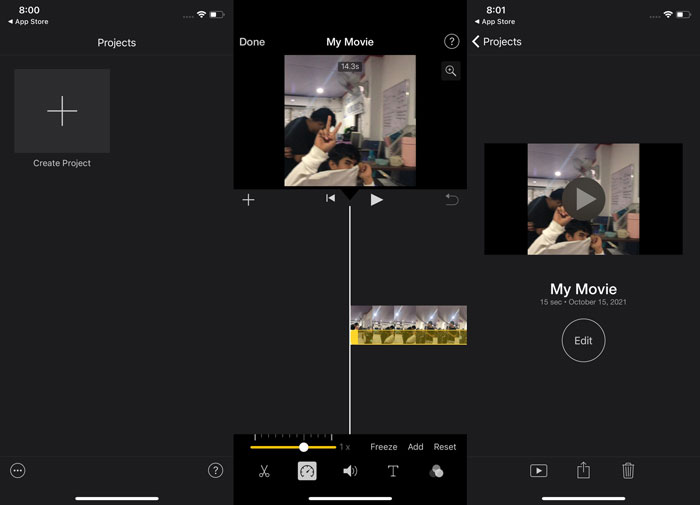
الخطوة 1: انتقل إلى متجر التطبيقات App Store على جهاز الآيفون أو الآيباد الخاص بك وحمّل تطبيق iMovie. عندما يظهر لك عرض عام للواجهة، اختر متابعة Continue. وعند وصولك إلى صفحة المشاريع Projects، اضغط على أيقونة علامة + لبدء مقطع فيديو جديد تمامًا. تابع عن طريق اختيار فيلم Movie في نافذة المشاريع الجديدة New Projects.
الخطوة 2: بعد اختيار فيديو من ألبوم الكاميرا لديك، انقر زر إنشاء فيلم Create Movie في أسفل الشاشة. اضغط على المخطط الزمني (Timeline) وانتظر حتى تظهر أدوات التحرير قبل استخدام أداة السرعة، والتي تبدو على شكل عداد سرعة. لتسريع الفيديو أو إبطائه، ما عليك سوى تحريك شريط التمرير Slider الأصفر في الأسفل. يمكنك تسريع الفيديو حتى ضعفي سرعته الأصلية أو إبطاؤه حتى ثُمن سرعته الأصلية.
الخطوة 3: عندما تنتهي، انتقل إلى الزاوية العلوية اليسرى من شاشة هاتفك واضغط على تم Done. لحفظ الفيديو النهائي، انتقل إلى قائمة مشاركة Share واختر المكان الذي تريد تخزينه فيه من بين الخيارات الظاهرة.
لمستخدمي ماك
الخطوة 1: في تطبيق iMovie على جهاز الـ Mac، حدّد مقطعًا في المخطط الزمني ثم غيّر سرعة هذا المقطع.
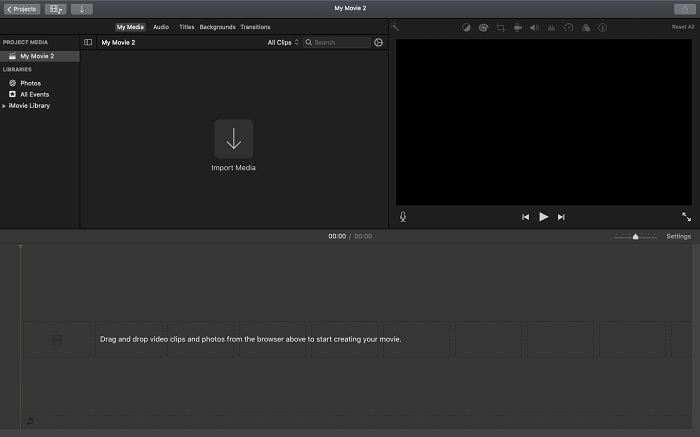
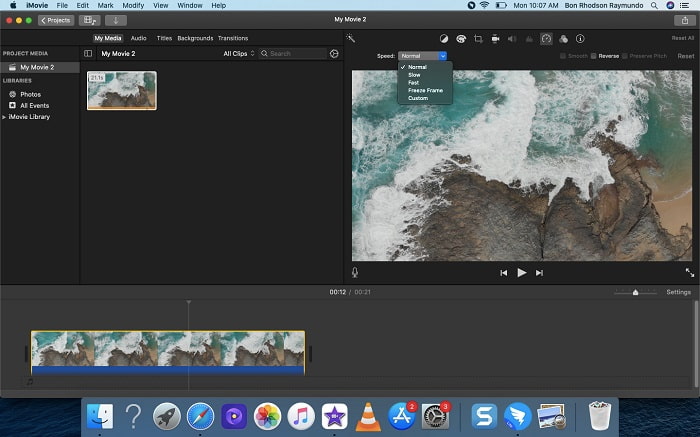
الخطوة 2: من خلال النقر على زر السرعة Speed في الجزء العلوي من الواجهة، يمكنك إظهار إعدادات السرعة. ما عليك سوى الاختيار بين سرعات بطيئة Slow وسريعة Fast من زر السرعة لضبط سرعة المقطع بدقة.
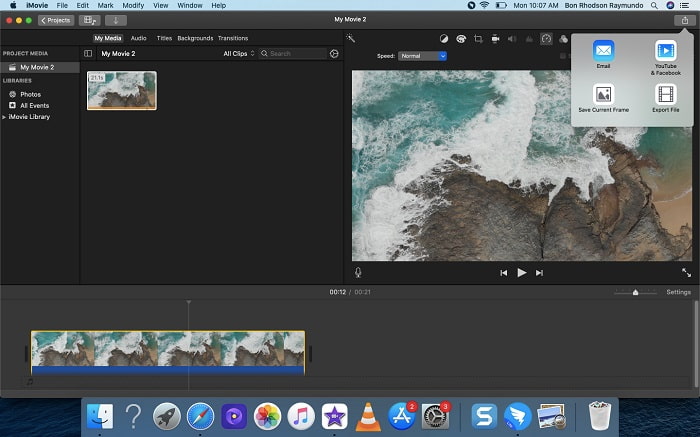
الخطوة 3: انقر على أيقونة الرفع Upload في الزاوية العلوية من الواجهة لتصدير الملف إلى سطح المكتب لديك.
الجزء 2. طريقة أخرى أسهل لتسريع الفيديو
استخدام الآيفون أو التطبيقات المتاحة عليه فقط كمحرّر لفيديوهاتك قد يكون صعبًا إذا كنت تريد تسريع معدل تشغيل الفيديو. سيكون Video Converter Ultimate أفضل خيار يمكنك التفكير فيه، لأنه سيسمح لك بتسريع الفيديو بشكل دائم. يمكنك ضبط سرعة تشغيل الفيديو باستخدام هذه الأداة التي يمكنك الحصول عليها مجانًا. يحتوي البرنامج على أدوات مميّزة مختلفة، من بينها متحكم سرعة الفيديو Video Speed Controller الذي يمكنه تسريع سرعة تشغيل الفيديو مع إخراج عالي الجودة وتحويل سريع جدًّا. لمعرفة المزيد من التفاصيل، إليك الخطوات التي يجب عليك اتباعها:
الخطوة 1: لحفظ البرنامج على جهاز الكمبيوتر، انقر تنزيل مجاني Free Download. بعد ذلك، قم بضبط البرنامج من خلال تثبيته.
تحميل مجانيلنظام Windows 7 أو أحدثتنزيل آمن
تحميل مجانيلنظام MacOS 10.7 أو أحدثتنزيل آمن
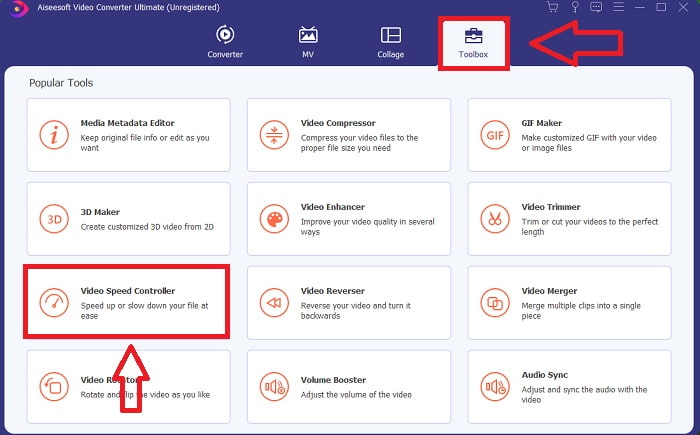
الخطوة 2: بعد تشغيل البرنامج لأول مرة بعد التثبيت، اختر ميزة صندوق الأدوات Toolbox ثم ميزة متحكم سرعة الفيديو Video Speed Controller.
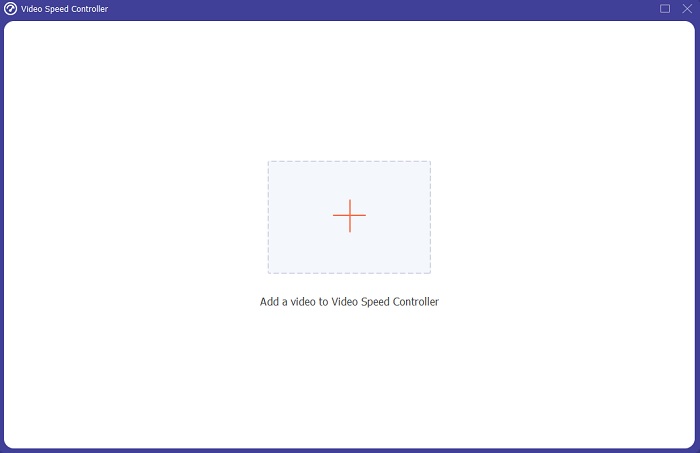
الخطوة 3: لبدء مرحلة التحرير، يمكنك الآن رفع ملف فيديو من جهاز الكمبيوتر الخاص بك عن طريق النقر على علامة + التي ستظهر بعد أن تتابع الضغط على أداة متحكم سرعة الفيديو Video Speed Controller.
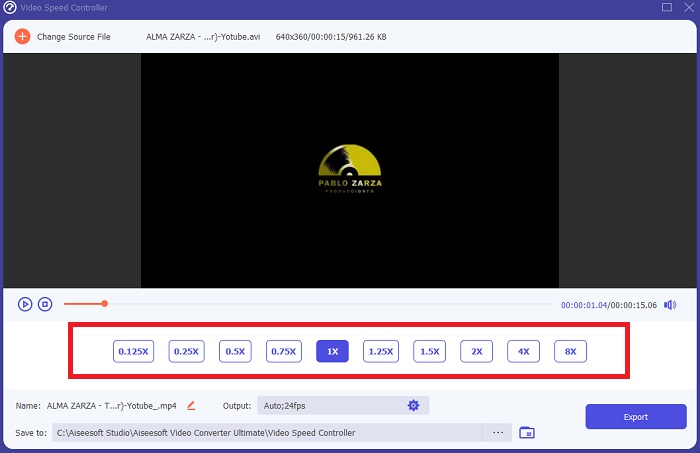
الخطوة 4: يمكنك الآن تسريع الفيديو بشكل أكبر مما يتيحه iMovie، لأن هذه الأداة ستمنحك خيارات لاختيار مدى سرعة معامل التسريع الذي ستطبّقه على الفيديو. يمكنك أيضًا تشغيل معاينة للفيديو بعد اختيار ضبط السرعة المفضّل لديك لتتأكد من أنه يرضيك.
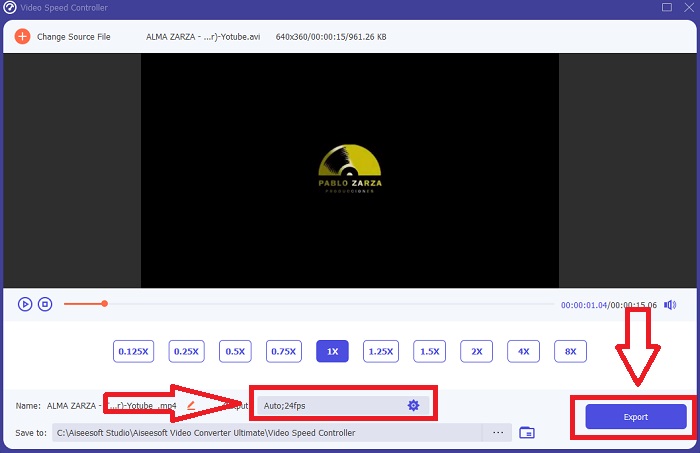
الخطوة 5: يمكنك اختيار المخرجات التي تريدها عن طريق تغيير الصيغة والدقة والجودة لمقطع الفيديو بعد انتهائك من ضبط سرعة التشغيل، وغيرها من الإعدادات. عندما تكون مستعدًا لحفظ عملك، اختر تصدير Export وعيّن موقع الحفظ.
مواضيع ذات صلة:
كيفية دمج مقاطع الفيديو على الآيفون
الجزء 3. أسئلة وأجوبة حول كيفية تسريع مقاطع الفيديو
ماذا لو أرسلت مقطع فيديو سريعًا واستقبلت مقطع فيديو بطيئًا لتقليل حجم الفيديو؟
لا ، فهو يؤثر فقط على عرض البيانات وليس كمية البيانات نفسها. ومع ذلك ، من الممكن تقليل حجم الفيديو بجعله يعمل بمعدل إطارات أقل. مع عدد أقل من الإطارات في الثانية ، فإنها تحافظ على نفس سرعة الصورة الأصلية. 60 إطارًا مقابل 30 إطارًا في الثانية لها تأثير كبير على حجم ملف الفيديو. بسبب الاختلافات من إطار إلى إطار التي يتم أخذها في الاعتبار أثناء تشفير الفيديو. قلل دقة الفيديو ، على سبيل المثال ، من 1080 بكسل إلى 720 بكسل لتقليل حجمه بشكل أكبر. سيتم تقليل حجم الملف بشكل كبير بسبب هذا.
ما هي خياراتك لتسريع تشغيل الفيديو على جهاز Mac؟
لزيادة سرعة التشغيل بمقدار مرتين أو أكثر (5 أو أكثر) ، انقر على زر التقديم أو الترجيع حتى يتم تشغيل الفيديو بالسرعة التي تريدها ، مثل 30 أو 60 مرة. أثناء تشغيل الفيديو ، يمكنك تغيير سرعة التشغيل بزيادات 1.1x عن طريق النقر مع الضغط على Option على زر التقديم أو الترجيع.
كيف يمكنني تغيير سرعة تشغيل الفيديو بشكل دائم؟
فكر في عدد الخطوات التي يتطلبها تغيير سرعة تشغيل الفيديوهات الخاصة بك. رغم أن أدوات الفيديو ومحررات الفيديو متاحة بسهولة على الإنترنت، فإنك ما زلت تبحث عن أفضل أداة لحل مشكلات سرعة التشغيل في مقطع الفيديو لديك. تتوفر العديد من الأدوات على الويب، بعضُها مجاني الاستخدام ولكن يحتاج إلى دفع لفتح جميع الميزات. يُعد Video Converter Ultimate برنامجًا مجانيًا لتسريع الفيديوهات، وهو أفضل خيار لجعل تغيير سرعة التشغيل في فيديوهاتك تغييرًا دائمًا.
خاتمة
ختامًا، يعد iMovie تطبيقًا رائعًا متوفرًا على أجهزة نظام iOS مثل الـ Mac والآيفون لحل مشكلة سرعة تشغيل الفيديو. فهو متاح لشريحة واسعة من المستخدمين، ومريح في الاستخدام، ومجاني. نعم، هو ممتاز في تحرير سرعة التشغيل؛ لكن ماذا عن العوامل الأساسية الأخرى في الفيديو؟ لهذا السبب نوصي باستخدام Video Converter Ultimate كأفضل برنامج لمعالجة سرعة تشغيل الفيديو؛ وليس هذا فحسب، بل يحتوي أيضًا على كثير من الميزات التي تساعدك على إنشاء فيديو مذهل لم تكن تتخيله.
-
 Android DVD Player - كيفية تشغيل مقاطع فيديو DVD على هواتف Android المحمولة
 كيف تلعب ملفات DVD على هواتف Android؟ هل هناك أي مشغلات Android DVD؟ في هذه المقالة ، ستتعرف على 3 طرق لتشغيل مقاطع فيديو DVD على هواتف Android المحمولة مع برنامج التشغيل الخارجي أو بدونه.
-
 أفضل 10 مشغلات MP4 مجانية على نظام Android لتشغيل مقاطع فيديو HD / 4K
 على الرغم من أن الهواتف المحمولة التي تعمل بنظام Android تحتوي على المشغلات الافتراضية لتشغيل مقاطع فيديو MP4 ، إلا أنها لا تدعم ضبط إعدادات التشغيل والوظائف الأخرى. وبالتالي ، يمكنك التعرف على أفضل 10 مشغلات Android MP4 من هذه المقالة.
-
 توقف Samsung Video Player: أفضل 5 مشغلات فيديو لـ Samsung
 عند تشغيل مقاطع الفيديو من خلال مشغل الفيديو الافتراضي من Samsung ، قد تجد أنه يتعطل دائمًا. للحصول على تجربة مشاهدة سلسة وأفضل ، يمكنك التعرف على أفضل 5 مشغلات فيديو لـ Samsung من هذه المقالة.
