


 محول الفيديو النهائي
 مسجل الشاشة
 إصلاح الفيديو
 تنزيل آمن
كيفية استيراد ملف HEIC في Lightroom على نظامي التشغيل Windows و Mac بشكل فعال
لنقل إنك مهتم بتحسين صورة HEIC أو تنظيمها. في هذه الحالة يمكنك استيراد ملف HEIC إلى Lightroom والقيام بكل عمليات الترتيب والتحرير بسهولة. يمكنك رفعه هنا بسهولة من دون تنزيل ترميز إضافي لعرض أو تعديل ملفات HEIC بهذا البرنامج. لذا إن كنت بحاجة إلى دليل يشرح لك كيفية استيراد ملف HEIC في هذا البرنامج، يمكنك قراءة واتباع طريقتي Windows وMac اللتين أدرجناهما في هذا المقال.
بدون مزيد من اللغط ، دعنا نقرأ التفاصيل التالية لمعرفة كيفية القيام بذلك ، وإذا فشل Lightroom في استيراد HEIC ، فهناك طريقة نضيفها هنا أيضًا. ولكن قبل أي شيء آخر ، يجب عليك تنزيل البرنامج على نظام التشغيل Windows أو Mac الخاص بك قبل قراءة التفاصيل التالية.

الجزء 1. كيفية استيراد HEIC إلى Lightroom على نظام Windows 10/11 أو تحديثه
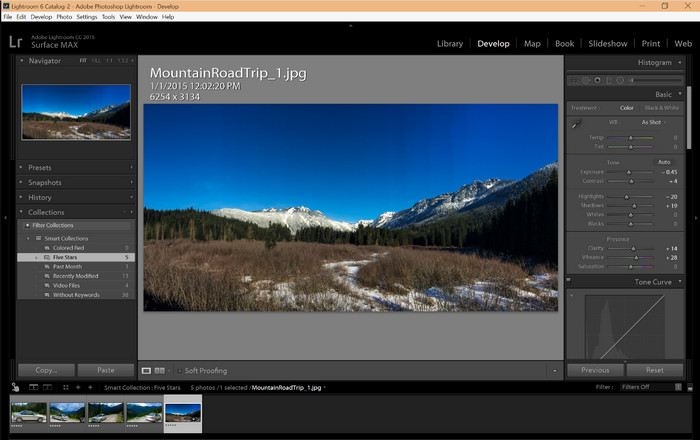
يدعم Lightroom إصدارًا محدثًا من Windows ؛ هذا الجزء مخصص لك إذا قمت بتنزيل البرنامج على نظام التشغيل Windows الخاص بك. لا داعي للقلق لأن Lightroom يمكنه فتح ملفات HEIC بسهولة باتباع البرنامج التعليمي أدناه.
الخطوة 1. قم بتنزيل البرنامج على نظام Windows 10/11، ثم ثبّته وافتحه للمتابعة.
الخطوة 2. عندما يعمل البرنامج على نظامك، انقر زر + ثم اضغط على Browse واختر ملف HEIC الذي تريد استيراده هنا.
الخطوة 3. بعد تحديدها، يمكنك الآن عرض ملفات HEIC باستخدام Lightroom على نظام Windows 10/11.
الجزء 2. كيفية فتح صورة HEIC في Lightroom على جهاز Mac 10.13 أو أعلى
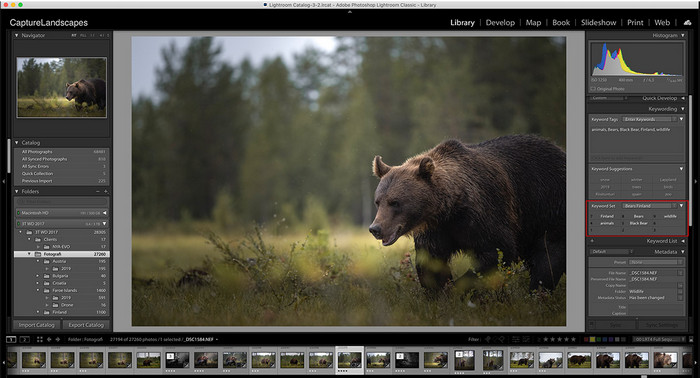
حتى بدون Lightroom ، يمكنك بسهولة عرض ملف HEIC ، خاصة إذا كان إصدار Mac الخاص بك هو High Sierra 10.13 أو الأحدث في Preview. على الرغم من أن المعاينة تدعم ميزات التحرير ، إلا أنه لا يكفي استخدامها للتحرير المعقد ، مثل ما يمكن أن يوفره لك Lightroom. أيضًا ، لن تحتاج إلى القلق بشأن ذلك لأن Lightroom يدعم ملفات HEIC لتحريرها أو تنظيمها على جهاز Mac الخاص بك.
الخطوة 1. ثبّت البرنامج على نظام macOS 10.13 أو أعلى؛ إذا كان إصدار نظام التشغيل أقل من ذلك، فتوقّع ألا يفتح البرنامج. بعد تنزيل Lightroom على جهازك المكتبي، يجب عليك الآن فتحه.
الخطوة 2. في الجزء العلوي ستجد قوائم مختلفة واسم Lightroom في الجهة العلوية اليسرى، ما يعني أن البرنامج مفتوح بالفعل. اضغط على قائمة File ثم انتقل إلى Add Photos، أو يمكنك استخدام اختصار لوحة المفاتيح بالضغط على Command + Shift + I.
الخطوة 3. ستظهر لك نافذة مجلد على الشاشة؛ اختر الصورة التي تريد استيرادها ثم انقر Review for Import.
الجزء 3. فشل Lightroom في استيراد ملف HEIC | أفضل حل لحل مشكلة HEIC غير المدعومة
واجه العديد من المستخدمين مشكلة في تحميل ملف HEIC بسبب التوافق مع برامج مثل Lightroom على Windows و Mac ؛ حتى بمساعدة الطرق المذكورة أعلاه ، لا يزال هذا مستحيلًا. ولكن لا داعي للشعور بالحزن لأن هناك طريقة لإجراء استيراد ملف HEIC الخاص بك على Lightroom عن طريق تحويل HEIC إلى JPG بمساعدة أفضل أداة على الويب.
يُعد FVC Free HEIC to JPG Converter الحل الذي يجب استخدامه لتحويل ملفات HEIC على نظامي Windows وMac من دون تنزيل أي برنامج. أداة الويب هذه يمكنها تحويل الصيغة غير المدعومة إلى صيغة قياسية مثل JPEG. بذلك يمكنك رفع الصورة إلى Lightroom بسهولة ومن دون مواجهة مشكلة الصيغة غير المدعومة. بالإضافة إلى تحويل HEIC إلى JPG، يمكنك أيضاً رفع عدة صور HEIC هنا وتحويلها كلها دفعة واحدة بدعم التحويل الجماعي. مذهل، أليس كذلك؟ هل تريد أن تعرف ما هو الأكثر إدهاشاً؟ يمكنك إجراء تحويل سريع مجاناً. إذا كنت تريد حل مشكلة الصيغة غير المدعومة التي تواجهها مع HEIC، فاتبع الخطوات الموضحة أدناه لمعرفة كيفية تحويل الصيغة.
خطوات سهلة حول كيفية تغيير تنسيق HEIC إلى JPG باستخدام أداة الويب:
الخطوة 1. افتح FVC Free HEIC to JPG Converter؛ من خلال النقر على هذا الرابط يمكنك فتح الموقع الرئيسي للمحوّل في محرك البحث المفضل لديك. لا داعي للقلق، فهو آمن للاستخدام ولا توجد إعلانات مزعجة في واجهة الويب.
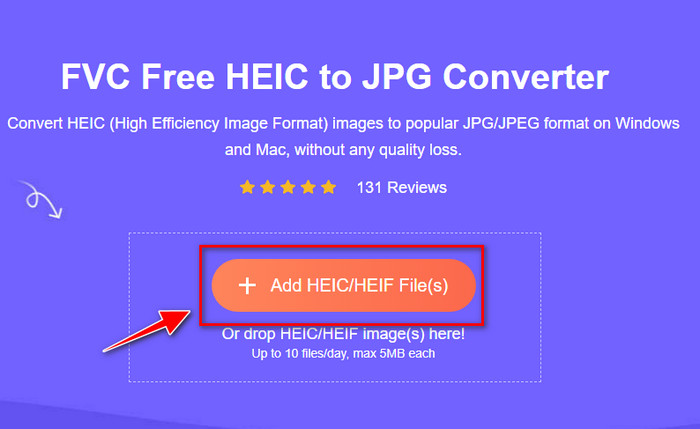
الخطوة 2. انقر على Add HEIC/HEIF Files لرفع صورة HEIC التي لا يستطيع Lightroom فتحها هنا. بدلاً من ذلك، يمكنك سحب وإفلات الملف هنا بدلاً من اختياره من مجلد الملفات.
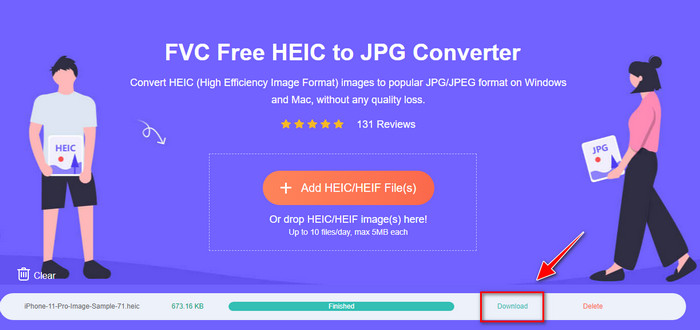
الخطوة 3. سيظهر زر Download عند اكتمال شريط التقدّم؛ انقر عليه لحفظ ملف HEIC المحوّل حديثاً على جهازك المكتبي. بعد ذلك يمكنك استيراد الملف إلى Lightroom من دون ظهور مربع حوار يخبرك بأن الملف غير مدعوم أو تالف.
الجزء 4. الأسئلة الشائعة حول استيراد HEIC في Lightroom
هل هناك أي قيود على استيراد ملفات HEIC على Lightroom؟
حتى هذه النقطة ، يمكنك استيراد ملفات HEIC على Lightroom بقدر ما تريد. ليس لديها أي قيود على تحميل هذا النوع من التنسيق على Lightroom.
هل Lightroom مجاني على نظامي التشغيل Windows و Mac؟
لسوء الحظ ، فإن Lightroom على نظامي التشغيل Windows و Mac ليس مجانيًا ، ولكن يمكنك تنزيله مجانًا على نظامي التشغيل Windows و Mac. على الرغم من أن البرنامج ليس مجانيًا ، إلا أنه يمكنك الاستفادة من استخدام الإصدار التجريبي المجاني الذي يدعمه لمدة 7 أيام. إذا كنت تشعر أنك ستحتاج إلى البرنامج لفترة طويلة ، يمكنك الاشتراك بعد الفترة التجريبية.
هل سيترك تصدير ملف HEIC على Lightroom علامة مائية؟
لحسن الحظ، لا يضيف Lightroom علامة مائية إلى الصورة التي ترفعها إليه. لكن يمكنك إضافة علامة مائية إذا رغبت في ذلك. لذلك، إذا كنت ستنشر الصورة على الإنترنت فننصحك بأن تضيف علامة مائية إليها حتى تكون محمية من الأشخاص الذين قد يحاولون سرقتها.
أيهما أفضل لتحرير الصور؟ فوتوشوب أم لايت روم؟
يعتمد على مطالبك ؛ بمساعدة محرر Adobe Photoshop و Lightroom ، يمكنك بسهولة تحسين صورتك في المظهر. لنفترض أنك تريد محرر صور سهل الاستخدام. في هذه الحالة ، يعد Lightroom خيارًا يجب عليك اختياره لأنه أفضل محرر صور لتحسين الصورة التي لديك. ولكن إذا كنت تريد إجراء تحرير أكثر تفصيلاً للصور ، فإن Photoshop هو المحرر الذي يناسب احتياجات كل محرر محترف.
خاتمة
بمساعدة Lightroom ، يمكنك بسهولة تعديل الصورة التي لديك أو تنظيمها وفقًا لذلك لجعلها تبدو أنيقة. لذلك ، إذا كنت ترغب في استيراد ملف HEIC على Lightroom ، فيمكنك اتباع الخطوات التي نضيفها سواء كنت من مستخدمي Windows أو Mac. ولكن إذا واجهت مشكلة في استيراد ملف HEIC ، فاقرأ الجزء الثالث أثناء حله لجعله متوافقًا مع Lightroom. يمكنك الآن المضي قدما في تحريره. نأمل أن تعطيك هذه الكتابة فكرة عن كيفية استيراد الملف ؛ إذا كانت لديك اقتراحات أو توصيات أخرى ، يمكنك ترك رسالة لنا.
-
 محول iMazing HEIC | الوظائف والإيجابيات والسلبيات وكيفية استخدامها
 ستستعرض هذه المقالة قدرة محول iMazing HEIC وبدائلها ، لذا إذا كنت تريد معرفة المزيد عنها ، فاقرأ هذا بحذر
-
 3 أسهل طرق لتحويل HEIC إلى JPG على iPhone مثل الخبراء
 ليس لديك أي فكرة عن كيفية تغيير HEIC إلى JPG على iPhone؟ إذا كنت أحد المستخدمين الذين لديهم مشكلة مع HEIC ، فاقرأ هذا.
-
 لماذا تكون صوري على iPhone بتنسيق HEIC [الأسباب وكيفية حلها]
 هل تريد أن تعرف لماذا صوري على iPhone بصيغة HEIC؟ تقدم هذه المقالة أدلة موثوقة على ما يجعل HEIC الأفضل.
