


 محول الفيديو النهائي
 مسجل الشاشة
 إصلاح الفيديو
 تنزيل آمن
كيفية تحويل WAV إلى MP3 باستخدام أفضل 5 محولات مجانية
WAV ، باعتباره التنسيق الرئيسي المستخدم في أنظمة Windows للصوت والأقراص المدمجة الخام وغير المضغوطة ، هو حجم كبير. على طرفي WAV ، MP3 مضغوط وصغير الحجم. علاوة على ذلك ، فهو مقبول أكثر من WAV في البث المباشر أو اللاعبين الآخرين.
مع وضع ذلك في الاعتبار ، أنت أتيت إلى المكان الصحيح.
هذه الصفحة عبارة عن دليل مفصل لتحويل WAV إلى MP3 باستخدام أفضل 5 محولات مجانية.

الجزء 1. تحويل مجاني WAV إلى MP3 عبر الإنترنت
There are many converter programs available and the top 1 in the list is Free Audio Converter. It is the online tool to change WAV to MP3. Compared with other online WAV to MP3 converters, this freeware is 100% free without any ads on Windows and Mac computer. You can benefit from this WAV to MP3 converting software as follows:
- 1. تحويل WAV إلى MP3 بدون حدود الحجم أو العدد.
- 2. تحويل مجاني WAV إلى MP3 بدون تسجيل.
- 3. تغيير الدفعة WAV إلى MP3 لتوفير وقتك.
- 4. ضبط معدل البت لضغط حجم ملف الإخراج.
- 5. استخراج صوت الخلفية من أشرطة فيديو يوتيوب والأفلام الأخرى.
خطوات تحويل WAV إلى MP4 سهلة للغاية.
Step 1. Open this site on your computer. Click Add Files to Convert and download and install a converter launcher, which can combine the whole conversion with the downloading process.
قم بتنزيل إصدار سطح المكتب لتحويل الملفات دفعة واحدة.
Step 2. After the successful installation, the Open dialog will pop up and you should select the WAV file or files on your computer to add to this freeware.
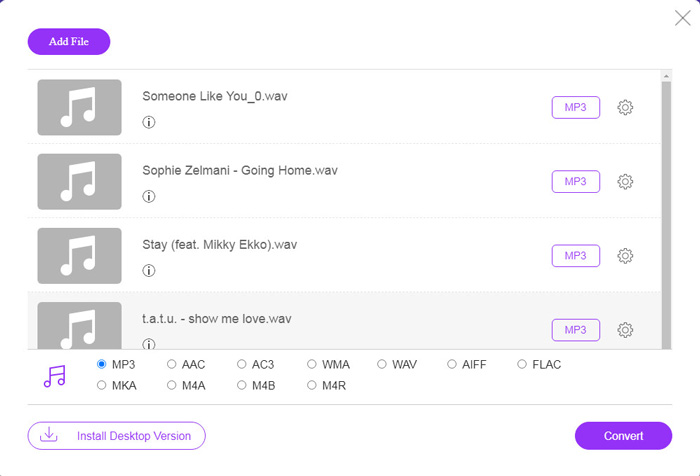
Step 3. Select the checkbox of MP3 at the bottom as the output format, and click Convert to choose the destination path for saving the converted MP3 files. And click Convert again to start converting WAV to MP3 online.
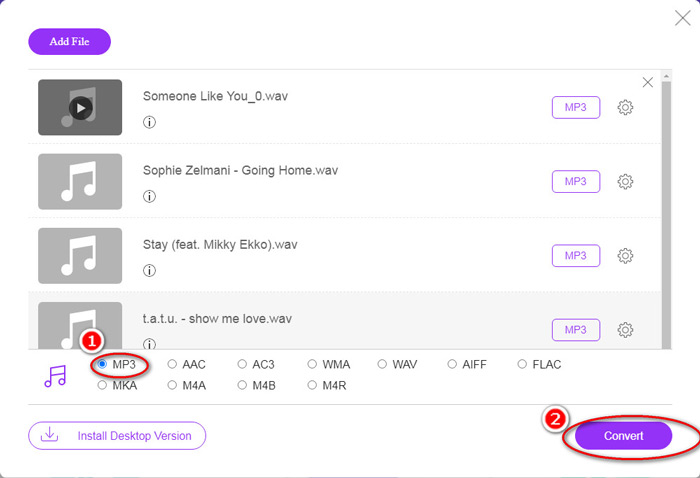
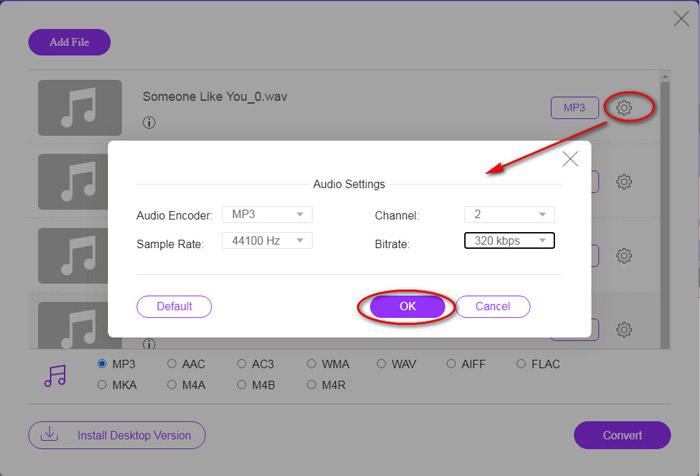
إذا كنت تريد ضغط ملف MP3 ، فما عليك سوى النقر فوق رمز الترس وضبط قيمة معدل البت من 96 إلى 320 كيلو بت في الثانية.
The added bonus of this method is that you can convert video to MP3 to extract any background music freely.
الجزء 2. تحويل مجاني WAV إلى MP3 في iTunes
iTunes هو برنامج مجاني آخر لتحويل WAV إلى MP3. باستخدام هذا البرنامج ، يمكنك بسهولة تحويل WAV إلى MP3 و AAC و AIFF و Apple Lossless. على العكس من ذلك ، يمكنه تحويل ملفات MP3 و AAC و AIFF وما إلى ذلك إلى WAV.
اتبع الخطوات البسيطة المذكورة أدناه للمعرفة.
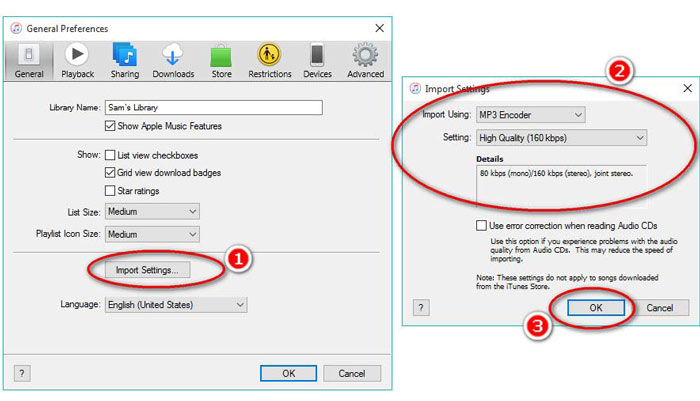
Step 1. Run iTunes on Windows or Mac computer. Click Edit in the menu to select Preferences. Click Import Settings to make the output MP3 settings.
Select MP3 Encoder from the Import Using drop-down option.
Select MP3 quality from Settings drop-down option (from 16 to 320 kbps).
Click OK to save and close the settings.
Step 2. Drag and drop the WAV files into iTunes Library. Select the WAV song or songs that you want to convert to MP3, choose File in the menu, select Convert, then Create MP3 Version.
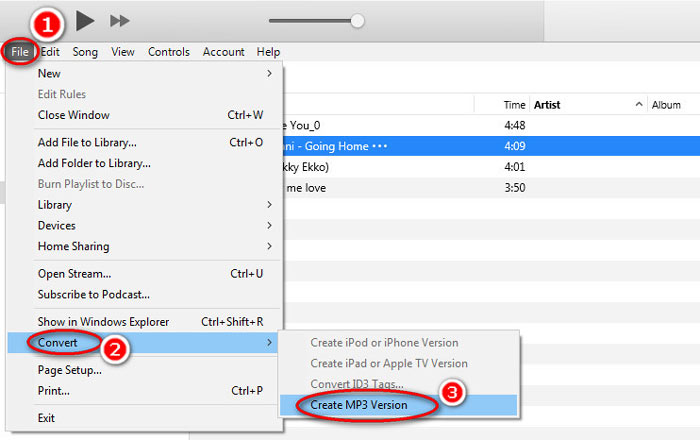
That’s it! New MP3 song files appear in your library next to the original WAV files. You can tell the two versions apart by right-clicking the file and selecting Get Info.
Step 3. Then you can copy the created MP3 songs (Right-click the songs and select Copy) in iTunes Library and paste them in other places on your computer.
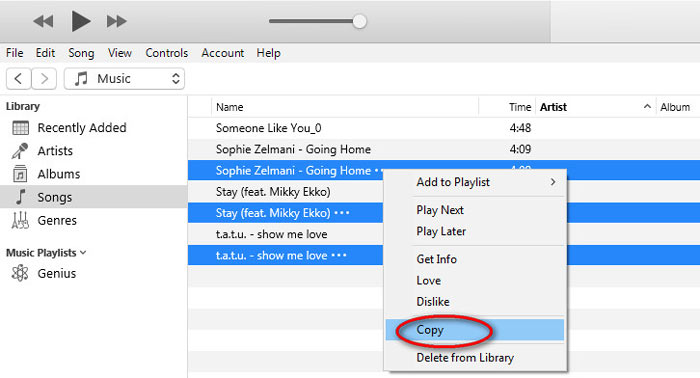
من المهم أن تتذكر أن iTunes لا يتعامل مع أي ملفات موسيقية ذات حقوق نسخ.
الجزء 3. قم بتحويل WAV إلى MP3 مجانًا عبر Windows Media Player
Windows Media Player ، باعتباره المشغل المضمن على كمبيوتر يعمل بنظام Windows ، يمكنه فتح ملفات WAV مباشرة. هنا ، يقوم بتحويل MP3. بصرف النظر عن تحويل WAV إلى MP3 ، فإنه يدعم أيضًا الأقراص المضغوطة التي تحتوي على تحويل صوت WAV إلى MP3.
إليك كيفية البدء:
Step 1. Run Windows Media Player on your computer, locate the WAV files you loaded on the sidebar. Click Organize from the left panel of the screen and follow Options.
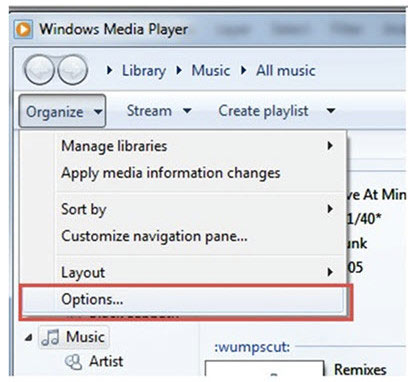
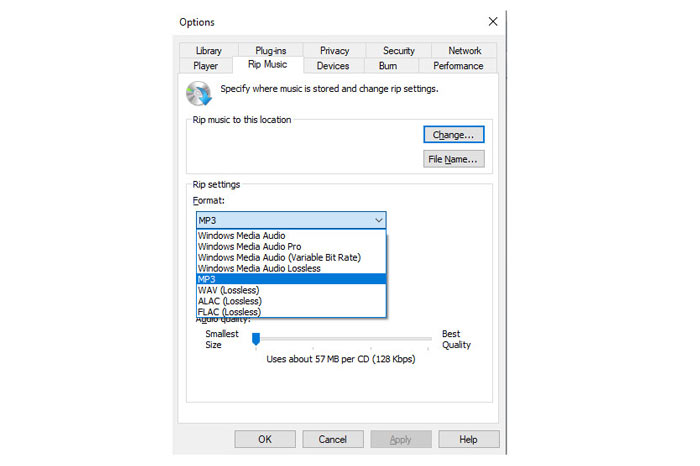
Step 2. Navigate the Rip Music tab, and select MP3 under Format in the Rip settings section.
Step 3. Optionally, adjust the audio quality and click Apply to start turning WAV to MP3.
Then Windows Media Player will start the conversion and the converted MP3 files will be saved as the location specified in the Rip music to this location menu within the Rip Music tab.
There’s only one caveat: This method of making WAV to MP3 is only available for Windows 10/8/7 users because Windows Media Player is only working on Windows computer.
الجزء 4. تحويل مجاني WAV إلى MP3 باستخدام VLC
VLC ، ربما كنت تستخدمه كمشغل وسائط لفتح ملفات WAV. ومع ذلك ، يمكن أن يعمل أيضًا كمحول WAV مثل Windows Media Player. تختلف خطوات تحويل WAV إلى MP3 عن تلك الموجودة في Windows Media Player.
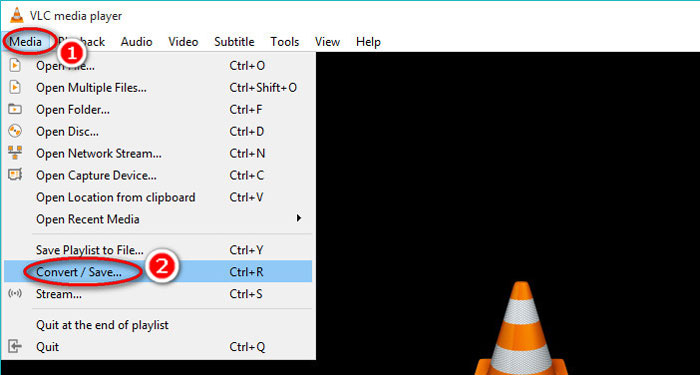
Step 1. Run VLC on your computer, and find Media in the menu at the top, and select Convert / Save to launch the Open Media window.
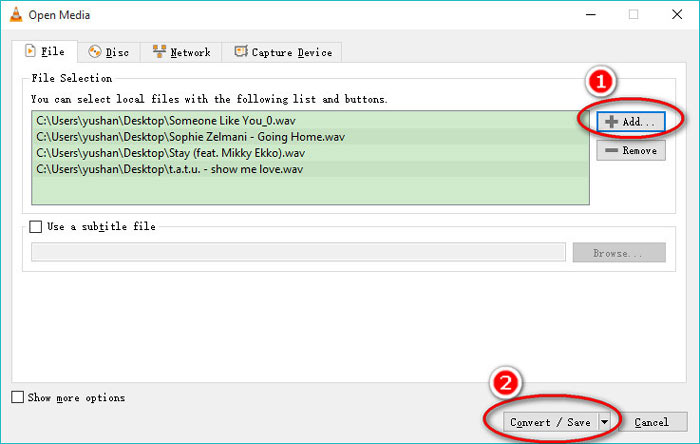
Step 2. In the Open Media window, click the Add to import the WAV files you want to transfer to MP3. Click Convert/Save to continue.
Step 3. Click on the down arrow next to Profile to select MP3 as the output file.
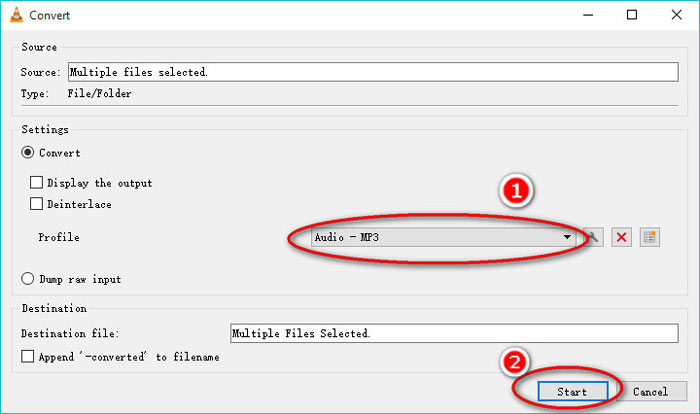
While using VLC, you are also allowed to convert audio to Vorbig (OGG), FLAC, and CD. You can find the converted MP3 files are in the same folder as the original WAV files.
To be clear: Though VLC can be used on a computer and mobile phone, the conversion feature is only for computer users, and you cannot convert WAV to MP3 on iPhone or Android phone.
الجزء 5. تحويل مجاني WAV إلى MP3 مع الجرأة
Audacity هو برنامج تحرير صوت مجاني يجب أن تكون على دراية به. إلى جانب ميزات التحرير القوية ، يمكن أن تساعدك Audacity أيضًا في تصدير WAV إلى MP3.
دعونا نبسط العملية.
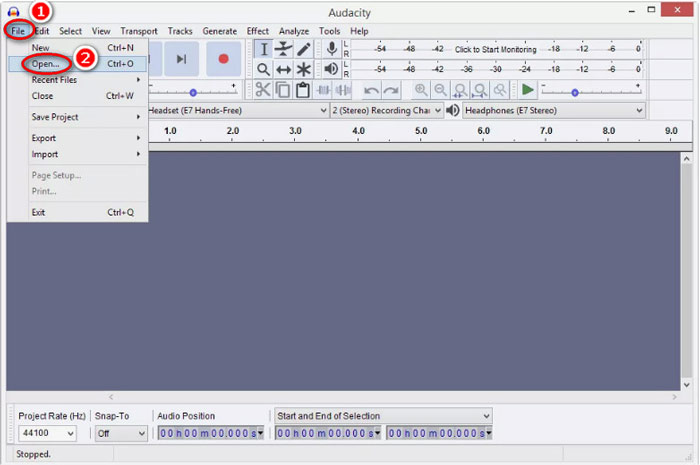
Step 1. Download Audacity on your Windows or Mac computer. Go to File menu at the top, and select Open to select the WAV file stored on your computer.
Step 2. Again, click File, select Export and Export as MP3.
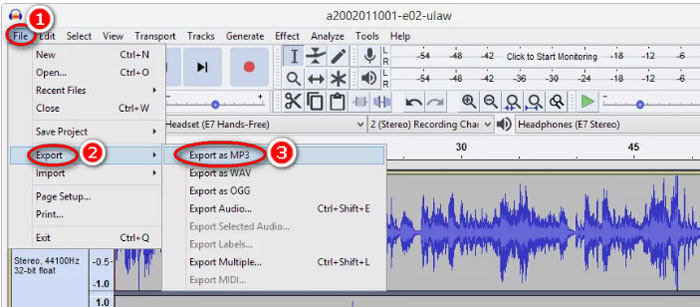
Step 3. Select the location to save the converted MP3 file, edit the metadata tags optionally, and click OK to start changing WAV to MP3.
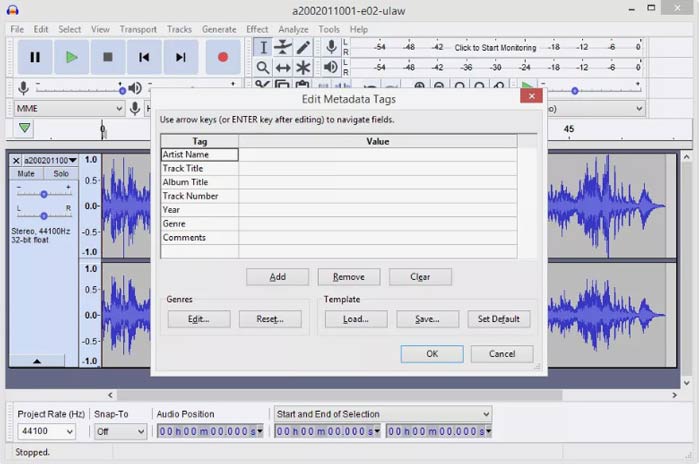
هناك شيء واحد يجب أن تلاحظه هو أن Audacity لا يسمح بتحويل الدُفعات ، وعليك تحويل WAV إلى MP3 واحدًا تلو الآخر.
WAV مقابل MP3
يعتمد WAV ، المعروف أيضًا باسم تنسيق WAVE ، على تنسيق ملف تبادل الموارد (RIFF). تم تطويره بواسطة Microsoft و IBM معًا في أوائل التسعينيات. إنه خيار لحفظ الصوت الخام غير المضغوط في Microsoft Windows. وبالتالي ، غالبًا ما يتم تشغيل ملفات WAV على أجهزة كمبيوتر Windows.
تم إصدار تنسيق MP3 في 1993 بواسطة Moving Picture Experts Group (MPEG). كان معيارًا لتخزين الموسيقى حيث يمكنه ضغط الصوت إلى حجم أصغر بكثير من التنسيقات غير المضغوطة الأخرى. لا يزال يستخدم على نطاق واسع في الوقت الحاضر ، خاصة لتوزيع الصوت عبر الإنترنت.
الجزء 6. أسئلة وأجوبة حول تحويل WAV إلى MP3
WAV VS MP3 ، أيهما أفضل؟
The better one depends on what you need.
1. In the terms of file size, WAV is a larger size than MP3.
2. In the terms of audio quality, WAV is lossless and uncompressed while MP3 is a lossy format, and WAV carries a better audio quality than MP3.
3. Considering the compatibility, MP3 is widely used on streaming services and players, while WAV is mainly used on the Windows system and CDs.
هل يؤدي تحويل WAV إلى MP3 إلى فقدان الجودة؟
نعم. أثناء تحويل ملف WAV غير المفقود إلى ملف MP3 مع فقدان الجودة ، سيفقد الجودة.
هل يمكنك سماع الفرق بين MP3 و WAV؟
إذا قارنت ملف MP3 منخفض معدل البت مع ملف WAV عالي معدل البت ، يمكنك سماع اختلاف طفيف. ومع ذلك ، بمجرد الاستماع إلى ملف MP3 عالي معدل البت وملف WAV منخفض معدل البت ، قد لا تحصل على فرق في أذنيك.
هل يجب علي تحميل ملفات MP3 أو WAV على YouTube؟
يوصى باستخدام WAV لتحميل YouTube. لأنه بعد تحميل ملف فيديو أو ملف صوتي على YouTube ، سيقوم بضغط الملف الذي تم تحميله مرة أخرى. لضمان أفضل جودة صوت ، يوصى باستخدام WAV بدون فقدان مقارنة بـ MP3.
خاتمة
كل من WAV و MP3 هي ملفات الصوت التي تقابلها بشكل متكرر. نظرًا لحجم WAV الكبير والتوافق الأقل شيوعًا ، يرغب الكثير منكم في تحويل WAV إلى MP3. تجمع هذه الصفحة أفضل 5 محولات مجانية من WAV إلى MP3 لمساعدتك في تحويل WAV إلى MP3 على الكمبيوتر.
ما هو محول WAV إلى MP3 المجاني من هذه القائمة الذي ستجربه أولاً؟
هل تريد تحويل مجاني عبر الإنترنت؟
أو ربما تريد تحويل WAV إلى MP3 على Windows Media Player؟
في كلتا الحالتين ، اسمحوا لي أن أعرف في قسم التعليقات أدناه.
-
 كيف يمكنني تحويل MP4 إلى WAV عبر الإنترنت مجانًا
 هل تحاول جاهدة تحويل MP4 إلى WAV؟ لا تعرف أي محول يمكنه مساعدتك في ذلك تمامًا دون دفع فلس واحد؟ اقرأ هذا المنشور وسيتم الرد على جميع أسئلتك.
-
 كيفية تحويل MP3 إلى MP4 بالصور على نظامي التشغيل Windows 10 و Mac
 كيفية تحويل MP3 إلى MP4 بجودة عالية؟ يعرض هذا المنشور 3 طرق فعالة ومجانية لتغيير MP3 إلى MP4 بالصور على Windows و Mac.
-
 من 50 ميجابايت إلى 5 ميجابايت - كيفية ضغط ملف MP4 في ثوانٍ
 هل فيديو MP4 كبير جدًا بحيث لا يمكن تحميله؟ تريد تصغير حجم الفيديو؟ فيما يلي 3 طرق فعالة لضغط ملف MP4 إلى حجم أصغر بلا حدود.

