


 محول الفيديو النهائي
 مسجل الشاشة
 إصلاح الفيديو
 تنزيل آمن
3 طرق لتشغيل ملفات MKV في Windows Media Player
لا يمكنك فتح ملف MKV في ويندوز ميديا بلاير؟
يُعد MKV أحد تنسيقات الفيديو الشائعة. قد تحصل على الكثير من الأفلام عالية الجودة، والمسلسلات التلفزيونية أو غيرها من مقاطع الفيديو المحفوظة بصيغة MKV. ولكن، بوصفك مستخدمًا لنظام ويندوز، فإن مشغّل الفيديو الافتراضي، Windows Media Player، لا يدعم أصلًا تفكيك (فتح) حاويات MKV. الآن نعود إلى السؤال: كيف يمكن تشغيل ملفات MKV في Windows Media Center؟

حتى بعد ترقية Windows Media Player إلى أحدث إصدار ، ليس هناك ما يضمن أنك لن تواجه مشاكل تشغيل MKV. بالنظر إلى ذلك ، يحب هذا المنشور مشاركة 3 طرق فعالة لمساعدتك في تشغيل ملفات MKV على جهاز الكمبيوتر الذي يعمل بنظام Windows.
الجزء 1. كيفية فتح ملف MKV في برنامج Windows Media Player
لا يستطيع Windows Media Player تشغيل ملفات MKV أساسًا بسبب عدم توافق برنامج الترميز (الكودك). عليك أن تعرف أن MKV في الحقيقة هو حاوية وسائط تضم تدفقات فيديو وصوت وترجمات وغير ذلك. تحتاج إلى تزويد WMP بالمقسِّم المناسب لملفات MKV، وكذلك ببرامج الترميز والفلاتر الخاصة بملفات الفيديو والصوت. هذا الجزء سيوجهك إلى كيفية تشغيل ملف MKV في Windows Media Player.
الخطوة 1: افتح Windows Media Player وافتح ملف MKV به. يمكنك أيضًا النقر بزر الماوس الأيمن على ملف MKV ثم اختيار الفتح باستخدام WMP.
الخطوة 2: ستظهر الآن رسالة خطأ مفادها أن Windows Media Player لا يمكنه تشغيل الملف. انقر على خيار Web Help في مربع الحوار.
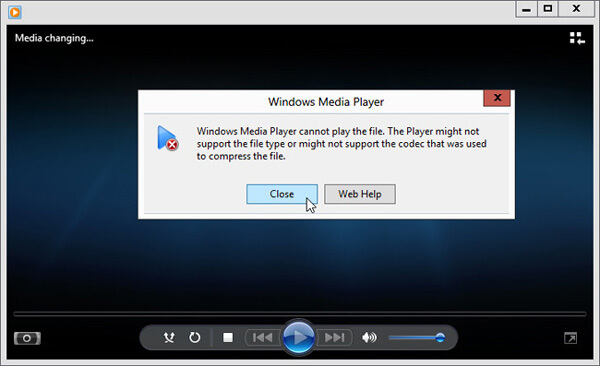
الخطوة 3: انقر على رابط برنامج الترميز (codec link) تحت عبارة Codec is Missing. انسخ الرابط والصقه في متصفحك. سيُرشدك ذلك للحصول على كودك MKV المناسب لـ Windows Media Player. بعد التنزيل، عليك اتباع التعليمات لإكمال عملية إعداد كودك MKV في Windows Media Player.
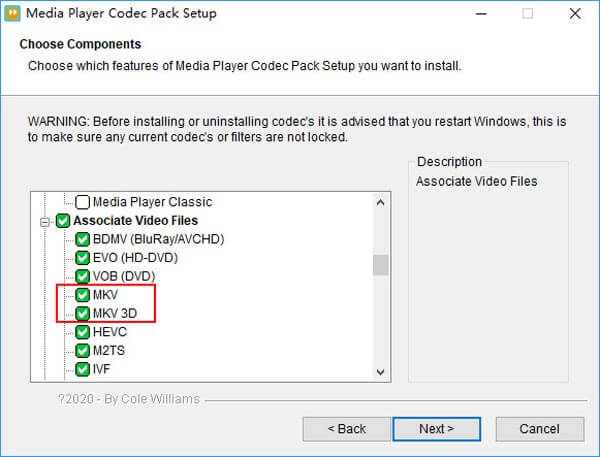
الخطوة 4: أعد تشغيل Windows Media Player ثم حاول تشغيل ملف MKV مرة أخرى.

الجزء 2. طريقة أفضل لتشغيل ملفات MKV في برنامج Windows Media Player البديل
باستخدام برنامج ترميز MKV الصحيح ، يمكنك فتح ملف MKV بسهولة في Windows Media Player. ومع ذلك ، أبلغ العديد من المستخدمين أنه لا تزال هناك بعض مشكلات التشغيل الأخرى أثناء تشغيل MKV مع WMP. في هذه الحالة ، يمكنك اختيار بديل Windows Media Player لمساعدتك في تشغيل ملفات MKV.
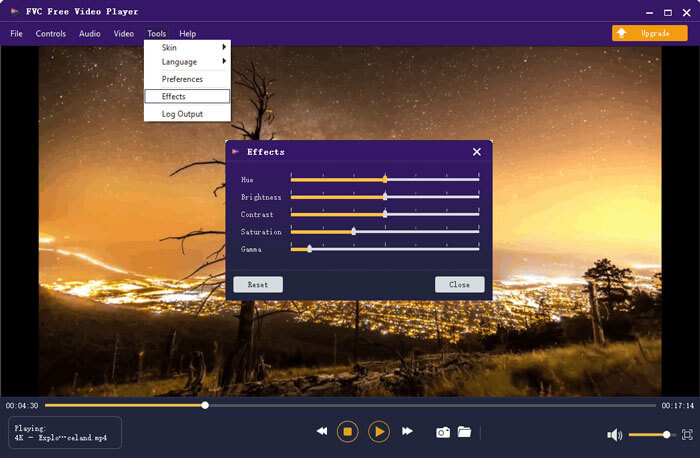
FVC Free MKV Player هو أداة بديلة ممتازة لبرنامج Windows Media Player. فهو يدعم بشكل أصيل جميع تنسيقات الفيديو والصوت الشائعة الاستخدام، مثل MKV وMOV وMP4 وFLV وAVI وRMVB وMPEG وAAC وMP3 وM4A وWMA وغيرها. يمكنك الاعتماد عليه لمشاهدة أفلام MKV بجودة عالية.

الخطوة 1: افتح متصفحك وانتقل إلى موقع مشغّل MKV المجاني هذا. انقر على زر Play Now لتثبيت ملف تشغيل صغير الحجم لتشغيل ملفات MKV. بعد ذلك ستظهر نافذة التشغيل الرئيسية لملفات MKV على الشاشة.

الخطوة 2: انقر على زر Open File لاستعراض ملف MKV الخاص بك واستيراده إلى المشغّل. بعد ذلك سيتم تشغيل الفيديو تلقائيًا. بفضل اعتماد تقنيات ترميز الفيديو المتقدمة، يمكنه تشغيل ملفات MKV بسلاسة وبجودة عالية. إضافة إلى ذلك، فهو يدعم DTS-HD وDolby TrueHD.

يتم منحك جميع عناصر التحكم في تشغيل MKV. إلى جانب العمليات الأساسية مثل التشغيل ، والإيقاف المؤقت ، والإرجاع ، والأمام ، وضبط مستوى الصوت والمزيد ، فإنه يسمح لك أيضًا بضبط التأثيرات ، وتغيير المسار الصوتي والعنوان الفرعي ، وتخصيص الإعدادات الأخرى.
الجزء 3. تحويل MKV للتشغيل على Windows Media Player
لتشغيل ملف MKV في Windows Media Player، يمكنك أيضًا اختيار تحويل ملف MKV إلى تنسيق فيديو مدعوم مثل MP4. هنا نعرّفك على أداة Free Online Video Converter لمساعدتك على تحويل MKV إلى MP4 بدون فقدان للجودة.
الخطوة 1: انتقل إلى صفحة محوّل MKV إلى MP4 المجاني على الإنترنت من خلال متصفحك. وهو متوافق مع أي متصفح ويب شائع بما في ذلك Chrome وIE وSafari وFirefox.
الخطوة 2: عند وصولك إلى الصفحة، انقر على زر Add File to Convert. في هذه الخطوة تحتاج إلى تثبيت مشغِّل صغير لعملية تحويل MKV. بعد ذلك ستظهر نافذة منبثقة على الشاشة لتتمكن من اختيار ملف MKV الخاص بك.
الخطوة 3: سترى العديد من تنسيقات الفيديو الشائعة مثل MP4 وMOV وAVI وMKV وFLV وغيرها مدرجة هناك. تأكد من أن صيغة الإخراج هي MP4 ثم انقر على زر Convert.
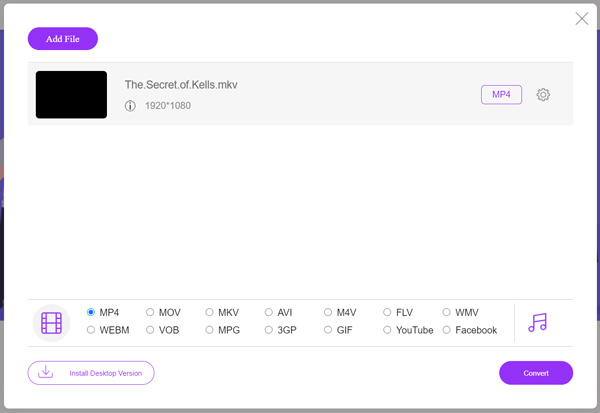
بعد تحويل MKV إلى MP4 يمكنك تشغيله باستخدام Windows Media Player. لن يحدث أي فقدان في جودة الصورة أو الصوت أثناء عملية التحويل.
الجزء 4. الأسئلة الشائعة حول تشغيل MKV في Windows Media Player
السؤال 1. كيف يمكنني تغيير تنسيق الفيديو على Windows Media Player؟
افتح Windows Media Player وقم بتحميل ملف الفيديو الذي تريد تحويله. انقر فوق السهم الصغير الموجود أسفل علامة التبويب Rip في القائمة العلوية. حدد المزيد من الخيارات ثم انقر فوق القائمة المنسدلة المسماة تنسيق. هنا يمكنك اختيار تنسيق إخراج مناسب وبدء التحويل.
السؤال 2. ما تنسيق الفيديو هو Windows Media Player؟
تنسيق الملف الافتراضي لبرنامج Windows Media Player هو WMV و Windows Media Video و WMA و Windows Media Audio. كما أنه يدعم تنسيق الأنظمة المتقدم وتنسيق قائمة التشغيل الخاص به المستند إلى XML ، قائمة تشغيل Windows.
السؤال 3. هل يمكن لنظام التشغيل Windows 10 تشغيل ملفات MKV؟
لا ، لا يمكن لبرنامج Windows Media Player 12 المدمج في نظام التشغيل Windows 10 تشغيل ملفات MKV. تحتاج إلى تثبيت برنامج ترميز MKV للحصول على التشغيل.
خاتمة
عندما لا يتمكن Windows Media Player من فهم كودك MKV، فإنه يكتفي بعرض رسالة خطأ. لتشغيل ملف MKV في Windows Media Player، تحتاج إلى تثبيت برنامج الترميز الصحيح. كما يمكنك استخدام مشغّل خارجي آخر أو تحويل صيغة MKV من أجل التشغيل. إذا كانت لا تزال لديك أي أسئلة حول كيفية فتح ملف MKV في Windows Media Player، فلا تتردد في ترك رسالة لنا.
-
 أفضل 8 مشغلات MKV لتشغيل ملفات MKV مع الترجمة المرغوبة
 عندما تريد تشغيل فيديو MKV بالترجمة المرغوبة ، يمكنك معرفة المزيد حول أفضل 8 مشغلات ملفات MKV للكمبيوتر الشخصي / Mac واختيار الملف المطلوب وفقًا لمتطلباتك.
-
 MKV to MOV - كيفية تحويل MKV إلى MOV
 كيف أقوم بتحويل MKV إلى MOV على نظام Mac؟ هل يستطيع موفي قراءة MKV؟ ماذا يعني تنسيق MOV؟ يوضح هذا المنشور طريقتين بسيطتين لمساعدتك في تحويل MKV إلى MOV باستخدام محولات الفيديو الاحترافية عبر الإنترنت مجانًا.
-
 AC3 Player - مراجعة أفضل 10 لاعبي AC3 مجانيين لعام 2021
 ما هو أفضل لاعب AC3؟ هل يستطيع MX Player فتح AC3؟ يقدم هذا المنشور قائمة بـ 10 مشغلات مجانية لـ AC3 لأجهزة Mac و Windows PC و iOS و Android.
