


 محول الفيديو النهائي
 مسجل الشاشة
 إصلاح الفيديو
 تنزيل آمن
تعديل ملفات M4A لنظامي التشغيل Windows وmacOS وعبر الإنترنت والهواتف المحمولة
نظرًا لأن ملف M4A ليس مصممًا لجميع الأجهزة، فإن العديد من محرري الصوت يواجهون صعوبة في التعامل مع هذا التنسيق، مما يجعل من الصعب على المستخدمين تعديله. في الأساس، يدعم معظم الأجهزة تنسيق M4A، وهو يعمل بخفة أكبر على أجهزتك لأنه مضغوط، مما يضمن حجمًا أصغر، ومع ذلك يوفر جودة صوت مقبولة. لا تقلق، إذ إن تعديل ملفات M4A لا يزال ممكنًا باستخدام أدوات البرامج التي اخترناها بعناية لأجهزة Windows وmacOS، بالإضافة إلى الأدوات الإلكترونية لمتصفحات الويب والتطبيقات المحمولة.

الجزء 1. تحرير ملفات M4A على أنظمة التشغيل Windows 11/10/8/7 وmacOS
1. محرر M4A الكل في واحد
يُعَدّ Video Converter Ultimate المختار من FVC محرر M4A متعدد الاستخدامات وسهل الاستعمال. إنه أداة برمجية ويُعتبر محرر M4A شامل الكل في واحد، إذ يضم مزايا مثل أداة قص M4A، الدمج، الضغط، إزالة الضوضاء، معزز الصوت، وغير ذلك. وبفضل عمله كمحرر صوت وفيديو مع واجهة بسيطة، يُعَدّ برنامجًا مميزًا لكلٍّ من أجهزة Windows وMac. ولمساعدتك على البدء باستخدام محرر M4A الشامل، إليك دليلًا سريعًا لتتمكن من استخدام البرنامج بفاعلية.
الخطوة 1. نزِّل وثبِّت برنامج Video Converter Ultimate المختار من FVC على جهاز سطح المكتب لديك.
تحميل مجانيلنظام Windows 7 أو أحدثتنزيل آمن
تحميل مجانيلنظام MacOS 10.7 أو أحدثتنزيل آمن
الخطوة 2. في واجهة الأداة، انقر زر Add Files لإضافة ملف M4A الخاص بك إلى البرنامج.
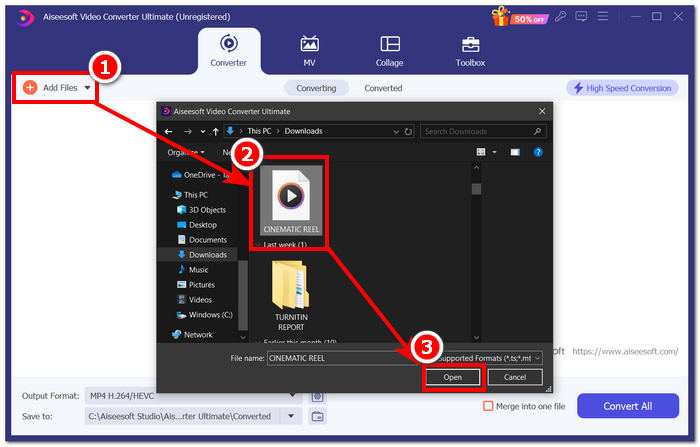
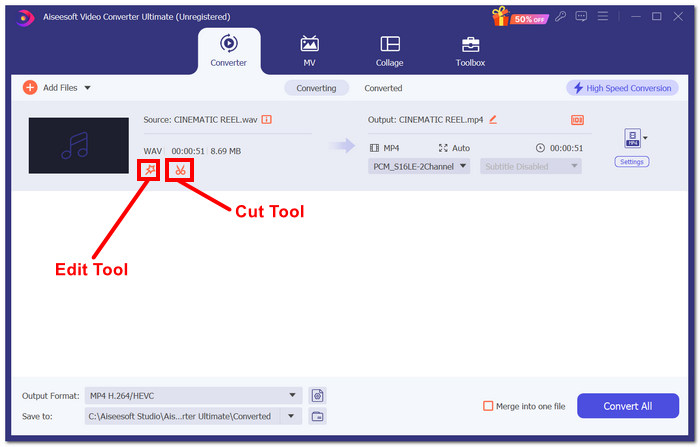
الخطوة 3. يمكنك الآن تحرير ملف M4A عن طريق اختيار أداتي Edit وCut الموجودتين بجوار ملف الـ M4A الذي حمّلته بعد إدخاله إلى الأداة.
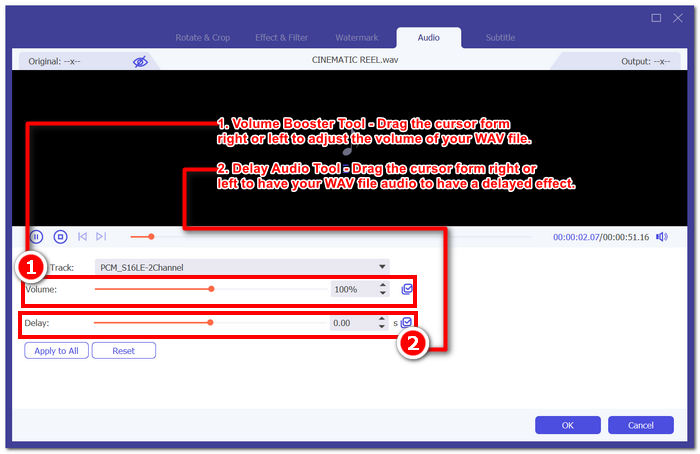
ملاحظة: انقر على أيقونة Magic Wand إذا أردت استخدام خاصيتي معزز الصوت (Volume Booster) وتأخير الصوت (Audio Delay) على ملف M4A الخاص بك.
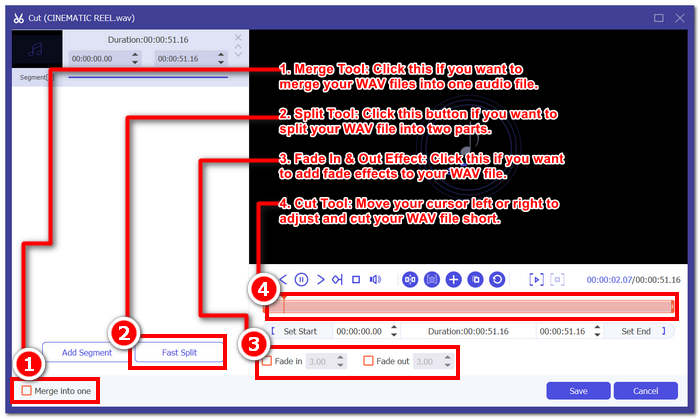
بخلاف ذلك، انقر فوق أيقونة المقص لاستخدام ميزات مثل إضافة تأثيرات التلاشي والقص والتقسيم والدمج إلى ملف M4A الخاص بك.
الخطوة 4. بعد الانتهاء بنجاح من تحرير وقص ملف M4A بالشكل الذي تريده، انقر زر Convert All لبدء تنزيله إلى المجلد الذي حددته على سطح المكتب.

إن البرنامج الذي اختاره FVC يرقى حقًا إلى سمعته كأداة تحرير M4A شاملة. تدعم الأداة بشكل مدهش مجموعة واسعة من تنسيقات الصوت والفيديو، مثل MP3 وM4A وMP4 وAAC وWMA وWAV والمزيد. بالإضافة إلى ذلك، يضمن المستخدمون الحصول دائمًا على تصدير عالي الجودة حيث توفر الأداة تحميلًا غير محدود لحجم الملف باستخدام تقنية تصدير عالية السرعة لمعالجة وتصدير ملف WAV بشكل أسرع مع الحفاظ على جودة الملف.
2. محرر M4A مفتوح المصدر وقوي
يعد برنامج Audacity الشهير محرر M4A مفتوح المصدر والذي يمكن استخدامه أيضًا للتسجيل. وبفضل سنوات الخبرة في إنتاج الصوت، يعد هذا البرنامج الأداة الأكثر شهرة واستخدامًا على نطاق واسع في القائمة. وهو معروف بقدرته على تسجيل الموسيقى وتحريرها ومزجها ودمج الأغاني. ويمكن استخدامه أيضًا لتحرير وإنتاج ملف M4A لاستخدامه في البث الصوتي. كما أن توافقه مع تنسيقات الملفات الأخرى، مثل WAV وMP3 وMP2 وما إلى ذلك؛ يجعله أيضًا أداة مرنة لتحرير وتسجيل M4A بسهولة.
الخطوة 1. قم بتنزيل وتثبيت Audacity على جهاز سطح المكتب لديك.
الخطوة 2. بعد تثبيت Audacity، افتح البرنامج. في الواجهة، افتح ملف M4A الذي تريد تعديله من خلال النقر على قسم File الموجود في الزاوية العلوية اليسرى من الشاشة، ثم النقر على Open.
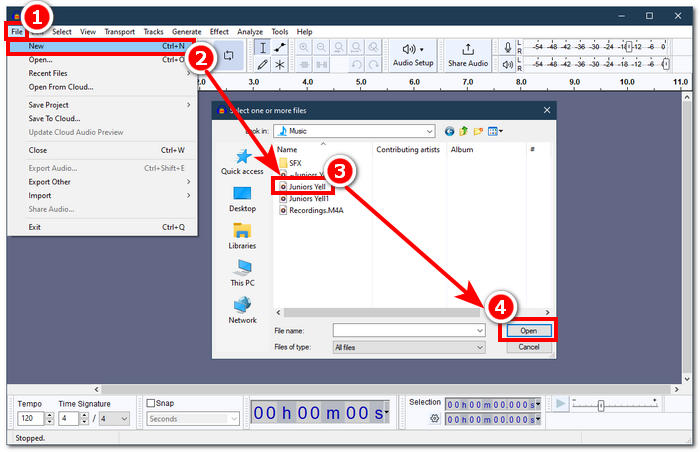
يلزم استخدام البرنامج الإضافي FFmpeg لاستخدام ملفات M4A مع Audacity. تأكد من تثبيت البرنامج الإضافي قبل الشروع في تحرير M4A.
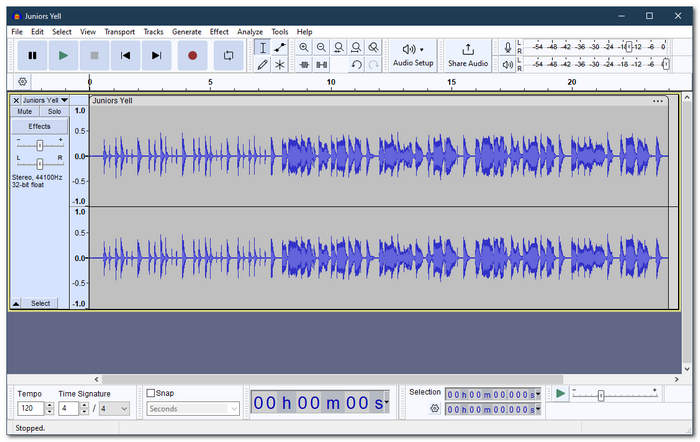
الخطوة 3. بعد تحميل ملف M4A في الأداة، يمكنك تعديله باستخدام الأدوات المتاحة فيها.
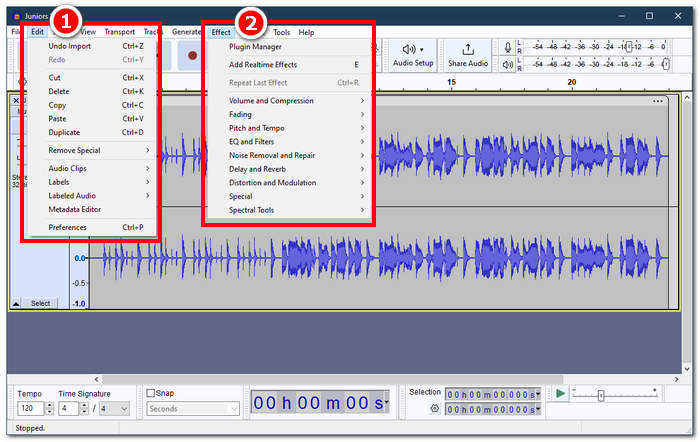
ملاحظة: لإنشاء قصاصات، أو حذف أجزاء، أو تطبيق تأثيرات، أو نسخ، أو لصق، أو تكرار، أو دمج مسارات الصوت في Audacity، انقر على قسم Edit الموجود في القائمة العلوية اليسرى من الأداة. ولتعديل مستوى الصوت، وتطبيق تأثيرات التلاشي، وضبط طبقة الصوت (Pitch) والسرعة (Tempo)، وغير ذلك، احرص على النقر على قسم Effect الموجود في القسم نفسه.
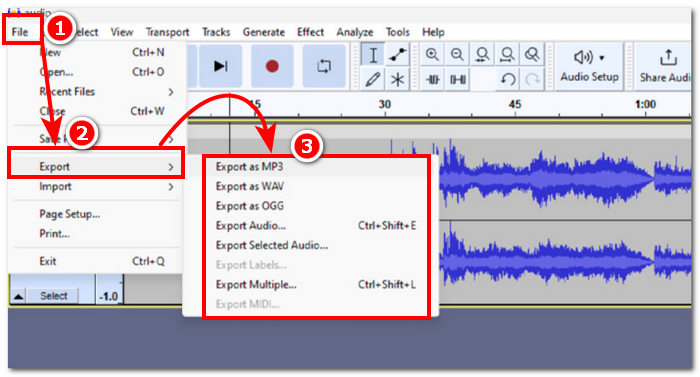
الخطوة 4. بعد أن تصبح راضيًا عن جميع التعديلات التي أجريتها على ملفات M4A، تابع تصدير الصوت من خلال File > Export Audio.
بالنسبة لتحرير M4A البسيط، يعد Audacity تطبيقًا ممتازًا لأنه مجاني ويسهل العمل بكفاءة. بالإضافة إلى ذلك، فإن خصائص تتبع الألوان مفيدة لأنها تمكن من تعدد مسارات أجزاء التسمية. العيب في العمل على مسارات متعددة في وقت واحد هو أن البرنامج لا يمكنه إدارة سوى عدد معين من المسارات في وقت واحد.
الجزء 2. تعديل ملفات M4A عبر الإنترنت
لتحرير ملفات M4A باستخدام أداة عبر الإنترنت أو قائمة على الويب، يقدّم Aspose Audio Cutter حلاً مثاليًا لتحرير ملفات M4A بشكل فوري وسريع. وهو مخصص خصوصًا لإنشاء قصّات دقيقة في ملف M4A، كما يدعم هذا البرنامج المعتمد على الويب صيغًا مثل AAC وAIFF وFLAC وM4A وMP3 وWAV وغيرها. تعمل هذه الأداة ببساطة عبر تحميل ملف M4A وتحديد وقت/مدة معيَّنة من ملف M4A الذي ترغب في قصه وحفظه.
الخطوة 1. توجّه إلى الموقع الرسمي لأداة Aspose Audio Cutter.
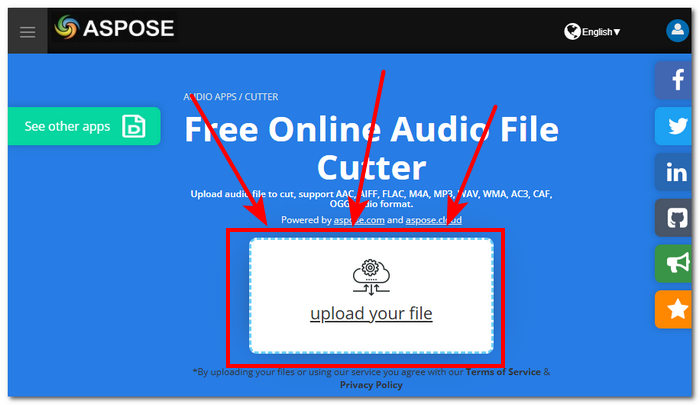
الخطوة 2. حمِّل أو أسقِط ملف M4A الذي ترغب في تعديله في الحقل المخصص على الموقع.
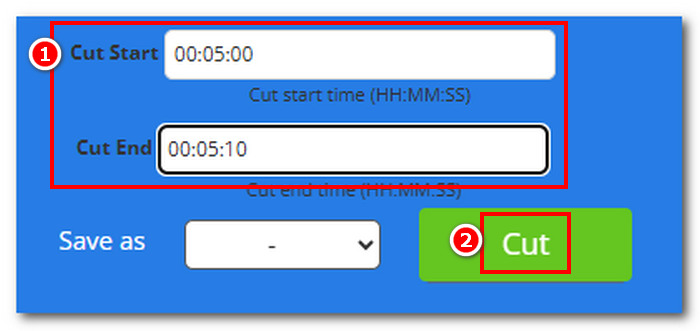
الخطوة 3. أدخِل وقت بداية القص ووقت نهايته (Cut Start وCut End) بدقة لاستبعاد الأجزاء التي تريد إزالتها من ملف M4A، ثم انقر زر Cut لبدء العملية.
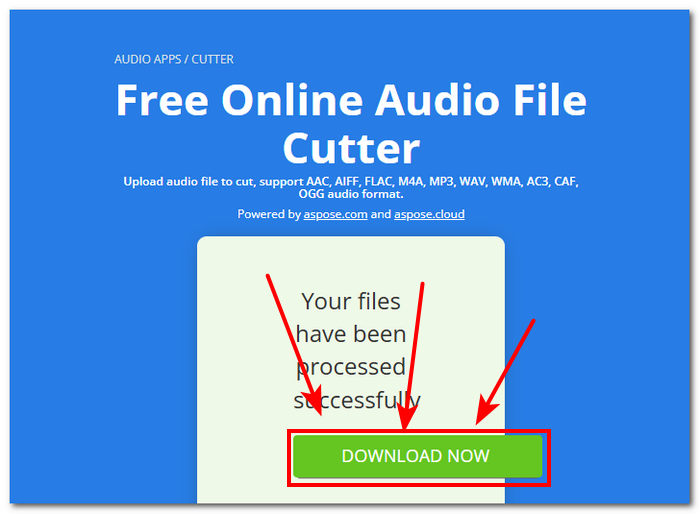
الخطوة 4. بعد الانتهاء من قص ملف M4A، انقر زر Download Now لحفظه على جهاز سطح المكتب لديك.
يمكنك فتحه في مشغّل ملفات M4A للتحقق من النتيجة.
إن Aspose Audi Cutter هي أداة سهلة الاستخدام حقًا بواجهة بسيطة مصممة خصيصًا لإنشاء قطع دقيق لملفات M4A. الخدمة سريعة ولا تتطلب تثبيت أي تطبيق لاستخدامها. وبالتالي، تقتصر ميزاتها على ميزات القطع فقط ولا يمكنها القيام بمهام تحرير M4A الأخرى مثل إضافة تأثيرات التلاشي والتشذيب والتقسيم والمزيد.
الجزء 3. تحرير ملفات M4A على الهواتف المحمولة
مستوحى من إصدار برنامج سطح المكتب الخاص به، يتمتع WavePad mobile بنفس الواجهة، مما يجعل من الأسهل التعرف على التطبيق. يمكن تنزيل هذا التطبيق المحمول مجانًا على أجهزة Android وiOS، مع دعم واسع لتنسيقات الصوت لضمان تنوع الأداة عند تحرير ملفات الصوت. بالإضافة إلى ذلك، توفر إمكانيات تحرير M4A مجموعة واسعة من الميزات والتأثيرات، مثل القطع والتشذيب والنسخ واللصق والإدراج وإسكات الصوت والتشذيب التلقائي لملف M4A الخاص بك دون عناء.
الخطوة 1. انتقل إلى متجر التطبيقات في هاتفك المحمول وقم بتنزيل تطبيق WavePad Mobile من هناك.
الخطوة 2. بعد تثبيت التطبيق، حمِّل ملف M4A إلى التطبيق من خلال النقر على أيقونة Open الموجودة في الجزء العلوي من واجهة التطبيق ثم الانتظار حتى يكتمل التحميل.
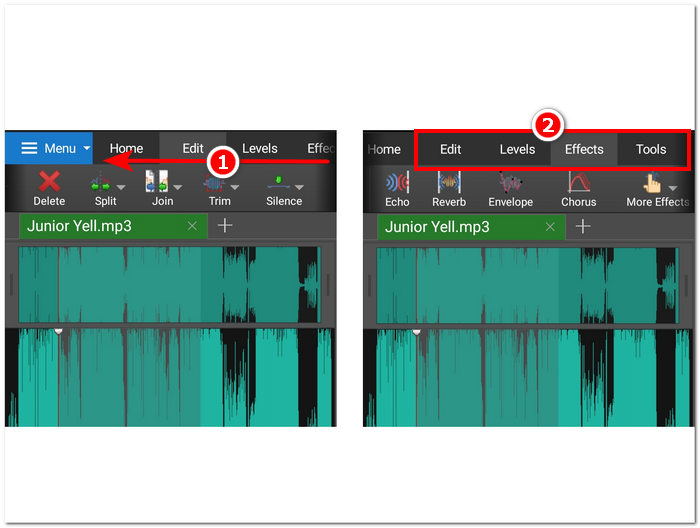
الخطوة 3. بعد تحميل ملف M4A في التطبيق، تابع استكشاف مزايا التطبيق لتحرير ملفك. يمكنك ذلك عن طريق وضع إصبعك في أعلى جزء من الأداة ثم السحب من اليمين إلى اليسار لرؤية أدوات مثل القص، النسخ، الدمج، اللصق، وغيرها. بمجرد أن تعثر على الأدوات التي تحتاجها لملف M4A، انقر عليها لتطبيقها على ملفك.
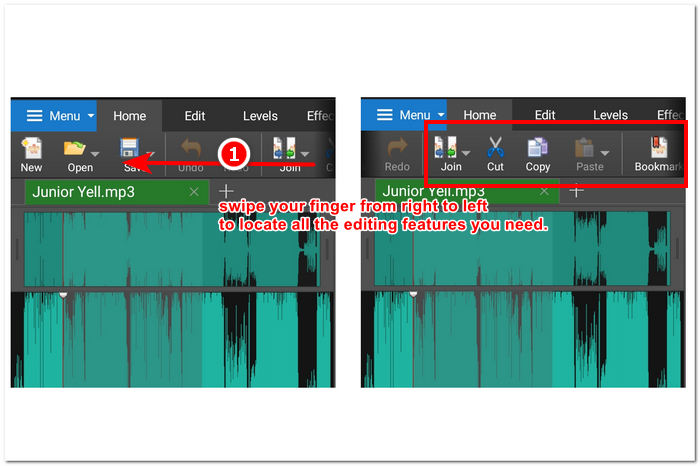
يمكنك أيضًا استكشاف وعرض التأثيرات والميزات الأخرى المتاحة لتحرير ملف M4A الخاص بك عن طريق تمرير إصبعك من اليمين إلى اليسار في الحقل الذي يقع فيه قسم التحرير. هناك يمكنك تطبيق التأثيرات على ملف M4A الخاص بك والمزيد.
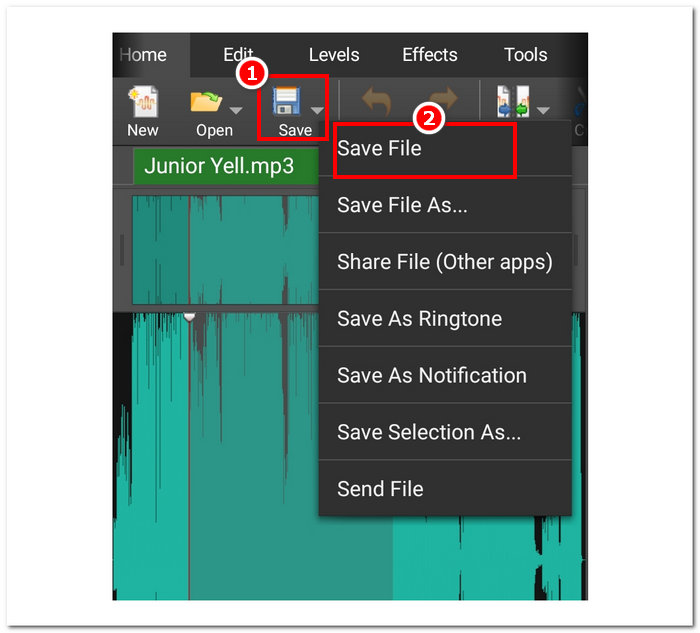
الخطوة 4. بعد الانتهاء من تعديل ملف M4A، عُد إلى قسم الصفحة الرئيسية (Home)، وانقر على زر الحفظ (Save)، ثم انقر Save File لتنزيل ملف M4A المعدَّل إلى جهازك المحمول.
مع ذلك، يعد WavePad mobile بالتأكيد تطبيقًا قويًا لتحرير ملفات M4A على الهاتف المحمول، حيث يسمح للمستخدمين بالقيام بكل ما هو ممكن تقريبًا باستخدام ملفات M4A الخاصة بهم. هذا التطبيق مثالي للمستخدمين الذين لديهم أجهزة محمولة فقط وهم دائمًا في حالة تنقل.
الجزء 4. الأسئلة الشائعة حول كيفية تحرير ملفات M4A
هل M4A أسوأ من MP3؟
لا يُعتبَر أسوأ من MP3، بل إن M4A يقدّم غالبًا جودة أفضل، وفي الوقت نفسه معدل بت (Bitrate) أفضل بفضل خوارزميات الضغط المتقدمة. لمزيد من الاختلافات بين M4A وMP3، يمكنك الاطلاع عليها هنا.
ما هي عيوب M4A؟
لا تدعم الأجهزة والمنصات ملفات M4A على نطاق واسع، لذا ستحتاج إلى استخدام أداة تحويل قبل أن تتمكن من استخدامها. بالإضافة إلى ذلك، غالبًا ما يواجه المستخدمون مشكلات التوافق عند استخدام M4A كملف صوتي، مما يجعله ليس ملفًا مثاليًا للعمل به، خاصة عند المشاركة.
هل يوجد برنامج مجاني لتحويل M4A إلى نص؟
نعم، هناك العديد من البرامج المجانية لتحويل ملفات M4A، مثل Google Docs Voice Typing وOtter.ai. هذه الأدوات موثوقة لأنها تدمج تقنية التعرف على الكلام لنسخ الملفات الصوتية في ملفات M4A هذه إلى نص.
هل يمكنني تحويل ملفات M4A إلى صيغ أخرى بعد التحرير؟
نعم، العديد من محرري M4A، مثل FVC-picked Video Converter Ultimate، لديهم أداة تحويل مدمجة تسمح للمستخدمين بحفظ أو تصدير ملفات M4A المحررة بتنسيقات صوتية مختلفة.
كيف يمكنني التأكد من الحفاظ على جودة ملف M4A المحرر؟
لضمان حصولك دائمًا على أعلى جودة تصدير عند حفظ ملفات M4A المحررة، تأكد من تجنب الضغط المفرط وتأكد من استخدام أدوات موثوقة تدعم جودة التصدير بدون فقدان،
خاتمة
نظرًا لمخاوف التوافق والدعم المحدود من بعض محرري الصوت، قد يكون تحرير ملفات M4A عبر العديد من المنصات، بما في ذلك Windows وmacOS وأدوات الإنترنت والهواتف المحمولة، أمرًا صعبًا. توفر ملفات M4A حلاً وسطًا رائعًا بين الجودة والضغط، مما يجعلها فعالة للتخزين مع الحفاظ على دقة صوتية محترمة، على النقيض من التنسيقات المقبولة على نطاق واسع مثل WAV. ومع ذلك، يمكنك بسهولة تحرير ملفات M4A الخاصة بك، وضمان إخراج عالي الجودة ومجموعة متنوعة من خيارات التحرير، باستخدام الأدوات والبرامج الصحيحة، مثل إصدار سطح المكتب من FVC Video Converter Ultimate، وإصدار الويب من Aspose Audio Cutter، والإصدار المحمول من WavePad.
-
 أفضل 5 مسجلات للماوس ولوحة المفاتيح لنظامي التشغيل Windows و Mac
 فيما يلي أفضل خمسة برامج لتسجيل الماوس ولوحة المفاتيح يمكنها حفظ حركات الماوس ونقرات لوحة المفاتيح وتكرار الأحداث.
-
 أفضل 4 مسجلات شاشة AVI مجانية لالتقاط فيديو الشاشة كملفات AVI
 لتسجيل الشاشة في ملفات AVI عالية الجودة ، تحدد المقالة وتشارك أفضل 4 مسجلات شاشة AVI مجانية في هذا المنشور. تعرف على مزيد من التفاصيل للعثور على المطلوب وفقًا لذلك.
-
 عمل! مراجعة مسجل الشاشة - السلبيات والإيجابيات وأفضل بديل لها
 هل برنامج Action Screen Recorder هو برنامج تسجيل الألعاب المطلوب لالتقاط مقاطع فيديو أثناء اللعب؟ ما عليك سوى معرفة المزيد من التفاصيل من المراجعة وبديلها من المقالة.
