


 محول الفيديو النهائي
 مسجل الشاشة
 إصلاح الفيديو
 تنزيل آمن
ضغط الصور دفعة واحدة: دليل المبتدئين للضغط السهل
في بعض الأحيان، نحتاج إلى ضغط العديد من ملفات الصور، ومن المزعج أن نضغط كل ملف على حدة بشكل متكرر. إذا كنت تتساءل عما إذا كانت هناك أداة يمكنها ضغط صورك في نفس الوقت، فالإجابة هي نعم!
في هذه المقالة، تعرّف على 3 طرق لكيفية ضغط الصور دفعة واحدة. نحن نتفهّم حاجتك إلى ذلك، لأن تنفيذ العملية مرة واحدة يمكن أن يوفر الكثير من الوقت، كما أنه مفيد جدًا لمن يقومون بضغط عدد كبير من ملفات الصور. ماذا تنتظر؟ هيا نبدأ!

الجزء 1. ضغط الصور دفعة واحدة عبر الإنترنت مجانًا (الأسرع)
عندما يتعلق الأمر بضغط الصور دفعة واحدة عبر الإنترنت، فإن أفضل أداة لذلك هي ضاغط الصور المجاني FVC. هذه الأداة مجانية تمامًا ويمكن الوصول إليها بسهولة على مختلف الأجهزة طالما أن لديك اتصالًا بالإنترنت. وبالرغم من أنها أداة مجانية، لا يمكن الاستهانة بما يمكن أن تفعله بصورك. تتيح لك هذه الأداة ضغط ما يصل إلى 40 ملف صورة بنقرة واحدة، وعندما يتعلق الأمر بجودة المخرجات، فهي تتمتع بأفضل مستوى من التحسين وخوارزميات ضغط متقدمة. إضافة إلى ذلك، يمكن لهذه الأداة التعامل مع عدد من صيغ ملفات الصور مثل JPEG وPNG وSVG وصور GIF المتحركة.
إليك كيفية ضغط الصور دفعة واحدة عبر الإنترنت باستخدام ضاغط الصور المجاني FVC:
الخطوة 1. من خلال متصفحك، ادخل إلى موقعهم الرسمي.
الخطوة 2. بعد ذلك، انقر على Upload Images لاستيراد الصور التي تريد ضغطها. يرجى اختيار ما يصل إلى 40 صورة.
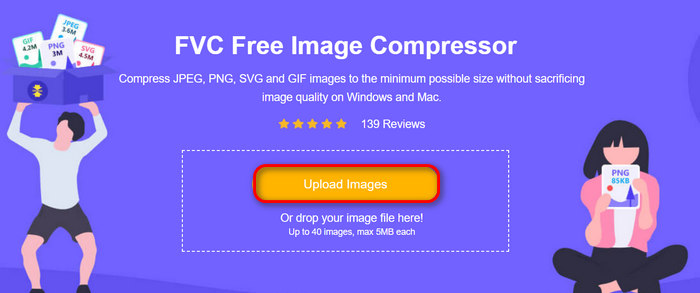
الخطوة 3. بعد ضغط صورك، يمكنك معاينتها من خلال مراجعة أحجامها الجديدة بعد الضغط. وأخيرًا، انقر على Download All لحفظ صورك.
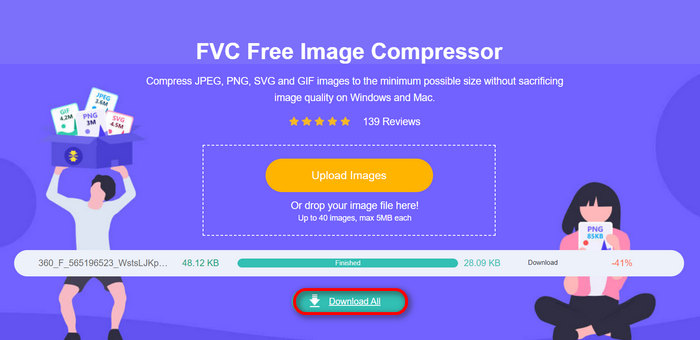
عندما يتعلق الأمر بالراحة والسهولة والجودة في ضغط الصور دفعة واحدة، فإن أداة FVC Free Image Compressor هي الأفضل. علاوة على ذلك، فهي مجانية بنسبة مائة بالمائة، لذا إذا كانت ميزانيتك محدودة وترغب في توفير الوقت في ضغط صورك دفعة واحدة، فجرّب هذه الأداة الآن!
الجزء 2. ضغط الصور دفعة واحدة باستخدام برنامج فوتوشوب
عندما يتعلق الأمر بطريقة احترافية لضغط الصور دفعة واحدة، فإن أحد الأدوات المفضلة لدى هؤلاء المستخدمين هو برنامج Photoshop. تحظى هذه الأداة بتقدير كبير بسبب ميزاتها الرائعة التي تجعلها خيارًا ممتازًا لضغط مجموعة كبيرة من الصور في وقت واحد. فيما يلي دليل خطوة بخطوة حول كيفية ضغط الصور دفعة واحدة باستخدام Photoshop:
الخطوة 1. أولًا تحتاج إلى حفظ جميع الصور التي تريد ضغطها دفعة واحدة في مجلد واحد.
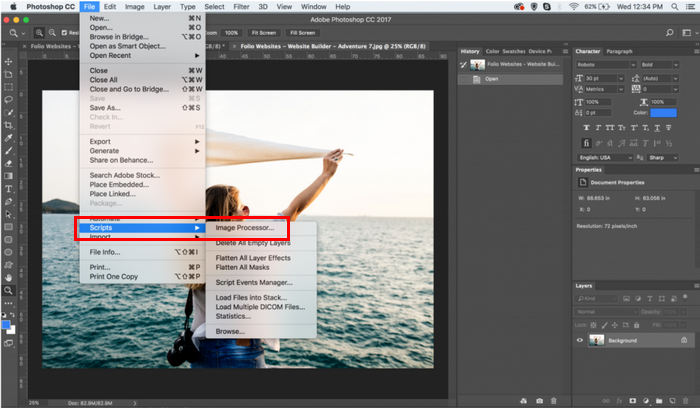
الخطوة 2. افتح برنامج Photoshop ثم انتقل إلى علامة تبويب File، وانقر على Script، ثم اختر Image Processor.
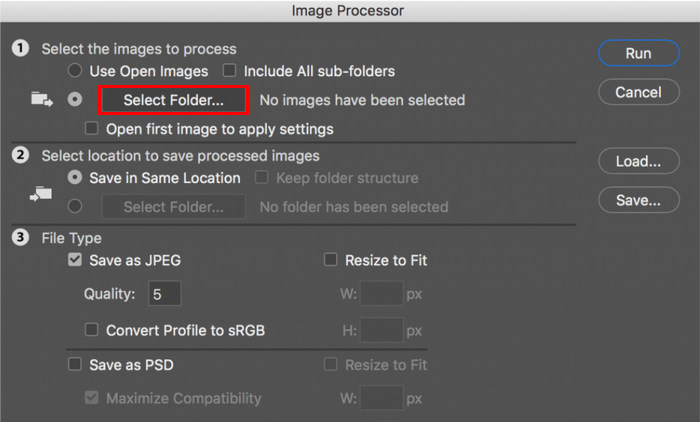
الخطوة 3. بعد ذلك، استورد الصور التي تريد ضغطها عن طريق النقر على Select Folder الموجودة ضمن قسم Select the images to process.
الخطوة 4. بعد ذلك، سيتم إنشاء مجلد جديد تلقائيًا داخل المجلد الأصلي، وهذا هو المكان الذي سيتم فيه تخزين أو حفظ الصور المضغوطة.
الخطوة 5. ضمن قسم File Type، قم بضبط الإعدادات لتغيير حجم ملف الصورة. ضع علامة في مربع Resize to Fit، وحدّد الحد الأقصى للارتفاع والعرض للصورة المضغوطة.
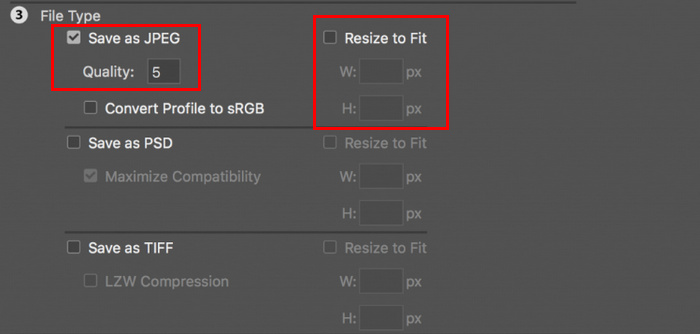
الخطوة 6. في حقل Quality، أدخل رقمًا بين 1 و12. لاحظ أن الرقم الأعلى يعني حجم ملف أكبر. وفي المقابل، إذا كنت تضغط ملفات بصيغة JPG، فتذكّر وضع علامة في مربع Save as JPEG.
الخطوة 7. الآن، انقر على زر Run Action للاطلاع على الإجراءات المتاحة.
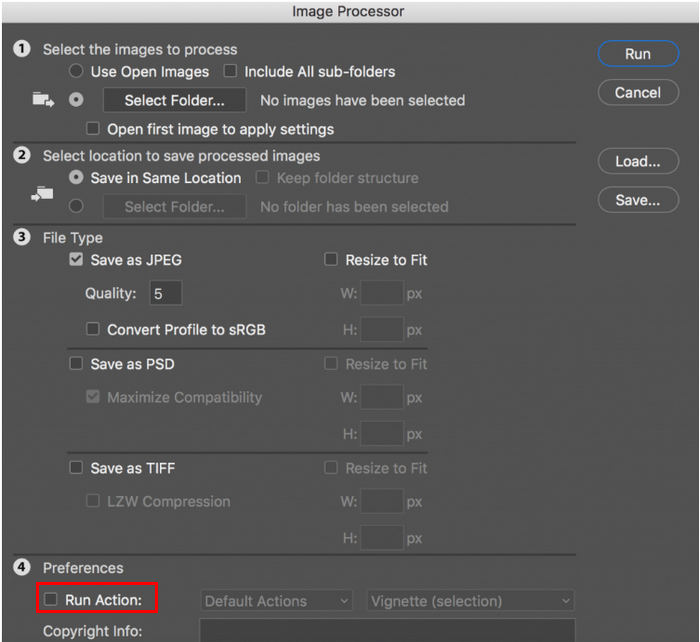
الخطوة 8. بعد الانتهاء، انقر على زر Run. سيتم معالجة الصور الموجودة في مجلدك وحفظها في مجلد الوجهة الذي حددته.
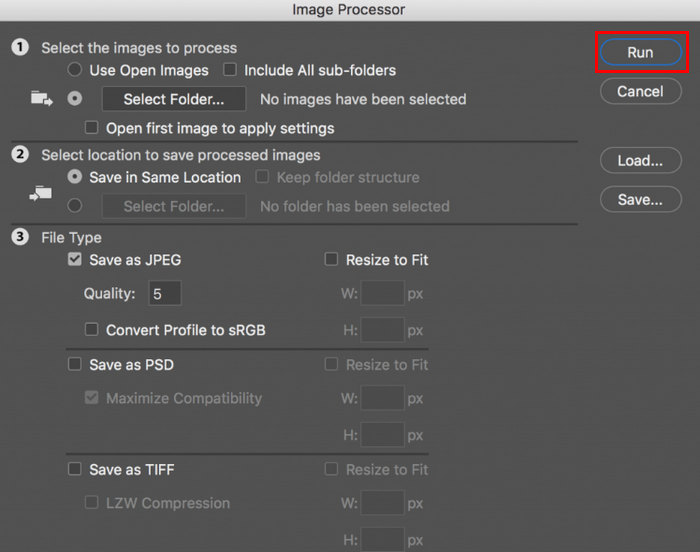
يعد برنامج Photoshop أداة رائعة لضغط الصور بشكل جماعي. وهو مثالي لأولئك الذين يحتاجون إلى نتائج احترافية. ومع ذلك، تتطلب هذه الأداة اشتراكًا، وهناك منحنى تعليمي ضخم قد يتسبب في عدم قدرة المستخدمين على استخدام الأداة بكفاءة لضغط صورهم على دفعات.
الجزء 3. ضغط الصور دفعة واحدة على نظام التشغيل Windows 10
إذا كنت تستخدم نظام تشغيل Windows 10 على جهاز الكمبيوتر الخاص بك، فيمكنك ضغط الصور دفعة واحدة من خلال تطبيق Paint الخاص بنظام Windows. يُعرف تطبيق الرسم هذا بقدرته على الرسم وصنع الرسومات التخطيطية، ولكن بخلاف ذلك، فإنه يحتوي أيضًا على ميزات رائعة لتحرير الصور مثل القص وتغيير الحجم وما إلى ذلك.
إليك كيفية ضغط الصور دفعة واحدة على نظام Windows 10:
الخطوة 1. انقر بزر الفأرة الأيمن على ملف الصورة الذي تريد ضغطه، ثم انقر على Open With، واختر Paint.
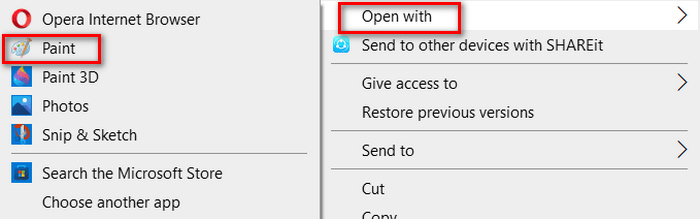
الخطوة 2. انتقل إلى علامة تبويب Home واختر Resize and Skew.
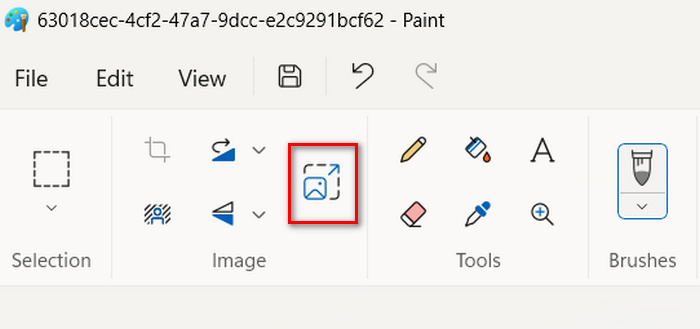
الخطوة 3. بعد ذلك، انقر على زر Resize and Skew. هنا يمكنك تغيير حجم الصورة عن طريق تعديل النسبة المئوية أو حجم البكسل. بمجرد الوصول إلى الحجم المطلوب، انقر على زر OK.
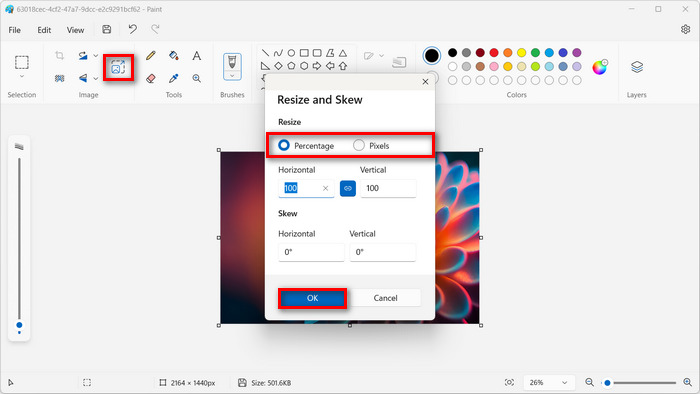
الخطوة 4. بعد تغيير الحجم، انقر على File واختر Save لحفظ الصورة المضغوطة.
الخطوة 5. بعد ذلك، ارجع إلى علامة تبويب File، وانقر على Import to Canvas، واختر From a File.
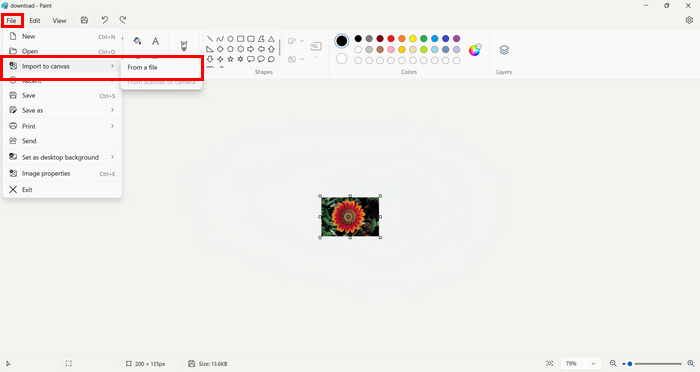
الخطوة 6. اختر الصورة التي تريد ضغطها واسحبها لتناسب الحجم المحدد مسبقًا. هذه العملية ليست ضغطًا جماعيًا تقليديًا، لكنها يمكن أن تسرّع العمل مقارنة ببعض أدوات ضغط الصور الأخرى. بعد الانتهاء، انقر على زر Save.
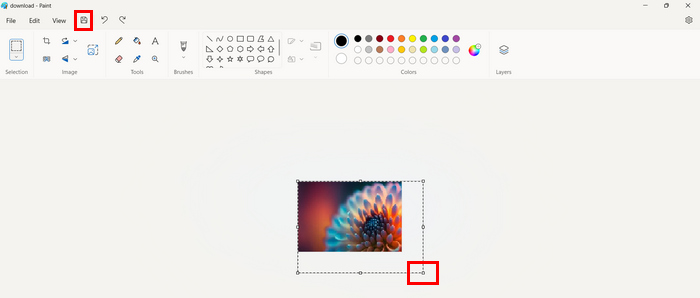
يعد برنامج Windows Paint أداة جيدة بالفعل لضغط الصور، ولكنه أقل كفاءة مقارنة بضاغط الدفعات المخصص.
الجزء 4. ضغط الصور دفعة واحدة على نظام التشغيل Mac
Preview هي أداة عرض صور مدمجة تتيح لمستخدمي Mac عرض ملفات صور مختلفة. ولكن بصرف النظر عن ذلك، يمكن أن تكون هذه الأداة مفيدة بشكل لا يصدق في إدارة الصور وتحريرها، وخاصة في ضغط ملفات الصور بشكل دفعي.
للقيام بذلك، اتبع الخطوات التالية:
الخطوة 1. في نافذة Finder، حدّد جميع الصور التي تريد تغيير حجمها.
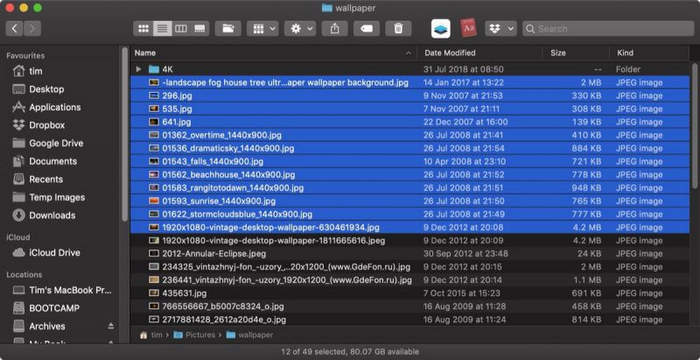
الخطوة 2. بعد ذلك، انقر بزر الفأرة الأيمن عليها، واختر Open With، ثم اختر Preview.
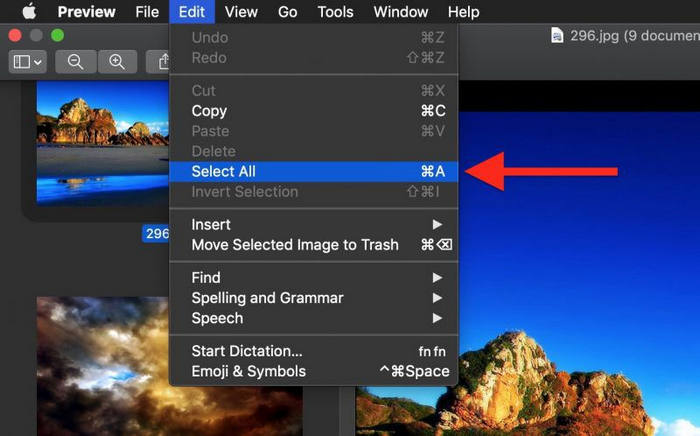
الخطوة 3. الآن، اختر Edit، ثم اختر Select All من شريط قوائم Preview، أو استخدم اختصار لوحة المفاتيح Command A لتحديد جميع الصور المفتوحة.
الخطوة 4. بعد تحديد جميع الصور، انتقل إلى Tools واختر Adjust Size.
الخطوة 5. الآن، غيّر أبعاد صورة ملفك عن طريق إدخال عرض وارتفاع جديدين، وكذلك الدقة. بعد القيام بذلك، سيظهر الحجم الجديد في الأسفل. عند الانتهاء، فقط انقر على OK.
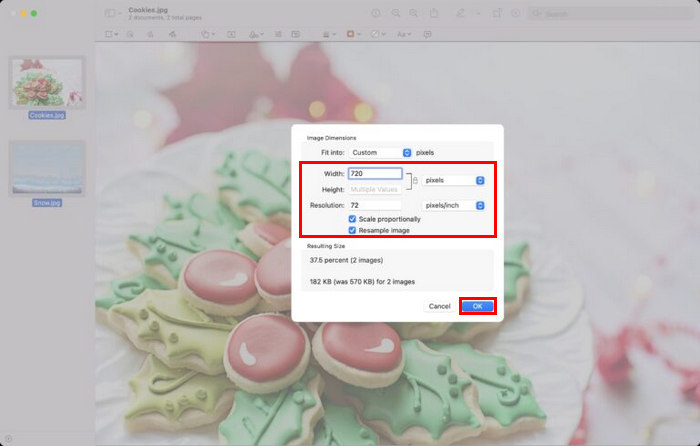
يتم تغيير حجم الصور وحفظها في موقعها الأصلي عن طريق استبدال الملفات الأصلية.
الجزء 5. الأسئلة الشائعة حول ضغط الصور بالدفعات
ما هو البرنامج المستخدم لضغط الصور بكميات كبيرة؟
أفضل برنامج برمجي لـضغط الصور بكميات كبيرة هو Photoshop. يتيح لك هذا البرنامج ضغط عدد أكبر من الصور في وقت واحد مع الحفاظ على جودة جيدة للنتيجة. العيب الوحيد هو أنك لا تستطيع الاستفادة من جميع مزاياه إلا إذا اشتركت في خطته المدفوعة.
كيف أقوم بضغط جميع الصور الموجودة في مجلد؟
لضغط جميع الصور في مجلد واحد، يمكنك استخدام أداة ضاغط الصور المجاني FVC. فقط انقر على زر Add File، وسيتم نقلك إلى مكتبتك حيث يمكنك اختيار المجلد الذي توجد فيه جميع الصور التي تريد ضغطها. بعد ذلك، حدّد كل الصور الموجودة في المجلد، ولكن لا تتجاوز 40 ملفًا. بعد الانتهاء، سيتم ضغط صورك تلقائيًا وحفظها في مجلد مضغوط.
هل يمكنك ضغط عدة صور دون فقدان الجودة؟
نعم، من الممكن ضغط صور متعددة دون فقدان الجودة. ما عليك سوى استخدام أداة الضغط المناسبة، مثل FVC Free Image Compressor وPhotoshop. تتمتع هذه الأدوات بميزات رائعة يمكنها المساعدة في الحفاظ على جودة الصور المضغوطة.
خاتمة
باستخدام هذه الطرق، يمكنك الآن ضغط الصور بشكل دفعي بكفاءة وفعالية. لذا، بغض النظر عن مخطط الأدوات في هذه المقالة، فأنت الآن مجهز بطرق مختلفة يمكن أن تعمل بشكل مثالي من جانبك. جرب هذه التقنيات اليوم لتبسيط إدارة الصور وتحسين سير عملك.
-
 كيفية ضغط JPEG على أنظمة Windows وMac [الدليل الشامل]
 هل تبحث عن أداة فعّالة لضغط ملفات JPEG على أجهزة Windows وMac؟ اقرأ هذه المقالة الآن وتعرّف على خمس طرق لضغط الملفات بسلاسة.
-
 3 طرق لتغيير حجم الصورة إلى 20 كيلوبايت: الضغط السلس
 هل تشعر بالقلق بشأن كيفية تحقيق حجم 20 كيلوبايت لملف صورتك؟ ستعلمك هذه المقالة 3 طرق حول كيفية تغيير حجم الصورة بسرعة وسلاسة إلى 20 كيلوبايت.
-
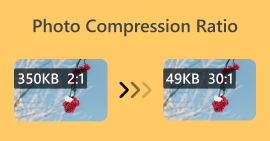 نسبة ضغط الصور: ما الذي أحتاج إلى معرفته؟ [مراجعة]
 تعرف على نسبة ضغط الصور وكيف تؤثر على جودة الصورة. كما يمكنك الحصول على إرشادات حول كيفية تغيير نسبة الضغط هذه عند القيام بها بشكل غير صحيح.
