


 محول الفيديو النهائي
 مسجل الشاشة
 إصلاح الفيديو
كيفية تسجيل مكالمات فيديو FaceTime [دليل سريع]
هل أنت أيضًا ممن يتمنون تسجيل مكالمات فيديو FaceTime مباشرةً وبسهولة؟ للأسف، لا يحتوي FaceTime على ميزة مدمجة تسمح للمستخدمين بتسجيل مكالماتهم. لكن هذه الميزة ليست حكرًا على FaceTime، فهناك سبب وجيه لعدم توفر هذه الميزات أصلًا. تُولي Apple الأولوية لسرية المستخدم، ولذلك لا يتوفر تسجيل المكالمات افتراضيًا. مع ذلك، هذا لا يعني أنك غير محظوظ تمامًا.
في هذا الدليل السريع، سنوضح لك كيفية تسجيل مكالمات فيديو FaceTime على جهاز iPhone أو iPad أو Mac باستخدام ميزات تسجيل الشاشة المدمجة في جهازك. إضافة إلى ذلك، لا تفوّت التعرّف على أداة جديدة يمكن أن تساعدك على تسجيل مكالمات FaceTime بسهولة وفعالية. متحمّس لهذا الأمر؟ واصل القراءة لمعرفة المزيد!

الجزء 1. هل يمكنك تسجيل مكالمات الفيديو FaceTime؟
قد تتساءل. هل يُمكن تسجيل مكالمات فيديو FaceTime؟ الحقيقة هي أن FaceTime لا يحتوي على ميزة تسجيل مُدمجة. صممته Apple بهذه الطريقة لحماية خصوصية المستخدمين وأمانهم، وضمان سرية المحادثات الشخصية.
مع ذلك، من المهم فهم أن تسجيل مكالمة FaceTime ينطوي على اعتبارات قانونية وأخلاقية. في العديد من الأماكن، يُطلب منك إبلاغ الطرف الآخر أو الحصول على موافقته قبل التسجيل. هذا يُساعد على تجنب أي انتهاكات للخصوصية ويضمن علم الجميع بتسجيل المكالمة.
في الجزء التالي، سنوضح لك كيفية تسجيل مكالمة فيديو FaceTime على جهاز iPhone أو iPad أو Mac دون المساس بالجودة أو الأمان.
الجزء 2. كيفية تسجيل مكالمات FaceTime على iPhone أو iPad؟
يُمكن تسجيل مكالمة FaceTime على iPhone أو iPad باستخدام أدوات مدمجة وخارجية. مع أن FaceTime لا يتضمن ميزة التسجيل المباشر، إلا أن أجهزة iOS مزودة بميزة تسجيل الشاشة المدمجة التي تُمكّنك من تسجيل مكالمات الفيديو عبر FaceTime.
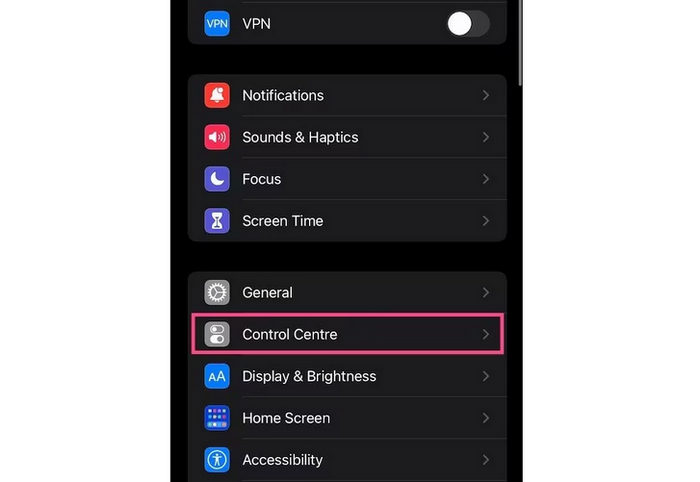
الخطوة 1. انتقل إلى تطبيق الإعدادات ثم اضغط على مركز التحكم.
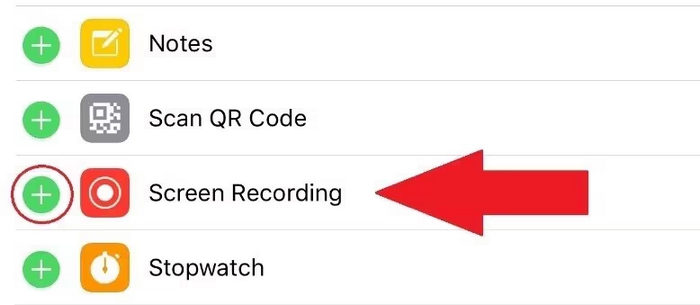
الخطوة 2. تحقّق مما إذا كان تسجيل الشاشة مدرجًا ضمن عناصر التحكم المضمَّنة. إذا لم يكن كذلك، فاضغط على أيقونة علامة الجمع بجانبه لإضافته.
الخطوة 3. اسحب لأسفل من الزاوية العلوية اليمنى للشاشة، أو اسحب للأعلى من أسفل الشاشة على أجهزة iPhone الأقدم لفتح مركز التحكم.
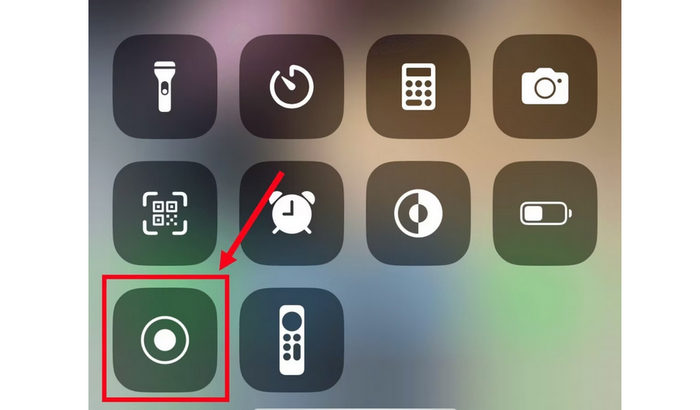
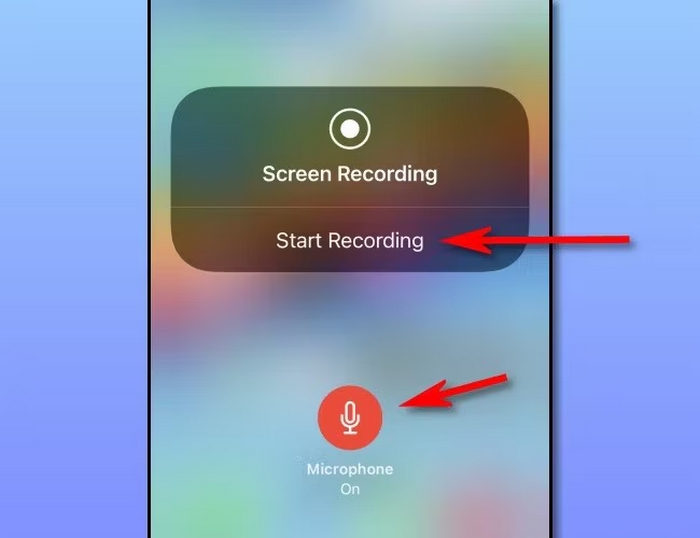
الخطوة 4. اضغط مطولًا على أيقونة تسجيل الشاشة، ثم اضغط على الميكروفون لتشغيله. يتيح لك ذلك تسجيل صوت مكالمة FaceTime.
الخطوة 5. أخيرًا، اضغط على بدء التسجيل، ثم افتح FaceTime وابدأ مكالمتك. سيقوم جهاز iPhone الآن بتسجيل الفيديو والصوت معًا أثناء المحادثة.
ينطبق الأمر نفسه على جهاز iPad إذا كنت تستخدمه لتسجيل مكالمات فيديو FaceTime. علاوة على ذلك، تتيح لك هذه الطريقة التقاط الشاشة والصوت مباشرةً من جهازك دون الحاجة إلى أي تطبيقات خارجية. تأكد فقط من تشغيل الميكروفون قبل بدء التسجيل لتضمين صوت مكالمة FaceTime. مع ذلك، قد لا تتمكن ميزة تسجيل الشاشة في هذه الأجهزة من التسجيل، ومع ذلك، تظل هذه الطريقة هي الأفضل والأسهل لتسجيل مكالمات FaceTime.
الجزء 3. كيفية تسجيل مكالمات فيديو FaceTime على جهاز Mac؟
تسجيل مكالمة فيديو FaceTime على جهاز Mac سهلٌ تمامًا كما هو الحال على iPhone أو iPad. يحتوي نظام macOS على ميزة تسجيل شاشة مدمجة تُمكّنك من التقاط شاشتك بالكامل، بما في ذلك مكالمة FaceTime، دون الحاجة إلى تثبيت برامج إضافية. إليك كيفية تسجيل مكالمات فيديو FaceTime مع الصوت مباشرةً على جهاز Mac:
الخطوة 1. أولًا، تحتاج إلى فتح تطبيق FaceTime والاستعداد لمكالمتك.
الخطوة 2. بعد ذلك، اضغط على Command + Shift + 5 في لوحة المفاتيح لفتح شريط أدوات تسجيل الشاشة في نظام macOS.
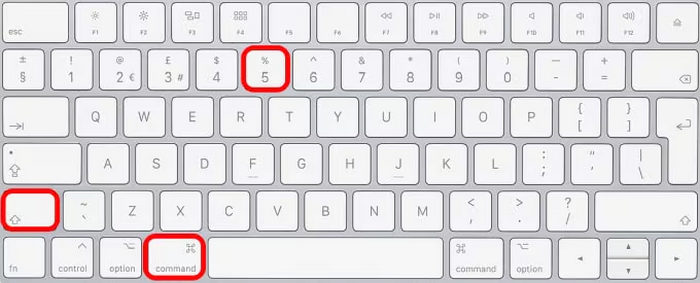
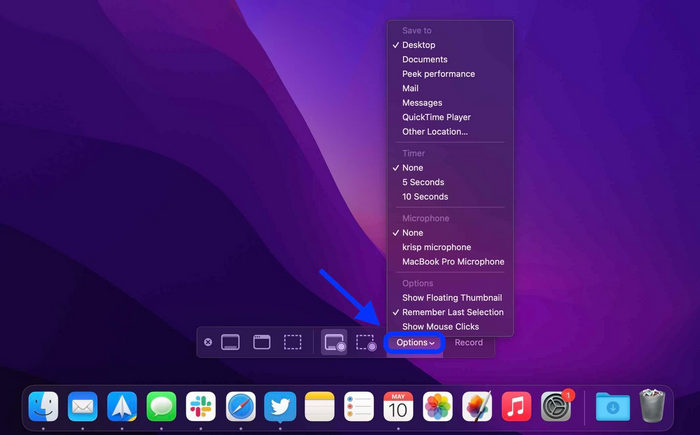
الخطوة 3. بعد ذلك، انقر على الخيارات، ثم اختر ميكروفونًا لالتقاط الصوت أثناء مكالمة FaceTime. يمكنك أيضًا تعديل إعدادات التسجيل الأخرى إذا لزم الأمر.
الخطوة 4. اختر تسجيل الشاشة بالكامل، ثم تأكّد من أن نافذة FaceTime ظاهرة على الشاشة.
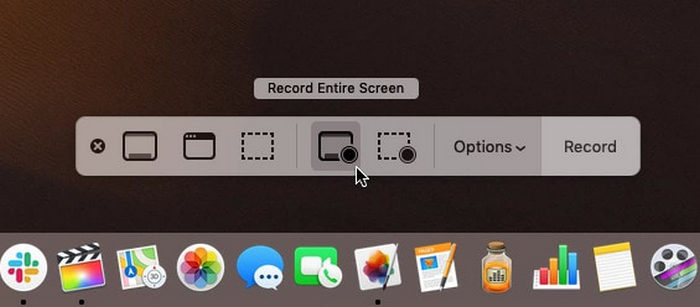
الخطوة 5. أخيرًا، انقر على زر تسجيل لبدء التقاط مكالمة فيديو FaceTime مع الصوت. عند الانتهاء، اضغط على Command + Control + Escape لإيقاف التسجيل. سيتم حفظ الفيديو تلقائيًا على جهاز الـ Mac الخاص بك.
تسجيل مكالمات FaceTime على جهاز ماك سهل وموثوق، إذ يمكنك استخدام مسجل الشاشة المدمج لالتقاط الفيديو والصوت دون الحاجة إلى تطبيقات إضافية. مع ذلك، يقتصر على التسجيل الأساسي فقط، لذا ستحتاج إلى أداة أخرى إذا أردت تعديل الفيديو أو تحسينه لاحقًا.
الجزء الرابع. مكافأة: أداة عبر الإنترنت لتسجيل مكالمات فيديو FaceTime مع الصوت الداخلي والخارجي
إذا كنت تبحث عن أداة عبر الإنترنت تستطيع تسجيل مكالمات فيديو FaceTime مع الصوت الداخلي والخارجي، فأفضل أداة لذلك هي مسجل الشاشة المجاني FVC. إنها أداة تسجيل شاشة قائمة على الويب تتيح لك التقاط مكالمات فيديو FaceTime مباشرة من المتصفح. باستخدام FVC Free، يمكنك تسجيل صوت النظام (الصوت الداخلي) والميكروفون (الصوت الخارجي) في الوقت نفسه، مما يضمن تسجيلات واضحة وكاملة لمحادثاتك. الأداة بسيطة الاستخدام، ويمكن الوصول إليها من أي جهاز، ومثالية لمن يريد المرونة والجودة في أداة واحدة.
الخصائص الرئيسية:
• يتيح لك تسجيل شاشتك بأكملها، أو نافذة محددة، أو منطقة مخصصة حسب اختيارك.
• يمكن استخدامه مباشرة من متصفح الويب الخاص بك دون الحاجة إلى التثبيت.
• مثالي لتسجيل مكالمات الفيديو، أو الاجتماعات، أو اللعب، أو الفصول الدراسية عبر الإنترنت.
• يتيح لك إضافة النصوص والأشكال والتمييزات والتعليقات التوضيحية أثناء التسجيل.
• يلتقط صوت النظام وصوت الميكروفون في نفس الوقت.
• يدعم تنسيقات إخراج الفيديو والصوت المتعددة لتحقيق المرونة.
• يسجل مقاطع الفيديو بجودة عالية الدقة (HD).
• يعمل بسلاسة على أنظمة التشغيل Windows وmacOS.
خطوات كيفية تسجيل مكالمات فيديو FaceTime باستخدام مسجل الشاشة المجاني FVC:
الخطوة 1. أولاً، عليك البحث عن FVC Free Screen Recorder في متصفحك. يُرجى ملاحظة أنه متاح لكلٍ من نظامي Windows وmacOS.
الخطوة 2. الآن، انتقل إلى تطبيق FaceTime وابدأ المكالمة. بعد ذلك، في الواجهة الرئيسية للأداة، انقر على Start Recording (بدء التسجيل).
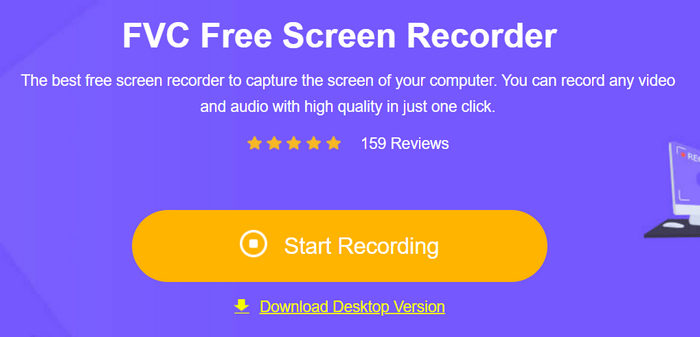
الخطوة 3. وأخيرًا، لبدء التسجيل بشكل نهائي، انقر على زر Record.
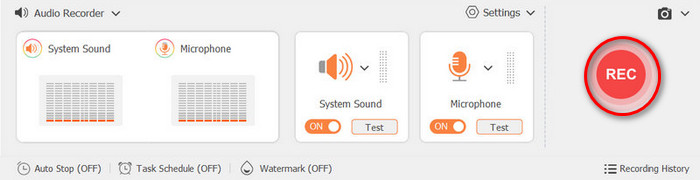
ما يجعل مسجل الشاشة المجاني FVC خيارًا أفضل لتسجيل مكالمات فيديو FaceTime بدلًا من الأدوات المدمجة هو أنه يمنحك مزيدًا من التحكّم والمرونة. على عكس مسجلات الشاشة الافتراضية التي توفّر وظائف أساسية فقط، تتيح لك هذه الأداة عبر الإنترنت تسجيل الصوت الداخلي والخارجي معًا، واختيار منطقة التسجيل، والتقاط لقطات شاشة FaceTime وإضافة شروح وتعليقات في الوقت الفعلي أثناء التسجيل. كما أنها تدعم صيغًا متعددة وجودة إخراج عالية، مما يجعلها مثالية لحفظ تسجيلات FaceTime أو مشاركتها أو تعديلها بسهولة.
الجزء 5. الأسئلة الشائعة حول تسجيل مكالمات فيديو FaceTime
أين يتم حفظ مقاطع الفيديو المسجلة على FaceTime؟
على أجهزة iPhone وiPad، تُحفظ تسجيلاتك تلقائيًا في تطبيق الصور. أما على أجهزة Mac، فيُحفظ الملف عادةً على سطح المكتب ما لم تُغيّر مكان الحفظ في إعدادات التسجيل.
لماذا لا يتم التقاط الصوت في تسجيل FaceTime الخاص بي؟
إذا لم يكن هناك صوت في التسجيل، فمن المرجح أن الميكروفون كان مُطفأً قبل البدء. تأكد من الضغط باستمرار على أيقونة "تسجيل الشاشة" وتفعيل خيار "صوت الميكروفون" لتسجيل الفيديو والصوت.
هل يمكن للشخص الآخر أن يعرف إذا قمت بتسجيل مكالمة فيديو FaceTime؟
لا، لا يُعلم FaceTime الطرف الآخر عند بدء التسجيل. مع ذلك، يُفضّل دائمًا طلب إذنه قبل التسجيل احترامًا للخصوصية واتباعًا للإرشادات القانونية.
خاتمة
رغم أن FaceTime لا يوفّر ميزة يمكنها مباشرةً تسجيل مكالمات فيديو FaceTime، ما زالت هناك طرق يمكنك من خلالها تسجيلها. مع ذلك، من المهم دائمًا طلب الإذن من جميع الأطراف. بالإضافة إلى ذلك، إذا لم تعمل ميزات تسجيل الشاشة المدمجة بشكل جيد أو شعرت بأنها محدودة بالنسبة لك، يمكنك تجربة مسجل الشاشة المجاني FVC. فما الذي تنتظره؟ أحضر جهازك الآن وابدأ بتسجيل مكالمة فيديو FaceTime الخاصة بك.
-
 طريقتان مفضلتان لتسجيل الصوت الخارجي من جهاز Mac
 إذا كنت تتساءل عن كيفية تسجيل الصوت الخارجي من جهاز Mac، اقرأ هذه المقالة وتعرف على أداتين لتسجيل الصوت عالي الجودة يمكنك استخدامهما بسهولة.
-
 3 من أفضل التقنيات حول كيفية تسجيل الصوت على iPhone
 هل تواجه صعوبات لأنه لا يمكنك تسجيل الصوت بشكل صحيح على iPhone؟ ثم اقرأ هذه المقالة للتعرف على الخطوات والأدوات المتاحة.
-
 QuickTime Screen Recording - تسجيل الفيديو بالصوت على Mac و PC
 شاشة التسجيل مع الصوت على Mac مفيدة للغاية. يمكن للمشغل المدمج ، QuickTime Player القيام بذلك. اقرأ منشوره وتعرف على كيفية التقاط الشاشة بالصوت على Mac و PC.
