


 محول الفيديو النهائي
 مسجل الشاشة
 إصلاح الفيديو
 تنزيل آمن
إجراء خطوة بخطوة لـ VLC لتسجيل DVD على جميع أنظمة التشغيل
VLC is a well-known media player used by millions of users in the entire world. It is not simply for playing video or audio. Maybe this is new for you, but did you know that this media player has other uses. For example, it can edit, record DVDs with video and audio, and also read encrypted and rip DVDs. But not all the DVDs can be ripped by the VLC if they have copy-protection. Also, ripping will take your time instead of watching the video you'll probably wait to finish the rip. For some reason, users tend to record DVD movies using VLC while watching or leave it alone rather than rip the video content from the DVD to share with others. In this article, you will understand that you don't need to rip the video audio output from the DVDs. But instead, you can record it while watching while retaining the same quality. Continue reading and understand the value of each tool.

الجزء 1. كيفية تسجيل أفلام DVD باستخدام VLC Media Player
مشغل الميديا VLC
مشغل الوسائط هذا عبارة عن منصة متعددة مفتوحة المصدر تدعم جميع تنسيقات الوسائط التي يمكنك التفكير فيها تقريبًا. يمكنه أيضًا نسخ مقاطع الفيديو من أقراص DVD ولكن الأمر سيستغرق وقتًا حتى يقوم VLC بنسخ الملف. ستستغرق عملية النسخ من 15 إلى 45 دقيقة حسب طول تنسيق الوسائط وعددها وحجمها. بدلاً من نسخ القرص ، لماذا لا تقوم بتسجيله بمساعدة VLC.
بينما نمضي قدمًا ، إليك بعض الخطوات حول كيفية تسجيل فيديو صوتي على VLC.
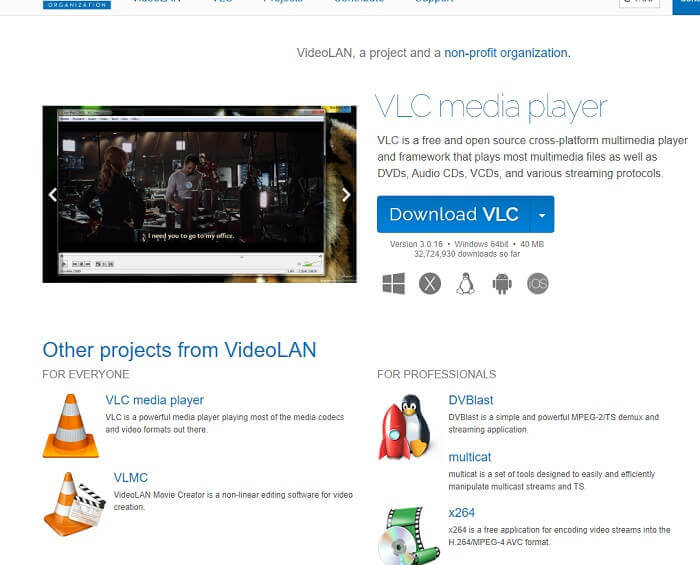
Step 1. Download the VLC Media player over the browser then install it. Set your preferences then click Finish to proceed. If you don't have an idea what it looks like then this is it.
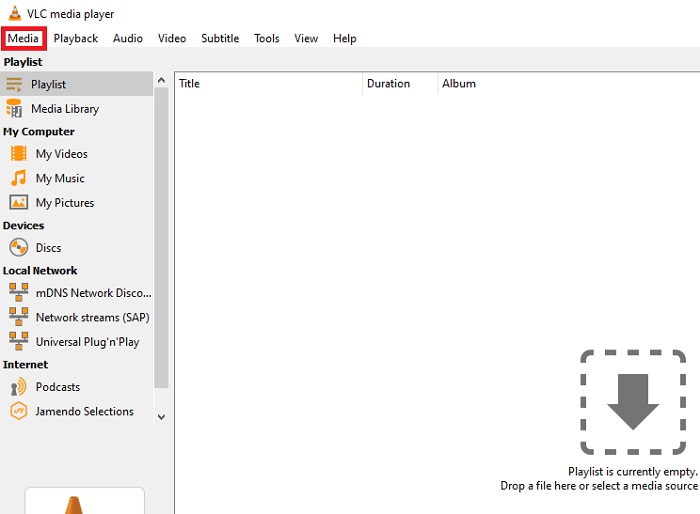
Step 2. Click the Media in the upper left end of the interface. Click Open File and choose the file. Or you can as well drag and drop the media file.
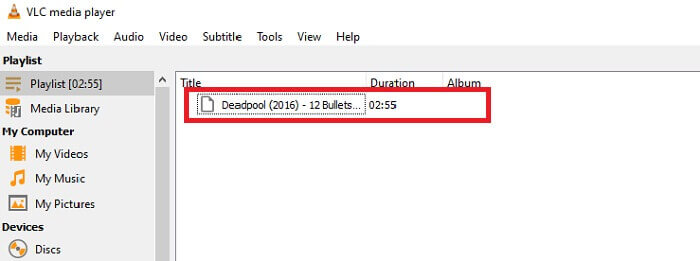
Step 3. Click the video file you insert in the interface to play.
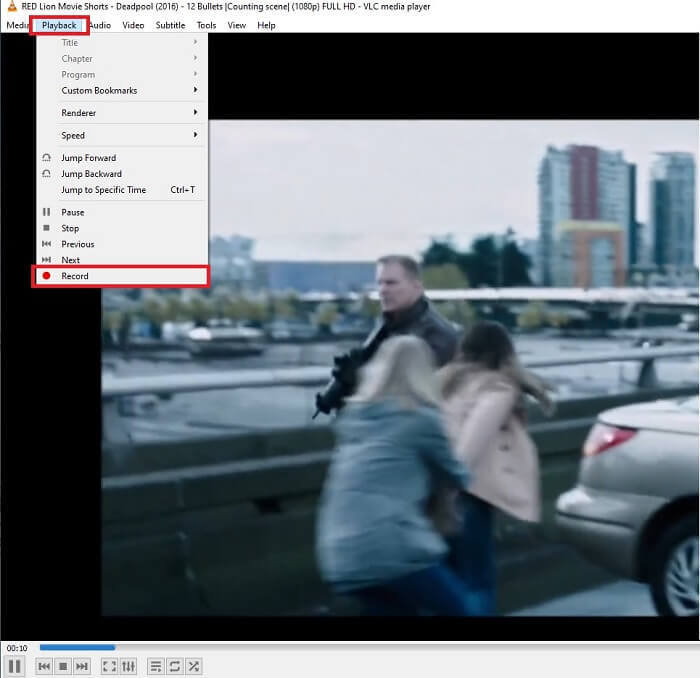
Step 4. Hit the Playback button at the top of the interface next to the media. Click the Record below the drop-down to start recording. Note that if you click to record the record will start already. Wait until the video is finished before stopping it.
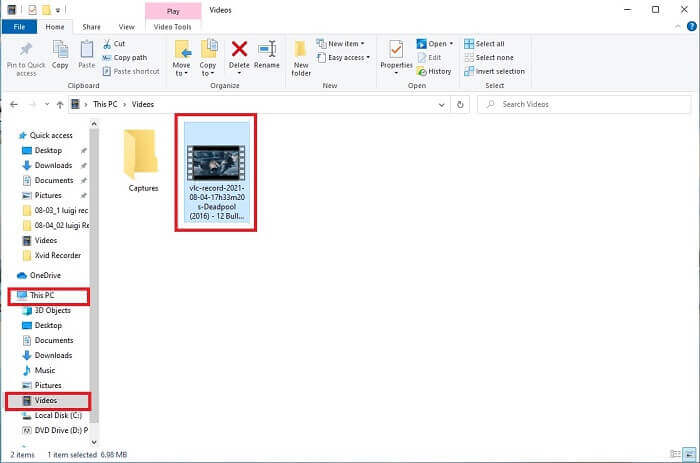
Step 5. When the video is finished, You can check it in your file explorer or manager then click it. Find This PC hit it, next trace the videos, lastly in the video you will see the VLC recorded file is in.
الايجابيات
- يدعم أي نوع من تنسيقات الصوت والفيديو وبرامج الترميز والملفات المشفرة الأخرى.
- إنها أداة مجانية مفتوحة المصدر على موقعها الرسمي.
- شاهد في أي مكان وزمان. لا حاجة إلى الإنترنت لتشغيل مقاطع الفيديو.
سلبيات
- ليس لديه قائمة المحفوظات الخاصة به بعد انتهاء التسجيل.
- يجد المستخدمون صعوبة في معرفة ما إذا كان التسجيل قد بدأ أم لا. لم يتم استخدام إطارات في الثانية ، وطول الفيديو ، والتخزين ، والعديد من الميزات الأخرى التي يجب أن يحتوي عليها سجل الشاشة.
الجزء 2. طريقة عبر الإنترنت لالتقاط DVD باستخدام FVC Free Screen Recorder
يمكن لـ VLC تسجيل ما في واجهته. ماذا لو كنت لا تريد تنزيل VLC ولكنك تريد التسجيل دون تنزيل أي أداة. فقط تريد تسجيل أفلام DVD على منصة عبر الإنترنت. أداة مجانية عبر الإنترنت يمكن الوصول إليها من قبل أي شخص وفي أي مكان متصل بالإنترنت.
Then this online tool - FVC Screen Recorder is for you, no download just launch the tool. Instead of recording DVDs with VLC, this internet-dependent tool makes your life easier for recording with a quality video audio output. No hidden charges included. It is available to all platforms. With the help of the floating toolbar, it became user-friendly and easy to manage.
والآن دعنا ننتقل إلى الخطوات الخاصة بكيفية استخدام هذه الأداة.
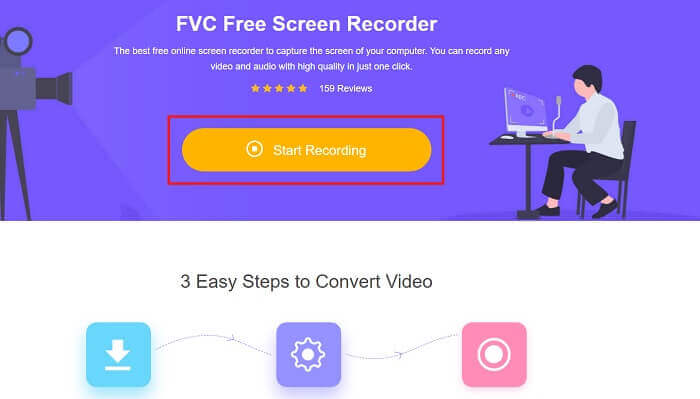
Step 1. Click the link to proceed to the tool. Click the Start Recording to launch the software.
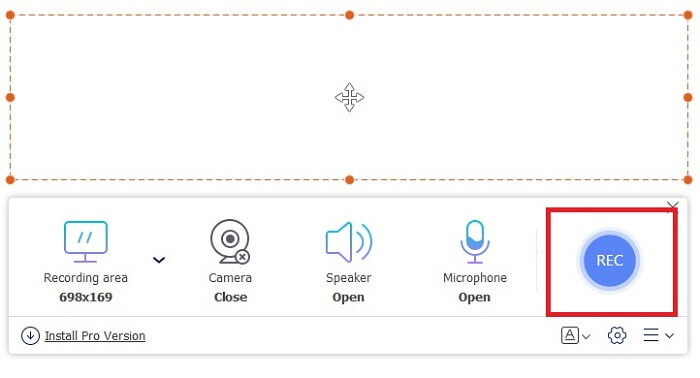
Step 2. A floating toolbar will show up on your screen. Select a region you want to record. Turn on the Speaker for the system sound and click the round button to start recording. Leave the screen recorder for a while to record the video or you may as well watch it.
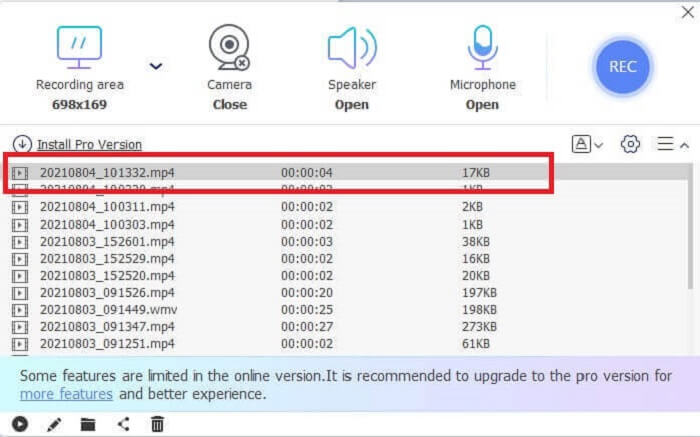
Step 3. Click the square button to stop the recording. History list will show up and click the first file to watch the recorded version with the same video audio quality.
الايجابيات
- أداة مجانية على الإنترنت. لن يتم تفعيل أي رسوم مخفية وأيضًا لا حاجة للتسجيل.
- لا توجد إعلانات مزعجة في البرنامج قبل استخدامه.
- سجل بلا حدود.
سلبيات
- تعتمد على الإنترنت.
- لا توجد ميزات قفل الشاشة.
الجزء 3. كيفية التقاط أقراص DVD مع أفضل بديل لـ VLC
يمكن لـ VLC القيام بالتسجيل ولكن ماذا لو كنت بحاجة إلى تسجيل فيديو عالي الجودة بصوت واضح للغاية. أيضًا ، يمكنك أيضًا اختيار التنسيق والجودة والترميز الذي تريد أن لا يوفره قرص DVD الخاص بتسجيل VLC.
مسجل شاشة FVC
تقديم هذه الأداة الهائلة التي تساعد المستخدم على إنتاج أي نوع من تنسيق الصوت والفيديو الذي لا تستطيع الأدوات الأخرى توفيره. يقوم مسجل الشاشة FVC بالعمل الشاق لمسجل الشاشة ؛ تُحدث ميزات شاشة القفل الفرق مع الأدوات الأخرى. بمساعدة هذه الأداة ، يمكنك تسجيل محتوى DVD الخاص بك في أي وقت وفي أي مكان في العالم سواء كان نظامًا أساسيًا عبر الإنترنت أو غير متصل بالإنترنت. بالإضافة إلى ذلك ، يمكنك التعليق على الشاشة أثناء التسجيل كما أن لديها خاصية إلغاء الضوضاء للحصول على إخراج صوتي أوضح. لاستكشاف المزيد حول هذه الأداة هنا ، يتم توفير خطوات حول كيفية استخدام الأداة.
Step 1. Click the download button that suits your program. Set it up and launch.
تنزيل مجانيلـ Windows 7 أو أحدثتنزيل آمن
تنزيل مجانيلـ MacOS 10.7 أو أحدثتنزيل آمن
Step 2. In the floating toolbar click the Video Recorder. It transfers you to another floating toolbar. Adjust the frame ratio, activate the System Sound to record the audio in the system. Then, click the round REC button to start the recording.
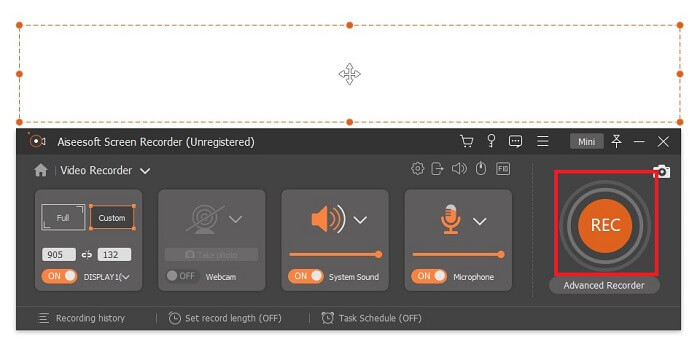
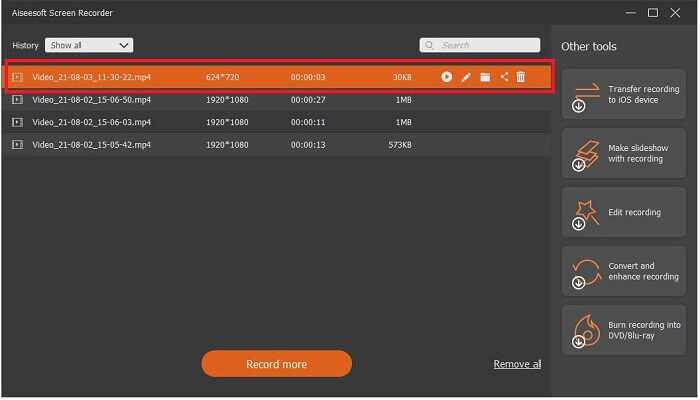
Step 3. After recording, click the square button to stop. The first video in the history list is the latest, click the Play button to watch the recorded version and enjoy.
الايجابيات
- ميزة قفل الشاشة لتجنب الإزعاج مع تسجيل الفيديو.
- يسهل الوصول إليه ، لأنه يمكن استخدامه للتسجيل عبر الإنترنت وغير متصل.
- يدعم جميع أنواع التنسيقات مع تسريع الأجهزة للمعالجة السريعة لإخراج الوسائط.
سلبيات
- الدفع قبل استخدام الأداة.
- يحتاج للتنزيل للوصول.
الجزء 4. الأسئلة الشائعة حول تسجيل DVD باستخدام VLC والاستنتاج
ما هي الصيغة المدعومة في VLC Media Player؟
These are some of the supported formats in VLC Media for video: MPEG (ES,PS,TS,PVA,MP3), AVI, ASF / WMV / WMA, MP4 / MOV / 3GP, OGG / OGM / Annodex, Matroska (MKV), Real, WAV (including DTS), Raw Audio: DTS, AAC, AC3/A52, Raw DV, FLAC, FLV (Flash), MXF, Nut, Standard MIDI / SMF, Creative™ Voice.
For audio: MPEG Layer 1/2, MP3 - MPEG Layer 3, AAC - MPEG-4 part3, Vorbis, AC3 - A/52, E-AC-3, MLP / TrueHD>3, DTS, WMA 1/2, WMA 3, FLAC, ALAC, Speex, Musepack / MPC, ATRAC 3, Wavpack, Mod, TrueAudio, APE, Real Audio, Alaw/µlaw, AMR (3GPP), MIDI, LPCM, ADPCM, QCELP, DV Audio, QDM2/QDMC, MACE. As well as this, it supports different formats such as the listed and many more.
هل لا يزال VLC مشغل وسائط مجاني؟
نعم ، لا يزال مجانيًا لأنه محمي برخصة GNU GPL المستعارة ، ولكن يمكنك أيضًا التبرع عبر PayPal بدون حد أدنى للتبرع.
هل VLC آمن للتنزيل؟
If you download it to the official site then there is no problem. Also, it is free from malware, viruses, worms, spyware and many more. It is also protected from intended damages to the file. If you are still worried about that, you can try the alternatives to VLC Media Player.
خاتمة
لتلخيص كل التفاصيل من فوق. من الأفضل تسجيل الفيديو بدلاً من تمزيقه. لأنه لا يمكن نسخ جميع أقراص DVD لأن بعضها محمي بموجب حقوق النشر. يمكن لـ VLC القيام بالتمزيق ولكنه سيستغرق الكثير من وقتك في هذه العملية. لذا ، لتقليل المشكلة ، يجب عليك تسجيل الفيديو للاستمتاع بمشاهدته ، وبعد ذلك يمكنك مشاركته مع الآخرين.
ولكن في نهاية اليوم ، يجب أن تظل تفكر في الخيار الأفضل لتسجيل الشاشة لتسجيل إخراج DVD دون الإضرار بجودة محتوى الوسائط. ثم لا يزال الخيار الصحيح في يدك ، التفاصيل المعطاة لك تعطيك فكرة أن FVC Screen Record أداة لا بد منها. لا يجوز لك استخدام هذا ليس فقط لتسجيل الأفلام من DVD ولكن له العديد من الأغراض الأخرى. إنه مسجل شاشة متعدد الإمكانات. إذن ، ماذا تنتظر بدلاً من انتظار حدوث السحر؟ لماذا لا تلقي تعويذتك وتقوم بخدعتك الأولى باستخدام FVC Screen Recorder.
-
 مراجعة Snagit 2021 - إيجابيات وسلبيات وأفضل بديل
 ما هو أفضل بديل لـ Snagit؟ هل توجد أداة لالتقاط الشاشة مثل Snagit؟ ستراجع هذه المشاركة Snagit وتشارك أفضل بديل لـ Snagit لالتقاط الشاشة.
-
 QuickTime Screen Recording - تسجيل الفيديو بالصوت على Mac و PC
 شاشة التسجيل مع الصوت على Mac مفيدة للغاية. يمكن للمشغل المدمج ، QuickTime Player القيام بذلك. اقرأ منشوره وتعرف على كيفية التقاط الشاشة بالصوت على Mac و PC.
-
 لقطة شاشة في VLC - كيفية التقاط لقطة في VLC Media Player
 كيف تأخذ لقطة في VLC Media Player؟ أين يتم حفظ لقطة VLC؟ فقط تعرف على المزيد حول ميزة لقطة VLC وأفضل بديل من المقالة.
