


 محول الفيديو النهائي
 مسجل الشاشة
 إصلاح الفيديو
كن نقدًا مكثفًا في حل مشكلة عدم التزامن [الصوت والفيديو]
لديك مشروع عرض تقريري عبر الإنترنت لصفك غدًا. أنت تبحث عن أفضل التطبيقات أو البرامج التي يمكنك استخدامها لتسجيل الفيديو من أجل إنجاز العرض الذي يجب تسليمه غدًا. لكن بدلًا من إيجاد حل لمشكلتك، يبدأ الارتباك والمتاعب بجعلك تفرط في التفكير لأن الصوت غير متزامن مع الفيديو. لا داعي للقلق بشأن وضعك، فهو يومك المحظوظ؛ هذه المقالة تتناول كل ما تحتاج إلى معرفته لحل هذه المشكلة.

الجزء 1. لماذا لا يتزامن الصوت مع الفيديو؟
يمكن أن يكون الصوت والفيديو غير متزامنين لعدة أسباب ، بما في ذلك ما يلي: قد يكون البث أو الاتصال بين جهاز فك التشفير / القمر الصناعي هو المشكلة عند مشاهدة برنامج تلفزيوني. قد يتم إلقاء اللوم على مشغل DVD أو Blu-ray DiscTM أو القرص نفسه إذا كان لديك أحد هذه الأجهزة متصل بالتلفزيون الخاص بك. إذا تم توصيل نظام المسرح المنزلي بالتلفزيون الخاص بك عبر كابل بصري ، فقد تلاحظ تأخرًا في الصوت يحتاج إلى تصحيح يدويًا. من ناحية أخرى ، قد تكون إعدادات جهاز التلفزيون الخاص بك هي السبب.
الجزء 2. 3 أفضل أدوات مثبتة: كيفية مزامنة الصوت والفيديو
1. استخدام محول الفيديو في نهاية المطاف
هناك الكثير من الطرق والبرامج المتاحة عبر الإنترنت والتي يمكن أن تساعد في حل المشكلة المقدمة ، وهذه واحدة من أفضل الأدوات التي نوصي باستخدامها. قم بتنزيل FVC Video Converter Ultimate على جهاز الكمبيوتر الخاص بك ، وهو برنامج يحتوي على العديد من الميزات التي تعزز مقطع الفيديو. يمكن لإحدى الميزات المقدمة إصلاح مشكلة مزامنة الصوت والفيديو في نظام التشغيل Windows 10 في مقطع الفيديو - على سبيل المثال - عن طريق ضبط التأخير. اتبع الخطوات أدناه لمعرفة كيفية استخدام البرنامج:
الخطوة 1: لتنزيل البرنامج على جهاز سطح المكتب، انقر زر «التنزيل المجاني». ثم ثبّت البرنامج وخصص إعدادات التثبيت كما تريد. إذا كان كل شيء على ما يرام، شغّل البرنامج بعد الانتهاء من التثبيت.
تحميل مجانيلنظام Windows 7 أو أحدثتنزيل آمن
تحميل مجانيلنظام MacOS 10.7 أو أحدثتنزيل آمن
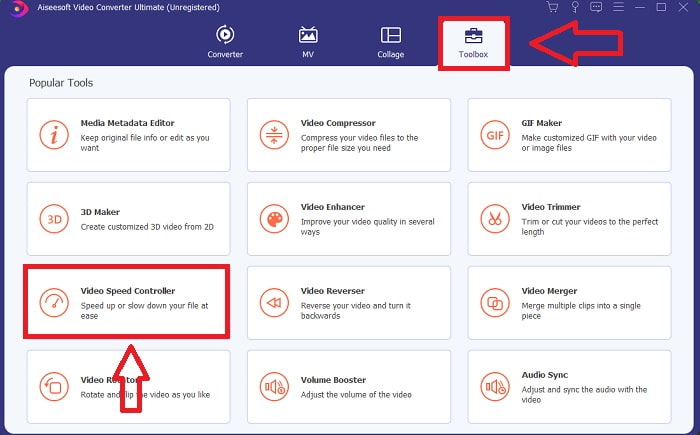
الخطوة 2: في الواجهة الرئيسية، انقر على ميزة صندوق الأدوات ثم انتقل إلى مزامنة الصوت.
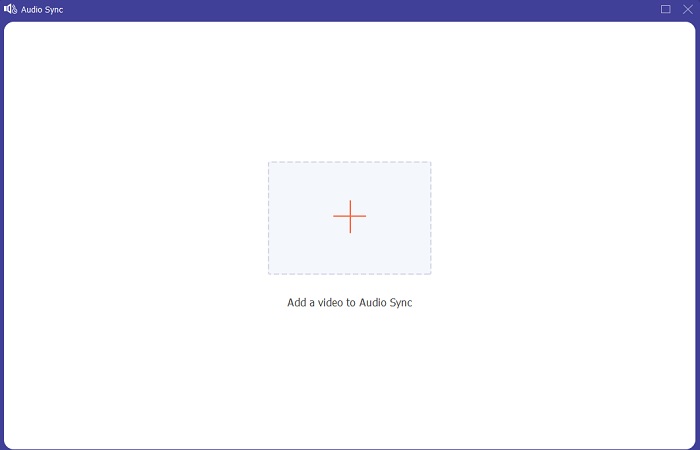
الخطوة 3: أضف أي ملف تريده بالنقر على زر + حسب تفضيلك، ثم تابع لتحرير مقطع الفيديو.
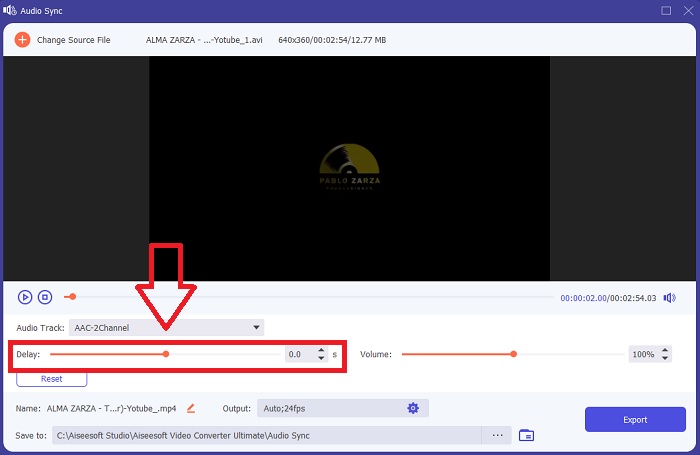
الخطوة 4: اضبط شريط التمرير الخاص بالصوت لمزامنته مع مقطع الفيديو. يمكنك أيضًا تغيير جهاز الإخراج وتخصيص مستوى صوت مقطع الفيديو.
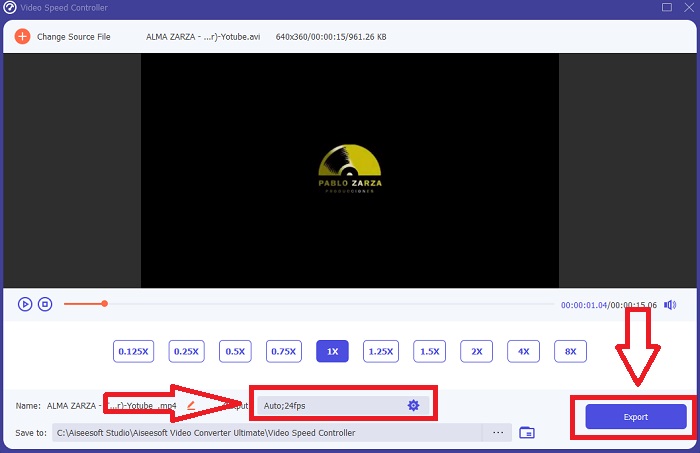
الخطوة 5: عند الانتهاء من تعديل تزامن مقطع الفيديو، انقر على تصدير ثم اختر مكان حفظ الملف.
2. استخدم VLC Media Player
مشغّل الوسائط VLC تطبيق متاح على كل أنظمة التشغيل؛ ويندوز وماك وآيفون وأندرويد. على الرغم من أنه متاح على كل الأجهزة، فإن لكل منها طريقة مختلفة لإصلاح تأخر الصوت ومزامنة صوت مقطع الفيديو. هذا المشغل معروف أحيانًا بمشكلات في نظام تشغيله، لكن يمكنك أيضًا استخدامه لإصلاح مشكلة عدم تزامن الصوت مع الفيديو بشكل دائم.
الخطوة 1: افتح مشغّل الوسائط VLC في نظام ويندوز، ثم انقر على علامة تبويب الأدوات. بعد النقر على الأدوات، اختر التفضيلات.
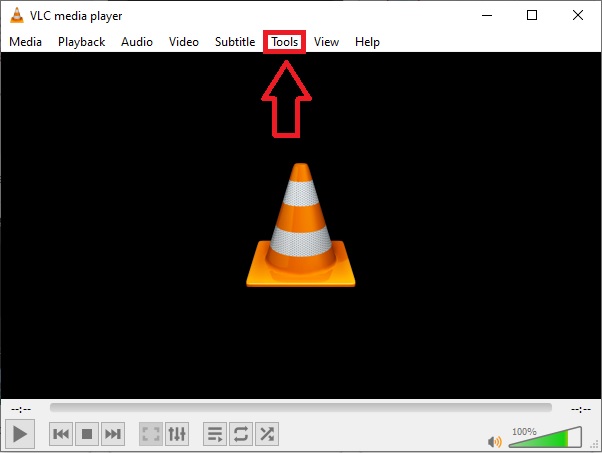
الخطوة 2: ستظهر واجهة أخرى على الشاشة. تابع العملية بالنقر على علامة تبويب الصوت. في الزاوية السفلية اليسرى، اختر الكل للوصول إلى الإعدادات المتقدمة.
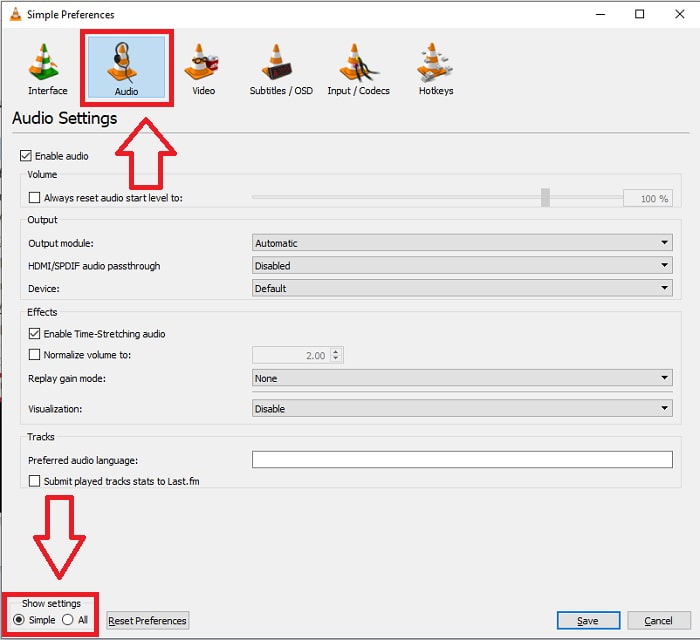
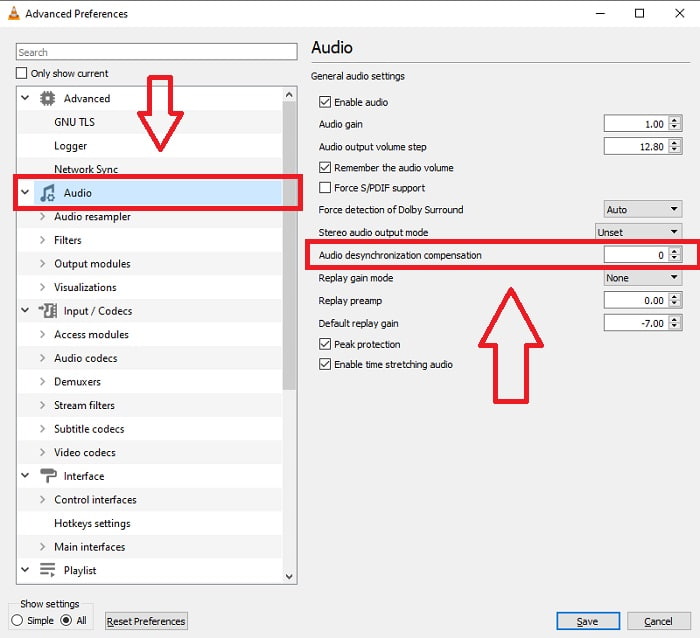
الخطوة 3: ستوفر لك الإعدادات المتقدمة جميع الخيارات المتاحة. تابع بالعثور على الصوت في تبويب الإعدادات المتقدمة. بعد الضغط عليه، سترى إعدادات الصوت العامة ويمكنك ضبط تعويض عدم تزامن الصوت. إذا كان الصوت متأخرًا عن الفيديو، فغيّر القيمة إلى قيمة موجبة للتعويض. يجب استخدام القيم السالبة إذا كان الصوت يتقدم على الفيديو. سيتم إصلاح مشكلة عدم تزامن VLC بشكل دائم بهذه العملية.
ذات صلة:
كيفية إصلاح مشكلة عدم تشغيل ملفات MKV في VLC
كيفية إصلاح مشكلة عدم تشغيل أقراص DVD في VLC
3. استخدم Premiere Pro
عندما يتعلق الأمر بإنشاء فيديو عالي الدقة بجودة البث التلفزيوني، فإن Premiere Pro هو الأداة المفضلة. يمكن استخدام هذا البرنامج لاستيراد جميع أنواع الوسائط، بما في ذلك الفيديو والصوت، ثم تحريرها وتصديرها بالصيغة المطلوبة للتوزيع. يمكن دمج مقاطع فيديو وصور ثابتة مختلفة معًا عند استخدام Premiere Pro لإنشاء الفيديوهات. يمكن إضافة عناوين ومرشحات وتأثيرات أخرى إلى الفيديو. هذا البرنامج يساعد كثيرًا عندما يكون الصوت غير متزامن مع الفيديو، خاصةً لمستخدمي أجهزة الكمبيوتر المكتبية أو المحمولة. فيما يلي الخطوات اللازمة لتنفيذ العملية بشكل صحيح.
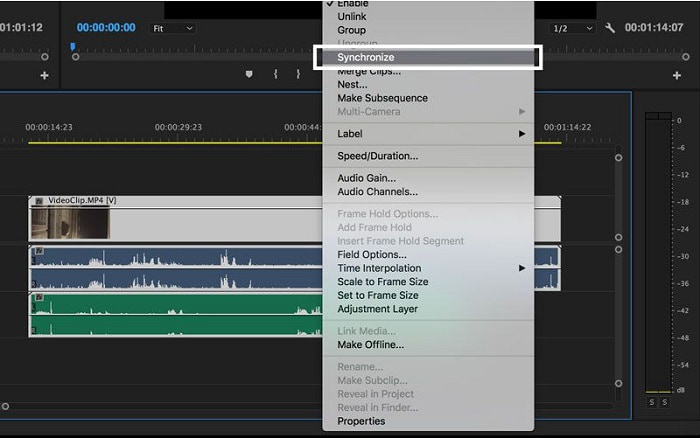
الخطوة 1: تأكد من ترتيب ملفات الصوت والفيديو في المخطط الزمني (Timeline)، كما هو موضح في الصورة التوضيحية.
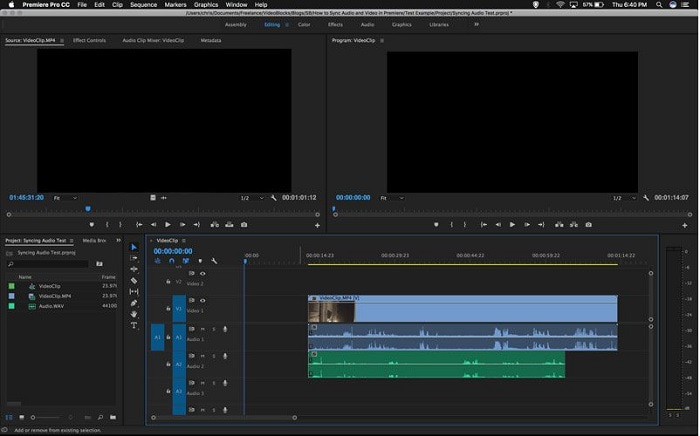
الخطوة 2: انقر بزر الماوس الأيمن لتحديد كلٍّ من مساري الصوت والفيديو. ستظهر قائمة منسدلة. اختر مزامنة من القائمة المنسدلة التي تظهر.
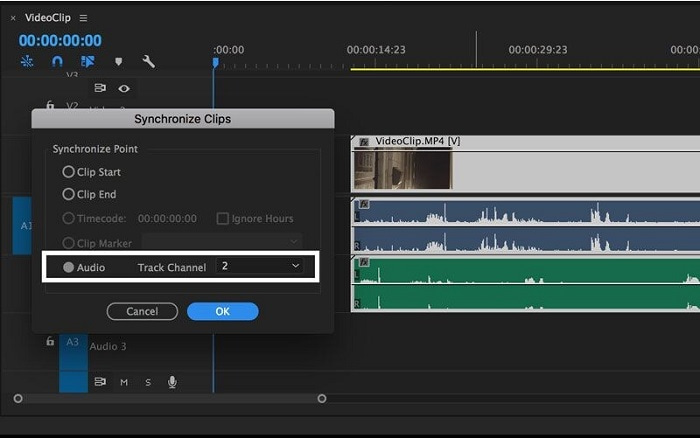
الخطوة 3: الآن اختر الصوت كنقطة المزامنة. حدد المسار الذي تريد مزامنته. وأخيرًا، احذف مسار الصوت المؤقت ثم اختر خيار ربط لربط المقاطع ببعضها.
الجزء 3. الأسئلة الشائعة حول الصوت والفيديو غير متزامنين
إذا قمت بتغيير معدل العينة ، فهل ستتدهور جودة الصوت؟
إذا كنت ترغب فقط في الاستماع إلى الصوت في مقطع الفيديو الخاص بك وعدم إجراء أي تغييرات ، فيجب عليك تغيير معدل العينة لمواكبة ذلك. ستتمكن فقط من مزامنة صوت الفيديو عن طريق ضبط تأخير صوت مقطع الفيديو في FVC Video Converter Ultimate. لن تشعر بالقلق بعد الآن بشأن تدهور جودة الصوت عند ضبط معدل العينة. مع هذا البرنامج ، لن تقلق بشأن الصوت الذي لم تتم مزامنته في الفيديو. يحتوي هذا البرنامج على ميزة يمكنها حل المشكلة المحددة ؛ كما أن لديها ميزات أخرى يمكن أن تفيد كل مستخدم ويمكن استخدامها بسهولة.
ما هو تعويض عدم التزامن الصوتي؟
عيّن تأخيرًا زمنيًا لتعويض إلغاء تزامن الصوت الموجب أو السالب بالملي ثانية في تفضيلات VLC بالنقر فوق الصوت ، ثم تحديد خانة الاختيار الخيارات المتقدمة.
ما السبب الآخر وراء عدم مزامنة الفيديو والصوت؟
السبب الآخر لعدم مزامنة الفيديو والصوت هو بسبب إخراج الفيديو غير المدعوم الذي لا يمكن لجهاز الصوت استخدامه ، والعكس صحيح.
خاتمة
خلاصة القول، إن مشكلة تأخر الصوت عن الصورة أو عدم تزامنهما تعد من المواقف الصعبة التي يواجهها كثير من الناس في العالم الرقمي. خصوصًا في فترة الجائحة، أصبحت الأجهزة والمتطلبات الإلكترونية أكثر شيوعًا، ولكن كيف يمكنك العمل أو أداء مهامك بشكل صحيح إذا واجهتك عقبات في هذه الأدوات الإلكترونية مثل مشكلة كيفية مزامنة الصوت مع الفيديو؟ إذا حدث تأخير. باختصار، جميع الطرق والبدائل المطروحة لتوضيح كل هذه المخاوف معروضة هنا في هذه المقالة. نوصي باستخدام Video Converter Ultimate للتعامل مع مثل هذه المواقف غير المرغوب فيها في المستقبل.
-
 أفضل 5 مشغلات فيديو بطيئة الحركة على الكمبيوتر (Windows / Mac / Linux)
 تعتبر الحركة البطيئة ميزة مفيدة للغاية في العديد من المواقف. لمشاهدة مقاطع الفيديو بسرعة بطيئة لمعرفة المزيد من المعلومات التفصيلية في اللقطات العابرة ، يمكنك التعرف على أفضل 5 مشغلات فيديو بطيئة الحركة في هذه المقالة.
-
 [2 أفضل الحلول] كيفية تشغيل أفلام AVI على iPhone / iPad بسهولة
 غير قادر على تشغيل أفلام AVI على جهاز iPhone / iPad ولا تريد تنزيل مشغلات فيديو من جهات خارجية؟ يمكنك تعلم طريقتين فعالتين لتحويل مقاطع فيديو AVI لتشغيلها على iPhone.
-
 هل يمكن لـ Wii / Wii U تشغيل أقراص DVD بدون البيرة المنزلية؟ 2 حلول لك
 عند إدخال أقراص DVD في Wii ، ستجد أن Wii لا يمكنها قراءة وتشغيل أقراص DVD بسبب الإغلاق الإقليمي. في هذه المقالة ، ستتعلم كيفية تشغيل أقراص DVD على Wii / Wii U بسهولة دون اختراق Homebrew.
