


 محول الفيديو النهائي
 مسجل الشاشة
 إصلاح الفيديو
 تنزيل آمن
دمج ملفات WAV بسلاسة باستخدام أدوات ونصائح برمجية
سواء كنت مبتدئًا في تحرير الصوت أو محترفًا، فإن استخدام الأدوات والتقنيات المناسبة من أجل دمج ملفات WAV ضروري لضمان دمج ملفي WAV مختلفين وتصديرهما بجودة غير فاقدة. البحث عن الأداة المناسبة، من جهة أخرى، قد يستغرق من المستخدم وقتًا وجهدًا. ومع ذلك، وبمساعدة هذه المقالة، سنستعرض مختلف الأدوات مع الخطوات اللازمة لاستخدامها بفاعلية، بالإضافة إلى نصائح تساعدك على البدء وجعل عملية الدمج أكثر بساطة وكفاءة.

الجزء 1. دمج ملفات WAV دون فقدان في ثوانٍ [باستخدام تسريع وحدة معالجة الرسومات]
عندما تريد دمج ملفي WAV في ملف واحد للتصدير، فإن أفضل وأسهل طريقة للقيام بذلك هي استخدام أداة Video Converter Ultimate المختارة من FVC. أداة البرامج هذه من Aiseesoft متاحة لجميع أنواع المستخدمين، إذ يمكن تنزيلها مجانًا تمامًا من موقعها الرسمي. تضم هذه الأداة مزايا لتحرير الفيديو والصوت مع قدرة على دمج عدة ملفات WAV في ملف واحد. بالإضافة إلى ذلك، تم دمج البرنامج بتقنية معالجة عالية السرعة تجعل دمج ملفات WAV وعمليات التصدير أكثر كفاءة من جهة المستخدم. لتسهيل التنقل في مهمة دمج ملفات WAV، يُرجى اتباع الدليل أدناه.
الخطوة 1. قم بتنزيل وتثبيت أداة دمج ملفات WAV على سطح المكتب لديك، ثم قم بفتحها.
تحميل مجانيلنظام Windows 7 أو أحدثتنزيل آمن
تحميل مجانيلنظام MacOS 10.7 أو أحدثتنزيل آمن
الخطوة 2. بمجرد دخولك إلى واجهة البرنامج، انقر على زر Add Files في الزاوية العلوية اليسرى. بعد ذلك افتح واختر ملفات WAV التي تريد دمجها في ملف واحد ثم انقر على زر Open.
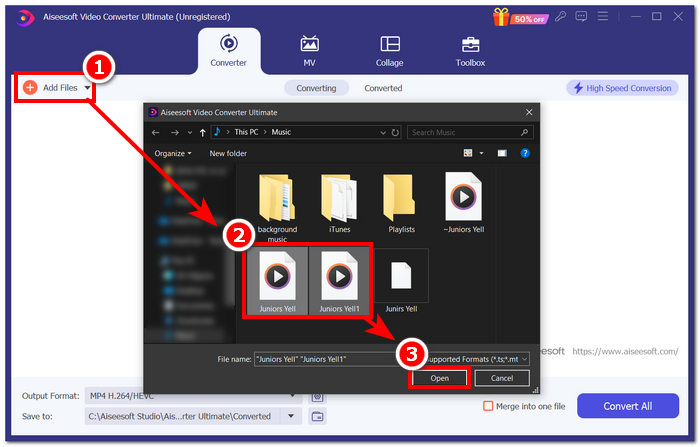
الخطوة 3. بعد رفع ملفات WAV التي تريد دمجها في البرنامج، ضع علامة صح على خيار Merge into one file الموجود بجانب زر Convert All في الجزء السفلي الأيمن من واجهة البرنامج.
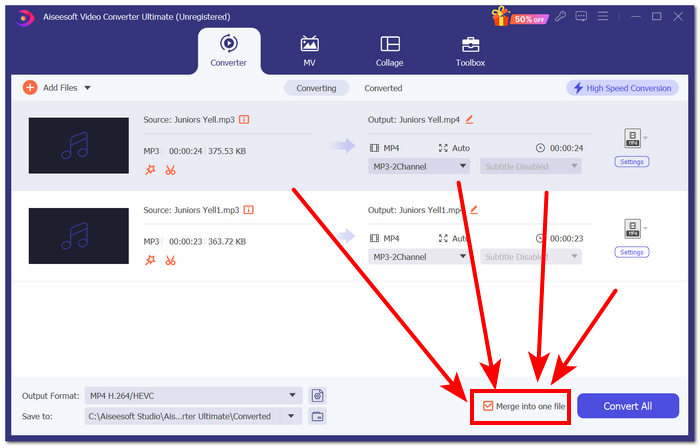
الخطوة 4. انقر على زر Convert All لبدء عملية الدمج وتصدير الملفات تلقائيًا إلى مجلد التنزيلات لديك.

نصائح
• يمكنك دمج ملفات WAV متعددة في أداة البرنامج في نفس الوقت.
• في الزاوية اليسرى السفلية من واجهة البرنامج، يمكنك التحكم في تنسيق الإخراج إلى تنسيق الملف الذي تريده قبل تصديره.
• يمكنك أيضًا تغيير وجهة ملف WAV المدمج عن طريق الوصول إلى المجلد المخصص الموجود في الزاوية اليسرى السفلية من واجهة البرنامج واختياره.
• لتحقيق أقصى استفادة من تقنية المعالجة عالية السرعة عند دمج ملف WAV وتصديره، قم بتمكين إعداد التحويل عالي السرعة الموجود في الزاوية اليمنى العليا من واجهة البرنامج.
• تدعم هذه الأداة أيضًا صيغًا متعددة، ويمكنك دمج ملفات MP4 وMKV وFLV وMP3 وFLAC وغير ذلك من الصيغ معًا.
الجزء 2. دمج ملفات WAV عبر الإنترنت
عندما تجد أن دمج ملفات WAV من خلال أداة تعتمد على البرامج أمر صعب للغاية، فقد يكون الحل عبر الإنترنت هو الحل الذي تحتاجه. Descript هي أداة تعتمد على الويب تعمل كأداة لتحرير الصوت والفيديو والنسخ في أداة واحدة. يعد دمج ملفات WAV أمرًا سهلاً نسبيًا حيث تستخدم الأداة القائمة على الويب الذكاء الاصطناعي لدمج ملفات WAV المدخلة تلقائيًا بمجرد تحميلها والسماح للمستخدمين بمعاينتها قبل تنزيلها.
الخطوة 1. انتقل إلى الموقع الرسمي لـ Descript وأنشئ حسابًا حتى تتمكن من استخدام أداة البرنامج لدمج ملفات WAV الخاصة بك.
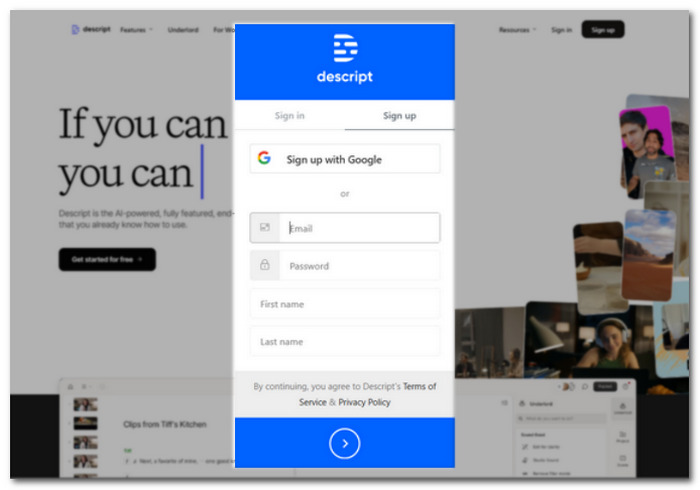
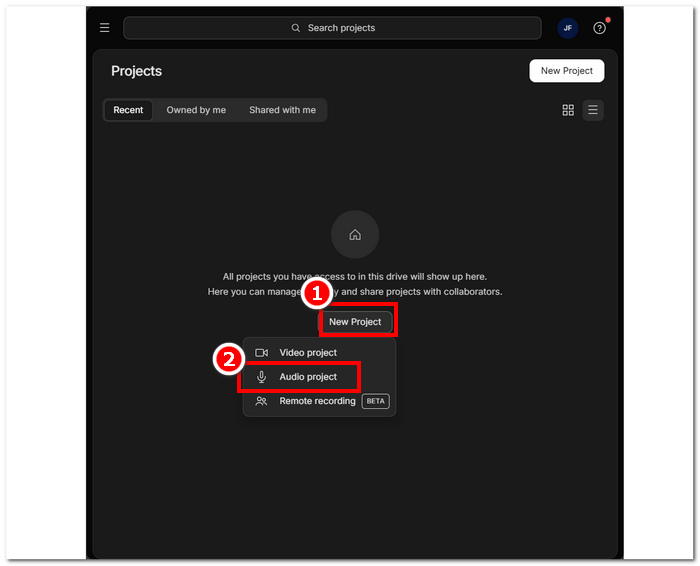
الخطوة 2. بعد تسجيل الدخول إلى واجهة الأداة، انقر على New Project > Audio Project.
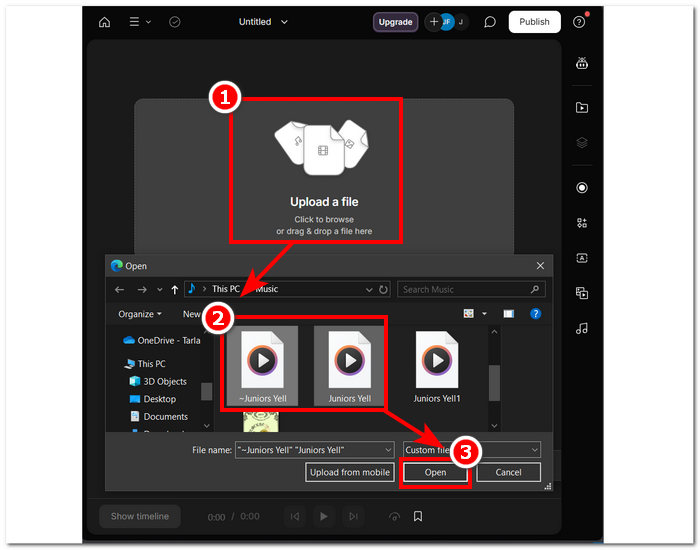
الخطوة 3. قم برفع ملفات WAV التي تريد دمجها في ملف واحد في حقل Upload a file المتوفر في واجهة الأداة.
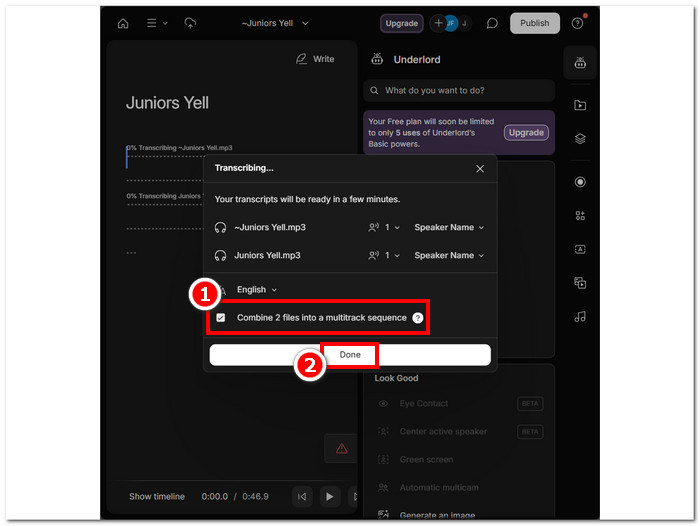
الخطوة 4. أثناء رفع ملفات WAV في واجهة الأداة، ستظهر نافذة تتيح لك تحديد ما إذا كنت تريد دمجها تلقائيًا. ضع علامة صح للسماح بعملية الدمج بالذكاء الاصطناعي، ثم انقر على زر Done.
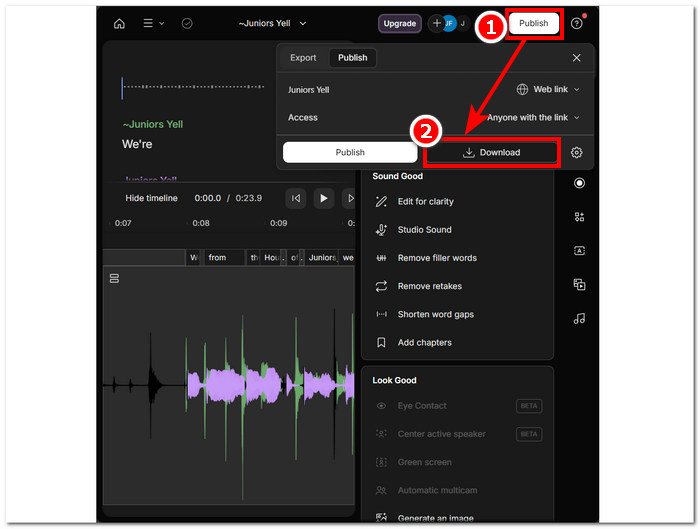
الخطوة 5. انتظر حتى تنتهي الأداة من دمج ملفات WAV. بمجرد الانتهاء، يمكنك تشغيل الناتج النهائي لمراجعته والتأكد مما إذا كان الذكاء الاصطناعي قد أدى عملًا جيدًا في دمج ملفات WAV، وإجراء التعديلات عند الحاجة. بعد رضاك عن النتيجة، انقر على Publish > Download لتنزيل ملف WAV المدمج على جهازك المكتبي.
نصائح
• قبل تنزيل ملفات WAV المدمجة، تأكد من فحص المسار الصوتي جيدًا لتجنب التقطيع.
• إن التعرف على الأداة يمكن أن يساعدك على تسريع عملية دمج ملفات WAV بشكل فعال.
الجزء 3. دمج ملفات WAV باستخدام Audacity
باعتباره محرر صوتيات مفتوح المصدر، فإن Audacity يمكنه أيضًا دمج المسارات مثل ملفات WAV مجانًا دون أي رسوم إضافية. هذا البرنامج المجاني التحميل يساعد المستخدمين في مهام تحرير الصوت، وجعل عملية دمج ملف WAV أسهل بكثير. يتيح Audacity للمستخدمين إضافة عدة ملفات WAV دفعة واحدة، مع دعم استيراد صيغ صوتية مختلفة. علاوة على ذلك، يحتوي على ميزة سريعة لترتيب كل مسار بشكل مثالي من نهاية المسار السابق، ما يجعل الدمج أسهل بكثير دون القلق بشأن التداخل. لذلك، فإن اتباع الدليل الشامل أدناه سيساعدك على استخدام البرنامج بشكل أفضل.
الخطوة 1. قم بتنزيل برنامج Audacity على جهازك المكتبي. بعد الحصول عليه، افتحه وحمِّل ملفات WAV التي تريد دمجها في ملف واحد.
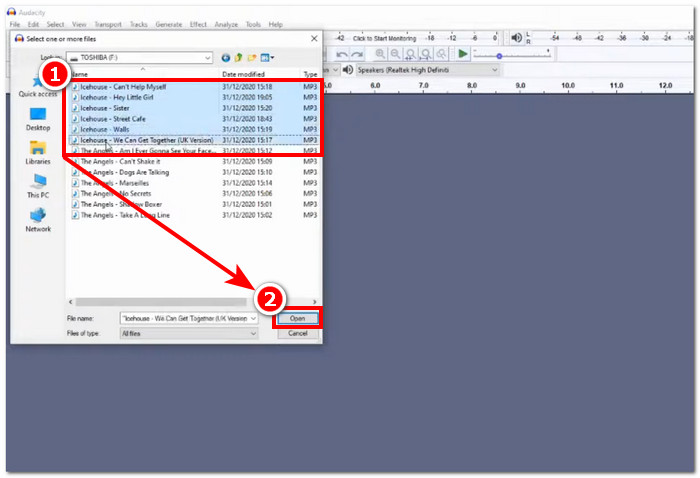
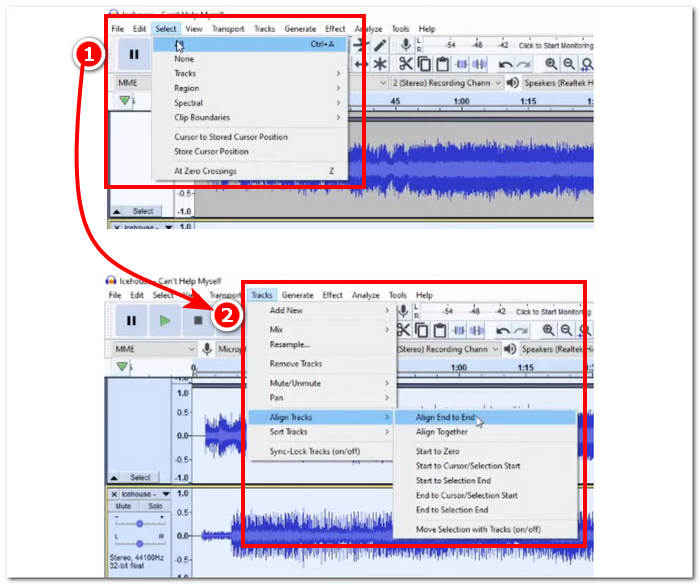
الخطوة 2. بعد تحميل ملفات WAV في واجهة الأداة، ابدأ بتحديد جميع ملفات المسار بالنقر على Select > All الموجودة في أعلى قائمة إعدادات الأداة. بعد ذلك، لمحاذاة مسارات WAV المحددة، انقر على قسم Track، وتحت خيار Align Tracks، انقر على Align End to End.
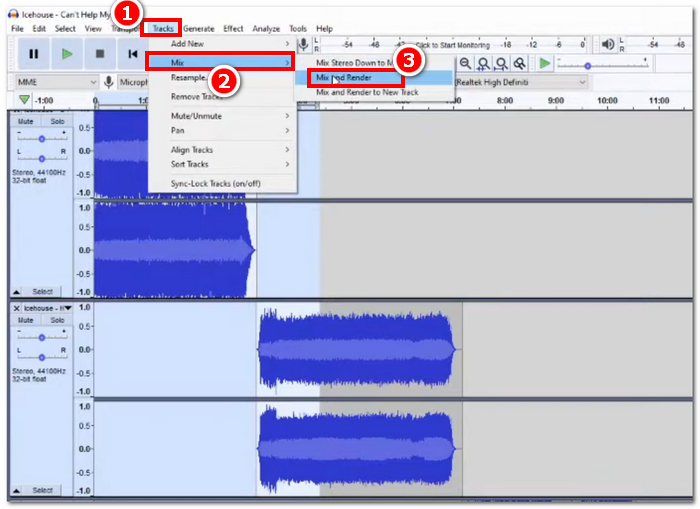
الخطوة 3. بعد محاذاة ملفات WAV من نهاية كل مسار، انقر على قسم Track، وتحت ميزة Mix، انقر على Mix and Render لبدء عملية الدمج.
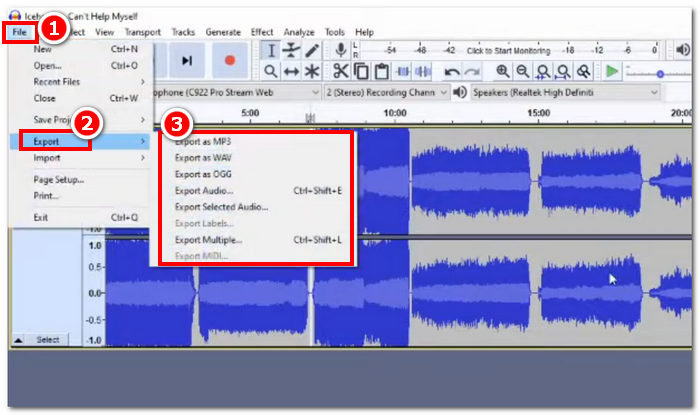
الخطوة 4. بعد انتهاء عملية الدمج، يمكنك الآن تصدير ملف WAV بالنقر على File > Export، ثم اختر بحرية صيغة الإخراج التي ترغب بها من بين الصيغ المتاحة.
نصائح
• عند تصدير ملفات WAV المجمعة، اختر التصدير بتنسيق WAV، حيث يحافظ هذا على جودة الصوت الأصلية.
الجزء 4. دمج ملفات WAV باستخدام FFmpeg
أداة برمجية أخرى مفتوحة المصدر لمعالجة الصوت والفيديو هي FFmpeg. يمكن استخدام إطار العمل المتعدد الوسائط القوي هذا كمحول ولتحرير الوسائط المتعددة، مثل ملفات الفيديو والصوت وملفات الوسائط الأخرى. في التعامل مع مهام مثل دمج ملفات WAV، يقوم البرنامج بإدخال رمز معين في موجه الأوامر لبدء عملية الدمج التي تسمى دمج ملفات WAV في ملف إخراج واحد. يوجد أدناه دليل مفصل حول كيفية استخدام FFmpeg لدمج ملفات WAV.
الخطوة 1. انتقل إلى موقع FFmpeg وقم بتثبيت البرنامج وفقًا لنوع الجهاز الذي تستخدمه.
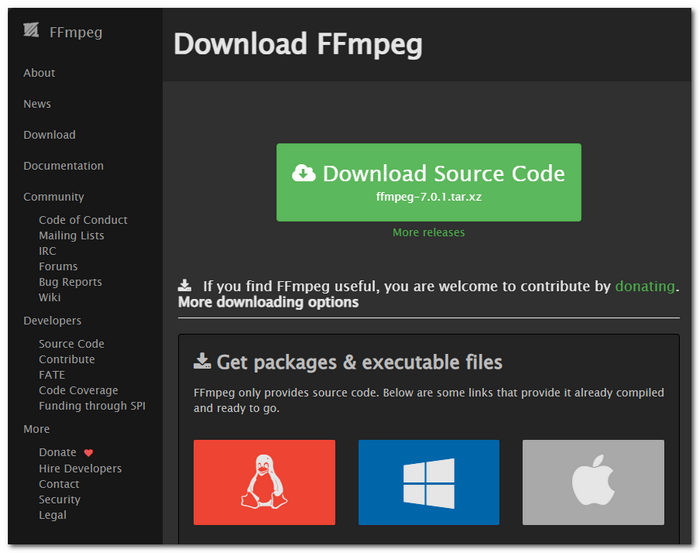
قم بتنزيل ملف zip من موقع الويب وإنشاء مجلد جديد في مسار النظام الخاص بك لتخزين جميع ملفات FFmpeg القابلة للتنفيذ، بما في ذلك نقل ملف zip إلى المجلد.
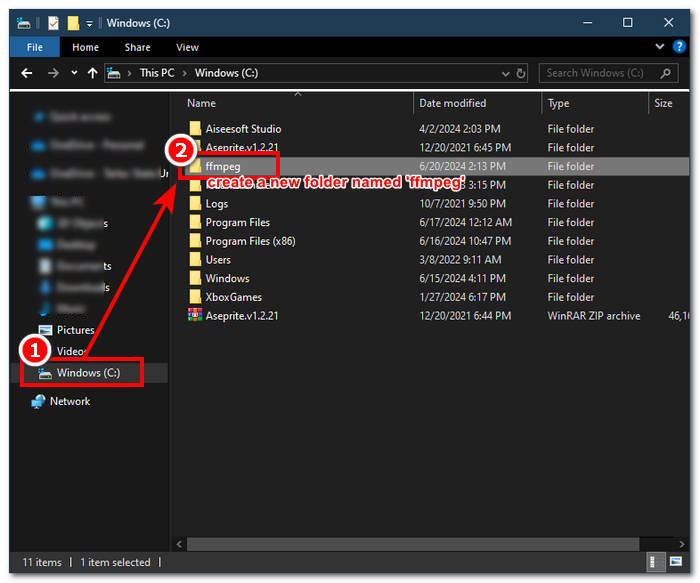
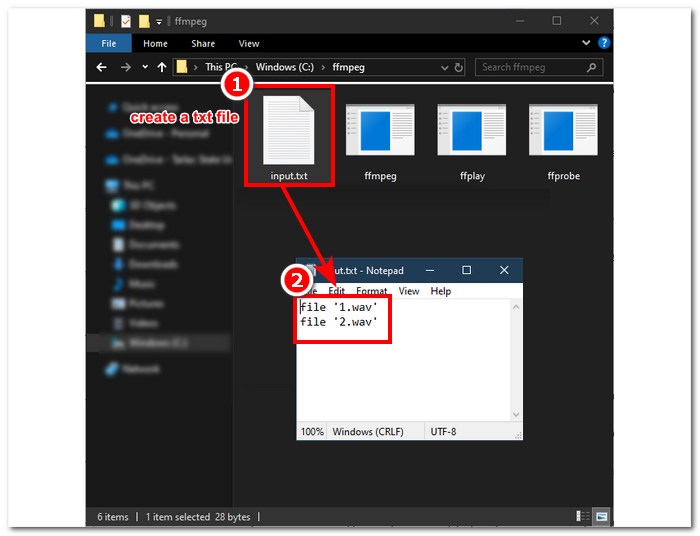
الخطوة 2. انقل ملف WAV إلى مجلد ffmpeg الذي أنشأته للتو، ثم جهِّز ملفات WAV بإعادة تسميتها إلى ‘input1.wav’ و ‘input2.wav’ في نفس الدليل.

ملاحظة: بعد ذلك، في المجلد نفسه، أنشئ ملفًا باسم ‘input.txt’ وأدخل المحتوى التالي:;
file 'input1.wav'
file 'input2.wav'
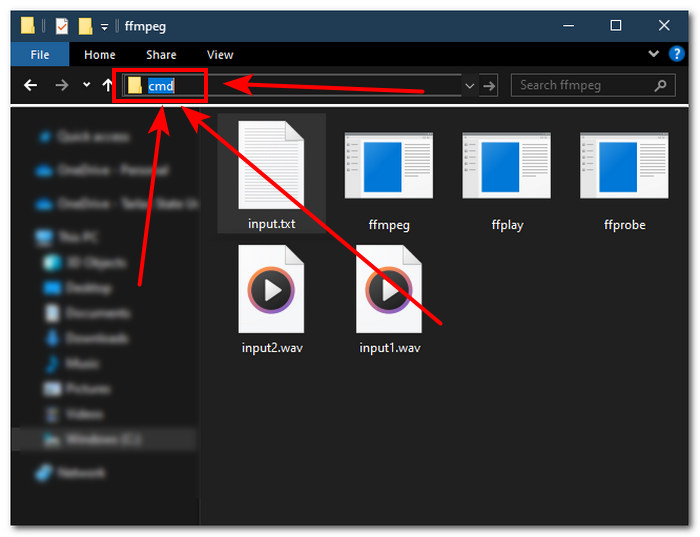
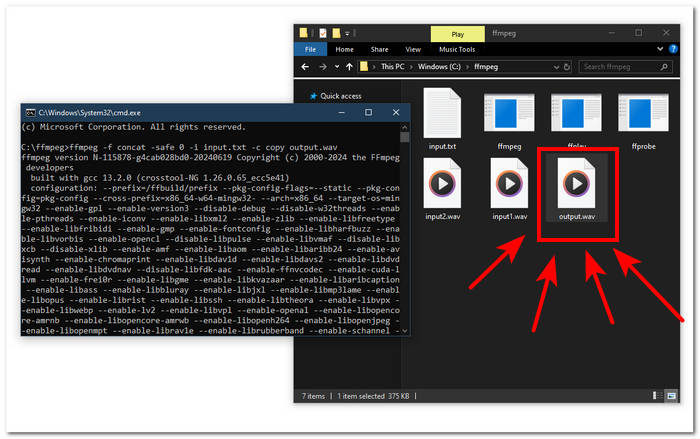
الخطوة 3. شغِّل موجّه أوامر FFmpeg بكتابة ‘cmd’ في حقل مسار المجلد الموجود في أعلى النافذة ثم اضغط على Enter.
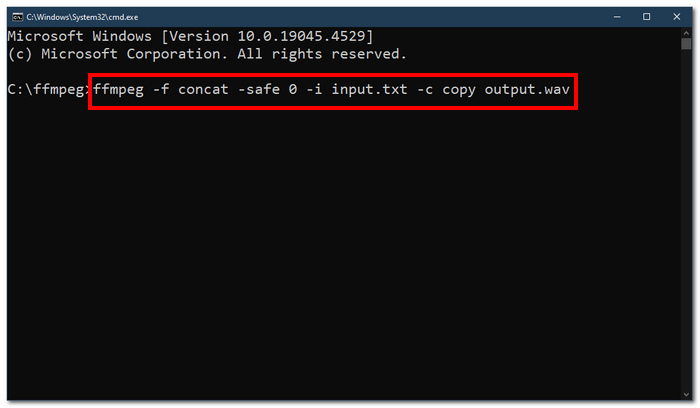
الخطوة 4. بعد الدخول إلى موجّه أوامر FFmpeg، أدخل الأمر التالي واضغط Enter:;
ffmpeg -f concat -safe 0 -i input.txt -c copy output.wav
الخطوة 5. سيظهر ملف WAV جديد في مجلدك، ما يعني أنك نجحت في دمج ملفات WAV في ملف واحد.
نصائح
• نظرًا لأن الأداة تعتمد على سطر الأوامر، فمن المهم أن تكون على دراية بسطر الأوامر الأساسي وتعرفه للتنقل الفعال في الأداة.
• احتفظ بجميع المجلدات والملفات المرتبطة بـ FFmpeg ضمن مجلد واحد لتسهيل التنظيم والوصول إليها.
• شاهد البرامج التعليمية واقرأ الأدلة الإرشادية على الإنترنت عندما تريد القيام بمهام أخرى غير دمج ملفات WAV.
الجزء 5. الأسئلة الشائعة حول كيفية دمج ملفات WAV
هل يمكنك مزج ملفات WAV؟
نعم، يمكنك مزج ملفات WAV باستخدام برامج الطرف الثالث المصممة لدمج ملفات WAV، مثل FVC-picked Video Converter Ultimate وAudacity.
هل يمكن لبرنامج VLC دمج ملفات الصوت؟
لا يتمتع مشغل الوسائط VLC بالقدرة على دمج ملفات WAV لأنه مصمم فقط لبث الوسائط وتحويل الوسائط.
كيفية دمج ملفات الفيديو في Windows Media Player؟
لا يدعم Windows Media Player تحرير ملفات WAV ناهيك عن دمج ملفات WAV. Windows Media Player هو برنامج مصمم لأجهزة Windows المصممة لتشغيل محتوى الوسائط.
ما هي أسهل طريقة لدمج الملفات الصوتية؟
الطريقة الأسهل لدمج ملفات WAV هي استخدام FVC-picked Video Converter Ultimate؛ تم تصميم هذا البرنامج بتقنية معالجة عالية السرعة ليكون مناسبًا للمستخدمين الذين لديهم أقل قدر من الخبرة في مهام تحرير الصوت، مثل دمج ملفات WAV.
هل يمكن أن يؤثر دمج ملفات WAV على جودة الصوت؟
نعم، يمكن لأدوات البرامج أن تؤثر بشكل كبير على جودة ملف WAV اعتمادًا على جودة البرنامج الذي تستخدمه. يمكن أن تكون الجودة منخفضة للغاية عند استخدام أداة مشبوهة. عند استخدام أدوات برامج موثوقة مثل Video Converter Ultimate وAudacity وغيرها، يمكن أن تساعد في الحفاظ على الجودة الأصلية.
خاتمة
ختامًا، يمكنك دمج ملفات WAV باستخدام أدوات البرامج المذكورة لدمجها بفاعلية وتصديرها بجودة غير فاقدة. ومن الجدير بالذكر أن العثور على الأدوات المناسبة وتعلّم كيفية استخدامها جزء حاسم من العملية. لذا، بدءًا من استخدام أدوات برمجية متكاملة مثل Video Converter Ultimate المختار من FVC وصولًا إلى أداة سطر الأوامر المتقدمة FFmpeg، حرصت هذه المقالة على سرد الخطوات والنصائح المفيدة بحيث لا يتعين عليك سوى اتباعها كما هي للحصول على عملية دمج مباشرة وخالية من المتاعب.
-
 كيف يمكنني تحويل MP4 إلى WAV عبر الإنترنت مجانًا
 هل تحاول جاهدة تحويل MP4 إلى WAV؟ لا تعرف أي محول يمكنه مساعدتك في ذلك تمامًا دون دفع فلس واحد؟ اقرأ هذا المنشور وسيتم الرد على جميع أسئلتك.
-
 مراجعة أفضل 10 مشغلات موسيقى MP3 مجانية
 ما هو أفضل مشغل موسيقى MP3؟ كيف أضع الموسيقى على مشغل MP3؟ كيف يمكن تنزيل مشغل موسيقى MP3؟ يمنحك هذا المنشور مراجعة تفصيلية لأفضل 10 مشغلات MP3 مجانية لأجهزة الكمبيوتر التي تعمل بنظام Windows و Mac.
-
 أفضل 8 مشغلات MOV للكمبيوتر الشخصي وماك لتشغيل ملفات فيديو QuickTime MOV
 فقط تعرف على المزيد حول أفضل 8 مشغلات MOV المتاحة لكل من Windows و Mac. يمكنك اختيار الملف المرغوب والمناسب لتشغيل ملفات MOV بالجودة الأصلية.
