


 محول الفيديو النهائي
 مسجل الشاشة
 إصلاح الفيديو
 تنزيل آمن
دليل مفصل حول كيفية عكس الصوت في Audacity [2024]
يمكن أن يضيف عكس مسارات الصوت بعدًا ولونًا فريدين إلى إنتاجاتك الموسيقية، مما يؤدي إلى توليد تأثيرات صوتية آسرة لسرد القصص الإبداعية. يُستخدم هذا الأسلوب على نطاق واسع ويكتسب شعبية عندما يتعلق الأمر بإثراء المشاريع الصوتية بالعمق والأصالة. لذا، إذا كنت تقوم بتحرير الصوت في Audacity وتبحث عن إضافة لمسة من خلال عكسه، فأنت في المكان المناسب!
في هذه المقالة، سنوضح لك بالتفصيل كيفية عكس الصوت في Audacity ونشاركك نصائح قيمة لمساعدتك على تحقيق أقصى استفادة من هذه الميزة. وبحلول نهاية هذا الدليل، ستكون جاهزًا لعكس مسارات الصوت واستكشاف آفاق إبداعية جديدة بسهولة. لذا، استعد لتحويل مشاريع الصوت الخاصة بك واكتشاف الإمكانات المثيرة للصوت المعكوس!

الجزء 1. كيفية عكس الصوت في Audacity
Audacity هو برنامج مصمم لتمكين المستخدمين من تحرير ملفات الصوت دون الحاجة إلى أدوات متميزة باهظة الثمن، مما يضمن إخراجًا عالي الجودة دون أي تكلفة. وباعتباره أداة مفتوحة المصدر، فهو متاح مجانًا للجميع ويقدم قائمة طويلة من الميزات التي توجد عادةً في البرامج المدفوعة. ومن بين مجموعة قدراته، يتميز Audacity بقدرته على عكس مسارات الصوت. تتيح هذه الميزة للمستخدمين الإبداع في كيفية ظهور الصوت. عادةً، يعكس المحررون الصوت لأن ذلك يضيف تأثيرًا فريدًا إلى مشاريعهم.
إليك كيفية عكس الصوت في برنامج Audacity.
الخطوة 1. قم بتنزيل وتثبيت برنامج Audacity على جهاز الكمبيوتر الخاص بك.
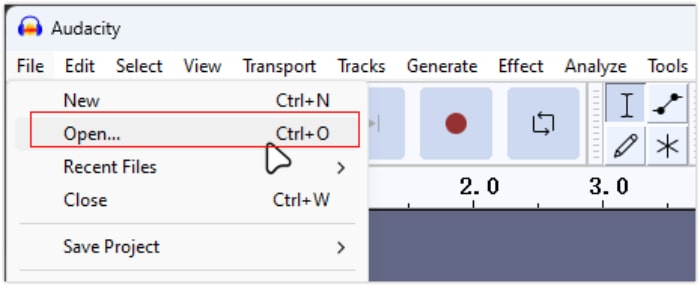
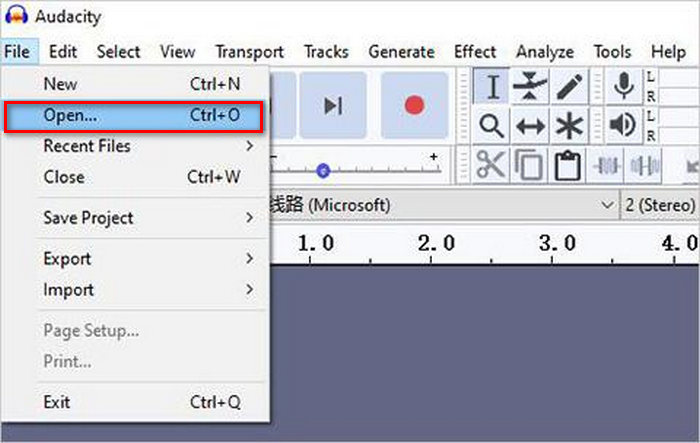
الخطوة 2. شغّل الأداة، ثم انتقل إلى قائمة File في الزاوية العلوية اليسرى واختر Open. من هناك، تصفّح ملفات جهازك لتحديد ملف الصوت الذي تريد عكسه، أو اسحب ملف الصوت وأسقطه داخل البرنامج.
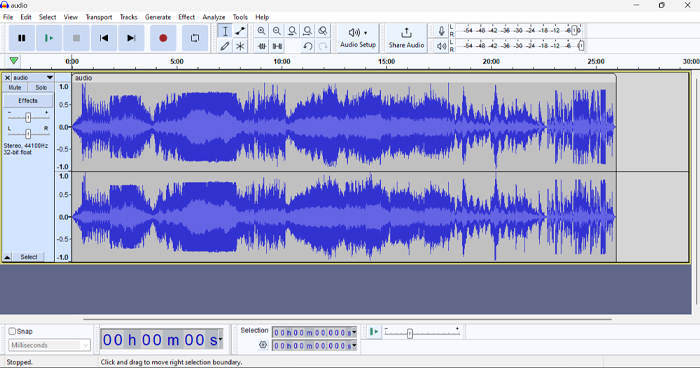
الخطوة 3. الآن، انقر على المسار الصوتي، وانتقل إلى علامة التبويب Select، واختر All لتحديد ملف الصوت بالكامل.
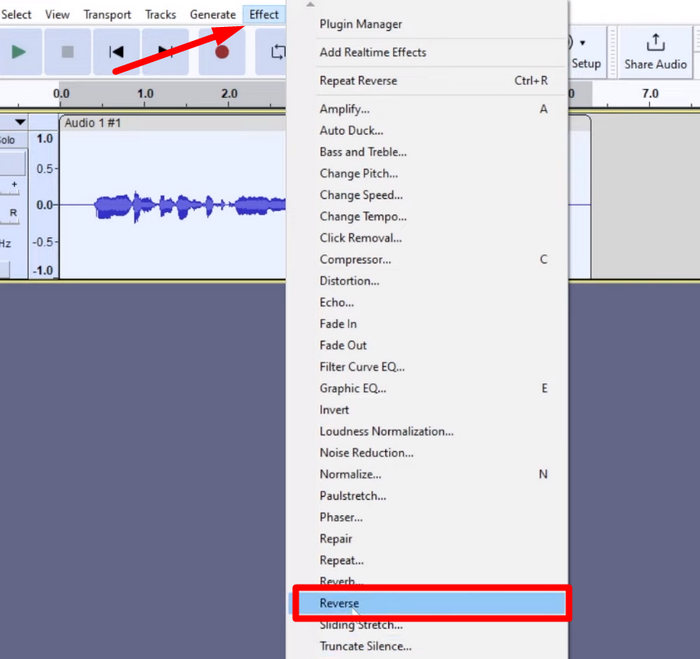
الخطوة 4. لعكس الصوت، انتقل إلى علامة التبويب Effect واختر Reverse من القائمة المنسدلة. سيقوم Audacity بمعالجة المقطع الصوتي المحدد وعكسه.
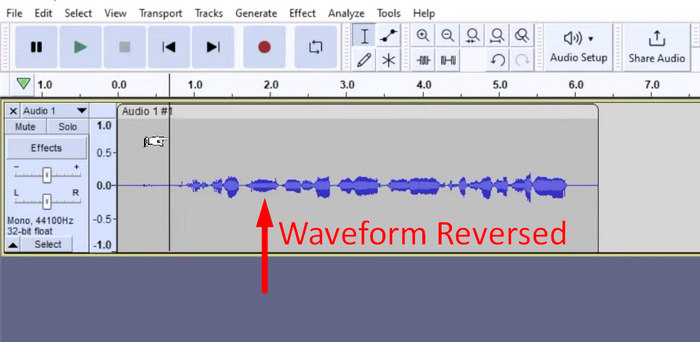
الخطوة 5. يمكنك معاينة الصوت المعكوس بالضغط على مفتاح المسافة في لوحة المفاتيح. أو بدلاً من ذلك، استخدم أدوات التشغيل في أعلى يسار نافذة Audacity وانقر على زر Play.
الخطوة 6. أخيراً، لتصدير ملف الصوت المعكوس، ارجع إلى قائمة File، ومن تحتها اختر Export. بهذه الطريقة سيتم حفظ الصوت كملف جديد. وفي الوقت نفسه، لا تنسَ اختيار صيغة ملف الصوت المفضلة لديك قبل التصدير.
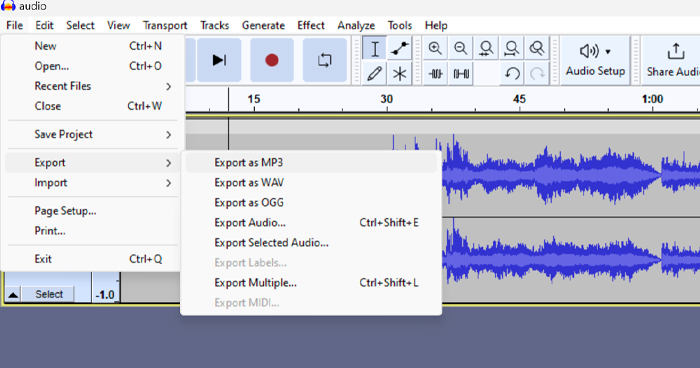
نظرًا لبعض المشكلات المتعلقة بفقدان العمل بشكل غير متوقع، احفظ مشروعك بانتظام أثناء التحرير لمنع أي فقدان للتقدم. يمكنك حفظ عملك بسرعة باستخدام Ctrl + S على Windows أو Cmd + S على Mac. بالإضافة إلى ذلك، فكر في استخدام أسماء ملفات وصفية وتنظيم ملفاتك في مجلد مخصص للحفاظ على تنظيم مشروعاتك بشكل جيد وسهولة الوصول إليها.
الجزء 2. كيفية عكس جزء من الصوت في Audacity
توجد حالات يرغب فيها المستخدمون فقط في عكس جزء من الصوت في Audacity، ربما لأنهم يريدون التأكيد على أقسام معينة فقط أو إنشاء تأثير مميز. الخطوات التالية هي نفسها تقريبًا لكيفية عكس مسار كامل. ومع ذلك، فإن تحديد جزء من الصوت أمر صعب بعض الشيء ويحتاج إلى التأكيد في الخطوات لتجنب الارتباك، خاصة للمبتدئين.
إليك كيفية عكس جزء معيّن من الصوت في Audacity.
الخطوة 1. عندما تكون في الواجهة الرئيسية للأداة، انتقل إلى قائمة File في الزاوية العلوية اليسرى واختر Open. من هناك، تصفّح ملفات جهازك لتحديد ملف الصوت الذي تريد عكسه، أو اسحب ملف الصوت وأسقطه داخل البرنامج.
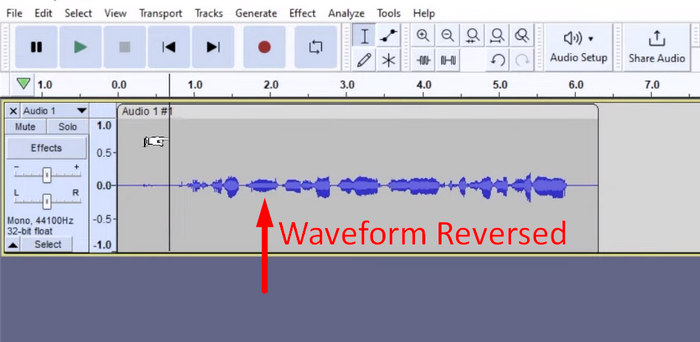
الخطوة 2. الآن، لتحديد الجزء من الصوت الذي تريد عكسه، استخدم ميزة Zoom للتكبير على موجة الصوت، ثم اسحب الفأرة لتحديد المقطع أو الجزء الذي تريد عكسه فقط.
الخطوة 3. لعكس الصوت، انتقل إلى علامة التبويب Effect واختر Reverse من القائمة المنسدلة. سيقوم Audacity بمعالجة المقطع الصوتي المحدد وعكسه.
الخطوة 4. يمكنك معاينة الصوت المعكوس بالضغط على مفتاح المسافة في لوحة المفاتيح. أو بدلاً من ذلك، استخدم أدوات التشغيل في أعلى يسار نافذة Audacity وانقر على زر Play.
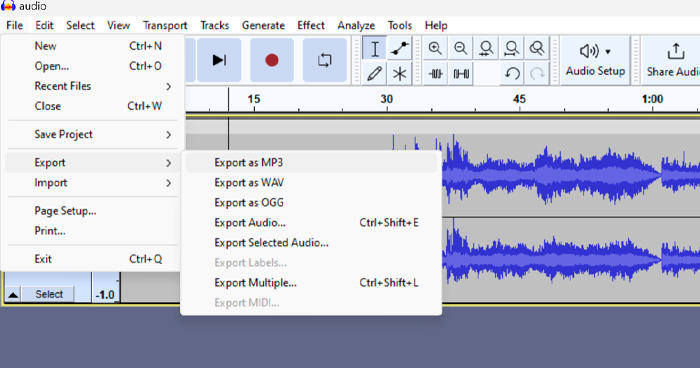
الخطوة 5. أخيراً، لتصدير ملف الصوت المعكوس، اختر Export من تحت قائمة File. اختر Export as وحدّد صيغة ملف الصوت المفضلة لديك قبل إتمام عملية التصدير.
عند تحديد جزء معيّن من الصوت لعكسه في Audacity، تأكد من التكبير بدقة على شكل الموجة لرؤية مكان بداية المقطع ونهايته بوضوح. هذا يساعدك على إجراء تحديدات دقيقة وتجنّب تضمين أجزاء غير مقصودة من الصوت. بالإضافة إلى ذلك، قبل العكس، استخدم أداة Clip Split عند الحاجة لتقسيم الصوت إلى مقاطع صغيرة، على سبيل المثال، عند تقطيع ملف MP3، مما يجعل من الأسهل معالجة وتحرير أجزاء محددة بشكل مستقل. هذه الطريقة تعزّز التحكم في تعديلاتك وتضمن أن الصوت المعكوس يحقّق التأثير المطلوب بسلاسة.
الجزء 3. عكس الصوت/الفيديو باستخدام بديل Audacity
وفي الوقت نفسه، إذا كنت تفضّل طريقة أسهل وأبسط لعكس الصوت أو الفيديو، يمكنك استخدام هذا البديل لبرنامج Audacity، وهو أداة Video Converter Ultimate المختارة من FVC. قد تكون هذه الحزمة المتكاملة للفيديو والصوت معروفة بقدراتها القوية على التحويل، لكنها أيضاً ممتازة للمستخدمين الذين يحتاجون إلى طريقة مريحة لعكس الصوت أو الفيديو.
الخطوة 1. على جهاز الكمبيوتر الخاص بك، قم بتنزيل وتثبيت أداة Video Converter Ultimate المختارة من FVC.
تحميل مجانيلنظام Windows 7 أو أحدثتنزيل آمن
تحميل مجانيلنظام MacOS 10.7 أو أحدثتنزيل آمن
الخطوة 2. شغّل الأداة وانتقل إلى علامة تبويب Moretools. من هناك، اختر Video Reverser.
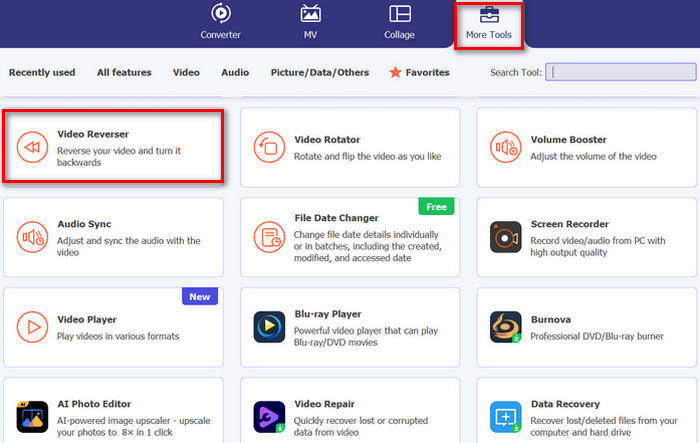
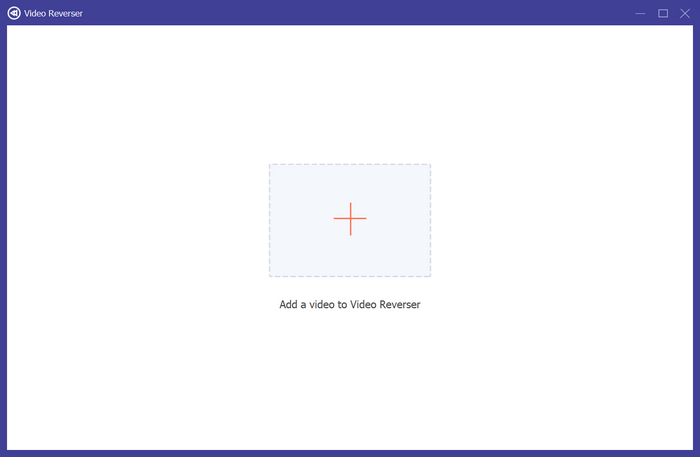
الخطوة 3. الآن، قم باستيراد ملف الصوت أو الفيديو الذي تريد عكسه من خلال النقر على زر Add a Video to Video Reverser.
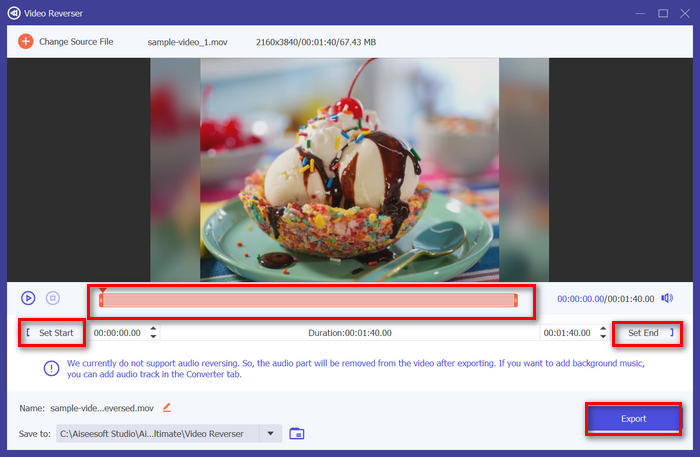
الخطوة 4. عند الدخول إلى واجهة Video Reverser، إذا رغبت في عكس المسار بالكامل، يمكنك ببساطة التوجه إلى زر Export لعكس الملف تلقائياً. أما إذا كنت تريد عكس جزء فقط، فيمكنك سحب الشريط بعناية لاختيار الجزء من الصوت أو الفيديو الذي تريد عكسه. وبدلاً من ذلك، يمكنك ببساطة إدخال وقت البداية ووقت النهاية للجزء الذي تودّ عكسه. بعد الانتهاء، انقر فقط على زر Export.
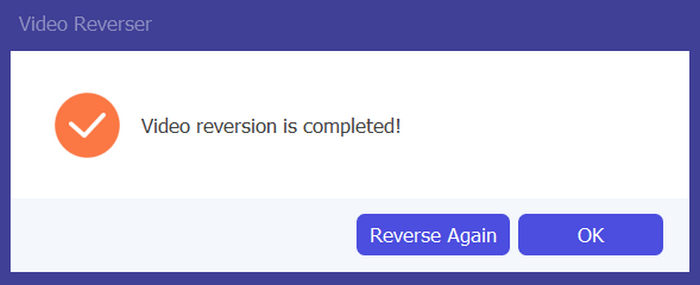
الخطوة 5. عند اكتمال التصدير، ستظهر لك هذه الرسالة، ويمكنك عندها الوصول إلى الفيديو المعكوس في المجلد الموجود على جهاز الكمبيوتر الخاص بك.
ها أنت ذا! الأمر سهل للغاية، أليس كذلك؟ لا داعي للحيرة بسبب الواجهة المعقدة. مع برنامج Video Converter Ultimate الذي تم اختياره من قبل FVC، كل ما تحتاجه في متناول يدك.
الجزء 4. الأسئلة الشائعة حول عكس الصوت في Audacity
كيفية التراجع عن تأثير الصوت العكسي في Audacity؟
إذا قمت بعكس مسار ملف صوتي في برنامج Audacity وترغب في التراجع عن هذا الإجراء، يمكنك بسهولة الرجوع إلى الصوت الأصلي. ما عليك سوى الانتقال إلى قائمة "تحرير" في الزاوية العلوية اليسرى من واجهة برنامج Audacity وتحديد خيار "تراجع عن التراجع". علاوة على ذلك، يمكنك استخدام اختصار لوحة المفاتيح Ctrl + Z لنظام التشغيل Windows أو Cmd + Z لنظام التشغيل Mac للتراجع عن الإجراء الأخير. سيؤدي هذا إلى إرجاع الصوت إلى حالته الأصلية قبل تطبيق تأثير التراجع.
ما هي صيغ الصوت التي يدعمها Audacity لعكس الصوت؟
يدعم Audacity العديد من تنسيقات الصوت الشائعة، مثل WAV، وMP3، وFLAC، وAIFF، وOGG.
هل يمكنك تشويه الصوت في Audacity؟
نعم. يمكنك تشويه الصوت في برنامج Audacity. يوفر برنامج Audacity العديد من التأثيرات والأدوات التي تسمح لك بتطبيق التشويه على مسارات الصوت لديك. لإضافة ذلك، انتقل إلى Effect (التأثير)، وانقر فوق Distortion and Modulation (التشويه والتعديل)، واختر Distortion (التشويه).
هل يمكن تحويل الصوت في Audacity؟
نعم، يمكنك ذلك. يدعم Audacity العديد من صيغ الملفات الصوتية. إذا اكتشفت أن أيّاً من ملفاتك الصوتية غير متوافق مع جهازك، يمكنك مثلاً استخدام Audacity لتحويل ملفات AIFF إلى MP3 بسهولة.
خاتمة
في الختام، إن تعلّم كيفية عكس الصوت في Audacity أمر بسيط ويضيف تأثيرات مميّزة إلى مشاريعك الصوتية أو المرئية. اتّبع الخطوات التفصيلية لتبدأ في عكس المسارات الصوتية اليوم. وللحصول على بديل أسهل، جرّب Video Converter Ultimate المختار من FVC. هل أنت مستعد للإبداع؟ جرّب أيّاً من هذه الطرق الآن!
-
 انضم إلى MOV مجانًا - كيفية دمج ملفين MOV في ملف واحد
 قد يكون من الصعب على المبتدئين الانضمام إلى عدة مقاطع فيديو MOV معًا. إذن ، هل هناك طريقة بسيطة وسريعة لدمج ملفات MOV؟ إذا كان هناك ، فكيف يمكن استخدامه؟ سيساعدك هذا المنشور في الحصول على هذه الإجابات.
-
 4 طرق لدمج مقاطع الفيديو معًا مجانًا على Windows / Mac / Online
 إليك 4 طرق سريعة لدمج مقاطع الفيديو معًا في فيديو جديد. لا يوجد حد لحجم ملف الفيديو أو تنسيقه. يمكنك الانضمام إلى 2 و 3 و 4 والمزيد من مقاطع الفيديو بتنسيقات ودقة مختلفة بنجاح.
-
 دليل ملموس للانضمام إلى ملفات M4V على نظامي التشغيل Windows و Mac مجانًا
 إذا كنت تبحث عن حل لدمج ملفات فيديو M4V في ملف واحد ، فلا تفوت هذا المقطع أبدًا. هنا سنتحدث عن أفضل طريقتين لدمج ملفات الفيديو M4V.
