


 محول الفيديو النهائي
 مسجل الشاشة
 إصلاح الفيديو
 تنزيل آمن
كيفية تحويل وتحميل أي ملفات فيديو FLV على يوتيوب
“لقد قمتُ برفع ملف فيديو بامتداد .flv، لكن ظهرت لي رسالة تحذير تقول إن تنسيق الملف غير صالح، كيف يمكنني رفع ملفات FLV إلى يوتيوب?” إن FLV ليس مجرد امتداد ملف، بل هو أيضًا حاوية فيديو. وهذا يعني أن ملف فيديو FLV يمكنه تخزين العديد من ترميزات الفيديو والصوت، وبعضها غير مدعوم من يوتيوب. ستخبرك هذه المقالة بكل ما تحتاج إلى معرفته حول كيفية رفع ملفات FLV إلى يوتيوب بسلاسة.

الجزء 1: ما هي برامج ترميز الفيديو والصوت التي يدعمها YouTube
وفقًا لـ Google ، يفضل YouTube تنسيق البث بالإضافة إلى تدفقات MPEG-2 المتوافقة مع DVD بامتداد .mpg. تتضمن برامج الترميز التي يدعمها YouTube ما يلي:
- MPEG-2
- ترميز الصوت: طبقة MPEG II أو Dolby AC-3
- معدل البت الصوت: 128 كيلوبت في الثانية أو أفضل
- MPEG-4
- ترميز الفيديو: H.264
- ترميز الصوت: AAC
- معدل البت الصوت: 128 كيلوبت في الثانية أو أفضل
علاوة على ذلك ، يدعم YouTube فقط حاوية WAV مع صوت MP3 أو PCM و MOV مع صوت AAC وصوت FLAC. يدعم YouTube ملفات WMV و AVI و MOV و MP4 و FLV باستخدام برامج الترميز الصحيحة.
عندما يتعلق الأمر بـ FLV ، فإن YouTube يصل إلى مقاطع الفيديو المشفرة باستخدام برنامج ترميز الفيديو Adobe-FLV1 إلى جانب صوت MP3 و AAC. إذا كان فيديو FLV الخاص بك يحتوي على صوت غير مضغوط أو صوت ADPCM ، فلن يقبله YouTube.
إلى جانب ذلك ، هناك المزيد من القواعد لتحميل FLV على YouTube:
- يوصي معدل الإطارات: من 24 إلى 60
- يوصي القرار: 1080 بكسل
- المدة الدنيا: 33 ثانية
الجزء 2: أسهل الطرق لتحويل FLV إلى YouTube
الطريقة 1: تحويل FLV إلى YouTube على سطح المكتب
إذا واجهت خطأ أثناء رفع FLV إلى يوتيوب، فأول ما يجب فعله هو البحث عن محوّل FLV، مثل FVC Free FLV Converter. فهو يتيح لك ضبط ترميزات الفيديو والصوت بالإضافة إلى المعلمات الأخرى، بحيث يمكنك جعل ملفات FLV الخاصة بك متوافقة مع قواعد يوتيوب. علاوة على ذلك، فهو يستفيد من تسريع العتاد والمعالجة متعددة الخيوط لتحسين الأداء.
الميزات الرئيسية لأفضل محول FLV لـ YouTube
- 1. ضبط ترميز الفيديو والصوت من FLV بسهولة.
- 2. دفعة عملية مقاطع فيديو FLV غير محدودة في وقت واحد.
- 3. حماية جودة الفيديو تلقائيًا أثناء التحويل.
تنزيل مجانيلنظام Windows 7 أو الأحدثتنزيل آمن
كيفية تحويل FLV لموقع YouTube على سطح المكتب
الخطوة 1: إضافة ملفات FLV
قم بتشغيل أفضل محول FLV بمجرد تثبيته على جهاز الكمبيوتر الخاص بك. انقر فوق قائمة إضافة ملف (ملفات) في الجانب الأيسر العلوي وأضف ملفات FLV التي تريد تحميلها على YouTube.

الخطوة 2: تغيير الترميزات
انقر على قائمة الاختيار بجانب صيغة الإخراج في الأسفل لفتح مربع ملف التعريف. أدخل FLV في مربع البحث عن ملف التعريف (Search Profile) واضغط على مفتاح Enter في لوحة المفاتيح. ثم حدد صيغة FLV ذات ترميزات الفيديو والصوت المناسبة.
إذا كان مقطع FLV طويلًا جدًا، فمن الأفضل تقسيمه إلى عدة مقاطع ثم رفعها إلى يوتيوب. يمكنك النقر على قائمة Edit لفتح نافذة محرّر الفيديو.

الخطوة 3: تحويل FLV لليوتيوب
بعد ذلك، انتقل إلى الأسفل وانقر على زر Open Folder. اختر مجلدًا محددًا لحفظ ملفات الفيديو الناتجة. وأخيرًا، انقر على زر Convert لبدء تحويل FLV لليوتيوب فورًا.

الطريقة 2: تحويل FLV إلى YouTube Online
إذا لم تكن ترغب في تثبيت برنامج محوّل فيديو على القرص الصلب، فإن FVC Free Online Video Converter يُعد حلًا بديلًا جيدًا. فهو مجاني تمامًا دون أي قيود، مثل العلامة المائية. بالإضافة إلى ذلك، لا يفرض قيودًا على حجم الملف. فيما يلي الخطوات:
الخطوة 1: زر موقع https://www.free-videoconverter.net/free-online-video-converter/ في أحد المتصفحات، ثم انقر على زر Add Files to Convert للحصول على أداة الإطلاق (اللانشر).

الخطوة 2: انقر على زر Add File لرفع عدة ملفات FLV. ثم اضغط على أيقونة Gear لفتح مربع ملف التعريف. هنا يمكنك ضبط Video Encoder وAudio Encoder. اضغط على OK للتأكيد.

الخطوة 3: اختر صيغة مدعومة من يوتيوب في الأسفل، ثم انقر على زر Convert لبدء تحويل FLV لليوتيوب. عند الانتهاء، قم بتنزيل الملفات الناتجة.
لا تفوّت:
الجزء 3: كيفية تحميل FLV على YouTube
بعد التحويل ، يمكنك تحميل ملفات FLV الخاصة بك إلى YouTube على جهاز الكمبيوتر الخاص بك الآن. نشارك الخطوات هنا ، حتى لا تضيع.
الخطوة 1: انتقل إلى الصفحة الرئيسية لليوتيوب، وسجّل الدخول إلى حسابك.
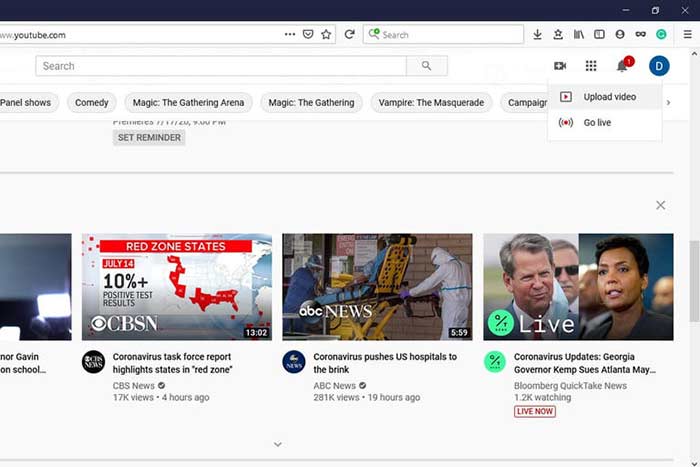
الخطوة 2: انقر على أيقونة Camcorder واختر Upload video للدخول إلى صفحة الرفع.
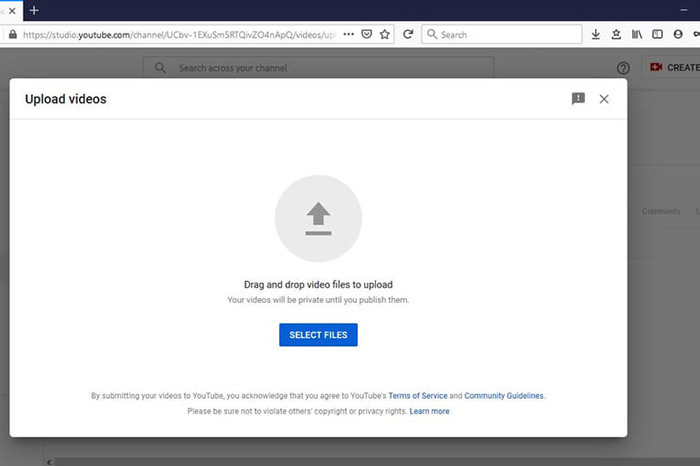
الخطوة 3: اضغط على زر Select Files الكبير في الصفحة، ثم افتح ملفات FLV المحوّلة لليوتيوب. أو اسحب ملفات FLV وأفلتها داخل الصفحة لرفعها.
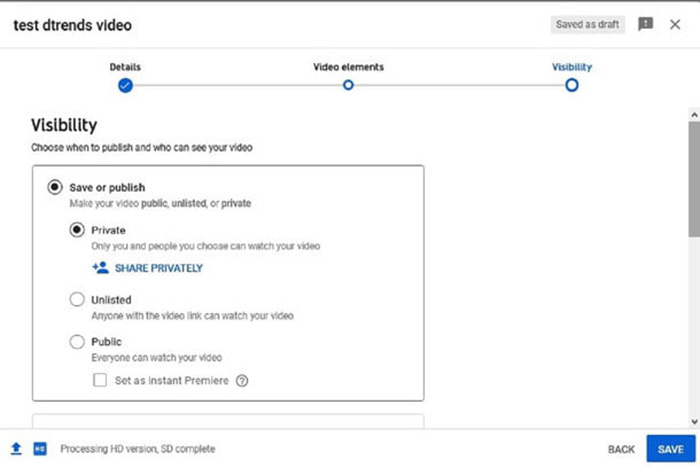
الخطوة 4: بعد ذلك حدد إعدادات الخصوصية. افتراضيًا تكون Public (عامة)، لكن يمكنك تغييرها إلى Private (خاصة) أو Schedule (مجدولة) أو Unlisted (غير مدرجة).
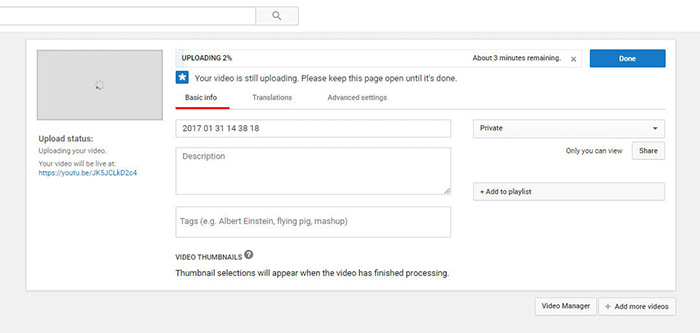
الخطوة 5: انقر على زر Save أو Publish بعد الانتهاء من الإعدادات. بعد ذلك ستُنقل إلى صفحة Dashboard. هنا يمكنك رؤية ملف FLV الذي تم رفعه إلى حسابك على يوتيوب.
الجزء 4: أسئلة شائعة حول FLV على YouTube
يمكنك تحميل FLV على يوتيوب؟
نعم و لا. يدعم YouTube تنسيق فيديو FLV ، ولكن كحاوية فيديو ، يمكنك فقط تحميل ملفات FLV باستخدام برامج ترميز الفيديو والصوت المدعومة ؛ وإلا سيكون الفشل.
هل يمكنني تنزيل مقاطع فيديو YouTube بتنسيق FLV؟
إذا كان مقطع فيديو YouTube يوفر زر التنزيل ، فيمكنك النقر فوقه وتحديد FLV كتنسيق الإخراج.
ما هو تنسيق الفيديو الأفضل لموقع YouTube؟
MP4 هو أفضل تنسيق فيديو على YouTube. توصي Google باستخدام MP4 مع برنامج ترميز الفيديو H.256 وبرنامج ترميز الصوت AAC. هذا لأنه ينتج جودة عالية مع حجم ملف أصغر. بالإضافة إلى ذلك ، يتم أيضًا دعم MOV و WMV و AVI و FLV و 3GPP على YouTube.
خاتمة
أخبرك هذا الدليل بتنسيقات الفيديو التي يقبلها YouTube وكيفية تحميل FLV على YouTube دون فشل. يمكن أن يساعدك محول FVC Free FLV على تحويل FLV إلى YouTube ويمكّنك من ضبط برامج ترميز الفيديو والصوت بسهولة. حتى أنها لا تتطلب أي مهارات تقنية ، لذلك يمكن للمبتدئين إتقانها بسرعة. إذا واجهت مشاكل أخرى عند تحميل الفيديو على YouTube ، فالرجاء ترك رسالة أسفل هذه التدوينة.
-
 كيفية تحويل ملفات فيديو FLV إلى MP4 دون دفع بنس واحد
 يشارك هذا الدليل أربع طرق مجانية لتحويل ملفات فيديو FLV إلى تنسيق MP4 على أنظمة التشغيل Windows 10/8/7 / XP و Mac OS X ، حتى تتمكن من الاستمتاع بمقاطع الفيديو على أي جهاز.
-
 كيفية تحويل مقاطع فيديو FLV إلى ملفات صوتية MP3 على سطح المكتب وعلى الإنترنت
 كيفية تحويل ملف FLV إلى ملف MP3؟ كل ما عليك فعله هو قراءة هذه المقالة بعناية ، والعثور على طريقتك المفضلة واتباع دليلنا خطوة بخطوة للحصول على ما تريد.
-
 3 طرق مجانية لتحويل FLV إلى WAV
 كيف أقوم بتحويل ملف FLV؟ هل يمكن لـ VLC تحويل YouTube FLV إلى WAV؟ يوضح هذا المنشور 3 طرق مجانية لتحويل FLV إلى WAV دون فقدان الجودة.
