


 محول الفيديو النهائي
 مسجل الشاشة
 إصلاح الفيديو
 تنزيل آمن
التعليمات النهائية لإزالة علامة Canva المائية [محلول]
يستخدم العديد من المستخدمين عبر الإنترنت والمهنيين الذين يحتاجون إلى إنتاج صور وعروض تقديمية ومقاطع فيديو عالية الجودة منصة Canva بشكل متكرر. يقدّم هذا البرنامج العديد من المزايا، بما في ذلك مجموعة كبيرة من الأدوات والقوالب والتصاميم والسمات وغير ذلك الكثير. لكن للأسف، أصبحت عناصر الإصدار الاحترافي الآن تحمل علامات مائية. إذ تتطلّب العناصر الاحترافية الدفع لاستخدامها بدون علامة مائية. لحسن الحظ، سيعرض لك هذا المقال أفضل الطرق التي يمكنك تجربتها لـإزالة العلامات المائية من Canva دون شراء العناصر الاحترافية. لذا، اقرأ المقال بالكامل للحصول على فكرة حول كيفية إزالة العلامات المائية من Canva.

الجزء 1: أفضل أداة عبر الإنترنت لإزالة علامات Canva المائية
إذا كنت تريد تعلّم كيفية إزالة العلامات المائية من Canva مجانًا، يمكنك استخدام أداة FVC لإزالة العلامات المائية مجانًا. هذه الأداة القائمة على الويب يمكنها إزالة أي كائن من صورتك دون إنفاق أي مبلغ. كما يمكنها مسح العلامات المائية الخاصة بـ Canva بسهولة بمساعدة أدوات إزالة العلامات المائية مثل الفرشاة (Brush) والحديدة (Polygonal) وأداة اللاسو (Lasso). علاوة على ذلك، يمكنك أيضًا إزالة العلامات المائية باستخدام أداة القص، خاصة عندما تكون مساحة العلامة المائية على حافة الصورة. بالإضافة إلى ذلك، لا داعي للقلق بشأن تنسيق الصورة المدعوم، لأنها تدعم تقريبًا جميع الصيغ مثل JPG وPNG وBMP وغيرها. بفضل واجهتها البديهية وطرقها الأساسية، يمكننا القول إن أداة FVC المجانية لإزالة العلامات المائية مثالية لجميع المستخدمين، بما في ذلك المبتدئين. هذا الجزء سيساعدك على تعلّم كيفية إزالة العلامات المائية الخاصة بـ Canva من صورتك باستخدام كل أدوات إزالة العلامات المائية مثل أدوات الفرشاة واللاسو والحديدة (Polygonal).
يمكنك استخدام أداة Brush إذا كنت تريد إزالة العلامات المائية كما لو كنت تقوم بتنظيفها بالفرشاة. يمكنك حتى تغيير حجم الفرشاة بناءً على تفضيلاتك. يمكنك استخدام أداة Lasso لتحديد أجزاء متضمنة من الصور أو الأشكال. أخيرًا ، يمكنك استخدام أداة Polygonal إذا كنت تريد تمييز العلامات المائية مثل شكل مستطيل لإزالتها بسهولة دون اتباع نمط العلامة المائية.
باستخدام أداة الفرشاة
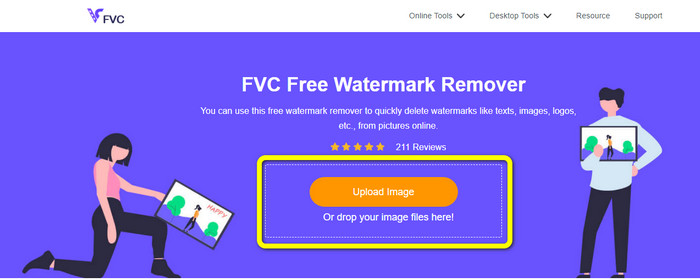
الخطوة 1: أول ما يجب عليك فعله هو زيارة موقع FVC لإزالة العلامات المائية مجانًا. ثم اضغط على زر Upload Image لتحميل صورتك التي تحتوي على علامة مائية من Canva. وهناك طريقة أخرى لتحميل الصورة وهي سحب ملف الصورة وإفلاته داخل المربع.
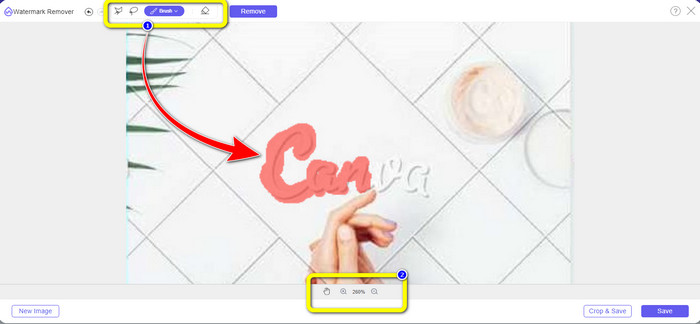
الخطوة 2: في المربع الأول بالأعلى، اختر أداة Brush. ثم استخدم هذه الأداة لتحديد العلامات المائية الخاصة بـ Canva في صورتك. أسفل أداة الفرشاة يمكنك التحكم في حجم الفرشاة. يمكنك أيضًا تصغير وتكبير الصورة في المربع الثاني بالأسفل لرؤية العلامات المائية الصغيرة.
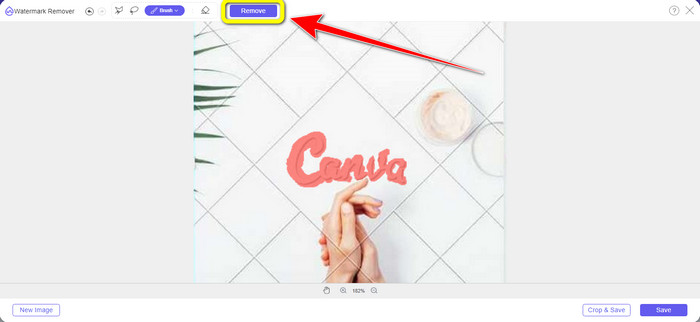
الخطوة 3: عند الانتهاء من تظليل العلامات المائية الخاصة بـ Canva في صورتك، انقر على زر Remove حتى تبدأ عملية الإزالة. ثم انتظر لبضع ثوانٍ.
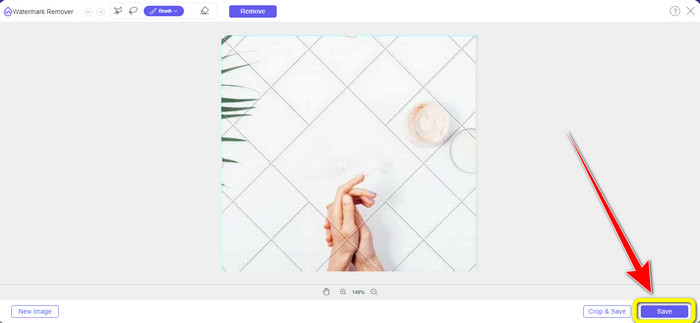
الخطوة 4: بعد عملية الإزالة، ستلاحظ أن علامة Canva المائية اختفت بالفعل. انقر على زر Save لـحفظ صورتك.
باستخدام أداة لاسو
الخطوة 1: بعد تحميل الصورة التي تحتوي على علامة مائية من Canva، اختر أداة Lasso من بين أدوات إزالة العلامات المائية. ثم استخدم الفأرة لتحديد علامة Canva المائية.
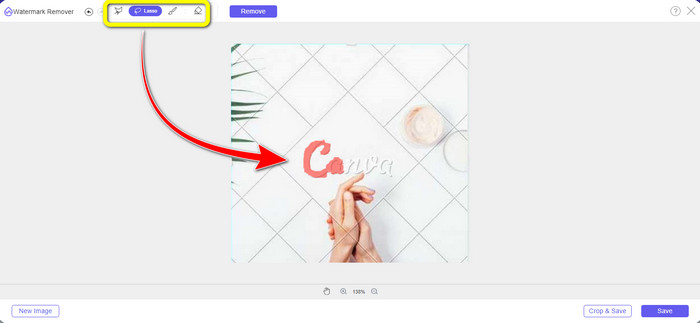
الخطوة 2: في المربع الأصفر أسفل الصورة، يمكنك النقر على أيقونة + أو - لتكبير أو تصغير الصورة لرؤيتها بوضوح. ثم انقر على زر Remove عندما تنتهي من تظليل علامة Canva المائية باستخدام أداة اللاسو.
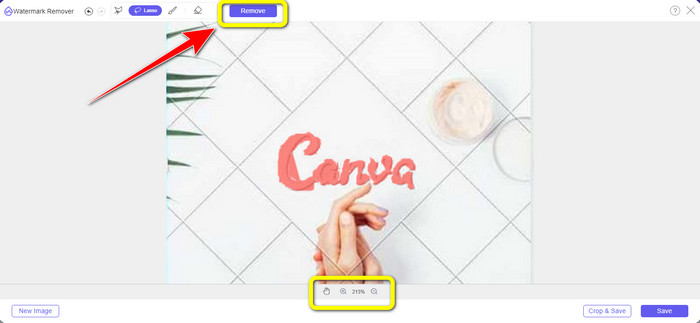
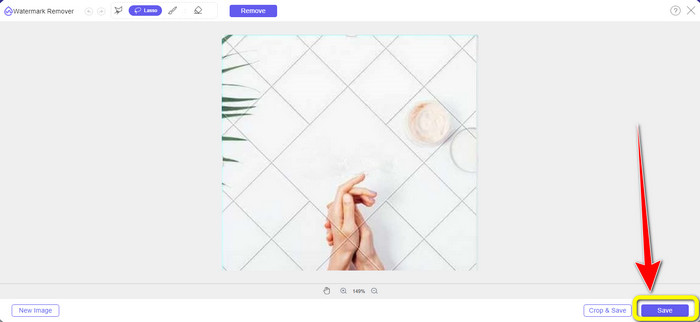
الخطوة 3: بعد انتهاء عملية الإزالة وحذف علامة Canva المائية، انقر على زر Save لحفظ صورتك النهائية.
باستخدام أداة Polygonal
الخطوة 1: بعد الانتهاء من إضافة صورتك إلى أداة FVC لإزالة العلامات المائية مجانًا، اختر أداة Polygonal من أدوات إزالة العلامات المائية.
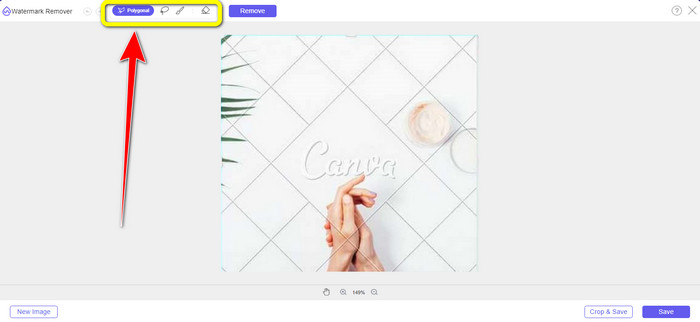
الخطوة 2: في هذه المرحلة، استخدم أداة Polygonal لتحديد علامة Canva المائية في صورتك.
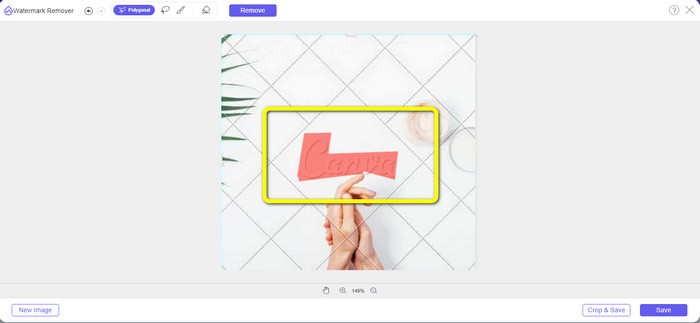
الخطوة 3: بعد الانتهاء من عملية التحديد، يمكنك إزالة علامة Canva المائية بالنقر على زر Remove.
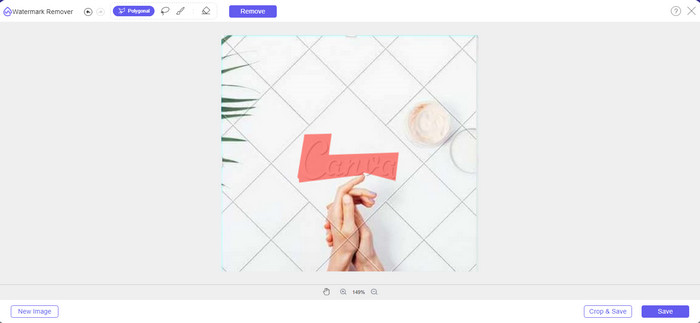
الخطوة 4: بعد عملية الإزالة، يمكنك الانتقال إلى الخطوة التالية والأخيرة، وهي حفظ الصورة بالنقر على زر Save.
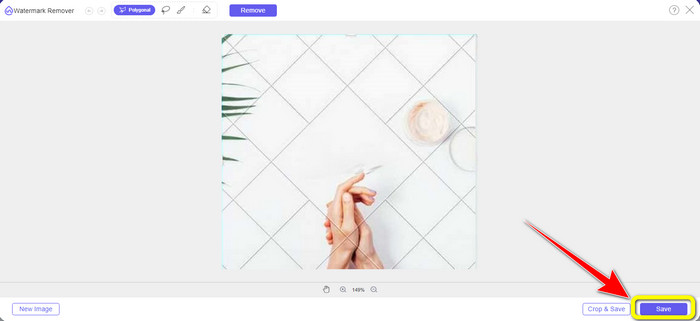
باستخدام أدوات إزالة العلامات المائية الثلاثة هذه ، يمكنك بسرعة إزالة علامات Canva المائية من صورتك. لنستخدم أداة Cropping هذه المرة لإزالة علامة Canva المائية من صورتك.
باستخدام أداة القص
تُعَد أداة Cropping أفضل طريقة لقص العلامات المائية، خاصة إذا كانت مساحة العلامة المائية على حافة أو زاوية الصورة. اتبع الإرشادات أدناه لتتعلم كيفية إزالة العلامات المائية من Canva باستخدام أداة القص.
الخطوة 1: انقر على زر Upload Image. بعد ذلك ستظهر مجلداتك على الشاشة. اختر الصورة التي تحتوي على علامة مائية من Canva والتي تريد حذفها.
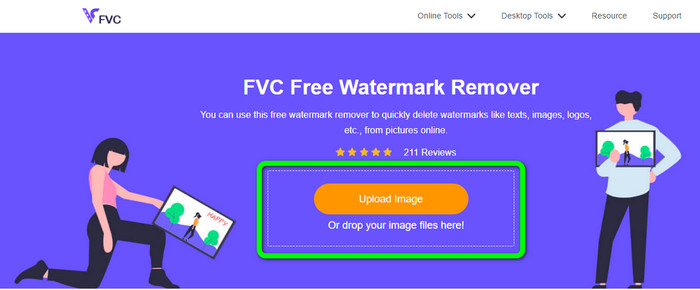
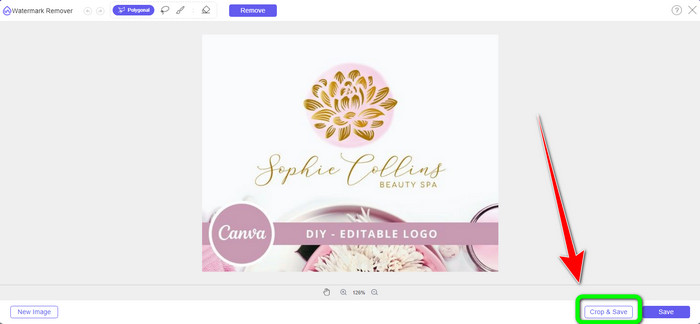
الخطوة 2: بعد اختيار ملف الصورة، انقر على زر Crop&Save. ثم انتقل إلى العملية التالية.
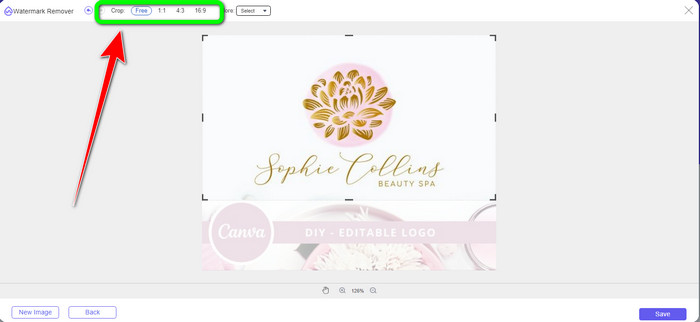
الخطوة 3: في هذا المربع، يمكنك اختيار الطريقة التي تريد بها قص الصورة. وإذا اخترت خيار Free، يمكنك قص الصورة يدويًا بالطريقة التي تريدها.
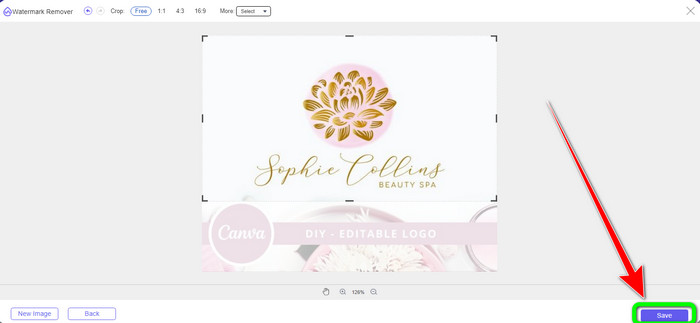
الخطوة 4: بعد قص الصورة لقطع علامة Canva المائية، يمكنك النقر على زر Save لحفظ صورتك النهائية.
الجزء 2: إزالة علامات Canva المائية باستخدام Photoshop
هناك طريقة أخرى لإزالة علامة Canva المائية من الصور وهي استخدام Adobe Photoshop. يمكنه أيضًا محو أي عناصر مزعجة من صورتك ، بما في ذلك العلامات المائية والشعارات والنصوص والملصقات والمزيد. أيضًا ، تتميز هذه الأداة بعملية إزالة سريعة ، لذا لن تضطر إلى قضاء المزيد من الوقت في التخلص من الكائنات غير المرغوب فيها من صورتك. علاوة على ذلك ، يتم استخدام برامج مثل Adobe Photoshop على نطاق واسع لتصميم الرسوم وتحرير الصور النقطية والفن الرقمي. تضيف الطبقات العمق والتنوع لعمليات التطوير والتحرير وتوفر أدوات التحرير الأساسية التي ، عند دمجها ، يمكن أن تسفر عن نتائج رائعة. ومع ذلك ، فإن Adobe Photoshop ليس سهل الاستخدام ، خاصة إذا كنت مستخدمًا جديدًا. يعد Photoshop برنامج تحرير متقدمًا ومناسبًا للمستخدمين المتقدمين. هذا يعني أن المستخدمين غير المحترفين سيجدون الأمر معقدًا عند استخدام الأداة. أيضًا ، Adobe Photoshop ليس مجانيًا. يمكن أن تقدم فقط نسخة تجريبية مجانية لمدة سبعة أيام. بعد ذلك ، يجب عليك شراء التطبيق لاستخدامه بشكل مستمر.
اتبع الخطوات أدناه لإزالة علامة Canva المائية باستخدام Adobe Photoshop.
الخطوة 1: قم بتحميل برنامج Adobe Photoshop على جهاز الكمبيوتر لديك وثبِّته، ثم شغّل التطبيق.
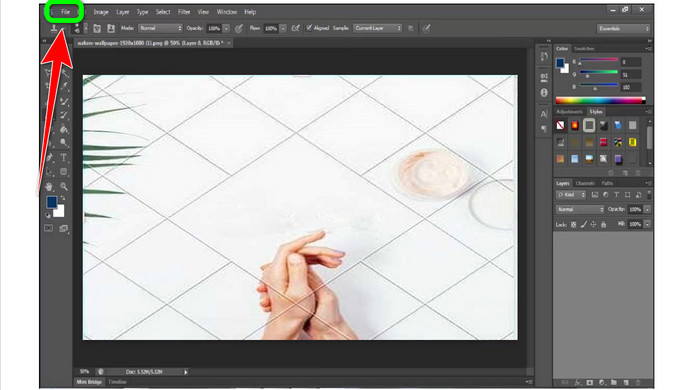
الخطوة 2: انتقل إلى File > Open لإدراج الصورة التي تحتوي على علامة مائية من Canva.
الخطوة 3: من الجانب الأيسر لواجهة البرنامج، اختر أداة Clone Stamp Tool.
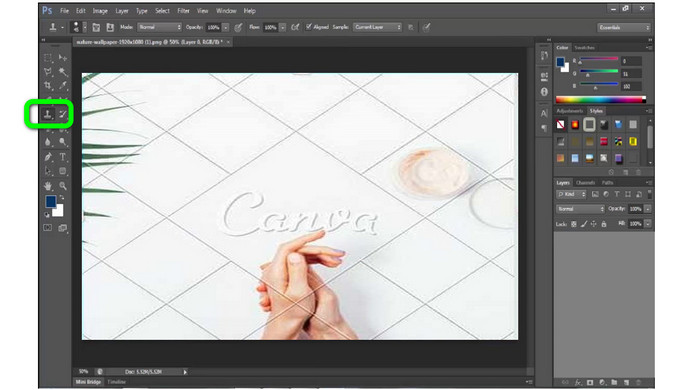
الخطوة 4: بعد اختيار أداة Clone Stamp، استخدم الفأرة للنقر على علامة Canva المائية حتى تمسح جميع العلامات المائية.
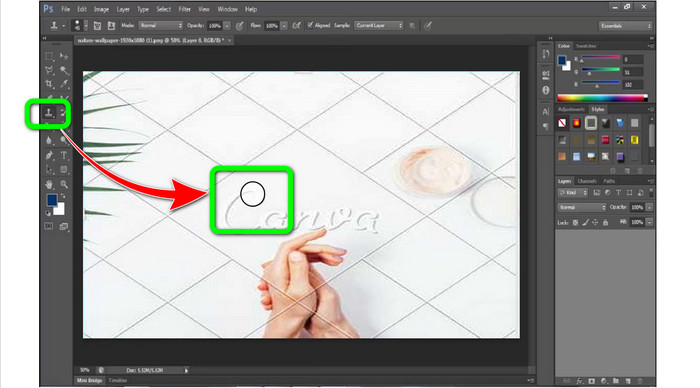
الخطوة 5: عندما تختفي علامة Canva المائية، انتقل إلىFile > Save.
متعلق ب:
خطوات سهلة حول كيفية إزالة العلامة المائية من WOW Slider [تم الحل]
طرق سهلة لإزالة العلامة المائية من Shootproof
الجزء 3: أسئلة شائعة حول إزالة علامات Canva المائية
1. كيف يمكنني إزالة علامة Canva المائية المجانية؟
لإزالة العلامة المائية من جميع تصميماتك ، يجب عليك شراء Canva Pro. هناك خيار آخر وهو استخدام نسخة تجريبية مجانية من Canva Pro ، والتي ستمحو العلامة المائية. يمكنك أيضًا إزالة العلامة المائية عن طريق حفظ التصميم كملف PDF أو PNG.
2. ما الفرق بين Canva و Canva Pro؟
في Canva ، الخطة مجانية تمامًا. يمكنك الحصول على قوالب وتخطيطات وعناصر رسومية وصور مجانية والمزيد. ولكن في الإصدار المجاني ، هناك قيود ، مثل الافتقار إلى أدوات العلامات التجارية وعدم وجود عوامل تصفية وخيارات إخراج محدودة. في Canva Pro ، هناك المزيد من الميزات الرائعة التي يمكنك الاستمتاع بها. يوفر المزيد من القوالب والصور المخزنة والرسومات ومقاطع الفيديو. استخدام Canva Pro أفضل من الإصدار المجاني.
3. ما هي أفضل طريقة لإزالة علامة Canva المائية؟
استخدم FVC لإزالة العلامات المائية مجانًا. يمكن لهذه الأداة أن تساعدك بسرعة في إزالة العلامات المائية الخاصة بـ Canva من صورتك. كما يمكنها أيضًا مسح العناصر غير المرغوب فيها الأخرى مثل الشعارات والنصوص والرموز التعبيرية وغير ذلك.
خاتمة
Canva أداة رائعة لتصميم الرسومات، لكنها تترك علامات مائية في معظم الصور. ولكن إذا كنت تريد إزالة العلامات المائية من Canva، يمكنك استخدام أداة FVC المجانية لإزالة العلامات المائية. فهي مجانية وأسهل في الاستخدام من برنامج Photoshop.
-
 أسهل الطرق حول كيفية إزالة العلامة المائية من الصور
 هل أنت منزعج من العلامات المائية على صورك؟ لا تقلق! ستوفر هذه المقالة طرقًا بسيطة وسهلة لإزالة العلامات المائية من صورك
-
 طرق حول كيفية إزالة علامات Reddit المائية بسهولة من الصور
 إذا كنت هنا ، فقد تبحث عن مزيل علامة مائية Reddit ممتاز. في هذه الحالة ، سنوضح لك أسهل طريقة لإزالة علامات Reddit المائية
-
 How to Remove Watermark in Lightroom Mobile [محلول]
 هل تريد معرفة كيفية إزالة العلامات المائية من الصور في Lightroom؟ فيما يلي أسهل الطرق التي يمكنك تجربتها باستخدام الهواتف المحمولة وأجهزة الكمبيوتر
