


 محول الفيديو النهائي
 مسجل الشاشة
 إصلاح الفيديو
 تنزيل آمن
كيفية إزالة صورة الخلفية من عرض تقديمي (PPT): سطح المكتب وعبر الإنترنت
عند إنشاء عروض PowerPoint، غالبًا ما نحتاج إلى إعداد قوالب متعددة بأنماط مختلفة، وإدراج الأيقونات أو الصور المُعدّة. لكن العديد من صور المواد لها ألوان خلفية. عند وجود الكثير من الألوان المختلفة في الصفحة، ستبدو الصفحة مُزدحمة. جميع العناصر مُرتّبة عشوائيًا، ولا تُشكّل تصميمًا متكاملًا.
لذلك يجب أن نتعامل مع الأمر بجدية ونقوم بعملية إزالة خلفية الصور في ملفات PPT. يوفّر برنامج PowerPoint طريقتين لتنفيذ هذه العملية. ولكن إذا كنت تريد الاستفادة من خدمة إزالة خلفية أكثر تميزًا، فيمكنك تجربة أفضل الأدوات الإلكترونية المُوصى بها في هذه المقالة. لن نُطيل الكلام؛ سنبدأ فورًا في التعرف على طريقة القيام بذلك.

الجزء الأول: كيفية إزالة الخلفية في عرض PowerPoint
يمكنك التعامل مع الصور في PowerPoint يدويًا عند إنشاء PPT. تحتوي واجهته على أداتين تساعدك على إزالة خلفية الصورة. لنلقِ نظرة على كيفية القيام بذلك من هاتين الحالتين لاحقًا.
إزالة الخلفية باستخدام ميزة تعيين اللون الشفاف
الطريقة الأولى هي إضافة تأثير لون شفاف للصور. هذه الطريقة مناسبة جدًا للصور أحادية اللون، والتأثير فوري.
إليك كيفية إزالة الخلفية البيضاء من الصورة في PPT باستخدام ميزة اللون الشفاف.
الخطوة 1. افتح ملف العرض التقديمي PPT. انتقل إلى الصورة التي تريد تعديلها. يرجى تحديدها ثم اختيار تنسيق من شريط الأدوات.
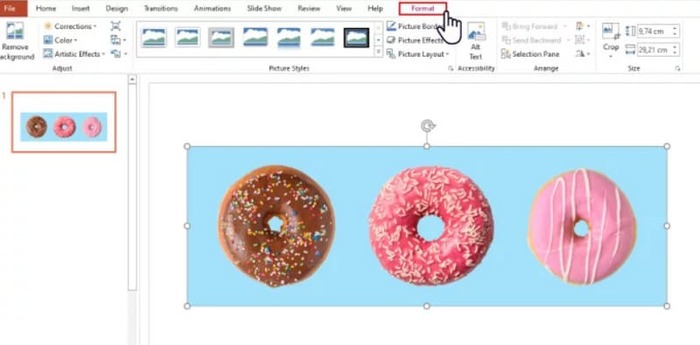
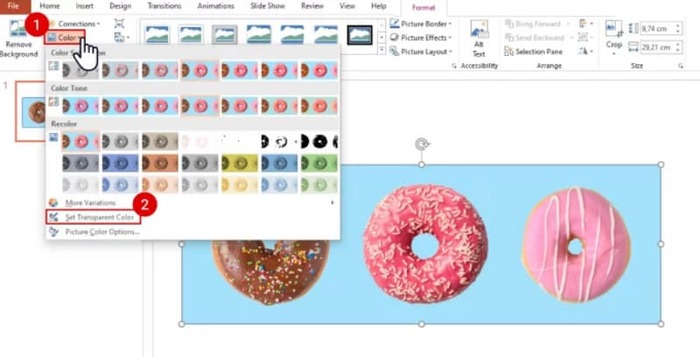
الخطوة 2. ابحث عن خيار لون في الزاوية العلوية اليسرى. قم بتوسيع القائمة واختر تعيين لون شفاف.
الخطوة 3. سيتحوّل شكل المؤشر إلى قلم. حرّكه فوق الصورة ثم انقر. سيصبح لون خلفية الصورة شفافًا.
لاحظ أن هذه الطريقة لا تعمل مع الصور ذات الظلال في الخلفية. كذلك، إذا كانت ألوان العناصر في الصورة قريبة جدًا من الخلفية، فقد تمحو وظيفة الشفافية الخلفية والعناصر معًا.
إزالة الخلفية باستخدام ميزة إزالة الخلفية
سيظهر زر "إزالة الخلفية" في الزاوية العلوية اليسرى من صفحة PowerPoint. انقر عليه، وسيتعرف برنامج إزالة الخلفية تلقائيًا على الخلفية ويُبرز الجزء المراد إزالته.
فيما يلي كيفية إزالة صورة الخلفية من شريحة PPT باستخدام ميزة إزالة الخلفية.
الخطوة 1. بعد إدراج الصورة في الشريحة، قم بتحديدها.
الخطوة 2. انقر على تنسيق الصورة > إزالة الخلفية.
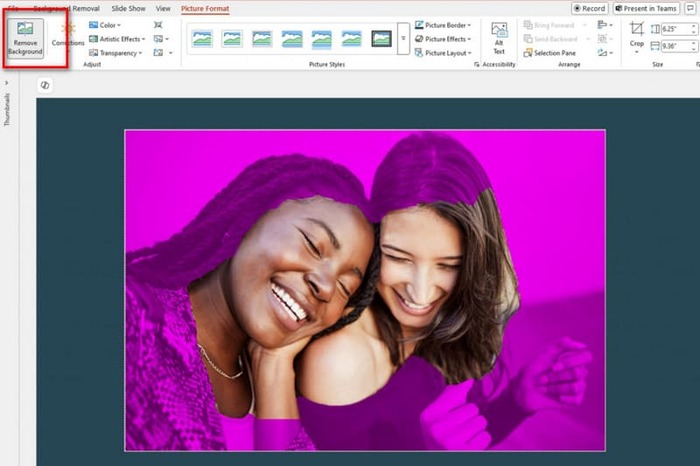
الخطوة 3. سيقوم البرنامج تلقائيًا بتشغيل الأداة والتعرّف على الخلفية. سيتم تمييز الخلفية باللون الأرجواني. يمكنك أيضًا اختيار تمييز المناطق المراد الاحتفاظ بها أو تمييز المناطق المراد إزالتها لضبط التحديد يدويًا.
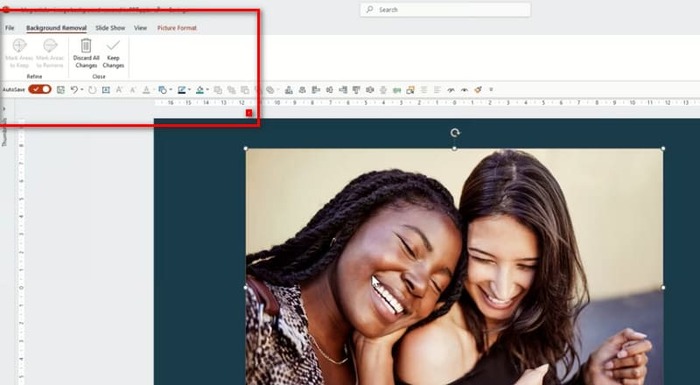
للأسف، هناك مشكلة شائعة في هذه الميزة وكذلك في ميزة تأثيرات الشفافية؛ فكلاهما ضعيف جدًا في التعرّف على الخلفية، وغالبًا ما يقوم بمسح العناصر الأساسية في الصورة. وحتى إذا حاولت ضبطها يدويًا، سيستمر PowerPoint في اتباع طريقته الخاصة عند التنفيذ. إذا كانت خلفية صورتك داكنة أو ليست بلون واحد، فمن الأفضل البحث عن أداة أكثر تطورًا لإزالة الخلفية أو إضافة خلفية لصورتك.
الجزء الثاني. كيفية إزالة الخلفية البيضاء من صورة عبر الإنترنت وتحميلها إلى PowerPoint
مجاني: FVC مزيل الخلفية
من الشرح أعلاه يمكننا ملاحظة أن الأدوات التي يوفّرها PowerPoint، رغم سهولة استخدامها، لا تصلح لمعالجة الصور ذات الخلفيات المعقدة. إذا كانت لديك مثل هذه المهام، فنحن نوصي باستخدام أداة FVC Free Background Remover كمساعد. هذه الأداة مجانية تمامًا. كل ما عليك هو رفع الصورة إلى المنصّة، سواء كانت بصيغة PNG أو JPG أو JPEG، كما يمكن استخدام FVC Free Background Remover لتغيير خلفية صورة الشريحة أيضًا. يمكنك رفع الخلفية الجديدة التي تريدها أو اختيار لون واحد ثابت.
إليك كيفية إزالة الرسومات الخلفية في PPT باستخدام برنامج FVC Free Background Remover.
الخطوة 1. افتح أداة FVC Free Background Remover في متصفّحك. انقر على Upload Image لإضافة الصورة إلى الشريحة.
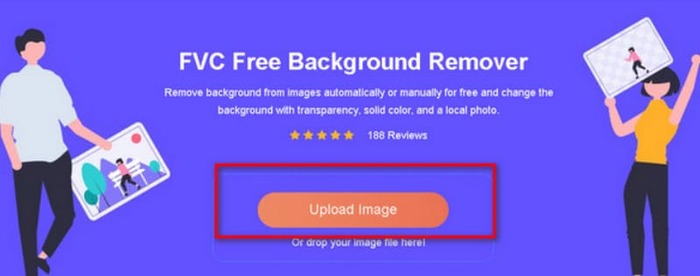
الخطوة 2. سيقوم FVC Free Background Remover بتحميل الصورة وإزالة الخلفية تلقائيًا. يمكنك تعديل الصورة وتخصيص الإعدادات بعد انتهاء المعالجة.
الخطوة 3. أخيرًا، انقر على Download لحفظ الملف المعدّل.
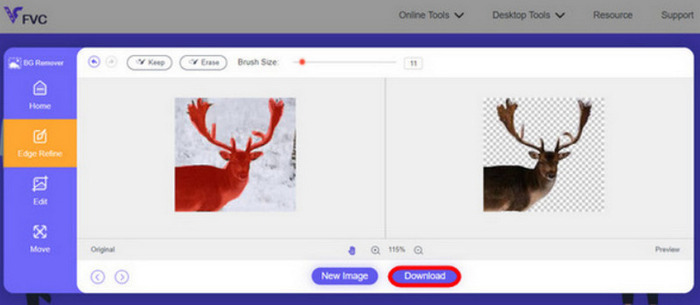
الطريقة السابقة في إزالة خلفية الصورة في PPT مخصّصة أساسًا للصور الثابتة. إذا كان هناك علامات مائية أو شعارات وغير ذلك على الصورة، فاطّلع على طريقة إزالة العلامات المائية من الصور للحصول على أفضل عرض.
الجزء 3. الأسئلة الشائعة حول إزالة صورة الخلفية من PPT
كيف تقوم بإزالة الخلفية البيضاء من الصورة في PPT؟
يحتوي PowerPoint على ميزتي إزالة الخلفية وتأثير الألوان الشفافة لمساعدتك. مع ذلك، قد تؤثر هذه الميزات على جودة الشاشة. يمكنك استخدام برنامج FVC Free Background Remover لمعالجة الصورة.
لماذا لا أملك اللون الشفاف في PowerPoint؟
يجب عليك أولاً التأكد من تحديد الصورة المستهدفة. إذا لم تكن الصورة محددة، فلن تتمكن من إضافة تأثير لون شفاف إليها.
ماذا علي أن أفعل إذا لم تعمل أداة إزالة الخلفية؟
أولاً، تأكد من توافق تنسيق الصورة مع PowerPoint، مثل JPG أو JPEG أو PNG. إذا لم يكن كذلك، يُرجى تحويل التنسيق أولاً. قد تحدث هذه المشكلة أيضاً لأن إصدار PowerPoint ليس الأحدث. حدّثه أولاً، ثم أعد تشغيله.
خاتمة
على الرغم من أن PowerPoint يحتوي على وظائف تمكّن من إزالة خلفية الصور في PPT، فإنها لا تزال بدائية جدًا، وغالبًا ما تتسبّب في الإضرار بالعناصر الموجودة في الشريحة. إذا كانت خلفية صورتك بلون بسيط أو بيضاء، فقد تكفيك الأدوات المضمّنة في PowerPoint. أما إذا كانت صورتك مليئة بالتفاصيل، فنحن نوصي باستخدام أداة احترافية مثل FVC Free Background Remover. فهي سهلة الاستخدام ولا تتطلّب تنزيل أي برامج إضافية.
-
 دليل خطوة بخطوة لتغيير خلفية الصورة بأربع طرق
 هل تبحث عن أدوات لتغيير خلفيات الصور؟ في هذه المقالة، تعرف على أدوات تحرير الصور المتنوعة التي يمكنك استخدامها لتغيير خلفيات الصور بسهولة.
-
 إزالة خلفية GIF باستخدام أدوات فعالة ومفيدة
 قد تكون إزالة الخلفية بدون الأداة المناسبة أمرًا محبطًا. تحقق من هذا المنشور للحصول على توصيات التطبيق حول كيفية جعل خلفيات GIF شفافة.
-
 كيفية إزالة الخلفية من الصورة باستخدام برنامج جيمب
 ابدأ في استخدام برنامج GIMP وعملية إزالة الخلفيات من الصور خطوة بخطوة. اكتشف طرقًا فعالة لإنشاء صور شفافة باستخدام برنامج GIMP اليوم!
