


 محول الفيديو النهائي
 مسجل الشاشة
 إصلاح الفيديو
 تنزيل آمن
كيفية إزالة الأشخاص من الصور للحصول على نتائج واضحة
لم يسبق أن كان التقاط اللحظات التي لا تُنسى أسهل مما هو عليه اليوم، مع إمكانية الاحتفاظ بهذه الذكريات العزيزة في زمننا الحالي. ومع ذلك، هناك مواقف يتسلل فيها أشخاص غير مرغوب فيهم إلى صورنا الثمينة، فيصرفون الانتباه عن العنصر الأساسي في الصورة. سواء كانت لقطة في موقع سياحي مزدحم، أو مشهدًا حضريًا يعجّ بالحركة، أو صورة عائلية مميزة، تظهر الحاجة إلى إزالة شخص من الصور من أجل الحصول على صور أنظف وأكثر جاذبية من الناحية البصرية.
في هذه المقالة، نتعمق في معرفة ما يجب استخدامه لإزالة الأشخاص من صورك بشكل فعال. بدءًا من الأدوات سهلة الاستخدام عبر الإنترنت وحتى تطبيقات الجهات الخارجية، يمكن أن تضمن لك قراءة هذه المقالة أدوات موثوقة تناسب مخاوفك بشأن إزالة شخص أو كائن من صورك. ماذا تنتظر؟ اكتشف هذه الأدوات والتطبيقات عبر الإنترنت المدرجة في هذه المقالة وتعرف على كيفية تحقيق نتائج ذات مظهر احترافي.

الجزء 1. الطرق عبر الإنترنت لإزالة الأشخاص من الصور
مزيل العلامات المائية المجاني FVC
أداة FVC Free Watermark Remover هي أداة مستندة إلى الويب متاحة مجانًا للاستخدام في أي متصفح على جهازك. لا تقتصر وظيفة هذه الأداة المجانية على إزالة العلامات المائية من صورك فحسب، بل تساعدك أيضًا في إزالة الأشخاص من الصور. يدعم FVC Free Watermark Remover صيغ الصور الأكثر شيوعًا، مثل JPG وPNG وBMP. تتيح لك هذه الأداة مسح النصوص أو الأشخاص والأجسام غير المرغوب فيها يدويًا من صورك عبر استخدام أداة الحبل (Lasso) للحصول على نتائج دقيقة ومحكمة. ولـإزالة شخص من صورة، لا تحتاج الأداة سوى أربع خطوات بسيطة. كل ما يلزمك هو اتصال بالإنترنت فقط، دون الحاجة إلى تحميل برنامج أو الاشتراك في خطة مدفوعة، مما يجعلها مناسبة تمامًا للمحترفين والمبتدئين على حد سواء.
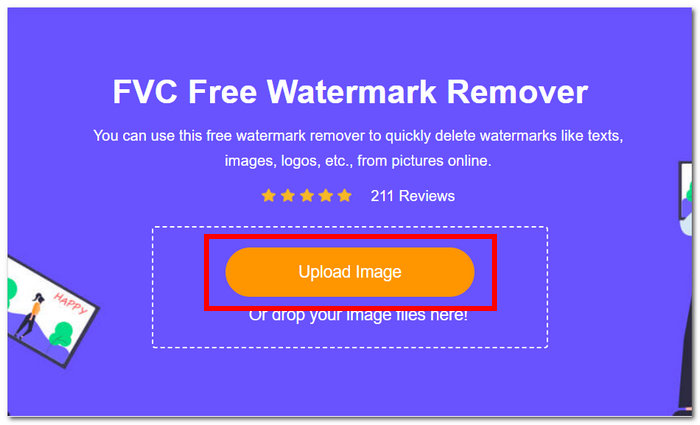
الخطوة 1. انتقل إلى موقع FVC Free Watermark Remover ثم قم برفع الصورة في خانة رفع الصور المخصصة.
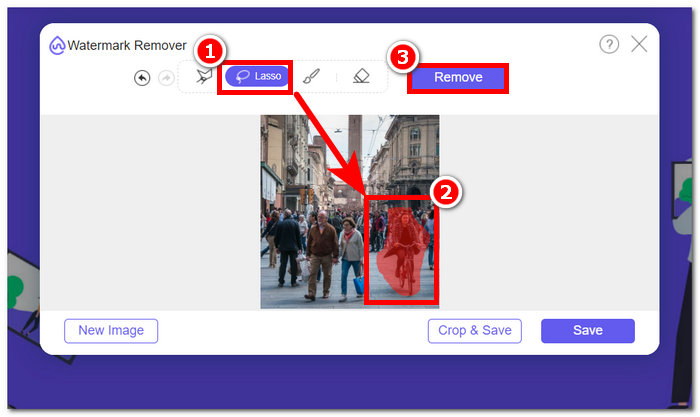
الخطوة 2. بعد تحميل صورتك في الأداة، اختر أداة Lasso في الجزء العلوي من الشاشة، ثم قم بتتبع الجسم أو الشخص الذي تريد إزالته من صورتك يدويًا.
الخطوة 3. سيتم تمييز الجسم أو الشخص الذي حددته باللون الأحمر، مما يدل على أنه مستهدف للإزالة. اضغط على زر Remove الموجود في شريط التنقل لمتابعة عملية الإزالة.
الخطوة 4. سيقوم FVC Free Watermark Remover بإزالة الجسم أو الشخص تلقائيًا، ثم انقر على زر Save لتنزيل الصورة على جهازك.
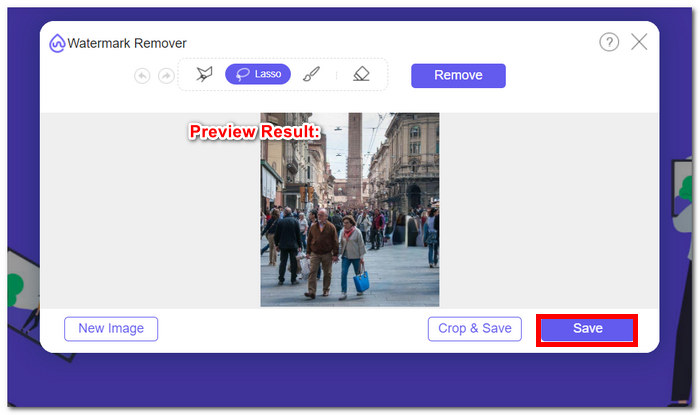
مع FVC Free Watermark Remover، لن تحتاج إلى استهلاك الوقت للقيام بمهام مثل إزالة شخص من الصورة. في الواقع، تعطي هذه الأدوات الأولوية لوقتك في إنشاء صور عالية الجودة تصدر النتائج دون فقدان جودتها.
غرفة الصور
يقدم PhotoRoom أداة خدمة ويب قوية مصممة خصيصًا لإزالة الأشخاص غير المرغوب فيهم من صورك بسهولة. يمكن لهذه الأداة مسح الكائنات والأشخاص غير المرغوب فيهم بسرعة ببضع نقرات فقط من خلال الاعتماد على قدرات الذكاء الاصطناعي الخاصة بها. بمساعدة الفرشاة السحرية، يمكنك إزالة الأشياء من صورك العزيزة حتى لو لم تكن لديك مهارات متقدمة في تحرير الصور.
الخطوة 1. انتقل إلى الموقع الرسمي لـPhotoRoom وأسقط الصورة التي تريد إزالة الأشخاص منها عن طريق النقر على “Start from Photo”.
الخطوة 2. بعد تحميل صورتك في الأداة، انقر على الشخص الذي ترغب في إزالته. ستبدأ المعالجة تلقائيًا بعد أن تقوم بتتبع المنطقة التي تحتوي على الشخص أو الجسم غير المرغوب فيه.
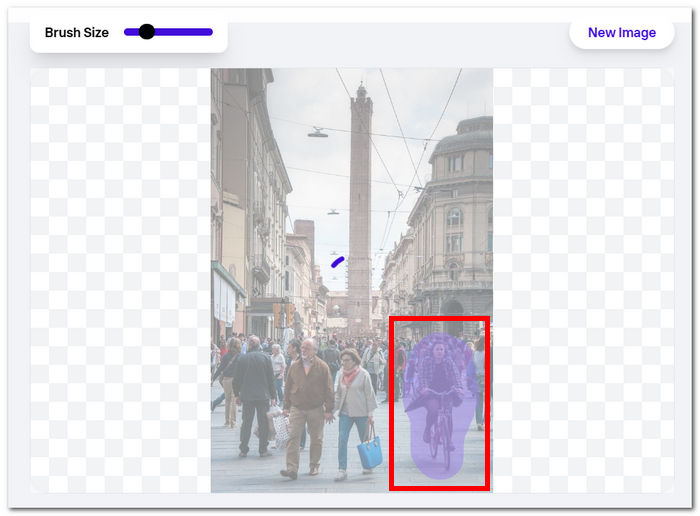
الخطوة 3. سيقوم البرنامج بإزالة الجسم أو الأشخاص الذين حددتهم بطريقة شبه سحرية، وكل ما عليك فعله بعد ذلك هو النقر على زر Download.
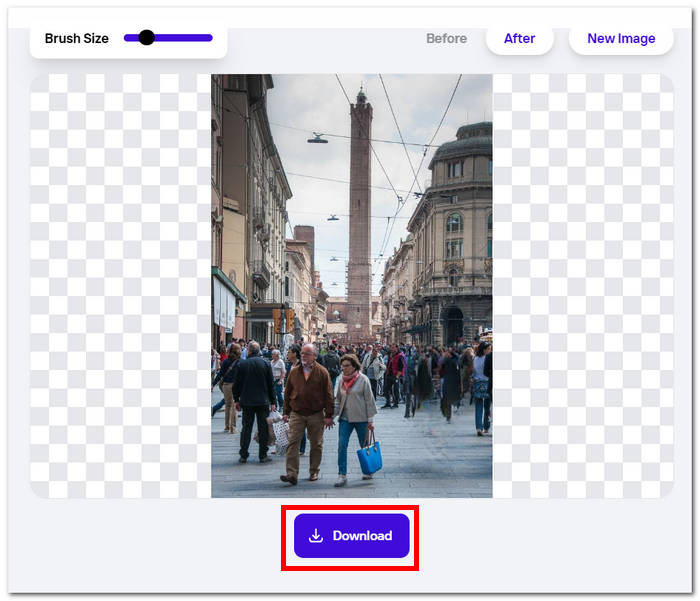
مع PhotoRoom، أصبح الحصول على صور نظيفة وخالية من التشتيت في متناول اليد دائمًا، مما يوفر حلاً مباشرًا لإزالة أي محتوى غير مرغوب فيه من صورك. لإزالة شخص ما من صورة عبر الإنترنت، يجب أن تعرف أداتك وأن PhotoRoom هي إحدى الأدوات التي يجب أخذها في الاعتبار.
Hotpot.ai
يوفر Hotpot.ai إمكانية إزالة الأشخاص والأشياء غير المرغوب فيها والموضوعات غير الواضحة بسهولة. باستخدام تقنية الذكاء الاصطناعي المتقدمة، تقوم بمعالجة صورك فورًا عند تحميلها، مما يضمن التحرير السريع والدقيق. تجعل هذه العملية المبسطة تنظيف صورك أمرًا سهلاً، مما يوفر لك نتائج مصقولة في وقت قصير. تعد إزالة شخص ما من الصورة باستخدام الذكاء الاصطناعي إحدى الميزات التي تفخر بها هذه الأداة.
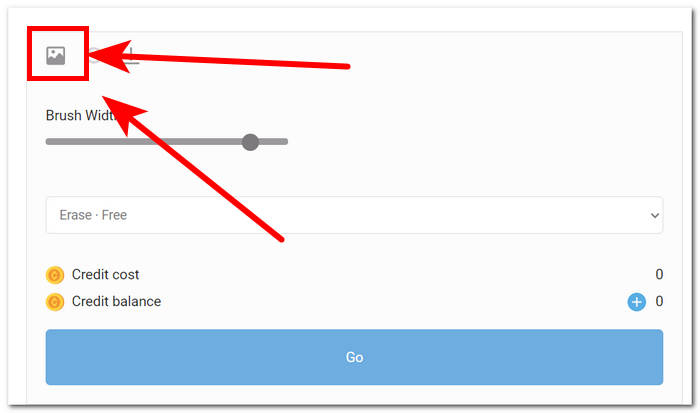
الخطوة 1. انتقل إلى موقع Hotpot.ai، ولرفع صورتك انقر على أيقونة Media الموجودة في الزاوية العلوية اليسرى من إعدادات الأداة.
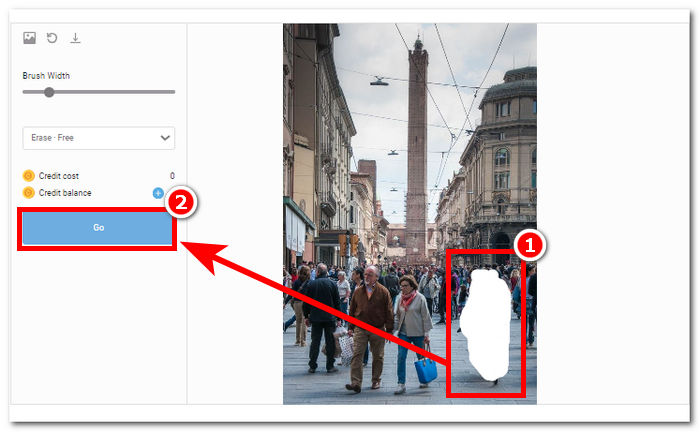
الخطوة 2. غطِّ الأشخاص غير المرغوب فيهم الذين تريد إزالتهم عبر تمرير مؤشر الفأرة فوقهم وتطبيق تمييزات بيضاء لإخفائهم باستخدام الفأرة. بعد تغطية جميع الأشخاص غير المرغوب فيهم، انقر على زر Go لمعالجة صورتك.
الخطوة 3. بعد أن تنتهي الأداة من معالجة صورتك، ستعرض لك النتيجة، وإذا كنت راضيًا عنها، انقر على زر Download الموجود في الزاوية العلوية اليسرى من إعدادات الأداة.
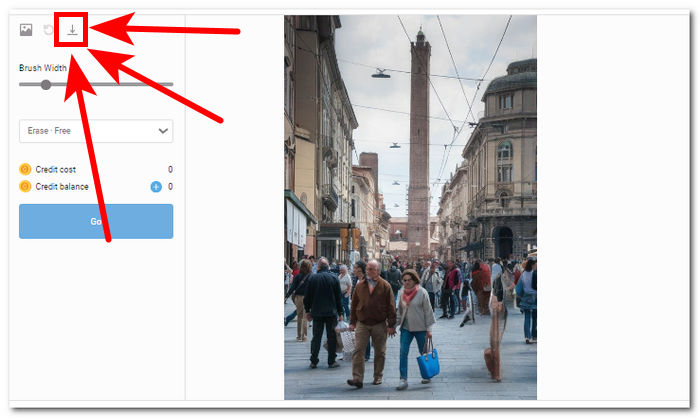
باستخدام Hotpot.ai يمكنك الحصول على صور بمظهر احترافي، مما يعزز الجاذبية العامة لمشاريعك الفوتوغرافية. قل وداعًا للمشتتات ومرحبًا بالصور النقية بفضل أداة تحسين الصور.
Photoeditor.ai
يقدم Photoeditor.ai نتائج دقيقة لأنه لا يوفر فقط محرر صور أساسيًا، بل يوفر أيضًا إزالة الأشياء غير المرغوب فيها أو الأشخاص الذين يدمرون صورك. نتائجها قابلة للمقارنة بالأدوات المدفوعة عبر الإنترنت المتوفرة على الإنترنت. هذه الأداة هي واحدة من تلك الأدوات الموثوقة التي تتيح لك استخدام خدماتها مجانًا؛ كل ما تحتاجه هو اتصال بالإنترنت وصورتك.
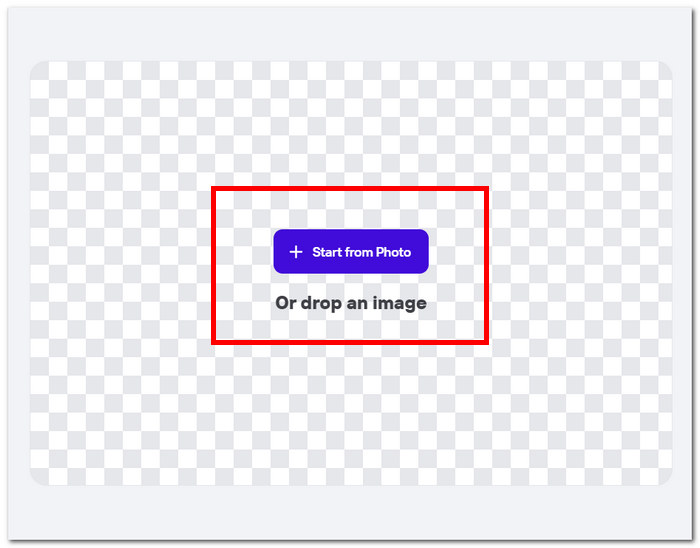
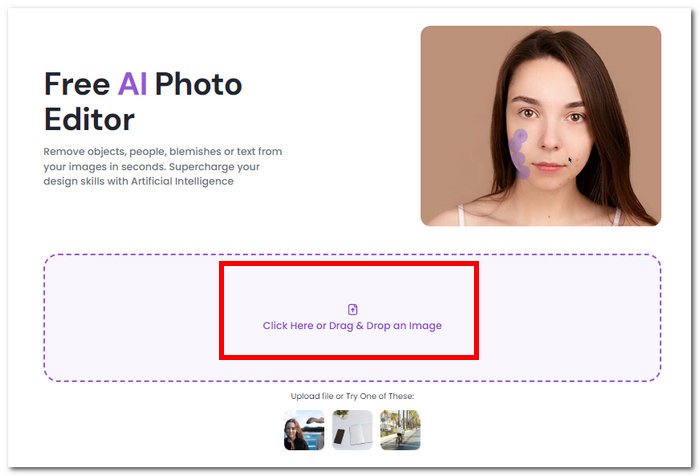
الخطوة 1. انتقل إلى موقع Photoeditor.ai وقم بتحميل صورتك من خلال النقر على خانة Drop an Image في واجهة الأداة.
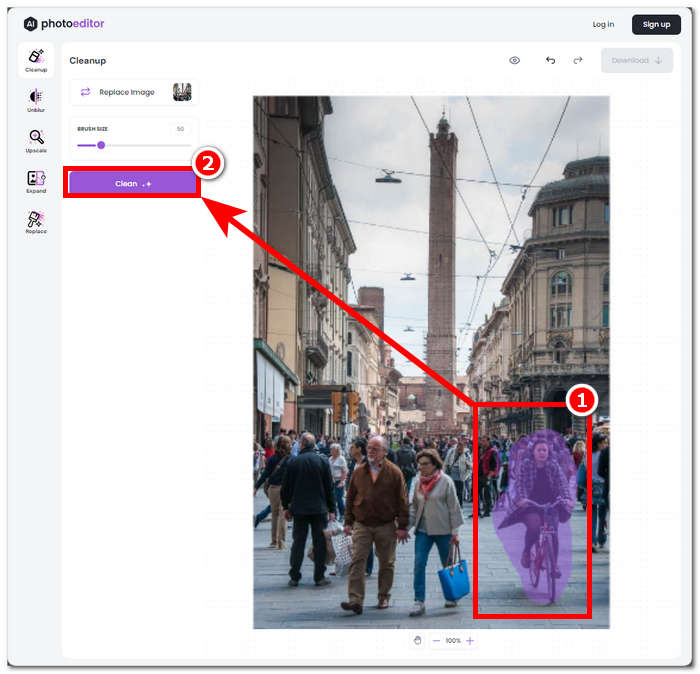
الخطوة 2. بعد تحميل صورتك في الأداة، حدِّد وتتبع يدويًا الأشخاص غير المرغوب فيهم في الصورة، ثم انقر على زر Clean الموجود في الزاوية العلوية اليسرى من واجهة الأداة.
الخطوة 3. بعد اكتمال العملية، ستتمكن من معاينة الصورة، وإذا كنت راضيًا عن النتيجة، انتقل إلى حفظها بالنقر على قسم زر Download.
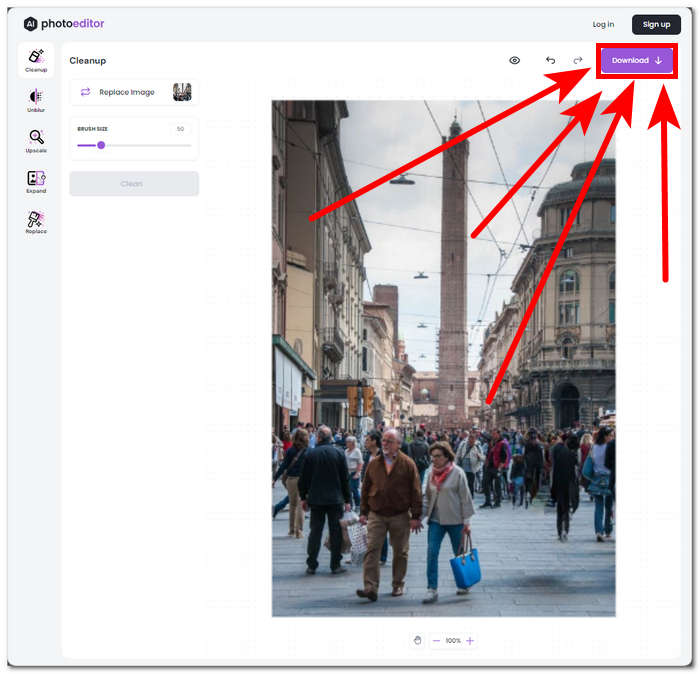
Photoeditor.ai هي أداة مباشرة تتيح لك إزالة الكائنات والأشخاص غير المرغوب فيهم في لحظة دون الحاجة إلى القلق بشأن فقدان الجودة. تعتبر هذه الأداة رائعة لأولئك الذين يبحثون عن أداة توفر تحريرًا أساسيًا للصور، مثل مزيل النص ومُحسِّن الوجه.
الجزء 2. كيفية إزالة الأشخاص من الصور على iOS وAndroid
إصلاح محرر الصور والتنميق
كيفية إزالة شخص من الصورة على iPhone؟ يحتوي هذا التطبيق على خدمة تحرير صور أساسية رائعة للمستوى الاحترافي مثل مزيل الأشياء أو الأشخاص. يتوفر التطبيق للتنزيل على أجهزتك المحمولة، ويحتوي على مستوى متقدم من إزالة الكائنات ومُحسِّن الخلفية ومُحسِّنات الوجه والجسم. يستخدم هذا التطبيق محرري صور محترفين للعمل مع حفلات الصور الخاصة بك؛ ومن ثم، فإن هذا لن يمنح التطبيق إمكانية الوصول دون اتصال بالإنترنت وسيطلب منك في النهاية الدفع.
الخطوة 1. قم بتنزيل تطبيق Fix The Photo Editor & Retouch من متجر App Store أو Play Store.
الخطوة 2. شغّل تطبيق Fix The Photo Editor & Retouch، وسيتيح لك اختيار الصورة التي تريد تعديلها. بعد ذلك انتقل إلى قسم Remove Objects ثم انقر على خيار Remove People/ Object.
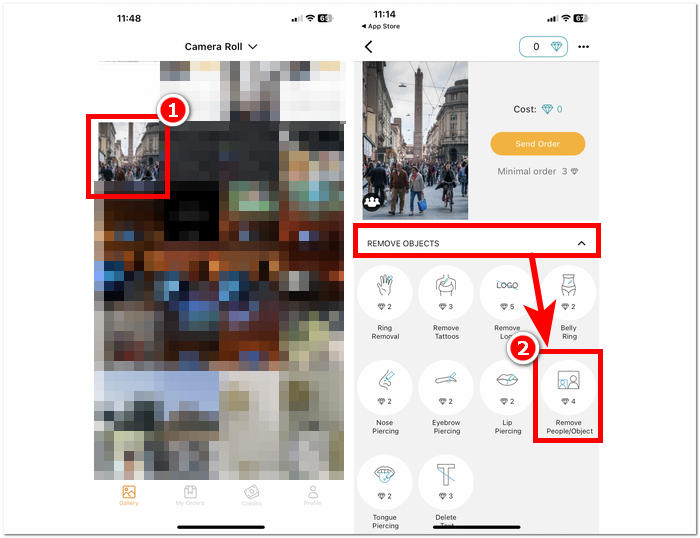
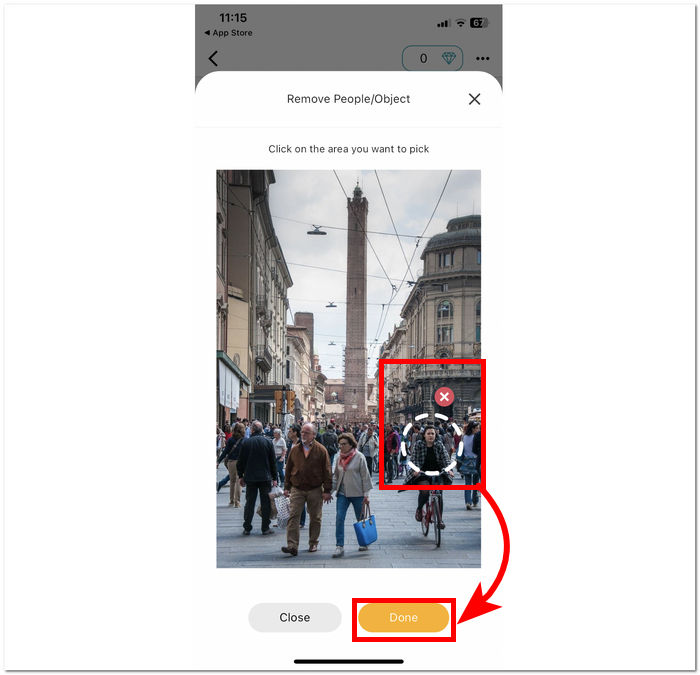
الخطوة 3. انقر ببساطة على المنطقة التي تحتوي على الأشخاص الذين ترغب في إزالتهم من الصورة. بعد الانتهاء من تحديد جميع الأجسام أو الأشخاص غير المرغوب فيهم، انقر على Done لإنهاء العملية.
الخطوة 4. انقر على Send Order وادفع المبلغ المطلوب لتنفيذ العملية حتى تتمكن من إزالة الأشخاص وتحميل صورتك المعدلة.
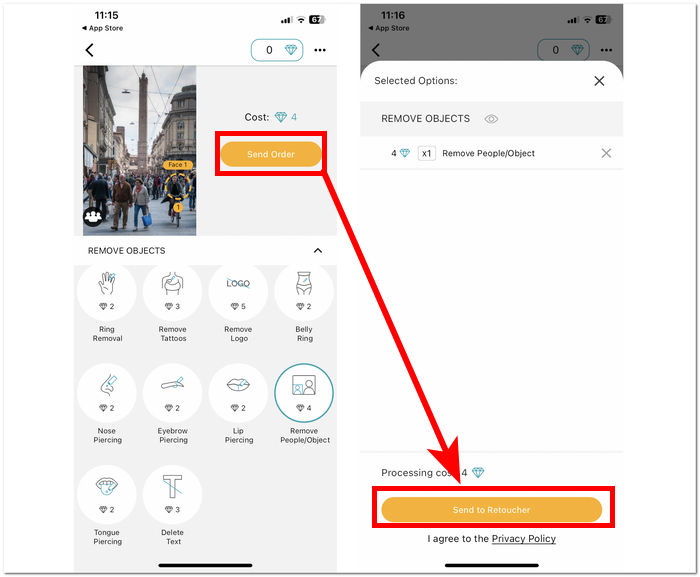
فضلًا عن وظيفة إزالة الأشخاص من صورك، يُعد Fix The Photo Editor & Retouch واحدًا من التطبيقات الموثوقة، إذ لا يعتمد على الذكاء الاصطناعي في تعديل صورك، بل على مصممين فوتوغرافيين حقيقيين لـتحسين صورك. لهذا السبب الخدمة ليست مجانية، لكن يمكنك تجربتها عبر الاستفادة من الفترة التجريبية المجانية.
مدير الصور
يتيح لك تطبيق PhotoDirector إزالة الأشخاص أو أي كائن غير مرغوب فيه من صورك بسهولة من خلال واجهته وميزاته المباشرة. يوفر هذا التطبيق إزالة سريعة للكائنات على أجهزتك المحمولة مع مجموعة متنوعة من التأثيرات التي تسمح بتحرير الصور عن طريق استخدام الطبقات. لا يركز هذا التطبيق على إزالة الكائنات فحسب، بل يتميز الذكاء الاصطناعي الخاص به بأسلوب احترافي يمكنه جعل هذا التطبيق يزيل صورك ويعدلها بدقة.
الخطوة 1. قم بتنزيل وفتح تطبيق PhotoDirector على أجهزتك المحمولة، سواء iOS أو أندرويد، مجانًا.
الخطوة 2. في واجهة التطبيق، انقر على AI Removal واختر الصورة التي تريد تعديلها.
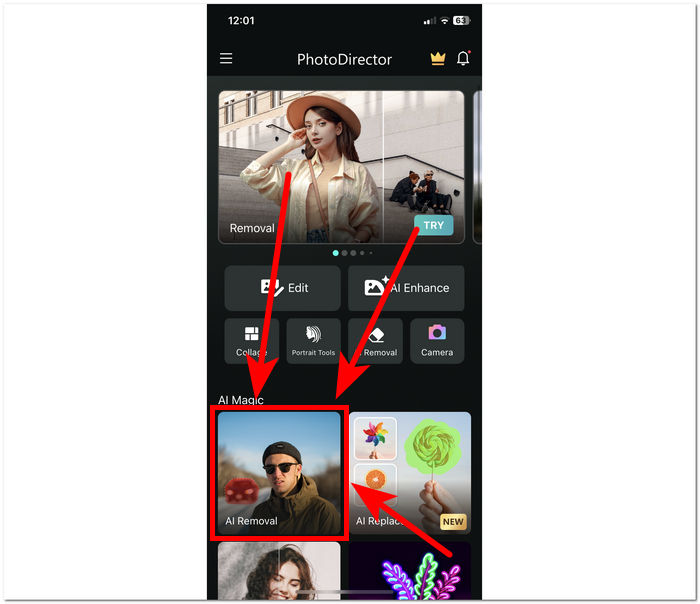
الخطوة 3. بعد تحميل الصورة في التطبيق، قم يدويًا بتتبع الجسم أو الأشخاص الذين تريد إزالتهم من الصورة.
الخطوة 4. عندما يتم تمييز الجسم أو الأشخاص باللون الأحمر، ببساطة انقر على زر Remove. بعد اكتمال العملية، انقر على أيقونة علامة الصح الموجودة أسفل زر Remove لحفظ الصورة المعدلة في معرض الصور لديك.
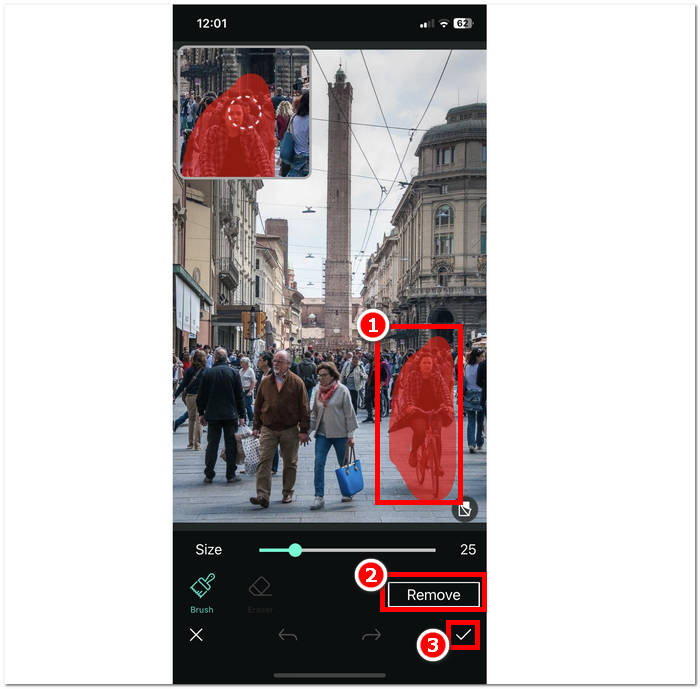
يحتوي تطبيق PhotoDirector على العديد من الميزات المفيدة التي تمنح المستخدمين سببًا لاختيار التطبيق لإكمال المهام المختلفة بخلاف إزالة الأشخاص. أسئلة مثل كيفية مسح شخص من صورة على iPhone؟ لا توجد مشكلة عندما يتفوق هذا التطبيق في إزالة الكائنات غير المرغوب فيها دون مشكلة. قد يؤدي تنوع الميزات في التطبيق في بعض الأحيان إلى إعاقة الأداء لأنه قد يعيق سرعة المعالجة.
إزالة الكائن غير المرغوب فيه
يقوم هذا التطبيق بإزالة المواضيع غير المرغوب فيها من صورك بسهولة، مما يسمح لك بمسح أي أشخاص غير مرغوب فيهم بسهولة. لا توفر ميزة Remove Unwanted Object إزالة الأفراد فحسب، بل تتيح أيضًا إزالة الكائنات والملصقات والنصوص من صورك. يمكن تنزيله مجانًا على أجهزة Android، ويتميز بواجهة مباشرة مثالية للوافدين الجدد.
الخطوة 1. من متجر Play على جهاز أندرويد، قم بتنزيل وفتح تطبيق Remove Unwanted Object.
الخطوة 2. بعد الدخول إلى واجهة التطبيق، انقر على أيقونة Gallery الموجودة في واجهة التطبيق وحدد الصورة التي تريد تعديلها.
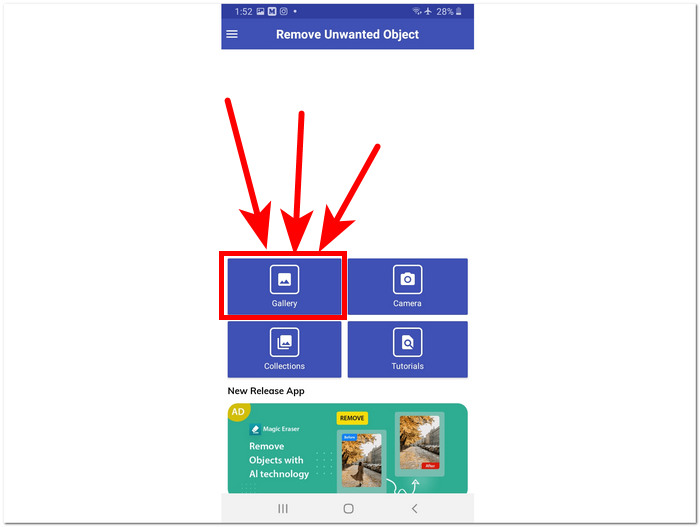
الخطوة 3. بعد تحميل الصورة في التطبيق، انقر على أداة Lasso الموجودة في الجزء السفلي من التطبيق، ثم تتبع الشخص/الجسم الذي ترغب في إزالته.
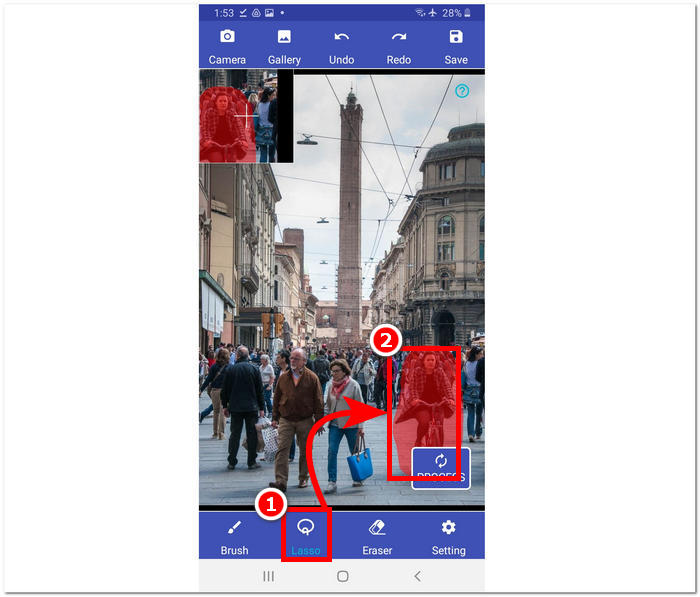
الخطوة 4. انقر بعد ذلك على زر Process لإزالة المنطقة المحددة، ثم انقر على زر الحفظ Save في الزاوية العلوية اليمنى لتنزيل الصورة إلى معرض الصور لديك.
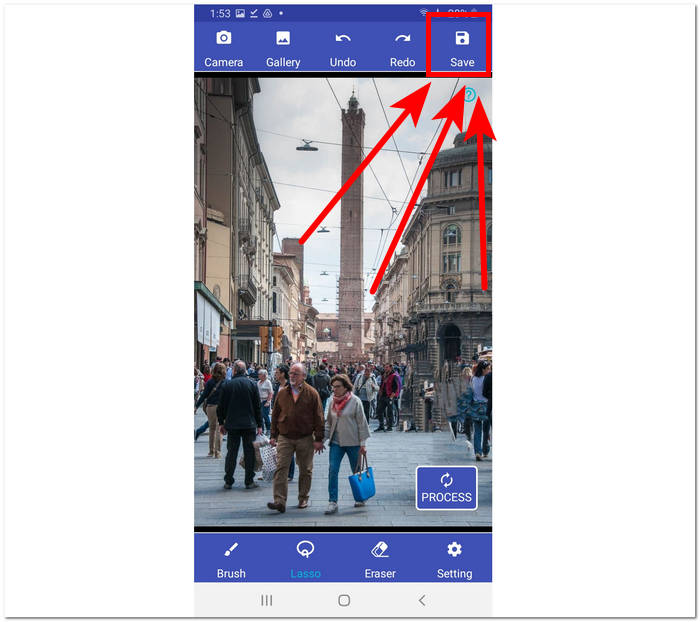
توفر إزالة الكائنات غير المرغوب فيها حلاً بسيطًا لإزالة أي كائنات غير مرغوب فيها. ومع ذلك، من المهم ملاحظة أن التطبيق يأتي مع إعلانات قد تنتقص من تجربة المستخدم.
تنميق - إزالة الكائنات
التنقيح - إزالة الكائنات متاح للتنزيل مجانًا على أجهزتك المحمولة، مما يوفر مجموعة من الميزات القوية في متناول يدك. يستفيد هذا التطبيق المبتكر من تقنية الذكاء الاصطناعي المتطورة إلى جانب أدوات الفرشاة الدقيقة، مما يجعل إزالة الكائنات أسهل وأكثر كفاءة من أي وقت مضى. بفضل واجهته البديهية ونتائجه السريعة، أصبح إجراء تعديلات سلسة أسهل من أي وقت مضى.
الخطوة 1. على أجهزة أندرويد، قم بتنزيل تطبيق Retouch - Remove Objects، وبعد تثبيته افتح التطبيق.
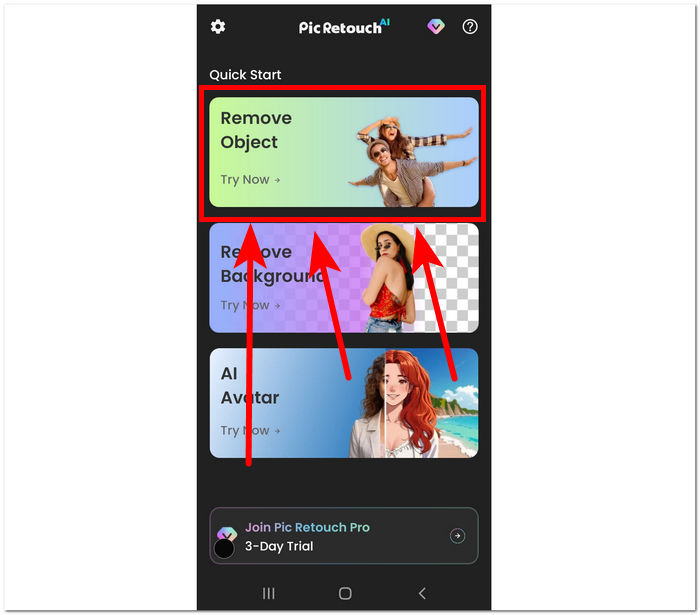
الخطوة 2. بعد الدخول إلى واجهة التطبيق، انقر على قسم Remove Object لاختيار الصورة من المعرض التي تريد تعديلها.
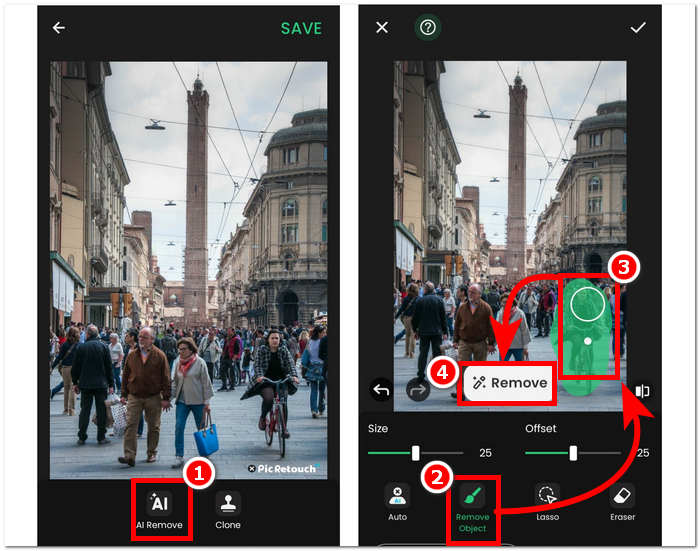
الخطوة 3. بعد رفع الصورة إلى التطبيق، انقر على خيار AI Remove. من القسم السفلي في واجهة الأداة، اختر Remove object وتتبع محيط الجسم أو الشخص الذي تريد إزالته من الصورة. وأخيرًا، ابدأ عملية الإزالة عن طريق النقر على زر Remove.
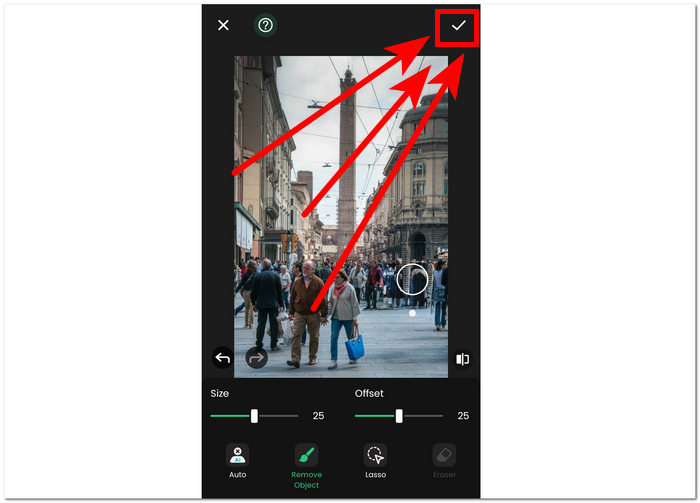
الخطوة 4. بعد انتهاء المعالجة، انقر على علامة الصح الموجودة في الزاوية العلوية اليمنى لتنزيل الصورة إلى معرضك.
يُعد تطبيق Retouch - Remove Objects تطبيقًا مجانيًا متاحًا لأجهزة أندرويد، مع عرض إعلانات داخل واجهة التطبيق. على الرغم من ذلك، يوفّر التطبيق طريقة بسيطة لأداء مهام مثل إزالة الأجسام، وإزالة الخلفية، وإزالة الإيموجي، وإنشاء صور رمزية (أفاتار) بالذكاء الاصطناعي.
الجزء 3. الأسئلة الشائعة حول إزالة الأشخاص من الصور
هل يحتوي iPhone على ممحاة كائن؟
لا، لا يحتوي جهاز iPhone على ميزة ممحاة الكائنات المضمنة كما هو الحال في أحدث الموديلات. ومع ذلك، قد ترغب في التحقق وإجراء الأبحاث حول تطبيقات الطرف الثالث المتوفرة والتي تقدم وظائف مماثلة لإزالة الكائنات من الصور.
هل من الممكن فوتوشوب شخص ما من الصورة؟
نعم، من الممكن فوتوشوب شخص ما من الصورة باستخدام برنامج Adobe Photoshop أو أي برنامج آخر لتحرير الصور. من خلال تحديد المنطقة المحيطة بالشخص وتحريرها بعناية، يمكنك إزالتها بسهولة من الصورة مع الحفاظ على سلامة الخلفية.
هل تحافظ ميزة القطع في iPhone على الخلفية بأكملها؟
تهدف ميزة القطع في iPhone، المتوفرة في بعض تطبيقات التحرير، عادةً إلى الحفاظ على الموضوع سليمًا أثناء إزالة الخلفية. ومع ذلك، فإن نجاح الحفاظ على الخلفية بأكملها يعتمد على عوامل مثل مدى تعقيد الخلفية ودقة أداة القطع.
هل من الصعب إزالة الأشخاص من الصور؟
يعتمد مستوى الصعوبة على عوامل مثل مدى تعقيد الخلفية وجودة الصورة ومهارات التحرير لدى المستخدم. ومع ذلك، باستخدام الأدوات والتقنيات المناسبة، من الممكن تحقيق نتائج سلسة.
هل يمكنني إزالة عدة أشخاص من صورة جماعية؟
نعم، يمكنك إزالة عدة أشخاص من صورة جماعية باستخدام نفس تقنيات إزالة شخص واحد. ومع ذلك، قد يتطلب الأمر مزيدًا من الوقت والدقة لضمان أن تبدو النتيجة النهائية سلسة.
خاتمة
في الختام، فإن إزالة الأشخاص من الصور تفتح آفاقًا لا حصر لها لمزيد من تحسين وإصلاح لحظاتك الثمينة. سواء كنت تستخدم أدوات عبر الإنترنت أو تطبيقات للهاتف، فإن هذه العملية تمنحك وسيلة لإنشاء صور أنظف وأكثر جاذبية. ومع امتلاك الأدوات المناسبة، يمكنك بسهولة الوصول إلى نتائج بمظهر احترافي، مع ضمان بقاء صورك مخلصة لنقطة التركيز الأساسية فيها. لذا، استكشف مجموعة الخيارات المتنوعة المذكورة في هذا المقال وابدأ رحلتك نحو إنشاء صور نظيفة ومبهرة بصريًا خالية من العناصر المشتتة غير المرغوب فيها.
-
 أفضل 9 برامج لإزالة خلفية الصور للحصول على نتائج سريعة ودقيقة
 استمتع بالسرعة والدقة التي تتمتع بها ممحاة صور الخلفية الأفضل أداءً. قل وداعًا لمزيل الخلفية المعقد واتبع تسع طرق فعالة اليوم!
-
 كيفية إزالة النص من الصورة على نظام التشغيل Windows/Mac/Online
 قل وداعًا للنص المشتت في صورك! اكتشف كيفية مسح النص من الصور باستخدام هذه الحلول السلسة المصممة بسلاسة لإزالة النص.
-
 كيفية إزالة الخلفية من الصورة: أدوات خالية من المتاعب
 اكتشف ست أدوات لإزالة الخلفية من أي صورة بسهولة. قل وداعًا للتحرير المعقد ومحو خلفيات الصور بسهولة اليوم!
