


 محول الفيديو النهائي
 مسجل الشاشة
 إصلاح الفيديو
 تنزيل آمن
6 أكثر الطرق فعالية لتغيير حجم الصورة على الويب وسطح المكتب
مع مليارات الصور المرموقة التي يمكننا تنزيلها ، يلتقط معظمنا صورًا جميلة ، ولكن هناك حالات لا يكون حجمها فيها هو أكثر ما نفضله. حاول المستخدمون تغيير حجم الصورة التي لديهم عن طريق ضبط ارتفاع الصورة وعرضها ونسبة العرض إلى الارتفاع باستخدام المحرر ، مما أدى إلى تغيير PPI للصورة. النتيجة ليست ما توقعه الجميع ؛ تتحول الصور عالية الدقة إلى وحدات بكسل.
لماذا؟ لأن محرّر الصور الذي استخدموه لتغيير الحجم لا يمكنه إنشاء أو ملء فجوة البكسلات في النسخة المُعاد تحجيمها. لذلك أصبحت الاستفسارات حول هذا الموضوع شائعة، ونحن هنا لمساعدتك على حل المشكلة. في هذه المقالة، سنمنحك تجربة عملية حول كيفية تغيير حجم الصورة دون ترك أي تشوّه في النتيجة النهائية.

الجزء 1. أفضل مقاييس للصور يمكنك الوصول إليها على الويب لتغيير حجم الصورة عبر الإنترنت [3 أدوات مجانية]
تتوفر هذه الأدوات عبر الإنترنت التي نضيفها هنا على متصفحات الويب المختلفة الموجودة على جهازك. أيضًا ، هذه مجانية ، ولكن هناك أداة ستحتاج إلى شرائها لاستخدامها دون أي قيود. ومع ذلك ، فهذه أدوات قادرة على الإنترنت يمكنك الوصول إليها لبدء تغيير حجم الصورة التي لديك. اقرأ الخطوات لمعرفة كيفية استخدامها.
1. FVC Free Image Upscaler - أفضل أداة لتغيير حجم الصورة على الويب [خيار مفضل]
أداة FVC Free Image Upscaler Online هي أداة ويب تعتمد على الذكاء الاصطناعي يمكنها تغيير حجم الصور بسرعة دون فقدان الجودة. في الواقع، ستقوم الأداة تلقائيًا بتغيير حجم كل ملف صورة تقوم برفعه هنا. وعلى الرغم من كونها أداة عبر الإنترنت، إلا أن أدائها في تغيير الحجم سريع وفعّال. كل صورة ترفعها هنا تُحذف تلقائيًا من الخادم بمجرد الانتهاء من تغيير حجمها. كما أنها تمتلك واجهة تغيير حجم هي من أنظف الواجهات وأكثرها تنوعًا التي قد تحتاجها؛ وحتى عند استخدامك لأجهزة مختلفة يمكنك الوصول إلى هذه الأداة ما دمت متصلاً بالإنترنت. هل تريد أن ترى كيف يؤدّي هذا البرنامج هذه المهمة؟ إذا كان الأمر كذلك، اقرأ الخطوات أدناه وطبّقها لتغيير حجم الصورة بسرعة وفعالية.
كيفية تغيير حجم صورة باستخدام FVC Free Image Upscaler:
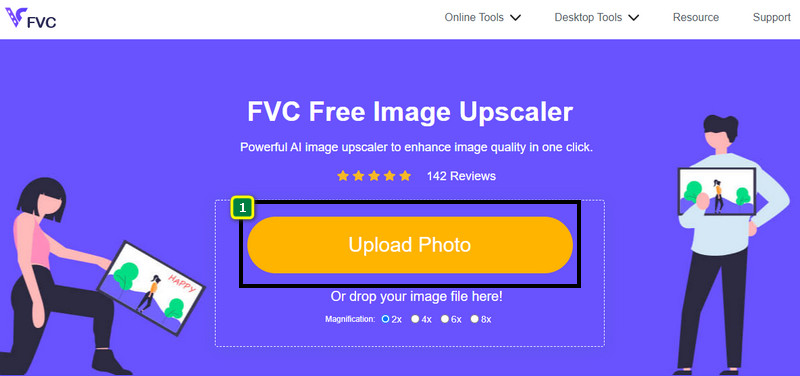
الخطوة 1. للوصول إلى أداة الويب، يمكنك النقر على هذا الرابط الذي سينقلك تلقائيًا إلى الموقع الرسمي لأداة تغيير الحجم.
الخطوة 2. انقر على Add Image ليظهر مجلد على شاشتك، ثم اختر ملف الصورة الذي تريد رفعه واضغط Open.
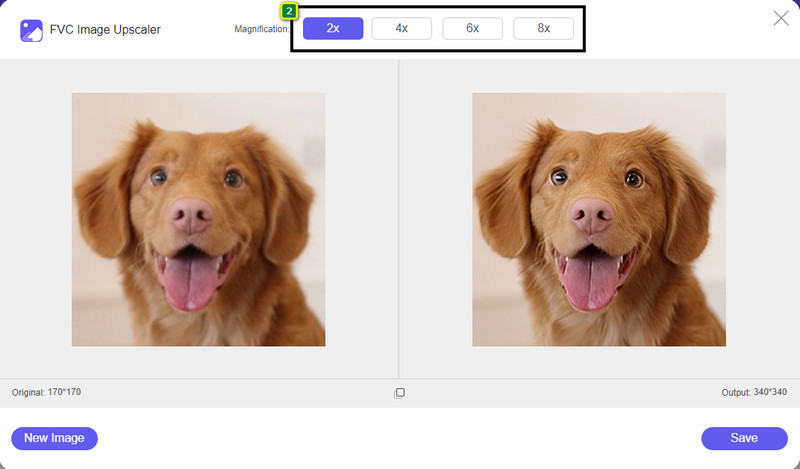
الخطوة 3. لتغيير حجم الصورة، يجب أن تختار نوع التكبير الذي ستطبّقه على صورتك. يمكنك ملاحظة تغيّر أبعاد الصورة الكليّة بمجرد النقر على 2x أو 4x أو 6x أو 8x.
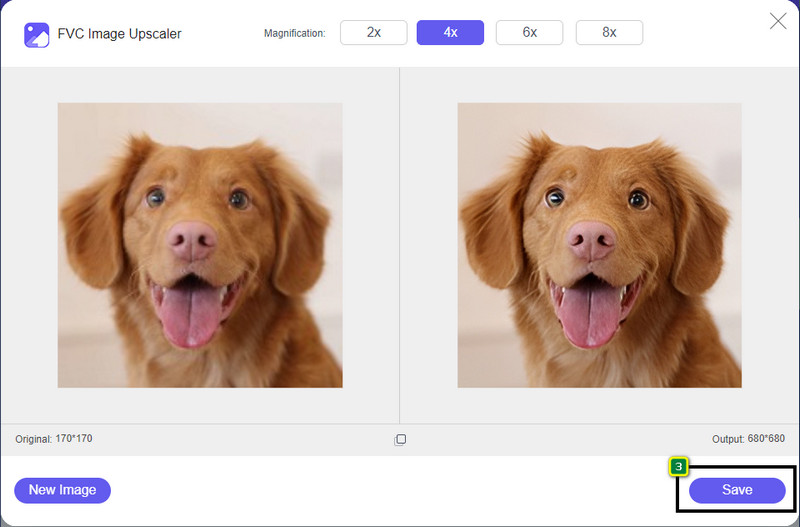
الخطوة 4. بعد اختيار مقدار التكبير الذي تريد تطبيقه، ها قد تم الأمر؛ يمكنك الآن الضغط على Save لتحميل النسخة المُعاد تحجيمها إلى قرص جهازك.
2. Be Funky - محرر الصور [مجاني ومدفوع]
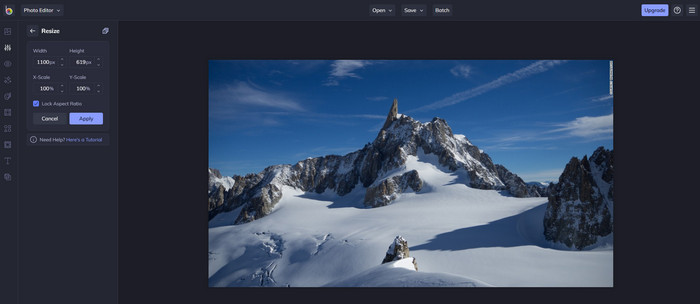
Be Funky - Photo Editor هي منصّة إبداعية يمكنك استخدامها لصنع أشياء مدهشة في صورك. يمكنها تغيير حجم ملفات BMP دون فقدان الجودة. تُعد هذه الأداة من أرقى محرّرات الصور التي يمكن الوصول إليها عبر الإنترنت. ورغم تشابه واجهتها مع واجهة فوتوشوب، فإن الميزات التي تقدمها بسيطة وسهلة الفهم، لذا يمكن القول إنها أيضًا مناسبة للمبتدئين. لذلك، إذا كنت ترغب في تجربة هذه الأداة عبر الإنترنت لتغيير حجم صورتك بسهولة، فاتبع الخطوات التي أدرجناها هنا.
كيفية تغيير حجم صورة باستخدام Be Funky:
الخطوة 1. ابحث عن اسم الأداة في متصفحك، ثم انقر على Get Started and Edit Photo.
الخطوة 2. اضغط على Open لرفع ملف BMP أو أي صورة أخرى تريد تغيير حجمها هنا.
الخطوة 3. انتقل إلى Edit ثم اضغط على خيار Resize.
الخطوة 4. هنا يمكنك تغيير العرض والارتفاع أو مقياس x وy للصورة بحرية. بعدها اضغط على Apply لترى كيف تبدو النسخة المُعاد تحجيمها.
3. Simple Image Resizer [مجانًا]
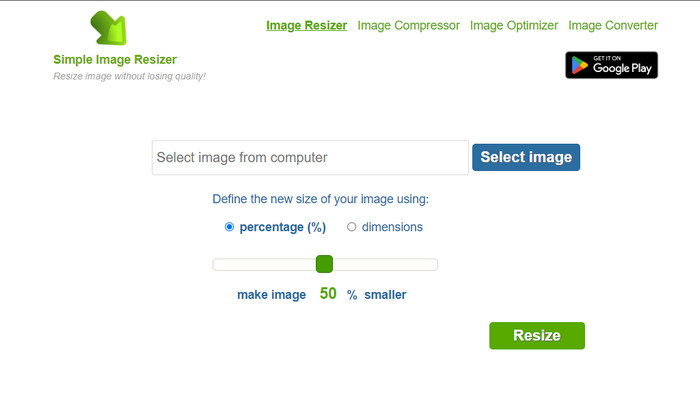
يتيح لك Simple Image Resizer تغيير حجم الصورة عن طريق تحديد الحجم الجديد لها عبر تغيير النسبة المئوية أو القياس. وهو آخر أداة لتغيير حجم الصور أضفناها في هذه المقالة. كانت واجهته البسيطة وسهولة استخدامه من أهم الأسباب التي جعلتنا نختاره. بالإضافة إلى ميزة تغيير الحجم، يمكنك تحسين الصورة وضغطها وتحويلها هنا مجانًا، لكن مع إعلانات مزعجة على الموقع. لذا، إذا أردت تجربة أداة تغيير الحجم هذه عبر الإنترنت، اتبع الخطوات أدناه.
كيفية تغيير حجم صورة باستخدام Simple Image Resizer:
الخطوة 1. باستخدام متصفحك، ابحث عن اسمه لبدء استخدام أداة تغيير الحجم هذه.
الخطوة 2. اضغط على Select Image لإضافة الصورة التي تريد تغيير حجمها هنا.
الخطوة 3. اختر الطريقة التي تفضّلها لتغيير الحجم، ثم عدّل النسبة المئوية أو القياس. في كلتا الحالتين النتيجة واحدة.
الخطوة 4. انقر على Resize لحفظ النتيجة النهائية على جهازك المكتبي.
الجزء 2. كيفية تغيير حجم صورة على نظامي التشغيل Windows و Mac [مدفوع ومجاني بلا اتصال بالإنترنت]
على عكس الأداة الثلاثة الأولى المذكورة على الإنترنت ، فإن الأدوات التالية التي قدمناها لا تعتمد على الإنترنت ، مما يعني أنه حتى لو لم يكن لديك إنترنت ، يمكنك استخدامها دون أي مشكلة. لأنها قابلة للتنزيل أو مثبتة مسبقًا على سطح المكتب. تعرف على كيفية استخدامها اليوم من خلال قراءة المعلومات التي نضيفها إلى كل منها.
1. Adobe Photoshop [Windows و Mac]
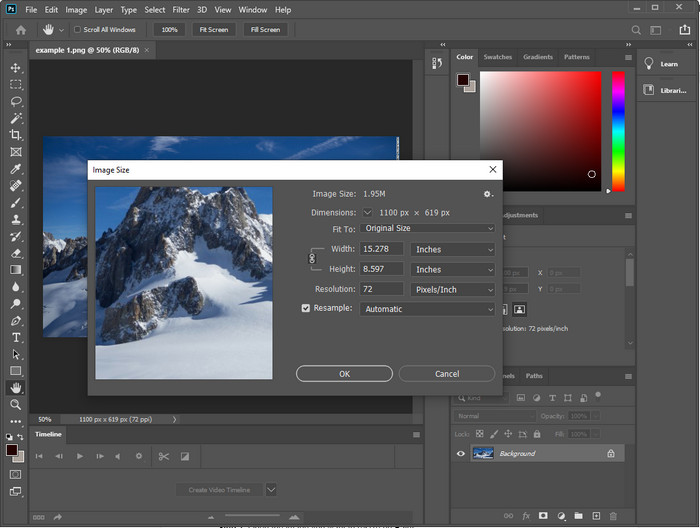
أول خيار لدينا من أدوات تغيير حجم الصور التي يمكن تنزيلها واستخدامها بدون اتصال هو Adobe Photoshop. لماذا؟ لأنه ينشئ بيانات بكسل جديدة عند تغيير الحجم، ما يساعد على تجنّب الحصول على نتيجة منخفضة الجودة في نهاية العملية. بالإضافة إلى ذلك، هذا البرنامج معروف بكونه محرر صور احترافيًا يمكنه معالجة الصور النقطية والمتجهية بسهولة. ومع أن البرنامج احترافي، فإن شرائه قد يكون مبالغًا فيه إذا كنت ستستخدمه فقط لتغيير الحجم. لكن إذا كنت مهتمًا بمعرفة كيفية تغيير حجم الصورة في فوتوشوب، فتابع ما يلي.
كيفية تغيير حجم صورة باستخدام Adobe Photoshop:
الخطوة 1. قم بتنزيل البرنامج وتثبيته على جهازك المكتبي من خلال زيارة موقعه الرسمي.
الخطوة 2. اضغط على File ثم حدد الصورة من المجلد بعد النقر على Open.
الخطوة 3. اضغط على قائمة Image في الأعلى، ثم اختر Image Size.
الخطوة 4. غيّر قياس العرض والارتفاع وفقًا لتفضيلاتك، ثم اضغط على OK لتطبيق التغييرات.
الخطوة 5. ارجع إلى File واحفظ الصورة على جهازك المكتبي.
2. الرسام [التطبيق الافتراضي على Windows]
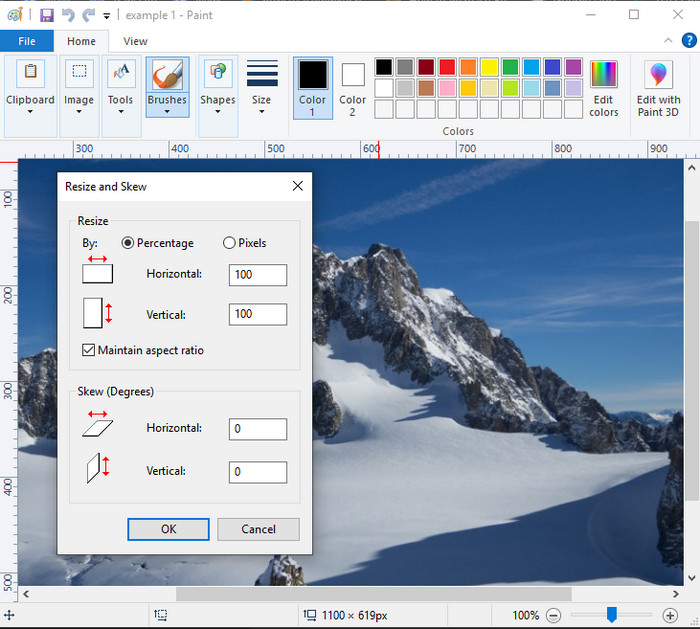
يُعرف Paint بكونه تطبيقًا يمكنك الرسم فيه على لوحة فارغة. عادةً ما يستخدمه مختلف مستخدمي ويندوز لإنشاء رسومات على صفحة فارغة، أو لإضافة تفاصيل للصور، ولتغيير حجمها حسب الحاجة. وعلى الرغم من أنه ليس محرر صور مخصصًا، فإنه لا يزال قادرًا على تغيير حجم أي صورة نقطية موجودة على القرص المحلي لديك. ومن مميزات استخدامه أنك لست مضطرًا لتنزيل البرنامج على ويندوز لأنه مثبت مسبقًا. لذلك، إذا أردت معرفة كيفية تغيير حجم الصور منخفضة الدقة باستخدام هذا التطبيق، اقرأ الشرح الذي أضفناه أدناه.
كيفية تغيير حجم صورة باستخدام Paint:
الخطوة 1. افتح الصورة التي تريد تغيير حجمها في Paint.
الخطوة 2. بعد فتح الصورة، انقر على أيقونة المربعين لبدء تغيير حجم الصورة المفتوحة هنا.
الخطوة 3. لتغيير حجم الصورة، يمكنك التعديل حسب النسبة المئوية أو حسب البكسل. بعد تغيير القيم، اضغط على OK لتطبيق التغييرات.
الخطوة 4. اضغط على أيقونة الحفظ لتصدير الصورة التي قمت بتغيير حجمها هنا.
3. معاينة [التطبيق الافتراضي على Mac]
يُعد Preview تطبيقًا مدمجًا يمكنك الاعتماد عليه لمعرفة كيفية تغيير حجم الصورة على جهاز ماك. إذا كنت لا ترغب في تنزيل تطبيق على نظام macOS، فمن الأفضل أن تستخدم هذا التطبيق. ورغم أنه حل غير مشهور بما يكفي، فإنه قادر على تغيير حجم الصورة الموجودة على جهازك المكتبي. وتعلّم كيفية استخدامه قد يكون ميزة كبيرة لك كي تستفيد من إمكاناته كاملة. إذا كنت مهتمًا بكيفية عمل هذه الأداة، فتابع المعلومات التي نضيفها تاليًا.
كيفية تغيير حجم صورة باستخدام Preview:
الخطوة 1. انقر بزر الفأرة الأيمن على الصورة في جهاز الماك لديك، ثم اختر Open with واضغط على Preview.
الخطوة 2. في الجزء العلوي، انقر على Tools ثم اختر Adjust Size.
الخطوة 3. غيّر قياسات الصورة وفقًا لاحتياجاتك، ثم اضغط على OK لحفظ التغييرات التي أجريتها.
الجزء 3. إضافي: Top Image Resizer يمكنك تنزيله على Android و iPhone
1. Photo & Picture Resizer [Android]
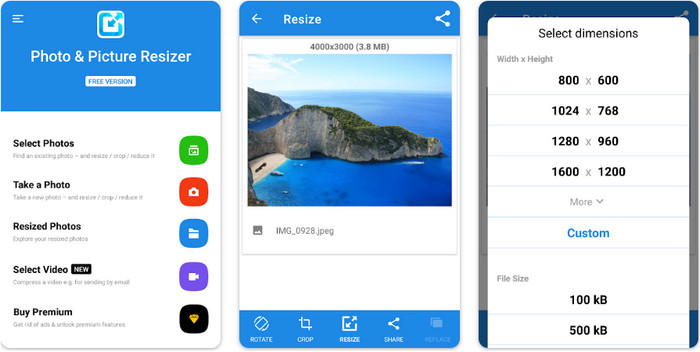
يُعد Photo & Picture Resizer من أسرع وأسهل الطرق لتغيير حجم الصورة الموجودة على جهاز أندرويد. حتى المستخدمون غير المتمرّسين الذين يرغبون في تغيير الحجم يمكنهم تنزيل هذه الأداة واستخدامها كمغيّر لحجم الصور. التطبيق مجاني، ولكن إذا أردت استخدام ميزاته الإضافية فستحتاج إلى شرائه. بشكل عام، ميزات تغيير الحجم فيه ممتازة ويمكنك إتقان استخدامها من المحاولة الأولى.
2. Image Resizer Free [iPhone]
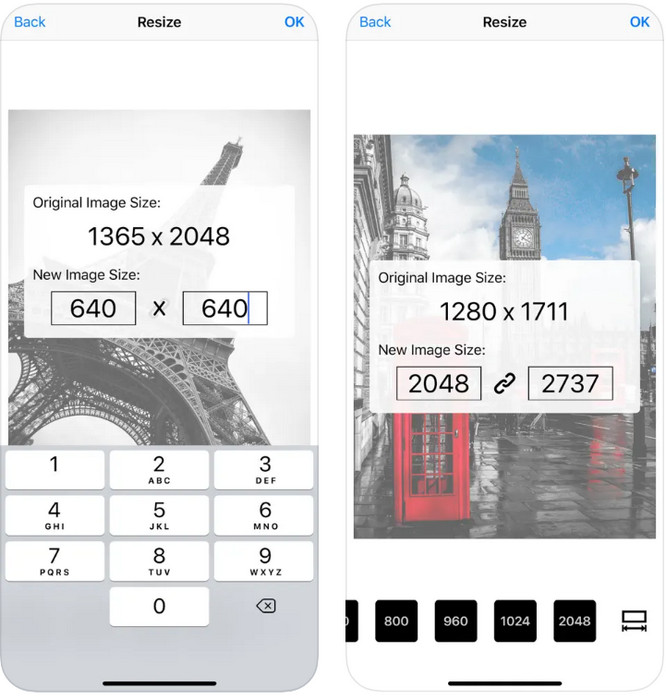
تطبيق Image Resizer Free هو أداة مخصّصة لنظام iOS يمكنك تنزيلها على iOS 7.0 أو أحدث. هذا التطبيق أداة مباشرة لتغيير حجم الصور يستخدمها الكثير من مستخدمي iOS. لا يحتوي على ميزات إضافية غير وظيفته الأساسية وهي تغيير الحجم. ورغم أن الأداة سهلة الاستخدام، إلا أن العديد من المستخدمين يشتكون من أنها لا تستطيع استبدال الصورة الأصلية بالنسخة المُعاد تحجيمها.
الجزء 4. أسئلة وأجوبة حول كيفية تغيير حجم الصورة
ما هو التنسيق الأفضل لتغيير الحجم أم النقطية أم المتجه؟
تتكون التنسيقات النقطية من وحدات بكسل صغيرة لإنشاء مظهر الصورة ، وعندما تقوم بتغيير حجمها أو أبعادها ، فإن هذه البيكسلات تصبح ممتدة ، وتصبح مرئية. بخلاف ما إذا قمت بتغيير حجم الصورة المتجهة ، فهي مصممة خصيصًا لتغيير حجم الصورة وترقيتها دون إحداث فوضى عليها.
هل يمكنني تغيير حجم BMP عبر الإنترنت؟
نعم ، يمكنك تغيير حجم BMP باستخدام الحل عبر الإنترنت الذي نضيفه هنا. ومع ذلك ، عند تكبير الصورة ، تميل BMP إلى أن تصبح منقطة لأنها صور نقطية. لذلك ، إذا كنت ترغب في تجنب مشكلة تغيير حجم ملف BMP ، فمن الأفضل اختيار FVC Free Image Upscaler Online ، لأنه لا يترك البيكسل على الإخراج النهائي لملف BMP الذي تم تغيير حجمه.
هل يزداد حجم الملف بعد تغيير حجم الصورة؟
نعم إنها كذلك. بشكل أساسي لأن الصورة التي قمت بتغيير حجمها تضيف بيانات بكسل إضافية على الإخراج الفعلي. ومع ذلك ، فإن حجم ملفه لا يختلف كثيرًا عن حجمه الأصلي.
خاتمة
أي تقنية لتغيير حجم الصور تعتقد أنها الأنسب لك؟ اختر من بين أدوات تغيير الحجم التي أضفناها هنا. إذا كنت تواجه صعوبة بسبب الاتصال بالإنترنت، فنحن نوصي بشدة باستخدام FVC Free Image Upscaler Online بسبب أدائه في تغيير الحجم. لن تواجه أي صعوبة في تغيير الحجم إذا استخدمت هذه الأداة عبر الويب.
-
 صورة بدقة 1440 بكسل - جميع المعلومات الشاملة التي ستحتاج إليها [تم تحديث 2022]
 هل تريد أن تعرف عن صور 1440p؟ أو من أين يمكنك الحصول عليه؟ تحويل صورتك إلى 1440 بكسل؟ اقرأ هذا لمعرفة كل منهم.
-
 برنامج تعليمي لإلغاء البكسل عن صورة باستخدام أفضل 3 Unpixelator للصور
 هل تواجه مشكلة في التعامل مع الصور المنقطة؟ اليوم ، تمكنا من حل المشكلة ، ويمكنك استخدام الأدوات التي نضيفها هنا.
-
 كيفية زيادة حدة الصورة في الصورة باستخدام 3 طرق [شرح سريع]
 مشكلة في الصورة غير الحادة؟ هنا ، سوف نقدم كيفية زيادة وضوح الصور في Photoshop باستخدام الطرق الثلاث التي نضيفها.
