


 محول الفيديو النهائي
 مسجل الشاشة
 إصلاح الفيديو
 تنزيل آمن
تغيير حجم الصورة دون فقدان الجودة: ضغط بدون فقدان الجودة
أحد أكبر المخاوف عند تغيير حجم الصورة هو فقدان جودتها. تختلف الإجابة عن هذا تبعًا للطريقة التي تم بها تغيير حجم الصورة، والأداة المستخدمة، وعوامل أخرى. لكن من الجوانب التي لا تحظى بالتقدير الكافي أنه يمكن تغيير حجم الصورة دون فقدان الجودة إذا تم ذلك بالطريقة الصحيحة. باتباع أفضل الممارسات، وفهم تفاصيل تغيير حجم الصور، واختيار الأداة المناسبة، يمكنك بالتأكيد الحفاظ على وضوح وحدّة صورك مهما كانت تعديلات الحجم التي تجريها.
في هذا الدليل، سنتناول ثلاث طرق فعالة لتغيير حجم الصور مع الحفاظ على سلامتها البصرية وضمان بقاء الجودة كما هي تقريبًا.

الجزء 1. أسرع طريقة لتغيير حجم الصورة دون فقدان الجودة [مدعوم بالدفعات]
أداة FVC Free Image Compressor هي أداة مجانية على الإنترنت لضغط الصور، مثالية للمستخدمين الذين يبحثون عن طريقة أسرع لتغيير حجم الصور دون فقدان الجودة. بنقرة واحدة فقط، سيُعاد تغيير حجم صورك تلقائيًا مع الحفاظ على جودتها تقريبًا كما هي. كما أن هذه الأداة سهلة الاستخدام للغاية، إذ يمكن لأي مستوى من المستخدمين التعامل معها دون الشعور بالارتباك أثناء العملية. وأخيرًا، عندما يكون لديك مجموعة كبيرة من ملفات الصور لتغيير حجمها، تتيح لك هذه الأداة ضغط ما يصل إلى 40 ملف صورة في وقت واحد.
إليك كيفية تغيير حجم الصورة دون فقدان الجودة باستخدام FVC Free Image Compressor
الخطوة 1. انتقل إلى المتصفح لديك واكتب Free Image Compressor في شريط البحث.
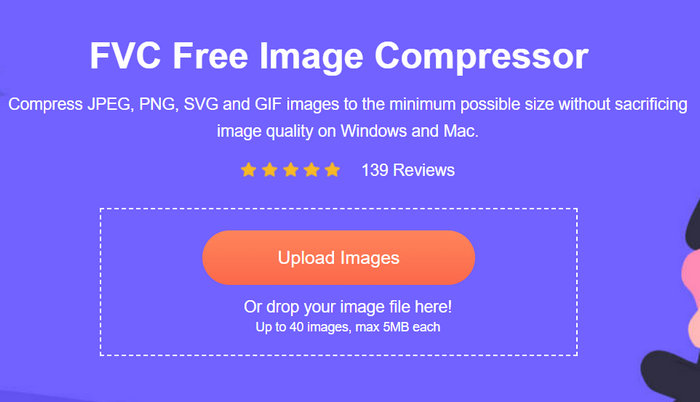
الخطوة 2. بمجرد دخولك إلى الموقع، انقر على Upload Images لاستيراد الصور التي تريد تغيير حجمها. ستقوم الأداة تلقائيًا بضغط جميع الصور التي قمت برفعها.
الخطوة 3. انتظر حتى ينتهي إجراء الضغط. عند الانتهاء، ستظهر لك شريط حالة يوضِّح انتهاء العملية ومعلومات عن حجم الصورة قبل الضغط وبعده. بعد ذلك، انقر على Download All لحفظ صورتك.
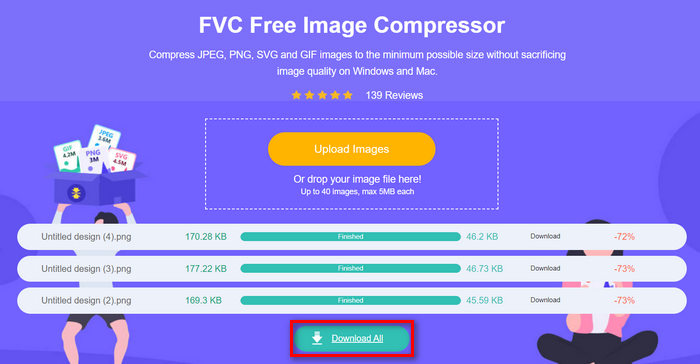
مع أداة ضغط الصور المجانية FVC، لن يؤثر تغيير حجم الصورة على مجهودك. كما أن هذه الأداة مجانية تمامًا ويمكن الوصول إليها بسهولة، لذا فهي أداة ضغط سهلة الاستخدام للجميع.
الجزء 2. كيفية تقليل حجم الصورة في الفوتوشوب دون فقدان الجودة
في هذه الأثناء، عندما يكون لديك برنامج Photoshop مثبتًا على جهازك، يمكنك استخدامه لتقليل حجم ملفات الصور. هذه الأداة هي برنامج تحرير صور معروف بسبب مجموعة الميزات والقدرات الرائعة التي يوفرها. باستخدام Photoshop، لا يمكنك فقط تحرير الصور وتحسينها بدقة، بل يمكنك أيضًا تحسينها لأغراض مختلفة، بما في ذلك تقليل حجم الملف. فيما يلي طريقتان يمكنك تجربتهما لتغيير حجم الصورة دون فقدان الجودة.
تغيير حجم الصورة بالبكسل
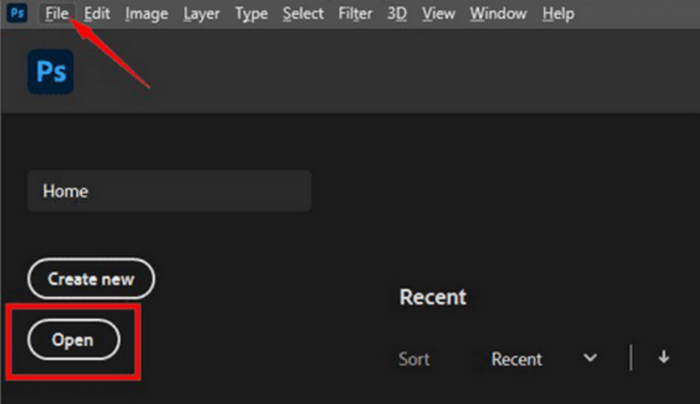
الخطوة 1. افتح صورتك في فوتوشوب بالنقر على Open أو انتقل إلى File ثم اختر الصورة التي تريد تغيير حجمها.
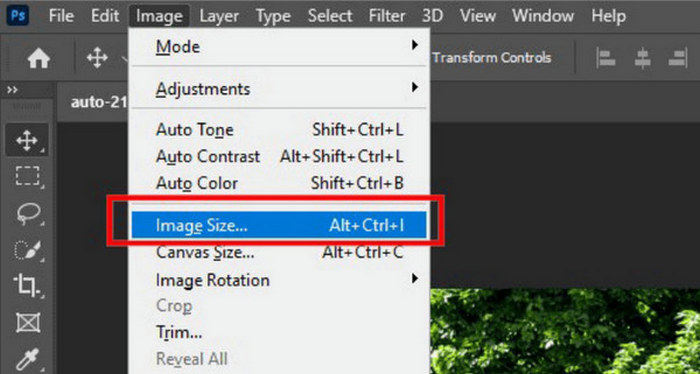
الخطوة 2. الآن، انتقل إلى علامة التبويب Image ثم اختر Image Size من القائمة.
الخطوة 3. في مربع حوار Image Size، اختر Pixels من القائمة المنسدلة. لتحديد أبعاد معيّنة، أدخل القيم في مربعات العرض والارتفاع، ثم انقر على OK لتغيير حجم الصورة.
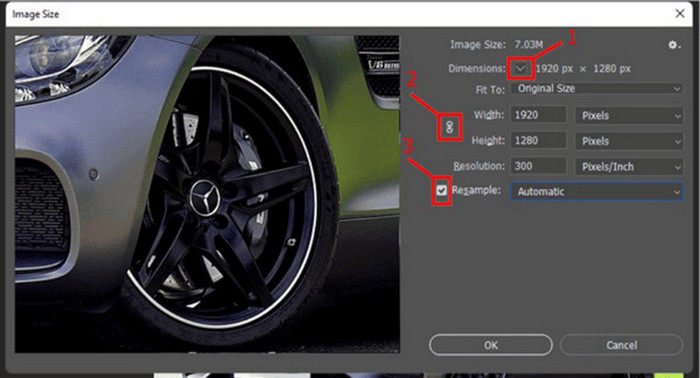
الخطوة 4. أخيرًا، احفظ ملف الصورة بالنقر على زر Save As ضمن علامة التبويب File.
احفظ ملف PSD بصيغة JPEG قبل حفظه.
تغيير حجم الصورة بالبوصات
الخطوة 1. افتح صورتك في Photoshop عن طريق النقر على Open أو بالذهاب إلى File ثم اختيار الصورة.
الخطوة 2. الآن، توجّه إلى علامة تبويب Image ثم اختر Image Size.
الخطوة 3. في مربع حوار Image Size، اختر Inches من القائمة المنسدلة. لتحديد أبعاد معيّنة، أدخل القيم في مربعات العرض والارتفاع، ثم انقر على OK لتغيير حجم الصورة.
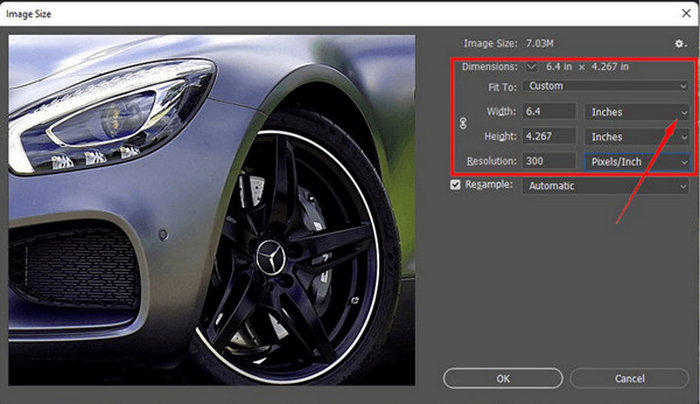
الخطوة 4. أخيرًا، انقر على زر Save As ضمن File لحفظ الصورة النهائية.
يعد برنامج Photoshop أداة متعددة الاستخدامات وقوية تتيح للمستخدمين تحرير الصور وتغيير حجمها دون فقدان الجودة. علاوة على ذلك، يمكن للمستخدمين الاستفادة من خوارزميات Photoshop عالية الجودة لضمان بقاء صورهم حادة وواضحة حتى بعد تعديلات كبيرة في الحجم. ومع ذلك، فإن أحد عيوب استخدام هذه الأداة هو أنها قد تكون معقدة للغاية، مما يجعل من الصعب على المبتدئين التنقل بين ميزاتها.
الجزء 3. تغيير حجم الصورة دون فقدان الجودة من خلال تحسين الدقة بالذكاء الاصطناعي
أداة FVC Free Image Upscaler هي أداة مدعومة بالذكاء الاصطناعي صُممت لتغيير حجم الصور دون فقدان الجودة. فهي توظف تقنية الارتقاء الفائق بالصور (AI Super-Resolution)، التي تم تدريبها من خلال ملايين الأمثلة، للتعرّف تلقائيًا على الأجزاء الضبابية في الصورة وتحسينها. يمكن لهذه الأداة إصلاح البكسلات والألوان والقوام والتفاصيل الأخرى المفقودة، مما يضمن تغيير حجم الصورة دون فقدان الجودة.
الخطوة 1. أولًا، تحتاج إلى زيارة موقعهم الرسمي.
الخطوة 2. بعد الوصول إلى الأداة، قم باستيراد ملف الصورة الذي تريد تغيير حجمه من خلال النقر على زر Upload Photo.
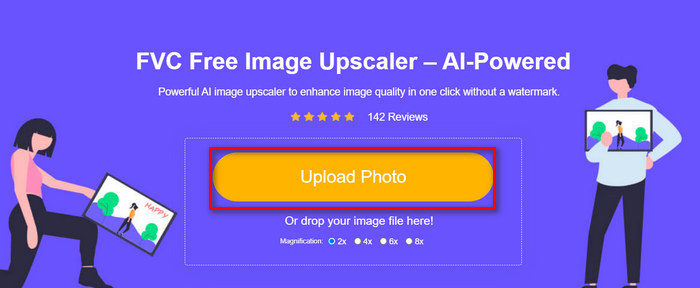
الخطوة 3. الآن، اختر طريقة التكبير التي تريدها. يمكنك اختيار تكبير الصورة من 2x وحتى 8x. بهذه الطريقة يمكنك تغيير حجم صورتك دون فقدان الجودة.
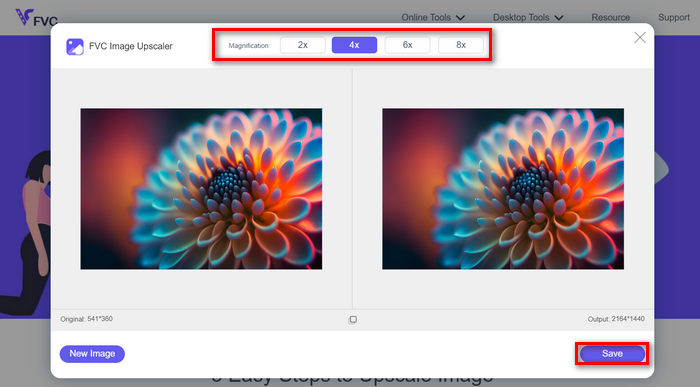
الخطوة 4. عند الانتهاء، انقر على زر Save، وسيتم تنزيل الملف الجديد المعاد تغيير حجمه تلقائيًا إلى جهاز الكمبيوتر لديك.
هذه الأداة المدعومة بالذكاء الاصطناعي Image Upscaler هي أداة رائعة لتغيير حجم الصور دون فقدان الجودة. فهذه الميزة لا تقوم فقط بتغيير حجم الصورة، بل تقوم أيضًا بترقيتها وتحسينها.
الجزء 4. مقارنة بين 3 طرق لتغيير حجم الصورة دون فقدان الجودة
| أداة تغيير حجم الصورة | ضغط الدُفعات | سرعة | سهولة التشغيل |
| ضاغط الصور المجاني FVC | نعم، ما يصل إلى 40 صورة | بسرعة | سهل الاستخدام للغاية |
| محل تصوير | لا | متوسط | بسيطة إلى حد ما في التشغيل |
| FVC Free Image Upscaler | لا | بسرعة | سهل الاستخدام للغاية |
الجزء 5. الأسئلة الشائعة حول تغيير حجم الصورة دون فقدان الجودة
هل تفقد الصور جودتها عند تصغيرها؟
جزئيًا، لا. لا تفقد الصور جودتها بشكل عام عند تقليص حجمها. يؤدي تقليص حجم الصورة أو تقليل حجمها إلى الاحتفاظ بتفاصيل الصورة الأصلية ووضوحها لأنك لا تفقد معلومات البكسل. ومع ذلك، قد يختلف إدراك الجودة بناءً على طريقة الضغط المستخدمة وقدرة البرنامج على التعامل مع عملية تقليص الحجم بكفاءة.
كيفية تغيير حجم الصورة في برنامج الرسام دون فقدان الجودة؟
لتغيير حجم صورة في برنامج الرسام دون فقدان الجودة، افتح برنامج الرسام وقم بتحميل صورتك. بعد ذلك، انقر فوق زر تغيير الحجم في علامة التبويب الرئيسية. في مربع الحوار تغيير الحجم والانحراف، اختر إما خيار النسبة المئوية أو البكسل. تأكد من تحديد مربع الاختيار الحفاظ على نسبة العرض إلى الارتفاع للحفاظ على أبعاد الصورة. من هناك، أدخل كيفية تغيير حجم صورتك وانقر فوق موافق.
ما هي أفضل أداة لتغيير حجم الصور دون فقدان الجودة؟
هناك العديد من الأدوات الممتازة لـتغيير حجم الصور دون فقدان الجودة. ولكن عندما يتعلق الأمر بأسرع طريقة مع ميزة الضغط بالدفعات، فإن أداة FVC Free Image Compressor هي الخيار الأفضل. فهي تتيح لك تغيير حجم ما يصل إلى 40 صورة في آن واحد مع الحفاظ على نتائج عالية الجودة، مما يجعلها فعالة للغاية وسهلة الاستخدام لمختلف مستويات المستخدمين.
خاتمة
باستخدام الطرق والأدوات المناسبة، يمكنك تغيير حجم الصور دون فقدان الجودة. لذا، سواء اخترت أيًّا من هذه الأدوات أم لا، يبقى الهدف الرئيسي هو العثور على الأداة الأنسب لك. هل أنت مستعد لتحسين صورك بكل سهولة؟ جرّب هذه الأدوات اليوم ولاحظ الفرق بنفسك!
-
 أفضل أدوات تقليل حجم الصورة على أجهزة سطح المكتب والأجهزة المحمولة
 ألقِ نظرة على أهم التطبيقات المدرجة في هذه المقالة للحصول على أفضل أداة لتقليل حجم الصورة على جهازك المفضل. تعرف على أفضل تحسين لحجم الصور الآن!
-
 أفضل 5 طرق لتقليل حجم الصورة على أي جهاز
 تعرف على الطرق الفعالة لتغيير حجم الصورة أو ضغط حجمها من خلال النقر على هذا المنشور. اكتشف أدوات تغيير حجم الصور الاستثنائية وتعليماتها خطوة بخطوة.
-
 إزالة الأشخاص من الصور: تحرير سريع وبسيط للصور
 هل تريد التخلص من الأشخاص من صورتك؟ اقرأ هذه المقالة حيث نعرض لك أفضل وأسهل الطرق لإزالة الأشخاص من الصور باستخدام التطبيقات.
