


 محول الفيديو النهائي
 مسجل الشاشة
 إصلاح الفيديو
 تنزيل آمن
كيفية تحويل ملفات MP3 إلى نغمة رنين على iPhone بسهولة
هل تجد نغمات الرنين الافتراضية على هاتف iPhone أقل توافقًا مع ذوقك، وتتمنى لو أمكنك استخدام ملف من ملفات MP3 الخاصة بك كنغمة رنين بديلة؟ ماذا لو أخبرناك أنه من الممكن تحويل ملف MP3 إلى نغمة رنين على iPhone؟
في هذه المقالة، ستتعلم 3 طرق مختلفة لتحويل ملفات الموسيقى MP3 الموجودة على جهاز iPhone إلى نغمة رنين. إن تحويلها أمر صعب بعض الشيء، ولكن باستخدام الأداة والطريقة الصحيحة، دعنا نجعل الأمر بسيطًا ومريحًا قدر الإمكان. ماذا تنتظر؟ لنبدأ!

الجزء 1. تحويل MP3 إلى نغمة رنين لجهاز iPhone على نظام التشغيل Mac/Windows
إحدى أسهل وأسرع الطرق لتحويل MP3 إلى نغمة رنين على iPhone هي استخدام أداة Video Converter Ultimate التي يوصي بها FVC عبر أجهزة الكمبيوتر بنظامي Windows أو macOS. تدعم أداة التحويل الشاملة هذه ما يصل إلى 300 صيغة مختلفة، بما في ذلك صيغة M4R، مما يجعلها أداة موثوقة لتحويل ملفات موسيقى MP3 إلى نغمات رنين لـ iPhone. علاوة على ذلك، تعمل هذه الأداة بسرعة تصل إلى 120 مرة أسرع مقارنة بأدوات التحويل الأخرى، مما يجعل عملية التحويل سريعة وخالية من المتاعب.
إليك كيفية استخدام Video Converter Ultimate الذي يوصي به FVC لتحويل ملف MP3 إلى نغمة رنين:
الخطوة 1. أولًا، قم بتنزيل الأداة وتثبيتها على جهاز الكمبيوتر الخاص بك، سواء كان يعمل بنظام Windows أو Mac.
الخطوة 2. شغّل الأداة، وبمجرد أن تظهر الواجهة الرئيسية، انقر على زر Add Files. سيسمح لك ذلك باستيراد ملف MP3 الذي ترغب في تحويله إلى نغمة رنين لـ iPhone.
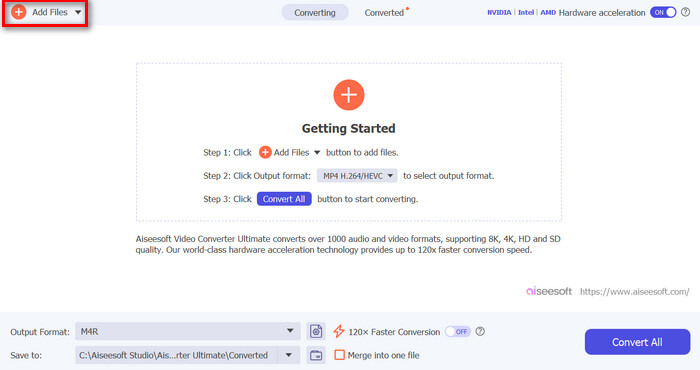
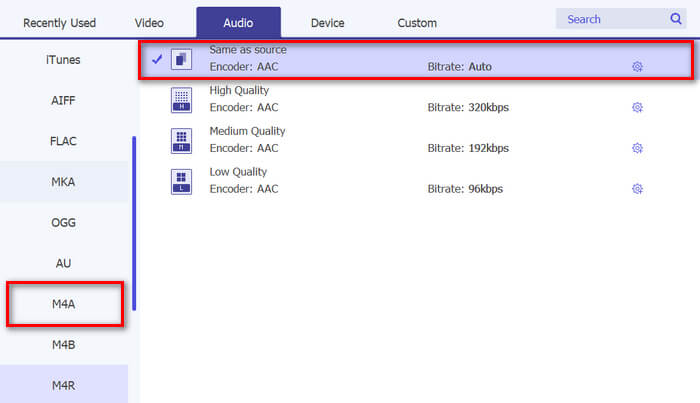
الخطوة 3. الآن انتقل إلى خيار Output format، ومن قائمة صيغ الصوت المتنوعة اختر M4R. صيغة M4R هي الصيغة المعتمدة لنغمات رنين iPhone.
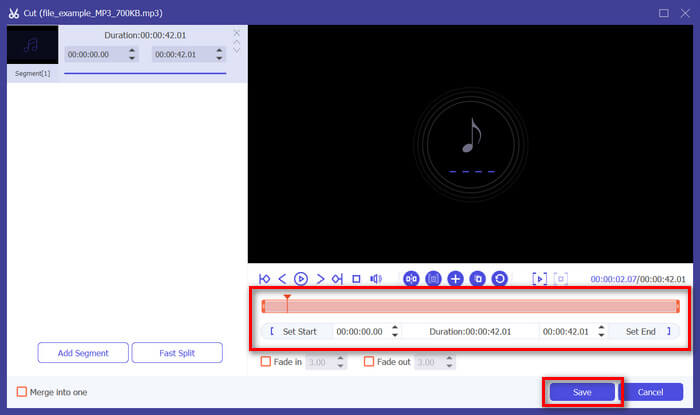
الخطوة 4. بعد ذلك، تأكد من أن ملف MP3 لا يتجاوز 30 ثانية. إذا كانت مدته أطول من ذلك، انتقل إلى زر Cut واضبط طول الملف إما بتحريك الشريط على الخط الزمني أو بتحديد وقت نهاية الملف يدويًا إلى 30 ثانية.
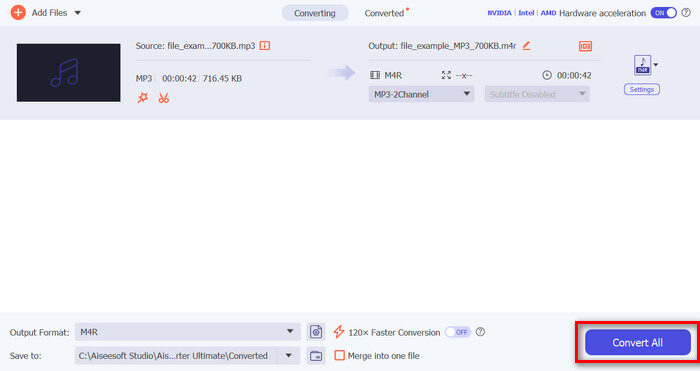
الخطوة 5. الآن انقر على زر Convert All لبدء تحويل ملفات MP3 إلى نغمات رنين لـ iPhone. سيتم حفظ الملفات المحوّلة مباشرة في مجلد على جهاز الكمبيوتر الخاص بك.
إنه سريع، أليس كذلك؟ إنه لأمر لا يصدق حقًا كيف تجعل أداة Video Converter Ultimate المختارة من FVC تحويل ملفات MP3 إلى نغمة رنين iPhone أمرًا سهلاً وسريعًا. لذا، إذا كنت تبحث عن أداة تحويل يمكنها توفير الوقت، فجرّب هذه الأداة الآن.
الجزء 2. تحويل MP3 إلى نغمة رنين على iPhone
إذا كنت تفضل طريقة مباشرة دون استخدام جهاز كمبيوتر، فإن GarageBand يقدم حلاً ملائمًا لتحويل ملفات MP3 إلى نغمات رنين مباشرة على جهاز iPhone الخاص بك. هذه الأداة عبارة عن تطبيق قوي لإنشاء الموسيقى يأتي مثبتًا مسبقًا على معظم أجهزة iPhone. هذه الأداة ليست سهلة الاستخدام فحسب، بل إنها توفر أيضًا ميزات متنوعة لتخصيص ملفات الصوت الخاصة بك بشكل فعال.
إليك كيفية استخدام GarageBand لتحويل ملف MP3 إلى نغمة رنين:
الخطوة 1. أولًا، شغّل تطبيق GarageBand على جهاز iPhone. إذا لم يكن التطبيق مثبتًا، توجّه إلى App Store وقم بتثبيته.
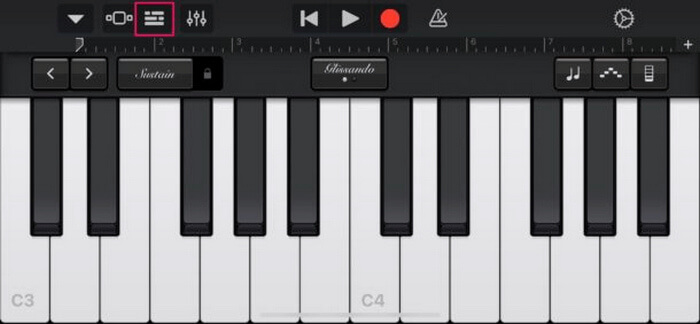
الخطوة 2. اضغط على أيقونة Project ثم على أيقونة Loop بالقرب من الزاوية العلوية اليمنى.
الخطوة 3. الآن اضغط على Music أو Files لاختيار ملف MP3، ثم اضغط مطولًا على الملف لاستيراده إلى GarageBand.
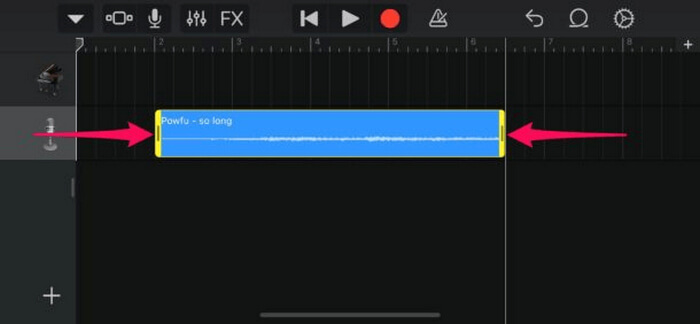
الخطوة 4. بعد ذلك، اضغط على المسار الصوتي واسحب طرفيه لقص الصوت. تأكد من أن مدة نغمة الرنين أقل من 30 ثانية.
الخطوة 5. سترى سهمًا متجهًا إلى الأسفل في الزاوية العلوية اليسرى. اضغط عليه، ثم اختر My Songs لحفظ المقطع.
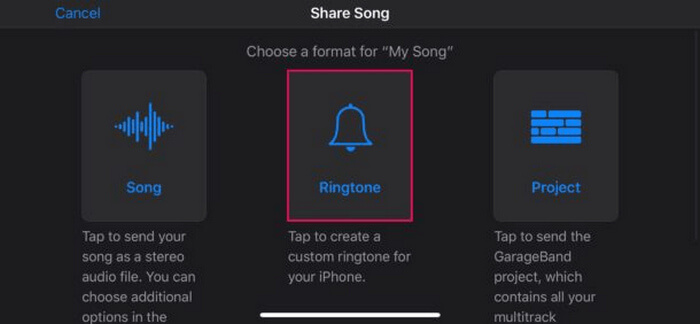
الخطوة 6. ابحث عن المقطع الذي أنشأته، واضغط عليه مطولًا، ثم اضغط على Share واختر خيار Ringtone. لا تنسَ تسمية نغمة الرنين ثم اضغط على Export.
الخطوة 7. لاستخدام ملف MP3 المحوّل كنغمة رنين على iPhone، اضغط على Use Sound As لتعيين النغمة كنغمة افتراضية للرسائل النصية أو لجهة اتصال معيّنة. بدلاً من ذلك، انتقل إلى Settings، ثم Sounds & Haptics، ثم Ringtone لتغيير نغمة الرنين على iPhone.
إذا كنت تفضل تحويل ملفات MP3 مباشرة إلى نغمات رنين على جهاز iPhone الخاص بك، فهذه الطريقة مناسبة لك تمامًا. ومع ذلك، سيحتاج المستخدمون الجدد إلى بعض الوقت لتعلم هذه الطريقة، لأنها تحتوي على ميزات معقدة قد تربكهم في البداية.
الجزء 3. تحويل MP3 إلى نغمة رنين iPhone [مجانًا عبر الإنترنت]
وفي الوقت نفسه، إذا كنت تفضّل طريقة مجانية وعبر الإنترنت لتحويل MP3 إلى نغمة رنين لـ iPhone، فإن أداة FVC Free Audio Converter هي الأنسب لك. باستخدام هذه الأداة، يمكنك تحويل أي صيغة من صيغ ملفاتك الصوتية بسهولة، وخاصة MP3 إلى M4R، لأنها تدعم صيغ MP3 وAAC وAC3 وWMA وWAV وAIFF وFLAC وMKA وM4A وM4B وM4R. علاوة على ذلك، تُعد هذه الأداة مثالية لمن يحتاج إلى محوّل صوتي أثناء التنقل بفضل واجهتها البسيطة شديدة السهولة في الاستخدام.
إليك كيفية استخدام FVC Free Audio Converter لتحويل ملف MP3 إلى نغمة رنين:
الخطوة 1. انقر على زر Add Files لاستيراد ملفات MP3 التي ترغب في تحويلها إلى نغمة رنين.
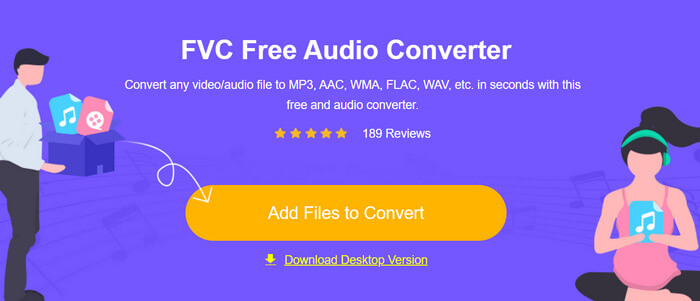
الخطوة 2. اختر M4R كصيغة الإخراج الصوتي.
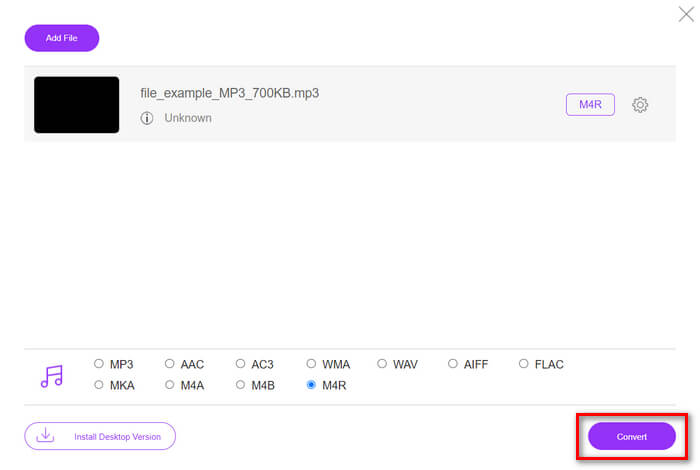
الخطوة 3. أخيرًا، لمعالجة تحويل ملف MP3 إلى نغمة رنين، انقر على زر Convert. سيتم حفظ الملف المحوَّل مباشرة على جهاز الكمبيوتر الخاص بك.
إذا كنت تبحث عن طريقة بديلة مجانية وعبر الإنترنت لتحويل MP3 إلى M4R كنغمة رنين على iPhone، فإن أداة FVC Free Audio Converter هي الحل الأمثل. واجهتها البديهية تُبسِّط عملية التحويل، كما أنها تدعم مجموعة متنوعة من صيغ الصوت لضمان التوافق مع أنواع الملفات المختلفة.
الجزء 4. كيفية نقل نغمات الرنين المحولة إلى iPhone من جهاز كمبيوتر
الآن بعد أن قمت أخيرًا بتحويل ملفات MP3 إلى نغمات رنين على جهاز الكمبيوتر الخاص بك، فإن أسرع طريقة لنقلها إلى جهاز iPhone الخاص بك هي باستخدام iTunes.
إليك كيفية نقل نغمات الرنين المحوّلة إلى iPhone باستخدام iTunes:
الخطوة 1. افتح iTunes على جهاز الكمبيوتر الخاص بك وقم بتوصيل iPhone باستخدام كابل USB.
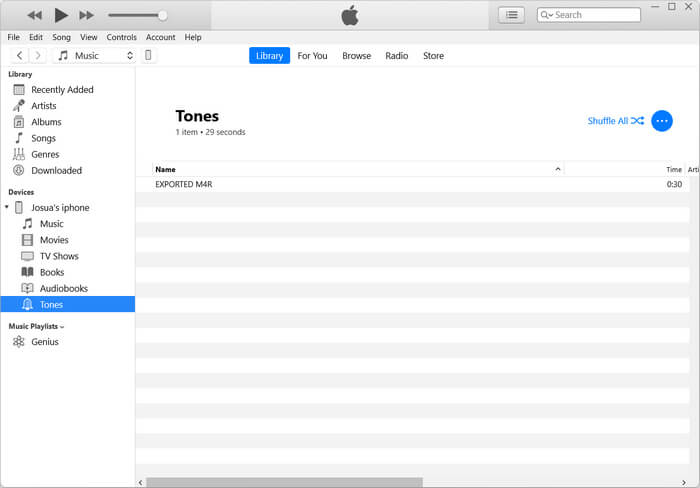
الخطوة 2. اسحب ملف نغمة الرنين المحوَّل إلى مكتبة iTunes. تأكد من ظهوره ضمن قسم Tones.
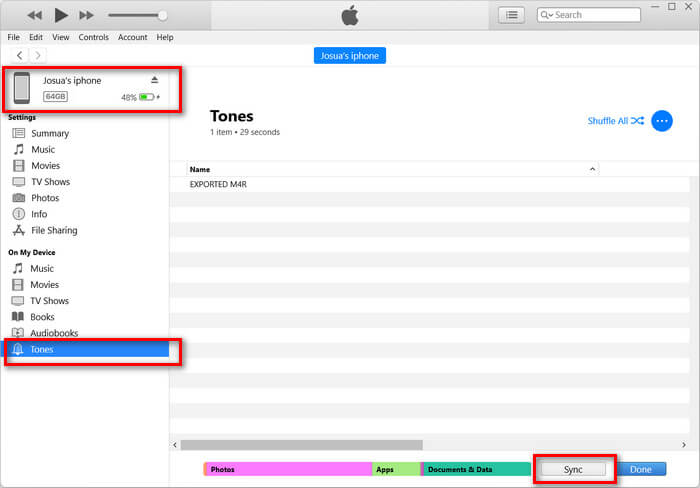
الخطوة 3. اختر أيقونة iPhone في iTunes، ثم انتقل إلى تبويب Tones وضع علامة على Sync Tones. بعد ذلك، اختر ملف نغمة الرنين الذي قمت باستيراده وانقر على Apply للمزامنة.
الخطوة 4. الآن، على iPhone، انتقل إلى الإعدادات Settings، ثم اختر Sounds & Haptics، واضغط على Ringtone، ثم اختر نغمة الرنين الجديدة.
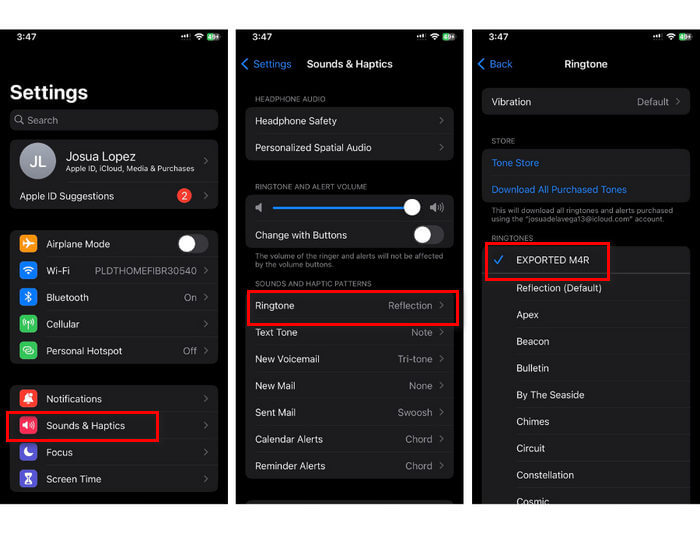
هذا كل ما في الأمر. يمكنك الآن بسهولة نقل ملف MP3 المحول واستخدامه كنغمة رنين على جهاز iPhone الخاص بك، مما يمنح جهازك لمسة شخصية بأصواتك المفضلة.
الجزء 5. الأسئلة الشائعة حول تحويل ملفات MP3 إلى نغمات رنين
ما هو أفضل موقع نغمة رنين مجانية؟
تقدم العديد من المواقع الإلكترونية نغمات رنين مجانية، ولكن بعض المواقع الشهيرة والموثوقة تشمل Zedge وMobile9 وTones7. توفر هذه المواقع مجموعة متنوعة من نغمات الرنين التي يمكنك تنزيلها واستخدامها على هاتفك.
ما هو تنسيق نغمة MP3 إلى iPhone؟
تنسيق نغمة الرنين لجهاز iPhone هو M4R. عند تحويل ملف MP3 لاستخدامه كنغمة رنين على جهاز iPhone، يجب حفظه بتنسيق M4R.
كيفية إضافة نغمة MP3 إلى نغمة iPhone؟
لإضافة ملف MP3 إلى نغمة الرنين لجهاز iPhone، يجب عليك أولاً تحويل ملف MP3 إلى M4R باستخدام أداة تحويل مثل FVC-picked Video Converter Ultimate. بمجرد تحويل ملف MP3، استخدم iTunes لنقله إلى جهاز iPhone واستخدامه كنغمة رنين جديدة.
خاتمة
يمكنك الآن استخدام ملفات MP3 المفضّلة لديك وإنشاء نغمة رنين لهاتف iPhone. ما عليك سوى اختيار أداة التحويل التي تناسب احتياجاتك أكثر. كل واحدة منها توفّر طريقة مباشرة لـتحويل MP3 إلى نغمة رنين على أجهزة iPhone. فماذا تنتظر؟ ابدأ الآن في إنشاء نغمتك الخاصة واجعل هاتف iPhone يعكس ذوقك الشخصي!
-
 MOV VS MP4 - أيهما تختار؟
 MOV مقابل MP4 ، أيهما أفضل؟ يوضح هذا المنشور الفرق بين MP4 و MOV ، بحيث يمكنك الحصول على أفضل خيار لاستخدامه لملفات الفيديو الخاصة بك.
-
 FLAC مقابل MP3: أي تنسيق ملف صوتي يسيطر
 سيقارن هذا المنشور الاختلافات الرئيسية بين FLAC مقابل MP3. يتضمن ذلك جودة الصوت وحجم الملف والتوافق والمزيد.
-
 كيفية تحويل MP3 إلى M4A لتحسين جودة الصوت
 قم بتحسين جودة ملفات الموسيقى الخاصة بك عن طريق تحويل MP3 إلى M4A من خلال النصائح والحيل الخبيرة لدينا. يقدم دليلنا إرشادات خطوة بخطوة والبرامج الموصى بها.
