


 محول الفيديو النهائي
 مسجل الشاشة
 إصلاح الفيديو
 تنزيل آمن
كيفية تحويل MP3 إلى AIFF: الأساليب المثالية عبر الإنترنت وغير متصل
يمكن أن يكون تحويل ملف MP3 إلى تنسيق ملف AIFF مفيدًا إذا كنت بحاجة إلى تنسيق صوتي عالي الجودة بدون خسارة لإنتاج الصوت الاحترافي أو لأغراض الأرشفة. ملف AIFF هو ملف صوتي غير مضغوط يحافظ على جودة الصوت الأصلية للتسجيل ، مما يجعله مثاليًا للتسجيل والمزج والإتقان.
في هذا الدليل، سنرشدك خطوةً بخطوة لتحويل ملف MP3 إلى ملف AIFF باستخدام مجموعة من أدوات البرامج المتاحة لنظامي ويندوز وماك. من خلال هذا الدليل، يمكنك بسهولة تحويل ملفات MP3 إلى AIFF مع الحفاظ على الجودة الأصلية لصوت تسجيلاتك.

الجزء 1. قارن AIFF مع MP3
يلخص الجدول أدناه الاختلافات الرئيسية بين AIFF و MP3.
| AIFF | MP3 | |
| جودة الصوت | تنسيق صوت بدون فقد ، جودة عالية | تنسيق صوت مفقود ، جودة أقل من AIFF |
| حجم الملف | حجم ملف كبير | حجم ملف صغير |
| ضغط | تنسيق صوتي غير مضغوط | تنسيق الصوت المضغوط |
| التوافق | توافق محدود مع الأجهزة والبرامج | متوافق على نطاق واسع مع معظم الأجهزة والبرامج |
| إستعمال | مثالي لإنتاج الصوت الاحترافي | مثالي لدفق الموسيقى ومشاركتها وتخزينها عبر الإنترنت |
| البيانات الوصفية | دعم البيانات الوصفية المضمنة | دعم البيانات الوصفية المضمنة |
| الترخيص | شكل الملكية | تنسيق مفتوح |
الجزء 2. تحويل MP3 إلى AIFF باستخدام Video Converter Ultimate
يُعد Video Converter Ultimate أداة برمجية فعّالة يمكنها تحويل ملفات MP3 إلى تنسيق AIFF دون فقدان الجودة الأصلية للصوت. يستطيع هذا البرنامج تنفيذ عملية التحويل بسرعة، سواء كان جهازك متصلاً بالإنترنت أم لا. إضافة إلى ذلك، فإن واجهة الاستخدام السهلة تجعل التعامل مع التطبيق مباشرًا وخاليًا من المتاعب. يحتوي هذا البرنامج أيضًا على مزايا إضافية يمكنك استكشافها لمعرفة كيفية تحويل MP3 إلى AIFF عبر خطوات متسلسلة.
الخطوة 1. احصل على أحدث إصدار من التطبيق
لبدء تحويل الملفات الصوتية، تتمثل الخطوة الأولى في تنزيل أحدث إصدار من البرنامج. انقر أي زر من أزرار التنزيل المجاني المتاحة وقم بتثبيت التطبيق على جهاز الكمبيوتر لديك.
تنزيل مجانيلنظام Windows 7 أو أحدثتنزيل آمن
تنزيل مجانيلنظام MacOS 10.7 أو أحدثتنزيل آمن
الخطوة 2. أضف ملفات MP3 إلى الأداة
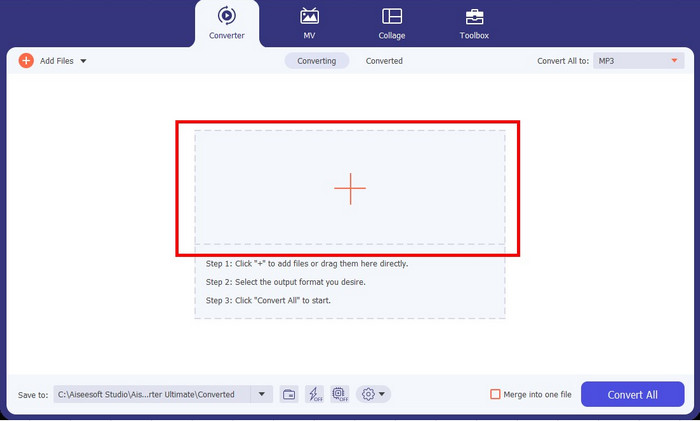
بعد تشغيل البرنامج، ابحث عن زر علامة الزائد في منتصف الواجهة واضغط عليه. سيؤدي ذلك إلى مطالبتك باختيار ملفات MP3 من المجلد المحلي لديك واستيرادها إلى البرنامج للمعالجة اللاحقة.
الخطوة 3. اختر AIFF كتنسيق للإخراج
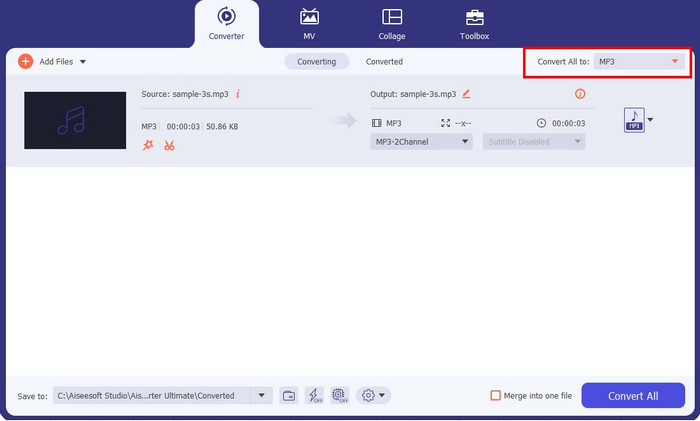
بعد استيراد ملفات MP3، انتقل إلى قائمة Profile المنسدلة وحدد علامة تبويب الصوت Audio. من هناك، اختر AIFF من قائمة تنسيقات الصوت المتاحة في اللوحة الموجودة على الجهة اليسرى. بالإضافة إلى ذلك، اختر الجودة المطلوبة لملف الإخراج.
الخطوة 4. ابدأ عملية التحويل
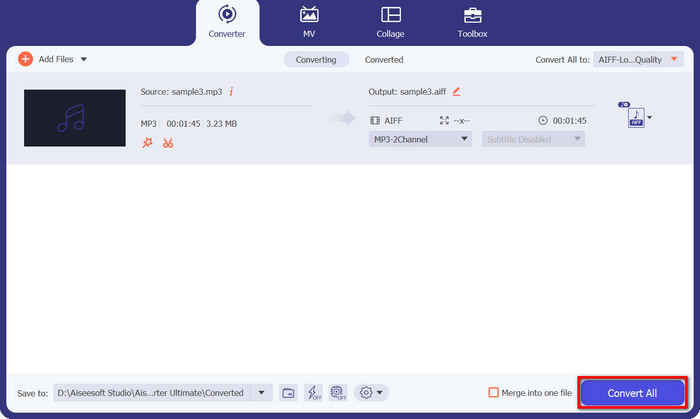
بعد اختيار تنسيق الإخراج المناسب والجودة المطلوبة، ابدأ عملية التحويل بالنقر على زر Convert All الظاهر في الجهة اليسرى من الواجهة. سيبدأ البرنامج حينها في تحويل ملفات MP3 إلى AIFF. عند اكتمال عملية التحويل، يمكنك التحقق من ملف الإخراج من خلال مراجعة علامة التبويب في نفس الصفحة.
الجزء 3. تحويل MP3 إلى AIFF باستخدام Free MP3 Converter Online
1. CloudConvert
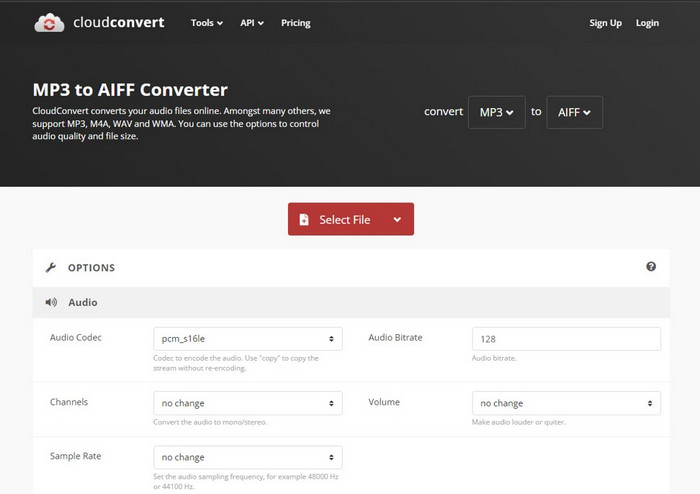
CloudConvert هي أداة عبر الإنترنت يمكنها تحويل ملفات MP3 إلى تنسيق AIFF. إلى جانب MP3 ، فإنه يوفر القدرة على التحويل إلى تنسيقات أخرى مثل MP3 و M4A و WAV و WMA ، مما يمنحك حرية تحديد تنسيق الإخراج المطلوب. بالإضافة إلى ذلك ، تتيح لك الأداة تخصيص جودة الصوت وحجم الملف وفقًا لتفضيلاتك. علاوة على ذلك ، يمكّنك CloudConvert من تحويل أنواع الملفات المختلفة ، بما في ذلك المستندات ومقاطع الفيديو والكتب الإلكترونية والمحفوظات والصور. من المزايا المهمة لاستخدام CloudConvert أنه متوافق مع الأجهزة المحمولة مثل iPhone و iPad و Android ، مما يسمح لك بتحويل الملفات أثناء التنقل. لتحويل MP3 إلى AIFF عبر الإنترنت ، اتبع الإرشادات الواردة أدناه.
الخطوة 1. في البداية، ادخل إلى الموقع الرسمي للأداة على جهاز الكمبيوتر باستخدام أي متصفح ويب.
الخطوة 2. انقر على زر SELECT FILE الأحمر من الصفحة الرئيسية.
الخطوة 3. بعد رفع الملفات، اختر تنسيق الإخراج AIFF من الخيارات المتاحة.
الخطوة 4. انقر زر Convert لبدء عملية التحويل.
الايجابيات
- لا يتطلب أي تثبيت برامج.
- باستخدام اتصال الإنترنت ، يمكنك الوصول إليه من أي جهاز.
سلبيات
- قد تتأثر سرعة التحميل والتنزيل باتصال الإنترنت.
- قد يكون لبعض المحولات عبر الإنترنت حد لحجم الملف.
2. زمزم
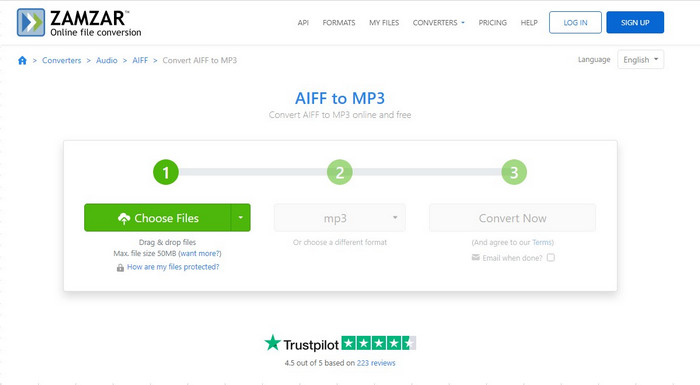
Zamzar هي أداة فعالة للغاية عبر الإنترنت وهي مجانية الاستخدام لتحويل ملفات MP3 إلى تنسيق AIFF. يوفر خيارات تحميل ملائمة ، مما يتيح لك استيراد الملفات من حلول التخزين المحلية والقائمة على السحابة مثل Dropbox و Google Drive. الحد الأقصى للتحميل للمستخدمين المجانيين هو 50 ميجابايت ، ولكن إذا كنت بحاجة إلى تحويل ملفات كبيرة ، فقد تحتاج إلى التسجيل للحصول على حساب. بالإضافة إلى ذلك ، هناك خيارات أخرى لضغط الصوت يمكنك الاستفادة منها. لمعرفة كيفية استخدام Zamzar ، يرجى الرجوع إلى التعليمات أدناه.
الخطوة 1. انتقل إلى متصفح الويب الخاص بالأداة، ثم اضغط على زر Choose Files الأخضر لتحميل ملفاتك، أو استخدم القائمة المنسدلة للاختيار من عدة خيارات مثل التحميل من رابط URL أو Box أو Dropbox أو Google Drive أو OneDrive.
الخطوة 2. بعد الانتهاء، افتح قائمة التنسيقات المنسدلة واختر تنسيق MP3. يمكنك النقر على أيقونة السهم المنسدل بجانب خيار التنسيق لإجراء التعديلات.
الخطوة 3. أخيرًا، انقر على زر Convert لبدء التحويل من MP3 إلى AIFF.
الايجابيات
- يسمح للمستخدمين بتحويل وتنزيل الملفات دون مغادرة الموقع.
- أداة التحويل المستندة إلى السحابة.
سلبيات
- قد تختلف سرعة التحميل والتنزيل.
- لديها قيود مفروضة على حجم الملفات التي يمكنك تحويلها.
الجزء 4. تحويل MP3 إلى AIFF باستخدام Itunes
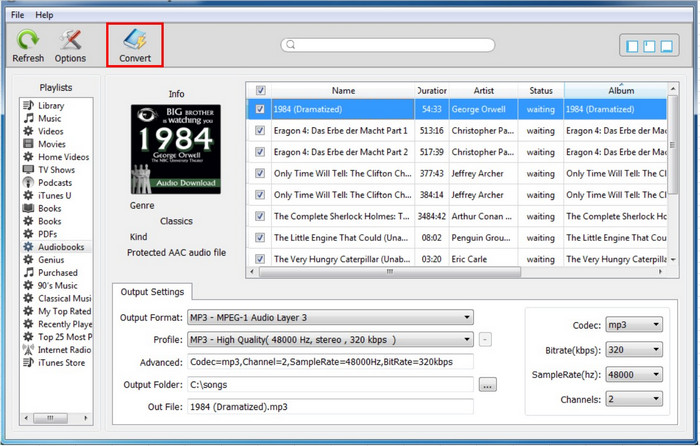
يمكنك استخدام iTunes ، مشغل الوسائط وبرنامج المكتبة الذي طورته شركة Apple ، لتحويل ملفات MP3 إلى تنسيق AIFF على أجهزة كمبيوتر Mac و Windows. الخطوات أدناه لتحويل MP3 إلى AIFF باستخدام iTunes:
الخطوة 1. افتح iTunes على جهاز الكمبيوتر.
الخطوة 2. انقر على قائمة iTunes واختر Preferences (على ماك) أو Edit ثم Preferences (على ويندوز).
الخطوة 3. انقر على تبويب General ثم على زر Import Settings في نافذة التفضيلات.
الخطوة 4. اختر AIFF Encoder من القائمة المنسدلة بجوار Import Using في نافذة Import Settings.
الخطوة 5. انقر على OK لحفظ التغييرات.
الخطوة 6. اسحب وأفلِت ملف MP3 الذي تريد تحويله داخل iTunes.
الخطوة 7. انقر بزر الماوس الأيمن على ملف MP3 واختر Create AIFF Version. سيقوم iTunes بإنشاء نسخة من ملف MP3 بتنسيق AIFF وإضافتها إلى مكتبة iTunes الخاصة بك.
الخطوة 8. للعثور على ملف AIFF المحوَّل، انقر بزر الماوس الأيمن على الملف واختر Show in Finder (على ماك) أو Show in Windows Explorer (على ويندوز).
الايجابيات
- مثبت مسبقًا على معظم أجهزة كمبيوتر Mac و Windows.
- يحتوي على واجهة بسيطة وسهلة الاستخدام.
- يمكن إدارة مكتبة الموسيقى الخاصة بك وإنشاء قوائم التشغيل.
سلبيات
- يمكنه دعم عدد محدود فقط من تنسيقات الصوت.
- يمكن أن يكون أبطأ من برامج تحويل الصوت الأخرى المخصصة.
- قد لا يحتوي الملف المحول على أعلى جودة.
قراءة إضافية:
أفضل 4 طرق لتحويل AIFF إلى MP3 على أجهزة ماك والكمبيوتر
حوّل MP3 إلى OGG واستمتع بجودة صوت فائقة
الجزء 5. أسئلة وأجوبة من MP3 و AIFF
ما هو الفرق في حجم الملف بين MP3 و AIFF؟
تكون ملفات MP3 عمومًا أصغر حجمًا مقارنة بملفات AIFF ، حيث يتم ضغطها. تكون ملفات AIFF أكبر لأنها غير مضغوطة وتحتوي على المزيد من البيانات الصوتية.
هل ملفات AIFF متوافقة مع جميع مشغلات الصوت والأجهزة؟
يمكن لمعظم مشغلات الصوت والأجهزة تشغيل ملفات AIFF ، لكن بعض الأجهزة القديمة قد لا تدعم التنسيق. من الأفضل التحقق من مواصفات جهازك أو المشغل لضمان التوافق.
هل هناك أي فقدان للجودة عند تحويل MP3 إلى AIFF؟
عند تحويل تنسيق صوتي مع فقد مثل MP3 إلى تنسيق بدون فقدان مثل AIFF ، قد يكون هناك بعض فقدان الجودة بسبب عملية الضغط وإلغاء الضغط. ومع ذلك ، نظرًا لأن AIFF هو تنسيق غير ضياع ، فإن فقد الجودة يكون عادةً في حده الأدنى مقارنة بالتنسيقات المضغوطة الأخرى. من المهم ملاحظة أن جودة التحويل تعتمد على البرامج والإعدادات المستخدمة أثناء عملية التحويل.
خاتمة
جميع التطبيقات التي تم استعراضها في هذه المقالة قادرة على تحويل MP3 إلى AIFF بكفاءة عالية. وعادةً ما يكون تطبيق سطح المكتب أكثر جاذبية لأنه لا يحتاج إلى اتصال بالإنترنت. وهذا يتيح لك إجراء عملية التحويل بغض النظر عن حالة اتصالك بالإنترنت.
-
 أفضل 4 مسجلات صوت AIFF مجانية تنتج صوتًا عالي الجودة
 تتحدث هذه المقالة عن AIFF وبعض الأدوات الأكثر شيوعًا التي يمكنك استخدامها لإنتاج تنسيق AIFF عالي الجودة.
-
 اكتشف كيفية تحويل AMR إلى MP3 [متصل وغير متصل]
 هل تواجه صعوبة في ذلك لأنه لا يمكن تشغيل ملفات amr على سطح المكتب؟ ثم اقرأ هذه المقالة لمعرفة كيفية تحويل AMR إلى تنسيق MP3.
-
 4 أفضل الطرق لإصلاح وتحرير البيانات الوصفية MP3 على نظامي التشغيل Windows و Mac
 هل تريد معرفة أسرار تحرير البيانات الوصفية MP3 بسهولة؟ ستعلمك هذه المدونة تقنيات مختلفة باستخدام الأدوات المختلفة التي يمكنك الوصول إليها بسهولة.
