


 محول الفيديو النهائي
 مسجل الشاشة
 إصلاح الفيديو
 تنزيل آمن
تحويل AVI إلى MP4 بسهولة على MacOS/Windows/Linux [2025]
AVI، أو اختصارًا Audio Video Interleave، هو تنسيق وسائط متعددة ابتكرته مايكروسوفت. يتميز بقدرته على تخزين بيانات الصوت والفيديو في ملف واحد، مما يسمح بتشغيل متزامن. يُستخدم حاليًا في تطبيقات متنوعة، وخاصةً في تحرير الفيديو وتخزينه. مع ذلك، يتميز هذا التنسيق عادةً بحجم ملفات أكبر، وغالبًا ما يواجه مشاكل في التوافق مع الأجهزة ومنصات البث الحديثة.
من ناحية أخرى، يعد MP4 النقيض تمامًا. يقدّم هذا التنسيق ضغطًا أفضل، ما ينتج عنه أحجام ملفات أصغر. كذلك، من حيث التوافق والمرونة، يتفوّق هذا التنسيق بشكل واضح؛ فهو يُستخدم على نطاق واسع ويدعمه عدد كبير من الأجهزة والمنصات. لذلك غالبًا ما يميل المستخدمون إلى تحويل ملفات AVI إلى MP4. لذا، إذا كنت تواجه المشكلة نفسها وتبحث عن أداة تحويل موثوقة، واصل قراءة هذه المقالة.

الجزء الأول. تحويل AVI إلى MP4 على نظامي MacOS وWindows [سريع وخالٍ من فقدان الجودة]
إذا كنت تبحث عن طريقة سريعة وبدون فقدان جودة لتحويل ملفات AVI إلى MP4 على نظامي Windows أو macOS، فأفضل أداة يمكنك استخدامها هي أداة المحوِّل المختارة من FVC وهي Video Converter Ultimate. هذه الأداة معروفة بقدرتها على تحويل أي تنسيق فيديو تقريبًا، مثل AVI، إذ إنها تدعم ما يزيد على 1000 تنسيق إدخال وإخراج.
فيما يتعلق بضغط الملفات دون فقدان الجودة، تضمن أداة التحويل المتكاملة هذه الحفاظ على جودة الفيديو الأصلية مع تقليل حجم الملف لتسهيل التخزين والتشغيل. كما توفر تسريعًا لوحدة معالجة الرسومات (GPU)، مما يُسهّل عملية التحويل. بالإضافة إلى ذلك، يوفر البرنامج تحويلًا دفعيًا، مما يُمكّن المستخدمين من معالجة ملفات AVI متعددة في وقت واحد بكفاءة أعلى.
الخطوة 1. أولًا، قم بتنزيل وتثبيت أداة Video Converter Ultimate المختارة من FVC على جهاز الكمبيوتر لديك.
تنزيل مجانيلنظام Windows 7 أو أحدثتنزيل آمن
تنزيل مجانيلنظام MacOS 10.7 أو أحدثتنزيل آمن
الخطوة 2. الآن، لاستيراد ملفات AVI التي تريد ضغطها وتحويلها إلى MP4، انقر بعد ذلك على زر إضافة ملفات (Add Files).
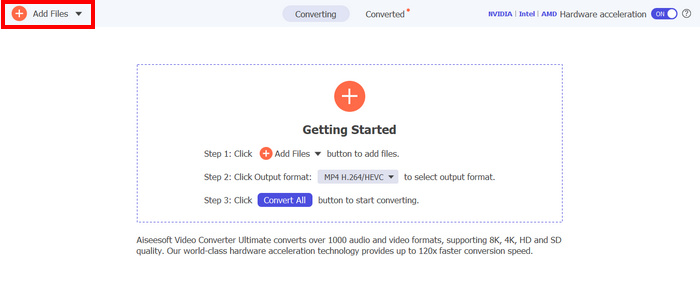
الخطوة 3. أخيرًا، انقر على صيغة الإخراج (Output Format) في الأسفل وانتقل إلى تبويب الفيديو (Video). من هناك، اختر MP4 من القائمة. بعد الاختيار، انقر على زر تحويل الكل (Convert All) لتحويل ملفات AVI إلى MP4.
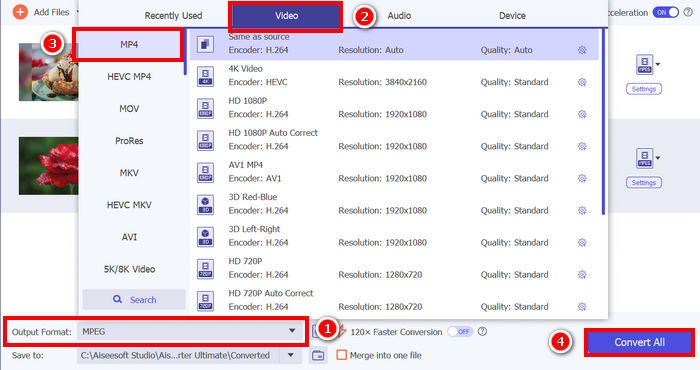
أفضل ما يميز برنامج Video Converter Ultimate من FVC هو سهولة استخدامه. مقارنةً بمحولات AVI إلى MP4 الأخرى أو أدوات تحويل الفيديو عمومًا، سيستغرق هذا البرنامج خطوتين أو ثلاث خطوات فقط. كما يضمن تحويل ملفات AVI بسرعة ودون فقدان للبيانات بفضل تقنية الترميز المتقدمة وتسريع وحدة معالجة الرسومات.
انقر هنا لمعرفة المزيد عن الفروقات بين AVI وMP4.
الجزء الثاني: تحويل AVI إلى MP4 مجانًا
إذا كنت تفضل طريقة مجانية لتحويل ملفات AVI إلى MP4، فهناك أدوات يمكنك تجربتها. فيما يلي ثلاث طرق تساعدك على تحويل ملفات AVI إلى MP4 بحرية.
نقل AVI إلى MP باستخدام VLC Media Player
VLC هو برنامج تشغيل وسائط معروف لأنظمة Windows وmacOS وLinux. بالإضافة إلى وظيفته الرئيسية، وهي تشغيل أنواع مختلفة من الوسائط، بما في ذلك AVI وMP4، يمكن استخدام هذه الأداة أيضًا كمحوّل فيديو من AVI إلى MP4. لذا، لتحويل ملفات AVI إلى MP4، اتبع الخطوات التالية:
الخطوة 1. أولًا، تحتاج إلى تنزيل وتثبيت مشغّل الوسائط VLC Media Player على جهاز الكمبيوتر لديك.
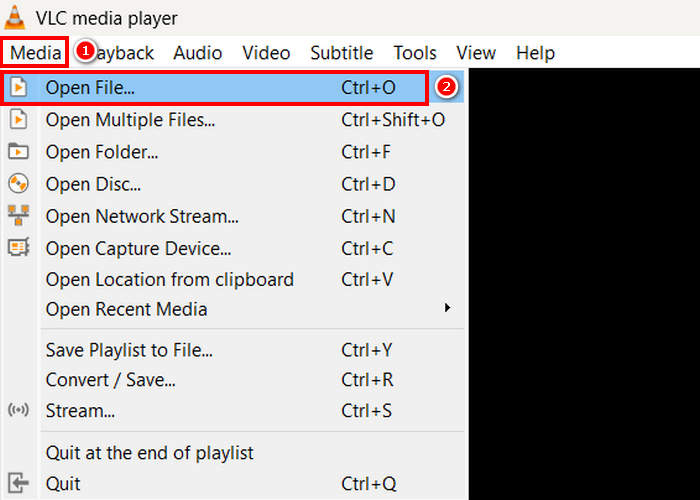
الخطوة 2. بعد ذلك، انتقل إلى تبويب وسائط (Media)، ثم انقر أسفله على فتح ملف (Open File). من هناك، قم باستيراد ملف AVI الذي تريد تحويله إلى MP4.
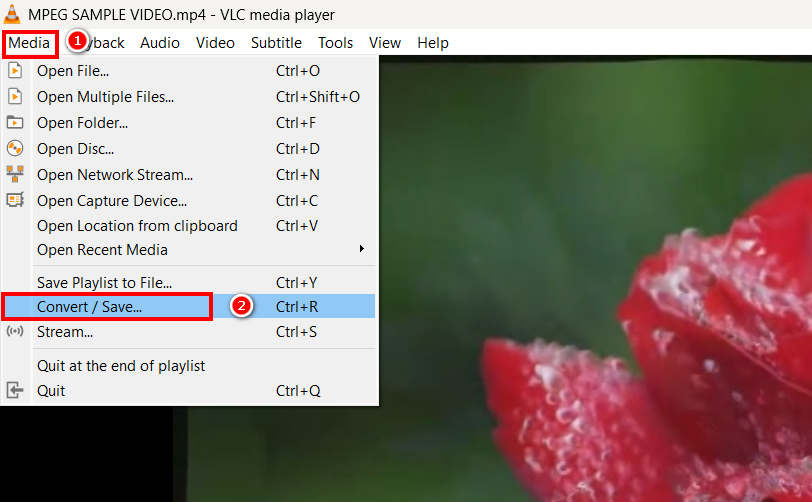
الخطوة 3. بعد ذلك، عُد مرة أخرى إلى تبويب وسائط (Media)، وهذه المرة اختر تحويل/حفظ (Convert/Save) في الأسفل.
الخطوة 4. الآن، انقر على الملف الشخصي (Profile) وحدّد MP4 كصيغة الإخراج. بعد التحديد، انقر على زر البدء (Start) في الأسفل لبدء تحويل فيديو MPEG إلى MP4.
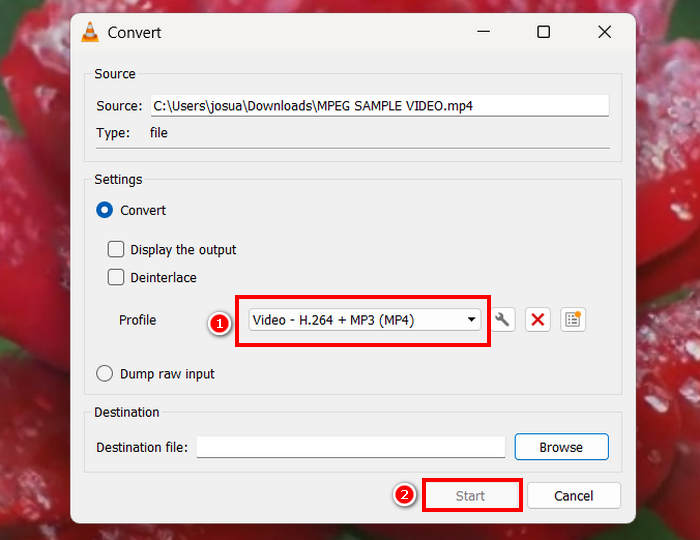
مع أن وجود أداة تحويل مجانية مثل VLC أمرٌ رائع، إلا أن هناك بعض الأمور التي يجب مراعاتها. على سبيل المثال، يفتقر إلى خيارات ترميز متقدمة، وتحويل دفعات، وميزات ضرورية أخرى. علاوة على ذلك، فإن دعمه المحدود للصيغ يجعله أقل كفاءةً للمستخدمين الذين يحتاجون إلى مرونة في التحويل.
التغيير من AVI إلى MP4 عبر HandBrake
HandBrake هي أداة تحويل مجانية أخرى لتحويل ملفات AVI إلى MP4. هذه الأداة عبارة عن مُحوّل فيديو مفتوح المصدر، يُتيح للمستخدمين نسخ أقراص DVD على أنظمة Windows وmacOS وLinux. كما يُمكنها تحويل ملفات AVI بكفاءة إلى صيغ مثل MP4. إليك كيفية تحويل ملفات AVI إلى MP4 بسهولة باستخدام هذه الأداة:
الخطوة 1. أولًا، قم بتنزيل وتثبيت برنامج HandBrake على جهاز الكمبيوتر لديك.
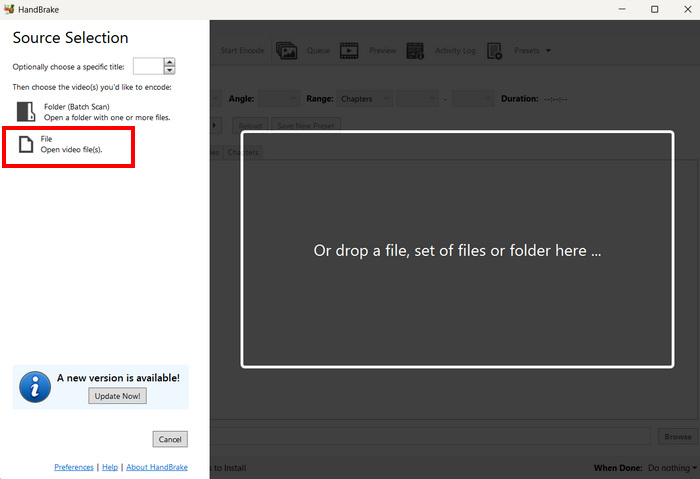
الخطوة 2. الآن، افتح الأداة على جهازك وانقر على زر فتح ملف فيديو (Open Video File) في الزاوية اليسرى لاستيراد ملف AVI الذي تريد تحويله إلى تنسيق MP4.
الخطوة 3. بعد ذلك، انقر على التنسيق (Format) واختر MP4.
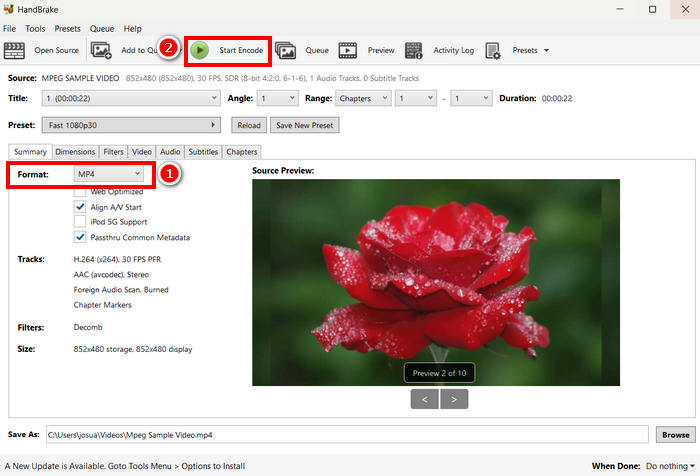
الخطوة 4. بعد الانتهاء، انقر على زر بدء الترميز (Start Encode) لبدء عملية تحويل AVI إلى MP4.
الميزة الوحيدة لبرنامج HandBrake كمحوّل فيديو هي دعمه لثلاثة صيغ إخراج فقط. لذلك، إذا كنت تفضل التنوع، فقد لا يناسبك هذا البرنامج.
تحويل .AVI إلى .MP4 باستخدام QuickTime
إذا كنت تستخدم نظام macOS، فإن أفضل أداة يمكنك استخدامها هي برنامج QuickTime المدمج. يشتهر هذا التطبيق بسلاسة تشغيل الفيديو وإمكانات التحرير الأساسية، كما يتيح للمستخدمين تحويل مقاطع الفيديو إلى صيغ مختلفة، بما في ذلك MP4.
الخطوة 1. أولًا، على جهاز Mac لديك، افتح تطبيق برنامج QuickTime.
الخطوة 2. بعد ذلك، انتقل إلى تبويب ملف (File) وانقر على فتح ملف (Open File) في الأسفل لإضافة ملف AVI الذي تريد تحويله إلى MP4.
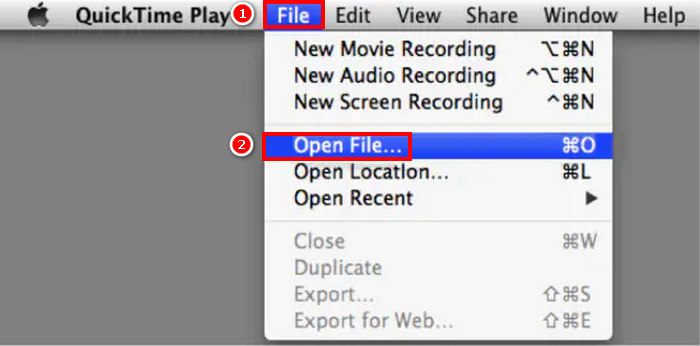
الخطوة 3. بعد تحميل ملف AVI في QuickTime، عُد مرة أخرى إلى تبويب ملف (File)، ثم مرّر لأسفل وانقر على خيار تصدير (Export).
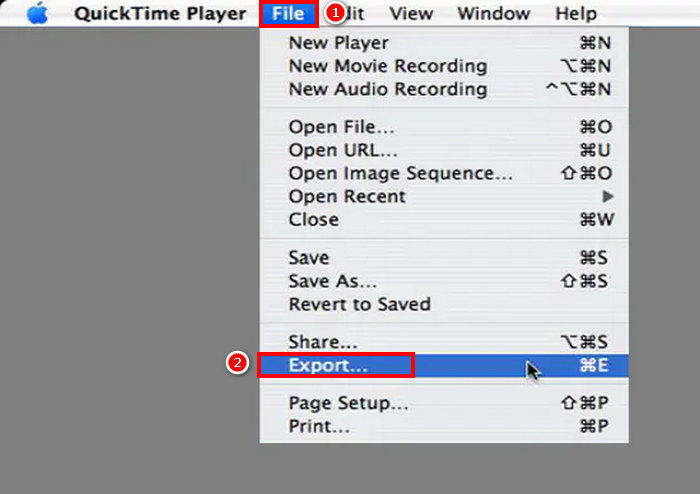
الخطوة 4. من هناك، اختر تنسيق الملف MPEG-4 ثم انقر على حفظ (Save).
على الرغم من أنه من السهل تحويل AVI إلى MP4 باستخدام QuickTime، إلا أن هذا البرنامج يفتقر إلى بعض الميزات المتقدمة مقارنة بأدوات تحويل الفيديو المخصصة الأخرى.
الجزء 3. تغيير AVI إلى MP4 [عبر الإنترنت]
هناك طريقة أخرى لتحويل ملفات AVI إلى MP4 وهي تحويلها عبر الإنترنت. نعم، توجد أدوات تحويل فيديو لا تتطلب تثبيت أي برنامج، بل تتيح للمستخدمين تحميل ملفات AVI مباشرةً إلى منصة ويب وتحويلها إلى MP4 فورًا.
التغيير من AVI إلى MP4 عبر Media.io
Media.io هي أداة تحويل فيديو عبر الإنترنت. تتيح لك هذه الأداة تحويل ملفات AVI إلى MP4 بسهولة. ما عليك سوى تحميل ملف AVI واختيار الصيغة التي تُفضّلها.
الخطوة 1. أولًا، تحتاج إلى الدخول إلى الموقع الرسمي لـ Media.io.
الخطوة 2. بعد ذلك، انقر على زر علامة الزائد (Plus) لتحميل ملف AVI الذي تريد تحويله إلى MP4.
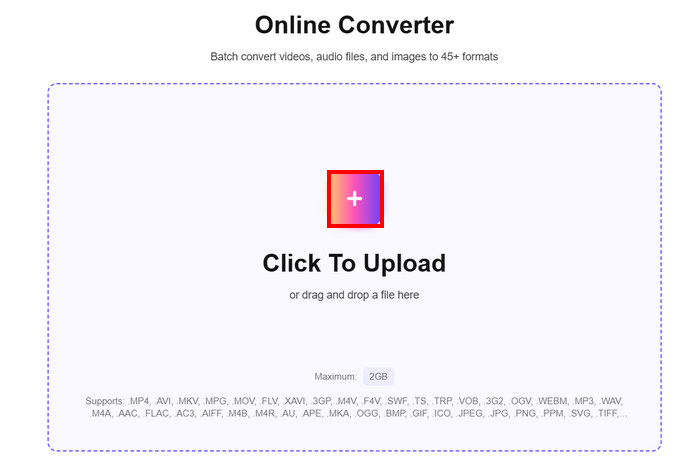
الخطوة 3. بعد ذلك، اختر تنسيق MP4، وبمجرد اختياره، انقر على زر تحويل الكل (Convert All) لبدء تحويل ملف AVI إلى MP4.
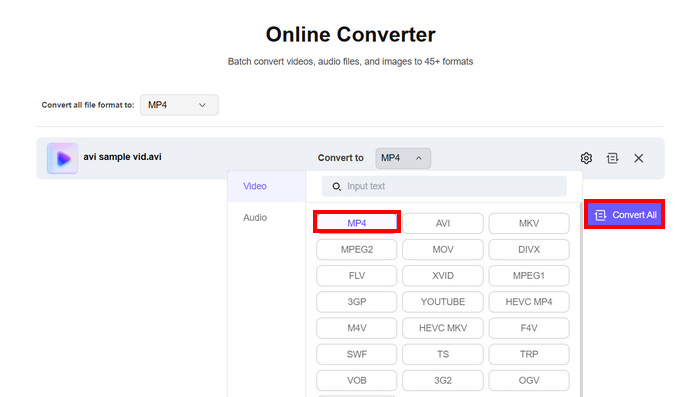
ملاحظة: هناك حد لحجم الملف عند تحويل AVI إلى MP4 باستخدام هذه الأداة. إذا لم تكن مسجَّلًا، يمكنك معالجة ملفات بحجم 100 ميجابايت فقط. أما للاستفادة من الميزات غير المحدودة، فيلزمك الاشتراك في خطتهم المدفوعة.
تحويل .AVI إلى .MP4 مع FreeConvert
FreeConvert هو أداة أخرى عبر الإنترنت لتحويل ملفات AVI إلى MP4. تتيح هذه الأداة تحويل ملفات AVI بسهولة إلى MP4. كما توفر إعدادات قابلة للتخصيص، بما في ذلك خيارات الضغط، واختيار ترميز الفيديو، وضبط جودة الإخراج. لتحويل AVI إلى MP4 باستخدام هذه الأداة، اتبع الخطوات التالية:
الخطوة 1. أولًا، تحتاج إلى الدخول إلى موقعهم الرسمي؛ فقط ابحث عن FreeConvert في متصفح الإنترنت لديك.
الخطوة 2. بعد ذلك، انقر على زر اختيار الملفات (Choose Files) لاستيراد ملف AVI الذي تريد تحويله إلى MP4.
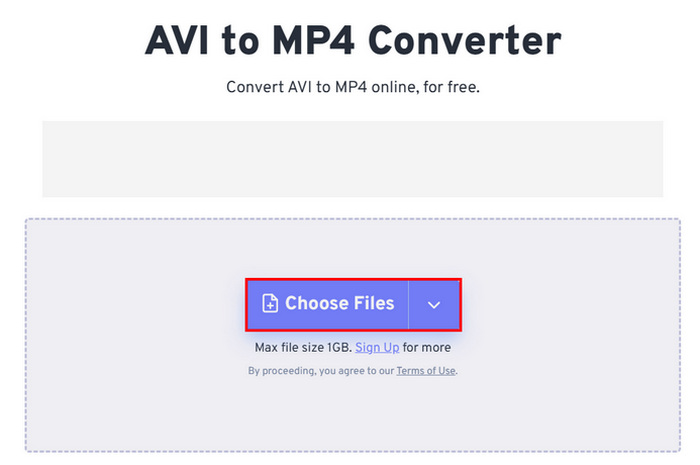
الخطوة 3. بعد ذلك، انقر على الإخراج (Output) واختر MP4 كصيغة إخراج. الآن، لبدء تحويل ملف AVI إلى MP4، ما عليك سوى النقر على زر تحويل (Convert).
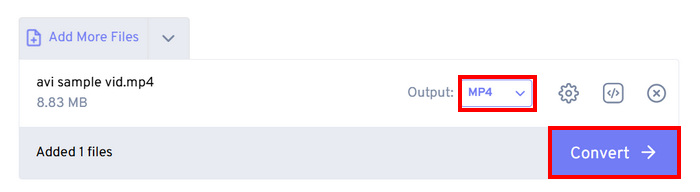
ملاحظة: الحد الأقصى لحجم الملف الذي يمكنك تحويله باستخدام FreeConvert هو 1 جيجابايت فقط، وهذا يقيّد المستخدمين الذين يرغبون في تحويل ملفات AVI أكبر حجمًا دون دفع رسوم اشتراك.
تحويل AVI إلى MP4 عبر CloudConvert
آخر أداة تحويل متاحة عبر الإنترنت لتحويل ملفات AVI إلى MP4 هي CloudConvert. وكأي أداة تحويل أخرى عبر الإنترنت، تتيح هذه الأداة للمستخدمين تحويل ملفات AVI بسهولة إلى الصيغ التي يفضلونها. مع ذلك، بالإضافة إلى MP4، تدعم هذه الأداة ثلاثة صيغ أخرى فقط، مما قد يبدو محدودًا للمستخدمين الذين يرغبون في مرونة أكبر في التحويل.
الخطوة 1. أولًا، تحتاج إلى فتح الأداة من موقعها الرسمي.
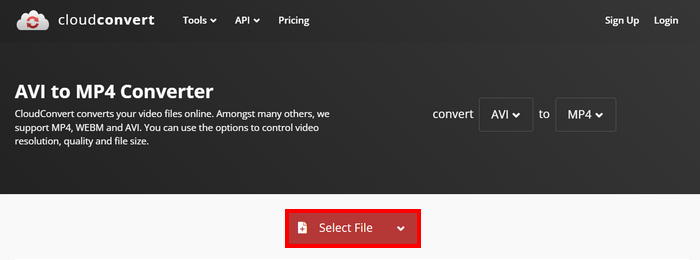
الخطوة 2. بعد الدخول إلى موقعهم، انقر على اختيار ملف (Select File) لاستيراد ملف AVI الذي تريد تحويله إلى MP4.
الخطوة 3. بعد ذلك، انقر على زر تحويل إلى (Convert to) واختر MP4 كالتنسيق المفضّل لديك. بعد الانتهاء، انقر على زر Convert لبدء عملية تحويل AVI إلى MP4.
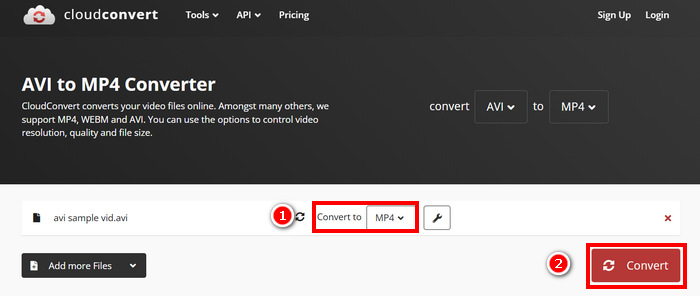
الميزة الوحيدة في CloudConvert هي أن نسخته المجانية تقتصر على تحميل ملفات بحجم 1 جيجابايت، وتسمح بخمسة تحويلات متزامنة فقط، وتحدد للمستخدمين 10 تحويلات يوميًا. إذا كنت بحاجة إلى تحويل ملفات أكبر أو إجراء المزيد من التحويلات، يلزمك الترقية إلى باقة مميزة.
الجزء الرابع. مقارنة محول AVI إلى MP4 7
إليك نظرة عن كثب على هذه المحولات السبعة لتحويل AVI إلى MP4. يمكنك الآن التمييز بين كلٍّ منها بناءً على المنصة المدعومة، وسرعة التحويل، والتنسيقات.
من الأفضل الاستنتاج أن FVC اختارت برنامج Video Converter Ultimate كخيار ممتاز لتعدد استخداماته كمحوّل فيديو. في المقابل، من عيوب الطريقة الإلكترونية أنك لن تتمكن من الاستمتاع بمعظم ميزاته الرائعة إلا عند الاشتراك. مع ذلك، تعمل أدوات تحويل AVI إلى MP4 هذه بشكل مستقل ولها جمهورها المستهدف الخاص، لذا اختر ما يناسبك حقًا.
الجزء 5. الأسئلة الشائعة حول تحويل AVI إلى MP4
لماذا يجب علي تحويل AVI إلى MP4؟
غالبًا ما تكون ملفات AVI كبيرة الحجم وقد لا تكون متوافقة مع الأجهزة الحديثة أو منصات البث. يوفّر MP4 ضغطًا أفضل، وأحجام ملفات أصغر، وتوافقًا أوسع مع مختلف مشغّلات الوسائط والأجهزة. أو يمكنك أن تبحث لك عن مشغّل AVI.
ما هي الطريقة الأسرع والأكثر أمانًا لتحويل AVI إلى MP4؟
على الرغم من وجود العديد من أدوات تحويل AVI إلى MP4 التي توفر تحويلًا سريعًا، إلا أنه من بين هذه الأدوات، لا ينبغي تفويت برنامج Video Converter Ultimate الذي اختاره FVC. تضمن هذه الأداة المتكاملة لتحويل الفيديو والصوت تحويلًا سريعًا وخاليًا من فقدان البيانات. كما تدعم المعالجة الدفعية، وتستخدم تسريع وحدة معالجة الرسومات، وتحافظ على جودة عالية في الإخراج.
هل يمكنني تحويل AVI إلى MP4 دون تثبيت أي برنامج؟
نعم. يمكنك استخدام أدوات الإنترنت مثل Media.io أو FreeConvert. مع ذلك، قد تكون للإصدارات المجانية حدود لحجم الملفات، وتتطلب اتصالاً بالإنترنت للمعالجة.
خاتمة
يبقى تنسيق MP4 واحدًا من أكثر الصيغ تفضيلًا رغم بنيته الأبسط مقارنةً بـ AVI، ويرجع ذلك أساسًا إلى صِغر حجم ملفاته وتوافقه الواسع مع الأجهزة الحديثة ومنصات البث. لذلك، إذا كنت تبحث عن أفضل محوِّل من AVI إلى MP4، فعليك تجربة كل الأدوات التي ذكرناها واختيار ما تراه الأنسب لتفضيلاتك واحتياجاتك. ماذا تنتظر؟ لنحوِّل ملفات AVI تلك إلى ملفات MP4 الآن!
-
 كيفية ضغط ملفات AVI الكبيرة على Windows / Mac / عبر الإنترنت مجانًا
 اقرأ واحصل على 3 طرق مجانية لضغط ملفات AVI على جهاز الكمبيوتر الخاص بك. يمكنك تقليل حجم ملف فيديو AVI الخاص بك دون فقدان الجودة. يمكن أن يكون حجم فيديو AVI الخاص بك صغيرًا كما تتخيل.
-
 أفضل 4 مسجلات شاشة AVI مجانية لالتقاط فيديو الشاشة كملفات AVI
 لتسجيل الشاشات في ملفات AVI عالية الجودة، تحدد المقالة وتشارك أفضل 4 مسجلات شاشة AVI مجانية في هذه المقالة. اقرأها واحصل على ما تريد.
-
 5 محولات AVI مميزة تُستخدم لتحويل AVI إلى MP4 [سريع وسهل]
 هل تريد أن تعرف ما هو أفضل محول لتحويل ملفات AVI؟ ثم انقر فوق هذا الارتباط ودعنا نبدأ في معرفة أي واحد على الفور.
