


 محول الفيديو النهائي
 مسجل الشاشة
 إصلاح الفيديو
 تنزيل آمن
تحويل JPG إلى MP4 على Windows/Mac دون فقدان الجودة
JPG هو تنسيق الصور الأكثر شيوعًا، ونستخدمه لأغراض مختلفة، من مشاركة الصور عبر الإنترنت إلى تخزين اللقطات الرقمية على أجهزتنا. وبفضل توافقه الواسع النطاق وحجمه الصغير نسبيًا، أصبح تنسيق JPG الخيار المفضل لالتقاط الذكريات البصرية والحفاظ عليها في الحياة اليومية.
ولكن في الوقت الحاضر أصبح إنشاء مقاطع فيديو من الصور أمرًا شائعًا. كما أنه يعد طريقة أخرى لحفظ الذكريات بشكل أكثر إبداعًا وشغفًا. يمكنك إضافة صوت، أو انتقالات، أو مجرد فيديو شرائح MP4 بسيط مع موسيقاك المفضلة كخلفية له. لذلك، إذا كنت مهتمًا بذلك وتخطط لتحويل JPG إلى MP4، فتابع قراءة هذه المقالة وتعرّف على كيفية تحويلها باستخدام 4 طرق مختلفة دون فقدان الجودة. أطلق العنان اليوم لما لديك من طاقة إبداعية الكامنة في داخلك!

الجزء 1: الطريقة المثالية لتحويل JPG إلى MP4 على Windows/Mac [الأفضل للمبتدئين]
أفضل طريقة نهائية لتحويل JPG إلى MP4 هي استخدام FVC Video Converter Ultimate. يمتلك هذا البرنامج ميزة خاصة تُسمى MV، تتيح للمستخدمين إنشاء مقاطع فيديو MP4 عالية الجودة من صور JPG الخاصة بهم. يأتي مزوّدًا بقوالب جاهزة يمكنك استخدامها بحرية، بالإضافة إلى تأثيرات وفلاتر متنوعة. كما يمكنك بسهولة تدوير وقص ملفات JPG كما تريد قبل تصديرها إلى MP4. وأكثر ما يميّز هذا البرنامج أنه يتيح لك استيراد الصوت الخاص بك، وتخصيص الفيديو بعلامة مائية، وغير ذلك. وأخيرًا، هذا البرنامج ليس معقدًا في الاستخدام لأنه يتمتع بواجهة بديهية وسهلة الاستخدام للغاية. لتنفيذ ذلك، اتبع الخطوات التالية:
الخطوة 1. أولاً، تحتاج إلى الحصول على البرنامج على نظامي ويندوز أو ماك، ثم تنزيله وتثبيته.
تحميل مجانيلنظام Windows 7 أو أحدثتنزيل آمن
تحميل مجانيلنظام MacOS 10.7 أو أحدثتنزيل آمن
الخطوة 2. بعد ذلك، افتح الأداة، ومن بين علامات التبويب الأربع في الأعلى، انقر على MV.

الخطوة 3. الآن، عندما تكون في الواجهة الرئيسية لـ MV، انقر على زر Add File لإضافة ملفات JPG التي تريد تحويلها إلى MP4.

الخطوة 4. لإضافة وتحرير وقص فيديو MP4، انقر على الزر الموجود في الجزء العلوي من زر Add File. كما يمكنك اختيار قالب جاهز من خلال النقر على علامة تبويب Theme في الأعلى.

الخطوة 5. وفي الوقت نفسه، لقص الصور وتدويرها، وإضافة الفلاتر والتأثيرات، وإضافة علامة مائية لتخصيصها أكثر، ما عليك سوى النقر على أيقونة Edit في الأسفل، وستنقلك إلى نافذة أخرى.

الخطوة 6. إذا أصبح كل شيء جاهزًا، انقر على زر Export، حيث يمكنك تغيير الصيغة إلى MP4 وتعديل معدل الإطارات والدقة والجودة. كما يمكنك تحديد المجلد الذي تريد حفظ ملف JPG المحوَّل إلى MP4 فيه. وأخيرًا، لحفظ ملفك، انقر على زر Start Export.

يُسهِّل برنامج FVC Video Converter Ultimate تحويل JPG إلى MP4 بفضل واجهته سهلة الاستخدام وميزاته القابلة للتخصيص وموضوعاته المحددة مسبقًا وأدوات التحرير وإخراجه عالي الجودة والتوافق مع أنظمة التشغيل Windows وMac. إنه في الواقع الطريقة المثالية لتحويل الصور المملة إلى مقاطع فيديو ممتعة وإبداعية.
الجزء 2: تحويل JPG إلى MP4 على Windows 11/10 باستخدام أداة الصور الافتراضية
في نظامي التشغيل Windows 10 و11، أصبح Clipchamp الآن متكاملاً مع تطبيق Photos، مما يسمح للمستخدمين بتحويل ملفات JPG إلى MP4. يجعل هذا التكامل عملية التحرير أسهل، ومن ثم يمكن حفظها بتنسيق MP4. لذا، لإرشادك في هذا الأمر، اتبع العملية خطوة بخطوة أدناه:
الخطوة 1. على جهازك بنظام ويندوز، انتقل أولاً إلى قائمة Start ومن هناك انقر على Photos.
الخطوة 2. في تطبيق Photos، انتقل إلى Folders في علامة التبويب اليسرى. سيُطلب منك إضافة مجلد أو يمكنك ببساطة تحديد الصور من مجلد الصور التي تريد تحويلها إلى MP4.
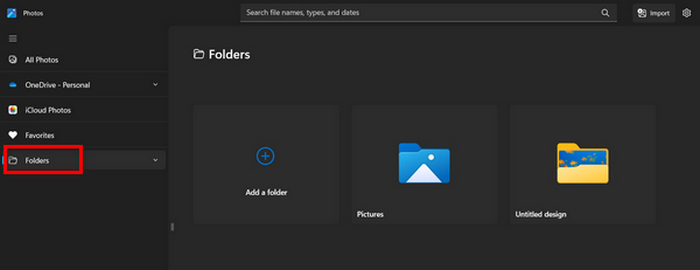
الخطوة 3. بعد اختيار صور JPG التي تريد تحويلها، انقر على أيقونة Create a video.
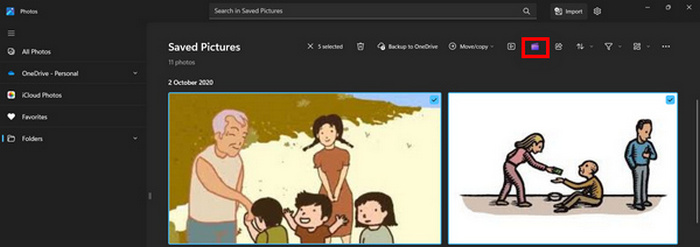
الخطوة 4. في نافذة جديدة، سيُطلب منك: هل تريد إضافة ملفات وسائط إلى هذا الفيديو؟ انقر على Yes to Add Video.

الخطوة 5. الآن، اسحب وسائطك التي تم استيرادها إلى المخطط الزمني. يمكنك الاستفادة من خيارات التحرير في علامة التبويب الموجودة على اليسار، حيث يمكنك إضافة نص، واختيار قوالب، وغير ذلك. وفي علامة التبويب Right، يمكنك إضافة الصوت والتأثيرات والفلاتر وما إلى ذلك. عند الانتهاء، ما عليك سوى النقر على زر Export، وسيتم حفظ ملف MP4 مباشرة على جهاز الكمبيوتر الخاص بك.
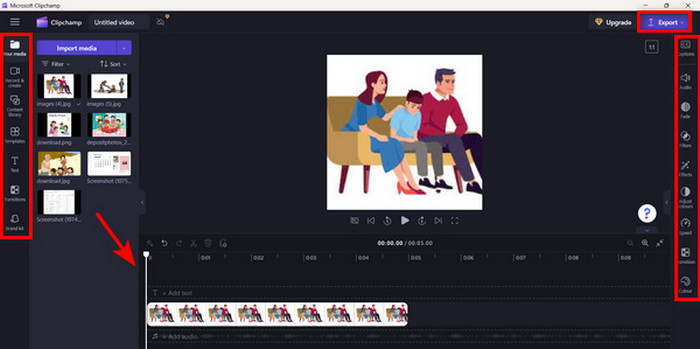
إذا كنت من مستخدمي Windows، فإن هذه الطريقة تجعل تحويل JPG إلى MP4 سريعًا للغاية. ومع ذلك، كان من الممكن أن تكون هذه الطريقة أسهل مقارنة بأدوات أخرى. كما لا يمكنك تصدير دقة فيديو 2K/4K باستخدام الإصدار المجاني ولا يمكنك الوصول إلى تأثيرات ومرشحات جيدة أخرى مقارنة بأدوات التحويل الأخرى.
الجزء 3: تحويل JPG إلى MP4 على Mac باستخدام iMovie
إذا كنت من مستخدمي أجهزة Mac، فهناك حل مفيد لتحويل JPG إلى MP4. يحتوي Mac على تطبيق مدمج يسمى iMovie. وهو تطبيق لتحرير الفيديو يوفر إمكانية التحرير الأساسية لمستخدميه، ولكن بصرف النظر عن هذا، يمكن استخدامه أيضًا لتحويل ملفات JPG إلى MP4. كل ما يحتاجون إليه هو استيراد صورهم وإضافة بعض التأثيرات والمرشحات ثم حفظها بتنسيق MP4.
الخطوة 1. على جهاز الماك، شغّل تطبيق iMovie وانقر على Create New.
الخطوة 2. بعد ذلك، أضف ملف JPG إلى التطبيق عن طريق النقر على زر Import Media في الواجهة الرئيسية.
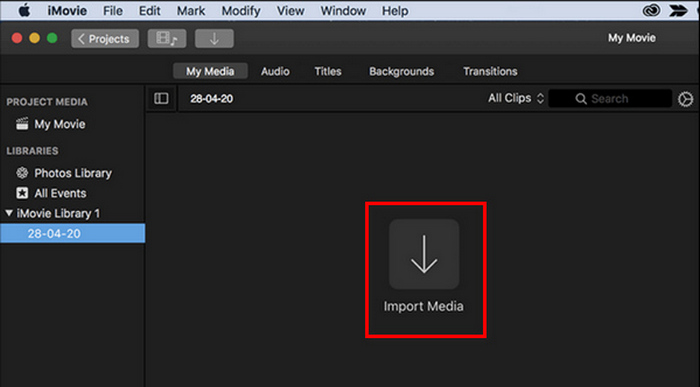
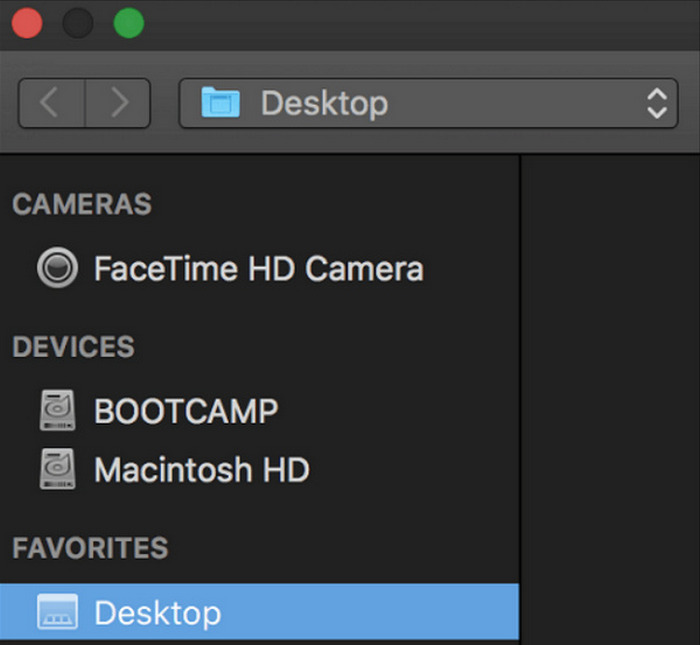
الخطوة 3. الآن، ابحث عن ملفات JPG التي تريد تحويلها إلى MP4.
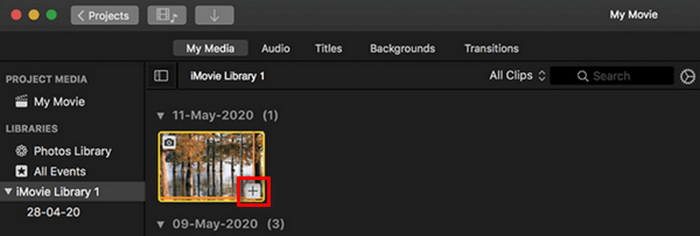
الخطوة 4. بعد ظهور صورة JPG في واجهة التطبيق، يمكنك تحديدها وستلاحظ ظهور علامة Plus. انقر عليها حتى تتمكن من إضافة الصورة إلى المخطط الزمني.
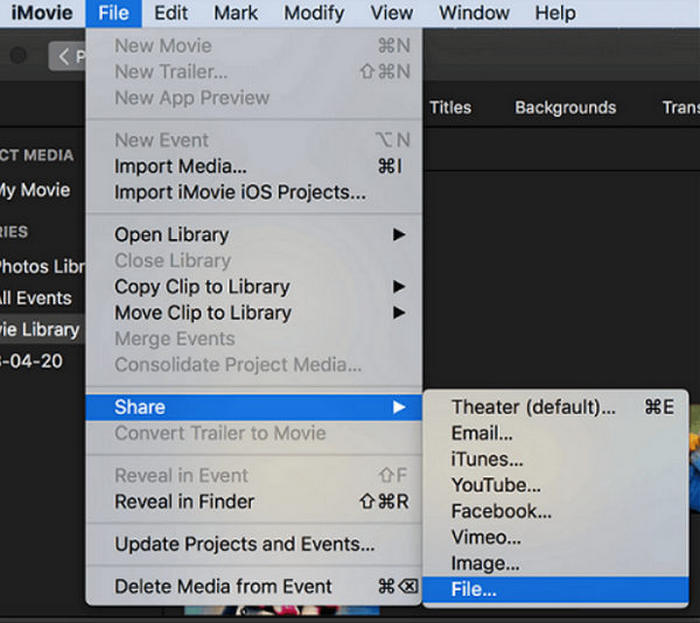
الخطوة 5. بعد إضافة ملفات JPG إلى المخطط الزمني، يمكنك الآن سحب الحواف لتوسيع مدة ملف MP4 النهائي. ثم انقر على قائمة File في الأعلى، واختر Share ثم حدد File لتصدير ملفك.
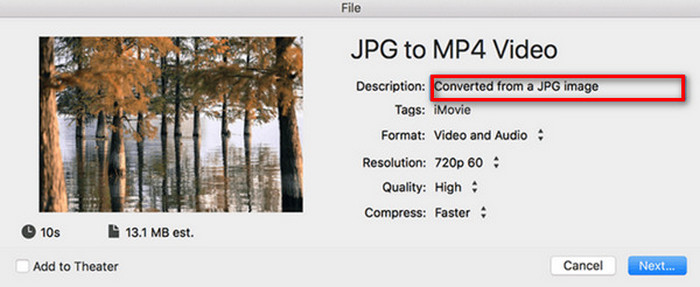
الخطوة 6. أخيرًا، أعطِ ملف MP4 اسمًا في الأعلى، واملأ الحقول الأخرى الخاصة بالبيانات الوصفية لملف الفيديو، ثم انقر على Next. اختر الموقع المطلوب لحفظ ملف MP4 الذي تريد تحويله. بمجرد اختيار الموقع، ستبدأ عملية التحويل.
يوفر iMovie لمستخدمي الماك طريقة مريحة لتحويل ملفات JPG إلى MP4 من خلال واجهته السهلة وأدوات التحرير المدمجة. ومع ذلك، قد يفتقر إلى الميزات المتقدمة مقارنةً بأدوات التحويل الأخرى، مما يحد من خيارات التخصيص والتأثيرات. وعلى الرغم من أنه مناسب للتحرير الأساسي، فإن المستخدمين أصبحوا أكثر تنافسية وإبداعًا، ويبحثون عن أداة يمكنها بالفعل تلبية احتياجاتهم وتوقعاتهم. كما أن هذا البرنامج لا يعمل على نظام ويندوز. إذا أعجبك iMovie، فيمكنك العثور على أدوات iMovie لنظام ويندوز من هنا.
الجزء 4: تحويل JPG إلى MP4 عبر الإنترنت
الآن، إذا كنت تبحث عن طريقة أخرى لتحويل JPG إلى MP4، فقد يكون تحويلها عبر الإنترنت هو الحل المناسب لك. يعد موقع Online Convert.com أحد أفضل المحولات عبر الإنترنت لهذا الغرض. يمكنك تشغيل هذه الأداة من متصفحات مختلفة على جهاز الكمبيوتر الخاص بك، ويمكن استخدامها بسهولة نظرًا لواجهتها البديهية للمستخدم.
الخطوة 1. في متصفحك، ابحث عن موقع Online Convert.com.
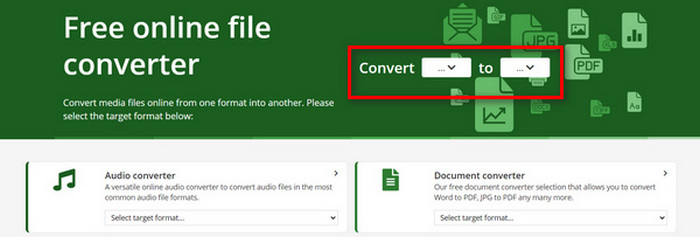
الخطوة 2. بمجرد الدخول إلى الموقع، اختر الصيغ بشكل مناسب. بما أنك ستحول من JPG إلى MP4، فاختر JPG من قائمة Convert المنسدلة وMP4 من قائمة To المنسدلة.
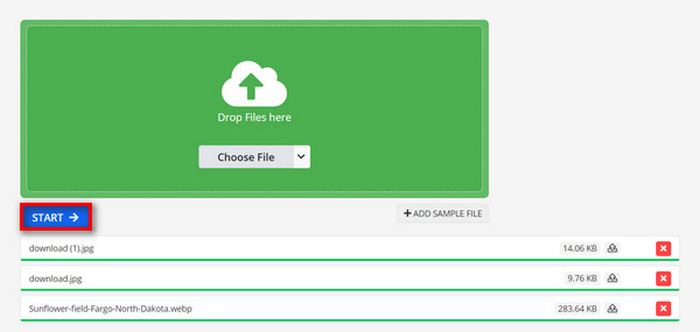
الخطوة 3. بعد ذلك، حمّل ملفات JPG التي تريد تحويلها بالنقر على زر القائمة المنسدلة Choose File، حيث يمكنك استيراد ملفاتك من جهازك أو من Dropbox أو Google Drive أو حتى من خلال رابط URL.

الخطوة 4. بعد رفع ملفات JPG التي تريد تحويلها إلى MP4، انقر على زر Start.
الخطوة 5. وأخيرًا، قم بتنزيل ملف MP4 بالنقر على زر Download.
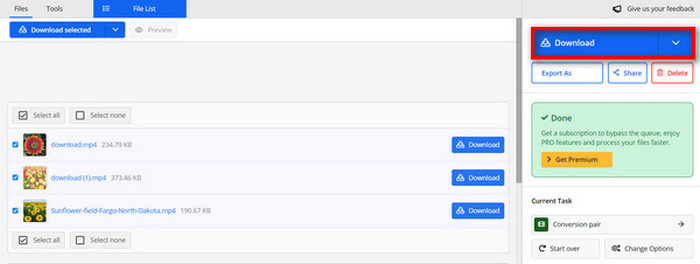
إن الناتج المحول من هذه الأداة هو نتيجة لإعداد فيديو محدد مسبقًا قام المستخدمون بتعديله يدويًا قبل تحويل الملفات. ورغم أن هذه الأداة تحول بسهولة صيغة JPG إلى صيغة MP4، إلا أنه لا يمكنك تحسين الفيديو المحول بشكل مباشر بناءً على أسلوبك الإبداعي.
الجزء 5: الأسئلة الشائعة حول تحويل JPG إلى MP4
هل JPEG هو نفسه JPG؟
تُعد صيَغتا JPEG وJPG في الأساس الصيغة الرقمية نفسها للصور، إذ يشير كلا الامتدادين إلى تنسيق JPEG الذي ابتكرته مجموعة خبراء التصوير Joint Photographic Experts Group أو JPEG. تعرّف هنا على كيفية تحويل JPEG إلى JPG.
متى يجب علي تحويل JPG إلى MP4؟
يجب عليك تحويل JPG إلى MP4 عندما تريد إنشاء عرض تقديمي مرئي أو مشاركة سلسلة من الصور كفيديو، مثل إنشاء عروض شرائح أو ألبومات صور رقمية أو شرائح فيديو. وبصرف النظر عن هذا، إذا كنت تريد أن تكون مبدعًا في كيفية عرض ملفات JPG الخاصة بك، فإن تحويلها إلى MP4 هو الطريقة المثالية لإضافة انتقالات وموسيقى وطبقات نصية وعناصر الوسائط المتعددة الأخرى.
كيف أقوم بدمج JPG و MP4؟
الطريقة الوحيدة لدمج JPG وMP4 هي استخدام أدوات تحرير الفيديو. باستخدام هذا النهج، يمكنك التحكم الكامل في ترتيب وتوقيت وتخصيص كل من الصور والفيديو الذي تريد دمجه.
خاتمة
الآن جاء دورك! إن تحويل JPG إلى MP4 يعد وسيلة أخرى للاحتفاظ بالذكريات بشكل إبداعي. لذا، إذا كانت لديك ملفات JPG وتريد تحويلها، فاتبع كل الطرق المعروضة في هذه المقالة واختر ما يناسبك أكثر. ابدأ اليوم وشاهد كيف يتحقق السحر!
-
 أفضل 5 برامج تعليمية رائدة لتحويل PNG إلى JPG بسرعة
 إذا كنت بحاجة إلى تحويل ملف PNG إلى تنسيق JPG ، فيمكنك معرفة أفضل الطرق هنا. سوف تتعلم أيضًا الفرق بين تنسيقات ملفات PNG و JPG.
-
 طرق سهلة حول كيفية تحويل SVG إلى تنسيق JPG
 هل تبحث عن أفضل طريقة لتحويل SVG إلى JPG؟ سيعطي هذا المنشور بعض البرامج التعليمية المؤكدة التي يمكنك تجربتها. سوف تكتشف أيضًا محول SVG إلى JPG من أجلك.
-
 طرق مفيدة حول كيفية تحويل TIFF إلى JPG / PNG بسهولة
 لا تفوت هذه الطرق الممتازة لتحويل TIF إلى تنسيقات JPG / PNG. سيقدم هذا المنشور المعلومات الضرورية التي تحتاج إلى معرفتها. يتضمن اختلافاتهم.
