


 محول الفيديو النهائي
 مسجل الشاشة
 إصلاح الفيديو
 تنزيل آمن
3 طرق فعالة لتقليل حجم ملفات PDF دون فقدان الجودة
أفضل طريقة لتحميل ملفات PDF كبيرة الحجم وفتحها ومشاركتها بسهولة هي ضغطها. يعني الضغط تقليل حجم الملف، وربما يكون ذلك لأن الملف يحتوي على عدد كبير من الصور والخطوط الإبداعية والتصاميم الرسومية مثل صور PNG المتحركة وغيرها المضمّنة بداخله. ومع ذلك، في بعض الحالات يؤدي الضغط إلى فقدان كبير في الجودة، مما يجعل المستندات أقل وضوحًا أو أقل احترافية. لتجنب هذه المواقف غير المرغوبة، جمعنا لك 3 طرق موثوقة لمساعدتك على ضغط ملفات PDF دون فقدان الجودة.
واصل القراءة لتكتشف هذه التقنيات الفعّالة ولتتأكد من أن ملفات PDF الخاصة بك تظل واضحة وعالية الجودة مع إمكانية التحكم في حجمها. لنبدأ!
الجزء 1: أفضل طريقة لضغط ملفات PDF دون فقدان الجودة [سهلة وآمنة]
توجد العديد من الأدوات عند الحديث عن أفضل أداة لضغط ملفات PDF، لكن أفضل طريقة لضغط ملفات PDF دون فقدان الجودة هي استخدام أداة FVC Free PDF Compressor. تم تصميم هذه الأداة بشكل مثالي لحل مشكلة كبر حجم ملفات PDF، وهي مناسبة لجميع المستخدمين بفضل واجهتها السهلة والآمنة. إضافة إلى ذلك، تسمح لك هذه الأداة الإلكترونية بتقليل حجم ملفات PDF دون التأثير في جودتها، لأنها تحافظ على سلامة المحتوى الأصلي أثناء عملية الضغط.
خطوات ضغط ملف PDF دون فقدان الجودة باستخدام FVC Free PDF Compressor:
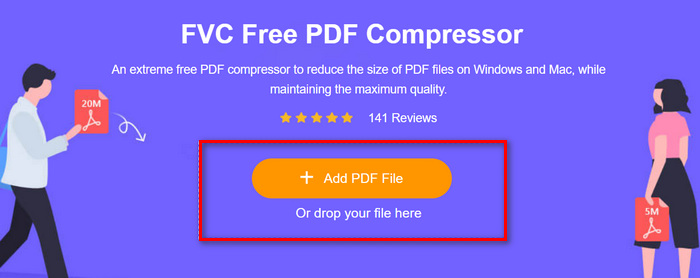
الخطوة 1. أولاً، في الواجهة الرئيسية للأداة عبر الإنترنت، انقر على زر Add PDF File لاستيراد ملف الـ PDF الذي تريد ضغطه.
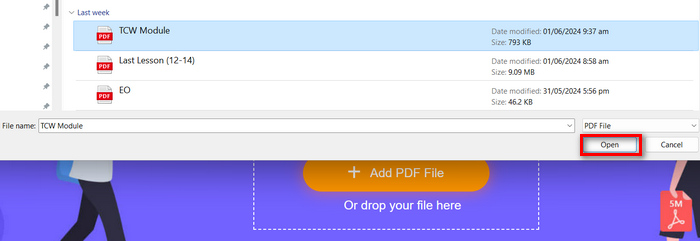
الخطوة 2. بعد ذلك، اختر ملف الـ PDF الذي تريد ضغطه ثم انقر على Open، وسيتم بدء عملية الضغط مباشرة.
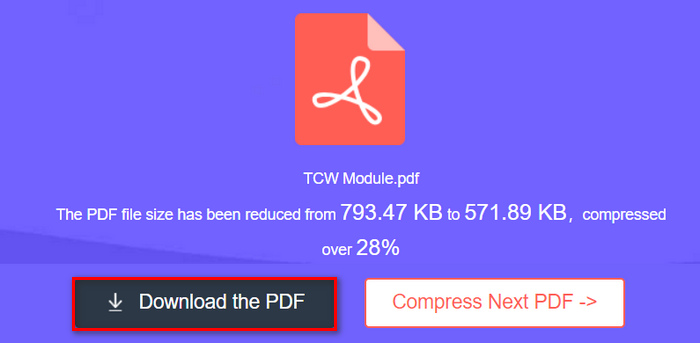
الخطوة 3. عند الانتهاء، قم بمعاينة ملف الـ PDF المضغوط ثم انقر على زر Download the PDF لحفظه.
هذا كل ما في الأمر! إذا كنت من الأشخاص الذين يحتاجون إلى طريقة سريعة وسهلة وآمنة لضغط ملفات PDF دون القلق بشأن الإعدادات المعقدة أو الميزات المتقدمة، فهذه الطريقة هي الأنسب لك.
الجزء 2: ضغط ملفات PDF دون فقدان الجودة [باستخدام خيارات مخصصة]
في غضون ذلك، إذا كنت تفضل ضغط ملف PDF دون فقدان الجودة وتخصيص مستوى ضغط ملف PDF الخاص بك، فيمكنك استخدام Adobe Acrobat Online PDF Compressor. يوفر ضاغط PDF عبر الإنترنت مستويات ضغط متعددة، مما يسمح للمستخدمين بتخصيص إعدادات الضغط وفقًا لاحتياجاتهم مع الحفاظ على الجودة الأصلية لملف PDF. علاوة على ذلك، بفضل توافقه مع مختلف الأجهزة وأنظمة التشغيل، يمكنك الوصول بسهولة إلى أداة الضغط القوية هذه واستخدامها من أي مكان، مما يضمن إنتاجية سلسة بغض النظر عن موقعك أو تفضيلات جهازك.
خطوات ضغط ملف PDF باستخدام Adobe Acrobat أونلاين لضغط ملفات PDF دون فقدان الجودة:
الخطوة 1. أولاً، استورد ملف الـ PDF الذي تريد ضغطه بالنقر على زر Select a File.
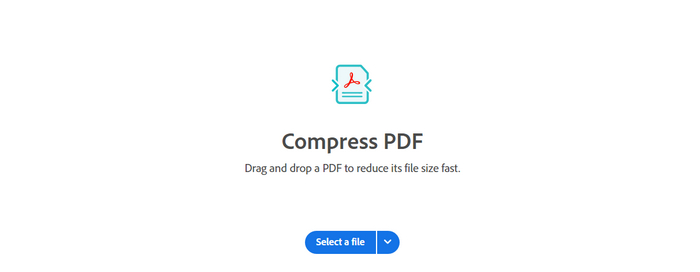
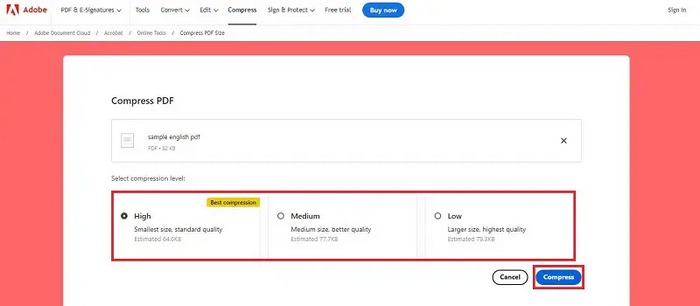
الخطوة 2. بعد ذلك، اختر الملف الذي تريد ضغطه من مستكشف الملفات على جهازك، ثم حدد مستوى الضغط الذي تريده.
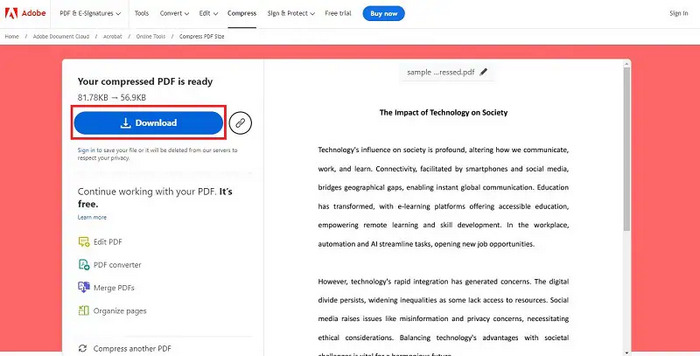
الخطوة 3. أخيرًا، لحفظ ملف الـ PDF المضغوط، انقر على زر Download.
تعتبر هذه الطريقة مثالية للمستخدمين الذين يحتاجون إلى مزيد من التحكم في عملية الضغط، حيث توفر خيارات مخصصة لموازنة حجم الملف وجودته.
الجزء 3: تقليل حجم ملف PDF دون فقدان الجودة على أجهزة MAC/PC [مناسب للمحترفين]
عندما يتعلق الأمر بضغط ملفات PDF، وخاصة عندما يرغب المستخدمون في طريقة احترافية لضغط ملفات PDF على أجهزة ماك/الكمبيوتر دون فقدان الجودة، يبرز Adobe Acrobat كحل رائد. فهذا البرنامج الشامل لإدارة ملفات PDF يوفر ميزات متقدمة لضغطها. وبهذا يضمن هذا البرنامج ضغطًا عالي الجودة، مما يجعله خيارًا مثاليًا للمستخدمين الذين يحتاجون إلى تحكم دقيق في مستندات PDF الخاصة بهم ويرغبون في الحفاظ على أعلى معايير الجودة.
خطوات ضغط ملف PDF دون فقدان الجودة باستخدام Adobe Acrobat:
الخطوة 1. أولاً، افتح برنامج Adobe Acrobat على جهازك. ومن شريط الأدوات العلوي اختر خيار Tools.
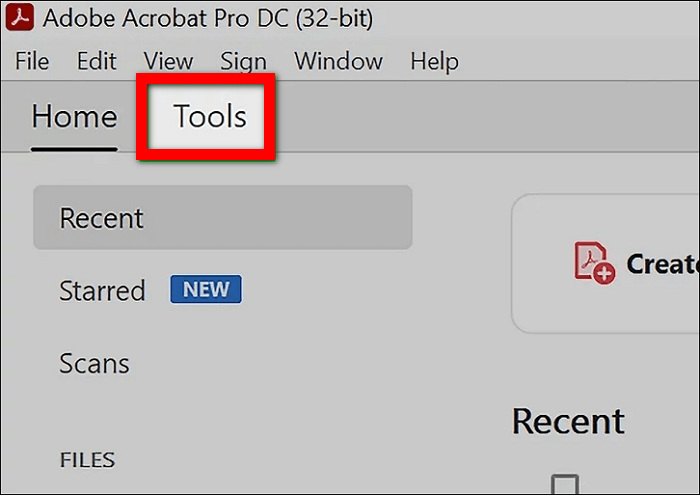
الخطوة 2. الآن، انتقل إلى Protect & Standardize ثم اختر Optimize PDF من قسم Tools.
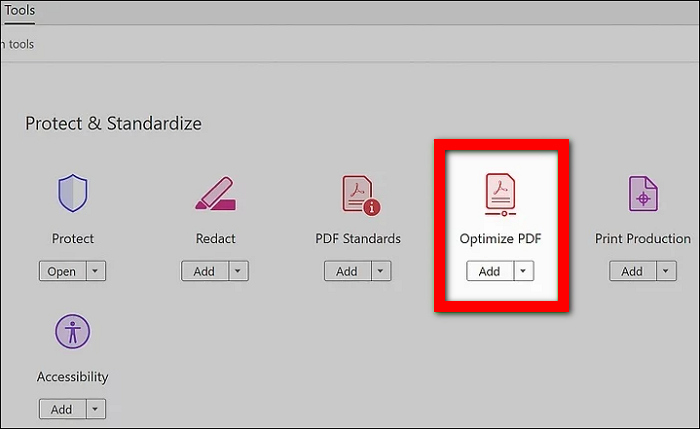
الخطوة 3. بعد ذلك، اختر ملف الـ PDF الذي تريد ضغطه من مكتبة الملفات على جهازك.
الخطوة 4. في شريط أدوات ملف PDF، ابحث عن خيار Reduce File Size وانقر عليه.
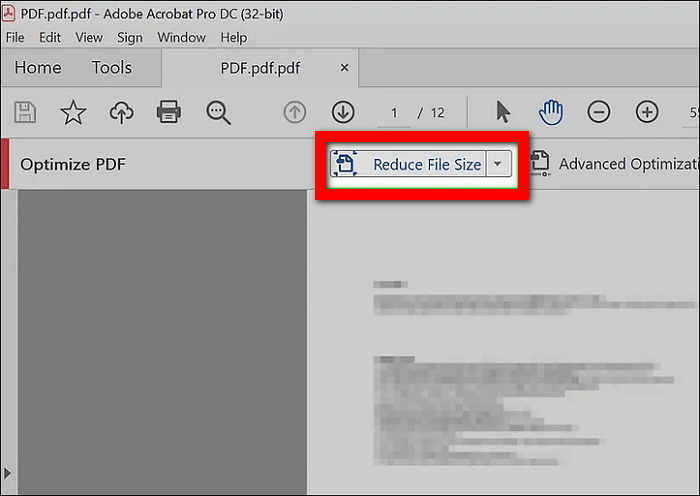
الخطوة 5. أخيرًا، حدد الموقع الذي تريد حفظ ملف الـ PDF المضغوط فيه ثم انقر على Save.
يقدم Adobe Acrobat خيارات شاملة لضمان أعلى جودة لإخراج ملف PDF المضغوط مع تقليل حجمه بشكل كبير. وبهذا، فإن هذه الطريقة مناسبة للمحترفين والمستخدمين المتقدمين الذين يحتاجون إلى أداة قوية وغنية بالميزات لإدارة ملفات PDF وضغطها.
الجزء الرابع: الأسئلة الشائعة حول ضغط ملفات PDF دون فقدان الجودة
هل يؤدي ضغط ملف PDF إلى تقليل الجودة؟
عند القيام بذلك بشكل صحيح، لا ينبغي لضغط ملف PDF أن يقلل من جودته. تم تصميم أدوات مثل FVC Free PDF Compressor وAdobe Acrobat Online PDF Compressor وAcrobat Pro للحفاظ على الجودة الأصلية للمستند مع تقليل حجمه.
هل يمكنني تقليل حجم ملف PDF بشكل كبير؟
نعم، يمكنك تقليل حجم ملف PDF بشكل كبير باستخدام أدوات متقدمة مثل Acrobat Pro، الذي يوفر إعدادات ضغط مختلفة لتحقيق حجم الملف المطلوب دون المساس بالجودة.
كيف أقوم بضغط ملف PDF في Windows 11؟
لضغط ملف PDF في Windows 11، يمكنك استخدام أداة عبر الإنترنت مثل FVC Free PDF Compressor. تقدم هذه الأداة حلاً ملائمًا وسهل الوصول إليه مباشرةً من متصفح الويب الخاص بك. ولا تتطلب تثبيت أي برنامج، مما يجعلها مناسبة للمستخدمين الذين يريدون البساطة والكفاءة.
هل ضغط ملف PDF يؤثر على تنسيقه أو تخطيطه؟
عند استخدام أدوات ضغط PDF ذات السمعة الطيبة مثل FVC Free PDF Compressor أو Acrobat Pro، لا ينبغي أن يؤثر الضغط على تنسيق أو تخطيط مستندك. تم تصميم هذه الأدوات للحفاظ على البنية والمظهر الأصليين لملف PDF مع تقليل حجم الملف. ومع ذلك، فمن الأفضل دائمًا معاينة ملف PDF المضغوط للتأكد من ظهور كل شيء كما هو متوقع قبل مشاركته أو طباعته.
كيف يؤثر ضغط PDF على دقة الصور الموجودة داخل المستند؟
يختلف تأثير ضغط PDF على دقة الصورة حسب طريقة الضغط المستخدمة. باستخدام FVC Free PDF Compressor، تم تصميم البرنامج لتقليل حجم الملف مع الحفاظ على وضوح الصورة ودقتها بكفاءة. لذلك، يمكن للمستخدمين الاعتماد على FVC Free PDF Compressor لضغط PDF بفعالية دون فقدان الجودة، وخاصة مع الصور المضمنة في الملف.
خاتمة
معرفة كيفية ضغط ملفات PDF دون فقدان الجودة بطريقة فعالة وسهلة أمر ضروري لإدارة المستندات ومشاركتها بكفاءة. سواء كنت تحتاج إلى حل سريع وبسيط مثل FVC Free PDF Compressor، أو أداة إلكترونية قابلة للتخصيص مثل Acrobat Online PDF Compressor، أو برنامج احترافي مثل Acrobat Pro، فهناك طريقة تناسب احتياجاتك. اختر الأداة الأنسب لك واستمتع بمزايا ملفات PDF المحسّنة وعالية الجودة. هل أنت مستعد للبدء؟ جرّب أيًا من هذه الأدوات اليوم وتمتّع بضغط ملفات PDF دون عناء!
-
 Adobe Compress PDF: 3 طرق لتقليل حجم ملفات PDF بسهولة
 هل تتساءل عن Adobe Compress PDF لضغط أحجام ملفات PDF الكبيرة؟ في هذه المقالة، تعرف على كيفية الاستفادة منها في تقليص حجم ملفات PDF بسهولة.
-
 4 أفضل الطرق حول كيفية إضافة علامة مائية على أي مقاطع فيديو بسرعة
 دعنا نتعلم كيفية إضافة علامة مائية إلى أي مقاطع فيديو على Windows و Mac و Online و iOS و Android بخطوات مفصلة إذا قرأت هذه المقالة.
-
 3 أسهل طرق لإضافة علامة مائية إلى GIF عبر الإنترنت وغير متصل
 يمكن أن تكون إضافة علامة مائية إلى GIF سهلة مثل 1-2-3 إذا كنت تستخدم الأداة الصحيحة بشكل صحيح. الأدوات الموجودة في السوق واسعة جدًا ، لكننا سنقدم الأدوات الثلاث التي يمكنك الاعتماد عليها.
