


 محول الفيديو النهائي
 مسجل الشاشة
 إصلاح الفيديو
 تنزيل آمن
3 طرق لتشغيل فيديو MKV في Windows Media Player باستخدام الترميز الصحيح
MKV ، تعني Matroska Multimedia Container ، هو تنسيق ملف حاوية مجاني ومفتوح يحتوي على عدد من مقاطع الفيديو والصوت والصورة ومسار الترجمة في ملف واحد. تُستخدم ملفات MKV بشكل شائع لتخزين مقاطع الفيديو والأفلام والبرامج التلفزيونية. يشكو بعض مستخدمي Windows 8/7 من أنهم لا يستطيعون تشغيل فيديو MKV في مشغل الفيديو الافتراضي - Windows Media Player.
الحقيقة هي أن Windows Media Player لا يدعم تقسيم (فتح) حاويات MKV. حسنًا ، إذا كنت لا تزال ترغب في تشغيل مقاطع فيديو MKV في Windows Media Player ، فيجب عليك تثبيت برنامج ترميز MKV الصحيح لبرنامج Windows Media Player. في هذه المقالة ، سنخبرك بمكان العثور على برنامج ترميز MKV لبرنامج Windows Media Player ، والطرق الأخرى لتشغيل مقاطع فيديو MKV في Windows Media Player.

الجزء 1. مكان تنزيل MKV Codec لبرنامج Windows Media Player
إذا كنت تريد تشغيل مقاطع فيديو MKV في Windows Media Player، فيلزمك تثبيت حزمة الترميز المطابقة. إليك 3 من حزم الترميز الشهيرة لنظام Windows Media Player. يمكنك تنزيل وتثبيت برنامج ترميز MKV لـ Windows Media Player.
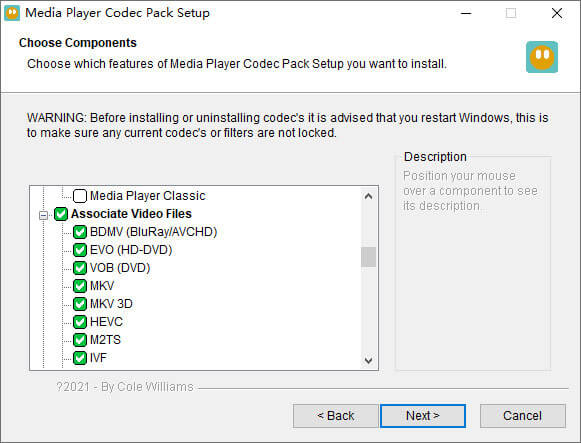
1. Media Player Codec Pack
Media Player Codec Pack عبارة عن حزمة ترميز متعددة الاستخدامات لبرنامج Windows Media Player. يتم استخدامه لاحتواء ملفات الفيديو والصوت الحديثة. وهو متوافق مع Microsoft Windows 10 و 8.1 و 8 و 7 و Vista و XP و 2000 و 2008 و 2003. يمكنك تنزيل Media Player Codec Pack والحصول على برامج الترميز مثل MKV و XviD و VOB و EVO و HEVC و M2TS و IVF و BDMV و MP4 و MOV و WEBM و FLV وما إلى ذلك لنظام Windows Media Player 12 أو 11 أو 10.
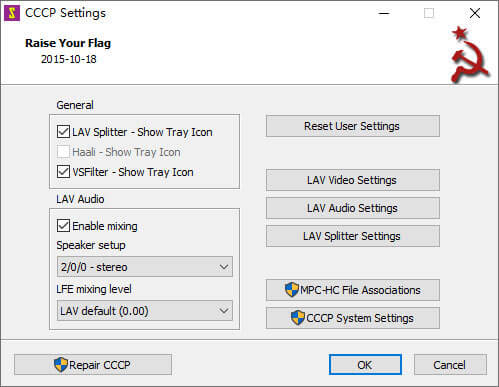
2. CCCP (Combined Community Codec Pack)
Combined Community Codec Pack هي حزمة تشغيل لنظام Windows. يوفر مجموعة شاملة من برامج الترميز التي يمكنها تشغيل أي نوع من ملفات الفيديو مثل MKV و MP4 و MOV و VOB وما إلى ذلك في Windows Media Player. وهو متوافق مع Windows 10/8/7 و WindowsVista و Windows XP و Windows 2000. يمكنك بسهولة تنزيل هذا التطبيق من الموقع الرسمي مجانًا.
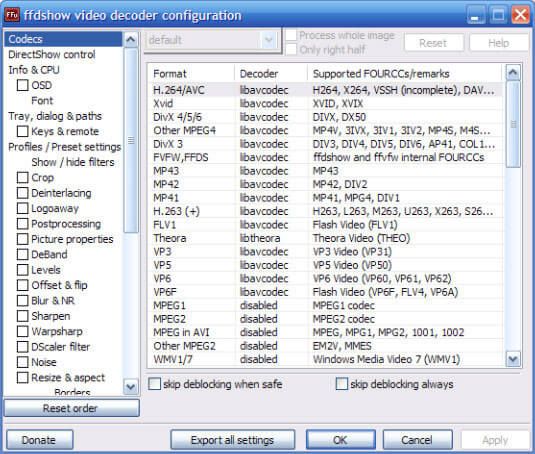
3. ffdshow
Ffdshow عبارة عن حزمة تشغيل متقدمة لبرنامج ترميز Windows الذي يدعم معظم تنسيقات الصوت والفيديو. يمكنك تثبيت برنامج الترميز المناسب لـ h.264 و MPEG-4 و H.263 و VP3 و Theora و SVQ3 و MP3 و AC3 و DTS و AAC والمزيد. كما يوفر أيضًا عوامل تصفية لتغيير الحجم ، وإزالة التشابك ، وعرض الترجمة ، وما إلى ذلك. يمكنك تنزيل ffdshow وتثبيت برنامج الترميز الصحيح MKV لبرنامج Windows Media Player.
الجزء 2. تحويل MKV للتشغيل في Windows Media Player
مع أن مقطع فيديو MKV غير مدعوم في Windows Media Player، يمكنك تحويل فيديو MKV إلى تنسيقات يدعمها Windows Media Player. كما نعلم، يدعم Windows Media Player 12 بشكل مدمج معظم تنسيقات الفيديو والصوت مثل MPEG وWMV وAVCHD وWMA وAAC و3GP وغيرها. باستخدام Video Converter Ultimate، يمكنك تحويل فيديو MKV إلى أي من تنسيقات الفيديو/الصوت، بما في ذلك MP4 وAVI وMOV وWMV وMKV وMPEG وMP3 وFLAC وغير ذلك.
تحميل مجانيلنظام Windows 7 أو أحدثتنزيل آمن
تحميل مجانيلنظام MacOS 10.7 أو أحدثتنزيل آمن
الخطوة 1. انقر زر التنزيل لتحميل برنامج Video Converter Ultimate على جهاز الكمبيوتر. شغِّل هذا المحوّل الخاص بملفات MKV، ثم انقر زر Add Files لإضافة مقاطع فيديو MKV إلى البرنامج.
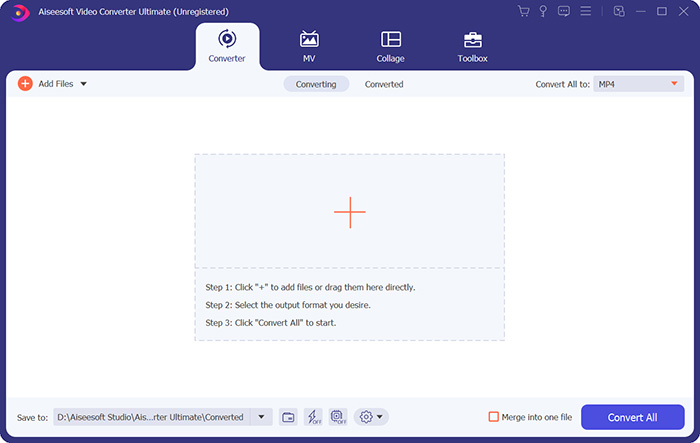
الخطوة 2. انقر السهم المنسدل بجوار Convert All to، ثم اختر MP4 أو أي تنسيق آخر من تبويب Video.

الخطوة 3. يمكنك بعد ذلك الانتقال إلى منطقة Save to في الأسفل لتحديد مسار حفظ ملف MKV المحوّل. أخيرًا، انقر زر Convert All لبدء تحويل MKV إلى MP4 على جهاز الكمبيوتر.
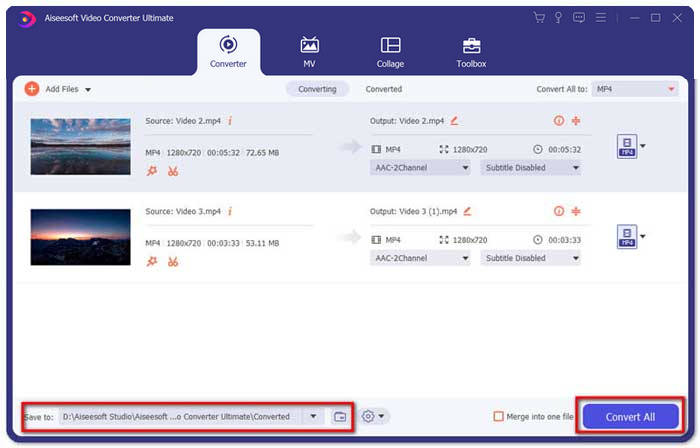
عند اكتمال التحويل ، يمكنك تشغيل فيديو MKV المحول في Windows Media Player. إذا كنت ترغب في مزيد من تلميع فيديو MKV الخاص بك قبل التحويل ، فيمكنك النقر فوق رمز التحرير في الواجهة الرئيسية لتدوير مقطع فيديو MKV واقتصاصه ووضع علامة مائية عليه وإضافة ترجمات وتطبيق عوامل تصفية أخرى.
الجزء 3. تشغيل MKV مع Windows Media Player البديل
ماذا لو كان Windows Media Player لا يعمل رغم أنك حصلت على ملف MKV مُحوَّل؟ قد تعيق عدة عوامل تشغيل ملفات MKV على Windows Media Player. إذا كنت لا ترغب في تثبيت برنامج ترميز معيّن لـ Windows Media Player، يمكنك تجربة مشغّل فيديو MKV آخر بدلاً منه. يُعد FVC Free Video Player مشغّل فيديو MKV عبر الإنترنت يساعدك على تشغيل أي ملف وسائط متعددة بجميع التنسيقات مثل MKV وMP4 وFLV وMOV وAVI و3GP وMP3 وAAC وغيرها. وبالاعتماد على تقنية HTML5، يدعم هذا المشغّل تشغيل ملفات MKV بسلاسة في متصفّحك، دون الحاجة إلى أي حزم إضافية للتنزيل أو عمليات شراء أو تسجيل.
الخطوة 1. انتقل إلى الصفحة الرسمية لبرنامج FVC Free Video Player. انقر زر Play Now لتنزيل المُشغّل وتثبيته على جهاز الكمبيوتر.

الخطوة 2. يمكنك النقر على زر Open File في الواجهة الرئيسية لإضافة ملف MKV إلى بديل Windows Media Player.

الخطوة 3. بمجرد استيراد فيديو MKV، سيتم تشغيله تلقائيًا على جهاز الكمبيوتر. أثناء التشغيل، يمكنك الانتقال إلى تبويب Control للتشغيل أو الإيقاف أو التقديم أو الإرجاع أثناء مشاهدة فيديو MKV.

لا تفوّت: كيفية تشغيل أقراص DVD على Windows Media Player?
الجزء 4. الأسئلة الشائعة حول MKV Codec لبرنامج Windows Media Player
أي مشغل وسائط يمكنه تشغيل برنامج ترميز MKV؟
هناك العديد من المشغلات التي تدعم ترميز MKV ، بما في ذلك VLC Media Player و Media Player Classic و KMPlayer و MX Player و MKPlayer و Zoom Player و 5K Player و GOM Player وما إلى ذلك.
هل ملفات MKV أصغر من MP4؟
عادةً ما يحتوي ملف MKV على حجم ملف أكبر من MP4 ، نظرًا لأن المسار الصوتي المتعدد ومسارات الترجمة والميزات الأخرى. على الرغم من أن ملف MP4 يتم الاحتفاظ به بحجم صغير ، إلا أنه يحافظ على الجودة العالية مثل MKV. ذلك لأن تنسيقي الحاوية MKV و MP4 يمكنهما تغليف نفس الفيديو والصوت.
هل يقوم برنامج VLC Media Player بتشغيل ملفات MKV؟
نعم. يمكن لبرنامج VLC Media Player التعرف على جميع تنسيقات الفيديو والصوت وتشغيلها تقريبًا ، بما في ذلك MKV. إذا فشل تشغيل ملفات MKV في VLC Media Player ، فيمكنك تثبيت برنامج ترميز MKV أو تجربة مشغلات MKV الأخرى مثل FVC Free Video Player بدلاً من ذلك.
خاتمة
يمكن أن تدعم ملفات MKV جودة غير محدودة وتحتوي على عدد غير محدود من الصور ومقاطع الفيديو والصوت. من المزعج أن MKV لا يمكنه اللعب في Windows Media Player 12 ، مشغل الوسائط الافتراضي لنظام Windows. يمكنك محاولة تثبيت برنامج ترميز MKV للتشغيل السلس ، أو تحويل MKV إلى تنسيقات فيديو أخرى. إذا مللت من Windows Media Player ، يمكنك تجربة مشغل فيديو MKV آخر مثل FVC Free Video Player. أتمنى أن تكون مشكلتك قد حُلت تمامًا.
-
 لن يقوم مشغل VLC بتشغيل MKV ، وكيفية إصلاحه
 هل يدعم مشغل VLC ملفات MKV؟ لماذا لا يقوم VLC بتشغيل MKV؟ يشارك هذا المنشور 4 نصائح مفيدة لإصلاح مشغل VLC لن يقوم بتشغيل ملفات MKV.
-
 كيفية تشغيل ملفات MKV على iPad 2021
 كيف تلعب ملفات MKV على iPad 2؟ هل يمكنني تحويل MKV إلى MP4 للعب على iPad Pro / Air / 2؟ يشارك هذا المنشور طريقتين سهلتين للعب MKV على iPad.
-
 Windows Media Player لا يلعب MP4؟ 5 طرق فعالة لإصلاحه
 فشل تشغيل MP4 في Windows Media Player؟ تعرف على المزيد حول الأسباب والحلول النهائية لتشغيل MP4 في Windows Media Player على كمبيوتر يعمل بنظام Windows 10.
