


 محول الفيديو النهائي
 مسجل الشاشة
 إصلاح الفيديو
 تنزيل آمن
برنامج تعليمي حول كيفية التقاط شاشة GIF على جهاز الكمبيوتر الخاص بك
لا يمكن إنكار أن الفضاء الإلكتروني قد حوّل معظم أنشطتنا إلى أن تُنفَّذ افتراضيًا. سواء كنت تستعد لاجتماع، أو تُنشئ عرضًا تقديميًا، أو حتى ترغب في الوصول إلى آلاف الأشخاص بتعليمهم كيفية طهي وجبة ما، فإن تسجيل الشاشة يُعد حلًا فعّالًا لالتقاط كل ما يلزم. ومع ذلك، فإن تسجيل الشاشة باستخدام الأداة المدمجة في جهازك، مثل أداة Xbox Game Bar أو مسجل الشاشة QuickTime، يفرض قيودًا على تحقيق أقصى استفادة من احتياجاتك في عمل الشروحات المرئية. في هذه المقالة، اخترنا لك برامج رفيعة المستوى ترتقي بميزة التقاط الشاشة إلى صيغة GIF إلى مستوى جديد.

الجزء 1: كيفية تسجيل الشاشة على صورة GIF على نظام Windows/Mac مجانًا
1. FVC مسجل شاشة مجاني
باستخدام بضع نقرات فقط، يصبح تسجيل شاشتك في متناول يدك عبر أداة FVC Free Screen Recorder المجانية عبر الإنترنت. يوفّر هذا الحل عبر المتصفح نطاقًا واسعًا من احتياجات تسجيل الشاشة الأساسية، وقد ترك انطباعات مدهشة لدى مستخدميه. يمكن لـ FVC Free Screen Recorder التقاط أنشطة الشاشة مثل الألعاب ومقاطع الفيديو والمؤتمرات عبر الإنترنت دون إضافة علامة مائية إلى مخرجاتك. علاوة على ذلك، يمكنه تسجيل أنشطة شاشة الكمبيوتر مع صوت النظام وصوت الميكروفون معًا. وبهذه الطريقة، يمكنك ترك جهازك في وضع التسجيل وتشغيل الفيديو عند الحاجة. أدناه أنشأنا دليلًا لكيفية تسجيل GIF على نظامي Mac وWindows باستخدام FVC Free Screen Recorder.
الخطوة 1. الانتقال إلى أفضل مسجل شاشة أونلاين
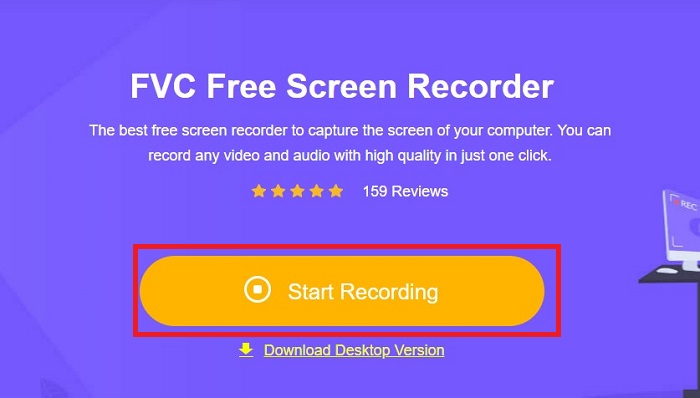
افتح محرك البحث على جهازك واكتب FVC Free Screen Recorder في شريط البحث. بمجرد تنشيط الأداة، انقر زر Start Recording في المنتصف للوصول إلى أدوات التسجيل.
الخطوة 2. ضبط إعدادات التسجيل
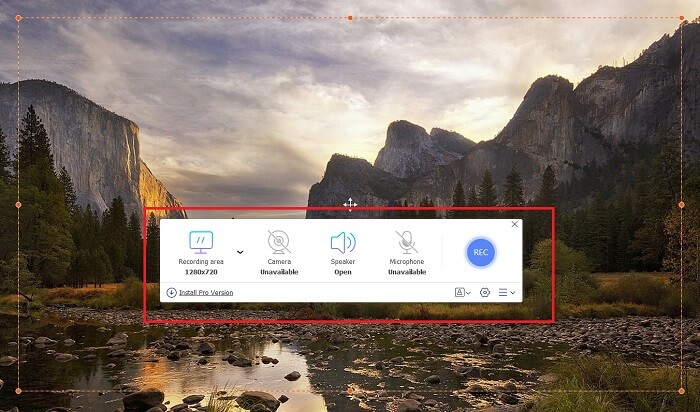
اضبط متطلبات التسجيل في أقسام Recording Area وSystem Sound وCamera. بعد استيفاء جميع المتطلبات، اضغط زر REC لبدء تسجيل الشاشة.
الخطوة 3. إضافة التعليقات أثناء التسجيل
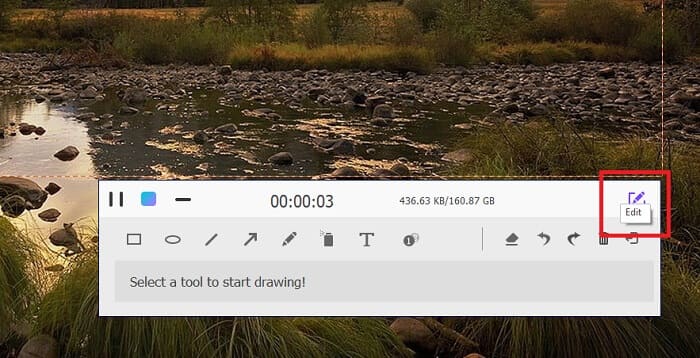
بعد العد التنازلي لمدة 3 ثوانٍ، أنت الآن تقوم بتسجيل شاشتك. إذا كنت بحاجة إلى إضافة تعليقات توضيحية مثل النص والأشكال والإبرازات والقلم، فانقر فوق الزر "تحرير" الموجود في الركن الأيسر السفلي من مربع التسجيل.
الخطوة 4. حفظ الإخراج
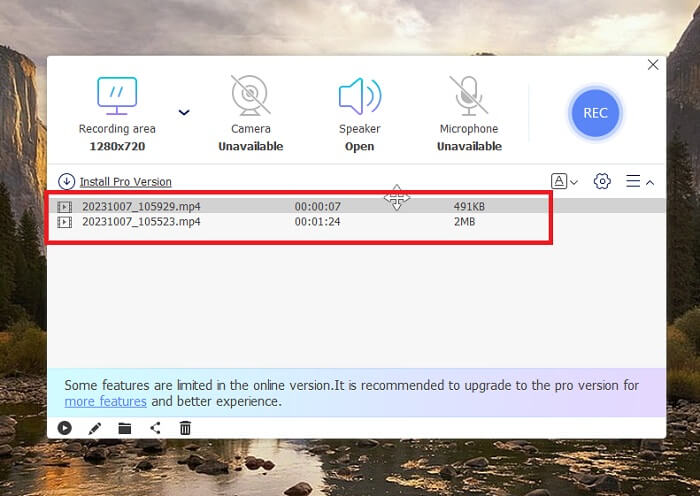
لحفظ الفيديو الذي تم التقاطه، اضغط زر Stop في أداة FVC Free Screen Recorder. بعد إتمام عملية الحفظ، سيتم توجيهك إلى لوحة Recorded داخل الأداة. يمكنك أيضًا النقر على زر Folder للوصول إلى المجلد المحلي الذي يحتوي على ملف الإخراج.
الميزات:
◆ يعد هذا البرنامج أداة من الدرجة الأولى لإضافة تعليقات توضيحية في الوقت الفعلي أثناء التسجيل الرقمي للشاشة.
◆ يوفر مسجل الشاشة المجاني FVC تنسيقات إخراج متوافقة للغاية، بما في ذلك MP4 وWMV.
◆ توفر هذه الأداة تأثير صورة داخل صورة لتراكب كاميرا الويب على شاشتك.
◆ هذه الأداة عبارة عن برنامج تسجيل للشاشة بدون حدود زمنية.
2. Chrome Capture - أداة لقطة الشاشة والصور المتحركة
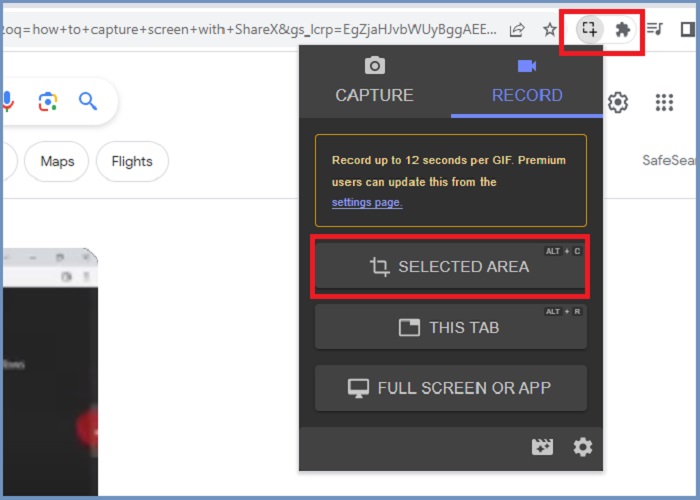
Chrome Capture هي أداة ملحقة من Google تعمل على تحويل تسجيل الشاشة إلى ملف GIF. يتيح لك تطبيق متصفح الويب هذا التقاط شاشتك في مناطق محددة أو علامة تبويب أو أنشطة ملء الشاشة. بالإضافة إلى ذلك، يعد Chrome Capture هو الخيار الأفضل لالتقاط لقطات شاشة الويب بملء الصفحة، لذلك ستحصل على جميع المعلومات المطلوبة. أصبح العديد من المستخدمين مدمنين على هذه الأداة بسبب واجهتها سهلة الاستخدام وميزاتها البديهية مثل أدوات الاقتصاص والتعليقات التوضيحية. يجعل ChromeCapture تسجيل الشاشة أقل إزعاجًا من خلال تقديم مفاتيح الاختصار لالتقاط لقطة شاشة أو إيقاف التسجيل نفسه. قم بإنشاء ملف GIF من تسجيل الشاشة باستخدام Chrome Capture باتباع الدليل الموجود أدناه.
الخطوة 1. أولًا، افتح الصفحة التي ترغب في التقاطها على متصفح Google Chrome. بعد ذلك، انقر على أيقونة Chrome Capture في شريط الإضافات أعلى يمين المتصفح.
الخطوة 2. الآن، انتقل إلى علامة تبويب التسجيل في إضافة Chrome Capture واختر نوع التسجيل المفضل لديك، مثل منطقة محددة أو علامة تبويب أو الشاشة بالكامل. بمجرد اختيارك، سيبدأ التسجيل. وعند الانتهاء، انقر زر Stop للانتقال إلى مرحلة الحفظ.
الخطوة 3. لإنشاء ملف GIF من تسجيل الشاشة، انقر على زر Save واختر GIF كصيغة للإخراج. يمكنك أيضًا تغيير اسم الملف لتسهيل العثور عليه لاحقًا.
الميزات:
◆ يقدم Chrome Capture تنسيقات الإخراج مثل WebM وGIF.
◆ تعمل هذه الأداة على تسهيل مشاركة مقاطع الفيديو المسجلة عبر الإنترنت.
◆ تتيح لك أداة التحرير الخاصة بالبرنامج إضافة نص ورسم أسهم وتغيير سرعة التسجيلات والمزيد.
الجزء 2: كيفية تسجيل وتحرير تسجيلات GIF على نظامي التشغيل Mac وWindows
1. شارك اكس
فيما يتعلق بامتلاك أداة التقاط شاشة فعالة ومجانية في نفس الوقت، يظل ShareX على القائمة. هذه الأداة عبارة عن أداة تسجيل شاشة مفتوحة المصدر لأنظمة تشغيل Windows. علاوة على ذلك، فهو يوفر تسجيلًا مخصصًا للمنطقة، حيث يمكنك اختيار منطقة معينة من شاشتك لالتقاطها. بالإضافة إلى ذلك، يتميز ShareX بأداة الالتقاط القابلة للتمرير، مما يسمح للمستخدمين بالتقاط لقطة شاشة للمحتوى مرة واحدة بدلاً من التقاط لقطات شاشة متعددة. إذا كنت تريد معرفة كيفية أداء ShareX لتسجيل نوافذ GIF، فإليك برنامجًا تعليميًا خطوة بخطوة.
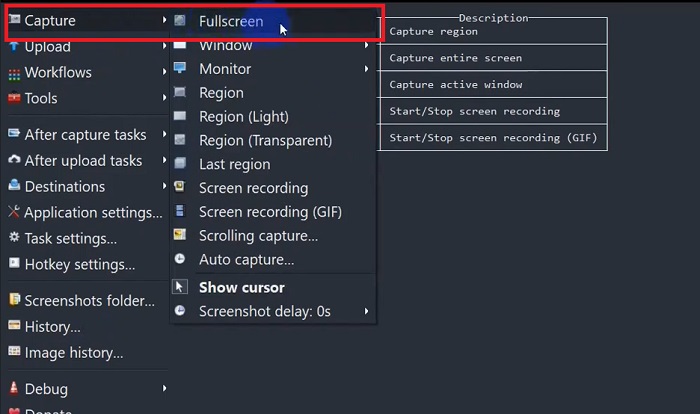
الخطوة 1. أولًا، افتح برنامج ShareX على جهاز Windows لديك. ثم انتقل إلى Capture واختر نوع التسجيل الذي تفضله.
الخطوة 2. عند ظهور مربع التحديد، حرّك المؤشر لتحديد المنطقة من الشاشة التي تريد التقاطها. بعد ذلك، انقر على Start.
الخطوة 3. بعد الانتهاء من التسجيل، اضغط زر Stop. ثم ستظهر لك مجددًا خيارات تسجيل الشاشة لاختيار صيغتي إخراج Video وAudio. أخيرًا، انقر على زر Download لتحديد موقع الملف المسجَّل على جهاز الكمبيوتر.
الميزات:
◆ يوفر مفاتيح تشغيل سريعة خاصة للتحكم في نشاط تسجيل الشاشة بسهولة.
◆ يسمح ShareX للمستخدمين بتحويل تسجيل الشاشة إلى GIF.
◆ تحتوي الأداة على ثلاثة أنواع من التقاط الشاشة في أي منطقة: المستطيل، أو القطع الناقص، أو مرفوعة.
2. قم بالتسجيل
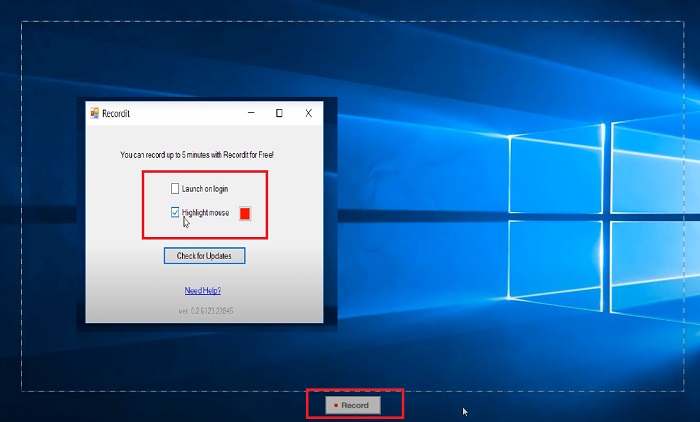
Recordit هو برنامج مثالي آخر يتيح لك الحصول على أنشطة الشاشة. هذه الأداة عبارة عن أداة تسجيل تعتمد على GIF وهي متوافقة مع أجهزة Windows وMac. ومع ذلك، يمكن للنسخة التجريبية المجانية للبرنامج أن تسجل ما يصل إلى خمس دقائق كحد أقصى فقط، وسيتعين عليك الترقية إلى الإصدار المميز للبرنامج لتجاوز هذا القيد. الآن، دعونا نتعلم كيفية التقاط شاشة GIF باستخدام البرنامج.
الخطوة 1. بعد تثبيت Recordit على جهازك، سترى أيقونته في System Tray.
الخطوة 2. بعد ذلك، انتظر حتى تظهر الأداة على شاشتك. اسحب لتحديد جزء الشاشة الذي تريد تسجيله، وبمجرد الضبط، انقر على Start لبدء التسجيل.
الخطوة 3. أخيرًا، اضغط زر Stop عند انتهاء التسجيل. انقر على خيار GIF لتحديد موقع ملف الإخراج المحفوظ بصيغة GIF ضمن الإعدادات.
الميزات:
◆ يوفر Recordit سجلا تاريخيا لتسجيلات الشاشة الأخيرة والسابقة.
◆ تتيح هذه الأداة للمستخدمين تخصيص أنشطة تسجيل الشاشة الخاصة بهم في مناطق مختلفة.
3. سكرين تو جيف
أداة التقاط الشاشة الأخرى التي لا يجب عليك تركها هي أداة ScreentoGIF. كما يوحي الاسم، يتيح هذا البرنامج للمستخدمين إنشاء ملف GIF مباشرة من تسجيلات الشاشة الخاصة بهم. بالإضافة إلى ذلك، فهي تعتبر أداة مفتوحة المصدر، مما يعني أنك لا تحتاج إلى إنفاق أي دولارات للحصول عليها. يمكن لـ ScreenToGIF لقطة شاشة وتصدير مخرجاتك إلى PNG و PSD والفيديو. بالطبع، إذا كنت ترغب في مشاركة ملف GIF الخاص بك عبر الإنترنت، فيمكن لـ ScreenToGIF تحميله بسهولة على Imgur وGfycat.
الخطوة 1. افتح برنامج ScreenToGIF على جهازك لتسجيل GIF على نظامي Mac أو Windows.
الخطوة 2. لبدء التقاط الشاشة، انتقل إلى Toolbox داخل الأداة واختر Recorder. بعد ذلك، حرّك أيقونة شكل علامة الجمع لتحديد منطقة معيّنة لالتقاطها.
الخطوة 3. بعد ذلك، اضغط على زر F8 في لوحة المفاتيح لإيقاف التسجيل.
الميزات:
◆ يسمح لكاميرا الويب بتسجيل نفسك وشاشتك في وقت واحد.
◆ باستخدام Sketchboard، يمكنك تسجيل رسوماتك في الوقت الفعلي.
قراءة إضافية:
دليل خطوة بخطوة لتحويل ملفات MP4 إلى GIF على سطح المكتب أو أونلاين
أفضل 5 طرق لتحويل الصور إلى GIF متحركة [محدّث 2023]
الجزء 3: الأسئلة الشائعة حول تسجيل الشاشة إلى GIF
هل يحتوي جهاز Mac على أدوات مدمجة لتحويل تسجيل الشاشة إلى ملف GIF؟
فيما يتعلق بمسجل الشاشة المدمج، فإن أجهزة Mac لديها مسجل شاشة معروض في تطبيق QuickTime. ومع ذلك، يتم تعيين المخرجات المسجلة في MOV بشكل افتراضي، وقد تحتاج إلى برنامج طرف ثالث لتحويلها إلى GIF.
هل هناك أي أدوات لتسجيل صور GIF على iPhone وAndroid؟
قطعا نعم! تأتي أجهزة iPhone وAndroid المحمولة مزودة بمسجل شاشة أصلي. يمكنهم أيضًا التقاط صوت النظام وصوتك من خلال الميكروفون.
هل ScreentoGIF آمن؟
بالتأكيد، ScreenToGIF هو برنامج مجاني على أجهزة Windows وخالي من البرامج الضارة.
هل يمكنك تعيين صورة GIF للشاشة الرئيسية على جهاز Mac؟
يمكنك تعيين ملف GIF كخلفية الشاشة الرئيسية على جهاز Mac دون الحاجة إلى تطبيق إضافي. كل ما عليك هو فتح Settings > System Preferences > Desktop and Screen Saver ثم اختيار ملفات GIF المتاحة.
هل يمكن أن تكون شاشة قفل Windows عبارة عن صورة GIF؟
معظم خلفيات Windows ثابتة، على عكس أجهزة Mac. قد تحتاج إلى تطبيق تابع لجهة خارجية، مثل Lively Wallpaper، لتشغيل خلفية GIF على جهاز Windows الخاص بك.
خاتمة
سواء كنت تريد تسجيل الشاشة إلى GIF أو إنشاء صورة ثابتة، مع إضافة التعليقات التوضيحية وطبقة كاميرا الويب، فإن تحقيق هدفك في إنشاء تسجيلات شاشة احترافية ممكن تمامًا باستخدام الأدوات المذكورة أعلاه. تُعد الحلول عبر الإنترنت مثالية للتسجيل السريع وقت الحاجة، بينما يُنصح بشدة باستخدام البرامج التي تعمل دون اتصال إنْ كنت ترغب في تجنّب الانقطاعات غير المرغوبة وتأخّر الاتصال بالإنترنت.
-
 تقليم ملف GIF: أفضل الأدوات عبر الإنترنت وسطح المكتب والهاتف المحمول لقص ملف GIF
 هل تريد التقاط جزء من صورة GIF لنقل مشاعرك وردود أفعالك بدقة؟ هنا، دعونا نكتشف ونحسن الأدوات المتنوعة لقص صور GIF المتحركة.
-
 أفضل 6 تطبيقات GIF مذهلة للآيفون في عام 2023 (مراجعات)
 سيرشدك هذا المنشور إلى أفضل تطبيقات إنشاء صور GIF لأجهزة iPhone وأجهزة الكمبيوتر. التحقق منها ومعرفة ما لديهم لهذا العرض.
-
 أفضل برامج إنشاء صور GIF ثلاثية الأبعاد التي لا تريد تفويتها
 قد يستغرق البحث عن كل تطبيق 3D GIF Maker الذي تراه وتقييمه وقتًا طويلاً. لحسن الحظ، قمنا بتجميع قائمة يمكنك قراءتها.
