


 محول الفيديو النهائي
 مسجل الشاشة
 إصلاح الفيديو
 تنزيل آمن
ميزة VLC Snapshot - فيما يلي دليل لأخذ لقطات الشاشة في VLC Media Player
عندما تقوم بتشغيل فيديو تعليمي أو فيلم في مشغل VLC ، كيف يمكنك التقاط لقطة شاشة في VLC Media Player؟ سواء كنت بحاجة إلى التقاط لقطة كصورة مصغرة ، أو إضافة تعليق توضيحي إلى إطار معين ، يمكنك ببساطة استخدام ميزة اللقطات المخفية في VLC بدلاً من ذلك.
كيف يمكنك التقاط لقطات باستخدام VLC Media Player؟ بمجرد التقاط الإطارات المطلوبة ، أين يتم حفظ لقطات الشاشة؟ هل يمكن حفظ اللقطات بالصيغ المطلوبة؟ عندما تريد معرفة المزيد من التفاصيل حول العملية ، بالإضافة إلى أفضل بديل ، يمكنك العثور على بعض المعلومات المفيدة من المقالة.

الجزء 1: كيفية التقاط لقطات في VLC والعثور على الموقع
1. كيف تأخذ لقطة شاشة في VLC Media Player
إذا كنت تستخدم أحدث برنامج VLC Media Player ، فهناك رمز كاميرا أسفل واجهة المستخدم. ما عليك سوى النقر فوق الكاميرا لالتقاط لقطة شاشة في VLC Media Player. بالنسبة للإصدار الآخر ، يمكنك استخدام مفاتيح الاختصار أو الأزرار لالتقاط لقطات الشاشة على النحو التالي.
الخطوة 1: بعد تثبيت مشغّل الوسائط VLC على جهاز الكمبيوتر، يمكنك تشغيل البرنامج. بعد ذلك، يمكنك استيراد الأفلام التي تريدها إلى مشغّل الوسائط.
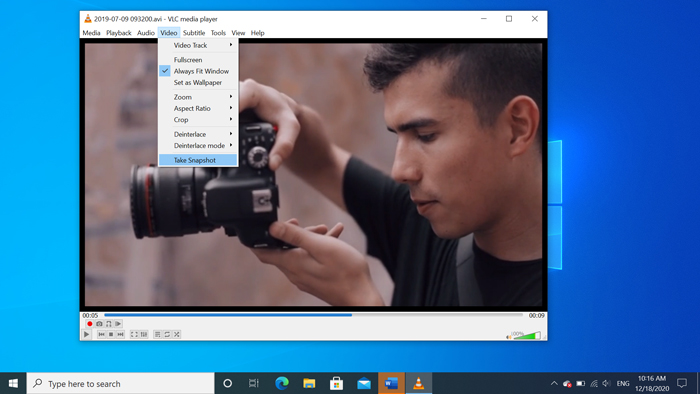
الخطوة 2: عندما تصل إلى الإطار الذي تريد التقاطه في VLC، انقر على قائمة Video، ثم اختر خيار Take Snapshot لحفظ اللقطة المطلوبة.
يمكنك أيضًا استخدام الاختصار لأخذ لقطة شاشة في VLC. هنا هو الافتراضي للرجوع اليها. SHIFT + S لنظام التشغيل Windows و Command + ALT + S لنظام التشغيل Mac و CTRL + ALT + S لنظام التشغيل Linux.
الخطوة 3: بعد ذلك ستجد صورة مصغّرة منبثقة للّقطة في أعلى مشغّل الوسائط VLC، إضافةً إلى موقع الملف المحفوظ واسمه. ولكن هذه النافذة ستختفي خلال بضع ثوانٍ.
2. أين تم حفظ لقطات الشاشة الخاصة بـ VLC
إذا لم تتمكن من الحصول على المعلومات من الصورة المصغرة المنبثقة ، فإليك الوجهات الافتراضية للقطات شاشة VLC. بالطبع ، يمكنك التقاط عدة لقطات لمعرفة المزيد حول المجلد الوجهة الخاص باللقطات.
Windows 7/8/10: C: اسم المستخدم صوري
Windows XP: C: مستنداتي صوري
نظام التشغيل Mac OS X: يتم حفظ اللقطات في سطح المكتب /
Linux: يتم حفظ اللقطات في $ (HOME) /. vlc /
3. كيفية إعداد التفضيلات للقطات في VLC
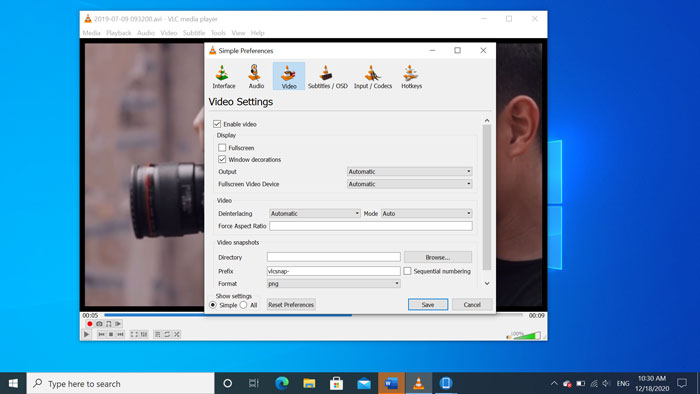
هل يمكن ضبط التفضيلات الخاصة باللقطات (الصور الملتقطة)؟ عندما تريد تغيير الصيغة، أو مجلّد الحفظ، يمكنك الذهاب إلى قائمة Tools واختيار Preferences لضبط الإعدادات.
دليل الفيديو: بعد النقر على زر Browse، يمكنك اختيار موقع حفظ لقطات شاشة VLC ليكون سطح المكتب، أو أي مجلد آخر تستخدمه كثيرًا بدلاً من ذلك.
البادئة: ستضيف بعض البادئة واللاحقة إلى لقطات الشاشة الملتقطة في VLC Media Player. حدد مربع الترقيم المتسلسل إذا كنت تريد استخدام الأرقام بدلاً من التاريخ / الوقت الحالي.
التنسيق: يمكنك اختيار JPG و PNG و TIFF كتنسيق صورة الإخراج.
الجزء 2: البديل عبر الإنترنت لـ VLC لأخذ لقطات الشاشة
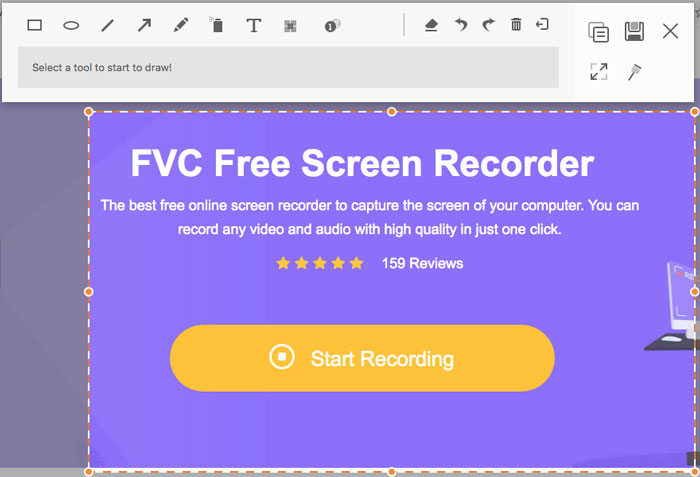
يُعد مشغّل الوسائط VLC طريقة سهلة لالتقاط لقطات شاشة من الفيديو. ولكن عندما تحتاج إلى إضافة تعليقات توضيحية، أو ضبط الإطار المراد التقاطه، أو أخذ أي لقطة شاشة على نظامي ويندوز وماك، فإن FVC Free Screen Recorder هو بديل عبر الإنترنت لـ VLC لالتقاط لقطات الشاشة. فهو يتيح لك تسجيل أي فيديو وصوت بجودة عالية بنقرة واحدة فقط. علاوة على ذلك، يمكنك أيضًا إدارة لقطات الشاشة ضمن مسجل الفيديو عبر الإنترنت.
- 1. التقط الأفلام وسطح المكتب والمزيد من الأنشطة الأخرى على جهاز الكمبيوتر الخاص بك.
- 2. قم بتعديل مفاتيح الاختصار والمجلد الوجهة وجودة الفيديو / الصوت والمزيد.
- 3. قم بتحرير لقطة الشاشة في الوقت الفعلي ، مثل الخطوط والنص والإبراز والخط ، إلخ.
- 4. توفير تسجيل مجاني للشاشة بدون علامة مائية وقيود أخرى.
- 5. تسجيل مقاطع الفيديو بجودة عالية.
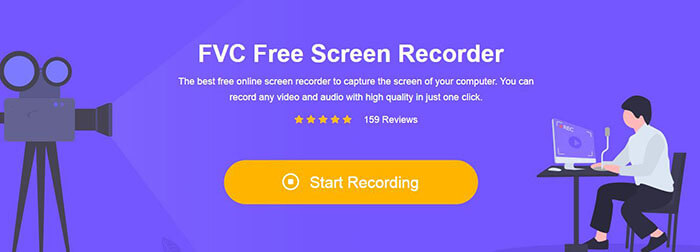
الخطوة 1: انتقل إلى مسجل الشاشة عبر الإنترنت، ثم انقر على أيقونة Start Recording لتنزيل وتثبيت برنامج التثبيت. بعد ذلك، يمكنك تشغيل مسجل الشاشة عبر الإنترنت لالتقاط أي نشاط على جهاز الكمبيوتر.
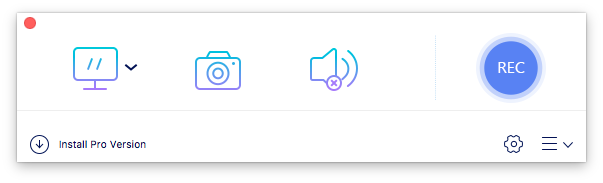
الخطوة 2: بعد تشغيل مسجل الشاشة عبر الإنترنت، انقر على أيقونة الكاميرا لالتقاط لقطة شاشة عبر الإنترنت كبديل لبرنامج VLC. قم بضبط منطقة الالتقاط باستخدام الفأرة للحصول على اللقطة.
الخطوة 3: بعد ذلك، يمكنك إضافة تعليقات توضيحية مثل العلامة المائية، أو مربعات الحوار، أو السهم، أو النص، وغير ذلك من العناصر إلى لقطة الشاشة. بالإضافة إلى ذلك، يمكنك إدارة لقطة الشاشة مباشرةً داخل البرنامج.
الجزء 3. الأسئلة الشائعة حول لقطة شاشة برنامج VLC Media Player
1. كيفية تعديل مفاتيح الاختصار لأخذ لقطة شاشة في VLC؟
إذا كان هناك تعارض في مفاتيح الاختصار، خاصةً عندما تقوم بمهام أخرى، يمكنك الذهاب إلى قائمة Tools واختيار خيار Preferences. ثم اختر زر Hotkeys وأدخل snapshot في خانة البحث. انقر على Take video snapshot واضغط المفتاح الجديد أو مجموعة المفاتيح الجديدة للقطات VLC.
2. كيف تلتقط لقطات في VLC بأفضل جودة؟
عندما تحتاج إلى التقاط لقطة شاشة فيديو في VLC بالجودة الأصلية ، يمكنك اختيار وضع ملء الشاشة واختيار تنسيق الملف كـ PNG. لتجنب أي صورة ضبابية ، يمكنك التوقف مؤقتًا عند إطار معين تريد التقاطه مسبقًا.
3. هل من الممكن التقاط لقطة شاشة لأفلام YouTube في VLC؟
نعم. لالتقاط لقطات شاشة لأفلام يوتيوب في VLC، يمكنك بث وتشغيل أفلام يوتيوب داخل مشغّل الوسائط. انقر على خيار Media واختر Open Network Stream. ثم أدخل رابط يوتيوب المباشر للفيديو. بعد ذلك، يمكنك تشغيل الفيديو والتقاط اللقطة المطلوبة وفقًا لذلك. يمكنك أيضًا تجربة FVC Free Screen Recorder أو أدوات تسجيل أخرى مثل DU Screen Recorder لالتقاط اللقطة.
خاتمة
يعد التقاط لقطات فيديو في VLC Media Player مهمة بسيطة. ولكن عندما تريد تحديد موقع مجلد الوجهة ، أو تعديل الإعدادات للحصول على لقطات ، أو حتى اختيار بديل عبر الإنترنت ، فإن FVC Free Screen Recorder هو دائمًا أفضل خيار لمساعدتك.
-
 مراجعة Snagit 2021 - إيجابيات وسلبيات وأفضل بديل
 ما هو أفضل بديل لـ Snagit؟ هل توجد أداة لالتقاط الشاشة مثل Snagit؟ ستراجع هذه المشاركة Snagit وتشارك أفضل بديل لـ Snagit لالتقاط الشاشة.
-
 QuickTime Screen Recording - تسجيل الفيديو بالصوت على Mac و PC
 شاشة التسجيل مع الصوت على Mac مفيدة للغاية. يمكن للمشغل المدمج ، QuickTime Player القيام بذلك. اقرأ منشوره وتعرف على كيفية التقاط الشاشة بالصوت على Mac و PC.
-
 مراجعة غير متحيزة للاعب الحقيقي وأفضل البدائل
 هل ستختار Real Player لتشغيل مشغل الوسائط ، يجب عليك قراءة مقدمتنا الموجزة والمراجعة غير المتحيزة ، وكذلك معرفة المزيد حول أفضل بديل من المقالة.
