


 محول الفيديو النهائي
 مسجل الشاشة
 إصلاح الفيديو
 تنزيل آمن
التقط لقطات شاشة في VLC Media Player دون عناء
يُعد التقاط لقطات شاشة أثناء مشاهدة الفيديوهات طريقة مريحة للاحتفاظ باللحظات المميزة أو استخراج المعلومات القيّمة. فهو يصبح وسيلة لالتقاط لحظة محددة من الفيديو للحفاظ عليها. يُعد مشغّل الوسائط VLC Media Player مشغّل فيديو سهل الاستخدام يعمل على أنظمة Windows وmacOS وLinux. يوفّر VLC وظيفة مدمجة لالتقاط الإطارات بدقة. وعلى عكس العديد من مشغّلات الوسائط الأخرى، يبسّط VLC العملية، إذ لا يتطلّب الأمر سوى بضع نقرات أو ضغطات مفاتيح للحصول على الصورة المطلوبة. من خلال إتقان هذه الميزة، يمكن للمستخدمين بسرعة تجميع مجموعة من اللقطات من مقاطع الفيديو المفضلة لديهم. في هذه المقالة، سنستعرض خطوة بخطوة عملية كيفية التقاط لقطات شاشة في VLC لتمكين المستخدمين من الاستفادة من قدرات التقاط الشاشة في مشغّل الوسائط VLC Media Player، مما يثري تجربتهم المتعددة الوسائط بسهولة. تابع قراءة هذه المقالة لمعرفة كيفية التقاط لقطات الشاشة عبر الاختصارات والقوائم، ونقاط قوة VLC وحدوده، وبرامج بديلة.

الجزء 1. كيفية التقاط لقطة شاشة في برنامج VLC
يتم التقاط لقطات الشاشة في VLC Media Player بسهولة باستخدام مفاتيح الاختصار أو خيارات القائمة. يمكنك استخدام كلتا الطريقتين لالتقاط الإطارات من مقاطع الفيديو الخاصة بك دون عناء. من خلال بضع ضغطات فقط على المفاتيح، يمكنك التقاط لقطات من لحظاتك المفضلة وحفظها. تعمل ميزة لقطة الشاشة متعددة الاستخدامات في VLC على تحسين تجربة الوسائط المتعددة الخاصة بك، مما يسمح لك بالحفاظ على المشاهد التي لا تنسى بسهولة.
خطوات التقاط لقطات الشاشة في VLC عبر مفاتيح الاختصار:
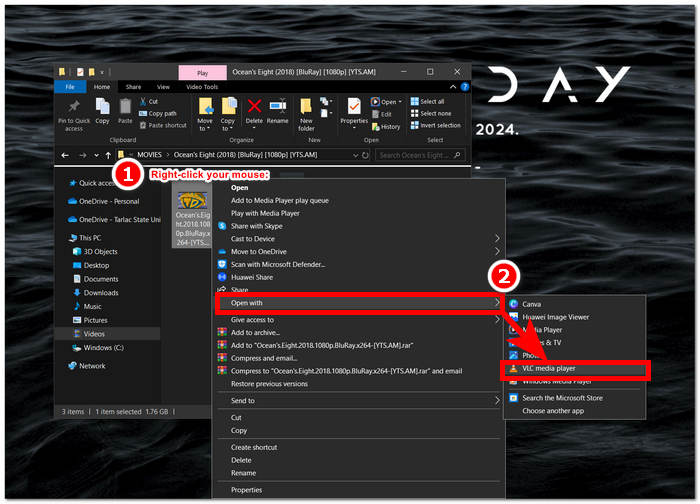
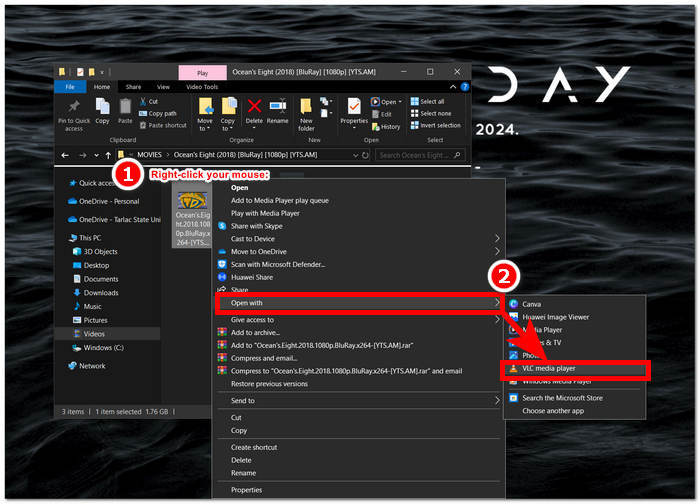
الخطوة 1. افتح الفيديو من سطح المكتب عن طريق النقر بزر الماوس الأيمن واختيار VLC Media Player.
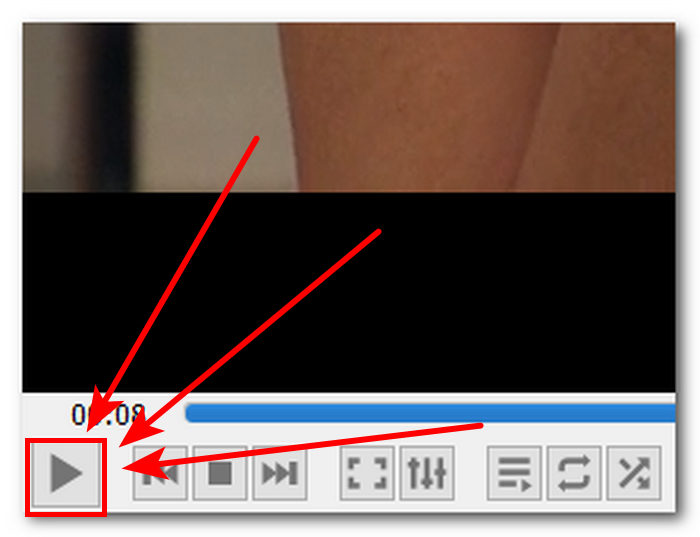
الخطوة 2. شغّل الفيديو أو انتقل إلى الجزء الذي تريد أخذ لقطة شاشة له ثم انقر على زر إيقاف مؤقت (Pause).
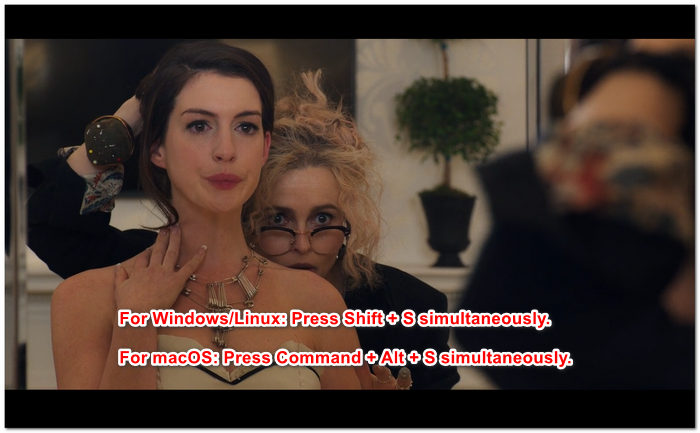
الخطوة 3. لالتقاط الشاشة باستخدام مفاتيح الاختصار في نظامي Windows/Linux، اضغط على Shift + S في الوقت نفسه، أما في نظام macOS فـاضغط Command + Alt + S في الوقت نفسه.
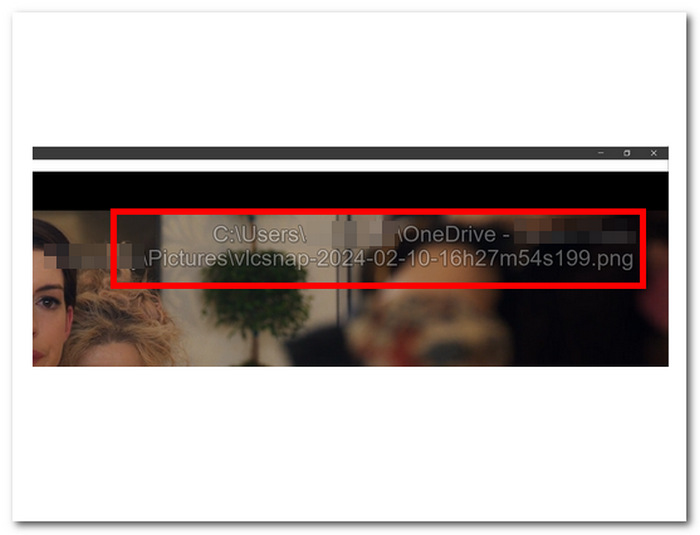
الخطوة 4. بمجرد الضغط على مفاتيح الاختصار، سيظهر نص في الزاوية اليمنى من الشاشة يوضّح مكان مجلد لقطات شاشة VLC. ما عليك سوى اتباع هذا المسار لتتمكّن من عرض جميع لقطات الشاشة الخاصة بك.
خطوات التقاط لقطات الشاشة في VLC عبر القائمة:
الخطوة 1. حدد موقع الفيديو وافتحه باستخدام VLC Media Player على سطح المكتب.
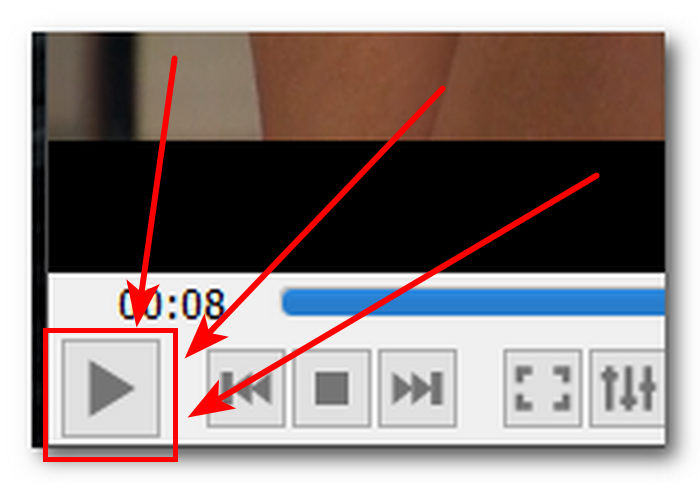
الخطوة 2. انقر على زر إيقاف مؤقت (Pause) الموجود في الجزء السفلي الأيسر من الشاشة لإيقاف الفيديو عند الجزء الذي تريد أخذ لقطة شاشة له.
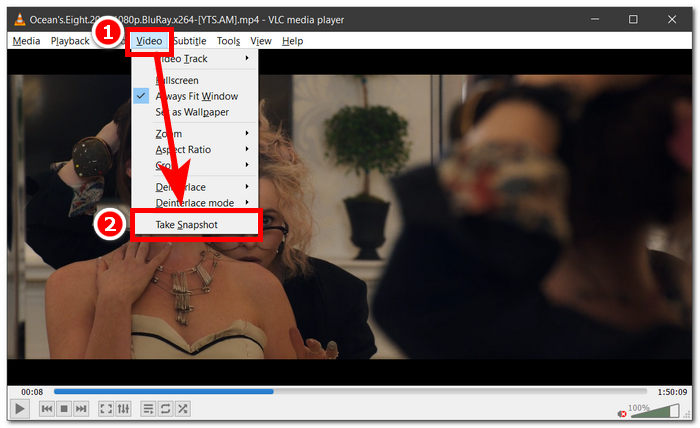
الخطوة 3. بعد إيقاف الفيديو مؤقتًا، انقر على إعدادات الفيديو (Video) الموجودة في الزاوية العلوية اليسرى من مشغّل الوسائط.
الخطوة 4. ابحث عن خيار Take Snapshot في الإعدادات ثم انقر عليه لالتقاط لقطة شاشة من الفيديو.
لا يهم أي طريقة تختار، فـمشغّل VLC يتيح لك أخذ لقطات شاشة بسهولة، مما يمكّن المستخدمين من حفظ لحظاتهم المفضلة من الفيديوهات بأقل جهد. سواء كنت تفضل استخدام اختصارات لوحة المفاتيح في VLC لالتقاط الشاشة أو تفضّل خيارات القائمة، يضمن VLC تجربة سلسة عند التقاط اللقطات.
الجزء 2. نقاط القوة والحدود في لقطة شاشة VLC
توفر لقطات شاشة VLC بلا شك طريقتين لالتقاط لقطة شاشة لأي نوع من مقاطع الفيديو التي يتم تشغيلها في مشغل الوسائط VLC. يتألق VLC Media Player بنقاط قوته وقد يجعل المستخدمين يشككون في حدوده. ومن ثم، قمنا بإدراج بعض نقاط القوة والقيود الخاصة ببرنامج VLC Media Player أدناه.
نقاط قوة لقطة الشاشة في VLC:
◆ يتم توفير واجهة سهلة الاستخدام ومتاحة بسهولة لالتقاط اللقطات.
◆ يتوفر كل من مفاتيح الاختصار وخيارات القائمة لمزيد من الراحة.
◆ تتوفر إعدادات قابلة للتخصيص لضبط تنسيق الصورة وجودتها.
◆ يمكنك الحفاظ على اللحظات المفضلة بسهولة وتعزيز تجربة الوسائط المتعددة.
حدود لقطة الشاشة في VLC:
◆ لا تتوفر أدوات التحرير المتقدمة لتحسين الصور الملتقطة.
◆ قد يوفر برنامج لقطة الشاشة المخصص مستوى أعلى من الدقة مقارنةً بهذه الأداة.
◆ لا يمكن التقاط لقطات شاشة لأقراص DVD أو أقراص Blu-ray المشفرة بسبب حماية حقوق الطبع والنشر.
◆ بالمقارنة مع أدوات لقطة الشاشة المتخصصة، هناك قدر محدود من التحكم والتخصيص.
◆ لتلبية احتياجات التحرير الأكثر تعقيدًا، قد يحتاج المستخدمون إلى استخدام برامج خارجية.
◆ هذه الأداة مناسبة في المقام الأول لمتطلبات لقطة الشاشة الأساسية وليس لمهام التحرير المتقدمة.
ربما اتخذت لقطة شاشة VLC Media Player مسارًا يتمثل في التقاط لقطة شاشة فقط وعدم تضمين ميزات أخرى قد يحتاجها المستخدم لغرض آخر. لاحظ أن VLC Media Player هو مشغل فيديو وليس أداة برمجية لالتقاط لقطات الشاشة. لهذا السبب فإن لقطة الشاشة الأساسية هي ما تفعله.
الجزء 3. أفضل بديل للقطة شاشة VLC
يُعد Screen Recorder برنامجًا يتيح للمستخدمين أخذ لقطات شاشة للإطارات المفضلة لديهم في الفيديو. يتكوّن البرنامج من ميزات متقدمة ويمكن استخدامه كمسجّل فيديو، ومسجّل صوت، ومسجّل ألعاب. يمتلك هذا البرنامج بالفعل أفضل إمكانات تسجيل الشاشة والتقاط الصور الثابتة، وهو متاح لأجهزة كمبيوتر Windows وMac. وبوصفه برنامجًا قويًا، فإنه يقدّم ميزات لا تتوافر في وظيفة لقطات الشاشة في VLC Media Player. من بين هذه الميزات نافذة التمرير (Scrolling Window) التي تتيح لك التقاط لقطة شاشة لمنشور طويل في إطار واحد، وهو ما يناسب من يقرؤون المواقع والوثائق، وكذلك ميزة التقاط القوائم المنبثقة (Popup Menu Capture) التي تمكّنك من تصوير نوافذ القوائم من أي نوع بسهولة تامة.
الخطوة 1. انتقل إلى موقع Screen Recorder لتحميل البرنامج وتثبيته.
تنزيل مجانيلـ Windows 7 أو أحدثتنزيل آمن
تنزيل مجانيلـ MacOS 10.7 أو أحدثتنزيل آمن
الخطوة 2. على سطح المكتب، بعد انتهاء تثبيت البرنامج، شغّل التطبيق.
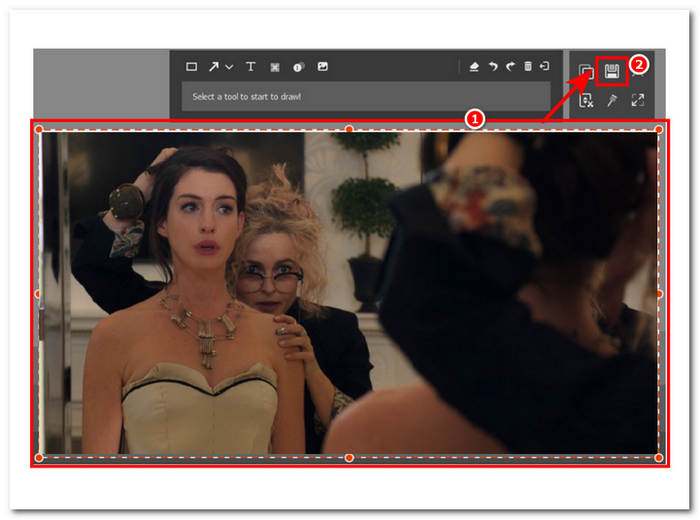
الخطوة 3. في واجهة البرنامج، انقر على زر Snapshot لالتقاط لقطة شاشة لجهازك.
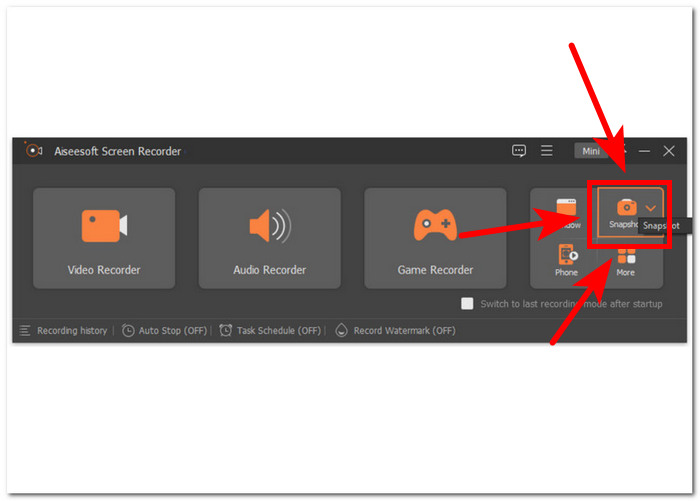
الخطوة 4. لديك حرية اختيار منطقة الالتقاط المرغوبة، سواء كانت نافذة نشطة أو منطقة حرة التحديد. بعد اختيار المنطقة، يمكنك النقر على Save لحفظ اللقطة بصيغة صورة مناسبة.
في الختام، يعد Aiseesoft Screen Recorder برنامجًا متعدد الاستخدامات عند التفكير في مهام مثل تسجيل الشاشة ولقطات الشاشة في نفس الوقت. يوفر VLC Media Player وAiseesoft Screen Recorder التحكم بمفتاح الاختصار لالتقاط لقطة شاشة بسهولة باستخدام لوحة المفاتيح فقط. يقدم كلاهما نتائج رائعة من حيث التقاط لقطة شاشة، ولكن Aiseesoft Screen Recorder هو أكثر من مجرد التقاط لقطة شاشة، كما يظهر مع ميزاته الموجودة في البرنامج.
الجزء 4. الأسئلة الشائعة حول كيفية التقاط لقطات الشاشة في VLC Media Player
أين هو الموقع الافتراضي للقطات شاشة VLC؟
تقوم لقطة شاشة VLC بحفظ الموقع افتراضيًا في مجلد الصور على جهاز الكمبيوتر الخاص بك. لتغيير ذلك، انتقل إلى الأدوات > التفضيلات > الفيديو واختر مجلدًا جديدًا ضمن دليل لقطات الفيديو.
هل يمكنني التقاط لقطات شاشة متعددة على التوالي؟
نعم، يمكنك التقاط لقطات شاشة متعددة عن طريق تكرار العملية لكل إطار مطلوب. ومع ذلك، لا توجد ميزة مدمجة لالتقاط لقطات شاشة متعددة تلقائيًا على فترات زمنية محددة.
هل يدعم VLC التقاط لقطات شاشة لمقاطع الفيديو المتدفقة؟
نعم، يمكنك التقاط لقطات شاشة لمقاطع الفيديو المتدفقة في VLC Media Player باستخدام نفس الطريقة الموضحة أعلاه. ما عليك سوى إيقاف الفيديو مؤقتًا في اللحظة المطلوبة والتقاط لقطة. ومع ذلك، تذكر أن جودة لقطة الشاشة قد تعتمد على مصدر البث وسرعة اتصالك بالإنترنت.
هل هناك أي قيود على التقاط لقطات الشاشة في VLC Media Player؟
أحد القيود هو أنه لا يمكنك التقاط لقطات شاشة لأقراص DVD أو أقراص Blu-ray المشفرة بسبب إجراءات حماية حقوق النشر. بالإضافة إلى ذلك، قد لا تعمل ميزة لقطة الشاشة في VLC بسلاسة مع بعض برامج ترميز الفيديو أو مصادر البث، مما يؤدي إلى مشكلات توافق محتملة.
هل يمكنني التقاط لقطات شاشة لمقاطع الفيديو في وضع ملء الشاشة؟
نعم، يمكنك التقاط لقطات شاشة لمقاطع الفيديو أثناء تشغيلها في وضع ملء الشاشة في VLC Media Player. ما عليك سوى الضغط على Shift + S على لوحة المفاتيح أو الانتقال إلى الفيديو > التقاط لقطة من شريط القائمة بينما يكون الفيديو في وضع ملء الشاشة. يتيح لك هذا التقاط لقطات شاشة لإطارات محددة دون الخروج من التشغيل بملء الشاشة.
خاتمة
في الختام، يوفّر التقاط لقطات الشاشة في VLC Media Player طريقة مباشرة للاحتفاظ باللحظات المميزة أو استخراج المعلومات القيّمة من الفيديوهات. تجعل واجهة VLC السهلة الاستخدام منه خيارًا شائعًا كمشغّل فيديو لدى المستخدمين على مختلف الأنظمة. سواء تم استخدام اختصارات لوحة المفاتيح أو خيارات القائمة، يبسّط VLC العملية، مما يسمح للمستخدمين بالتقاط مشاهدهم المفضلة وحفظها بسهولة. ومع ذلك، بالنسبة للمستخدمين الذين يبحثون عن ميزات أكثر تقدمًا مثل التحرير الدقيق أو التقاط نوافذ التمرير الطويلة، يقدّم برنامج بديل مثل Aiseesoft Screen Recorder حلاً متكاملاً. من خلال فهم نقاط القوة والقيود والبدائل للقطات الشاشة في VLC، يمكن للمستخدمين تعزيز تجربتهم المتعددة الوسائط وإدارة احتياجاتهم من لقطات الشاشة بكفاءة.
-
 كيفية التقاط لقطات شاشة قابلة للتمرير في نظام التشغيل Windows 10/11 بسهولة
 أطلق العنان للإمكانات الكاملة لالتقاط الشاشة من خلال تعلم لقطات الشاشة القابلة للتمرير على نظام التشغيل Windows 10/11. تعرف على هذه البرامج المفيدة وملحقات الويب التي يمكنك استخدامها.
-
 كيفية التقاط لقطات شاشة قابلة للتمرير على جهاز Mac في دقائق
 لا تستقر على اللقطات الجزئية! تعرّف على الخطوات البسيطة لالتقاط لقطات شاشة قابلة للتمرير على جهاز Mac. التقط صفحات ويب أو مستندات كاملة بسهولة وفي أي وقت من الأوقات.
-
 كيفية لقطة الشاشة في Windows Media Player بكفاءة
 اكتشف أبسط الطرق لالتقاط لقطات الشاشة في Windows Media Player دون عناء. ارفع مستوى تجربة التقاط الشاشة الخاصة بك من خلال دليلنا الشامل.
