


 محول الفيديو النهائي
 مسجل الشاشة
 إصلاح الفيديو
 تنزيل آمن
5 طرق لضغط JPEG: دليل شامل [2024]
في العصر الرقمي الحالي، يتم حفظ معظم الصور وتخزينها بأحجام ملفات أكبر لضمان إمكانية عرضها بدقة عالية الجودة. ومع ذلك، من ناحية أخرى، يمكن أن تشكل هذه الملفات مشكلة وإزعاجًا. غالبًا ما تطلب منا مواقع الويب تحميل الصور ضمن حد حجم ملف معين، وحقيقة أن الملفات الكبيرة يمكن أن تبطئ عملية التحميل والإرسال قد تكون مزعجة حقًا.
لكن لا تقلق! في هذه المقالة، سنستعرض خمس طرق مختلفة لِـضغط ملفات JPG على نظامي ويندوز وماك. سيساعدك هذا الدليل على تقليل حجم صورك، مما يجعل إدارتها أسرع وأكثر سهولة، مثل الإرسال والرفع. كما سيضمن هذا أن يتم تحميل هذه الصور بشكل أسرع على مواقع الويب وعلى مختلف الأجهزة.

الجزء 1. الطريقة الأكثر فعالية لضغط صور JPEG عبر الإنترنت [موصى به]
إن ضغط الصور أصبح الآن أمرًا شائعًا، وعادةً ما يضغط الأشخاص صورهم لأسباب متنوعة. ربما يحتاجون إلى تحقيق حجم ملف معين لتحميل شيء ما على موقع ويب، أو يحتاجون إلى إرسال أو تحميل مجموعة من الملفات ولكنهم يتأخرون بسبب أحجام ملفاتهم الكبيرة.
لحل هذه المشكلة، تحتاج إلى أداة ضغط صور يمكنها تقليل حجم ملفات JPEG مع الحفاظ على جودتها. بناءً على ذلك، أفضل طريقة لضغط ملفات JPEG هي عبر أداة FVC Free Image Compressor. هذه الأداة مجانية بالكامل ويمكن لمستخدمي ويندوز وماك الوصول إليها عبر الإنترنت. ورغم أنها مجانية، فإن خوارزميات التحسين والضغط فيها تنافس أداء كثير من أدوات الضغط المدفوعة. إضافة إلى ذلك، فهي سهلة الاستخدام وتتمتع بواجهة بديهية؛ إذ لا يحتاج المستخدمون إلا إلى نقرة واحدة ليعمل الضغط التلقائي وكأنه سحر.
الميزات الرئيسية:
• ضغط ما يصل إلى 40 صورة في وقت واحد.
• يستخدم خوارزميات التحسين والضغط المتقدمة.
• عملية ضغط سريعة وفعالة.
• ضغط الصورة تلقائيًا.
إليك كيفية ضغط ملفات JPEG باستخدام FVC Free Image Compressor
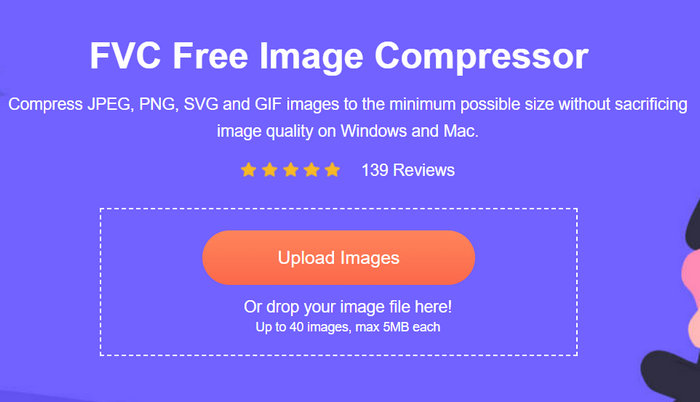
الخطوة 1. للبدء، تحتاج إلى الدخول إلى موقعهم الرسمي عبر البحث عن FVC Free Image Compressor في متصفحك.
الخطوة 2. بعد ذلك، انقر على Upload Images (رفع الصور) لاستيراد ملفات JPEG التي تريد ضغطها. ستقوم الأداة بضغطها تلقائيًا.
الخطوة 3. بعد انتهاء عملية الضغط، يمكنك معاينة حجم الملف الجديد لصور JPEG المضغوطة. وأخيرًا، انقر على Download All (تنزيل الكل) لحفظ صورتك.
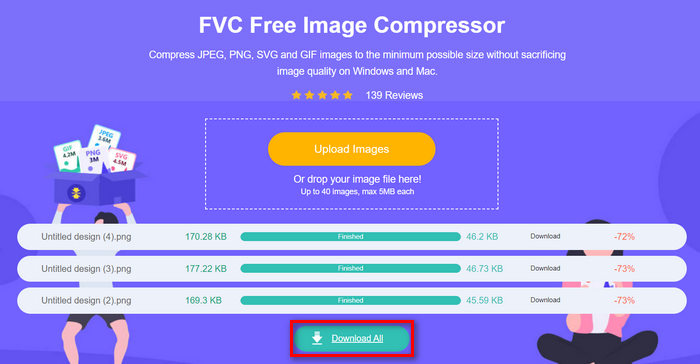
في الواقع، باستخدام برنامج FVC Free Image Compressor، يمكنك ضغط ملفات JPEG بكفاءة. تضمن هذه الطريقة المحددة إمكانية تحميل صورك المضغوطة حديثًا وإرسالها بسهولة عبر منصات مختلفة، وعند استخدامها على مواقع الويب، يتم تحميلها بشكل أسرع. لا توفر أداة الضغط هذه الوقت فحسب، بل تضمن أيضًا أن صورك تحافظ على جودتها بعد الضغط.
الجزء 2. ضغط JPEG على Windows
عندما تكون مستخدمًا لنظام التشغيل Windows، فهناك أدوات مدمجة متاحة على نظامك يمكنك استخدامها لضغط ملفات JPEG بسهولة. من خلال الاستفادة منها، يمكنك تقليص حجم ملفات الصور بسرعة مع الحفاظ على جودتها. يمكن أن يكون هذا مفيدًا بشكل خاص عندما تحتاج إلى تحميل الصور إلى مواقع الويب أو إرسالها عبر البريد الإلكتروني أو توفير مساحة تخزين على جهازك.
الطريقة 1. استخدام برنامج Paint
يعد Windows Paint تطبيق رسم، ولكنه يحتوي على ميزات رائعة لتحرير الصور مثل القص، وتغيير الحجم، وما إلى ذلك. وإليك الطريقة:
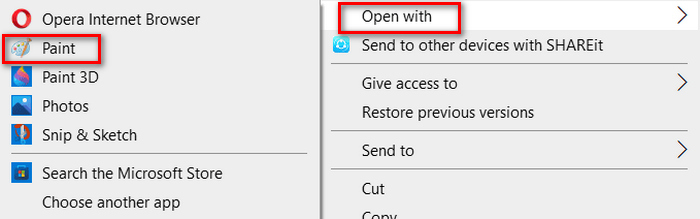
الخطوة 1. انقر بزر الفأرة الأيمن على صورة JPEG التي تريد ضغطها، ثم انقر على Open With (فتح باستخدام)، واختر Paint.
الخطوة 2. انتقل إلى علامة تبويب Home واختر Resize and Skew.
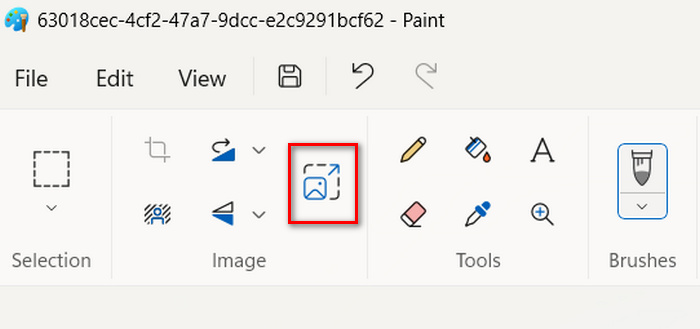
الخطوة 3. بعد ذلك، انقر على زر Resize and Skew. هنا يمكنك تغيير حجم الصورة عن طريق تعديل النسبة المئوية أو حجم البكسل. بمجرد الوصول إلى الحجم المطلوب، انقر على زر OK.
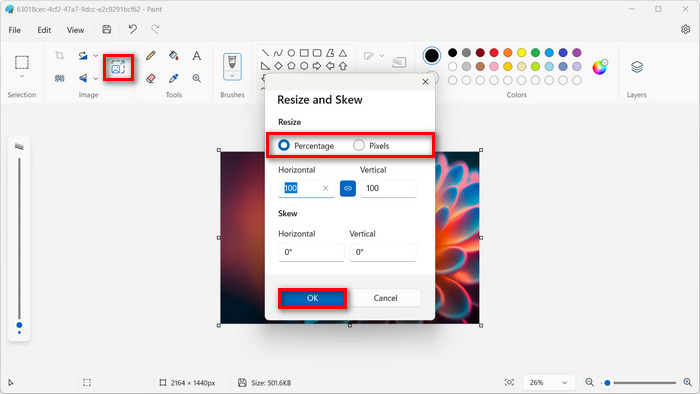
الخطوة 4. بعد تغيير الحجم، انقر على File واختر Save لحفظ الصورة المضغوطة.
استخدام برنامج Paint لضغط ملفات JPEG مثالي لمستخدمي ويندوز الذين يحتاجون فقط إلى ضغط بسيط. ولكن إذا كنت تحتاج إلى نتيجة احترافية، فهناك أدوات أخرى تتميز بسهولة استخدام مشابهة، لكنها تقدم جودة مخرجات أعلى بكثير.
الطريقة الثانية: استخدام الصور
يُعد تطبيق Photos أيضًا أداة مدمجة في Windows تُستخدم عادةً لعرض الصور على Windows. ومع ذلك، على عكس عارض الصور القديم، يتيح لك هذا التطبيق الجديد تحرير الصور بتنسيق JPEG وتغيير حجمها بسهولة ببضع نقرات فقط. وإليك الطريقة:
الخطوة 1. انقر بزر الفأرة الأيمن على صورة JPEG التي تريد ضغطها، ثم انقر على Open With (فتح باستخدام)، واختر Photos app (تطبيق الصور).
الخطوة 2. الآن، انقر على الثلاث نقاط في الزاوية العلوية اليمنى، ثم اختر Resize image (تغيير حجم الصورة) من القائمة.
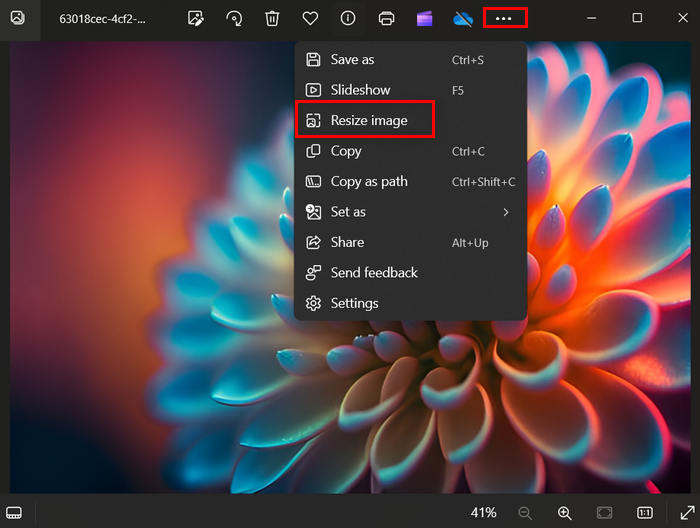
الخطوة 3. من هناك، يمكنك ضغط ملف JPEG عن طريق تغيير قيمة Pixel (البكسل) وPercentage (النسبة المئوية).
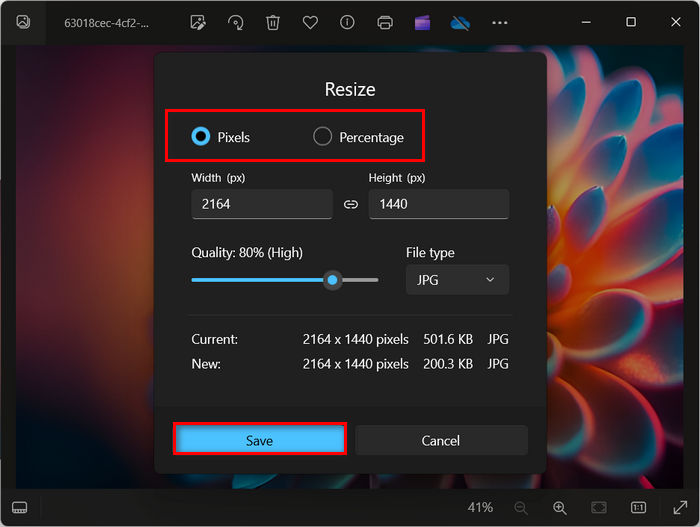
الخطوة 4. أخيرًا، انقر على زر Save.
يعد استخدام الصور أمرًا مثاليًا حقًا عند ضغط ملفات JPEG. فهو أمر مباشر وسهل للغاية، ولكن من ناحية أخرى، ليس مثاليًا عند الحاجة إلى ضغط مجموعة من الملفات.
الجزء 3. ضغط JPEG على جهاز Mac
كما هو الحال في Windows، توجد أدوات مدمجة مفيدة يمكنها مساعدتك في ضغط ملفات JPEG على جهاز Mac. يمكن الوصول إلى هذه الأدوات بسهولة ولا تتطلب تنزيلات إضافية، مما يجعل ضغط ملفات الصور المختلفة أمرًا مريحًا. هنا، سنستعرض الخطوات باستخدام اثنتين من أكثر الأدوات المضمنة شيوعًا على نظام MacOS.
الإجراءات السريعة
Quick Actions هي ميزة متوفرة في macOS تتيح للمستخدمين ضغط ملفات JPEG بسرعة وسهولة في ميزات التحرير المضمنة.
إليك كيفية استخدام الإجراءات السريعة (Quick Actions) لضغط ملفات JPEG على جهاز ماك
الخطوة 1. انقر بزر الماوس الأيمن على الصورة التي تريد ضغطها.
الخطوة 2. من قائمة السياق، اختر Quick Actions ثم Convert Image.
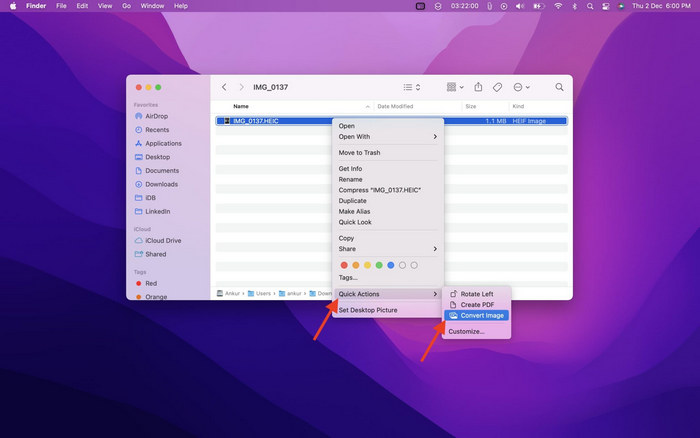
الخطوة 3. انقر على حقل Image Size (حجم الصورة) واختر Small (صغير)، Medium (متوسط)، أو Large (كبير) من القائمة المنسدلة، والتي تعرض أيضًا أحجام الملفات المقابلة.
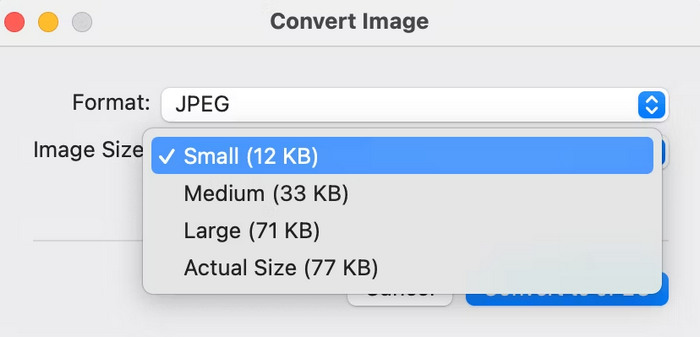
الخطوة 4. فعّل خيار Preserve Metadata (الحفاظ على البيانات الوصفية) للاحتفاظ بجميع معلومات الصورة.
بشكل عام، يجعل استخدام الإجراءات السريعة عملية ضغط ملفات JPEG أسهل على أجهزة ماك. فهذا يعني أنه يمكنك تحويل وتغيير حجم الصور دون الحاجة إلى تطبيقات إضافية أو خطوات معقدة. ومع ذلك، يفتقر هذا الخيار إلى بعض الميزات المتقدمة التي تساعد على الحفاظ على جودة الصورة المضغوطة.
معاينة
Preview هي أداة عرض صور مدمجة. تتيح لك هذه الأداة عرض ملفات صور مختلفة ويمكن أن تكون مفيدة بشكل لا يصدق في ضغط ملفات JPEG.
للقيام بذلك، اتبع الخطوات أدناه:
الخطوة 1. أولًا، افتح تطبيق Preview على جهاز الماك لديك.
الخطوة 2. بعد ذلك، افتح ملف الصورة الذي تريد تقليل حجمه بالانتقال إلى تبويب File ثم النقر على زر Open.
الخطوة 3. الآن، انتقل إلى تبويب Tool في قائمة السياق، ثم انقر على Adjust Size.
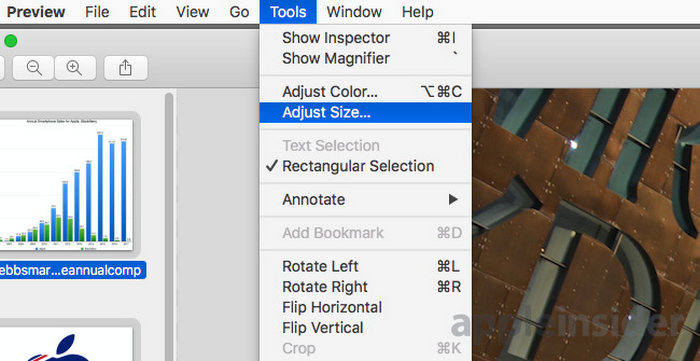
الخطوة 4. اختر Resample Image إذا كنت تريد تقليل حجم ملفات الصور.
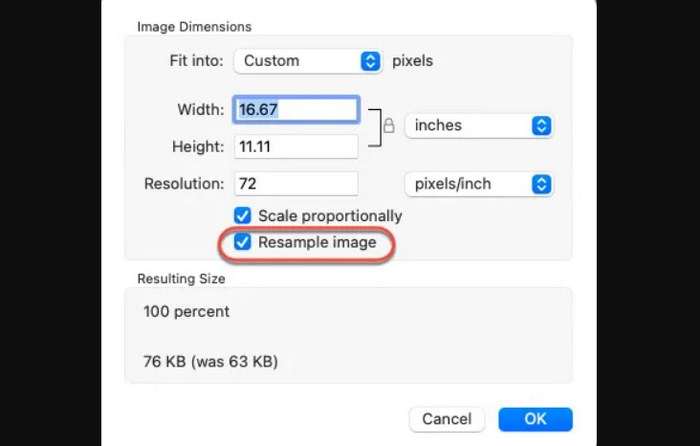
الخطوة 5. الآن، غيّر قيمة Resolution في ملفك. وبمجرد القيام بذلك، سيظهر الحجم الجديد في الأسفل.
تمامًا مثل Quick Actions، فإن Preview on Mac هي أيضًا أداة ضغط JPEG رائعة. والفرق الوحيد هو أنه يمكنك التحكم في كيفية تغيير حجم صورتك. والجانب السلبي الوحيد في الاثنين، عند مقارنتهما بأدوات الضغط المخصصة، هو جودة الناتج.
الجزء 4. الأسئلة الشائعة حول ضغط صور JPG
لماذا ملف JPG الخاص بي كبير جدًا؟
عادةً ما تكون ملفات JPEG كبيرة الحجم لأنها تخزن معلومات مفصلة، وخاصة في الصور عالية الدقة. علاوة على ذلك، يتم حفظ هذه الملفات بأقل قدر من الضغط، مما يؤدي إلى الاحتفاظ بمزيد من البيانات وينتج عنه أحجام ملفات أكبر.
هل JPG و JPEG هما نفس الشيء؟
نعم. يتم استخدام المصطلحين JPG وJPEG بالتبادل، لكنهما يشيران دائمًا إلى نفس تنسيق الملف المستخدم لتخزين الصور الرقمية المضغوطة. والسبب وراء الخلط بينهما وبين تنسيقات الملفات هذه هو عدد الأحرف المستخدمة.
JPG مقابل PNG: أيهما أفضل؟
يعتمد اختيار تنسيق ملف على آخر على احتياجاتك. على سبيل المثال، JPG بدلاً من PNG، يعد تنسيق JPG مناسبًا للصور الفوتوغرافية والصور ذات الألوان المعقدة أو التدرجات اللونية نظرًا لضغطه الفعّال الذي يحافظ على الجودة الجيدة مع أحجام الملفات الأصغر. من ناحية أخرى، يعد تنسيق ملف PNG مثاليًا للصور ذات الحواف الحادة أو النصوص المعقدة أو الرسومات ذات الألوان الصلبة. كما أنه يدعم الضغط بدون فقدان، مما يحافظ على جودة الصورة، ولكن من ناحية أخرى، سيستهلك حجم ملف أكبر مقارنة بتنسيق JPG.
كيف أقوم بضغط عدة صور JPEG دفعة واحدة على نظام Windows؟
يمكنك ضغط عدة صور بتنسيق JPEG دفعة واحدة على نظام Windows باستخدام أدوات مثل FVC Free Image Compressor. تتيح لك هذه الأداة ضغط ما يصل إلى 40 صورة في وقت واحد، مما يجعل تغيير حجم وضغط ملفات متعددة بنقرة واحدة أمرًا فعالاً.
هل يمكنني ضغط صور JPEG دون فقدان الجودة؟
عادةً ما ينطوي ضغط JPEG على الموازنة بين حجم الملف وجودة الصورة. وفي حين أن تقليل حجم الملف قد يؤدي إلى بعض فقدان الجودة، فإن استخدام أدوات الضغط المتقدمة مثل FVC Free Image Compressor يسمح لك بضغط ملفات JPEG مع تقليل فقدان الجودة الملحوظ.
خاتمة
إذا كنت تعرف الطريقة الصحيحة والأداة المناسبة لِـضغط ملفات JPG، فلن تقلق بشأن فقدان الجودة بعد عملية الضغط. نحن ندرك أهمية تقليل حجم ملفات الصور، لذلك فإن اختيار الطريقة والأداة المناسبتين لتلبية احتياجاتك في الضغط أمر بالغ الأهمية. سواء اخترت FVC Free Image Compressor أو الأدوات المدمجة في ويندوز وماك، ما عليك إلا اختيار ما تراه الأنسب لاحتياجاتك.
إذن، ما الذي تنتظره؟ ابدأ في ضغط ملفات الصور الخاصة بك اليوم!
-
 دليل تفصيلي حول Bigjpg - مراجعة وبديل
 يعد Bigjpg أحد أفضل برامج تكبير الصور على الإنترنت. يمكن لمكبر الصورة هذا رفع مستوى صورتك. اقرأ هذا الدليل الإرشادي لمعرفة المزيد عن الأداة.
-
 أفضل 5 طرق لتقليل حجم الصورة على أي جهاز
 تعرف على الطرق الفعالة لتغيير حجم الصورة أو ضغط حجمها من خلال النقر على هذا المنشور. اكتشف أدوات تغيير حجم الصور الاستثنائية وتعليماتها خطوة بخطوة.
-
 إزالة الأشخاص من الصور: تحرير سريع وبسيط للصور
 هل تريد التخلص من الأشخاص من صورتك؟ اقرأ هذه المقالة حيث نعرض لك أفضل وأسهل الطرق لإزالة الأشخاص من الصور باستخدام التطبيقات.
