


 محول الفيديو النهائي
 مسجل الشاشة
 إصلاح الفيديو
 تنزيل آمن
تقلص الصوت: كيفية تحويل WAV إلى تنسيق OGG لأحجام ملفات أصغر
قد تستهلك الملفات الصوتية الكبيرة قدرًا كبيرًا من الذاكرة على جهاز الكمبيوتر أو الهاتف المحمول عند التعامل معها. يساهم تحويل هذه الملفات من صيغة WAV إلى OGGw في تقليل حجمها بشكل كبير، مما يجعل إدارتها ونقلها أسهل. في هذه المقالة، سنستعرض مزايا تحويل ملفات WAV إلى تنسيق OGG، ونرشدك خطوة بخطوة إلى كيفية القيام بذلك. كما سنعرض لك بعضًا من أفضل البرامج المتخصصة في هذه المهمة لضمان حصولك على أفضل جودة صوت ممكنة. لذلك، سواء كنت موسيقيًا أو صانع بودكاست أو مجرد شخص يرغب في تنظيم تسجيلاته الصوتية، فهذه المقالة موجهة إليك.

الجزء 1. مقارنة OGG مقابل WAV
فيما يلي مخطط مقارنة يوضح الاختلافات بين تحويل WAV إلى OGG. يمكنك التحقق منها للرجوع اليها.
| WAV | OGG | |
| حجم الملف | كبير | صغير |
| ضغط | غير مضغوط | مضغوط |
| جودة الصوت | جودة عالية | جودة عالية |
| التوافق | متوافق على نطاق واسع | أقل توافقًا |
| دعم المنصة | مدعوم على جميع المنصات | دعم محدود لبعض المنصات |
| التحرير | سهل التعديل | أصعب قليلا في التحرير |
الجزء 2. أفضل طريقة لتحويل WAV إلى OGG أو OGG إلى WAV
1. FVC Video Converter Ultimate
يُعد FVC Video Converter Ultimate برنامجًا قويًا لتحويل مقاطع الفيديو يمكنه مساعدتك في تحويل ملفات WAV الصوتية إلى تنسيق OGG المضغوط بسرعة وسهولة. بفضل واجهته البديهية وسهلة الاستخدام، يمكنك بسهولة اختيار ملفات WAV الخاصة بك، وتحديد صيغة OGG، وبدء عملية التحويل ببضع نقرات فقط.
بالإضافة إلى ذلك ، يتضمن FVC Video Converter Ultimate ميزات متقدمة لتحرير الفيديو ، مما يسمح لك بقص ، وقص ، وإضافة علامات مائية ، وتطبيق العديد من المرشحات على ملفاتك الصوتية قبل التحويل. يمكن أن تكون هذه الميزة مفيدة إذا كنت بحاجة إلى إجراء تعديلات طفيفة أو تحسين جودة ملفاتك الصوتية قبل تحويلها إلى تنسيق OGG. لذلك ، إذا كنت ترغب في تحويل OGG دفعة واحدة إلى WAV أو العكس ، فاتبع الخطوات التالية:
الخطوة 1. ثبّت البرنامج واستورد ملفات OGG أو WAV
يمكن تنزيل FVC Video Converter وتثبيته من الموقع الرسمي. شغّل التطبيق ثم انقر على زر علامة الزائد لاستيراد الملف الصوتي الذي تريد تحويله.
تنزيل مجانيلنظام Windows 7 أو أحدثتنزيل آمن
تنزيل مجانيلنظام MacOS 10.7 أو أحدثتنزيل آمن
الخطوة 2. اختر OGG كصيغة إخراج
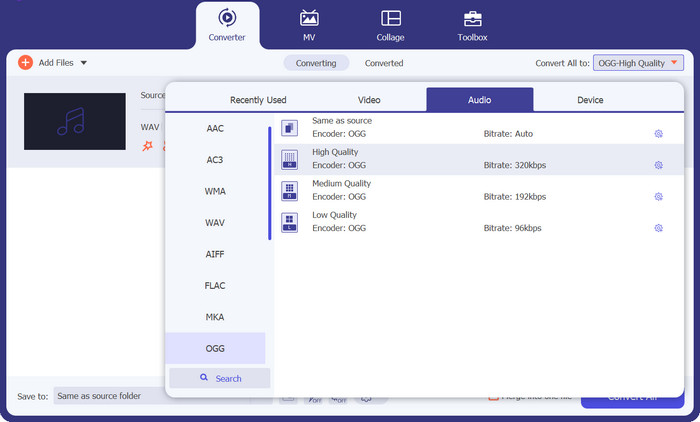
من خلال النقر على قائمة Profile المنسدلة واختيار OGG من قائمة الصيغ المتاحة، يمكنك تعيين OGG كصيغة الإخراج. كما يمكنك تغيير إعدادات الإخراج من خلال النقر على زر Settings إذا لزم الأمر، مما يتيح لك تعديل معلمات مثل معدل البِت، ومعدل العيّنة، وعدد القنوات.
الخطوة 3. تحديد مجلد الإخراج
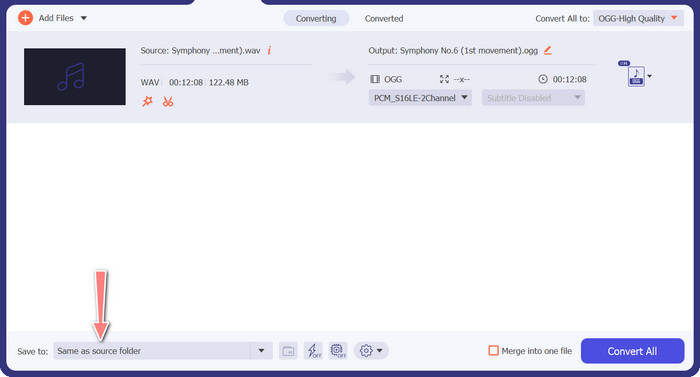
عن طريق النقر على زر Browse بجوار حقل Output Folder، يمكنك اختيار المجلد الذي ترغب في حفظ الملف المحوَّل بداخله.
الخطوة 4. تحويل ملف WAV إلى OGG
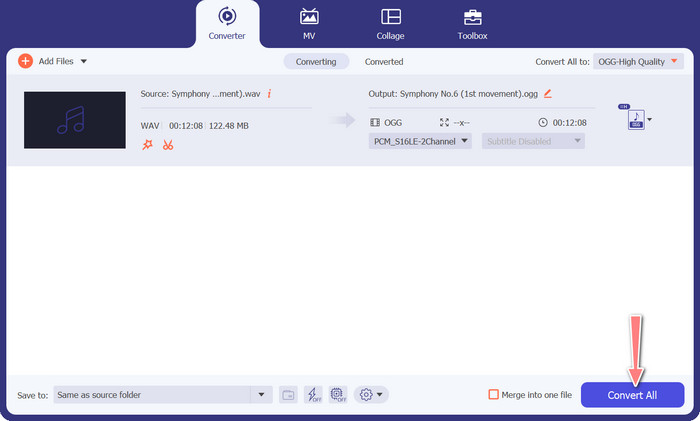
بعد أن تصبح راضيًا عن الإعدادات، انقر على زر Convert All لبدء عملية التحويل. سيبدأ FVC Free Video Converter في تحويل ملف WAV الخاص بك إلى تنسيق OGG. يوضّح شريط التقدم مدى تقدّم عملية التحويل بالإضافة إلى الوقت المتبقي المتوقع.
2. محول صوت مجاني على الإنترنت
يُعد محول الصوتيات المجاني عبر الإنترنت أداة قوية لتحويل WAV إلى OGG مباشرة على الإنترنت. يمكن للمستخدمين إضافة ملفات WAV أو OGG بسرعة وتحويلها إلى تنسيق OGG من خلال واجهته البسيطة. يتيح المحول أيضًا للمستخدمين تعديل إعدادات الإخراج مثل معدل البِت ومعدل العيّنة للوصول إلى الجودة المطلوبة لملفات OGG. عملية التحويل سريعة وبسيطة، ويمكن للمستخدمين تنزيل ملفاتهم المعدَّلة مباشرة من الموقع.
الخطوة 1. انتقل إلى موقع Free Video Converter Online باستخدام متصفح الويب المفضل لديك.
الخطوة 2. حمّل ملف OGG الذي تريد تحويله إلى WAV عن طريق النقر على زر Add Files to Convert.
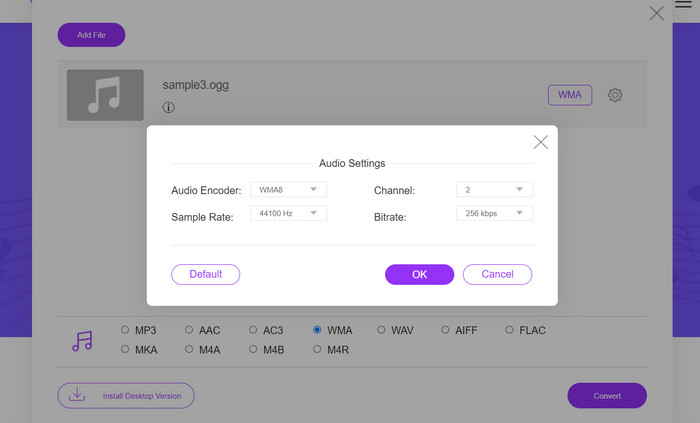
الخطوة 3. اختر OGG كصيغة إخراج من قائمة الصيغ المدعومة في قائمة Audio. يمكنك أيضًا تحديد معدل البِت وجودة الإخراج لملف OGG.
الخطوة 4. لبدء عملية التحويل، انقر على زر Convert. وهكذا يمكنك تحويل OGG إلى WAV عبر الإنترنت.
الجزء 2. تحويل OGG إلى WAV أو WAV إلى OGG مع الجرأة
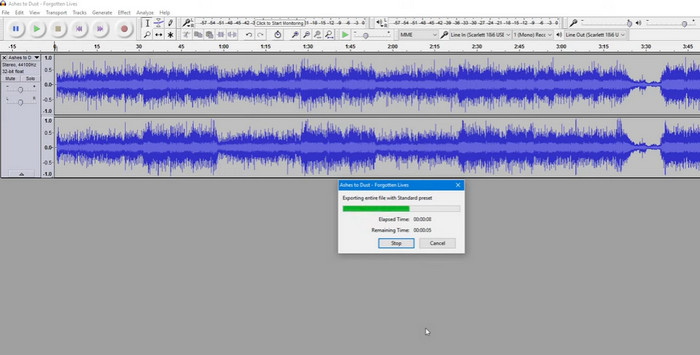
هذه الأداة عبارة عن برنامج تحرير صوتي مفتوح المصدر يمكنه تحويل ملفات MP3 إلى ملفات OGG. تقدم Audacity مجموعة متنوعة من أدوات التحرير والتأثيرات بالإضافة إلى التحويل ، مما يسمح للمستخدمين بتعديل وتحسين ملفات الصوت الخاصة بهم ، مما يجعلها أداة متعددة الاستخدامات لعمليات تحرير الصوت وتحويله.
علاوة على ذلك ، يتوفر Audacity لأنظمة Windows و macOS و Linux ، مما يجعله متاحًا على نطاق واسع. Audacity هو بديل جيد لأي شخص يرغب في تحويل ملفات WAV إلى تنسيق OGG نظرًا لقدراته المتطورة وسهولة استخدامه. افحص الدليل أدناه لمعرفة كيفية عمل هذا البرنامج.
الخطوة 1. قم بتنزيل Audacity وتثبيته على جهاز الكمبيوتر. افتح Audacity، ثم افتح ملف OGG أو WAV الذي تريد تحريره. يمكنك القيام بذلك عبر اختيار File > Open ثم تصفح جهازك وتحديد ملف WAV.
الخطوة 2. بعد فتح ملف WAV في Audacity، انقر على File ثم Export. في مربع حوار Export Audio، اختر OGG Vorbis Files كنوع الملف.
الخطوة 3. يمكنك ضبط جودة ملف OGG عن طريق سحب شريط تمرير Quality. الإعدادات الأعلى للجودة ستزيد من حجم الملف، بينما الإعدادات الأقل ستقلل الحجم ولكن قد تُضعف من جودة الصوت.
الايجابيات
- لديها القدرة على تحويل WAV إلى OGG دفعة واحدة.
- قم بتحويل OGG إلى WAV على أنظمة التشغيل Windows و macOS و Linux.
سلبيات
- لا يحتوي البرنامج على مجتمع دعم مخصص.
الجزء 3. تحويل OGG إلى WAV أو WAV إلى OGG باستخدام VLC
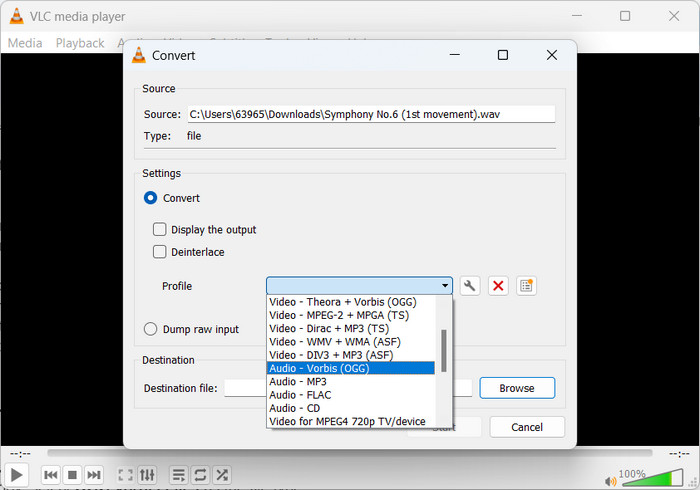
يعد مشغل وسائط VLC أداة وسائط متعددة قوية تستخدم على نطاق واسع لتشغيل أنواع مختلفة من ملفات الوسائط. قد لا يدرك العديد من المستخدمين أن هذا البرنامج يعمل أيضًا بشكل جيد مثل تحويل أداة OGG إلى WAV لنظام التشغيل Mac. باستخدام أداة التحويل المدمجة ، يمكن لمشغل وسائط VLC تحويل ملفات WAV بسرعة وسهولة إلى تنسيق OGG ، مما يسمح للمستخدمين بالاستمتاع بموسيقاهم المفضلة في مجموعة متنوعة من التنسيقات. لجميع احتياجات تحويل الصوت ، يقدم مشغل وسائط VLC حلاً مباشرًا وسهل الاستخدام سواء كنت تبحث عن تحويل ملف واحد أو مجموعة من الملفات. اتبع هذه الخطوات لمعرفة كيفية تحويل ملف MP3 إلى ملف OGG:
الخطوة 1. لتشغيل فيديو، قم بفتح VLC واختر من شريط قائمة المشغّل. ستظهر لك في القائمة المنسدلة خيار Convert / Save؛ قم باختياره.
الخطوة 2. من خلال النقر على زر Add، اختر ملف WAV الذي تريد تحويله من منطقة File Selection. عندما تكون مستعدًا للتحويل أو الحفظ، اضغط على زر Convert / Save.
الخطوة 3. انقر على قائمة Profile المنسدلة واختر Audio - Vorbis (OGG) كملف التعريف المفضّل.
الخطوة 4. انقر على زر Browse إلى يمين قسم ملف Destination لتحديد موقع واسم جديدين للملف المحوَّل. يمكنك بدء عملية التحويل بالضغط على زر Start في أسفل النافذة.
الايجابيات
- واجهة سهلة الاستخدام.
- يدعم العديد من تنسيقات الفيديو والصوت.
سلبيات
- احتمال فقدان جودة الصوت.
قراءة إضافية:
حوّل MP3 إلى OGG واستمتع بجودة صوت فائقة
كيفية تحويل MP4 إلى WAV مجانًا على سطح المكتب أو عبر الإنترنت [2023]
الجزء 4. أسئلة وأجوبة حول تحويل OGG إلى WAV
هل يمكنني تحويل ملفات WAV متعددة إلى تنسيق OGG مرة واحدة؟
نعم ، تدعم العديد من برامج تحويل الصوت ، بما في ذلك FVC Video Converter Ultimate ، تحويل الدُفعات الذي يسمح لك بتحويل WAV إلى تنسيق OGG دفعة واحدة.
هل من الممكن إعادة تحويل ملفات OGG إلى تنسيق WAV؟
نعم ، من الممكن تحويل ملفات OGG مرة أخرى إلى تنسيق WAV باستخدام برنامج تحويل الصوت. ومع ذلك ، ضع في اعتبارك أن جودة الصوت قد تتأثر إذا تم ضغط ملف WAV الأصلي إلى تنسيق OGG.
هل يمكنني تحويل ملفات WAV الخاصة بي إلى تنسيقات صوتية أخرى إلى جانب OGG؟
نعم ، تدعم معظم برامج تحويل الصوت مجموعة كبيرة من تنسيقات الصوت ، بما في ذلك MP3 و AAC و FLAC والمزيد.
خاتمة
يمكن أن يوفر لك تحويل ملفاتك من صيغة WAV إلى OGG عدة مزايا، مثل تقليل حجم الملف مع الحفاظ على جودة صوت عالية. وباستخدام أدوات تحويل الصوت المناسبة ومع القليل من الخبرة، يمكنك بسهولة تحويل ملفاتك الصوتية إلى الصيغة التي تناسب احتياجاتك بأفضل شكل.
-
 مشغلات OGG ممتازة لنظامي التشغيل Windows و Mac يجب ألا تفوتها
 عندما تريد تشغيل الصوت المفضل لديك بتنسيق OGG ، خاصة عندما تكون مساحة التخزين أقل. يمكنك معرفة المزيد عن أفضل 5 لاعبين في OGG من هذه المقالة.
-
 تعرف على كيفية تحويل MP3 إلى تنسيق WAV
 هل تريد معرفة كيفية تحويل MP3 إلى WAV؟ حدد الأدوات التي تنتج أفضل جودة تحويل يمكنك الحصول عليها.
-
 أفضل طريقتين لتحرير بيانات OGG الوصفية التي يجب أن تجربها مجانًا
 هل تحتاج إلى تحرير بيانات OGG الوصفية؟ حسنًا ، يمكنك بسهولة التعامل مع تحرير العلامات باستخدام البرنامج الصحيح. إذا لم يكن لديك & #039 ؛ ر لديك واحد يقرأ هذه المقالة أمر لا بد منه.
