


 محول الفيديو النهائي
 مسجل الشاشة
 إصلاح الفيديو
 تنزيل آمن
خطوة بخطوة حول كيفية إضافة صورة الألبوم إلى MP3 باستخدام أفضل البرامج على سطح المكتب
يمكن أن يكون إرفاق صورة للألبوم أمرًا مفيدًا، خاصة إذا كنت تريد مساعدة المستمع على الشعور بارتباط أكبر بالموسيقى التي يستمع إليها. من خلال صورة الألبوم، يمكن للمستخدمين أن يلمحوا فكرة عمّا تدور حوله الموسيقى، ولا سيما الملفات الرقمية. في بعض الحالات، لا يحتوي ملف MP3 على صورة ألبوم مناسبة أو لا تكون مرفقة بالملف. إذا واجهت الأمر نفسه، فمن الضروري أن تتعلم كيفية إضافة صورة ألبوم إلى ملف MP3 على سطح المكتب. لمعرفة المزيد عن هذا الموضوع، تابع قراءة هذه المقالة، إذ نقدّم لك معلومات مركّزة حول المشكلة.

الجزء 1. كيفية إضافة صورة الألبوم إلى MP3 باستخدام Video Converter Ultimate [محرر العلامات الموصى به]
هل تبحث عن استخدام برنامج نهائي لإضافة صورة ألبوم إلى ملف MP3؟ يُعَدّ FVC Video Converter Ultimate محرر الوسوم الموصى به لهذه المهمة. هذا البرنامج لم يُوصَ به من فراغ. على عكس البرامج الأخرى التي تقيّد صيغ صور الألبوم التي يمكنك رفعها واستخدامها غلافًا لملف MP3، فإن هذا لا ينطبق على هذه الأداة. باستخدام هذا البرنامج النهائي، يمكنك إضافة صورة الألبوم إلى ملفات MP3 وWAV وWMA وAAC وFLAC وأكثر من 1000 صيغة فيديو وصوت. مدهش، أليس كذلك؟ هذه الأداة هي الخيار الأول لإضافة صورة غلاف لألبومك. هل تريد معرفة كيفية استخدام هذا البرنامج النهائي؟ في هذه الحالة، يمكنك قراءة الشرح التالي واتباعه بعناية كما أدرجناه أدناه.
الخطوة 1. انقر زر التنزيل أدناه، واختر نظام التشغيل الذي تستخدمه حاليًا. بعد تنزيل البرنامج، تابع لتثبيت الأداة. إذا انتهيت من كل شيء، انقر بدء الآن (Start Now) لتشغيل البرنامج على سطح المكتب.
تحميل مجانيلنظام Windows 7 أو أحدثتنزيل آمن
تحميل مجانيلنظام MacOS 10.7 أو أحدثتنزيل آمن
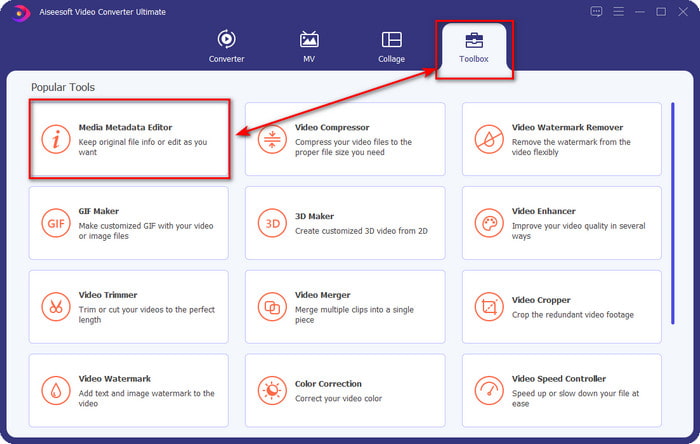
الخطوة 2. انتقل إلى قسم Toolbox ثم انقر Media Metadata Editor الموجود تحته.
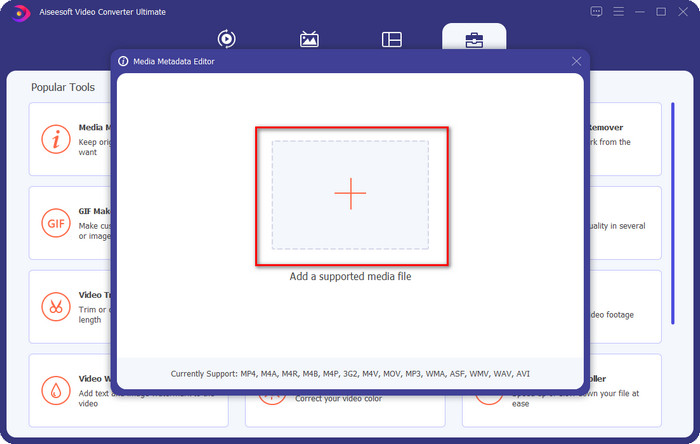
الخطوة 3. اختر ملف الموسيقى الذي تريد إضافة صورة ألبوم له بالنقر على زر +. لإدراج ملف الموسيقى الذي حددته، انقر Open.
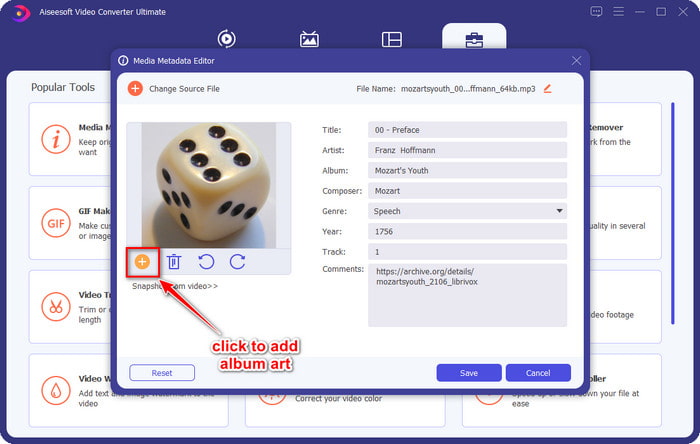
الخطوة 4. بعد ذلك، انقر زر + في الجهة السفلية اليسرى من الواجهة، وابحث عن صورة الألبوم التي تريد استخدامها، ثم انقر Open. أضف بيانات التعريف الأخرى التي تريدها في مربع النص إذا احتجت ذلك.
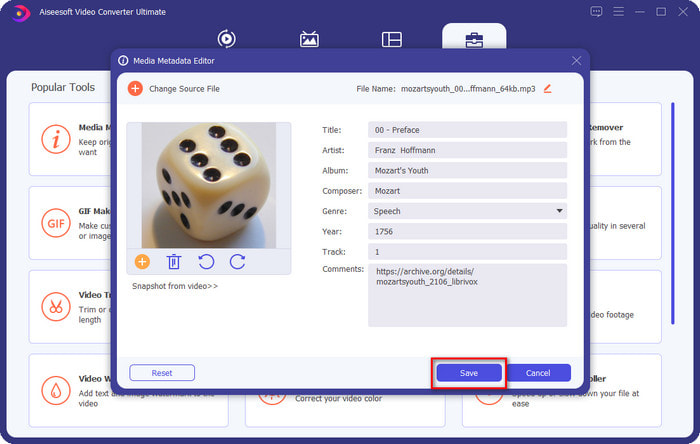
الخطوة 5. إذا انتهيت من إضافة صورة الألبوم وبيانات التعريف إلى ملف MP3 الذي لديك، يمكنك الآن النقر على حفظ (Save) لإرفاق صورة الألبوم بملف MP3 الذي قمت برفعه. سهل أليس كذلك؟ كل شيء يصبح ممكنًا وسهلًا إذا استخدمت الأداة النهائية لحل المشكلة.
الجزء 2. كيفية إضافة صورة الألبوم إلى MP3 باستخدام محرر البيانات الوصفية المجاني لبرنامج VLC Media Player]
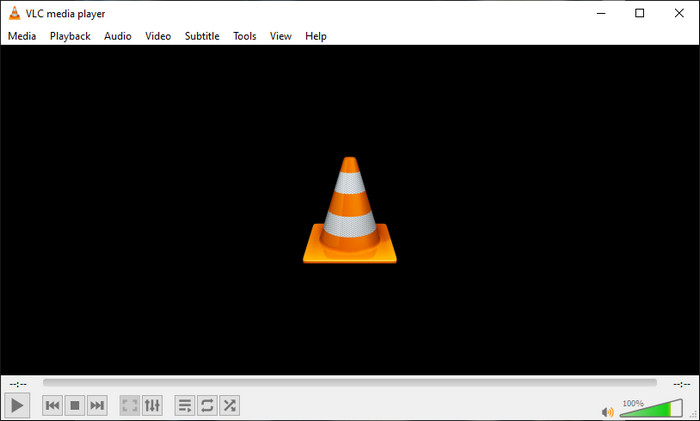
يُعَدّ VLC Media Player أفضل مشغل وسائط لدى معظمنا. يمكن لهذه الأداة تشغيل أي ملف فيديو، كما أنها قادرة على تعديل بيانات التعريف أيضًا، مثل إضافة صورة ألبوم إلى ملف الموسيقى. مع هذا المشغل، يمكنك تعديل بيانات التعريف أو إضافتها بحرية. إذا كنت تريد شرحًا لكيفية إضافة صورة ألبوم إلى ملف MP3 على نظامي Windows 10/11 أو Mac باستخدام هذه الأداة، فالخطوات أدناه مخصّصة لك.
الخطوة 1. قم بتنزيل مشغل الوسائط على سطح المكتب ثم افتحه.
الخطوة 2. في الواجهة الرئيسية، انقر أدوات (Tools)، ثم تحتها انقر Information.
الخطوة 3. انقر بزر الماوس الأيمن على أيقونة VLC في الزاوية السفلية اليمنى، ثم أضف صورة الألبوم وانقر Save.
الجزء 3. كيفية إضافة صورة الألبوم إلى MP3 في iTunes [محرر البيانات الوصفية المدمج في Mac]
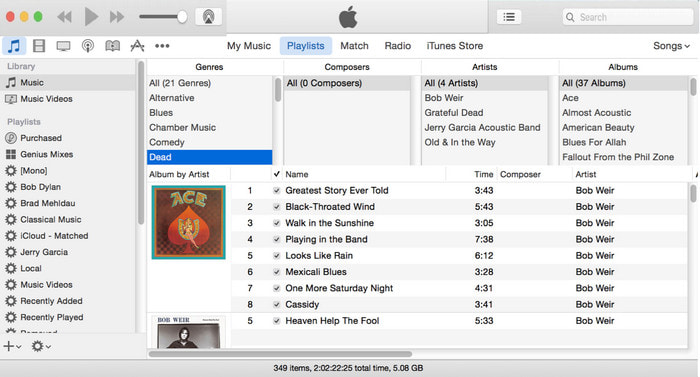
لمستخدمي Mac، يُعَدّ iTunes محرر بيانات التعريف المفضل لدينا لإضافة صورة غلاف لملف MP3. يمكن لهذا التطبيق المدمج أن يساعدنا في تعديل بيانات التعريف للملفات التي لدينا على جهاز Mac. ومع ذلك، فإن البرنامج غير متوفر حاليًا على بعض إصدارات Mac لأنه قُسِّم الآن إلى ثلاثة تطبيقات منفصلة تقوم بالوظائف نفسها التي كان يقدّمها iTunes. لكنه لا يزال موجودًا على بعض أجهزة Mac ذات الإصدارات الأقدم. إذا كنت واحدًا من مستخدمي Mac الذين يريدون معرفة كيفية إضافة صورة ألبوم إلى ملف MP3 في iTunes، يمكنك اتباع الخطوات أدناه.
الخطوة 1. افتح تطبيق iTunes على جهاز Mac الخاص بك.
الخطوة 2. انقر Music ثم Library، ثم انقر بزر الماوس الأيمن على ملف الموسيقى الذي لا يحتوي على صورة ألبوم.
الخطوة 3. من الخيارات بالأعلى، انقر Artwork ثم Add Artwork، وحدّد الصورة التي تريد رفعها، ثم انقر OK لتطبيقها.
الجزء 4. أسئلة وأجوبة حول كيفية إضافة صورة الألبوم على MP3
هل يمكنني إضافة صورة الألبوم إلى MP3 على Audacity؟
لسوء الحظ ، لا يمكنك إضافة صورة الصورة إلى ملف MP3 الذي تستخدمه باستخدام Audacity. لا تدعم هذه الأداة أي تنسيق صورة أو فيديو لأن الغرض منه هو استخدامه كمحرر موسيقى. ولكن لا يزال بإمكانك استخدام Audacity كمحرر للبيانات الوصفية إذا كنت ترغب في تحرير البيانات الوصفية بتنسيق MP3.
لماذا صورة الألبوم الخاصة بي مفقودة من ملف الصوت الخاص بي؟
هناك ثلاثة أسباب وراء فقدان صورة الألبوم من ملفك الصوتي. السبب الأول هو أن الملف الذي تقوم بتنزيله لا يتضمن صورة الألبوم ، خاصة إذا كانت هذه قرصنة. معظم ملفات الموسيقى التي قمنا بتنزيلها على الويب لا تأتي مع صورة الألبوم لتجنب مشاكل كتابة الإعلانات. بعد ذلك ، فقد الملف لأن الصورة لم يتم إرفاقها بشكل صحيح. يواجه بعض المستخدمين هذه المشكلة ، ويصعب التعامل معها ، لذا فإن استخدام مُعلِق فني لألبوم محترف أمر ضروري. أخيرًا ، الصورة تالفة ؛ إذا كان الملف الذي قمت بتحميله غير متاح كصورة ألبوم أو ملف الموسيقى الذي قمت بتحميله تالفًا ، فقد يكون هذا هو السبب وراء ذلك.
ما هي أفضل البيانات الوصفية التي يمكنني استخدامها؟
إذا كانت محرّرات بيانات التعريف التي قدّمناها أعلاه محدودة، يمكنك النقر على هذا الرابط للانتقال إلى مقالة جديدة تجمع لك جميع أفضل محرّرات بيانات التعريف التي يمكنك استخدامها.
خاتمة
الآن بعد أن أصبحت لدينا فكرة إضافة صورة الألبوم على MP3 ، فقد حان الوقت لاختيار الأداة التي نعتقد أنها تناسبنا بشكل أفضل. إذا كنت من مستخدمي Mac ولا تريد تنزيل أي برنامج على سطح المكتب ، فيجب عليك اختيار iTunes. لكن تم التخلص التدريجي من iTunes في الإصدار المحدث من Mac. إذا كنت ترغب في تنزيل أداة مجانية يمكن أن تساعدك في إضافة الغلاف إلى موسيقاك ، فإن VLC يعد خيارًا رائعًا. ومع ذلك ، فإن الأداة ليست أداة احترافية. لذلك ، إذا كنت تريد برنامجًا متخصصًا يمكنه أن يلائمك في هذه المهمة ، وهو متاح على نظامي التشغيل ، Windows و Mac ، فاستخدم البرنامج النهائي. قم بتنزيل البرنامج على سطح المكتب لديك للحصول على الأداة الاحترافية في متناول يدك عن طريق النقر فوق زر التنزيل الموضح أعلاه.
-
 كيفية عرض البيانات الوصفية للصور ومقاطع الفيديو على iOS بسهولة
 هل تريد أن تعرف كيف ترى البيانات الوصفية على iPhone و iPad؟ بعد ذلك ، قد تساعدك قراءة هذه المقالة في حل هذه المشكلة دون عناء.
-
 أفضل التقنيات حول كيفية تحرير علامات iD3 على iTunes [نصائح فعالة]
 هل تريد معرفة كيفية تحرير العلامات على iTunes؟ فأنت في المكان الصحيح. كما ناقشنا الطرق ، يمكنك اتباعها لتحرير العلامات باستخدام iTunes.
-
 كيفية تحرير خصائص ملفات WAV على Windows 10/11 و Mac [محلول]
 هل تبحث عن طريقة لتحرير خصائص ملفات WAV الخاصة بك على Windows 10/11؟ سيكون لهذا السؤال إجابة إذا واصلت قراءة هذا المقال.
