


 محول الفيديو النهائي
 مسجل الشاشة
 إصلاح الفيديو
إتقان فن إضافة علامة مائية على iMovie بخطوات مفصلة
One of the best editors you can use on Mac is the iMovie. This tool provides a very intuitive interface for Mac users to use. Although the tool is excellent and easy to manage, some users still seek a tutorial on using it. So, if you are a Mac user and want to learn how to add water to video in iMovie, you can follow through the guide we presented below to achieve greatness with the tool.

الجزء 1. برنامج تعليمي حول كيفية إضافة علامة مائية إلى مقطع فيديو في iMovie على نظام macOS
لقد قدمنا بالفعل iMovie ، لذا ستعلمك التفاصيل التالية كيفية وضع علامة مائية على مقطع فيديو في iMovie. لمعرفة كيفية الإضافة ، يمكنك اتباع الدليل التفصيلي أدناه ، والرجاء قراءته جيدًا لفهم الفكرة بأكملها.
Step 1. Launch the iMovie on your Mac, and if you can't find it, you can quickly go to the Finder and search it.
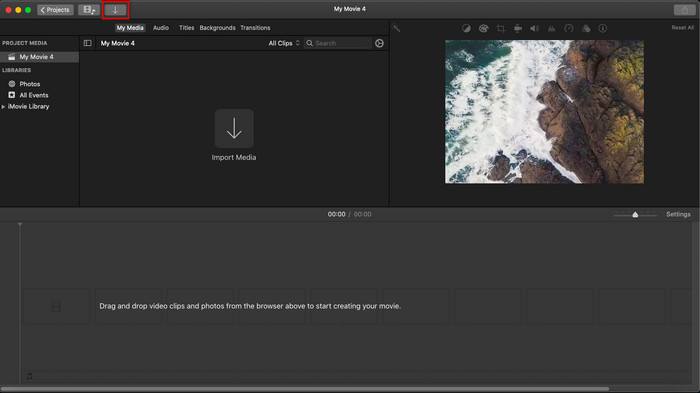
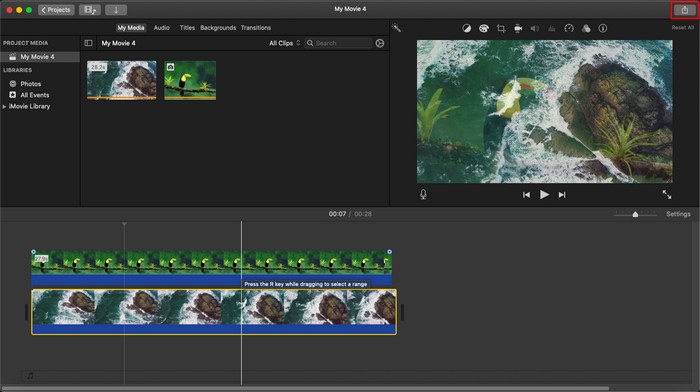
Step 2. Click the Import button to upload the video and the image you want to use as a watermark. Drag the video and image file to the Timeline below, same as the images. Make sure that the video is a the top of the time of the video. Make some adjustments to the image by dragging, resizing, and more.
Step 3. If you've already satisfied with the adjustment, click Export at the upper-right part of the tool, then Export File.
الايجابيات
- إنه مجاني للاستخدام في أي جهاز Apple مثل أجهزة macOS و iOS.
- قم بإجراء تعديلات سريعة على مقاطع الفيديو الأولية لجعلها تبدو جيدة.
- تتوفر وظائف تحرير أساسية تصل إلى متوسط.
سلبيات
- يدعم تنسيقًا أقل ، لذلك إذا كنت تريد تحرير الفيديو هنا ، فيجب عليك تحويله إلى MOV أو أي تنسيق متوافق مع أجهزة Apple.
- دعم أقل للتحرير الاحترافي.
الجزء 2. أفضل أداة لاستخدامها ووضع علامة مائية على الفيديو على أجهزة كمبيوتر Mac بطريقة أقل صعوبة
If you feel that adding a watermark on iMovie is hard, you can use instead of the best alternative, Video Converter Ultimate. This tool provides a much easier way of adding a watermark to your video. Imagine this: the ultimate tool is more accessible if the iMovie is easy to use. Although it is easy to use, the final output it provides is top-notch, and one of its advantages against the iMovie is that it supports more image formats you can use to upload. Want to know more? Well, you can read the features that we present below for you.

FVC Video Converter Ultimate
5،689،200+ التنزيلات- يوفر ميزات التحرير الشاملة التي يمكنك استخدامها لجعل الفيديو الخاص بك أكثر تميزًا من الآخر.
- وهو يدعم العمليات فائقة السرعة وتسريع الأجهزة لاستيراد وتصدير الفيديو بسرعة.
- وهو يدعم تنسيقات الفيديو مثل MOV و MKV و AVI و MP4 و FLV و RMVB والمزيد.
- يحتوي على واجهة تفاعلية للغاية للحصول على أفضل تجربة.
- متاح على جميع منصات سطح المكتب مثل Windows و Mac.
تحميل مجانيلنظام Windows 7 أو أحدثتنزيل آمن
تحميل مجانيلنظام MacOS 10.7 أو أحدثتنزيل آمن
أليس من الرائع أن يكون لديك كل هذه الميزات في أداة واحدة؟ إذا كنا في نفس الصفحة ، فلنبحث في تفاصيل كيفية وضع علامة مائية على مقطع فيديو في iMovie ولكن بطريقة أكثر سهولة باستخدام الأداة النهائية.
خطوات حول كيفية إدراج علامة مائية على الفيديو باستخدام الأداة Ultimate Tool
Step 1. Download the software onto your Mac, follow the installation procedure, and press Start Now to launch the tool.
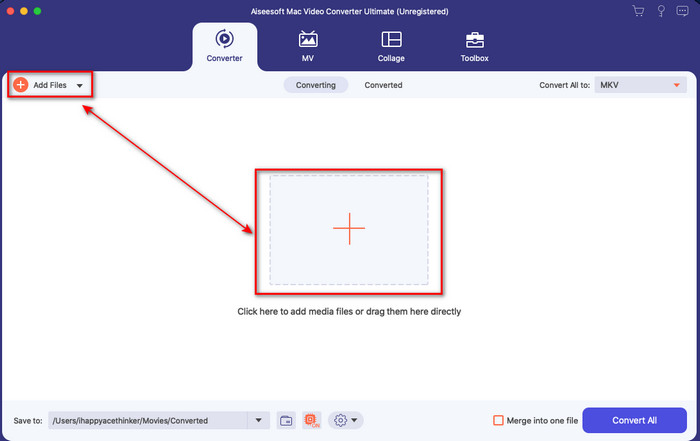
Step 2. Upload the video file you want by clicking the + button or Add Files. Look for the video on the folder that will show on your screen, and press Open to upload it.
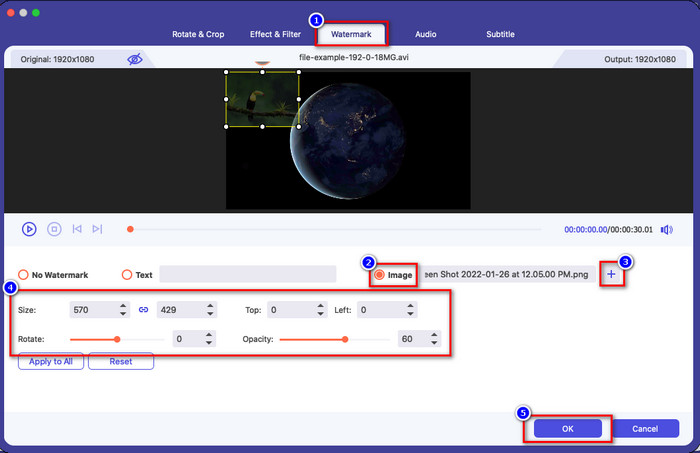
Step 3. Click the wand button to open the editing window on the tool's interface. Then click the Watermark section, tick Image, hit the + button to add the image you want. After that, adjust the image’s opacity or rotate it and click OK to save the change you've made.
Optional. If you want to change the format, click Convert All to pick the format available on the list and click it. If you don't want to change the format, you can proceed to the final step.
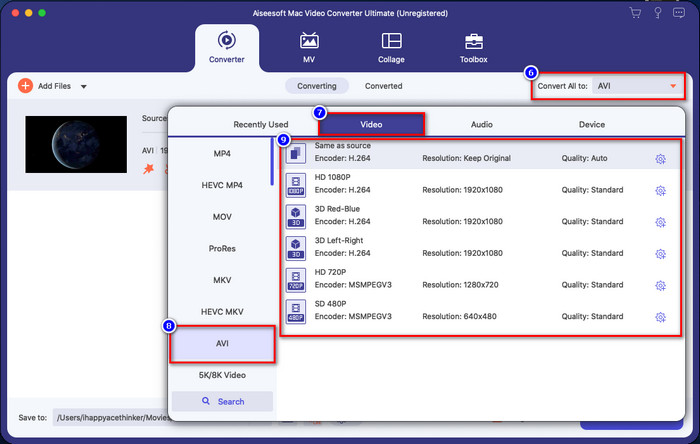
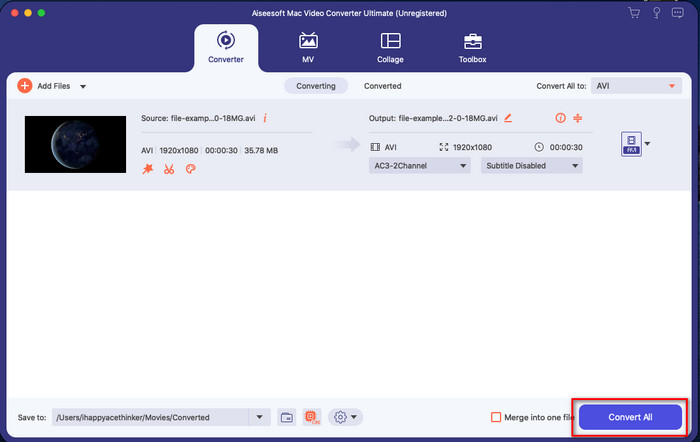
Step 4. To export the video with a watermark, click Convert All. No need to wait for too long because of the ultra-fast conversion process it provides. With that, you already did add the image watermark on your video in less than a minute.
الايجابيات
- إنه الخيار الأفضل لأي مستخدم لديه القليل أو ليس لديه فكرة عن كيفية التحرير.
- يدعم المزيد من تنسيقات الفيديو التي يمكنك تحميلها لتوفير الوقت وتجنب تحويلها.
- متاح على جميع الأنظمة الأساسية مثل Windows أو Mac للتنزيل.
سلبيات
- إنه ليس مجانيًا للتنزيل ، ولكنه ليس مكلفًا للغاية.
- مطلوب تنزيله على محرك الأقراص الخاص بك.
الجزء 3. أسئلة وأجوبة حول إضافة علامة مائية على iMovie
هل iMovie مجاني للاستخدام؟
Yes, iMovie is free to use if you are an Apple product, but you can't download it if you use an Android or Windows. Take note that there are no available iMovie on different platforms. So if you download an iMovie on your desktop or phone, that isn't Apple, except that it will not work as effectively as the iMovie or, worse, it has a virus. To avoid this, you can click and read this article to know the alternatives for iMovie.
هل iMovie هو أفضل محرر على جهاز Mac؟
يمكننا القول إنها واحدة من الأفضل ، لكنها ليست الأفضل ، لأن المحررين المختلفين يوفرون ميزات تحرير متعددة لا يمكنك العثور عليها في iMovie. على الرغم من أنه يفتقر إلى بعض النواحي ، إلا أنه لا يزال محررًا من الدرجة الأولى يمكنك استخدامه على جهاز Mac الخاص بك مجانًا لإجراء تحرير الفيديو لمدونات الفيديو والأعمال والترويج وغير ذلك.
بعد تصدير الفيديو على iMovie ، هل يحتوي على علامة مائية؟
اعتبارًا من هذا اليوم ، العلامة المائية للفيديو ليست في مقاطع الفيديو المصدرة. لذلك ، يمكنك الاستمتاع بمقاطع الفيديو التي تم تنزيلها والتي تقوم بتحريرها على iMovie بحرية دون العلامة المائية المزعجة.
هل يمكنني استخدام فيديو .avi على iMovie؟
iMovie doesn't support a wide range of formats, but you can click and read this article and learn what you can do to make your AVI file compatible with iMovie.
خاتمة
This article already proves you can use the built-in editor Apple provided to you and add watermarks on videos with the steps we add that you can easily follow. Although you can freely use the iMovie, we still believe that the Video Converter Ultimate is the best tool for this task on any given day. So, if you want help, you can download it on your Mac or Windows by pressing the download button presented above.
-
 3 طرق لتحويل MPEG إلى WMV دون فقدان الجودة
 هل تريد مشاهدة مقاطع الفيديو الخاصة بك على المشغل المفضل لديك ، لكنه لا يدعم تنسيق الفيديو؟ اقرأ هذه المقالة حيث نوفر لك أكثر الطرق فعالية لتحويل MPEG إلى WMV.
-
 2 من خيارات المحول المفضلة لتحويل F4V إلى WMV [2022]
 هل أنت من المستخدمين الذين يبحثون عن أفضل طريقة لتحويل F4V إلى WMV؟ إذا كان الأمر كذلك ، فحاول قراءة هذا المقال لتتعرف بشكل أفضل على كيفية القيام بذلك وما هي الأدوات المتاحة.
-
 أفضل محولات MXF إلى WMV لتحويل MXF إلى WMV مجانًا
 هل تريد معرفة أسهل طريقة لتغيير ملف MXF إلى تنسيق WMV؟ إذا كنت مستعدًا لاستكشاف كيفية القيام بذلك ، فيجب عليك قراءة هذه المقالة بعناية.
