


 محول الفيديو النهائي
 مسجل الشاشة
 إصلاح الفيديو
 تنزيل آمن
أسهل طريقة لدمج المسارات في Audacity [دليل 2025]
يعد دمج عناصر مثل الأصوات الأخرى أو الموسيقى أو المقطوعات الموسيقية أمرًا ضروريًا لجعل المشروع الصوتي إبداعيًا وفريدًا. تتم هذه العملية عادةً باستخدام تطبيق محرر صوتي مخصص يحتوي على ميزة دمج المقطوعات الموسيقية في مقطوعة موسيقية واحدة. اليوم، تُستخدم أداة واحدة بشكل شائع لدمج مسارات متعددة، وهي Audacity.
يشتهر هذا البرنامج لدى الكثيرين بسبب كونه مجانيًا ومفتوح المصدر، لكنه يملك أيضًا مجموعة قوية جدًا من ميزات التحرير التي تجذب المستخدمين. لذلك، إذا كنت تبحث عن دليل حول كيفية دمج المقاطع الصوتية في Audacity أو طريقة بديلة للقيام بذلك بسهولة، فتابع قراءة هذه المقالة.

الجزء 1. كيفية دمج المسارات في Audacity
Audacity هو برنامج تحرير صوت مجاني يستخدم على نطاق واسع ويوفر العديد من ميزات التحرير، بما في ذلك مسار الدمج الشهير Audacity.
باستخدام هذه الميزة، يمكن للمستخدمين استيراد عناصر صوتية مختلفة بسهولة إلى الجدول الزمني للتحرير. ثم من الجدول الزمني للتحرير، يمكنهم محاذاة المسارات في مسار واحد عن طريق نقلها يدويًا إلى الترتيب المطلوب. وبصرف النظر عن ذلك، تحتوي هذه الأداة على ميزات تحرير رائعة ضرورية لصقل المسار المدمج. يمكن لميزات التلاشي التدريجي إنشاء انتقال سلس بين المسارات. وفي الوقت نفسه، ستجعل ميزة ضبط مستوى الصوت جميع المسارات تبدو متوازنة عند دمجها.
الآن، لماذا يقوم محررو الصوت بدمج المسارات؟
لإنشاء انتقالات سلسة. يتيح دمج عدة مسارات للمستخدمين إنشاء انتقالات أكثر سلاسة، دون قصات أو فراغات واضحة بين المقاطع الصوتية المختلفة.
لتبسيط سير العمل. إن جمع عدة مسارات في مسار واحد يدمج طبقات الصوت المتعددة في ملف واحد، مما يجعل إدارة المقاطع وتحريرها أسهل دون الاضطرار للتعامل مع ملفات منفصلة.
لإنشاء صوت متوازن. سيسمح دمج عناصر الصوت المختلفة لمحرري الصوت بضبط مستويات الصوت، ومزامنة التوقيت، ومزج المسارات المختلفة معًا.
إليك كيفية دمج المسارات على Audacity:
الخطوة 1: أولاً، قم بتنزيل Audacity وتثبيته على جهاز الكمبيوتر الخاص بك.
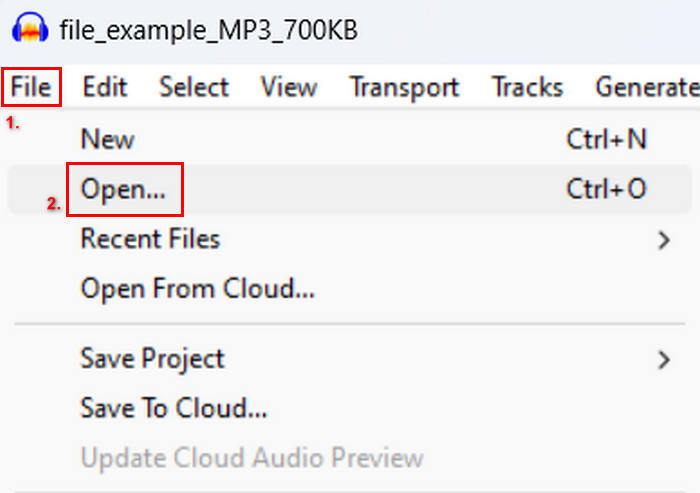
الخطوة 2: افتح البرنامج، ثم انتقل إلى علامة تبويب File، وانقر على Open، واستورد المقاطع الصوتية التي تريد دمجها.
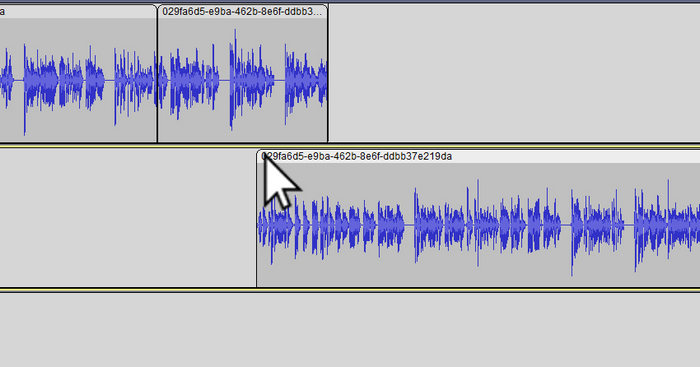
الخطوة 3: بعد استيراد جميع المقاطع الصوتية إلى المخطط الزمني (Timeline)، ما عليك فعله بعد ذلك هو النقر على رأس المقطع (Clip head) في المسار لتحريكه وترتيبه بالترتيب الذي تريده.
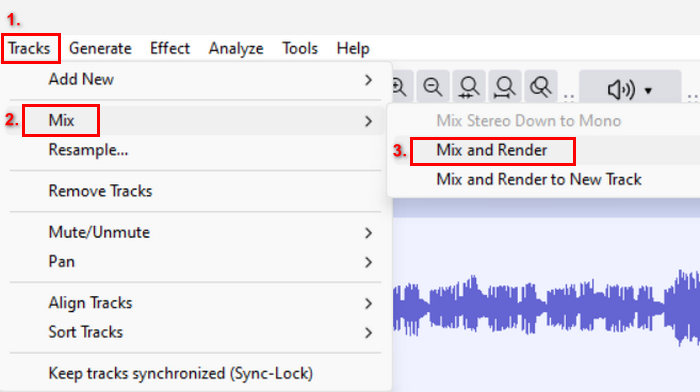
الخطوة 4: بعد أن تصفِّ كل المقاطع الصوتية، قم بمزجها في تركيبة واحدة. لاختيار المقاطع التي تريد دمجها، اضغط مع الاستمرار على Ctrl أثناء النقر عليها. بعد ذلك، لدمج المقاطع المحددة في مسار واحد، انتقل إلى Tracks، وانقر على Mix، ثم اختر Mix and Render.
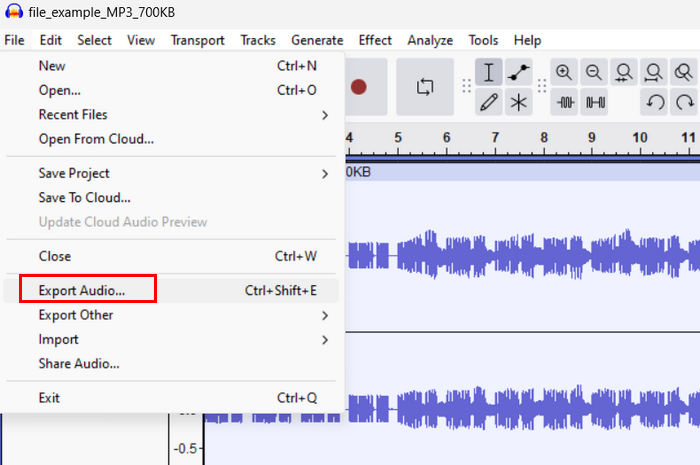
الخطوة 5: لتصدير الملف، انتقل إلى علامة تبويب File ثم اختر Export Audio.
لضمان انتقالات سلسة وصوت متوازن للمسارات الصوتية المدمجة، استخدم تأثيري Amplify أو Normalize داخل البرنامج. بالإضافة إلى ذلك، استخدم تأثيرات التلاشي التدريجي للدخول والخروج (fade-in & fade-out) لإنشاء انتقالات سلسة بين المقاطع والحصول على صوت أكثر احترافية وصقلًا. اطّلع هنا لتتعلم كيفية إنشاء تلاشي للصوت في Audacity.
الجزء 2. دمج المسارات باستخدام بديل Audacity
إذا كنت تبحث عن بديل ممتاز لأنك تجد صعوبة في فهم كيفية عمل ميزة دمج المقاطع في Audacity، فيمكنك في هذه الحالة استخدام أداة FVC المختارة Video Converter Ultimate. فهي أداة متكاملة تقدّم مجموعة أدوات لاحتياجات الصوت والفيديو، من بينها أداة دمج الصوت. ما تقوم به هذه الأداة هو أنه بعد استيراد المقاطع الصوتية التي تريد دمجها، يمكنك بسهولة تغيير ترتيب المسارات كما ترغب وتحريرها على الفور قبل دمجها بنقرة واحدة.
الميزات الرئيسية:
• يمكنه دمج ملفات صوتية متعددة بـ 1000 تنسيق مثل MP3، AAC، WAV، FLAC، OGG، والمزيد.
• يحتوي على ميزات تحرير أساسية مثل التشذيب والتقسيم السريع وتأثيرات التلاشي والاختفاء.
• يسمح بتحرير مخرجات الصوت مثل المشفر ومعدل العينة ومعدل البت والقناة وما إلى ذلك.
• عملية دمج سريعة.
• متوفر لكل من Windows وMacOS.
إليك كيفية دمج المسارات باستخدام FVC الذي تم اختياره في Video Converter Ultimate:
الخطوة 1: أولاً، تحتاج إلى تنزيل الأداة وتثبيتها على جهازك.
تحميل مجانيلنظام Windows 7 أو أحدثتنزيل آمن
تحميل مجانيلنظام MacOS 10.7 أو أحدثتنزيل آمن
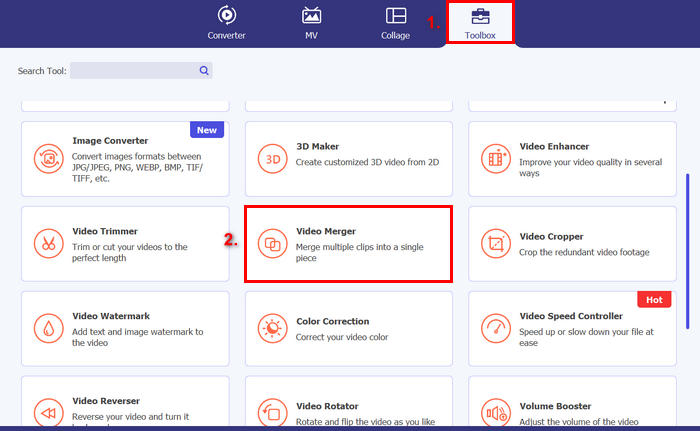
الخطوة 2: افتح الأداة، وانتقل إلى علامة تبويب Toolbox، واختر Video Merger. بعد ذلك، انقر على أيقونة علامة الجمع لإستيراد الملفات الصوتية التي تريد دمجها بسهولة.
الخطوة 3: ستظهر جميع المقاطع الصوتية التي استوردتها في الأسفل. إذا كنت بحاجة إلى تعديل ترتيبها، ما عليك سوى سحب المقطع الصوتي إلى الموضع المناسب. أو يمكنك تحديد المقطع ثم النقر على زر Forward أو Backward. بعد ذلك، انقر على زر Export لحفظ مشروعك.
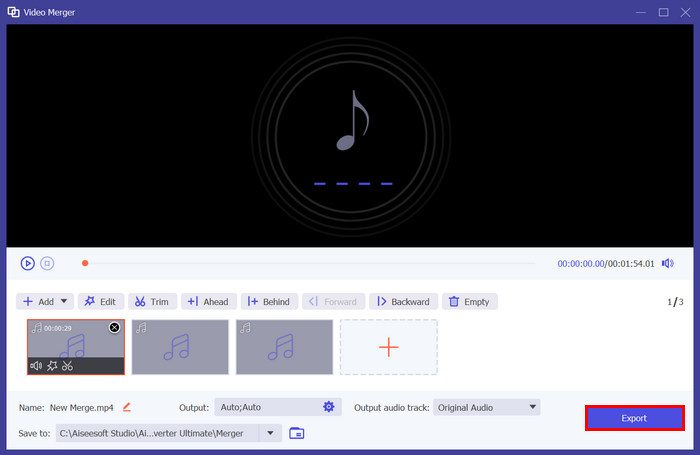
ملاحظة: في حال احتجت إلى تغيير صيغة الصوت أو تخصيص بعض إعدادات الصوت، توجه إلى إعداد Output. من هناك، يمكنك تغيير الصيغة، وبرنامج الترميز (encoder)، ومعدل العيِّنة (sample rate)، والقناة (channel)، ومعدل البِت (bitrate) لمساراتك الصوتية. بعد الانتهاء، انقر على زر Export.
هذا كل ما في الأمر. إن برنامج Video Converter Ultimate الذي تم اختياره من قبل شركة FVC هو بديل رائع لبرنامج Audacity. فبفضل واجهته سهلة الاستخدام والبديهية، يمكن حتى للمبتدئين استخدام الأداة بسهولة عند دمج مسارات متعددة.
الجزء 3. الأسئلة الشائعة حول دمج المسارات في Audacity
كيف يمكنني استيراد ملفات صوتية متعددة إلى مسار واحد في Audacity؟
لاستيراد عدة ملفات صوتية في Audacity، انتقل إلى علامة تبويب File، وانقر على Open، ثم اختر الملفات الصوتية التي تريد دمجها. سيظهر كل ملف في مسار منفصل على المخطط الزمني. من هناك، يمكنك محاذاة المسارات يدويًا ودمجها باستخدام خيار Mix and Render من قائمة Tracks.
كيف يمكنني نقل الصوت من مسار إلى آخر في Audacity؟
هناك طريقتان لتحريك مسار عند دمج مسارات متعددة في Audacity. لتحريك مسار واحد، انقر واسحب مقبض المقطع الخاص بالمسار وحدد موضعه بالترتيب الذي تريده. وفي الوقت نفسه، لتحريك مسارات متعددة، حدد جميع المسارات التي ترغب في تحريكها باستخدام أداة التحديد. ثم اسحب أي مقبض مقطع داخل المنطقة المحددة لتحريك جميع المقاطع المختارة في وقت واحد.
كم عدد المسارات الموجودة في Audacity؟
لا يوجد حد ثابت لعدد المسارات التي يمكنك تحريرها في برنامج Audacity. وبذلك، يمكنك إنشاء واستيراد عدد لا نهائي من المسارات. ومع ذلك، عند العمل مع عدد من المسارات، يجب أن تأخذ في الاعتبار سعة جهاز الكمبيوتر الخاص بك لأن الأداء قد يعتمد على قوة معالجة النظام والذاكرة.
خاتمة
الآن بعد أن عرفتَ كيفية دمج المقاطع الصوتية في Audacity، يمكنك بسهولة إنشاء انتقالات سلسة وصوت متوازن لمشاريعك. إضافة إلى ذلك، يمكنك استكشاف ميزات أخرى مثل التلاشي التدريجي للدخول والخروج وضبط مستوى الصوت لتحسين جودة الصوت. وفي الوقت نفسه، إذا أردت خيارًا أبسط أو أكثر تقدمًا، جرِّب أداة Video Converter Ultimate التي اختارها FVC؛ فهي سهلة الاستخدام وتوفر تخصيصًا أكبر لملفاتك الصوتية.
-
 كيفية استخدام Audacity لعكس الصوت على Windows 10/11
 إذا كنت تقوم بتحرير ملف صوتي في Audacity وتتساءل عن كيفية عكس كل أو جزء منه، اقرأ هنا وتعلم كيفية عكس الصوت في Audacity بسهولة.
-
 كيفية تلاشي الصوت في برنامج Audacity: 4 طرق مختلفة [2025]
 اكتشف الخطوات التي توضح كيفية تلاشي الصوت في Audacity بشكل فعال وبعض المعلومات الإضافية حول تأثيرات التلاشي في Audacity. استعد الآن، ولنبدأ.
-
 كيفية تقسيم الصوت في برنامج Audacity بدقة عالية [دليل]
 هل تحاول تعلم كيفية تقسيم المسارات في Audacity؟ أنت في الصفحة الصحيحة! في هذه المقالة، ستتعلم كيفية فصل مسار واحد إلى مسارين بسهولة كبيرة.
