


 محول الفيديو النهائي
 مسجل الشاشة
 إصلاح الفيديو
 تنزيل آمن
اكتشف كيفية تغيير حجم مقطع فيديو على نظام Android باستخدام طرق فعالة
سواء كنت من مؤثري وسائل التواصل الاجتماعي أو ترغب فقط في مشاركة أحدث مغامراتك في السفر مع الأصدقاء والعائلة، فإن تغيير حجم مقاطع الفيديو يمكن أن يُحدث فارقًا كبيرًا. فهو لا يساعد فقط على تحسين حجم الملف لتسهيل مشاركته، بل يمكنه أيضًا تحسين تجربة المشاهدة لجمهورك. في هذه المقالة، سنوضح لك كيفية تغيير حجم الفيديوهات على أندرويد، من تعديل نسبة العرض إلى الارتفاع إلى تغيير دقة الفيديو. وباستخدام دليلنا البسيط وسهل الاتباع، يمكنك تغيير حجم مقاطع الفيديو باحتراف والارتقاء بمحتواك إلى مستوى جديد.

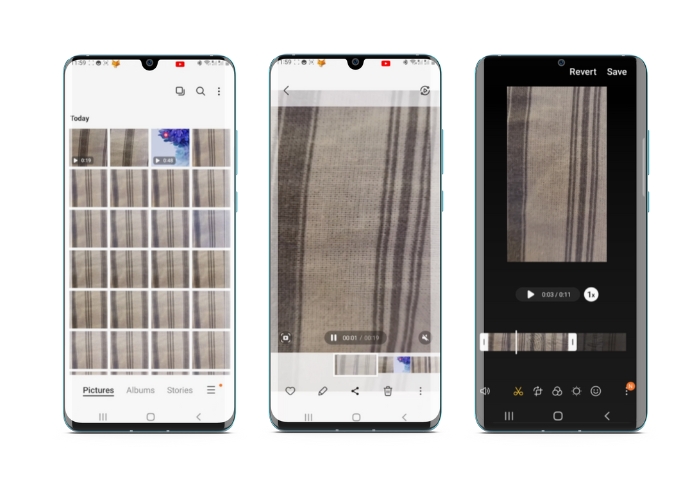
الجزء 1. البرنامج التعليمي كيفية قص مقطع فيديو على Android باستخدام معرض Samsung
يعد تطبيق معرض Samsung أمرًا ضروريًا لإدارة المحتوى المرئي الخاص بك وتحريره إذا كنت تمتلك جهاز Samsung. تتمثل إحدى ميزات التطبيق المفيدة في القدرة على اقتصاص مقاطع الفيديو أثناء التنقل. يسمح للمستخدمين بإزالة الأجزاء غير المرغوب فيها من الفيديو أو ضبط نسبة العرض إلى الارتفاع. ميزة الاقتصاص تجعلها سهلة وبديهية. باستخدام معرض Samsung ، يمكنك بسهولة إنشاء ومشاركة مقاطع فيديو عالية الجودة مصممة وفقًا لاحتياجاتك. راجع الخطوات أدناه لمساعدتك في استخدام أداة اقتصاص محرر فيديو Android.
الخطوة 1. افتح تطبيق Samsung Gallery على جهازك وابحث عن الفيديو الذي تريد اقتصاصه.
الخطوة 2. اضغط على الفيديو لفتحه، ثم اضغط على زر تعديل (أيقونة القلم) في أسفل الشاشة. من شاشة تعديل، اختر خيار اقتصاص.
الخطوة 3. سترى الآن مستطيلًا فوق الفيديو مع مقابض في كل زاوية. اسحب هذه المقابض لتغيير حجم المستطيل حسب الحاجة لاقتصاص الفيديو. اضغط على زر تشغيل لمعاينة الفيديو بعد اقتصاصه.
الخطوة 4. إذا كنت راضيًا عن النتيجة، اضغط على زر حفظ لحفظ الفيديو المُقتص في المعرض لديك.
الجزء 2. شرح كيفية قص مقطع فيديو على Android باستخدام صور Google
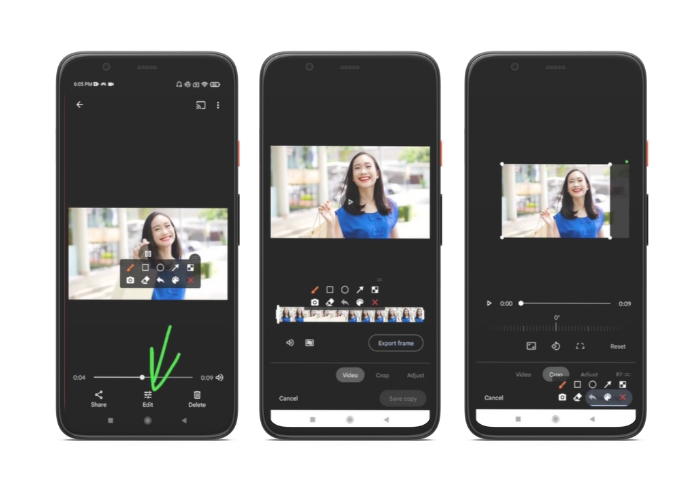
صور Google هو تطبيق شائع لإدارة الصور والفيديو لمستخدمي Android ، وهو يأتي مع مجموعة واسعة من الميزات لمساعدتك في تحرير المحتوى المرئي الخاص بك وتحسينه. إحدى الميزات الرائعة لهذه الأداة هي القدرة على اقتصاص مقاطع الفيديو ، والتي تتيح لك إزالة الأجزاء غير المرغوب فيها والتركيز على أهم اللحظات. يمكنك اقتصاص مقاطع الفيديو ببضع نقرات فقط ، مما يجعل إنشاء محتوى فيديو مصقول واحترافي المظهر على جهاز Android الخاص بك أمرًا سهلاً وبديهيًا. هنا ، سنوضح لك كيفية اقتصاص مقاطع الفيديو باستخدام صور Google خطوة بخطوة.
الخطوة 1. شغّل تطبيق صور Google على جهاز أندرويد وابحث عن الفيديو الذي تريد اقتصاصه. بعد ذلك، اضغط على زر تعديل الموجود في أسفل الشاشة.
الخطوة 2. من شاشة التعديل، اختر خيار الاقتصاص والدوران (Crop & rotate).
الخطوة 3. سترى الآن مستطيلًا مُطبقًا على الفيديو مع مقابض في كل زاوية. استخدم هذه المقابض لتغيير حجم المستطيل حسب الحاجة لاقتصاص المقطع.
الخطوة 4. في النهاية، اضغط على حفظ لحفظ التغييرات التي أجريتها على الفيديو.
الجزء 3. دليل كيفية قص مقطع فيديو على Android باستخدام تطبيق تابع لجهة خارجية
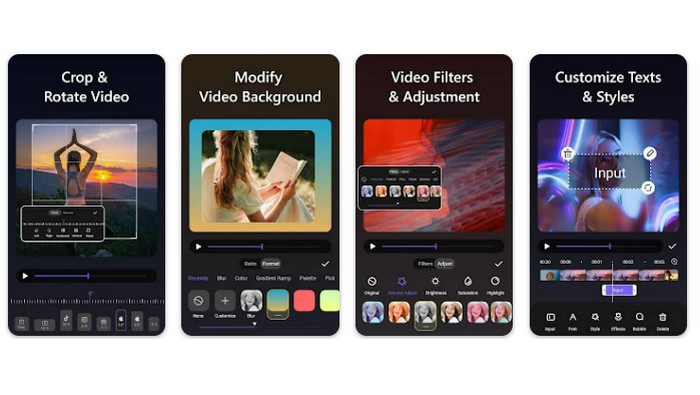
أصبح إنشاء الفيديوهات وتحريرها بسهولة في متناول الجميع ممن يملكون هاتفًا يعمل بنظام أندرويد، بفضل تطبيق Vid.fun. يتيح هذا البرنامج للمستخدمين تعديل مقاطعهم بطرق عديدة، بما في ذلك إضافة الموسيقى والنصوص والتأثيرات، وقص المقاطع ودمج الأجزاء، وغير ذلك الكثير. يمكنك تعلم كيفية تغيير حجم الفيديو على أندرويد باتباع الخطوات الخاصة بهذا البرنامج أدناه.
الخطوة 1. حمِّل تطبيق Vid.fun من متجر Google Play، ثم ابدأ مشروعًا جديدًا.
الخطوة 2. من معرض جهازك أو ألبوم الكاميرا، اختر المقطع الذي ترغب في اقتصاصه واسحبه إلى المخطط الزمني (Timeline).
الخطوة 3. اختر الجزء المطلوب من الفيديو في المخطط الزمني من خلال الضغط عليه، ثم استخدم زر اقتصاص الموجود في أسفل الشاشة لتعديل الجزء.
الخطوة 4. سيتم عرض مستطيل فوق المقطع، ويمكنك سحب زواياه لإجراء التعديلات. لاقتصاص الفيديو، ما عليك سوى الإمساك بالمقابض في الزوايا وسحبها إلى الموضع المطلوب. بعد الانتهاء، يمكنك إرسال الفيديو لأحبائك أو نشره عبر الإنترنت.
الجزء 4. توصية التطبيق
بالطبع، بعد تطبيقات الهواتف المحمولة، لدينا أيضًا توصية بتطبيق سطح مكتب. برنامج Video Converter Ultimate من FVC هو برنامج متكامل لتحويل صيغ الفيديو، ويتضمن العديد من أدوات التحرير. ومن أبرز وظائفه إمكانية ضبط نسبة العرض إلى الارتفاع للفيديو.
باستخدام هذا البرنامج ، يمكنك بسهولة تعديل شكل الفيديو وحجمه عن طريق تغيير نسبة العرض إلى الارتفاع. إذا كنت ترغب في مشاركة مقطع فيديو على وسائل التواصل الاجتماعي بنسبة عرض إلى ارتفاع معينة ، أو إذا كنت بحاجة فقط إلى جعل الفيديو يتناسب مع حجم شاشة معين ، فإن FVC Video Converter Ultimate قد قمت بتغطيته. تعرف على كيفية اقتصاص مقاطع الفيديو على Android بمساعدة هذا البرنامج.
الخطوة 1. تنزيل وتثبيت FVC Video Converter Ultimate
يمكنك تنزيل التطبيق بالنقر على أحد أزرار التنزيل المجاني أدناه. بعد تنزيل البرنامج، قم بتثبيته وتشغيله على جهاز الكمبيوتر.
تنزيل مجانيلنظام Windows 7 أو أحدثتنزيل آمن
تنزيل مجانيلنظام MacOS 10.7 أو أحدثتنزيل آمن
الخطوة 2. استيراد الفيديو المراد اقتصاصه
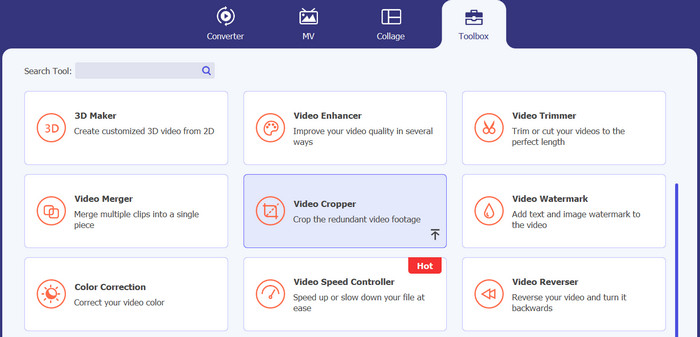
بعد ذلك، انتقل إلى علامة تبويب صندوق الأدوات (Toolbox) في أعلى واجهة البرنامج. ثم اختر خيار Video Cropper وأضف ملفًا عن طريق الضغط على زر علامة الزائد.
الخطوة 3. اقتصاص ملف الفيديو
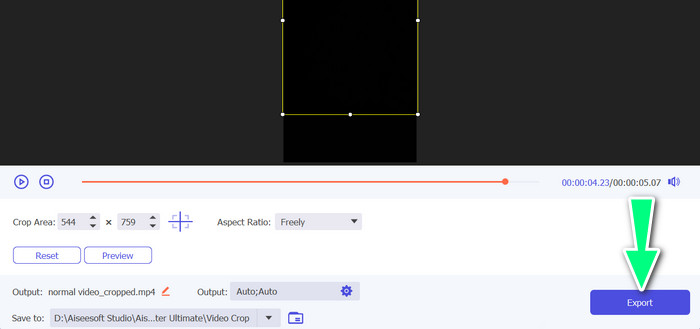
يمكنك الآن اقتصاص الفيديو المستورد. باستخدام منزلقات منطقة الاقتصاص ، اضبط المنطقة التي تريد اقتصاصها من الفيديو. يمكنك أيضًا تحديد نسبة عرض إلى ارتفاع معينة من القائمة المنسدلة. قم بمعاينة مقطع الفيديو الذي تم اقتصاصه للتأكد من اقتصاص الجزء المطلوب من الفيديو.

الخطوة 4. تصدير الفيديو المقتص
أخيرًا، اضغط على زر تصدير في الزاوية السفلية اليمنى لإنهاء عملية الاقتصاص وحفظ الفيديو بعد اقتصاصه.
الجزء 5. أسئلة وأجوبة حول اقتصاص مقاطع الفيديو على Android
كيف يمكنني قص مقاطع الفيديو دون فقدان الجودة؟
تتمثل إحدى طرق اقتصاص مقاطع الفيديو دون فقدان الجودة في استخدام أداة تحرير الفيديو التي تدعم الاقتصاص غير المدمر. هذا يعني أنه لم يتم تغيير ملف الفيديو الأصلي ، ويتم حفظ الجزء الذي تم اقتصاصه فقط كملف جديد.
هل سيؤثر اقتصاص مقطع فيديو على Android على جودته أو دقته؟
نعم ، يمكن أن يؤثر اقتصاص مقطع فيديو على Android على جودته أو دقته ، حيث تتضمن العملية إزالة جزء من الفيديو الأصلي. ومع ذلك ، فإن مدى تأثر الجودة أو الدقة يعتمد على عوامل مختلفة ، مثل حجم المحصول وجودة الفيديو الأصلي والطريقة المستخدمة لاقتصاص الفيديو.
هل من الممكن اقتصاص مقطع فيديو وإضافة تأثيرات أو عوامل تصفية في نفس الوقت على Android؟
نعم، يمكن اقتصاص الفيديو وإضافة التأثيرات أو الفلاتر في الوقت نفسه على أندرويد. هناك العديد من تطبيقات تحرير الفيديو المتوفرة في متجر Google Play التي توفر خيارات الاقتصاص وإضافة التأثيرات وفلاتر الفيديو معًا. من الأمثلة الشهيرة: FVC Video Converter Ultimate، Filmora، وغيرها.
خاتمة
تعلُّم كيفية اقتصاص فيديو على أندرويد عملية بسيطة يمكن تنفيذها باستخدام تطبيقات وبرامج مختلفة. Samsung Gallery وGoogle Photos وFVC Video Converter Ultimate ليست سوى أمثلة قليلة على الأدوات التي يمكن أن تساعدك على اقتصاص الفيديوهات على أجهزة أندرويد.
-
 دليل حول كيفية إصلاح مقاطع الفيديو التي لا يتم تشغيلها على هواتف Android
 هل تريد معرفة أسباب عدم إمكانية تشغيل مقاطع الفيديو على جهاز Android الخاص بك؟ وإذا كان الأمر كذلك ، فهل هناك أي طرق لإصلاح المشكلة بنفسك؟ أكمل القراءة لمعرفة المزيد.
-
 أسهل الطرق حول كيفية تسريع مقطع فيديو على أجهزة Android الخاصة بك [2023]
 هل تعلم أنه يمكنك تسريع مقطع فيديو على جهاز Android؟ لذا ، إذا كنت تريد معرفة كيفية تسريع مقطع فيديو على هاتف Android الخاص بك ، فاقرأ هذه المقالة.
-
 3 طرق ممتازة حول كيفية قص الفيديو على Android
 هل تريد استخدام جهاز Android الخاص بك لقص مقطع فيديو؟ ثم هذا المنصب هو لك. سنناقش طرقًا قيمة حول كيفية تقصير مقطع فيديو على Android.
