


 محول الفيديو النهائي
 مسجل الشاشة
 إصلاح الفيديو
 تنزيل آمن
حلول لقص مقاطع الفيديو عبر الإنترنت [دروس خطوة بخطوة]
كيف تجعل فيديوك الطويل أقصر؟ إذا كنت لا تعرف أفضل الطرق التي يمكنك استخدامها، فهذه المقالة كُتبت من أجلك. أثناء قراءتك لهذا الدليل سنقدّم لك كل المعلومات الأساسية حول تقليل مدة الفيديو، كما سنعرّفك ببرامج تحرير الفيديوهات أونلاين وأوفلاين التي يمكنك الاستفادة منها. وبهذه الطريقة ستكون لديك فرص أكبر لتحقيق هدفك. لذا، وبدون إطالة، تابع قراءة هذا المنشور وتعرّف على كيفية قص الفيديو أونلاين.

الجزء 1. طرق ممتازة لقص الفيديو عبر الإنترنت
1. إعلان مصاحب للفيديو
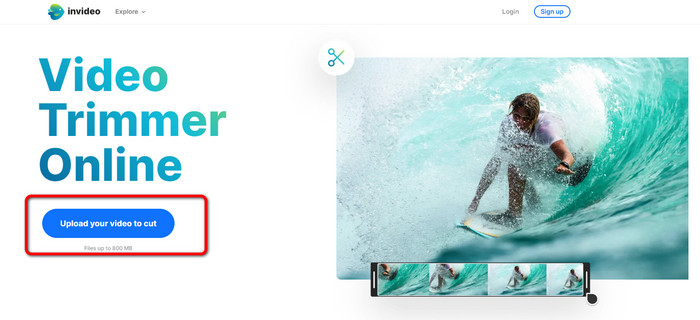
إحدى أدوات تحرير الفيديو المفيدة التي يمكنك العثور عليها عبر الإنترنت هي أداة قص الفيديو المصاحب للفيديو. يوفر هذا البرنامج المستند إلى الويب تصميمًا سهل الاستخدام. بعد زيارة موقع الويب ، لن تحتاج إلى تثبيت الأداة. كل ما عليك فعله هو إضافة الفيديو ، ويمكنك بالفعل المتابعة إلى التشذيب. بالإضافة إلى ذلك ، نظرًا لأنه يحتوي على تصميم بسيط ، سيكون هناك أيضًا طريقة مفهومة. بهذه الطريقة ، سواء كنت مستخدمًا محترفًا أو غير محترف ، يمكنك استخدام الإعلانات المصاحبة للفيديو. علاوة على ذلك ، يمكن الوصول إلى InVideo على جميع منصات الويب تقريبًا. يمكنك استخدام الأداة على Google Chrome و Mozilla Firefox و Internet Explorer والمزيد. ومع ذلك ، فإن الإعلانات المصاحبة للفيديو لها بعض العيوب. عند استخدام الإصدار المجاني ، لا يمكن أن يوفر InVideo جودة فيديو عالية. أيضًا ، يمكنه فقط تقديم جودة فيديو منخفضة ، وهو أمر غير مرضٍ. إذا كنت تريد جودة فيديو ممتازة ، فيجب عليك شراء خطة اشتراك. اتبع الخطوات أدناه لقص / تقليم الفيديو الخاص بك باستخدام أداة تشذيب الفيديو المصاحب للفيديو.
الخطوة 1. افتح المتصفح وانتقل إلى الموقع الرسمي لـ InVideo. إذا كنت بالفعل على صفحة الويب، انقر زر Upload your video to cut (حمّل الفيديو لقصّه). عندما تظهر نافذة اختيار الملفات على الشاشة، اختر الفيديو الذي تريد قصَّه/تقصيره ثم افتحه.
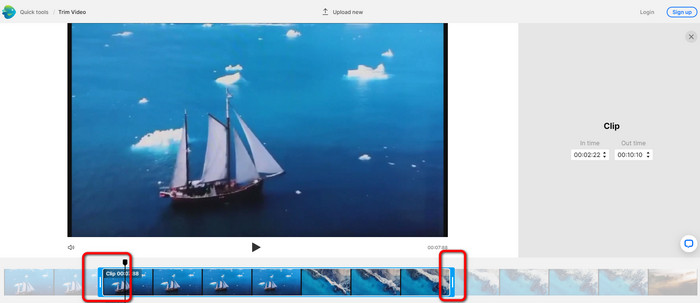
الخطوة 2. بعد اختيار الفيديو، سيتم نقلك إلى القسم الذي يمكنك فيه قصّه. لقص الفيديو، حرّك أشرطة التمرير في طرفي مخطط الفيديو إلى نقطة الزمن التي تريدها.
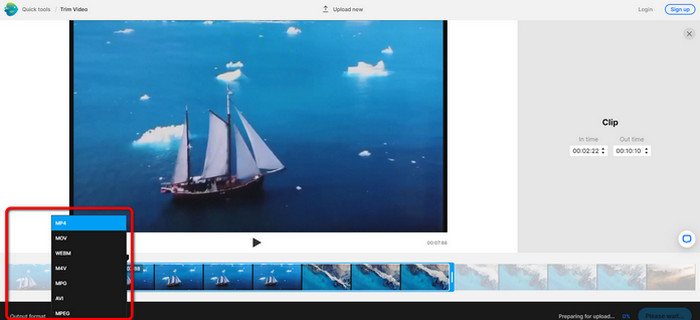
الخطوة 3. بعد قص الفيديو، يمكنك حفظه بصيغ مختلفة. انتقل إلى خيار Output Format (صيغة الإخراج) في الجزء السفلي الأيسر من الواجهة. ثم اختر صيغة الإخراج المفضّلة عندما تظهر لك خيارات الصيغ، وبعد ذلك انقر Done (تم).
الخطوة 4. يجب أن تسجّل حساباً في InVideo أو تسجّل الدخول بحساب موجود مسبقاً قبل أن تتمكّن من حفظ الفيديو. بعد إدخال بياناتك مباشرة، سيصبح فيديوك جاهزاً للحفظ خلال ثوانٍ قليلة.
2. Ezgif
أداة أخرى مجانية لقص المقاطع أونلاين هي مقص الفيديو Ezgif. تتيح لك Ezgif تقصير الفيديو بخطوات بسيطة. هي أداة مجانية تماماً على الإنترنت، لذلك لن تضطر إلى دفع أي مبلغ. بالإضافة إلى ذلك، يمكنك الوصول إلى الأداة من جميع المتصفحات مثل Google وEdge وFirefox وExplorer وغيرها. لكن المنصة عبر الإنترنت تدعم صيغة GIF فقط؛ لذا إن كنت تخطط لقص فيديو بصيغة أخرى فـ Ezgif ليست الأداة المناسبة. كما أن هناك الكثير من الإعلانات المزعجة التي تظهر على الشاشة أثناء الاستخدام، مما يجعل عملية التحرير مزعجة.
الخطوة 1. انتقل إلى موقع Ezgif ثم اختر خيار Cut (قص).
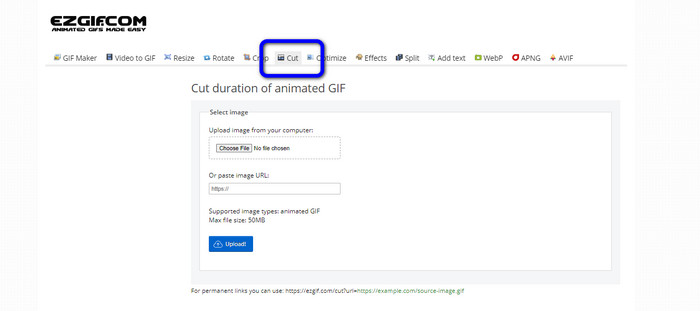
الخطوة 2. بعد ذلك، انقر زر Choose File (اختر ملفاً). ثم أضف ملف GIF الذي تريد رفعه من مجلّدات جهازك.
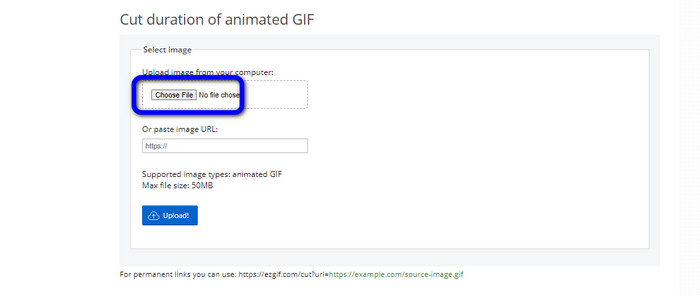
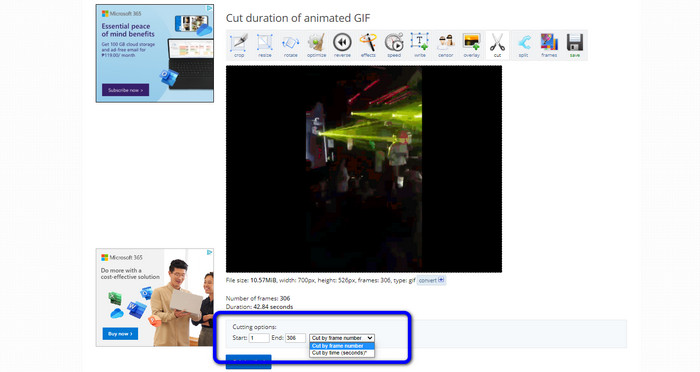
الخطوة 3. بعد رفع ملف GIF يمكنك البدء بقصّه مباشرة. هناك طريقتان لقص ملف GIF: القص حسب رقم الإطار أو القص حسب الوقت. اختر الطريقة المناسبة لك وقص الملف وفق تفضيلك.
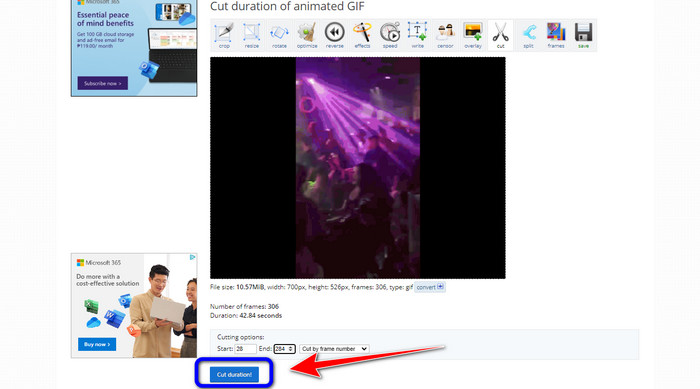
الخطوة 4. انقر زر Cut Duration (قص المدّة) لبدء عملية القص.
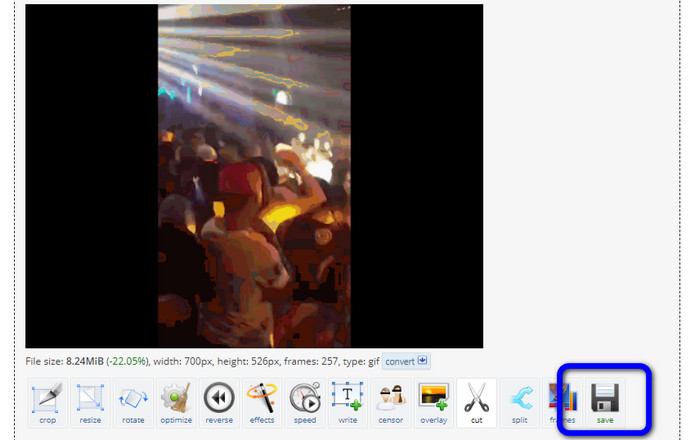
الخطوة 5. بعد ذلك سيظهر لك الملف بعد التعديل. انقر خيار Save (حفظ) لتحميل النتيجة النهائية على جهاز الكمبيوتر.
3. Kapwing
لقص الفيديو يمكنك أيضاً الاستعانة بمقص الفيديو Kapwing. هذه الأداة القائمة على الويب قادرة على قص الفيديو بطريقة سهلة وخالية من التعقيد. كما يمكنك الوصول إليها من متصفحات مختلفة مثل Chrome وMozilla وEdge وغيرها. إضافة إلى ذلك، يدعم Kapwing العديد من صيغ الفيديو مثل MP4 وMOV وAVI وFLV وWEBM وغيرها، مما يجعله مناسباً لمختلف المستخدمين. لكن لدى Kapwing بعض السلبيات؛ فهناك إعلانات مزعجة تظهر باستمرار على الشاشة، كما أنه في النسخة المجانية يسمح فقط برفع فيديو بجودة 720p، ويضع علامات مائية مزعجة على الفيديو بعد التعديل. إذا أردت الحصول على فيديو من دون علامات مائية والاستفادة من مزايا أكبر، فستحتاج إلى شراء خطة اشتراك مدفوعة.
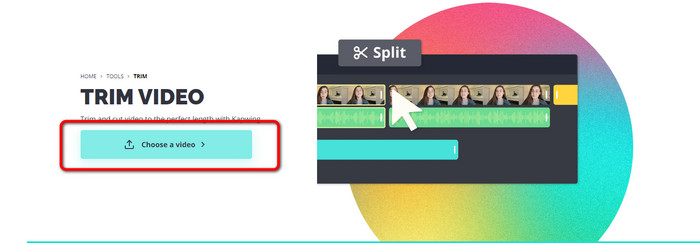
الخطوة 1. انتقل إلى موقع Kapwing. ثم انقر خيار Choose a video (اختر فيديو) للانتقال إلى الواجهة الرئيسية للأداة.
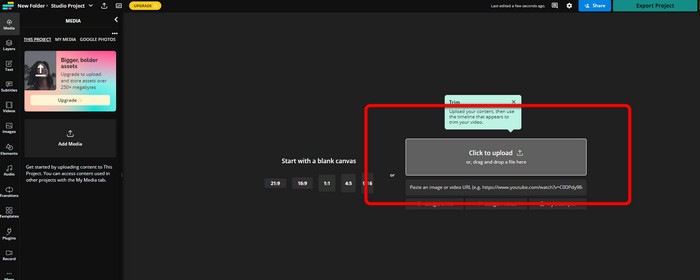
الخطوة 2. انقر زر Click to upload (اضغط للرفع) لإدراج الفيديو من مجلدات جهازك.
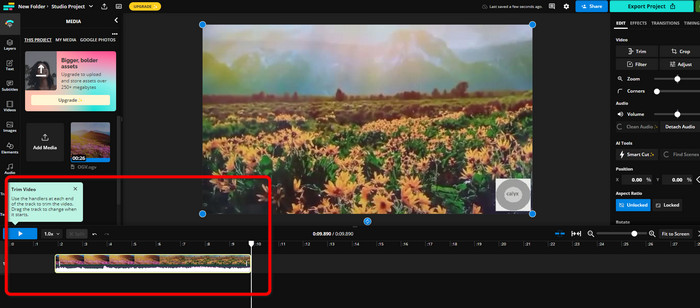
الخطوة 3. عندما يظهر الفيديو في المخطط الزمني، يمكنك سحب المقابض من كلا الطرفين لبدء قص الفيديو.
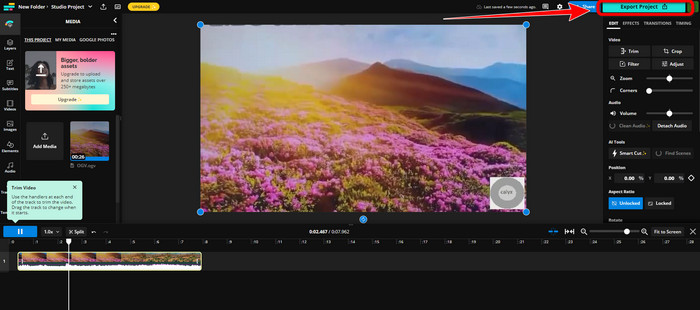
الخطوة 4. عند الانتهاء، توجّه إلى الزاوية العلوية اليمنى من الواجهة وانقر زر Export Project (تصدير المشروع). وبهذه الطريقة يمكنك حفظ الفيديو المعدّل على جهازك.
الجزء 2. طريقة بديلة لقص الفيديو دون اتصال
استخدم Video Converter Ultimate لتحرير الفيديوهات أوفلاين بأفضل طريقة ممكنة. تجعل هذه الأداة عملية قص الفيديو أو تقطيعه بسيطة للغاية، كما أنها تتمتّع بواجهة سهلة مع تنقّل واضح، مما يجعلها مناسبة لجميع المستخدمين. يمكنك أيضاً حفظ الناتج النهائي بصيغ متنوعة مثل MOV وAVI وMP4 وMKV وغيرها. وهناك مزيد من الإمكانيات أثناء قص الفيديو؛ إذ يمكنك إجراء تعديلات مختلفة من خلال خيارات الإخراج، مثل تغيير معدل الإطارات، والدقة، والترميز، والجودة، وغير ذلك. بالإضافة إلى ذلك، لا يضيف Video Converter Ultimate أي علامات مائية على الفيديو بعد التعديل، وبالتالي يمكنك مشاهدة الفيديو المعدّل من دون أي عناصر مزعجة. كما أن البرنامج متاح لكلٍّ من مستخدمي Windows وMac، ما يعني أنه مريح وعملي على كلا النظامين. اتبع التعليمات التفصيلية أدناه لبدء قص الفيديو.
الخطوة 1. انقر زر التحميل أدناه للحصول على Video Converter Ultimate على جهازك. افتح البرنامج بعد الانتهاء من التثبيت.
تحميل مجانيلنظام Windows 7 أو أحدثتنزيل آمن
تحميل مجانيلنظام MacOS 10.7 أو أحدثتنزيل آمن
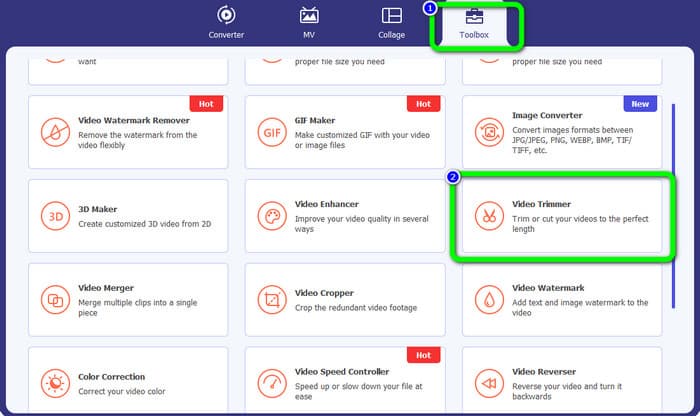
الخطوة 2. في الواجهة، انقر قائمة Toolbox (صندوق الأدوات)، ثم اختر أداة Video Trimmer (مقص الفيديو).
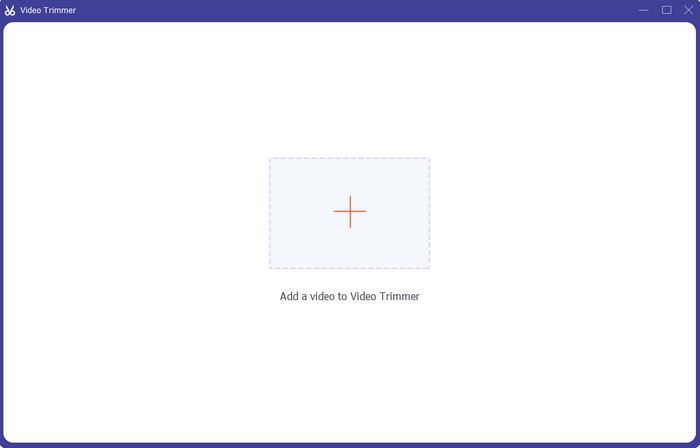
الخطوة 3. عندما تظهر الواجهة الجديدة على الشاشة، انقر علامة Plus (+) لإدراج الفيديو الذي تريد تحريره.
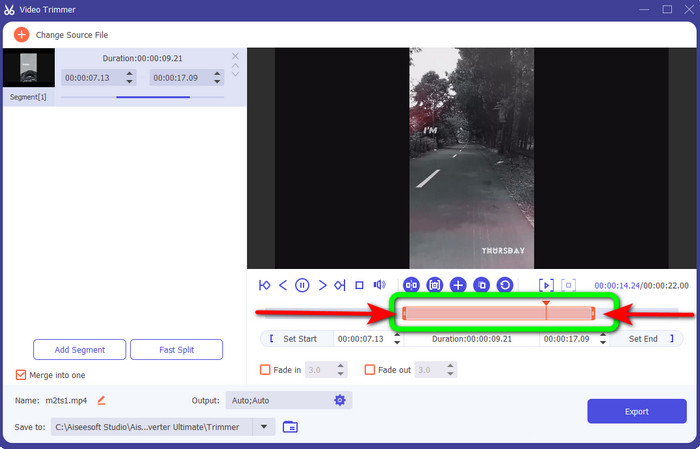
الخطوة 4. بعد ذلك يمكنك البدء فوراً في تعديل الفيديو في هذا الجزء. يمكنك سحب حافتي شريط الفيديو للتحكّم في كيفية قص/تقليم المقطع، وتحريك الحافة اليمنى أو اليسرى بحسب احتياجك.
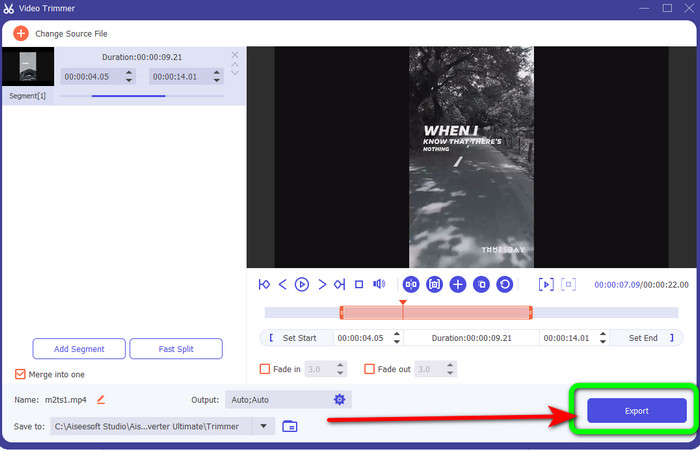
الخطوة 5. عندما تشعر بالرضا عن النتيجة، انقر زر Export (تصدير) للانتقال إلى عملية التصدير، ثم احفظ فيديوك النهائي بعد التعديل.
الجزء 3. أسئلة وأجوبة حول كيفية قص الفيديو عبر الإنترنت
كيفية قص مقطع فيديو على iPhone؟
بعد البدء ، انقر فوق الفيديو الذي ترغب في تحريره في تطبيق الصور. انقر على تعديل. قم بتغيير أوقات البدء والإيقاف عن طريق سحب أشرطة التمرير على كل جانب من الخط الزمني للفيديو. استخدم زر التشغيل لمشاهدة معاينة للفيديو الذي تم تحريره. اختر حفظ الفيديو أو حفظ الفيديو كمقطع جديد بعد تحديد تم.
كيفية قص مقاطع الفيديو في Shotcut؟
اسحب ملف الفيديو إلى الجدول الزمني بعد استيراده إلى Shotcut. ضع رأس التشغيل في بداية المقطع الذي تريد قصه. ثم اضغط على مفتاح الاختصار I. اضغط على المفتاح O بعد دفع رأس التشغيل إلى نهاية المقطع. سيتم الآن فصل المقطع عن بقية الفيديو.
ما هو أفضل برنامج لقص ملفات MP4 في وضع عدم الاتصال؟
إذا كنت تريد قص ملفات MP4 أوفلاين، فاستخدم Video Converter Ultimate. هذا البرنامج المجاني التحميل يتيح لك قص ملفات MP4 بسهولة ودون تعقيد.
خاتمة
كانت هذه أفضل الطرق لـقص الفيديو أونلاين. يمكنك استخدام جميع أدوات تحرير الفيديو المذكورة أعلاه لقص المقاطع. لكن تذكّر أنه عند استخدام الأدوات أونلاين قد تتراجع كفاءتها أحياناً بسبب ضعف الاتصال بالإنترنت. في هذه الحالة، استخدم Video Converter Ultimate، فهو برنامج يمكن تنزيله ويتيح لك تحرير الفيديوهات من دون الحاجة إلى اتصال بالإنترنت.
-
 [4 طرق] كيفية تسريع مقاطع الفيديو الخاصة بك على الإنترنت بسهولة
 هل تريد تسريع الفيديو عبر الإنترنت؟ اقرأ هذه المقالة لتعرف المزيد عن تسريع الفيديو بطرق مختلفة ممكنة.
-
 كيفية قص ودمج الأغاني عبر الإنترنت - أفضل 4 طرق يجب أن تعرفها
 عندما تريد قص الأغاني ودمجها عبر الإنترنت لإنشاء مقطوعة موسيقية ، يمكنك معرفة المزيد حول أفضل 4 أدوات عبر الإنترنت لقص الأغاني ودمج الملفات من المقالة.
-
 اكتشف أفضل أداة تشذيب MP4 مع الإجراء والمعلومات
 هل تريد معرفة كيفية قص مقاطع الفيديو مثل مدوني الفيديو الذين تشاهدهم؟ ثم تابع قراءة هذا المنشور لمعرفة أدوات قص MP4 التي يمكنك استخدامها.
