


 محول الفيديو النهائي
 مسجل الشاشة
 إصلاح الفيديو
 تنزيل آمن
إرشادات لإزالة VSDC Watermark على مقاطع الفيديو بسهولة وفعالية
لن تخطئ باختيار برنامج VSDC Video Editor لتحرير الفيديوهات الأساسية على نظام التشغيل ويندوز. هذا البرنامج غير الخطي يمكنه تلبية احتياجاتك التي تبحث عنها في محرر فيديو، إذ يوفّر مجموعة من أدوات التحرير التي يمكنك استخدامها لإنتاج فيديو نهائي ممتاز. ومع انتشار هذا البرنامج، أصبح لدى كثير من المستخدمين تساؤلات حوله، وأشهرها حاليًا هو: هل يضع برنامج VSDC Free Video Editor علامة مائية؟ هل لديك السؤال نفسه مثل بقية المستخدمين على الويب؟ للإجابة عن الأسئلة التي يطرحها الكثيرون، سنقدّم لك الإجابة التي تحتاجها؛ تابع القراءة لتتعرف على الأمر بشكل أوضح.

الجزء 1. هل يحتوي محرر الفيديو المجاني VSDC على علامة مائية
على الرغم من أنك تستخدم الإصدار المجاني من VSDC لتحرير مقاطع الفيديو أو الأفلام التي لديك ، لا يتم تضمين علامات VSDC المائية بمجرد تصديرها. حتى تتمكن من الاستمتاع بالفيديو الذي تقوم بتحريره هنا بدون العلامة المائية عليه مجانًا. لاستخدام ميزات تحرير الفيديو الأخرى ، من الأفضل شراء الأداة لفتحها. على الرغم من أنه محرر مجاني ، إلا أن الأداة لا يمكنها إزالة العلامة المائية التي أضفتها إلى الفيديو. إنها مشكلة للبعض ، والبعض الآخر يستخدم خاصية التقسيم والقطع لإزالة العلامة المائية ، على الرغم من أنها جيدة إذا كانت على الجانبين. ولكن إذا كانت العلامة المائية في المنتصف ، فهل تريد استخدام قاطع فيديو؟ بالطبع لا! يمكن أن تساعدك الأدوات أدناه في إزالة علامة VSDC المائية الموجودة في الفيديو الخاص بك بسهولة.
الجزء 2. كيفية إزالة العلامة المائية من الفيديو على VSDC بالطريقتين المتاحتين
FVC Video Converter Ultimate - مزيل العلامة المائية النهائي على نظامي التشغيل Windows و Mac
يُعَدّ FVC Video Converter Ultimate من أكثر البرامج تطورًا والمعتمدة على تقنيات الذكاء الاصطناعي التي يمكنك استخدامها لإزالة العلامة المائية الخاصة ببرنامج VSDC. يتيح لك هذا البرنامج التحكّم يدويًا في ميزة إزالة العلامة المائية التي يوفّرها، وهي ميزة لا تتيحها العديد من البرامج الأخرى. يقوم بإزالة العلامة المائية بدقة من الفيديوهات دون أن يترك أي أثر في المنطقة التي كانت فيها العلامة المائية.
علاوة على ذلك ، تحتوي هذه الأداة أيضًا على ميزات ووظائف قوية لا يمكنك العثور عليها في البرامج الأخرى. على الرغم من أن هذه الأداة تدعم تقنية الذكاء الاصطناعي ، فلا داعي للقلق بشأن مواصفات جهاز الكمبيوتر الخاص بك لأن الأداة تعمل على نظامي التشغيل Windows و macOS. من حيث الأداء ، فهو متفوق ، ويستخدم مواصفات منخفضة على أجهزة الكمبيوتر ، ويعمل على كل من Windows و Mac ، ولديه أداء مرتفع في الاستيراد والتصدير. لم يتبق شيء للبحث عنه بخلاف البرنامج التعليمي خطوة بخطوة حول كيفية إزالة العلامة المائية من الفيديو في VSDC بمساعدة المساعدة أدناه.
الخطوة 1. نزّل البرنامج الآن على جهاز الكمبيوتر المكتبي لديك من خلال النقر على زر التنزيل أدناه. بعد ذلك، اتبع خطوات التثبيت والإعداد المطلوبة، ثم انقر فوق «Start Now» لفتح الأداة على سطح المكتب.
تحميل مجانيلنظام Windows 7 أو أحدثتنزيل آمن
تحميل مجانيلنظام MacOS 10.7 أو أحدثتنزيل آمن
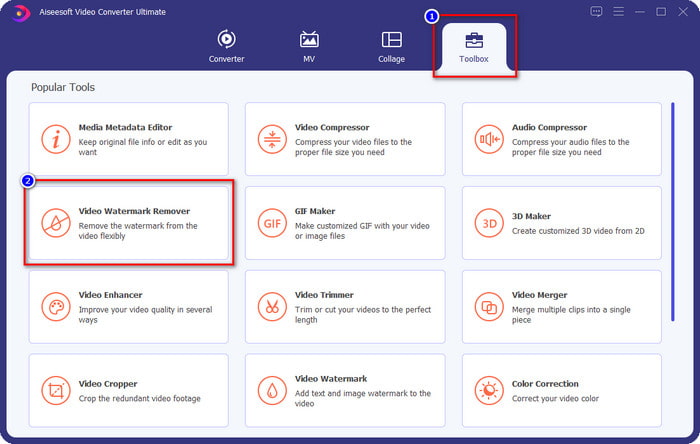
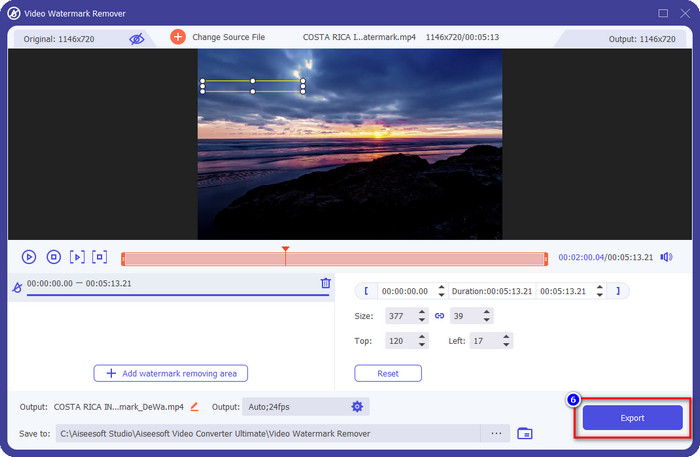
الخطوة 2. بعد تشغيل البرنامج، انتقل إلى قسم Toolbox، ثم اختر Video Watermark Remover لاستخدام أداة إزالة العلامة المائية الاحترافية في هذا البرنامج.
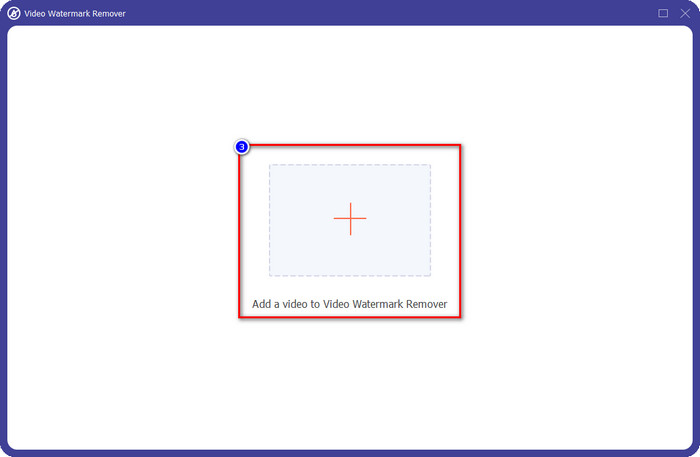
الخطوة 3. في النافذة التي ستظهر على شاشتك، انقر على أيقونة + لتحميل الفيديو الذي يحتوي على علامة مائية.
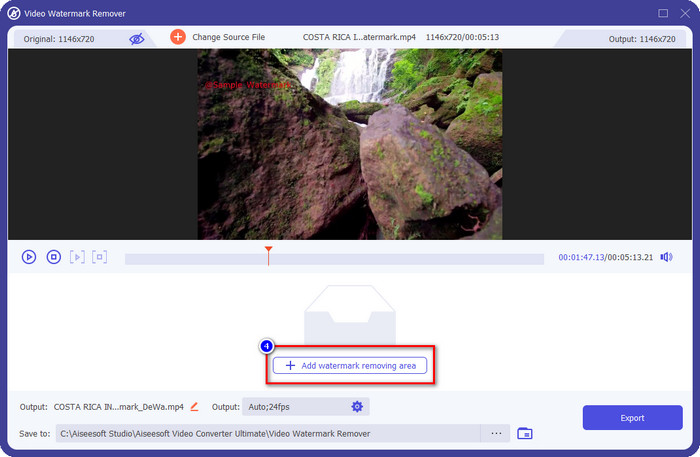
الخطوة 4. لاستخدام أداة إزالة العلامة المائية، انقر على Add Watermark Removing Area.
الخطوة 5. ضع مربع التحديد فوق المنطقة التي تحتوي على العلامة المائية، وتأكد من تغطيتها بالكامل حتى لا ترى العلامة المائية في الفيديو بعد تصديره، وتستمتع بمشاهدته دون تشويش.
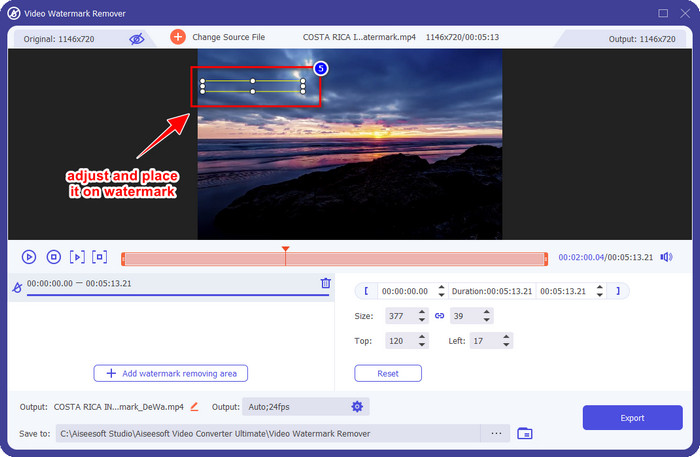
الخطوة 6. بعد تغطية العلامة المائية، انقر على زر Export لحفظ الفيديو بدون العلامة المائية.
كابوينج
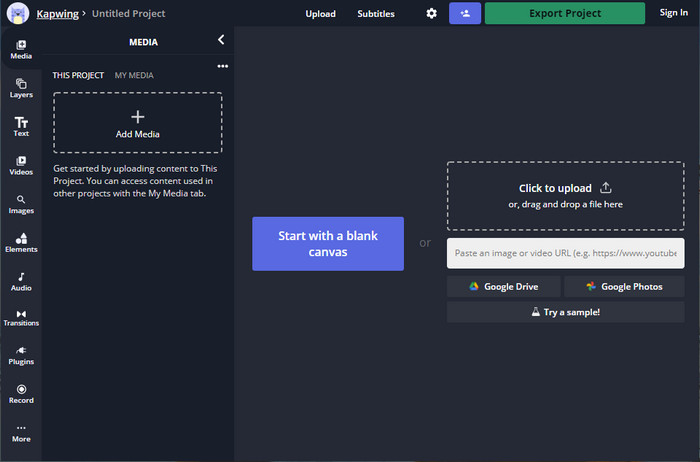
إحدى أفضل الطرق لإزالة العلامة المائية لنسخة VSDC المجانية هي استخدام موقع Kapwing.com. يتيح لك هذا المُحرِّر إزالة العلامة المائية الموجودة مسبقًا على الفيديو بسرعة لجعله يبدو رائعًا. حتى إن لم تكن محترفًا في تنفيذ هذه المهمة، فلا داعي للقلق عند اختيارك لهذه الأداة بفضل واجهتها البديهية والمتكاملة، مما يجعل تعلّم استخدامها أسرع. تُعَد الأداة خيارًا ممتازًا، لكن هناك بعض السلبيات عند استخدامها؛ فمثلاً، النسخة المجانية لا يمكنها تصدير فيديو تزيد مدته على 60 دقيقة، كما أنها محدودة وتتطلّب تسجيل الدخول لإزالة علامة Kapwing المائية عند التصدير.
الخطوة 1. افتح الأداة على الويب، ثم حمِّل الملف عن طريق السحب والإفلات هنا.
الخطوة 2. بعد تحميل الملف، انتقل إلى قسم العناصر (Elements) وانقر على الشكل الذي تريده من الأشكال المتاحة.
الخطوة 3. اسحب وضع الشكل فوق العلامة المائية. تذكّر أن هذه الطريقة لا تعمل جيدًا إذا كان الفيديو يحتوي على ألوان متعددة؛ فهي فعّالة فقط إذا كانت منطقة الفيديو المستخدمة ذات لوحة ألوان واحدة متجانسة.
الخطوة 4. انقر على Export Video، ثم انقر على Export MP4 لحفظ النتيجة النهائية.
ذات صلة:
كيفية إزالة العلامات المائية من Photobucket
كيفية إزالة العلامة المائية من ملفات GIF
الجزء 3. الأسئلة الشائعة حول هل يحتوي محرر الفيديو المجاني VSDC على علامة مائية
هل يمكنني تصدير فيديو بدقة 4K على VSDC؟
نعم ، يمكن لهذه الأداة تصدير مقاطع الفيديو بدقة 4k إذا كنت تريد ذلك. ومع ذلك ، تستغرق العملية وقتًا أطول من دقة الفيديو الأخرى ، مثل 1080 و 720. على الرغم من أن العرض سيستغرق الكثير من الوقت ، لا يزال بإمكان الأداة إنتاج جودة فيديو فائقة الوضوح مثل 4k إذا لزم الأمر.
كيف يمكن إزالة العلامة المائية في VSDC؟
قم بتنزيل الأداة ، ثم قم بتشغيلها للمتابعة ، وانقر فوق Add Object ، وتحتها ، انقر فوق Video. افتح مرشح الفيديو ؛ ثم ستظهر الخيارات ؛ انقر فوق عوامل التصفية انقر فوق DeLogo. باستخدام DeLogo ، يمكنك الآن إخفاء العلامة المائية للفيديو على VSDC. يعمل فقط مع الإصدار المحدث حديثًا من الأداة ؛ إذا لم تتمكن من العثور عليه ، فيجب عليك تحديث ما تستخدمه عن طريق تنزيل الإصدار الأحدث.
هل يُعَد VSDC أفضل محرر فيديو يمكن استخدامه؟
ليس الأفضل ، ولكن يمكننا اعتباره أداة لا بد من تجربتها لأنه يوفر ميزات التحرير الأساسية التي قد تحتاجها لإنشاء مقطع فيديو مثير للإعجاب. على الرغم من أن تعلم كيفية استخدامه أمر شديد الانحدار ، إلا أن المستخدمين الآخرين يميلون إلى قضاء الوقت في تعلم هذا البرنامج بدلاً من القيام بالتحرير. حتى لو لم يكن ضمن أفضل 10 برامج تحرير للفيديو ، فإنه لا يزال يعتبر أداة رائعة لغرض التحرير.
خاتمة
لإزالة علامة VSDC المائية، ستحتاج إلى أداة موثوقة لإزالة العلامات المائية مثل البرنامجين المذكورين في هذه المقالة. مع الخطوات الموضَّحة لكل منهما، يمكنك اختيار ما تراه الأنسب لاحتياجاتك والأكثر فاعلية في إزالة العلامة المائية من الفيديو الذي تملكه. ولكن إذا كنت تريد برنامجًا متعدّد الاستخدامات يمكنه إزالة العلامة المائية وإضافتها، وتحرير الفيديو، وتحويل الصيغ، والقيام بالمزيد، فعليك اختيار FVC Video Converter Ultimate. لماذا؟ لأنه ببساطة أفضل برنامج متكامل قد تحتاج إليه على جهاز الكمبيوتر المكتبي لديك. هل وجدت قراءة هذه المقالة مفيدة؟ إذا كان الأمر كذلك، يمكنك منحنا خمس نجوم أدناه إذا كنت راضيًا عن هذه المقالة.
-
 دليل حول ما هي العلامة المائية على الصورة [محدّث 2022]
 ما هي العلامة المائية على الصورة؟ هل نحن بحاجة لإضافة واحد؟ كيف يمكننا إزالته؟ كل الأشياء التي ستحتاجها موجودة هنا ، لذا استمر في قراءة هذه المدونة.
-
 كيفية إزالة العلامة المائية من Wondershare DVD Creator بسهولة
 تغطي هذه المقالة معلومات حول كيفية إزالة العلامة المائية من Wondershare DVD Creator. للحصول على جميع المعلومات التي تحتاجها ، لا بد من قراءة هذا.
-
 قم بإزالة العلامة المائية بسهولة من ملف PDF بخطوات بسيطة
 قم بإزالة العلامة المائية من ملف PDF باتباع هذه الخطوات البسيطة. تعرف على كيفية إزالة العلامات المائية بسهولة من ملف PDF باستخدام هذه الأدوات الرائعة.
