


 محول الفيديو النهائي
 مسجل الشاشة
 إصلاح الفيديو
 تنزيل آمن
كيفية إبطاء مقطع فيديو على Snapchat مثل المحترفين [محلول]
يُعد Snapchat واحدًا من أفضل تطبيقات الفلاتر التي يمكنك تنزيلها مجانًا على جهازك. وبالإضافة إلى الفلاتر التي يمكنك تطبيقها على الفيديو، كثيرًا ما يسأل المستخدمون عن كيفية إبطاء الفيديو على Snapchat لعمل تأثير الحركة البطيئة على الفيديو الذي تلتقطه. باستخدام هذا التطبيق، يمكنك تصوير فيديو بالحركة البطيئة ليبدو مميزًا وفريدًا مقارنة بالمستخدمين الآخرين الذين يستعملون التطبيق نفسه. هل تريد معرفة السر في كيفية القيام بذلك؟ لا داعي للقلق، فنحن هنا لنساعدك.
ستركز هذه المقالة على مُعدِّل السرعة الذي يمكنك استخدامه لتكبير الفيديو الذي تريده بالحركة البطيئة. فما تنتظرون؟ استمر في قراءة هذا المقال لمعرفة المزيد عن التأثيرات البطيئة لـ Snapchat.

الجزء 1. كيفية إبطاء مقطع فيديو على Snapchat بسهولة
كيف تبطئ مقطع فيديو على Snapchat؟ إذا كان لديك نفس السؤال حتى الآن ، فهذه الخطوة مناسبة لك لأنه يمكنك العثور على مُعدِّل السرعة على Snapchat. للحصول على النتيجة التي تريدها ، فيما يلي الخطوات المبسطة التي يجب اتباعها.
الخطوة 1. قم بتنزيل تطبيق Snapchat على جهازك وافتحه.
الخطوة 2. انقر على أيقونة الصورة على الشاشة، واسمح للتطبيق بالوصول إلى مكتبة الصور التي تحتوي على الوسائط لديك. بعد منح الإذن، اختر الفيديو الذي تريد إبطاءه من القائمة التي ستظهر، ثم انقر عليه.
الخطوة 3. بعد فتح الفيديو، انقر على تحرير لاستخدام أداة تعديل السرعة المتاحة في Snapchat.
الخطوة 4. اسحب إلى اليسار أو اليمين حتى تجد أيقونة الحلزون. تشير هذه الأيقونة إلى أن سرعة الفيديو ستصبح أبطأ من الأصلية، أما إذا ظهرت أيقونة الأرنب فسيتم عرض الفيديو بسرعة. بعد ذلك، احفظ الفيديو بالحركة البطيئة.
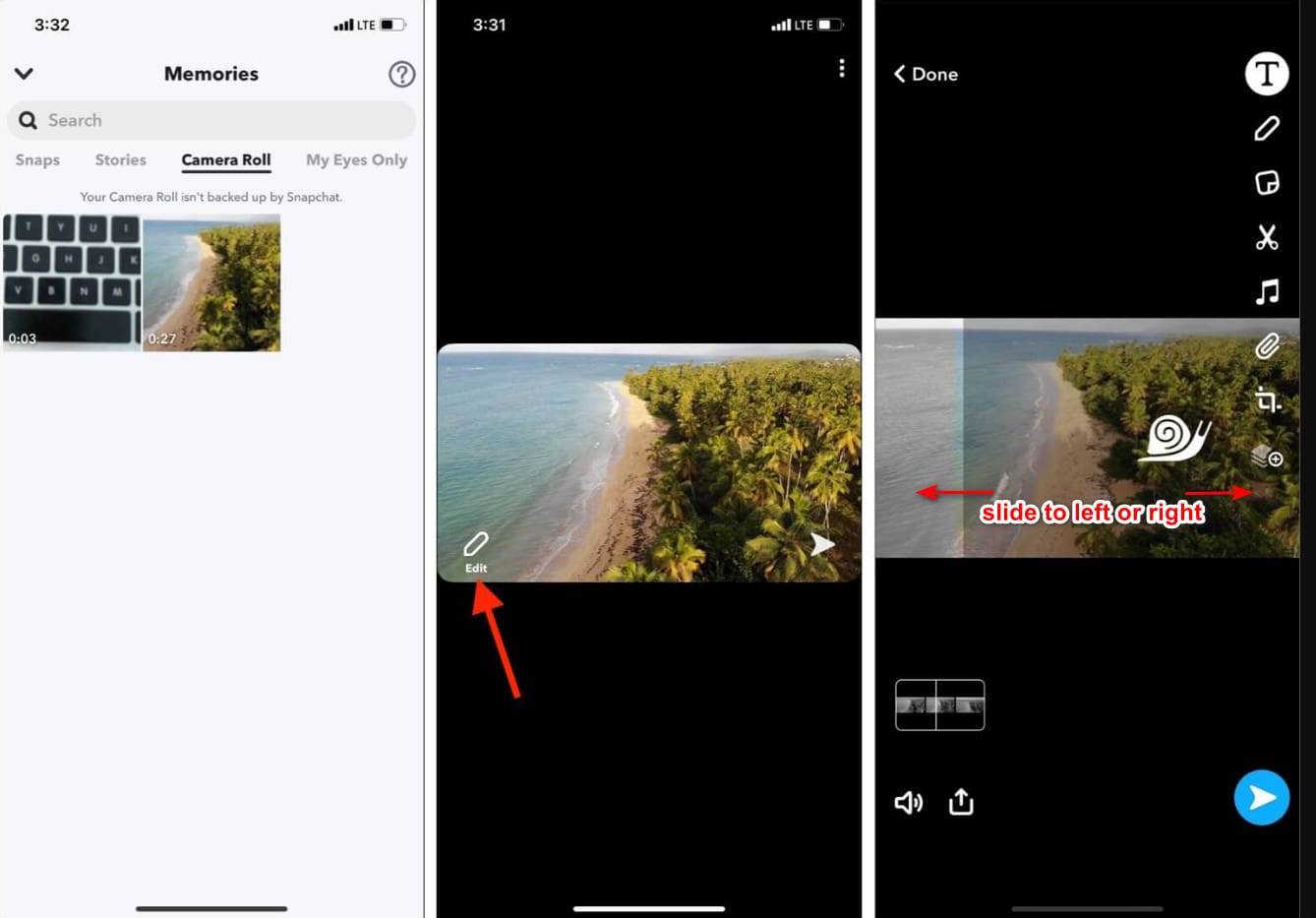
على الرغم من أن التطبيق يحتوي على معدِّل سرعة مدمج ، إلا أن سرعة التشغيل التي يدعمها ليست سوى حركة واحدة. هذا يعني أنه ليس لديك خيار تغيير الحركة البطيئة وفقًا لتفضيلاتك ، وهو أمر محبط ، خاصةً إذا لم يكن الوضع البطيء هو ما تريده. لكن الأداة التالية يمكن أن تساعدك في تغيير سرعة التشغيل البطيء وفقًا لرغباتك ، ولن تعطي حركة أحادية السرعة مثل Snapchat. لمعرفة ذلك ، يجب قراءة التفاصيل التالية في الجزء 2.
الجزء 2. كيفية وضع مقطع فيديو في حركة بطيئة على Snapchat بشكل فعال على نظامي التشغيل Windows و Mac
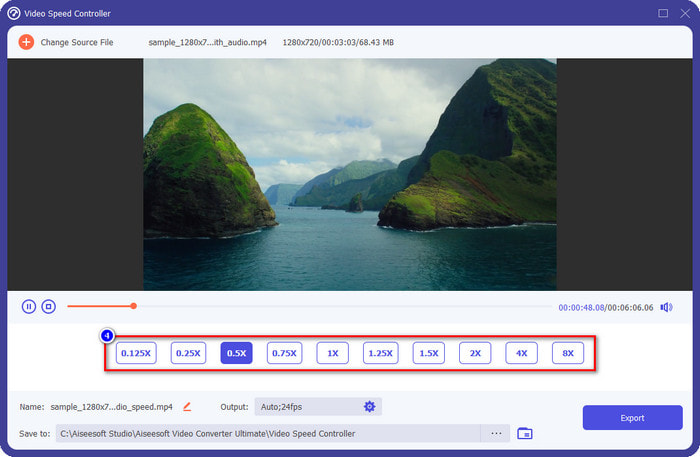
بعد أن عرّفناك كيفية جعل الفيديو بالحركة البطيئة على Snapchat، يمكنك أن تلاحظ أن مستوى البطء الذي يوفره ليس بالمقدار الذي يفضّله معظم المستخدمين. لذلك، بدلًا من الاعتماد على أداة التحكم في السرعة المدمجة في Snapchat فقط، لماذا لا تحاول استخدام FVC Video Converter Ultimate؟ إذ يتيح لك هذا البرنامج تغيير سرعة الفيديو الذي لديك بسرعة وبما يناسب تفضيلاتك. وبمساعدة أداة التحكم في السرعة فيه، يمكنك استيراد فيديو بسرعته العادية وتحويله إلى فيديو بالحركة البطيئة. يمكنك جعل الفيديو بسرعة 0.75x أو 0.5x أو 0.25 أو 0.125؛ اختر أيًّا من هذه الخيارات، وشاهده في نافذة المعاينة للتأكد من أن هذه هي سرعة الحركة البطيئة التي تفضّلها.
بالإضافة إلى ميزات وحدة التحكم في التسريع ، يمكنك أيضًا استخدام هذا البرنامج لإضافة عوامل تصفية وتأثيرات مثل ما يمكنك الحصول عليه على Snapchat. على الرغم من أنه مدعوم ، إلا أنه ليس واسعًا مثل تطبيق التصفية الذي يمكنك الحصول عليه على جهازك. أيضًا ، يمكنك إجراء تحرير متقدم هنا لا يمكنك القيام به على Snapchat. مثل زيادة مستوى الصوت ومزامنة الصوت وإزالة العلامة المائية وإضافة البيانات الوصفية وغير ذلك الكثير. على الرغم من كونه أداة نهائية ، إلا أن البرنامج غير متوفر على الأجهزة المحمولة. ومع ذلك ، يمكنك تنزيله على نظامي التشغيل Windows و Mac. الآن ، إذا قررت استخدام هذه الأداة ، يمكنك قراءة ومتابعة البرنامج التعليمي لتغيير سرعة الفيديو.
الخطوة 1. من خلال النقر على زر التنزيل المعروض أدناه، يمكنك الحصول على أداة تغيير السرعة الاحترافية على نظامي Windows وMac. ثبّت البرنامج فورًا، ثم شغّله لتغيير سرعة تشغيل الفيديو لديك.
تحميل مجانيلنظام Windows 7 أو أحدثتنزيل آمن
تحميل مجانيلنظام MacOS 10.7 أو أحدثتنزيل آمن
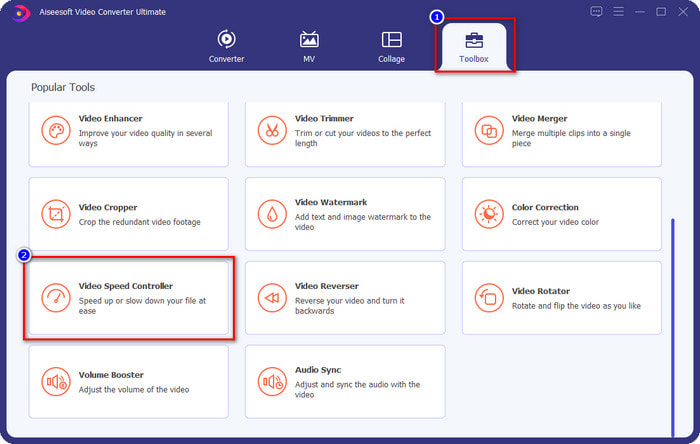
الخطوة 2. ستجد أربعة أقسام مختلفة في الواجهة يمكنك استخدامها؛ انقر على الأدوات (Toolbox) وابحث عن Video Speed Controller ضمن القائمة الموجودة.
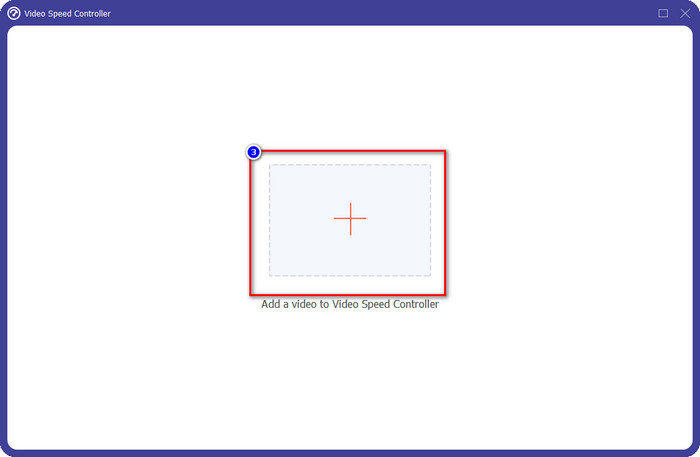
الخطوة 3. اضغط زر + لفتح المجلد، ثم ارفع فيديو Snapchat أو أي فيديو آخر تريد تحويله إلى حركة بطيئة، ثم انقر على فتح (Open).
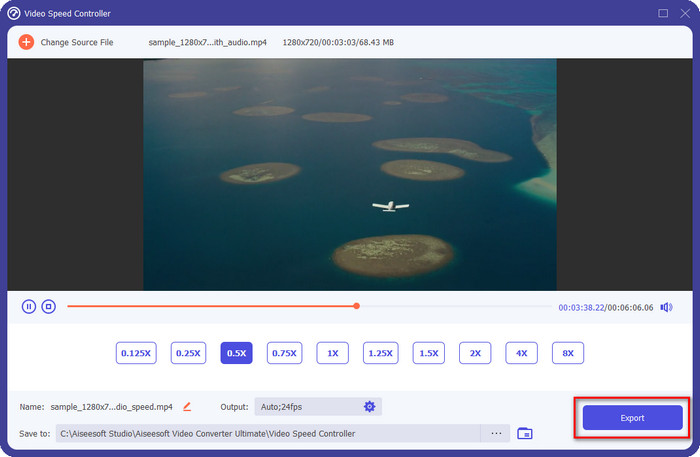
الخطوة 4. عندما تنتقل إلى الواجهة الجديدة حيث يمكنك تعديل السرعة، انقر على سرعة الحركة البطيئة التي تريد تطبيقها على الفيديو. يمكنك اختيار سرعة الحركة البطيئة التي ترغب بها، وسيُعرض الفيديو في نافذة المعاينة.
اختياري: إذا كنت تريد إجراء تعديلات متقدمة على الإخراج، يمكنك النقر على الإخراج (Output). يتيح لك هذا القسم تغيير الصيغة، الدقة، معدل الإطارات، الجودة، وضع التكبير، وغيرها؛ ثم انقر على موافق (OK) لتطبيق التغييرات التي أجريتها.
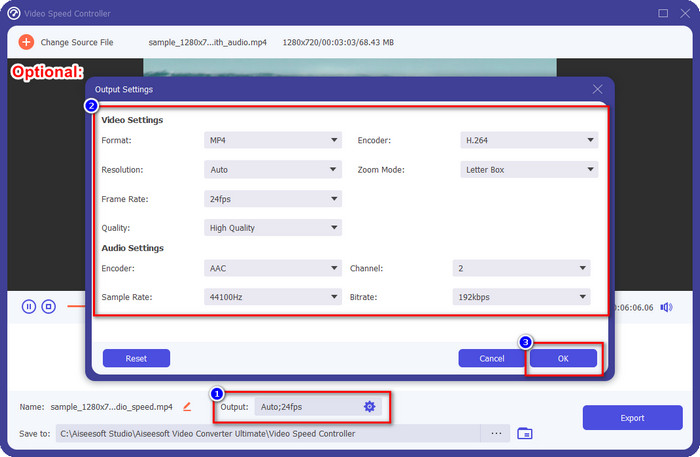
الخطوة 5. انقر على زر تصدير (Export) عندما تصبح مستعدًا لتحويل سرعة تشغيل الفيديو. ستحصل الآن على الفيديو بالحركة البطيئة؛ ويمكنك مشاركة الفيديو أو استخدام نسخة الحركة البطيئة التي صدّرتها من هنا.
ذات صلة:
الجزء 3. الأسئلة الشائعة حول كيفية إبطاء مقطع فيديو على Snapchat
هل سيحتوي تصدير الفيديو البطيء على Snapchat على علامة مائية؟
يمكنك تصدير الفيديو الذي قمت بحركة بطيئة على Snapchat بحرية دون العلامة المائية للإخراج النهائي. على الرغم من أنك تريد إضافة واحدة ، لا يُسمح لك بإضافة علامة مائية على Snapchat على الفيديو.
هل يمكنني تغيير سرعة الفيديو حتى لو لم أحمله على Snapchat؟
يمكنك ذلك ، ولكن إذا سمحت بذلك فقط ، لأنه إذا لم تسمح للتطبيق بالوصول إلى معرض الصور أو الصور ، فلا يمكنك تغيير سرعة الفيديو الذي تريده. لمشاهدة الفيديو الذي لم تلتقطه على Snapchat ، يمكنك الانتقال إلى Camera Roll بدلاً من Snaps and Stories.
هل توجد أي قيود على إبطاء الفيديو على Snapchat؟
حتى الآن ، لا يوجد أي قيود إذا كنت تريد إبطاء الفيديو باستخدام Snapchat. بخلاف خيارات سرعة الحركة البطيئة ، لم يعد هناك شيء. لذا ، افترض أن لديك مقطع فيديو تريد إبطائه. في هذه الحالة ، يمكن أن يساعدك هذا التطبيق في إنهاء المهمة بسهولة دون تنزيل ملحقات إضافية لتغيير السرعة.
خاتمة
هل تحتاج إلى من يوضح لك كيفية إبطاء الفيديو على Snapchat؟ لقد حصلت بالفعل على المساعدة التي تحتاجها من خلال قراءة هذا المقال. إذا كنت لا تزال ترى أن أداة التحكم في السرعة المدمجة في Snapchat لا تفي باحتياجاتك، فعليك استخدام أداة للتحكم في سرعة الفيديو مثل FVC Video Converter Ultimate لتتمتع بتحكم كامل في سرعة الفيديو. يمكنك أن ترسل لنا رسالة إذا كان لديك أي سؤال حول ذلك حتى نتمكن من مساعدتك وحل المشكلة معًا.
-
 كيفية إبطاء الفيديو: نصائح مثالية [سطح المكتب / الهاتف المحمول]
 هل سئمت البحث عن أفضل الأدوات التي تساعد على إبطاء الفيديو عبر الإنترنت؟ اقرأ هذه المقالة بالذات لكي تكون مستنيرًا بقطع المعلومات المدرجة أدناه.
-
 كيفية تغيير فيديو الحركة البطيئة إلى السرعة العادية [خطوات سهلة]
 هل تريد معرفة كيفية إرجاع مقطع فيديو بطيء الحركة قمت بتنزيله من الإنترنت أو تم تسجيله بطريق الخطأ بالحركة البطيئة؟ تعرف على كيفية تحويل الفيديو بطيء الحركة إلى السرعة العادية على أجهزة Mac و Windows و iOS و Android.
-
 كل ما تحتاج لمعرفته حول كيفية عمل مقاطع فيديو بطيئة الحركة
 تريد إنشاء مقاطع فيديو بطيئة الحركة مثل محرر محترف ، لكنك لا تعرف البرامج أو التطبيقات التي تريد استخدامها؟ اقرأ هذه المقالة لمعرفة كل التفاصيل التي تحتاجها.
