


 محول الفيديو النهائي
 مسجل الشاشة
 إصلاح الفيديو
 تنزيل آمن
كيفية تغيير سرعة تشغيل VLC باستخدام التحكم في السرعة ومفاتيح التشغيل السريع [تم الكشف عنها]
Changing the video speed can be a tough job on most media player players, but with VLC Player, this job is easy peasy. Suppose you have an hour-long video and want to watch it at high speed to save some time, then speeding up is a choice. On the other hand, if you're going to watch a video to see more detail, you must watch it in a slow-mo. With VLC, you can easily change the playback speed of the video you watch, whether it is a speed-up or slow-down; everything is possible here. Keep on reading this article as it reveals the secret techniques you can use to change VLC playback speed according to your wants.

الجزء 1. تغيير سرعة تشغيل VLC باستخدام التحكم في السرعة ومفاتيح التشغيل السريع
هناك طريقتان يمكنك من خلالهما تغيير سرعة الفيديو الذي تقوم بتشغيله على VLC ؛ هذه هي سرعة التحكم ومفاتيح الاختصار. لحسن الحظ ، سنمنحهما لكما معًا. إذا كنت مستعدًا للتحكم في سرعة VLC لأعلى أو لأسفل ، فاختر الطريقة التي تريد أن تسلكها.
قبل أن نواصل الخطوات ، تأكد من أنك قمت بالفعل بتنزيل مشغل الوسائط على سطح المكتب الخاص بك. إذا لم يكن كذلك ، يمكنك زيارة موقعه الرسمي على الإنترنت للحصول على مشغل الوسائط.
الطريقة الأولى. استخدم التحكم في السرعة على VLC Player على نظامي التشغيل Windows و Mac
على الرغم من أن التحكم في السرعة متاح على إصدارات Windows و Mac من VLC ، إلا أن الخطوات لا تزال مختلفة لكل واحدة. لذلك ، إذا كنت من مستخدمي Windows وترغب في تغيير سرعة الفيديو ، فأنت تشاهد ثم اقرأ الخطوات الخاصة بمستخدم Windows ، ولكن إذا كنت من مستخدمي Mac ، فاقرأ الآخر.
For Windows Users:
Step 1. After downloading the media player, open it, then open the media file you want to play on a change speed.
Step 2. Go to the Playback menu and choose the Speed option to use the VLC to change the playback speed.
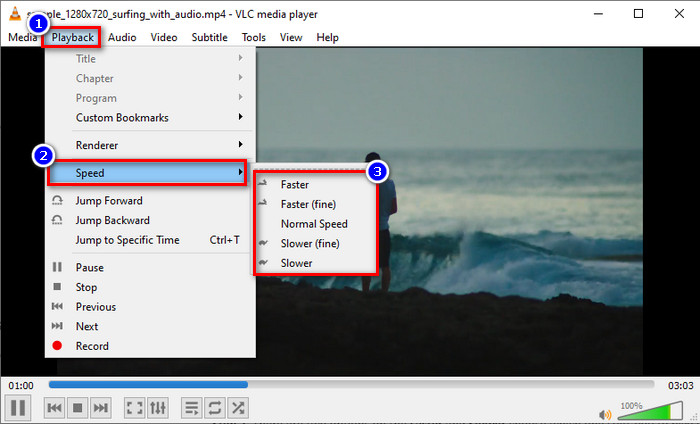
Step 3. Choose the speed you want to have and click it. Play the video you upload to watch it at your selected speed.
For Mac Users:
Step 1. Play whatever video or audio file you want on the Mac version of this software.
Step 2. To use the speed controller, click Playback.
Step 3. There are two options on the faster and slower drag the slider to choose which one suits you to play the video at the speed you pick.

الطريقة الثانية. استخدم مفاتيح الاختصار لتغيير السرعة على مشغل VLC
لنفترض أنك تعبت من اتباع الخطوات المذكورة أعلاه ، فيجب أن تحاول استخدام مفتاح التشغيل السريع VLC. يفعلون نفس الوظيفة. يمكن لمفاتيح الاختصار تسريع الفيديو أو إبطائه مثل الطريقة الأولى التي نضيفها في هذه المقالة. لا يوجد أي شيء خاص حول استخدام مفاتيح الاختصار بخلاف أنها تجعل المهمة أسهل وأكثر فاعلية. على الرغم من أنه يمكنك التحكم في سرعة الفيديو باستخدام الاختصار ، فإن خطوات مفتاح الاختصار لنظامي التشغيل Windows و Mac مختلفة لكل منهما. لمعرفة كيفية تغيير السرعة باستخدام مفاتيح لوحة المفاتيح ، اتبع التفاصيل التالية.
For Windows Users:
Step 1. Open the media file you want to play in this media player.
Step 2. While playing, click the [ on your keyboard to slow down the video. But if you want to speed it up a little, click ]. To return the speed of the video you are watching at the normal speed, click =.
For Mac Users:
Step 1. Launch the media player and open the media file to play it here.
Step 2. While watching the file, click the command + to increase the video speed, and if you want to slow it down, press the command -.
الجزء 2. تغيير سرعة الفيديو للأبد على نظامي التشغيل Windows و Mac
VLC can change the speed that is currently playing but not permanently apply the speed up or slow-down you set, so what should you do to save it forever? You can use the FVC Video Converter Ultimate to save the video playback you choose permanently on the video. So, you won't need to change the playback and do the steps we mentioned above to play the video to your desired speed. Even though the software can offer a hand on changing the speed, the software doesn't support shortcut commands to convert the speed more quickly.
Also, you have full control over the video if you use this software to change the speed of the video you want. To apply the VLC increase speed or decrease, you can follow the step-by-step procedure we add below for you to follow.
Step 1. Click the download button below to have the editor on your desktop, then follow the set-up process to install the software. After that, click it to open it right away.
تحميل مجانيلنظام Windows 7 أو أحدثتنزيل آمن
تحميل مجانيلنظام MacOS 10.7 أو أحدثتنزيل آمن
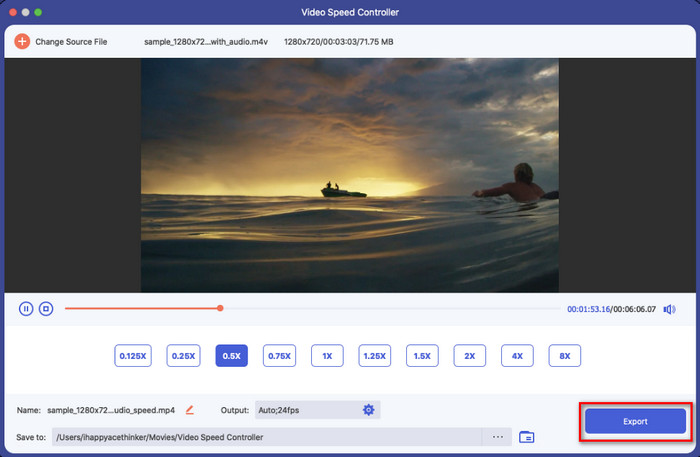
Step 2. Open Toolbox and locate the Video Speed Controller on the available options.
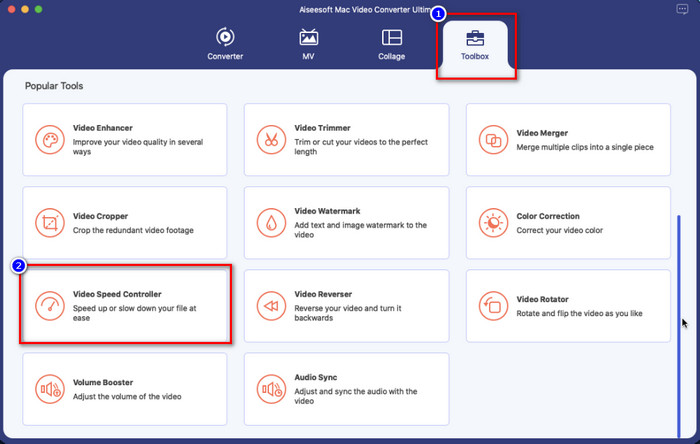
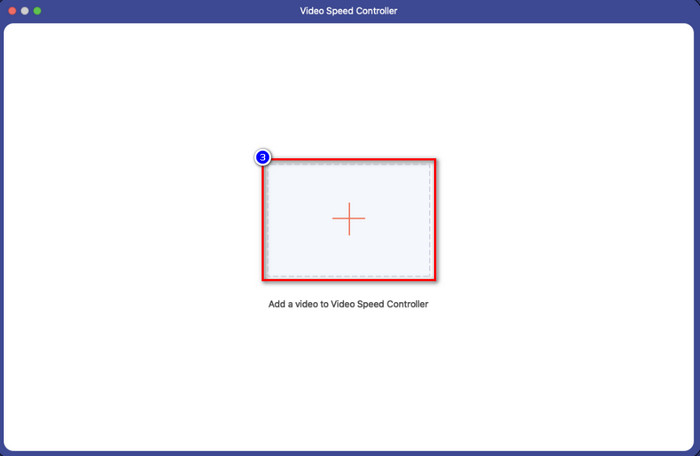
Step 3. You can now add the file you want to the folder by clicking the + button and clicking Open to upload it.
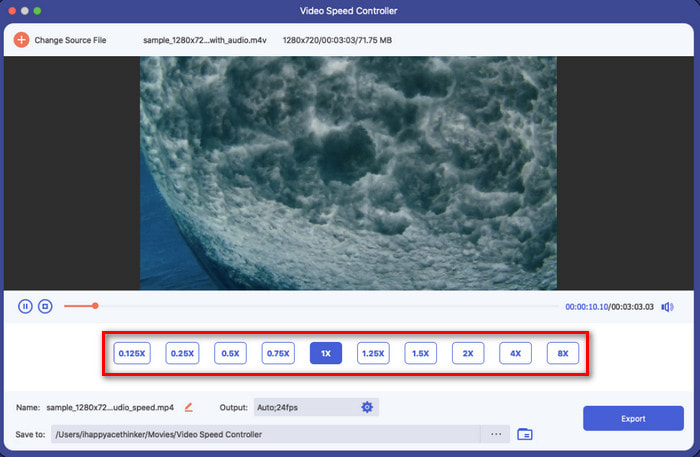
Step 4. Pick the speed you want to apply to your video. Once you click the speed, there will be a preview sample of the video that will play right away.
Step 5. If everything is done, click Export to save the video with a permanent increase or decrease in video speed on your desktop. If you want to revert the changes to the original speed, then do the same steps before and this time, choose the other way instead.
الجزء 3. أسئلة وأجوبة حول تشغيل VLC Speed
هل هناك أي قيود على سرعة التشغيل أثناء استخدام VLC؟
على وجه الخصوص ، لا يوجد شيء آخر غير أنه لا يمكنك حفظ الفيديو الذي تسرعه بشكل دائم لأن مشغل الوسائط غير مخصص لهذه المهمة. بمجرد تسريع مقطع فيديو هنا ، سيعود إلى السرعة الأصلية بمجرد إيقافه مؤقتًا وتشغيله. لتجنب ذلك ، اتبع الخطوات التي أضفناها في الجزء الثاني إذا قررت تغيير سرعة الفيديو الخاص بك بشكل دائم.
لماذا يتم تسريع الفيديو لتخطي الكثير من مشاهد VLC؟
نظرًا للسرعة التي اخترتها ، إذا أفرطت في استخدام وحدة التحكم في السرعة واستخدمت أعلى سرعة ، فتوقع أن يتخطى VLC جزءًا ما للتعويض عن السرعة التي تختارها. لذا ، للابتعاد عن هذه المشكلة ، يجب عليك التحكم في السرعة التي تختارها بشكل صحيح وعدم إجهادها.
كيف يمكنني إعادة السرعة إلى وضعها الطبيعي على VLC؟
يمكنك النقر فوق الإيقاف المؤقت والتشغيل لإعادة سرعة الفيديو إلى السرعة العادية. ولكن يمكنك أيضًا النقر فوق = على لوحة المفاتيح لنظام التشغيل Windows ؛ لنظام التشغيل Mac ، من الأفضل النقر فوق زر الإيقاف المؤقت / التشغيل لإعادته إلى السرعة العادية للفيديو.
خاتمة
You can select either to use the speed control or the hotkeys to control the VLC playback speed. What way you choose, they both do the same thing, controlling the speed of the video you play on VLC. However, you can’t export the change video speed to your desktop because VLC isn’t meant for saving the video you change speed. But you can forever save the video speed once you convert it on FVC Video Converter Ultimate. If you want to try using the Video Speed Controller option, you will impress yourself with how easy it is and fast.
-
 أفضل 4 مشغلات فيديو مع وحدة تحكم في السرعة في عام 2021
 ألم تلاحظ سرعة تشغيل كل مشغل وسائط كلما قمت بتشغيل مقطع فيديو؟ هذه المقالة مناسبة لك لمعرفة كل شيء عن مشغلات الفيديو مع التحكم في السرعة.
-
 3 طرق لتسريع الفيديو على iPhone [مثبت]
 هل تواجه مشكلة في ضبط سرعة تشغيل الفيديو الخاص بك لأنك تستخدم جهاز iPhone؟ هذه مقالة ممتازة لمساعدتك في حل مشكلتك.
-
 ويندوز ميديا بلاير | تعرف على كيفية تسريع مقاطع الفيديو [مثبت]
 هل تريد إبطاء مقطع الفيديو الخاص بك باستخدام Windows Media Player ، لكنك تواجه مشكلة في كيفية القيام بذلك؟ هذه المقالة مثالية للقراءة ويمكنها توضيح وجهة نظرك حول كيفية تسريع مقاطع الفيديو باستخدام Windows Media Player.
