


 Video Converter Ultimate
 Skærmoptager
 Video reparation
Sådan tilføjer du undertekster til videoer, du gemmer på dit skrivebord
Subtitles are the best way to translate dialogues of other countries into your native language to a text. This is created for those who don't understand the dialogues of the actor or actresses. Also, they improve the overall engagement of the audience to the film, series, and movies as well. But in some cases, the video you download has no subtitles or has a separate file for it. So, the best way to add subtitles to videos is presented in this article. So, keep on reading this write-up as we provide steps on how to insert your subtitles and what are the different tools you can use.

Del 1. 4 af de bedste værktøjer, du kan bruge til at tilføje undertekster til din video
1. Video Converter Ultimate (Windows & Mac)
Did you know that you can add subtitles to Video Converter Ultimate? This phenomenal converter has a lot of different features that keep us amaze every time. The overall performance of this software is phenomenal in the line of converting files, editing, making, adding and more. But for now, we will now be going to explain how to add subtitles to a video on a perfect sequence of text. In addition, this tool supports all of the subtitle formats you can use to add it to your video. So, without any more delays, let's proceed on how to add the subtitles by following this step provided only for you below.
5 Easy Steps on How to Add Subtitles on your Video with the Video Converter Ultimate
Step 1. Download the software into your Windows or Mac drive. Next, install it and do the quick set-up then click finish.
Gratis download til Windows 7 eller nyere Sikker download
Gratis download til MacOS 10.7 eller nyere Sikker download
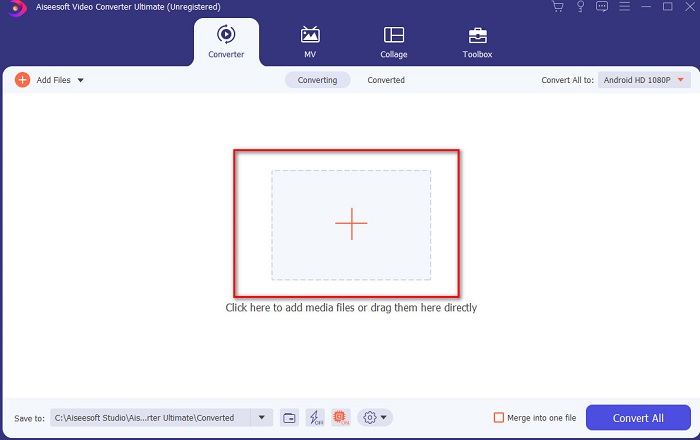
Step 2. Launch the tool, and click the plus button at the middle of the interface. Then locate the video on the folder and click Open.
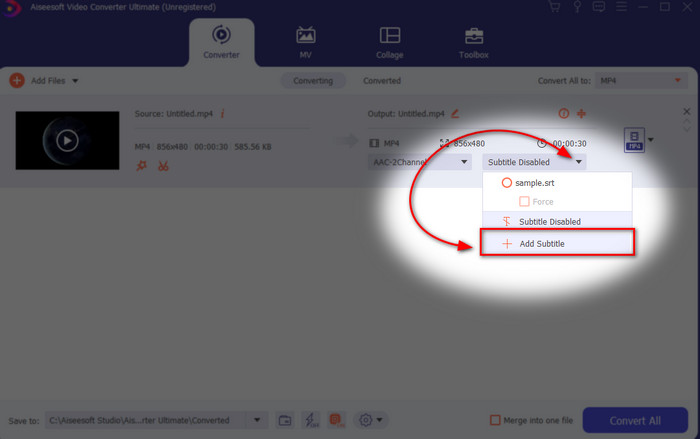
Step 3. On the interface, click the drop-down button for Subtitle and click Add Subtitle. Select the subtitle file on the file folder and click open.
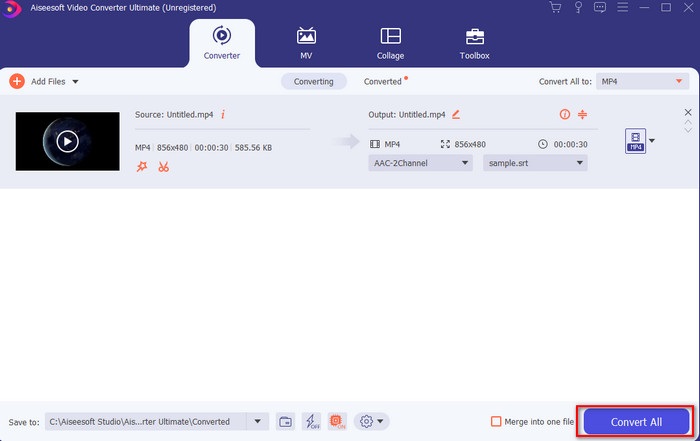
Step 4. After you add the subtitle you can now export it by clicking the Convert All.
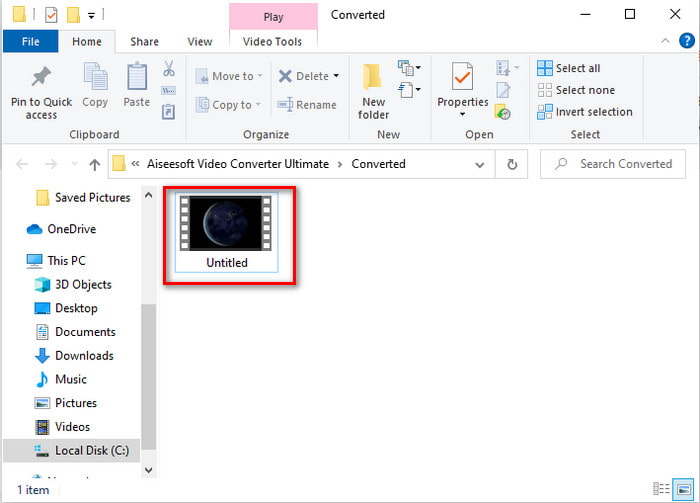
Step 5. The file explorer will pop up next to your screen with the video file that has a subtitle on it. Hit the file to watch and read the subtitle without delays.
Relateret:
How to Cut and Merge Songs Online
2. iMovie (Mac og iPhone)
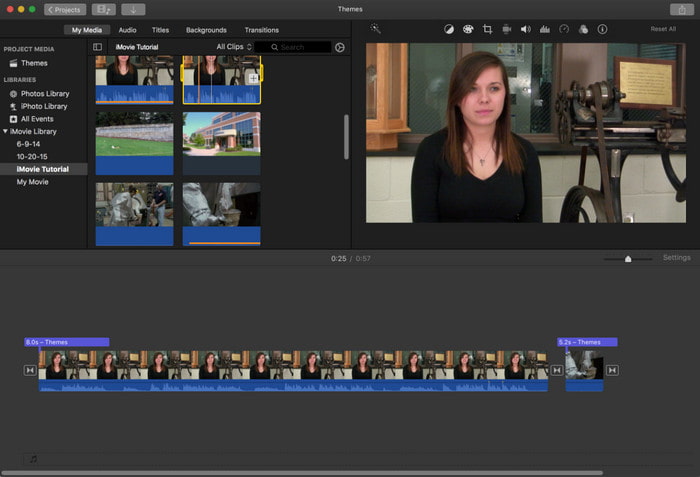
One of the best tools Apple can offer to their users, so adding subtitles to a video on iMovie is easy and free. This default tool is the best in editing and more on Mac, so adding subtitles here is easy as it is. But you can't use SRT subtitle format and add it to your video because this format is not supported by the iMovie. However, the overall performance of this Mac default editor is great to be used by anyone who is on a tight budget. Also, this tool offers a premium version that supports a lot of editing features you can use.
3. Adobe Premiere Pro (Windows og Mac)
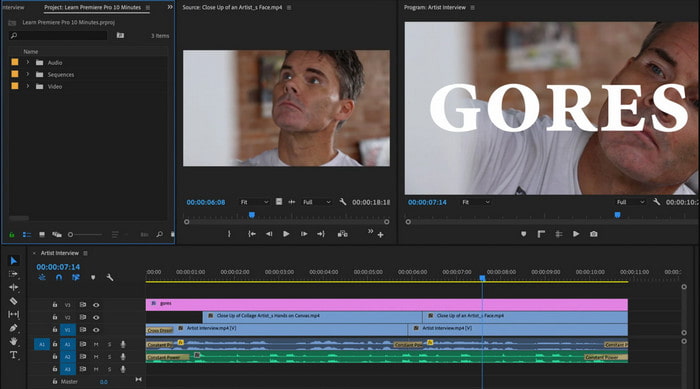
Adobe Premiere Pro offers the best editing features used by professionals in the editing industry. Also, this tool can add SRT subtitle format unlike on iMovie you can't. Moreover, this tool supports almost all of the subtitle formats you can use. Although the tool seems flawless, the price of it is enormous and if you just want to add subtitles to video on Adobe Premiere Pro this is an okay choice but not the best. Especially if you are on a tight budget and don't want to spend a lot. Also, if you are a beginner this is not the best choice because you will need a lot of time to study it first.
4. Clideo (online)
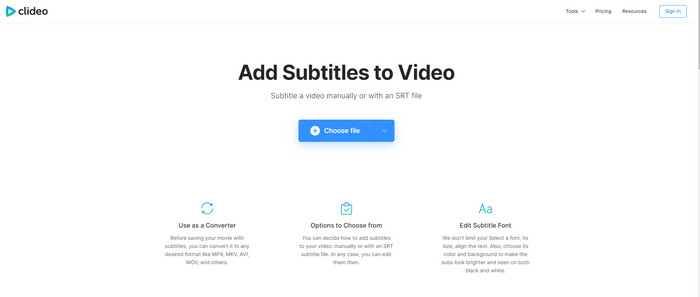
Clideo supports editing features you can use for free if you have an internet connection. This tool can be used in all devices as long as you have a browser. Although the tool is flexible the subtitle format it supports is only .srt. So, if your subtitle is not in the format of SRT then you must manually do it here which is a bit of a hassle for you. Also, the process of adding the video here will depend on your internet. With that being said, if you have a slow internet then expect a lot of time waiting than adding subtitles to video online.
Del 2. Ofte stillede spørgsmål om tilføjelse af undertekster på video
Hvad er de forskellige typer undertekstformater?
På nettet er der en masse forskellige undertekstformater, men det mest brugte format, du allerede støder på, er SRT, WEBVTT og SBV undertekstformatet. Fordi disse er de bedste og fleksible formater, du nemt kan bruge, men der er SSA, TTML, DFXB, TXT og mere. Selvom de fungerer godt, er det første nævnte undertekstformat stadig det bedste, du kan bruge.
Hvad er den største forskel på billedtekster og undertekster?
Selvom de bruger det samme format, er der stadig store forskelle mellem billedtekster og undertekster. For det første er undertekster inkluderet i videoen for at oversætte skuespillerens eller skuespillerindens talesprog til seerens sprog. Dette er mest almindeligt brugt til dem, der kan høre lyden, men ikke kan forstå, hvad de siger. Mens billedtekster er lavet for at beskrive, hvad der sker, og gennem tekst som lydeffekter. Disse er lavet til dem, der kan se videoer, men ikke kan høre lyden tydeligt eller døve.
Dub vs. Sub; Hvilken er bedst?
Nogle andre seere foretrækker Dub end sub, mens andre er omvendt. Selvom de er en kraftfuld måde at oversætte mediet bedre til publikum. Dub og subs har mange forskelle, for eksempel er undertekster oversatte versioner af lyden og bliver til tekst på videoen. Mens dubs bruges af seerne, der har svært ved at læse. Så i stedet for at læse konteksten bruger de dubs til at fokusere bedre på det, de ser. Så det afhænger altid af dig, hvilken du foretrækker at bruge, hvis du kan klare at læse, mens du ser subs er bedst, men hvis du vil have laserfokus på selve videoen, så brug dub..
Konklusion
Finally, we now understand and learn how to add subtitle files to your video permanently. As we make your searching easier and present different solutions for you to use. Still, it is undeniable that the Video Converter Ultimate is the best choice on the list. Because it supports all of the subtitle formats for you to use. So, instead of a huge amount of money to the other tool that has the same function or even better than the other tool. Then why don't you acquire it first and try it for yourself? To know what we are talking about.
-
 Vejledning - 4 gratis måder at flette videoer på iPhone ind i en ny
 Læs og få 4 nemme måder at flette videoer på iPhone. Alle iPhone-modeller og iOS-versioner understøttes. Du kan hurtigt kombinere 2 og flere videoer på iPhone til en ny video.
-
 Sådan komprimeres M4V-filer til en mindre størrelse (gratis og online)
 Hvis du søger efter en enkel måde at reducere størrelsen på din M4V-fil, skal du komme og læse denne artikel. Her deler vi den nemmeste måde at komprimere M4V-filer med dig.
-
 Komprimer WebM - Sådan komprimeres WebM-fil online
 Hvordan komprimeres WebM-fil online? Hvad er den hurtigste måde at komprimere store filer på? Dette indlæg fortæller 2 gratis måder at komprimere WebM på.
