


 Video Converter Ultimate
 Skærmoptager
 Video reparation
Sådan laver du slowmotion-video med det fineste koncept
Vi har alle gerne villet lave slowmotionvideoer, for med slowmotion lærer vi at værdsætte detalje efter detalje, som vores enheder kan opfange på meget kort tid. Vi opfatter slowmotion som en af de mange måder at gemme minder på, ud over blot at optage video i normal hastighed. Men på nogle enheder findes der ikke mulighed for at optage slowmotionvideo direkte. Det kan derfor være svært at finde den bedste løsning for de mange, der ikke har denne funktion på deres enheder. Læs denne artikel for at lære hvordan man laver slowmotionvideoer.

Del 1. Sådan laver du slowmotion-video på Windows
Et program som Video Converter Ultimate kan stort set alt, en redaktør kunne ønske sig af et gratis program som dette. Det findes til både Windows og Mac, men skiller sig især ud blandt programmerne til Windows. Det kan løfte din videoredigering til næste niveau og har en funktion, der hedder Video Speed Controller, som kan justere afspilningshastigheden på din video eller konvertere video til slowmotion. Softwaren er tilgængelig og kompatibel med et stort antal formater. Her er trinene til at bruge programmet korrekt:
Trin 1. Klik på Free Download for at gemme programmet på din pc. Når du har downloadet det til skrivebordet, skal du installere programmet og gøre det klar til at blive startet.
Gratis download til Windows 7 eller nyere Sikker download
Gratis download til MacOS 10.7 eller nyere Sikker download
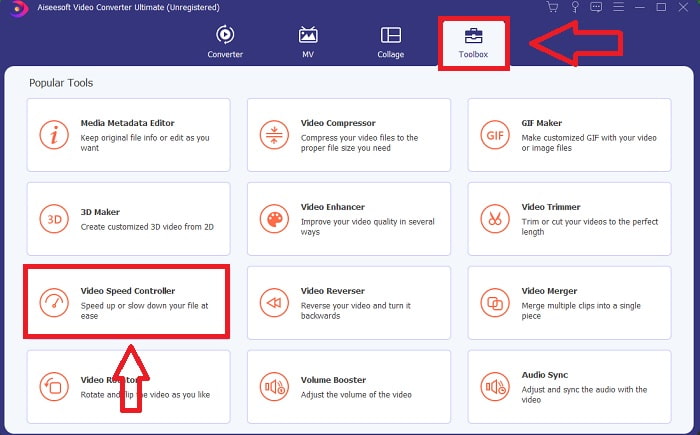
Trin 2. Når programmet er installeret, skal du starte det, vælge Toolbox-funktionen og derefter klikke på Video Speed Controller for at begynde at redigere videoens afspilningshastighed.
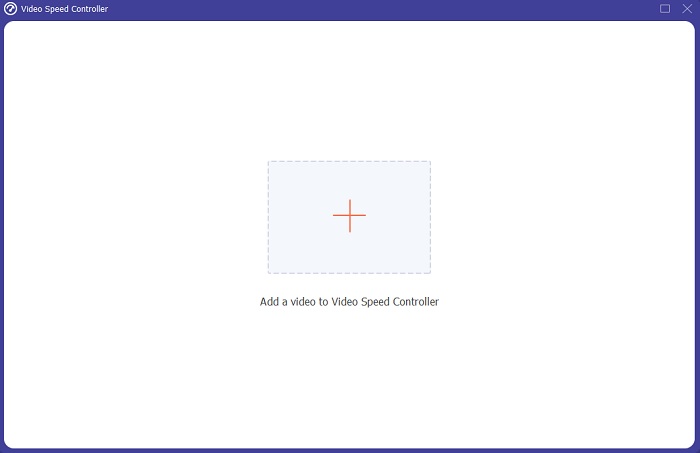
Trin 3. Tilføj en vilkårlig fil ved at klikke på +‑ikonet på den placering, du foretrækker, og rediger derefter videoklippet.
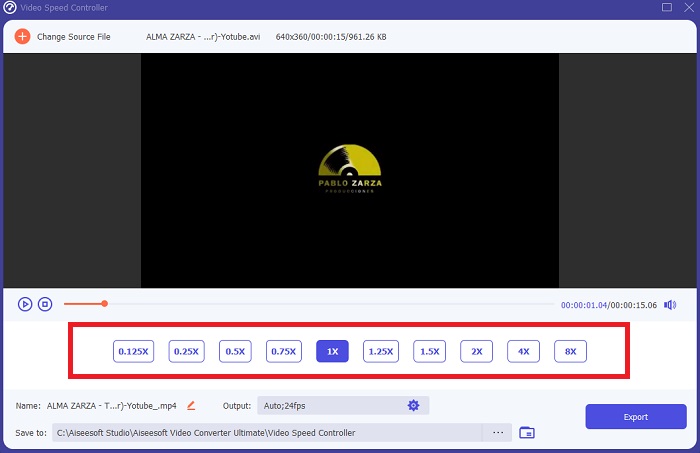
Trin 4. Ændr afspilningshastigheden ved at angive, hvor mange gange videoens billedhastighed skal øges eller reduceres.
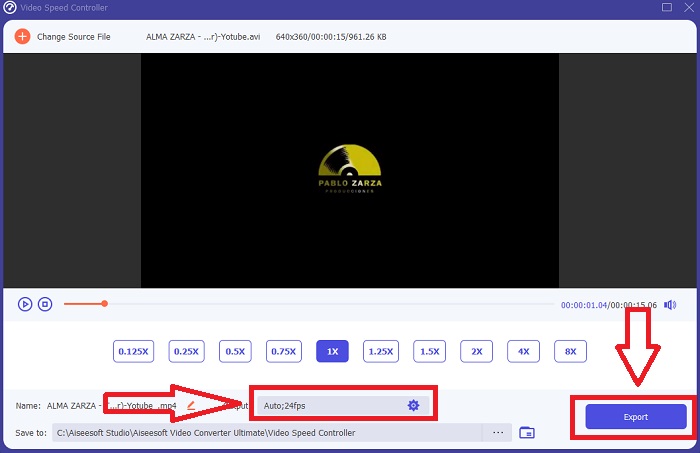
Trin 5. Når du er færdig med at justere afspilningshastigheden for dit videoklip, kan du vælge det ønskede output ved at ændre format, opløsning, kvalitet og andre indstillinger. Når du er klar, skal du klikke på Export og vælge en placering til at gemme dit arbejde.
Fordele
- Det er gratis at downloade software tilgængelig i Windows og Mac.
- Det har en masse værktøjer, der hjælper med at redigere en video, og disse kan nemt bruges.
Ulemper
- Det kan købes for at låse op for de eksklusive funktioner, men det er ikke så dyrt.
Relateret:
Del 2. Sådan laver du slowmotion-video på Mac
Lav Hollywood‑lignende trailere med iMovie på din Mac i 4K‑opløsning. Giv dine videoer det sidste finish med animerede titler, musik, filtre og effekter, når du er færdig med at redigere. Lav en gennemført, professionel video med Apples iMovie‑software og del den med familie og venner. Det er slet ikke svært. Hvis du bruger iMovies forskellige skabeloner og finishing‑værktøjer, vil din video se endnu bedre ud. Med denne nye funktion kan du ændre den hastighed, din Mac afspiller video med, eller endda lave slowmotionvideo, da de fleste redaktører må prioritere de problemer, der opstår – her er trinnene til at bruge dette værktøj på en Mac for at opnå den ønskede hastighed.
Trin 1. Åbn iMovie-appen på din Mac, og vælg et videoklip at arbejde med i Timeline-panelet.
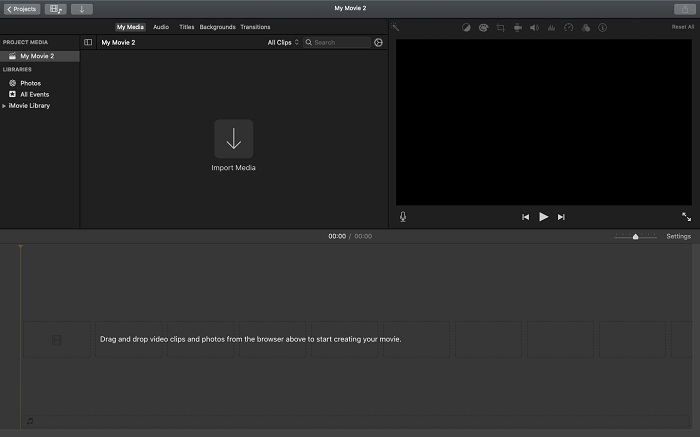
Trin 2. Ved at klikke på knappen Speed i øverste venstre hjørne af grænsefladen kan du se hastighedsindstillingerne. Du kan vælge mellem Slow og Fast hastigheder fra hastighedsknappen for at finjustere afspilningen.
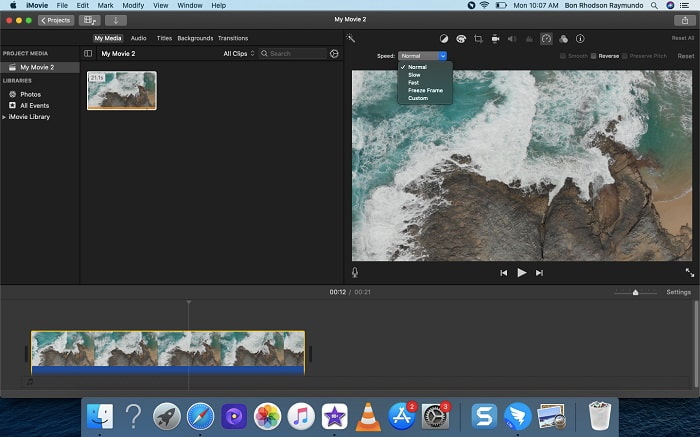
Trin 3. Klik på Upload-ikonet i øverste højre hjørne af grænsefladen for at gemme filen på computerens harddisk.
Fordele
- Det er gratis at downloade software på Mac.
- Det kan vise sporet af videoklippet, der kan hjælpe med at redigere nemt.
Ulemper
- Nogle af funktionerne er professionelt baseret; den mangler værktøjer, der hjælper en video med at forbedre sit fulde potentiale.
- Du kan ikke tilpasse afspilningshastigheden på din video ved hjælp af denne software, fordi du kun vil vælge de givne muligheder.
Del 3. Sådan laver du slowmotion-video online
Metode 1. Brug VEED
Hvis du leder efter det enkleste onlineværktøj til at lave en slowmotionvideo, er VEED det rette valg. For at det kan fungere, skal du dog have en stabil internetforbindelse, da det er et webværktøj og kun findes online. Med sin overskuelige brugerflade og brugervenlige værktøjer kan du nemt lave slowmotionvideoer. En af hovedfunktionerne kan sænke hastigheden på en video; for at lave en slowmotionvideo skal du sænke din videos normale hastighed, og med hjælp fra VEED behøver du ikke bekymre dig om fremgangsmåden. For at hjælpe dig på vej med dette webværktøj følger her nogle trin:
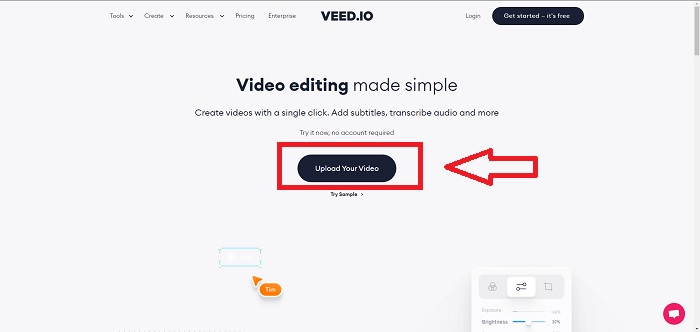
Trin 1. Ved at klikke på knappen Upload Your Video kan du sende en videofil fra din computer til serverens lager.
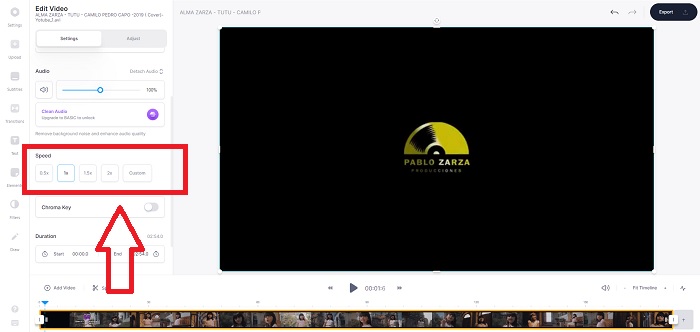
Trin 2. Et videospor vises, når du fører musen hen over webværktøjets redigeringsgrænseflade. Find og klik på funktionen Speed for at ændre afspilningshastigheden. Hvis du vælger Custom, kan du afspille dit videoklip med en brugerdefineret hastighed, også selv om den ønskede hastighed ikke er en standardmulighed.
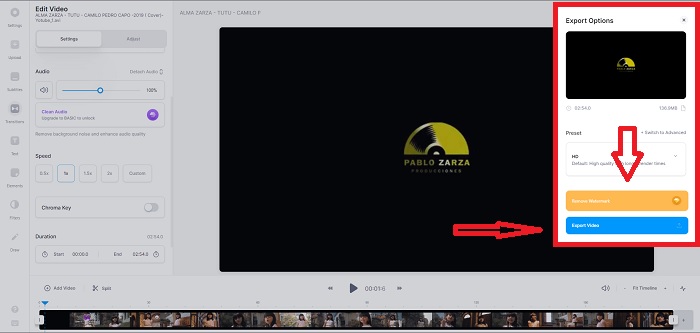
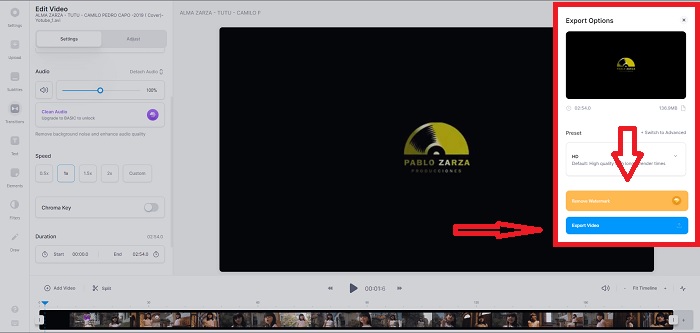
Trin 3. Når du har redigeret videoen til den ønskede hastighed, skal du klikke på Export for at fortsætte til eksportfanen. Samtidig kan du opgradere til webværktøjets premiumversion, vælge den videokvalitet, du ønsker, og fjerne vandmærket. Når alt er på plads, kan du eksportere videoen til din computer.
Fordele
- Det har tutorials til at hjælpe med at bruge webværktøjet.
- Det er et godt webværktøj, der indeholder information om værktøjer, priser, ressourcer og virksomheder.
Ulemper
- Den har kun et lille antal værktøjer, der skal bruges.
Metode 2. Brug InVideo
InVideo er et onlineværktøj, der giver bedre videopræstation end mange andre onlineværktøjer ved hjælp af sine kreative skabeloner og de mange forskellige værktøjer, det tilbyder. Denne onlinetjeneste betragtes som en MP4‑slowmotionkonverter, hvor en af hovedfunktionerne er videoredigering og dens evne til at konvertere alle videoklip i MP4‑format. InVideo fungerer som ryglæn for enhver redaktør, når de har svært ved at vælge det rette webværktøj til at lave slowmotionvideoer. For yderligere at hjælpe dig med dette problem følger her trinnene:
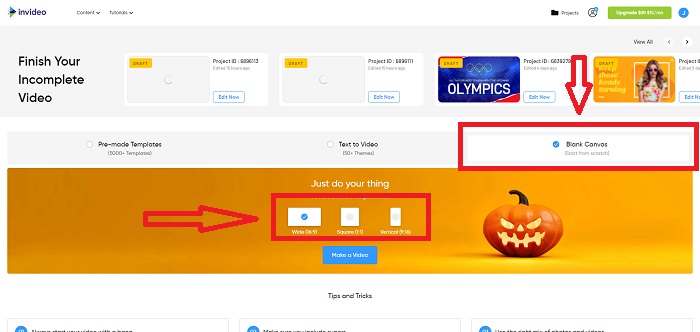
Trin 1. For at bruge webværktøjet skal du oprette en konto. Næste skridt i processen er at vælge en skabelon at arbejde med. Klik på Upload-knappen i øverste venstre hjørne af grænsefladen for at begynde uploaden. Uploaden starter derefter.
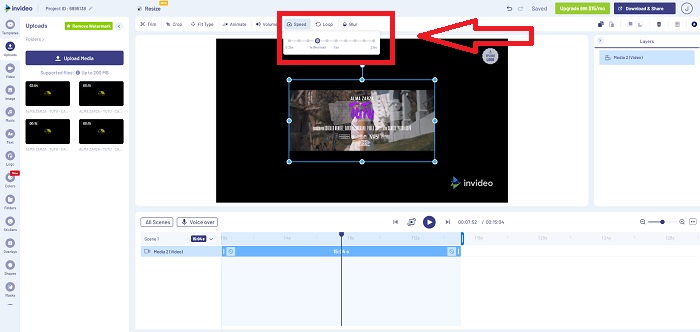
Trin 2. Klik på fanen Speed i øverste højre hjørne af grænsefladen, og træk den ned til sporet for at redigere afspilningshastigheden på dit videoklip. Klik og træk blot i Slider for at ændre afspilningshastigheden.
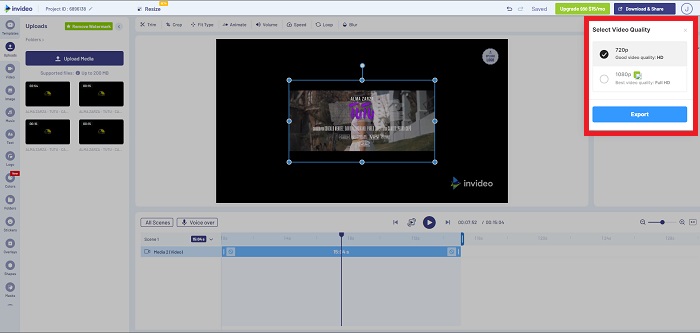
Trin 3. Når du er færdig med at redigere, skal du downloade og dele dit arbejde og derefter opgradere til Premium for at få endnu bedre resultater.
Fordele
- Det har tilpassede skabeloner, der kan bruges gratis.
- Den indeholder professionelle funktioner.
Ulemper
- Den skal købes for at låse op for alle funktionerne.
Metode 3. Brug Typito
Hvis du spekulerer på, hvilket online redigeringsværktøj der kan løse problemet med at sætte en video i slowmotion, kan du prøve Typito. Typito gør det nemt at lave iøjnefaldende videoer, der får din video til at skille sig ud fra andre og fra mængden. Det minder om Canva, blot til videoredigering. Denne webapplikation er ikke kun for professionelle. Brug den til skoleprojekter eller semiprofessionelle multimedieprojekter. Du skal også bruge en e‑mailadresse for at bruge værktøjet og konvertere dit videoklip med de ønskede justeringer.
Trin 1. Træk og slip mediefiler fra din computers skrivebord, eller klik på mappeikonet for at tilføje dem.
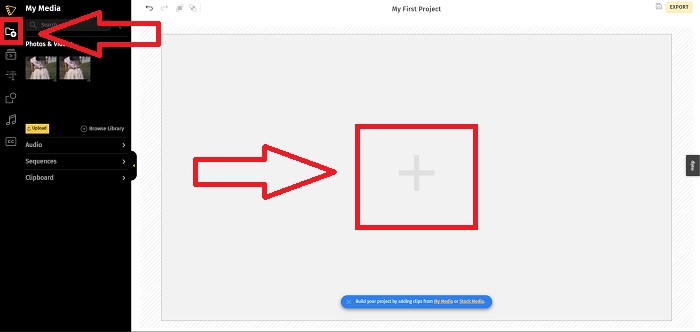
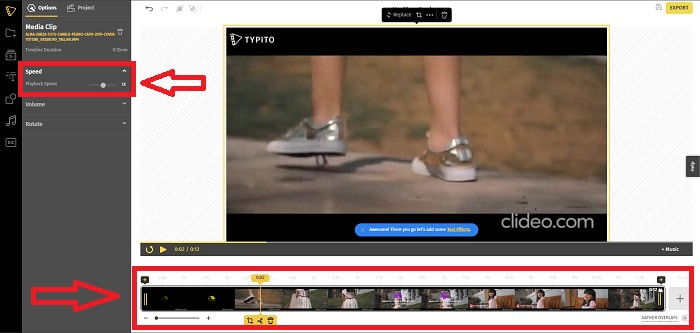
Trin 2. For at begynde at redigere din video skal du gå til videosporen og vælge videofilen. Klik derefter på Add Projects. For at ændre en videos afspilningshastighed skal du finde funktionen Speed i venstre side af grænsefladen og bruge Slider til at ændre videoens hastighed.
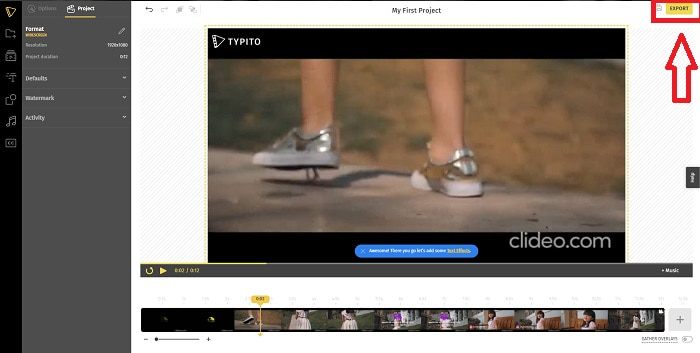
Trin 3. Ved at klikke på Export i øverste højre hjørne af grænsefladen kan du downloade den konverterede fil til skrivebordet. Download den, når du er færdig, og den er klar.
Fordele
- Det er et online webværktøj, der er nemt at bruge.
- Den indeholder formater og skabeloner til brug ved redigering af din video.
Ulemper
- Webværktøjets grænseflade er for enkel.
- Den har få værktøjer til rådighed.
Del 4. Ofte stillede spørgsmål om, hvordan man laver slowmotion-video
Mister jeg kvaliteten af videoen, hvis jeg sætter farten ned?
Nej, det samme med at øge afspilningshastigheden på din video; nedsættelse af din video mister ikke kvaliteten af din video. Af en eller anden grund, hvorfor nogle af videoerne bliver en smule glitchy efter at have reduceret videoens afspilningshastighed, er deres videokvalitet allerede kedelig og lav. Derudover, hvis du intensiverer for at mindske afspilningshastigheden af dit videoklip, vil billedhastigheden blive delt i halvdelen, hvilket forårsager en forsinkelse og sænker kvaliteten.
Hvilken app er bedst til slowmotion-video?
Video Converter Ultimate er den bedste gratis konverter eller editor til download, der findes til både Windows og Mac. Den har også funktioner, der kan forbedre og optimere din video, og den er tilgængelig for alle brugere, der vil anvende konverteren.
Er Google Fotos den bedste app til at konvertere slowmotion-videoer til normal hastighed?
Som man kunne forestille sig, er der et par ulemper ved at bruge denne gratis app. Først og fremmest er videobehandlingshastigheden relativt langsom, især når du redigerer et langt videoklip. Derudover, hvis du deler videoen, før du ændrer afspilningshastigheden, vil baggrundslyden eller stemmefortællingen blive slået fra. Uanset hvad er det en fantastisk gratis Android-app. Du kan stadig bruge tredjepartsapps, men de fleste af de praktiske at bruge er ikke gratis.
Konklusion
For at runde denne artikel af med et brag kan man sige, at det bliver legende let at lave en slowmotionvideo ved hjælp af løsningerne ovenfor. Video Converter Ultimate kan betragtes som en slowmotionvideoredigerer, der gør arbejdet med slowmotion endnu mere ubesværet og håndterbart end før. De mange funktioner i denne software gør, at den med rette kan kaldes en professionel editor, du vil få glæde af.
-
 [Løst] Sådan repareres videoer, der ikke afspilles på iPhone, med detaljerede trin
 Lokale videoer i galleriet kan ikke afspilles på din iPhone via standardvideoafspilleren? Online YouTube -videoer, der ikke afspilles på iPhone, sker altid? Her er 5 løsninger til at hjælpe dig i denne artikel.
-
 5 brugbare metoder til at rette QuickTime Kan ikke åbne MOV-filer
 MOV-formatet er primært skabt til afspilning i QuickTime Player. Men nogle gange kan du opleve, at de ikke spiller i den. Lær, hvordan du løser, QuickTime vil ikke afspille MOV-filer fra dette indlæg.
-
 Sådan konverteres MKV-filer til afspilning på PS3 glat [Løst]
 Vil du afspille MKV -videoer på din PS3? PS3 kan dog ikke afspille MKV -filer direkte. Denne artikel viser dig måder at konvertere MKV -videoer til PS3 -understøttede videoformater til at spille på PS3 uden besvær.
