


 Video Converter Ultimate
 Skærmoptager
 Video reparation
Tips og tricks til at øge lydstyrken på din Windows/Mac/iPhone/Android
Most of the PC, Mac, Android or iPhone are capable only of fair loud volume. Although it is not good enough to be used to feel the shivers crawl to our skin or even enjoy it. Moreover, we can fix it by increasing the volume of it to the max. Although you make it louder, some of the videos we watch are still low. So now, we present different techniques for you to choose from to help you to listen to a good video with your own devices only. And if you are ready to start then let's proceed and explore how to increase volume easily on different platforms.

Del 1. Sådan øges lydstyrken på Windows/Mac/iPhone/Android
1. Windows
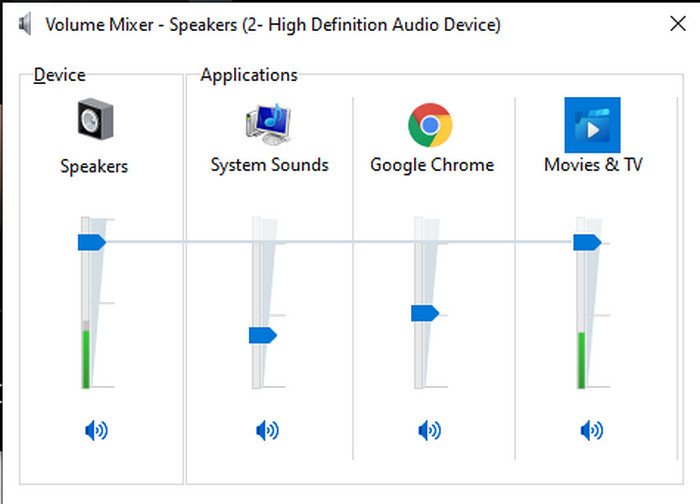
Det er meget nemmere at øge MP3-lydstyrken på en Windows-pc, selvom du ikke behøver at bruge en tredjepart. Men hvis du vil øge lyden herinde, så forvent ikke noget særligt. Fordi dette operativsystem ikke giver nogen equalizer til at hjælpe dig med at manipulere det. Men du kan justere lydstyrken for de andre applikationer, du ønsker, skal lyde højere eller lavere. Så lad os nu fortsætte med nedenstående trin for at bestemme, hvordan du får din video til at lyde klarere på Windows PC.
How to Increase the Volume of the Video on Windows:
Step 1. On the interface of your Windows PC locate on the lower right side the Speaker.
Step 2. Press the right click on your mouse and click Open Volume Mixer.
Step 3. Adjust the Device to make it higher or lower all of the volume. However, if you want to adjust a single sound only then you can do it by dragging it up or down.
2. Mac
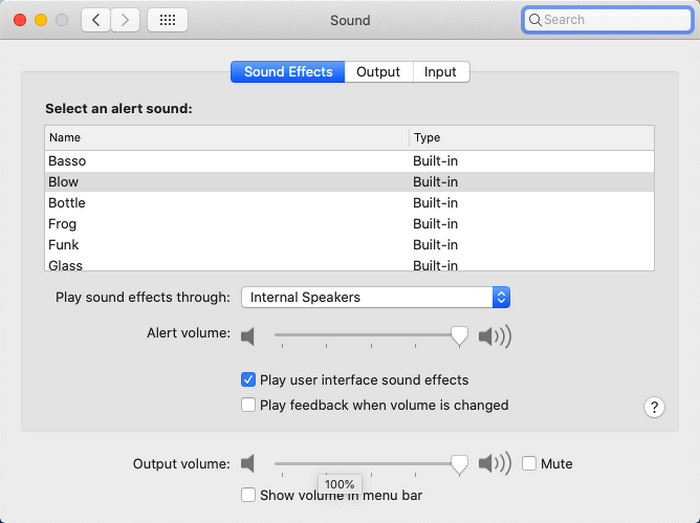
Ligesom Windows kan du nemt manipulere og øge lydstyrken på din video på Mac. Desuden, hvis du vil øge lydoutputtet på din Mac, skal dette være dit valg for nemt at udføre det. Men som sagt tidligere er dette ligesom Windows, men i et andet program har dette OS ingen indbygget equalizer for at få lydstyrken til at ændre sig drastisk. Og nu, hvis du vil lære at gøre lydstyrken højere, så følg dette trin angivet nedenfor.
How to Increase the Volume of the Video on Mac:
Step 1. Open your mac and click the apple shaped button at the top.
Step 2. Then click the System Preference under it. Press the Sound to proceed to the last step.
Step 3. Adjust the Output Volume by dragging the slider to increase or decrease the sound.
3. iPhone
Hvis du har en iPhone, så kan du nemt lære at gøre din lydstyrke højere og bedre. Fordi denne enhed har en indbygget equalizer, der helt sikkert vil hjælpe dig. Desuden forbløffer evnen til at øge lyden i denne telefon os stadig. Fordi vi ikke vidste, at der var en bærbar equalizer, som iOS-brugere kunne bruge. Så nu, hvis du ikke har en idé om, hvordan du bruger det, vil de følgende trin hjælpe dig med at gøre det.
How to Increase the Volume of the Video on iPhone:
Step 1. Go to the Settings and locate the Music then click it.
Step 2. Press the EQ and choose on the list below, after choosing go back to Home.
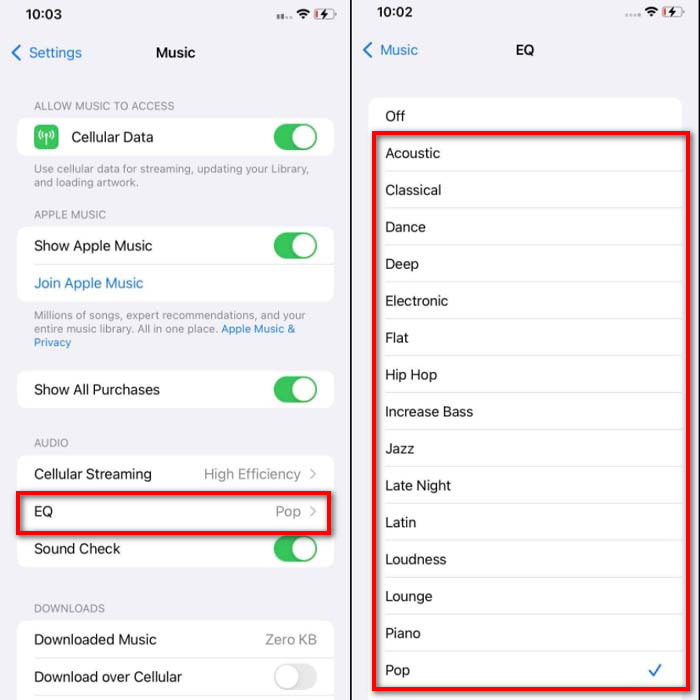
Step 3. Click Music now the Music and play the music there. Then increase the volume by clicking the volume up or down button on the side of your iPhone.
4. Android
Android vil aldrig svigte sin bruger, fordi denne mobile enhed også har en indbygget equalizer. Selvom du øger kvaliteten og selve lydstyrken med den tilgængelige equalizer herinde, er den stadig ikke så effektiv som på iPhone. Men hvis du bruger det og justerer lydstyrken, mens du har høretelefoner eller højttalere, vil du mærke den drastiske ændring af lydstyrken. Men bemærk venligst, at trinene kan variere alt efter din enheds mærke og model. Disse trin gav også arbejde på Realme 7 pro, Android version 11 og nyere. Så hvis du undrer dig, hvordan øger jeg lydstyrken på min Android-telefon, og følg derefter trinene nedenfor.
How to Increase the Volume of the Video on Android:
Step 1. Go to the Settings and locate the Sound & Vibration.
Step 2. Scroll it down to locate the Dolby Atmos and click it to proceed.
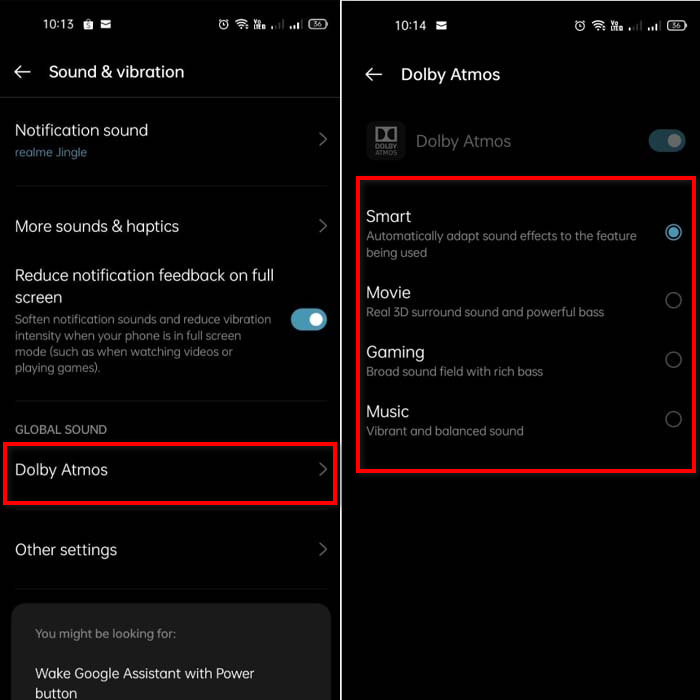
Step 3. Change the equalizers by choosing from the list. If you want to make your sounds better then insert a headphone to make much louder and better sounds. Then adjust the volume up and down on the side of your Android phone to make it sound higher or lower.
Del 2. Kan du stadig ikke høre mængden af videoer? Prøv at booste det med Video Converter Ultimate
Although the steps provided above are great to help, still it lacks some of the increasing intensity of the volume. So now, we present to you the phenomenal volume booster you can use to convert your low volume and boost them in here, Video Converter Ultimate. This software has already been used by +10 million users over the entire globe. Also, you can't access this tool on your mobile devices because it is not supported. However, you can use this software on your PC or Mac then save it directly first on your drive and later transfer it to your phone. Without further ado, let's determine how to use the volume booster available in this tool and learn how to make your volume louder than ever.
How to Boost the Volume of the Video with the Help of Video Converter Ultimate:
Step 1. Before you can use the Video Converter Ultimate you must download it first on your hard drive. Then install the tool and do the set-up then click Start Now to launch it.
Gratis download til Windows 7 eller nyere Sikker download
Gratis download til MacOS 10.7 eller nyere Sikker download
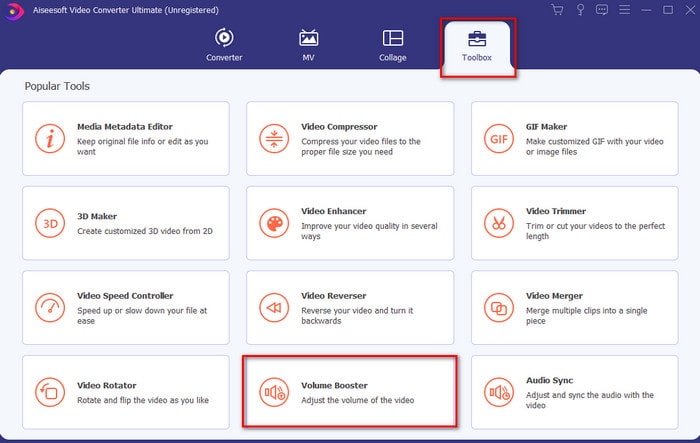
Step 2. After launching the tool, proceed to the next step, then go to the Toolbox and find the Volume Booster.
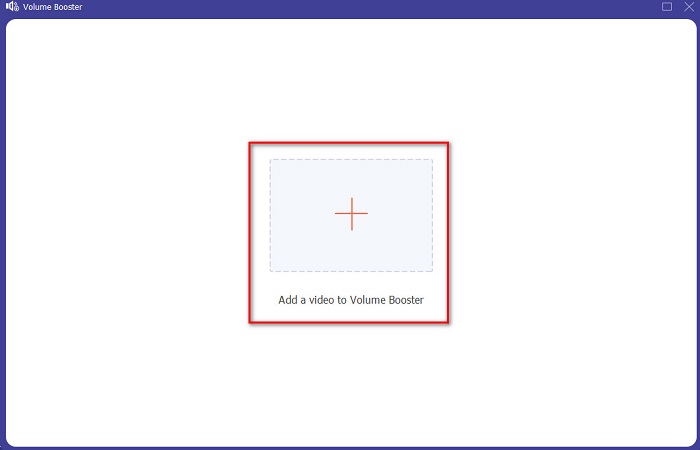
Step 3. Click + sign to add the video you want to be boosted. Locate the file on the folder that will show next on your display then click open to continue.
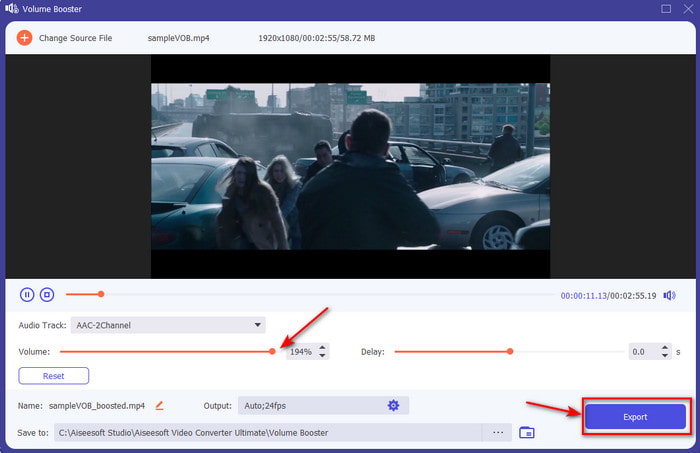
Step 4. On the tool interface you adjust the volume slider of the volume to the max or on your specific preference. If you are now satisfied with the volume, you've set click now Export to download the file.
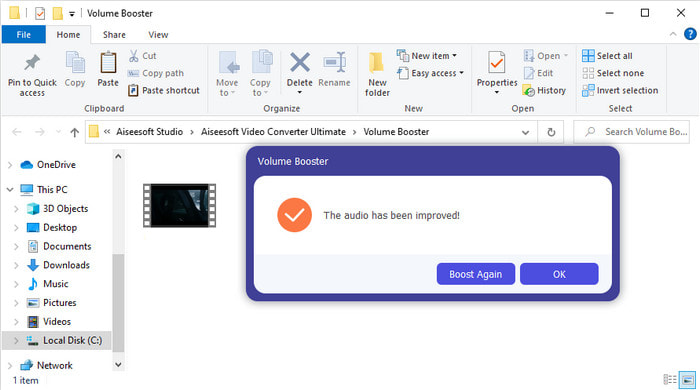
Step 5. Wait for a couple of seconds to be processed. If the file is already done a folder will automatically be shown to your screen, then click the file to listen to the volume of the video you've adjusted.
Del 3. Ofte stillede spørgsmål om Øg volumen
Kan jeg øge lydstyrken på VLC?
Faktisk ja, i stedet for at bruge en lydstyrkeforstærker kan du bruge VLC Player til at øge lydoutputtet på din video. I stedet for at begrænse lyden til 100% kan du også udvide lydstyrken til 125%, hvis du vil.
Reducerer konvertering af videoer kvaliteten af videoen og lyden?
Well, it depends on what format you want to convert. For example, if you convert an AVI to MP4 then expect some quality changes because the AVI format is uncompressed. However, we can avoid this by reading upon this article and to proceed just click this link. So, if you're about to convert a compressed file into an uncompressed or into another compressed format. Expect some changes as well if you do it regularly but if you do it once then quality will not be going to change.
Hvordan rettes en video- og lydforsinkelse?
Actually, there are two ways on how to fix it. The first one is to delete it and re-download the video if it is available on the web. And don't let the process be interrupted and have a stable internet connection to avoid missing some files. However, if this file is for you only then it is a must to choose a software that will help you to sync the audio and video. So now, to have an idea of the available software and how to sync audio and video easily then click the link and read the write-up. As we accumulate different software you can choose one.
Konklusion
As we now know how to fix the low audio on our video, this is now the right time to do it. Just by following the simple steps provided above to make your volume even better than before. Although the step is not all about how to increase the audio by pressing or increasing it. But with the help of the other techniques, you can easily perform. However, if you feel that the audio on your PC, Mac, Android or iPhone are still low then boost it with the Video Converter Ultimate. So now, increase volume to the next level and experience a much louder and better audio.
-
 7 nemme trin til, hvordan man løser problemer med OBS-lydforsinkelse [løst]
 Kæmper du med at se dit videoklip efter optagelse på grund af lydforsinkelsen, når du bruger OBS Studio? Læs artiklen nedenfor for at lære, hvordan du løser usynkroniseret lyd effektivt.
-
 Fremragende måder Mulige | Sådan rettes VLC Audio Delay [2021]
 Har du svært ved at se din yndlingsfilm på din VLC medieafspiller på grund af lydusikkerheden? Fortsæt med at læse denne artikel for at kende alle de mulige måder at rette VLC-lydforsinkelse på.
-
 Bedste måder at øge MP4-volumen online og offline
 Har du svært ved at høre lyden af dit videoklip? Læs artiklen nedenfor for at vide, hvordan du øger mp4-lydstyrken på forskellige måder.
