


 Video Converter Ultimate
 Skærmoptager
 Video reparation
Sådan ændres MOV-filers metadata på Mac med trin ubesværet
Vi ved alle, at MOV er et af de førsteklasses formater, du ideelt kan bruge til videoafspilning på dine Apple‑enheder og til redigering. Men hvad gør MOV unikt? Det understøtter en videokomprimering, der foretrækkes af professionelle. Selvom det kan gemme flere elementer i én enkelt fil, er det stadig muligt, at MOV‑filen kan få sammenblandede tags, som kan føre til problemer. Det hjælper at redigere dem korrekt, så du får den rette metadata og kan løse det med det samme. Med det nyttige værktøj er denne opgave en smal sag. Så i dag vil vi præsentere de bedste måder til øjeblikkeligt at redigere MOV‑filmetadata.

Del 1. Sådan redigeres MOV-metadata med Ultimate Tag Editor på Mac
FVC Video Converter Ultimate er din alt‑i‑én‑løsning på dette metadata‑problem og understøtter mere end 1000+ formater på både Mac og Windows. Med dette værktøj kan du øjeblikkeligt fjerne, redigere eller tilføje metadata i din MOV‑fil. Hvad mere? Du kan foretage flere redigeringer på din MOV, såsom at klippe, trimme, flette, beskære og meget mere, selvom du ikke er professionel til redigering. Det er virkelig imponerende at have dette værktøj ved din side, og der er mange flere ting, du kan gøre med det med blot nogle få klik. Men i dag præsenterer vi den detaljerede vejledning, vi har tilføjet, som du kan følge for at redigere metadataene i dine MOV‑filer med succes.
Trin 1. Du kan hente den ultimative converter på din Mac eller Windows ved at trykke på downloadknappen nedenfor. Gå videre til installationsprocessen ved at klikke på filen, du har downloadet, og klik på Start Now for at starte værktøjet med det samme.
Gratis download til Windows 7 eller nyere Sikker download
Gratis download til MacOS 10.7 eller nyere Sikker download
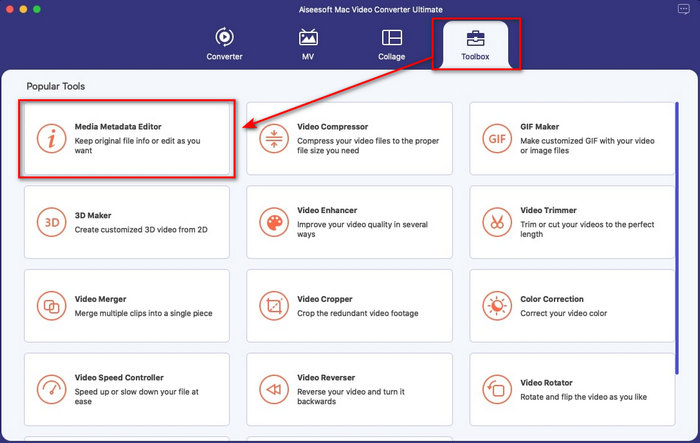
Trin 2. Værktøjets grænseflade vises på din skærm; gå til delen Toolbox, og åbn Media Metadata Editor.
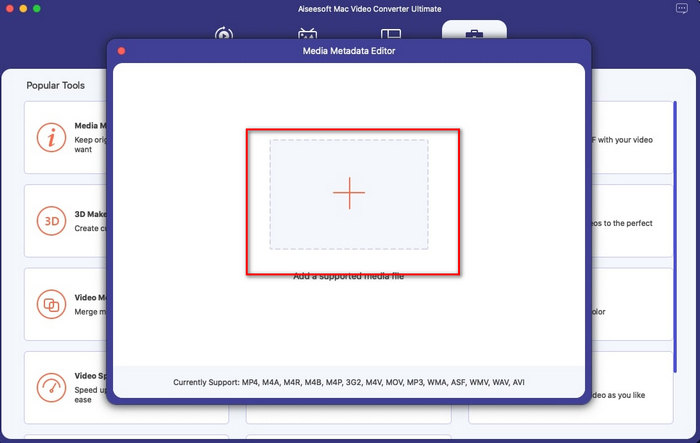
Trin 3. Når du har åbnet editoren, vil et minivindue blive vist; tryk på +‑knappen for at åbne en mappe, hvor du kan finde filen, og klik på Open for at indsætte den.
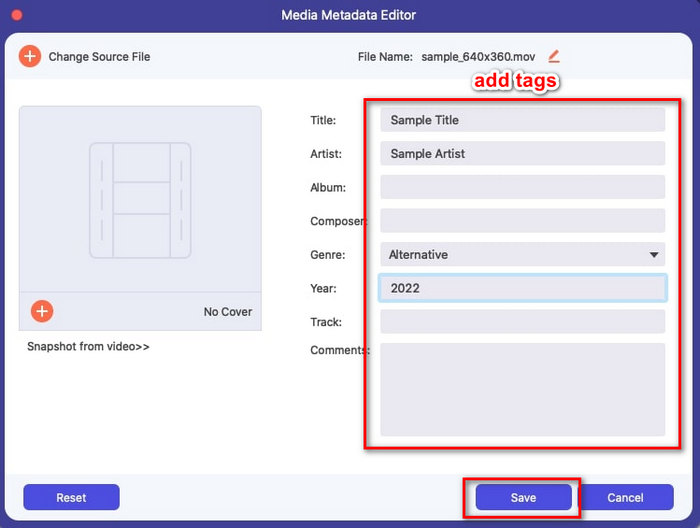
Trin 4. Nu kan du tilføje, redigere eller fjerne tags i din MOV‑fil her i tekstboksen. Når du er færdig, skal du klikke på knappen Save. Du har nu redigeret metadataene i dine MOV‑filer så hurtigt som det.
Relateret:
Del 2. 3 af de bedste MOV-tag-editorer til at ændre MOV-metadata
VLC Media Player
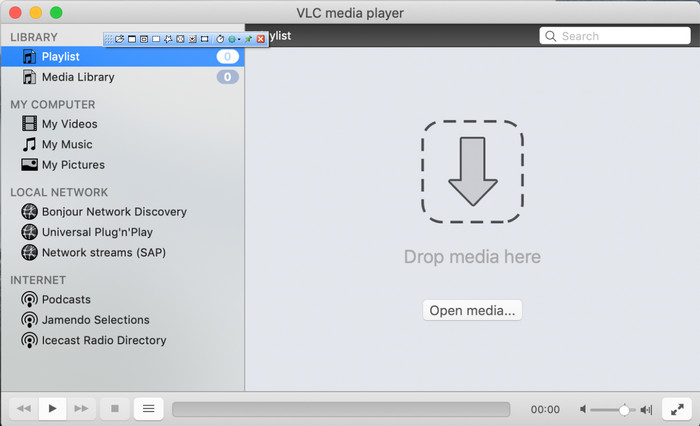
VLC Media Player er en kendt medieafspiller, som er tilgængelig på Mac og Windows. Selvom den kan afspille forskellige videoformater, kan den også ændre metadataene i din mediefil, f.eks. i en MOV. Hvis du desuden vil se metadataene for din fil, kan du nemt bruge denne til at få vist dem. Den er dog ikke lige så effektiv som de andre dedikerede metadata‑editorer, du kan bruge på Mac eller Windows. Alligevel er det stadig muligt med denne medieafspiller at redigere MOV‑filens metadata.
Trin 1. Download medieafspilleren fra VLC’s officielle hjemmeside, og åbn den.
Trin 2. Tryk på Command + I på tastaturet, og medieinformationen vises, hvor du kan tilføje eller slette metadataene i din MOV‑fil.
Trin 3. Klik på Save Metadata, når du er færdig med at tilføje tags til din MOV.
iTunes
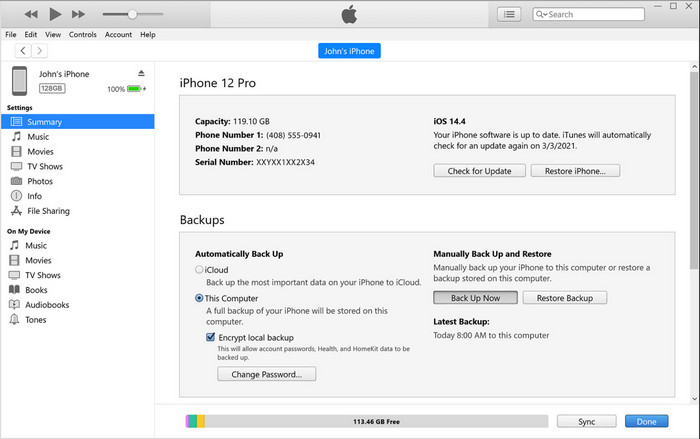
iTunes er den bedste indbyggede streamingapp, du kan få adgang til på enhver Apple‑enhed. Dette værktøj er spækket med forskellige funktioner såsom musikafspiller og butik til musik, film, podcasts og meget mere, beskyttet med DRM for at undgå problemer med ophavsret. På trods af at være en fantastisk indbygget app er konkurrencen blandt metadata‑editorer dog for hård til, at iTunes kan følge med. Men vi tager stadig denne app med i betragtning, fordi den kan ændre MOV‑metadata på Mac.
Trin 1. Åbn og importer MOV‑filen til iTunes‑biblioteket.
Trin 2. Højreklik derefter på .mov‑filen, du har tilføjet, og vælg Get Info. Når du har klikket på den, får du forskellige muligheder for at ændre metadataene, såsom detaljer, illustration, sangtekst, indstillinger, sortering og fil. Justér dem efter dine behov.
Trin 3. Tryk på OK for at gemme ændringerne.
MetaZ
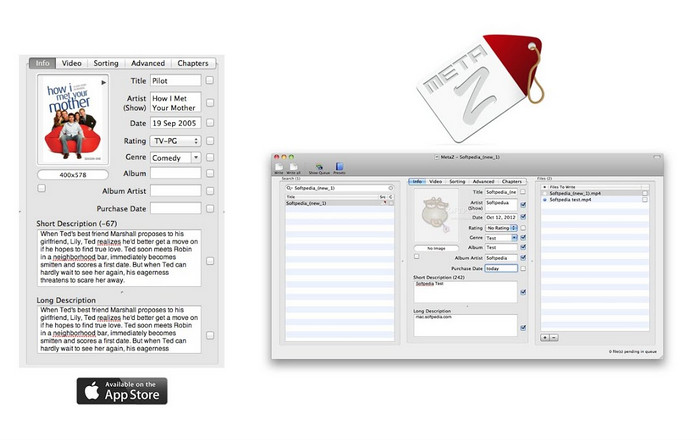
Til macOS X kan du frit downloade Metaz for nemt at ændre dine filers metadata. Denne metadata-editor kan hjælpe dig med at ændre dine video-tags i de fleste formater, såsom MOV. Med denne app kan du nemt gøre tricket og organisere MOV'en i dit bibliotek. Der er dog sket mange rapporter på det seneste med appen; brugere støder på mange besværlige problemer, mens de bruger appen. Selvom der kan opstå problemer, er det stadig en af de mest udvalgte MOV-metadata-editorer, du kan downloade på din Mac.
Trin 1. Download appen på din Mac, start den, og derefter vises tre sektioner af værktøjets grænseflade på din skærm, hvor du kan tilføje filen, redigere tags og søge efter tags.
Trin 2. Træk og slip MOV‑filen i venstre side; på højre side af den vil du se, at programmet automatisk søger efter tags til din MOV‑fil baseret på dens titel, men du kan ændre dem i den midterste sektion, hvis du vil.
Trin 3. Tryk på Write, og taggene bliver tilføjet til MOV‑filen.
Del 3. Ofte stillede spørgsmål om MOV Metadata Editor
Kan jeg bruge QuickTime metadata editor til at ændre tags?
Det kan du desværre ikke, fordi dette værktøj kun kan afspille medieformat, redigere videoer og optage. Men du kan frit se metadataene for din fil på Quicktime ved at følge disse enkle trin. Åbn først MOV-filen på Quicktime og afspil den. Du vil se forskellige muligheder i den øverste del; klik på Window, og under det, tryk på View Inspector, så vises et nyt vindue på din skærm for at se den lille information om din MOV-fil.
Påvirker ændring af MOV-tags kvaliteten?
Det gør det heldigvis ikke, fordi du har justeret tags, ikke opløsningen eller kvaliteten af MOV-filen. Så hvis du er bekymret for, at videoopløsningen kan reduceres efter ændring af tags, vil vi gentage det; det vil det ikke.
Vil tilføjelse af metadata på MOV øge filstørrelsen?
I alle filer, når du har tilføjet metadata til den fil, vil du se forskellen mellem den fil, der ikke har noget tag, og den, der har. Disse tags er dog ikke så store som filens indhold. Så hvis du tilføjer metadata på din MOV, skal du forvente, at den vil stige en smule i størrelse, fordi du har tilføjet information om videofilen.
Konklusion
Nu hvor vi har afsluttet vejledningen i, hvordan du ændrer MOV‑filmetadata, er det nu tid til, at du vælger, hvilken vejledning du vil følge. Hvis du vil downloade et gratis værktøj på din Mac, kan du hente VLC og Metaz for at rette eller redigere metadataene i din MOV. Men hvis du ikke vil det, kan du bruge iTunes til nemt at redigere metadataene. Selvom disse værktøjer er gode at bruge, findes der stadig intet værktøj med så kraftfulde redigeringsfunktioner til metadata på Mac, som det FVC Video Converter Ultimate kan tilbyde dig. Så hvis du stadig er i tvivl om, hvad du skal bruge, vil vi på det kraftigste anbefale, at du bruger det ultimative værktøj til denne opgave, fordi det er let at bruge, men har den komplette pakke, du får brug for på enhver given dag.
-
 Hvad er metadata: Lær de grundlæggende oplysninger om metadata
 Hvad er metadata? Er dette vigtigt? Hvad er delene af metadata? Har du det samme spørgsmål? I denne artikel lærer du de grundlæggende oplysninger om metadata.
-
 4 af de bedste metadatafremvisere online og offline [Opdateret 2022]
 Kan jeg tjekke metadataene for min fil? Ja, det kan du, ved hjælp af dette indlæg vil vi introducere dig til de forskellige metadatafremvisere, du kan bruge.
-
 Top 4 mest udvalgte WMV-tag-editorer på skrivebordet [Opdatering 2022]
 Har du brug for en pålidelig WMV-tag-editor til at redigere WMV-tags? Nå, denne artikel giver nok viden om værktøjet, der understøtter WMV.
