


 Video Converter Ultimate
 Skærmoptager
 Video reparation
 Sikker download
Hurtigste og nemmeste måder at forkorte video med de bedste værktøjer
Det er vigtigt at trimme eller forkorte en video, fordi det netop fremhæver de nødvendige klip fra din video. At trimme en video betyder at tage begyndelsen af slutningen af et videoklip af. Dette grundlæggende element i redigering er nødvendigt, så du ikke mister dit publikums opmærksomhed. Så hvis du vil trimme eller forkorte din lange video, vil du i denne artikel lære, hvordan du forkorter en video.

Del 1. 2 metoder til at forkorte en video på en trimmer ved hjælp af den bedste app
FVC Video Converter Ultimate er det bedste desktopværktøj til at trimme din video. Dette værktøj har en intuitiv softwaregrænseflade og er gratis at bruge. Denne offline‑konverter gør det muligt at tilføje segmenter til din videofil. Derudover har den en funktion, hvor du hurtigt kan opdele din video i de ønskede, forskellige dele. Og hvis du leder efter et værktøj, der kan flette flere filformater til én fil, kan dette program også klare det for dig.
Desuden tilbyder dette værktøj mange avancerede funktioner, såsom GIF-maker, videofletning, fjernelse af video‑vandmærke osv. Og det allerbedste er, at det understøtter talrige filformater, herunder MP4, WMV, FLV, AVI, MPG, WebM, MKV og mere end 1000 andre formater. Så hvis du vil bruge denne app til at forkorte din video, har vi to metoder, du kan følge.
Metode 1. Brug FVC's Video Trimmer
Trin 1. Download først FVC Video Converter Ultimate ved at klikke på knappen Download nedenfor. Følg installationsprocessen, og kør derefter appen.
Gratis download til Windows 7 eller nyere Sikker download
Gratis download til MacOS 10.7 eller nyere Sikker download
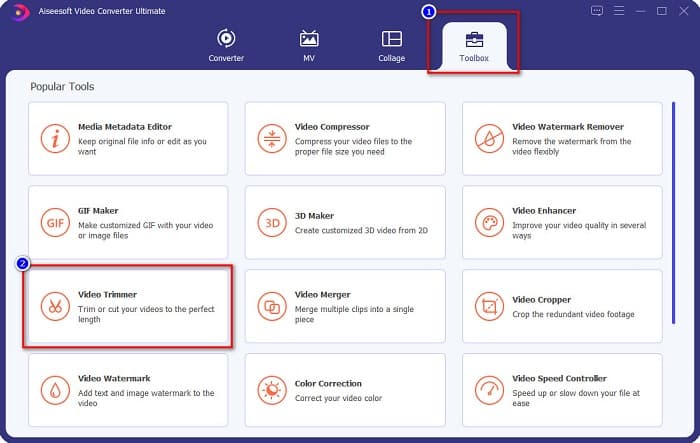
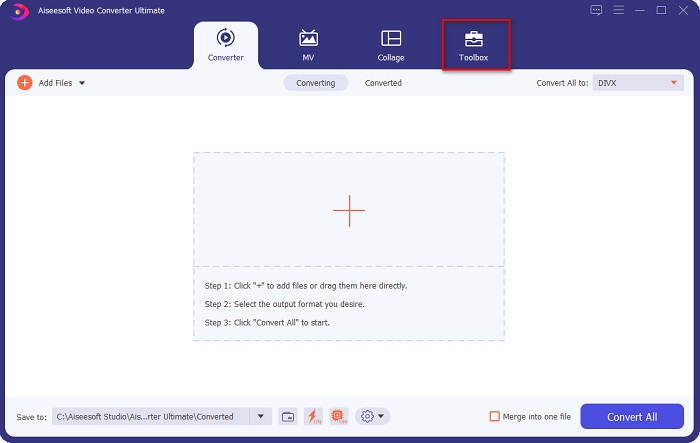
Trin 2. Vælg derefter panelet Toolbox, som er placeret øverst i softwaregrænsefladen. Klik derefter på Video Trimmer i Toolbox‑panelet.
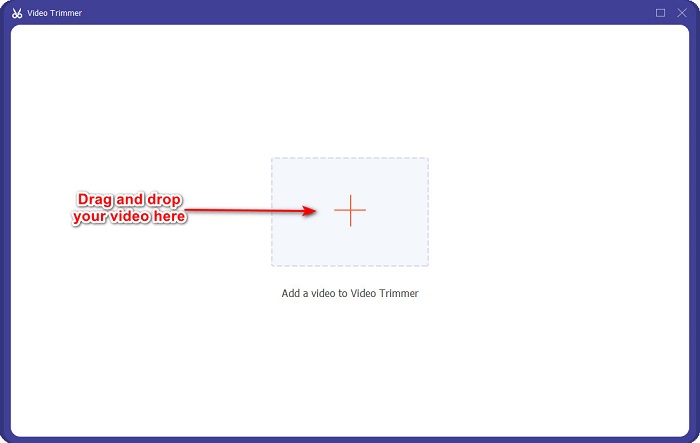
Trin 3. Klik så på +-knappen i den næste grænseflade, eller træk og slip din video ind på +‑tegnet.
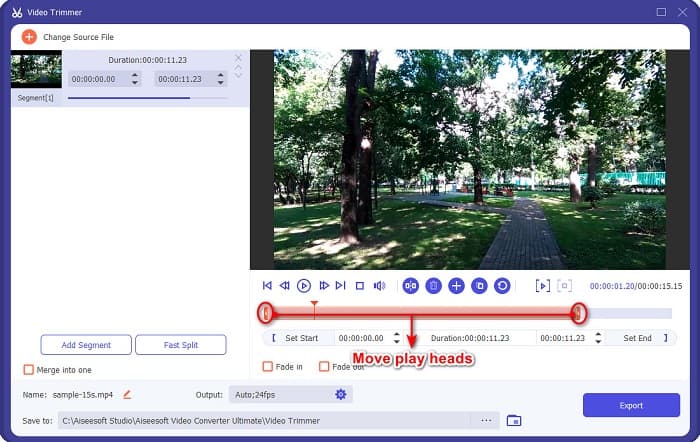
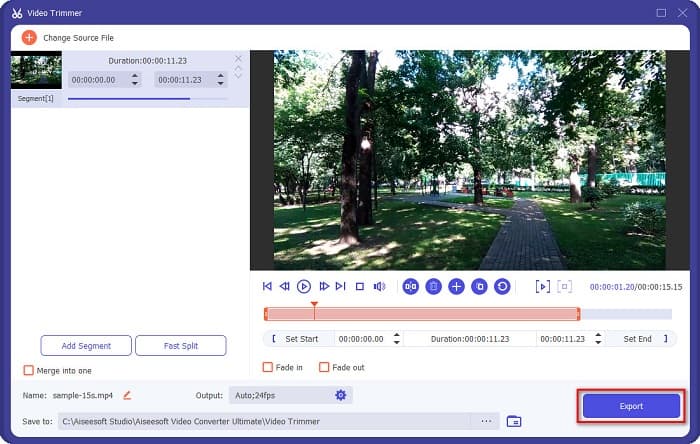
Trin 4. Flyt derefter afspilningshoved-knapperne til den ønskede længde. Pilespidsen angiver placeringen af forhåndsvisningen af din video. Og afspilningshovederne angiver længden på din video. Du kan se de midlertidige ændringer af din video i forhåndsvisningen.
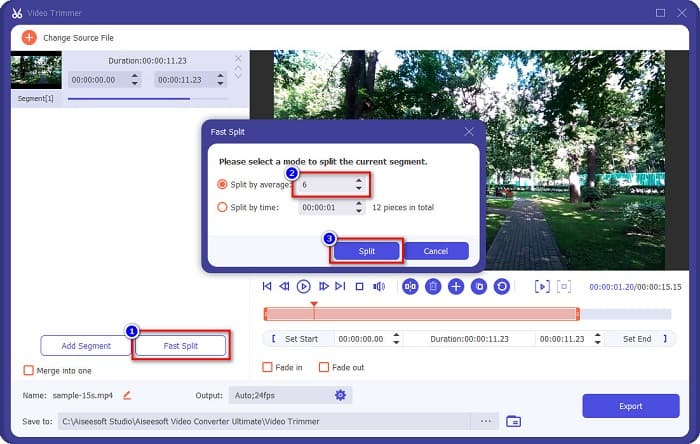
Valgfrit. Hvis du vil have en enklere måde at opdele din video i segmenter på:
1. Klik på knappen Fast Split.
2. Vælg antallet af opdelinger, du vil have i din video, og tryk derefter på Split.
3. Hvis du ikke ønsker at opdele din video, skal du fortsætte til næste trin.
Trin 5. Klik til sidst på knappen Export for at anvende ændringerne på din video. Dit output bliver derefter automatisk gemt i dine computerfiler.
Metode 2. Brug FVC's Video Speed Changer
FVC Video Converter Ultimate har også en funktion, hvor du kan ændre hastigheden på din video med 0,125x, 0,25x, 0,5x, 0,75x, 1,25x, 1,5x, 2x, 4x og 8x hastigheder. Og hvis du vil forkorte længden af din video, skal du justere din video til en høj hastighed. For mere detaljerede trin, følg vejledningen nedenfor.
Trin 1. Åbn FVC Video Converter Ultimate. Og på softwarens hovedgrænseflade skal du klikke på indstillingen Toolbox.
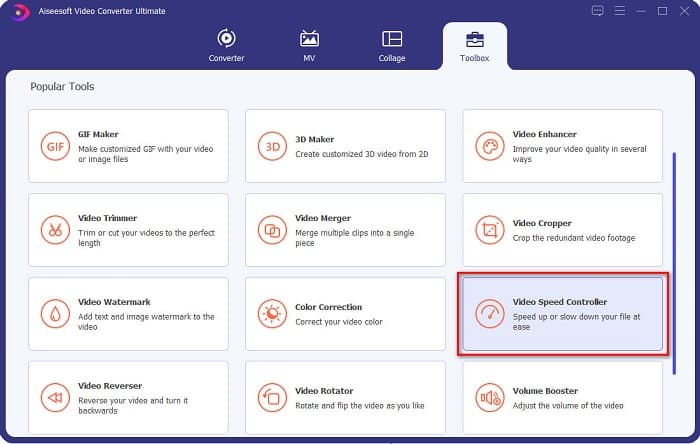
Trin 2. Klik derefter på Video Speed Controller, og fortsæt til næste trin.
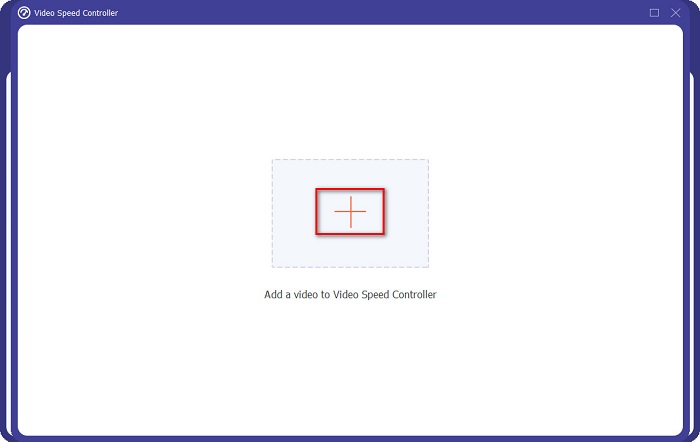
Trin 3. Klik derefter på +-knappen for at uploade den video, du vil trimme. Dine computermapper vises, hvor du vælger videoen og uploader den til softwarens grænseflade.
Trin 4. For at forkorte din video skal du vælge en hastighed fra 1,25x til 8x hastighed.
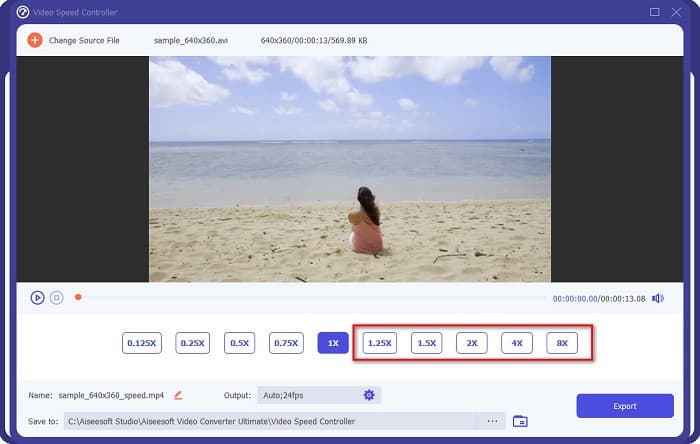
Trin 5. Som sidste trin skal du klikke på knappen Export for at gemme ændringerne af din video. Dit output bliver derefter automatisk gemt i dine computerfiler.
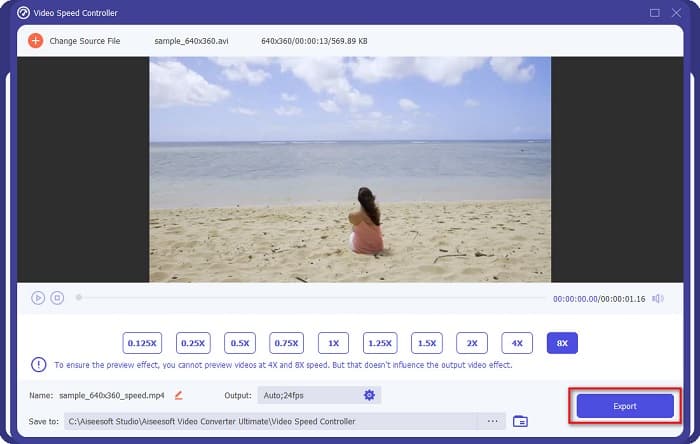
For kortere videolængde skal du vælge 8x hastigheden.
Fordele
- Det understøtter adskillige filformater, herunder MOV, MKV, AVI, MP4, WMV, WMA, MPEG og 1000+ formater.
- Den har en nem at bruge softwaregrænseflade.
- Det giver dig mulighed for hurtigt at opdele din video med blot et par klik.
- Kan downloades på alle cross-media platforme, som Windows, Mac og Linux.
Ulemper
- Køb appen først, før du får adgang til dens andre funktioner.
Del 2. 2 Online videotrimmer at prøve
Hvis du vil trimme din video uden at downloade noget, er der online videotrimmere, som du kan bruge. Vi listede de bedste online videotrimmere, som mange mennesker bruger i denne del.
Trim video
Trim Video er et online videotrimningsværktøj, der er let at bruge på grund af dets intuitive brugergrænseflade. Det er et praktisk værktøj, fordi det ikke kræver installation som andre onlineværktøjer. Derudover har det en funktion, hvor du kan rotere din video 90, 180 eller 270 grader. Desuden behøver du ikke at tvivle på datasikkerheden, fordi dette værktøj er privatlivsbeskyttet. Men da det er en webbaseret applikation, indeholder det reklamer, som kan virke forstyrrende.
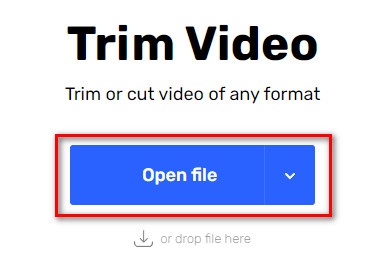
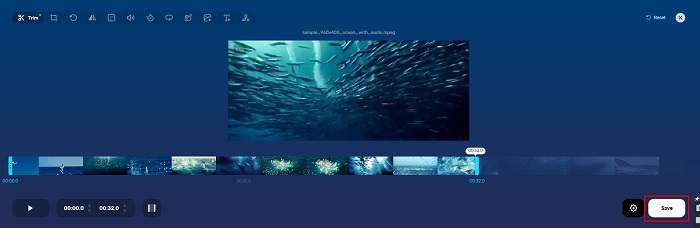
Trin 1. Søg efter online video trimmer i din browser. Klik derefter på siden Trim Video. På softwarens hovedgrænseflade skal du klikke på knappen Open File.
Trin 2. Juster derefter afspilningshoved-knapperne til den ønskede længde.
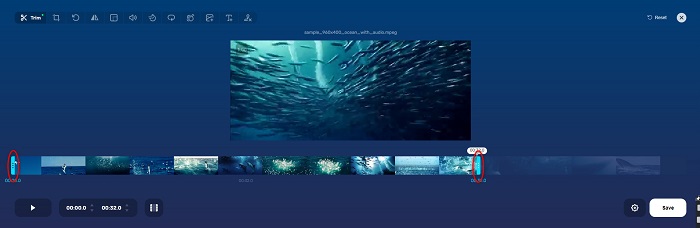
Trin 3. Klik på knappen Save for at ændre længden på din video.
Fordele
- Den har en brugervenlig GUI.
- Den har funktioner til at beskære og rotere din video.
- Det er sikkert at bruge.
Ulemper
- Den indeholder irriterende annoncer.
- Det har en langsom indlæsnings- og uploadproces.
Clideo
Et andet online værktøj til videotrimning er Clideo. Dette onlineværktøj har en enkel brugergrænseflade, hvilket gør det brugervenligt. Det understøtter også de fleste standardfilformater som AVI, MP4, VOB, MPG, MOV osv. Desuden har dette værktøj høj sikkerhed, hvilket betyder, at dine data er sikre og ikke kan ses af andre. Derudover indeholder Clideo ingen reklamer, der kan distrahere dig.
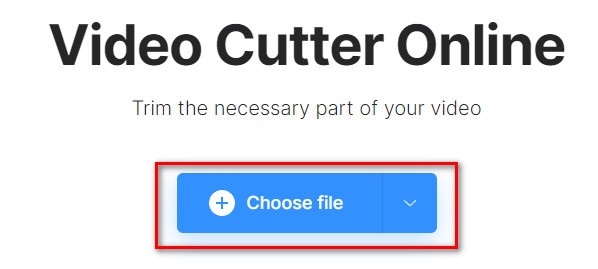
Trin 1. I den browser, du bruger, skal du søge efter Clideo video trimmer. Og på softwarens første grænseflade skal du klikke på knappen Choose File. Dine computermapper vises, hvor du vælger den video, du vil forkorte.
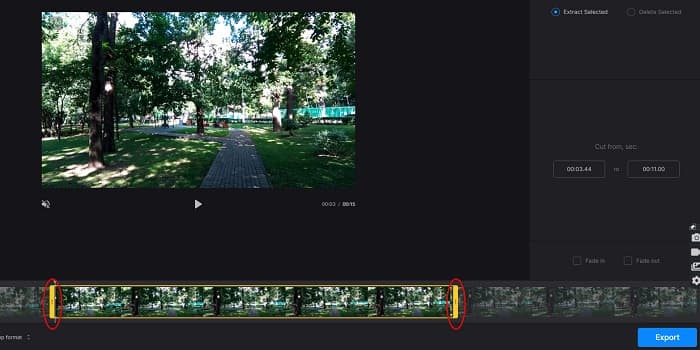
Trin 2. Flyt afspilningshoved-knapperne til den længde, du vil have, at din video skal have.
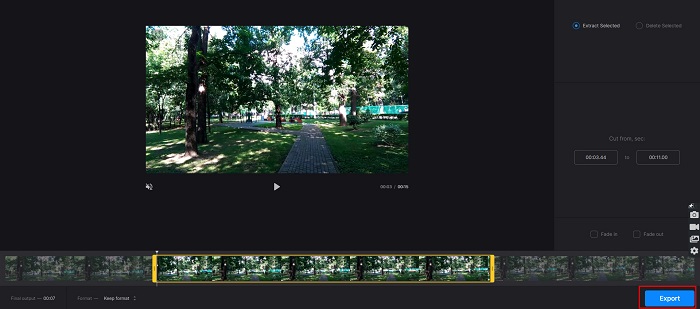
Trin 3. Klik til sidst på knappen Export for at ændre videolængden på din video.
Fordele
- Den har en brugervenlig grænseflade.
- Det er sikkert at bruge.
- Den indeholder ingen annoncer.
Ulemper
- Du kan opleve at have en langsom proces, når din internetforbindelse er langsom.
Del 3. Ofte stillede spørgsmål om, hvordan man forkorter video
Hvordan forkorter man video på iPhone?
Først skal du åbne Foto-appen og vælge den video, du vil trimme. Tryk derefter på Rediger. Flyt derefter skyderne til den ønskede videolængde og tryk på Udført for at gemme ændringer fra din video.
Påvirker trimning af din video kvaliteten?
Nej. De fleste trimningsværktøjer påvirker ikke kvaliteten af din video. Men hvis du er sikker på et værktøj, der ikke påvirker kvaliteten, når du forkorter din video, så brug FVC Video Converter Ultimate.
Påvirker det filstørrelsen at forkorte din video?
Ja. Jo kortere din video er, jo mindre filstørrelse har den. I modsætning hertil, hvis din video er lang, indeholder den en enorm filstørrelse.
Konklusion
Det var alt om, hvordan man forkorter en video ved hjælp af en trimmer og en video‑hastighedsændrer. Alle de nævnte værktøjer giver flotte resultater og sikrer dig den bedste ydeevne. Men hvis du leder efter det bedste værktøj med mange funktioner og som er bredt populært, når det gælder om at forkorte din video, er FVC Video Converter Ultimate det bedste værktøj for dig.
-
 Sådan klipper og fletter du sange online - 4 bedste måder, du bør kende
 Når du vil klippe og flette sange online for at oprette et stykke musik, kan du lære mere om de 4 bedste onlineværktøjer til at klippe sangene og kombinere filer fra artiklen.
-
 Oplev den bedste MP4 -trimmer med procedure og information
 Vil du lære at klippe videoer som de vloggere, du ser? Fortsæt derefter med at læse dette indlæg for at vide, hvilke MP4 -trimmere du kan bruge.
-
 5 MP3-skærere til nemt at skære enhver lyd [2022 Opdateret]
 Har du brug for en MP3-skærer til at trimme lyden? I så fald skal du læse denne artikel, fordi vi leverer de værktøjer, du kan stole på, som giver nem klipning af lyden.
