


 Video Converter Ultimate
 Skærmoptager
 Video reparation
 Sikker download
Sådan fjerner du vandmærket fra oprindelsesgrafen effektivt på grafen
Du får måske brug for at bruge Origin Graph til at oprette en skabelon til matematiske eller videnskabelige data, der er for komplicerede til at beskrive med ord. Denne software har allerede hjulpet studerende, forskere, professorer, erhvervsfolk og andre, der har brug for at lave deres egne grafer. Med det sæt af skabeloner, du kan vælge imellem, kan du lave en iøjnefaldende graf, der kan fange seernes opmærksomhed. Det problem, du sandsynligvis vil støde på, hvis du bruger dens gratis version, er, at den tilføjer et tekstvandmærke på det endelige resultat. Har du problemer med at håndtere vandmærket? Det behøver du ikke længere! For vi har dig dækket ind. Her præsenterer vi nyttige tips til at fjerne vandmærket fra Origin Graph og derefter bruge grafen i din Word- eller PowerPoint-præsentation.

Del 1. Sådan fjerner du vandmærke fra oprindelsesgrafen med Online Image Watermark Remover
FVC Free Watermark Remover Online er et førsteklasses værktøj til fjernelse af tekstvandmærker, som du kan bruge til at fjerne Origin Graph-vandmærket. Dette værktøj er særdeles effektivt til at fjerne enhver form for objekt på dine billeder, så de ser endnu mere professionelle ud, når du har fjernet vandmærket. Med dette kan vi forsikre dig om, at det er et dedikeret værktøj til vandmærkefjernelse, som du kan bruge og stole på, når du står med dette problem. Overvejer du, om dette værktøj er nemt at bruge? Det behøver du ikke længere! For nedenfor har vi tilføjet de trin, du kan følge for at slippe af med tekstvandmærket på det billede, som Origin Graph tilføjer.
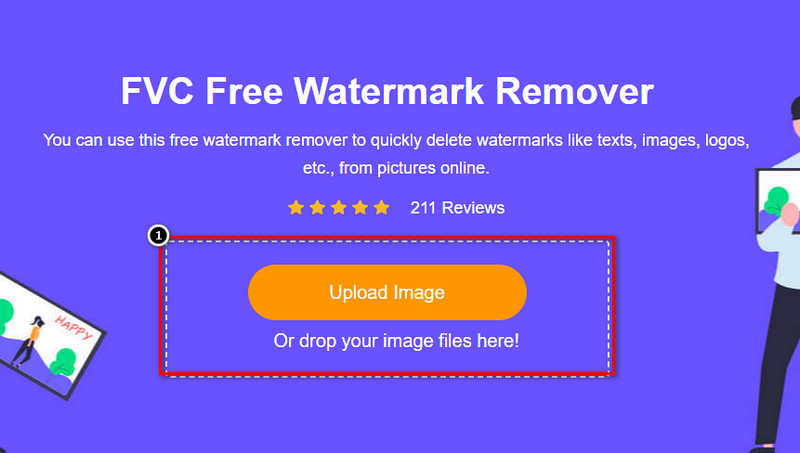
Trin 1. Du kan klikke på dette link for at åbne det online værktøj til fjernelse af billedvandmærker; det åbner direkte en ny fane, hvor du kan få adgang til værktøjet.
Trin 2. Tryk på Upload Image for at tilføje billedet med vandmærket hertil, find billedfilen i mappen, og klik på Open for at uploade den.
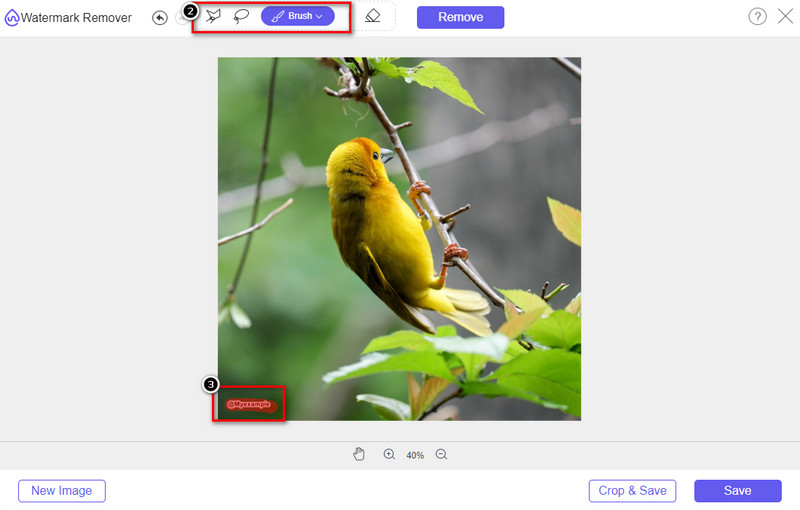
Trin 3. Du kan bruge tre værktøjer til at markere vandmærket; selv om de fungerer forskelligt, er deres effektivitet den samme. Vælg ét værktøj, og markér derefter det område på billedet, hvor der er et vandmærke.
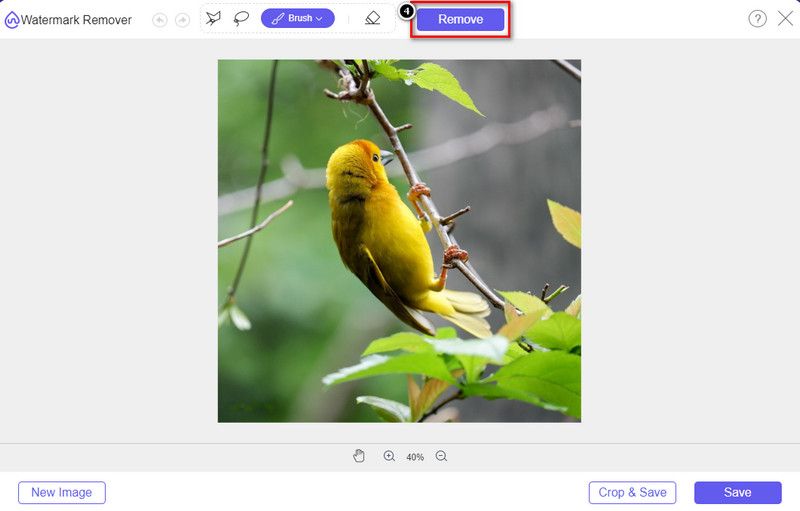
Trin 4. Sørg for at klikke på ikonet Remove, efter du har markeret vandmærket med værktøjet. Dette trin er vigtigt, så du får billedet uden vandmærket, når du eksporterer det.
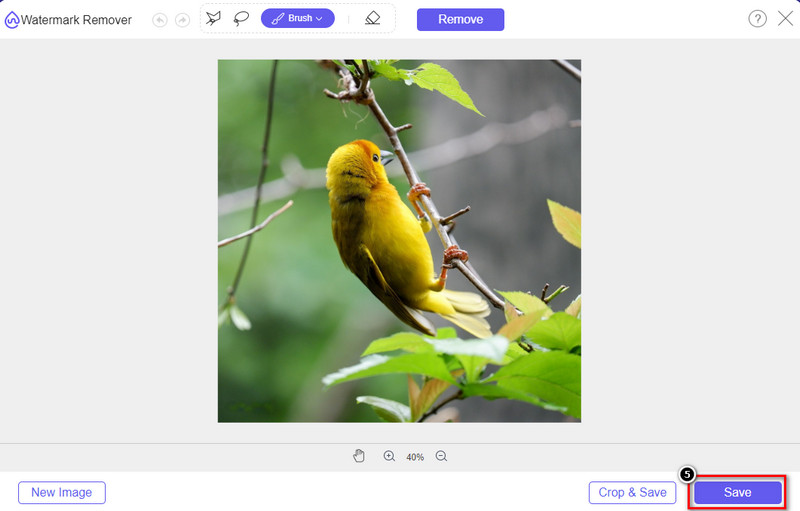
Trin 5. For at starte eksportprocessen kan du nu klikke på knappen Save. Vent på processen, og du kan nu tjekke billedet, hvor vandmærket fra Origin Graph ikke længere er synligt i området.
Fordele
- En gratis webbaseret billedvandmærkefjerner, du kan få adgang til.
- Det virker effektivt på at fjerne vandmærket med AI-teknologi support.
- Det understøtter en lang række billedformater, du måtte have på dit lokale drev.
- Intet vandmærke tilføjes på eksporterede billeder.
Ulemper
- Har brug for internetforbindelse for at fungere.
- Dens fokus er på at fjerne vandmærket og intet andet.
Del 2. Sådan kopieres grafer fra oprindelse til Word eller PowerPoint uden vandmærket
I denne del af artiklen giver vi dig den procedure, du skal kende for at tilføje den graf, du har oprettet på Origin Graph uden vandmærket. Følg den i overensstemmelse hermed for at tilføje den graf, du laver på Microsoft Word og PowerPoint uden vandmærke.
Du bliver nødt til at frigøre mindst 1,9 GB på grund af dens enorme filstørrelse. I filen på 1,9 GB kan du få den hjælp du har brug for, men hvis du ikke ønsker hjælp, kan du downloade 652 MB versionen af den gennem .zip eller .exe.
Trin til, hvordan man opretter en graf på oprindelsesgraf uden vandmærket:
Trin 1. Download først Origin Graph til dit operativsystem ved at gå til dets officielle hjemmeside. Åbn værktøjet for at begynde at oprette den graf, du ønsker.
Trin 2. Når softwaren er startet, skal du tilføje værdierne til den tabel, du har brug for. Du kan tilføje flere variable og det tilsvarende antal grafer her.
Ekstra: Du kan klikke på Plot for at se andre grafer, du kan bruge, såsom Basic 2D, Bar, Statistical og mere.
Trin 3. Klik på File, og tryk derefter på Save for at eksportere den graf, du har oprettet her.
Trin 4. Du kan følge trinene, vi har tilføjet i Del 1, og følge vejledningen i at fjerne vandmærket fra Origin Graph ved hjælp af FVC Free Watermark Remover Online.
Sådan bruger du grafen på Word uden vandmærke:
Trin 1. Åbn Word-appen på din computer, og klik på Blank Page. Hvis du allerede har oprettet Word-dokumenter, så åbn den pågældende fil.
Trin 2. Gå til sektionen Insert, og klik derefter på Pictures. Søg efter graffilen på dit lokale drev, klik på den én gang, og tryk på Open for at uploade den til Word.
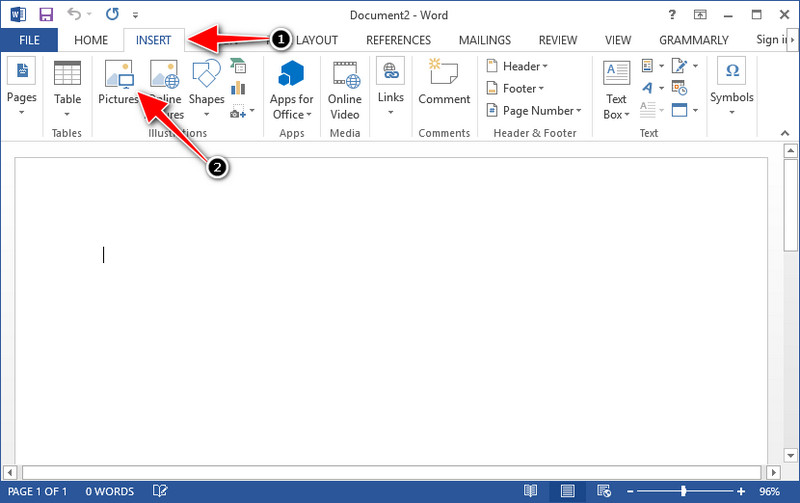
Trin 3. Den vil automatisk blive indlæst i det Word-dokument, du har åbnet eller oprettet; du kan nu placere grafen ved at holde og trække den i Word.
Sådan bruger du grafen på Powerpoint uden vandmærke:
Trin 1. Start PowerPoint på din computer, og klik på Blank Presentation. Du kan også se de seneste præsentationer, du har oprettet, i venstre side. Hvis der er en fil, hvor du skal indsætte grafen, så klik på den for at åbne den.
Trin 2. Tryk på Insert og klik på Picture for at indsætte billedgrafen, du har oprettet i Origin Graph.
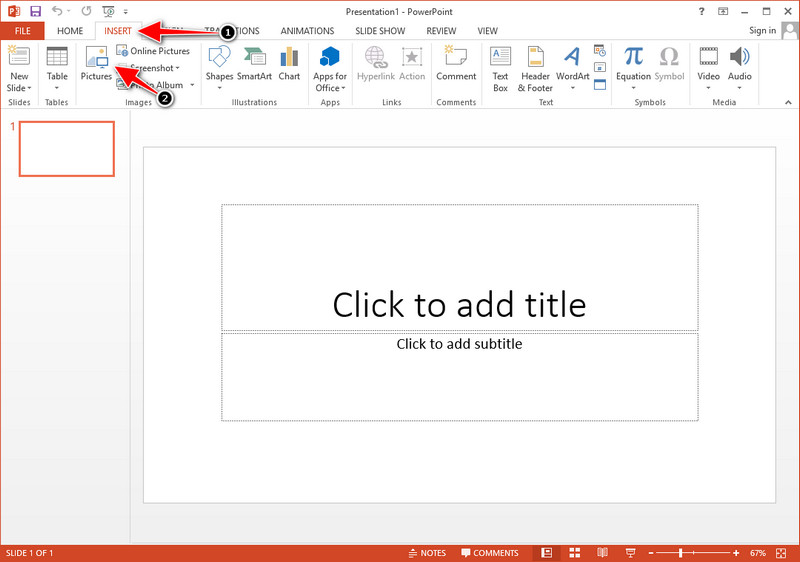
Trin 3. Juster graffens billede, og placer det på sliden.
Yderligere læsning:
Sådan fjerner du B612‑vandmærket fra dine billeder
Sådan fjerner du WOW Slider‑vandmærket gratis
Del 3. Ofte stillede spørgsmål om, hvordan man fjerner vandmærke fra oprindelsesgrafen
Hvor meget koster Origin Pro?
For de enkelte brugere kan du få premium-versionen af Origin Graph til $435 med start. Du kan besøge dens officielle butik på Origin Lab.
Hvor kan jeg officielt downloade Origin Graph?
Besøg Origin Lab for at downloade Origin Graph. Før du kan downloade softwaren på dit skrivebord, vil den stille spørgsmål. Herefter vil der være to muligheder for at downloade filen, om du vil downloade den med hjælp eller ej, i form af .exe eller zip.
Er Excel og Origin det samme?
Excel og Origin har en regnearkslignende GUI til at arrangere dataene, beregne og definere etiketter. Excel fokuserer dog på at indeholde mange kolonner og rækker, du kan bruge. Men med Origin er det til at arrangere attributter, der bruger en kolonneformel i stedet for en celleformel som det, Excel understøtter.
Konklusion
Nu hvor du har lært, hvordan du fjerner vandmærket fra Origin Graph, er det din tid til at bruge den graf, du har oprettet, og præsentere den professionelt. Hvis dit formål er at bruge det på Word eller Powerpoint, kan du læse del 2 for at lære, hvordan du gør det. Fjernelse af vandmærket med dette værktøj er langt det mest ønskede af alle, der ønsker at fjerne vandmærket på billeder. Problemet er løst med dette værktøj. Hvis denne artikel hjalp dig, bedes du efterlade en 5-stjerne nedenfor.
-
 Sådan fjerner du vandmærke med Pixlr i detaljerede trin [Effektiv]
 Vil du vide, hvordan man fjerner et vandmærke med Pixlr? Hvis ja, fortsæt med at læse nedenfor for at vide, hvordan du gør det, og de alternativer, du kan bruge.
-
 Fjern Animotica vandmærke på eksporterede videoer på 3 gennemprøvede måder
 Har du nogensinde spekuleret på, om det er muligt at fjerne Animotica-vandmærket på videoer, du eksporterede? Denne artikel giver en vejledning.
-
 Gratis måder at fjerne VideoShop-vandmærket på videoer [Besværet]
 For at fjerne VideoShop-vandmærket skal din enhed bruge en vandmærkefjerner. For at vide, hvad disse er, læs denne artikel.
