


 Video Converter Ultimate
 Skærmoptager
 Video reparation
 Sikker download
3 Effektive metoder til at konvertere MP4 til AMV på din Windows og Mac med lethed
Når du vil sende nogle store MP4-videoer til din smartphone, f.eks. En stor film, er der muligvis ikke nok lagerplads. For at konvertere MP4 til AMV-fil kan du bruge den avancerede komprimeringsalgoritme til at få en meget mindre video. Uanset om du har brug for at konvertere videoerne online eller tilpasse og redigere videoer med en bestemt størrelse, kan du lære mere om de 3 mest effektive MP4 til AMV-konvertere fra artiklen.

Del 1: Sådan konverteres MP4 til AMV Online
Hvis du blot har brug for nemt at konvertere en simpel MP4 til AMV, er FVC Free Online Video Converter en alsidig online videokonverter, som er kompatibel med MP4, AMV, AVI og mange andre filer. Den giver dig også mulighed for at justere video- og lydindstillingerne og endda konvertere filer uden vandmærke eller andre begrænsninger.
- 1. Konverter MP4 til AMV, AVI, MKV og flere andre videoer med original kvalitet.
- 2. Tilpas billedhastighed, videokvalitet, videokodec, lydkvalitet og mere.
- 3. Giv en nem brugergrænseflade til kun at konvertere AMV-filerne inden for 3 trin.
- 4. Det er en sikker og stabil metode til at konvertere filerne uden vandmærke.
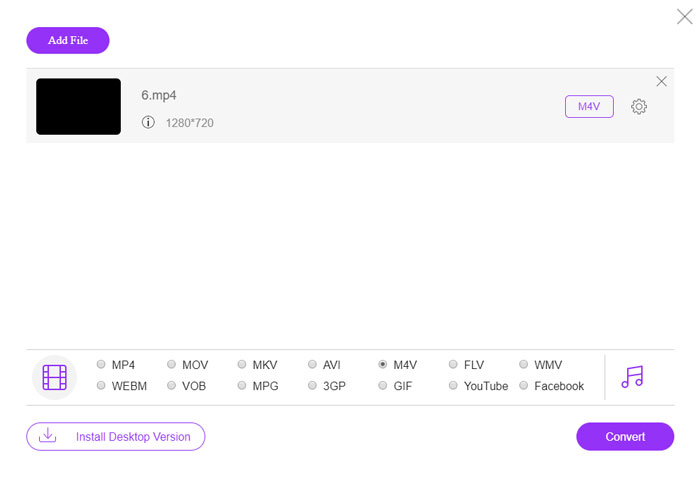
Trin 1. Gå til den online MP4‑til‑AMV‑konverter i en vilkårlig browser, og klik på knappen Add File to Convert for at installere videokonverteren første gang. Du kan også indlæse MP4‑filerne i programmet.

Trin 2. Vælg AMV som outputformat nederst. Du kan naturligvis også justere video- og lydindstillinger, såsom video‑encoder, videoopløsning, videobitrate, billedhastighed og mere for at få den ønskede video.

Trin 3. Derefter kan du klikke på knappen Convert for at begynde at konvertere MP4 til AMV. Det tager kun få sekunder at få den ønskede fil, hvorefter du kan overføre videoen til din smartphone.
Del 2: Sådan konverteres MP4 til AMV med VLC Media Player
VLC Media Player er en af de mest populære MP4 til AMV konverter. Det giver også nogle grundlæggende funktioner til videokonvertering og redigering. Desuden kan du også forhåndsvise output AMV-video efter konvertering. Tjek bare den detaljerede proces som nedenfor.
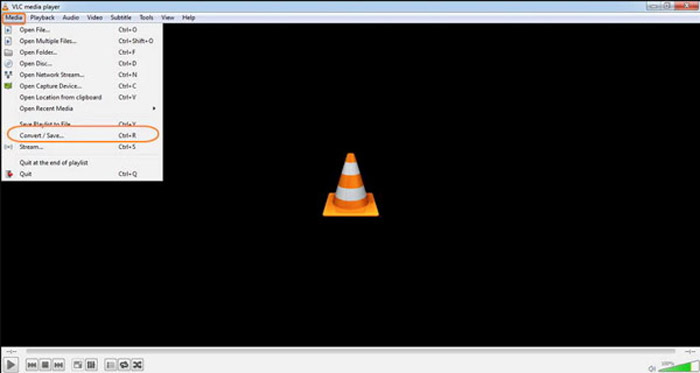
Trin 1. Åbn VLC Media Player på din computer, gå til menuen Media, og vælg indstillingen Convert/Save. Klik på Add til højre for listen File Selection på fanen File, og gennemse efter MP4‑filerne.
Trin 2. Klik på knappen Convert/Save for at fortsætte. Gå til vinduet Convert, hvor du kan vælge AMV som outputformat. Klik på knappen Edit Selected Profile for at justere video- og lydindstillingerne.
Trin 3. Klik på indstillingen Browse, og vælg en placering og et filnavn til outputfilen. Derefter kan du klikke på knappen Start for at konvertere MP4‑filer til AMV på din computer.
Del 3: Bedste metode til at konvertere MP4 til AMV med lethed
FVC Video Converter Ultimate er en alt‑i‑én MP4‑til‑AMV‑konverter til både Windows og Mac. Den konverterer ikke blot videoformater, men giver dig også mulighed for at justere forskellige video‑ og lydparametre, tilføje undertekster/lydspor og endda redigere de konverterede videofiler uden besvær.
- 1. Konverter MP4 til AMV og flere andre videoformater med original kvalitet.
- 2. Tilpas billedhastigheden, videokvaliteten, bithastigheden, videokodec og flere andre.
- 3. Giv flere videoredigeringsfunktioner til at rotere, klippe, justere filtre osv.
- 4. Avanceret hardwareacceleration for at konvertere videoen med 70x hurtigere hastighed.
Gratis download til Windows 7 eller nyere Sikker download
Gratis download til MacOS 10.7 eller nyere Sikker download
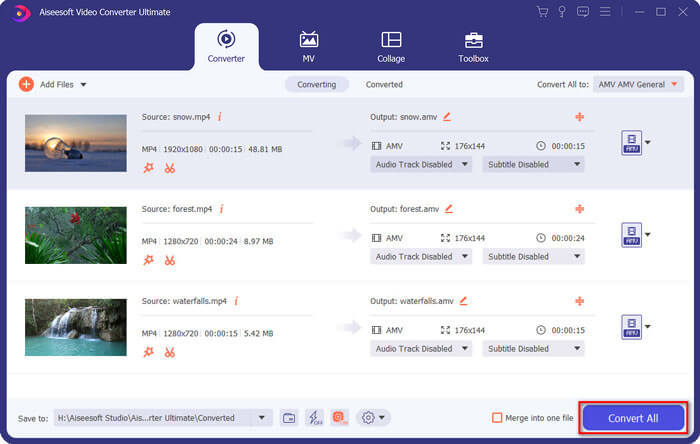
Trin 1. Download og installer MP4‑til‑AMV‑konverteren, og start programmet på din computer. Vælg knappen Convert, og klik på indstillingen Add File for at indlæse MP4‑filerne, eller træk flere MP4‑filer direkte ind i programmet.

Trin 2. Klik på formatikonet på højre side af videofilen, og vælg AMV som outputformat. Du kan også klikke på Gear-ikonet for at justere video- og lydindstillingerne eller endda redigere videoen/justere filtre uden besvær.

Trin 3. Når du er tilfreds med den genererede AMV, f.eks. videostørrelsen, kan du klikke på knappen Convert All for at starte MP4‑til‑AMV‑konverteringen. Derefter kan du overføre AMV‑filerne til en anden enhed.
Del 4: Ofte stillede spørgsmål om konvertering af MP4 til AMV-filer
1. Hvad er AMV-filformatet?
AMV-filen er kendt som Anime Music Video-filen. Det er typisk brugt af bærbare medieafspilningsenheder fra og i Kina. AMV-videoformatet er udstyret med lav opløsning, som har en videoopløsning mellem 94x64 og 160x120. Når du konverterer MP4 til AMV, kan du nemt sende flere videoer til din smartphone.
2. Hvordan afspilles AMV-filer på smartphone og computer?
Når du konverterer MP4 til AMV-filer, hvordan afspilles videofilerne på din smartphone eller computer? Faktisk kan du simpelthen tage AMV som en variant af AVI-format, som fungerer på de fleste medieafspillere. Hvis du har brug for at afspille AMV-filerne på dine iOS-enheder, kan du bruge VLC Media Player eller anden medieafspiller i stedet.
3. Hvad er forskellen mellem AMV og MP4?
MP4 er et af de hyppigst anvendte videoformater, der kan bruges til online streamingtjeneste og enhed. AMV er en variant af Motion JPEG med faste snarere end variable kvantiseringstabeller. Når du konverterer MP4 til AMV, kan du komprimere videoen og spare mere lagerplads, især til overførsel af videoer til enheder.
Konklusion
Hvad er det bedste valg at konvertere MP4 til AMV? Lær bare flere detaljer om de bedste metoder fra artiklen. Hvis du har brug for at konvertere og komprimere videoer online uden ekstra software, er FVC Free Online Video Converter den ultimative løsning, du kan tage i betragtning.
-
 AVI VS MP4 - Hvilken er bedre (kvalitet / kompression / filstørrelse ...)
 Hvilket er et bedre videoformat, AVI eller MP4? Hvis du ønsker at få en detaljeret sammenligning, kan du tjekke denne AVI VS MP4-artikel. Du kan kende forskellene og lighederne mellem AVI og MP4 i mange aspekter.
-
 Top 10 MP4 Player-software til Windows og Mac (gratis og betalt)
 Læs og få din bedste MP4-afspiller fra anbefalingerne fra den 10 nyeste MP4-videoafspiller-software. Du kan afspille MP4-videofiler på Windows og Mac uden problemer.
-
 Sådan konverteres MP4 til WMV til Mac / Windows
 Dette indlæg deler, hvordan man konverterer MP4-video til WMV-format på Mac eller Windows. Vi vil også tilbyde dig flere muligheder, herunder både desktop-software og webbaserede online-konvertere. Klar til at kende de bedste MP4 til WMV konverteringsværktøjer?
