


 Video Converter Ultimate
 Skærmoptager
 Video reparation
 Sikker download
6 mest effektive måder at ændre størrelse på et billede på nettet og skrivebordet
Med milliarder af prestigefyldte fotografier, vi kan downloade, tager de fleste af os smukke billeder, men alligevel er der tilfælde, hvor deres størrelse ikke er den, vi foretrækker mest. Brugere forsøgte at ændre størrelsen på det billede, de havde, ved at justere billedets højde, bredde og billedformat ved hjælp af editoren, som ændrede billedets PPI. Resultatet er ikke, hvad alle forventede; højopløsningsbilleder bliver pixelerede.
Why? Because the editor they used to resize can’t create or fill in the gap of pixels on the resized version. Thus, the queries about this topic became popular, and we are here to help you solve the problem. In this blog post, we will let you have hands-on experience on how to resize an image without any distortion left on the final output.

Del 1. Bedste fotoresizere, du kan få adgang til på nettet for at ændre størrelse på billede online [3 gratis værktøjer]
Disse onlineværktøjer, vi tilføjer her, er tilgængelige på forskellige webbrowsere, du har på din enhed. Disse er også gratis, men der er et værktøj, du skal købe for at bruge uden begrænsninger. Ikke desto mindre er disse egnede onlineværktøjer, du kan få adgang til for at begynde at ændre størrelsen på det billede, du har. Læs trinene for at vide, hvordan du bruger dem.
1. FVC Free Image Upscaler - Bedste Image Resizer på nettet [Favorable Option]
With FVC Free Image Upscaler Online is an artificial intelligence web tool that can quickly resize images without losing quality. Indeed, the web tool will automatically resize every image file you upload here. Despite being an online tool, its performance in resizing is fast and effective. Every image you upload here is automatically deleted on the server once you resize it. Also, it has the cleanest and most versatile resizer you will ever need; even though you are using different devices, you can access this web tool as long as you have internet connectivity. Want to see how this software performs in this task? If so, read the steps below and copy them to change the image size quickly and effectively.
How to Resize Image Using FVC Free Image Upscaler:
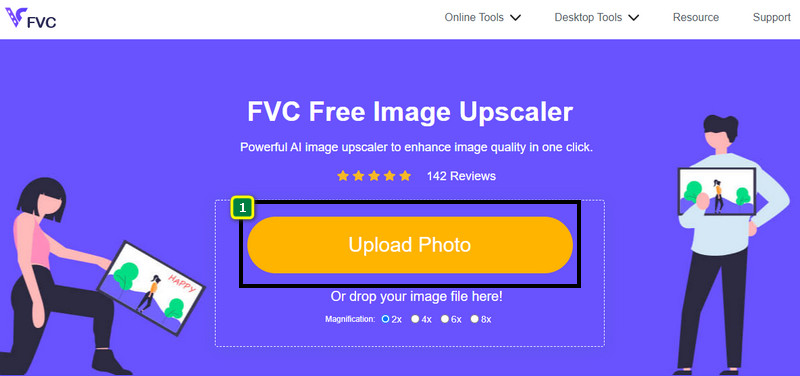
Step 1. To access the web tool, you can click this link, which will automatically lead you to the official website of the resizer.
Step 2. Click the Add Image so that a folder will show on your screen, select the image file you want to upload, and press Open.
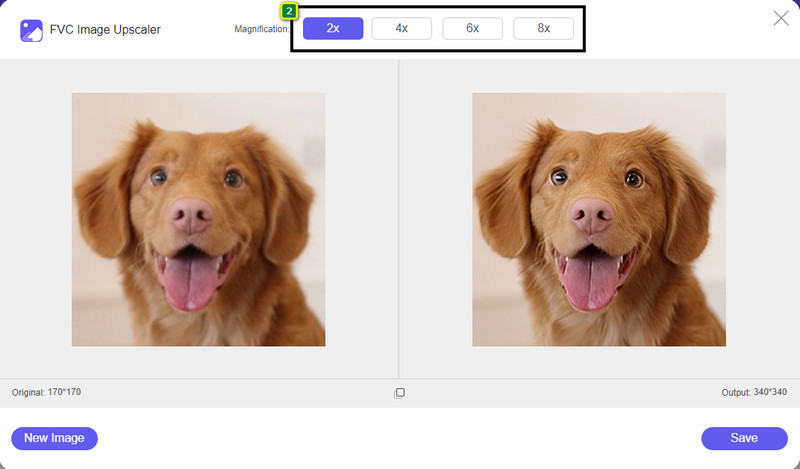
Step 3. To change the picture size, you must select what type of magnification to apply to your image. You can see that the overall dimension of the image is changed once you try and click the 2x, 4x, 6x, and 8x
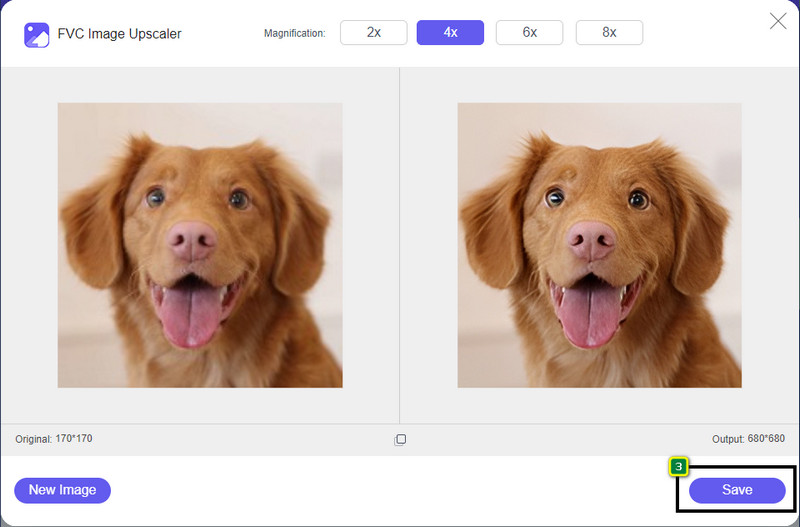
Step 4. After you have selected the magnification you want to apply, voila, you can now press Save to download the resized version of it on your desktop drive.
2. Be Funky - Fotoredigering [gratis og betalt]
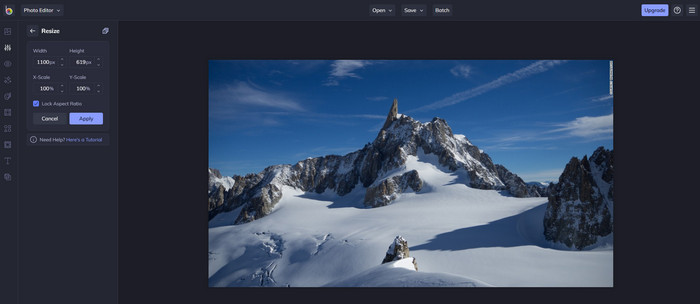
Be Funky - Photo Editor is a creative platform you can use to make extraordinary things on your images. It can resize BMP without losing quality. This tool is considered one of the finest image editors you can access online. Though it has a similar GUI to Photoshop, the features it brings are simplistic and easy to understand, so we can say that it is also user-friendly. So, if you want to try using this online tool to resize your image easily, follow the steps we include here.
How to Resize Image Using Be Funky:
Step 1. Search the name of it on your web browser, then click Get Started and Edit Photo.
Step 2. Press Open to upload the BMP or any images you have that you want to resize here.
Step 3. Go to Edit and press the Resize option.
Step 4. Here, you can freely change the width and height or the x and y scale of the image. Then press Apply to see what the resized version looks like.
3. Simple Image Resizer [Gratis]
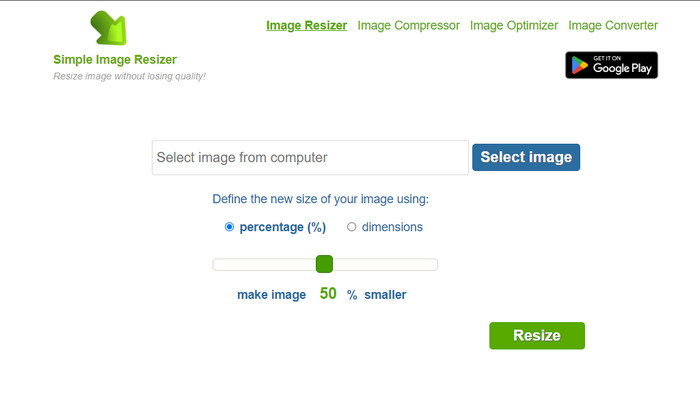
Simple Image Resizer allows you to resize an image by defining the new size of the image by changing the percentage or measurement. It is the last image resizer we added to this article. Its simple GUI and ease of use became the major factor in why we added this. In addition to its resizing feature, you can optimize, compress, and convert your image here for free but with annoying ads on the web. So, if you want to try using this resizer online, follow the steps below.
How to Resize Image Using Simple Image Resizer:
Step 1. Using your web browser, search the name of it to start using this web resizer.
Step 2. Press Select Image to add the photo you want to resize here.
Step 3. Choose which you prefer to use on resizing, and change the percentage or measurement. Either way, they do the same.
Step 4. Click Resize to save the final output on your desktop.
Del 2. Sådan ændrer du størrelsen på et billede på Windows og Mac [Betalt og gratis offline]
I modsætning til det første 3-nævnte onlineværktøj, er de næste værktøjer, vi introducerede, ikke internetafhængige, hvilket betyder, at selvom du ikke har internet, kan du bruge dem uden at have nogen problemer. For de kan downloades eller allerede er forudinstalleret på dit skrivebord. Lær, hvordan du bruger dem i dag ved at læse de oplysninger, vi tilføjer til hver af dem.
1. Adobe Photoshop [Windows og Mac]
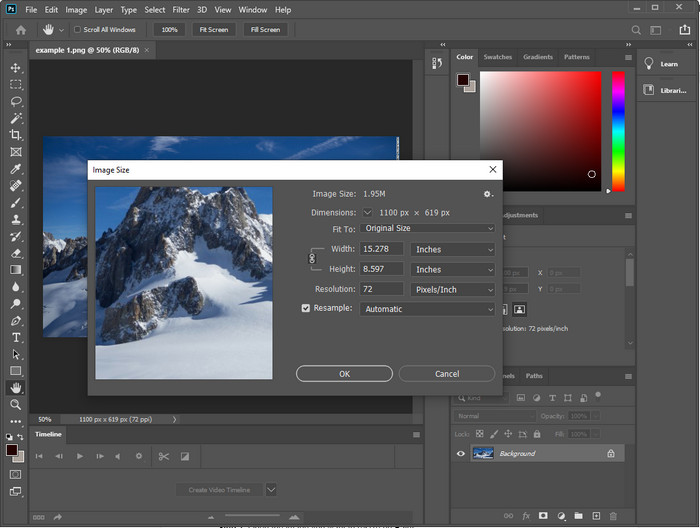
Our first choice offline image resizer you can download on your device is Adobe Photoshop. Why? Because it creates another pixel data once you resize it and avoid having a low-quality output at the end of the process. Plus, this software is known for being a professional image editor that could easily process any raster and vector images. Though the software is a professional tool, it is still a bit too much to purchase if you are about to use it only on resizing. But if you are interested in how to resize an image in Photoshop.
How to Resize Image Using Adobe Photoshop:
Step 1. Download and install the software on your desktop by visiting its official website.
Step 2. Hit the File, and locate the image on the folder after you click Open.
Step 3. Press the Image menu at the top, then select the Image Size.
Step 4. Change the measurement of Width and Height according to your preferences, then click OK to apply the changes.
Step 5. Go back to File and save the image on your desktop.
2. Mal [Standardapp på Windows]
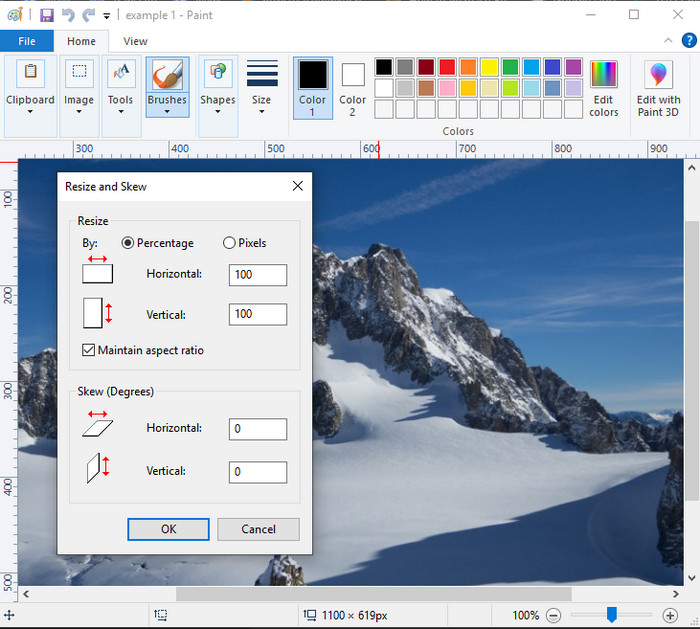
Paint is known for being an application that you can draw on a blank canvas. Different users of Windows normally use it to create something into a blank page, add details on images, and resize them accordingly. Though it isn’t a dedicated editor, it can still resize any raster image you have on your local drive. The advantage of using this is that you wouldn’t need to download the software on your Windows because it is pre-installed. So, if you want to know how to resize low-resolution pictures with this app, read the tutorial, we add below.
How to Resize Image Using Paint:
Step 1. Open the image you want to resize on Paint.
Step 2. After opening the image, click the two-squares icon to start resizing the image you open here.
Step 3. To resize the image, you can change it by percentage or pixel. After you’ve changed the number, press OK to apply the changes.
Step 4. Hit the save icon to export the image you resized here.
3. Se forhåndsvisning af [Standardapp på Mac]
Preview is a dedicated app you can depend on and lead you to how to resize an image on a Mac. If you don’t like downloading an application on your macOS, then you better use this app. It is an underrated solution, but it can resize your photo on your desktop. Learning how to use it can be a huge advantage to you to maximize the full potential of this software. If you are interested in how this tool works, proceed to the info we add next.
How to Resize Image Using Preview:
Step 1. Right-click the image on your Mac, click Open with, and press Preview.
Step 2. On the upper part, click Tools, then select Adjust Size.
Step 3. Change the image measurements based on your needs, then press OK to save the changes you made.
Del 3. Yderligere: Top Image Resizer Du kan downloade på Android og iPhone
1. Foto- og billedresizer [Android]
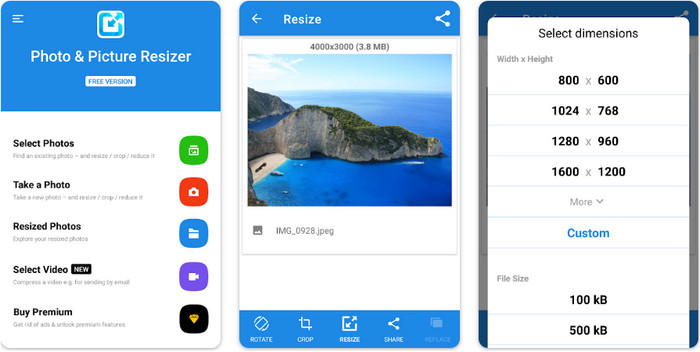
Photo & Picture Resizer is one of the fastest and easiest ways to resize the image you have on your Android device. Even inexperienced users who want to resize can download and use this as their image resizer. This app is free, so if you want to use its additional features, you will need to purchase it. Overall, its resizing features are great, and you can master it on the first try.
2. Image Resizer Free [iPhone]
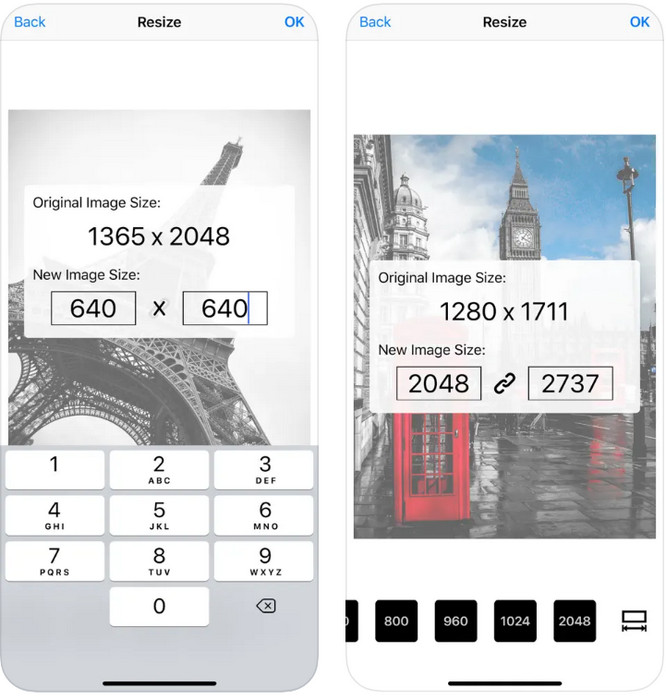
Image Resizer Free is an iOS-based application you can download on iOS 7.0 or higher. This application is an on-point image resizer that many iOS users use. It doesn’t have additional features other than its main function, resizing. Though the tool is user-friendly, many users complain that it can’t overwrite the original image into the resized version.
Del 4. Ofte stillede spørgsmål om, hvordan man ændrer størrelse på billede
Hvilket format er bedre at ændre størrelse, raster eller vektor?
Rasterformater består af små pixels for at skabe billedets udseende, og når du ændrer dets størrelse eller dimension, strækkes disse pixels ud og bliver synlige. I modsætning til hvis du ændrer størrelsen på vektorbilledet, er det specielt lavet til at ændre størrelse og opskalere billedet uden at skabe rod på det.
Kan jeg ændre størrelsen på BMP online?
Ja, du kan ændre størrelsen på BMP'en ved hjælp af den onlineløsning, vi tilføjer her. Men når du forstørrer billedet, har BMP en tendens til at blive pixeleret, fordi de er rasterbilleder. Så hvis du vil undgå problemet med at ændre størrelsen på BMP-filen, skal du hellere vælge FVC Free Image Upscaler Online, for den efterlader ikke pixelering på det endelige output af den ændrede BMP.
Øger filstørrelsen efter ændring af størrelsen på billedet?
Ja det gør. Hovedsageligt fordi det billede, du ændrede størrelsen på, tilføjer yderligere pixeldata på det faktiske output. Alligevel adskiller dens filstørrelse sig ikke meget fra dens oprindelige filstørrelse.
Konklusion
Which resizing image technique do you think fits you well? Choose amongst the resizer we add here. If you are having trouble choosing an internet connection, we highly recommend using the FVC Free Image Upscaler Online because of its performance on resizing. There is no difficulty resizing if you use this resizer on the web.
-
 1440p billede – alt inklusive information, du skal bruge [2022 opdateret]
 Vil du vide mere om 1440p-billeder? Eller hvor kan man få det? Vil du ændre dit billede til 1440p? Læs dette for at kende dem alle.
-
 Selvstudium til at unpixelate et billede ved hjælp af 3 Best Photo Unpixelator
 Har du problemer med at håndtere pixelerede billeder? I dag har vi løst problemet, og du kan bruge de værktøjer, vi tilføjer her.
-
 Sådan skærpes billedet i billedet på 3 måder [Hurtig vejledning]
 Problemer med det uskærpede billede? Her vil vi introducere, hvordan man skærper billeder i Photoshop ved hjælp af de tre måder, vi tilføjer.
