


 Video Converter Ultimate
 Skærmoptager
 Video reparation
 Sikker download
3 Shutterstock-vandmærkefjernere til brug og fjern vandmærket på videoer
Har du brug for videoer i høj kvalitet og med licens fra Shutterstock til dit projekt, men har de et Shutterstock-vandmærke på sig? Med hjælp fra Shutterstock-vandmærkefjerneren kan du nemt fjerne vandmærket på den downloadede video. Både professionelt og privat bryder vi os ikke om, at vores videoer har et vandmærke, fordi det ødelægger hele idéen med videoen. Hvis du derfor vil af med Shutterstock‑vandmærket, kan du læse videre i informationen og den korte vejledning, vi gennemgår i denne artikel.

Del 1. Sådan fjerner du Shutterstock-vandmærke med den ultimative vandmærkefjerner på markedet [Editor's Choice]
FVC Video Converter Ultimate kan præcist hjælpe og guide dig i, hvordan du fjerner Shutterstock‑vandmærket på den video, du har gemt. Det er en alt-i-en‑løsning, du kan downloade til Windows og Mac for at justere din video, blandt andet ved at fjerne vandmærker. Selvom softwaren kan det hele, holder udvikleren programmets brugerflade enkel, så alle, der vil bruge det, kan gøre det uden at have stor teknisk viden.
Selv med færdigheder på lavt niveau, kan du have et top-of-the-line output i slutningen, når du bruger denne editor. Er du stadig ikke overbevist om de oplysninger, vi tilføjede? For at bevise det, vil vi lære dig, hvordan du fjerner Shutterstock-vandmærket gratis med denne videoeditor.
Trin 1. For at fjerne vandmærket på den video, du har downloadet, skal du først downloade dette redigeringsprogram ved at klikke på den passende downloadknap til dit operativsystem. Der vil være en kort installationsproces, du skal igennem; derefter kan du begynde at bruge softwaren.
Gratis download til Windows 7 eller nyere Sikker download
Gratis download til MacOS 10.7 eller nyere Sikker download
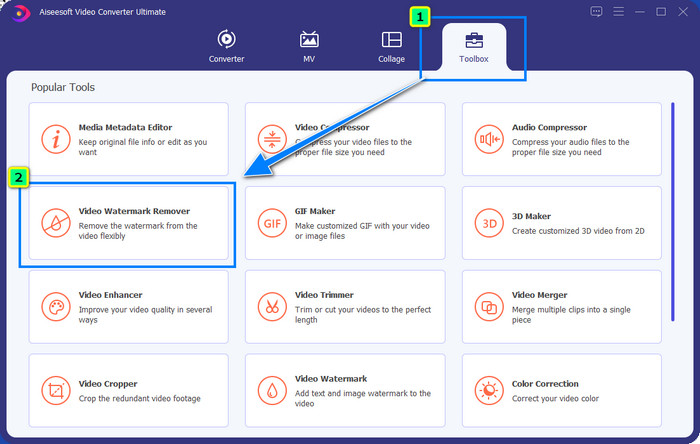
Trin 2. Dernæst skal du bruge funktionen Video Watermark Remover, som du finder under Toolbox. Som du kan se, kan du bruge flere redigeringsfunktioner til at tilpasse din video til det udtryk, du foretrækker.
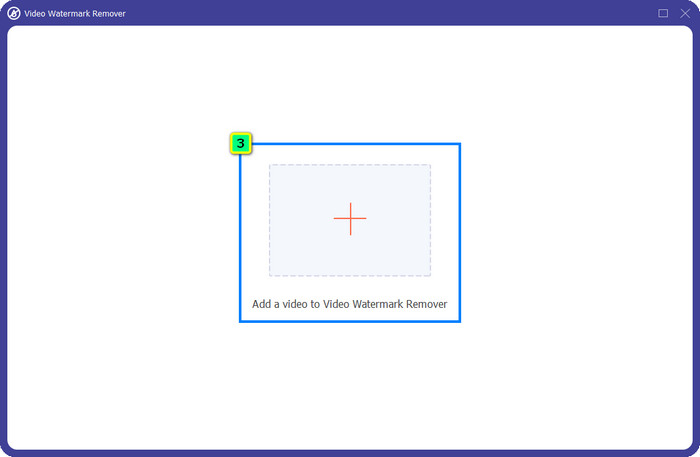
Trin 3. Klik på plus-ikonet, og et filhåndteringsvindue vises på skærmen. Vælg den videofil med vandmærke, og klik derefter på Open for at uploade den.
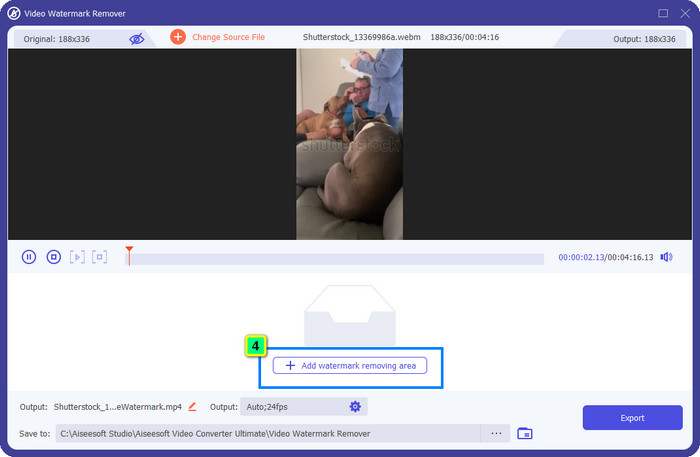
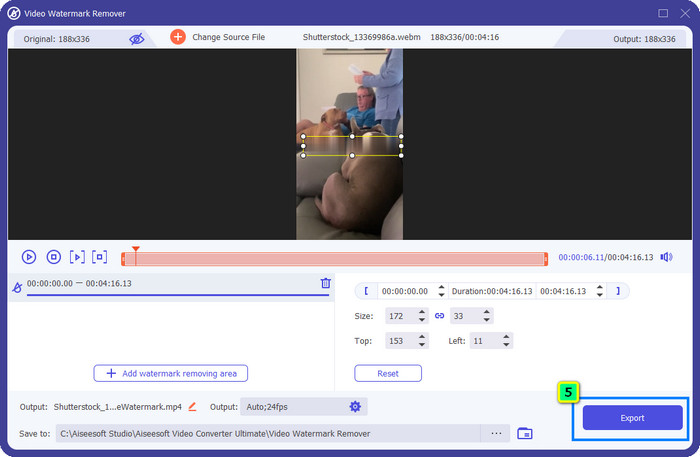
Trin 4. For at fjerne vandmærket på den video, du har uploadet, skal du klikke på Add Watermark Removing Area, hvorefter et nyt vindue vises.
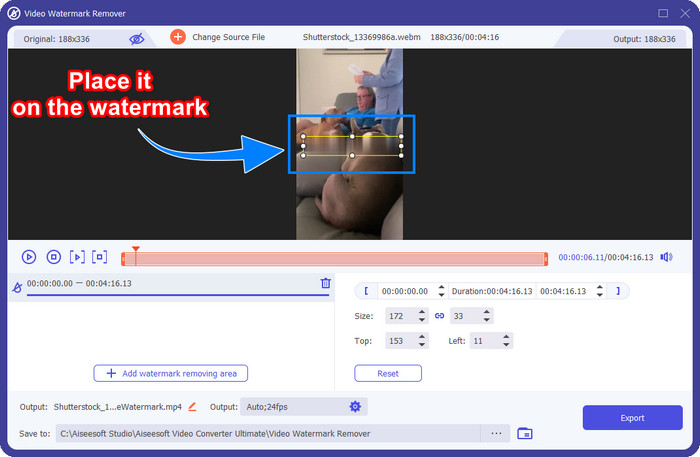
Trin 5. I dette trin vil der være en firkant på din video; placer den over vandmærket. Du kan enten ændre størrelse, trække, formindske eller forstørre den, så den passer præcist til det vandmærke, du vil fjerne.
Trin 6. Klik til sidst på knappen Export for at downloade det endelige output af Shutterstock‑videoen til din enhed. Du kan nu se den uden at bekymre dig om vandmærket, for det er blevet fjernet.
Del 2. Sådan fjerner du Shutterstock vandmærke online gratis
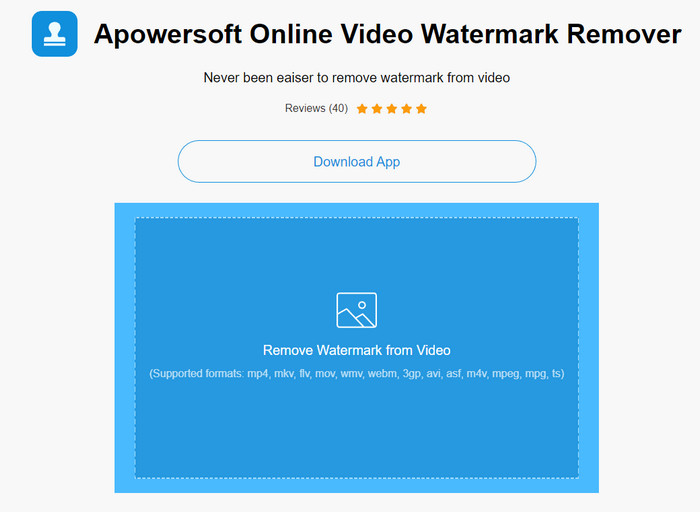
Kan du ikke lide idéen om at downloade et program til vandmærkefjernelse på din computer? Så kan du bruge Apowersoft Online Watermark Remover, og her viser vi, hvordan du fjerner Shutterstock‑vandmærket online. Det er et fremragende valg for alle, der skal fjerne et vandmærke på en video eller et billede. Årsagen til, at vi tager dette med, er, at softwaren er let tilgængelig og kompatibel med de forskellige operativsystemer, du bruger.
I modsætning til offlineværktøjer skal du have en stabil og robust internetforbindelse for at bruge dem. Som vi lover, nedenfor er vejledningen om at bruge denne vandmærkefjerner til at fjerne det vandmærke, som Shutterstock efterlader på den.
Trin 1. Åbn den officielle hjemmeside for Apowersoft Online Watermark Remover via din foretrukne søgemaskine, og klik derefter på +-knappen til højre for at uploade videofilen.
Trin 2. Placer markeringsboksen over Shutterstock‑vandmærket på videoen.
Trin 3. Klik derefter på Erase for at fjerne vandmærket og se resultatet.
Trin 4. Tryk på Download File for at hente Shutterstock‑videoen uden vandmærke.
Del 3. Sådan fjerner du Shutterstock vandmærke ved hjælp af Photoshop [Betalt]
Mange brugere spørger, hvordan man fjerner Shutterstock‑vandmærket med Photoshop, og her er vi klar til at hjælpe dig! Adobe Photoshop understøtter en professionel funktion til fjernelse af vandmærker, som du vil synes om at bruge. Ligesom softwaren, der er introduceret i denne artikel, klarer den opgaven, men dens metode til at fjerne vandmærker er billede for billede. Det betyder, at du skal bruge tid på at fjerne vandmærket for hver enkelt frame i videoen; jo længere videoen er, desto flere frames er der. Hvis du vil vide, hvordan værktøjet fungerer, kan du læse de informative trin nedenfor.
Trin 1. Download programmet til din computer, og klik derefter på File. Under denne menu skal du trykke på Open for at uploade videoen, der er gemt på din computer.
Trin 2. Vælg Magic Wand Tool i venstre side, og klik derefter på det vandmærke, du vil fjerne. Denne funktion vil automatisk afgrænse vandmærket i framen.
Trin 3. Gå til Edit, og tryk på Content-Aware Fill, efter du har markeret vandmærket.
Trin 4. Når du har åbnet Content-Aware Fill, fjernes det vandmærke, du markerede tidligere, automatisk; tryk derefter på OK.
Yderligere læsning:
Nemmetoder til, hvordan du fjerner Shootproof-vandmærke
Sådan fjerner du Bandicam-vandmærket uden besvær [3 effektive metoder]
Del 4. Ofte stillede spørgsmål om, hvordan du fjerner Shutterstock-vandmærke
Hvordan fjerner man Shutterstock-vandmærket uden Photoshop?
Du kan bruge FVC Video Converter Ultimate til at fjerne Shutterphoto bundet til din video. Den har et kraftfuldt vandmærke viskelæder, som du ville elske at prøve. Følg de trin, vi tilføjer i denne artikel, for at gøre det lige så effektivt som Photoshop.
Fungerer beskæring af Shutterstock-vandmærket på video?
Hvis du vil ændre størrelsen på videoen ved at ændre dimensionen, kan du beskære videoen ved hjælp af flere videoredigeringsprogrammer online og offline. Da Shutterstocks vandmærke er i midten, er det bedre ikke at bruge beskæringsfunktionerne. Talrige vandmærkefjernere er her for at hjælpe; du kan læse og kopiere selvstudiet, vi tilføjer, så du kan slette det effektivt uden at efterlade en klat på det.
Er det lovligt at fjerne Shutterstock-vandmærket?
Det er ikke lovligt at fjerne Shutterstocks vandmærke, men hvis du vil bruge det til ikke-kommerciel, kan du gøre det ved hjælp af en vandmærkefjerner. Det er bedre at købe det fotografi, du ønsker, på Shutterstock, hvis du skal bruge det til kommercielle formål; selvom det ville koste dig, vil det i det mindste give dig lovlige rettigheder til at bruge det.
Konklusion
Nu ved du, hvordan du kan fjerne Shutterstock‑vandmærket med den software, vi har inkluderet i denne artikel. Så hvilken software foretrækker du: den betalte, den gratis online‑løsning eller den ultimative software? Uanset hvad du vælger, kan du få Shutterstock‑billeder uden produktlogo. Men hvis du spørger os, hvad vi ville bruge, vil vi uden tøven vælge FVC Video Converter Ultimate, fordi den leverer det mest tilfredsstillende resultat. Selv om det er et avanceret værktøj til fjernelse af vandmærker, er det stadig nemt at bruge. Hvis du vil prøve denne software, kan du klikke på downloadknappen for at få værktøjet på din computer.
-
 Ultimative værktøjer til at fjerne vandmærke fra Renderforest-eksporterede videoer
 For at fjerne vandmærket fra Renderforest skal du bruge en vandmærkefjerner på din enhed, alle de værktøjer du kan bruge er her.
-
 Nemme trin til, hvordan du fjerner WOW Slider-vandmærket [Løst]
 WOW Slider er en app til at skabe et fantastisk diasshow. Det indlejrer dog vandmærker på sit output. Læs nedenfor for at lære, hvordan du fjerner WOW Slider-vandmærket.
-
 Sådan slipper du af med Power Director-vandmærket gratis [Complete]
 Hvordan slipper jeg af med Power Director-vandmærket gratis? De bedste værktøjer til at fjerne vandmærket er her, så lær dem ved at læse dette.
