


 Video Converter Ultimate
 Skærmoptager
 Video reparation
 Sikker download
Sådan ændrer du størrelsen på billeder i Illustrator på din computer
Mange avancerede former for redigering er blevet udbredte, især med fremkomsten af professionelle fotoredigeringsprogrammer som Adobe Illustrator. Men det er stadig muligt at lave simpel redigering med disse kraftfulde redigeringsapps. For eksempel kan du stadig bruge Adobe Photoshop, hvis du vil ændre dimensionerne på dit billede. Og vidste du det? Du kan ændre størrelsen på dit billede i Illustrator ved hjælp af to metoder. Den ene er ved manuelt at skalere dit billede, og den anden er ved at indtaste de talværdier, du foretrækker til dit foto. I denne vejledning viser vi dig disse to metoder til, hvordan man ændrer størrelsen på billeder i Illustrator.

Del 1. Sådan ændres størrelsen på billeder i Illustrator
Adobe Illustrator er den mest brugte fotoredigeringssoftware af professionelle. Denne app giver dig mulighed for at skabe exceptionelle output ved hjælp af dens sofistikerede digitale tegneværktøjer. Det er perfekt til at skabe vektorbaserede illustrationer, ikoner, typografi, logoer og mere. Desuden har den avancerede farvemuligheder til at skabe farvepaletter, gradientfarveskemaer og blanding af forskellige farver til fantastisk billedoutput.
Du kan gøre mange ting med Adobe Illustrator. De nævnte funktioner er blot nogle af de mange funktioner, som Illustrator tilbyder. Og hvis du spørger, om Adobe Illustrator kan ændre størrelsen på dit billede, så er svaret ja. Læs hele tiden denne del for at lære trinene til, hvordan du ændrer størrelsen på billeder i Illustrator.
Sådan ændrer du størrelsen på et billede i Illustrator ved hjælp af billedskalering
Trin 1. Det første, du skal gøre, er at downloade Adobe Illustrator på din computer. Når du har downloadet og installeret appen, skal du køre den på din enhed. Åbn derefter dit billede i Illustrator ved at gå til File > Open. Du kan også kopiere og indsætte dit billede på en tegningsflade, du allerede har åbnet.
Trin 2. Klik derefter på Selection Tool (Cmd V på tastaturet), og klik på dit billede for at vælge det. Når det er markeret, vises der håndtag i hjørnerne af dit billede. Disse håndtag ligner små hvide firkanter med en blå kant. Med disse håndtag kan du skalere/ændre størrelsen på dit billede, rotere det og forvride det.
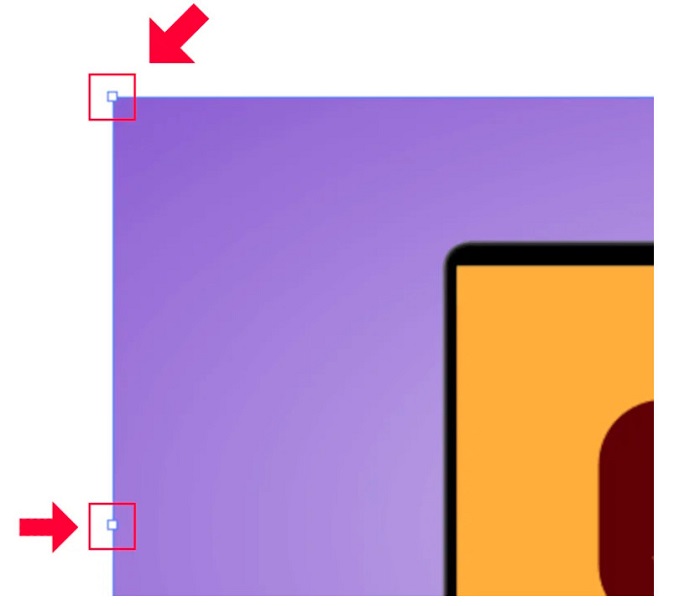
Trin 3. For at ændre størrelsen på dit billede ved skalering skal du holde og trække et af håndtagene til den ønskede størrelse. Du kan også låse billedets størrelsesforhold ved at holde Skift nede på tastaturet, mens du flytter markøren.
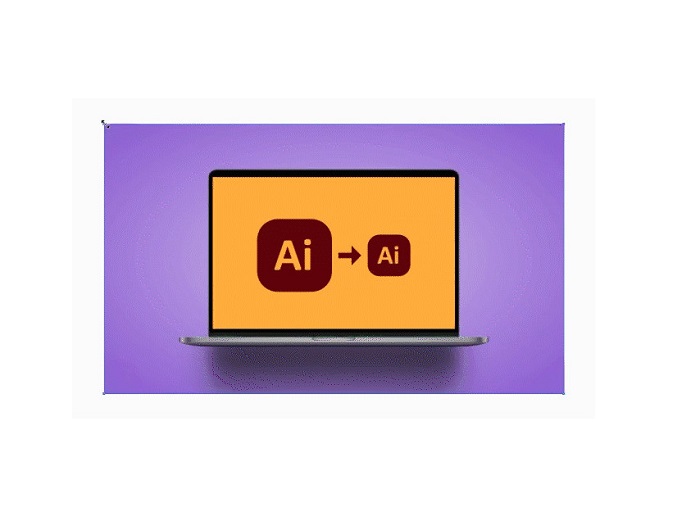
Efter at have ændret størrelsen på dit billede baseret på dine præferencer, kan du nu slippe at klikke på håndtagene.
Sådan bruger du Adobe Illustrator til at ændre størrelsen på et billede ved at justere de numeriske værdier
Nu vil vi lære dig, hvordan du ændrer størrelsen på dit billede ved at indtaste numeriske værdier ved hjælp af Transform-menuen i stedet for manuelt at skalere dit billede ved hjælp af markeringsværktøjet.
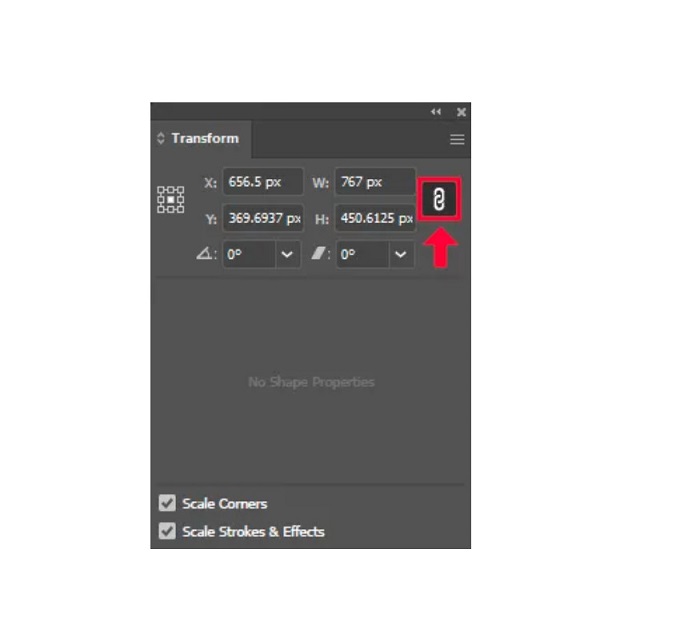
Trin 1. Når Adobe Illustrator er åbnet på din enhed, skal du åbne Transform-menuen ved at klikke på Windows > Transform. Du kan også åbne denne menu ved at trykke på Shift + F8 på tastaturet. Sådan ser Transform-menuen ud.
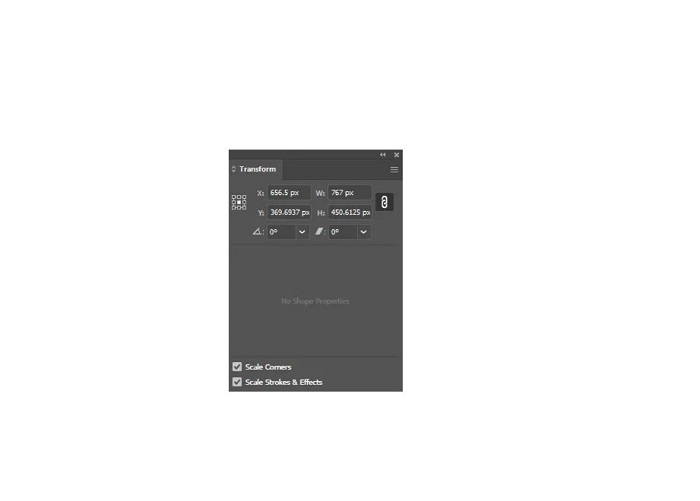
Transform-menuen giver dig mulighed for at ændre placeringen af dit objekt i forhold til X- og Y-aksen. Du kan også bruge denne menu til at rotere, forvride og ændre størrelsen på dit billede ved at indtaste en talværdi.
Trin 2. Vælg derefter det billede, du vil ændre størrelsen på, ved hjælp af Selection Tool. Justér derefter bredden og højden i Transform-menuen ved at ændre tallene efter den størrelse, du ønsker til dit foto. Bogstavet W angiver bredden, og H angiver højden på dit billede.
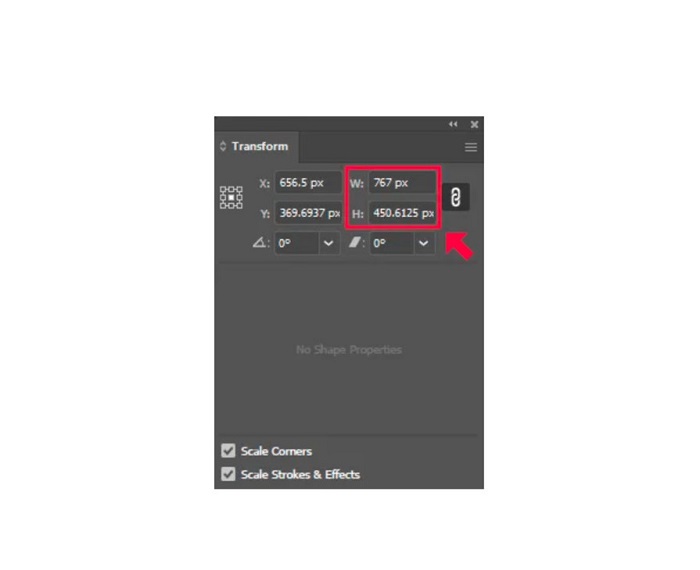
Trin 3. Det er også en fordel at låse billedets størrelsesforhold ved at klikke på kæde-ikonet ved siden af højde og bredde. Når du vælger kædeindstillingen og ændrer højden på dit billede, følger bredden automatisk med.
Tip. Du kan også ændre standardenheden for målinger på dit billede. Illustrator bruger pixels (px) som standardmåleenhed. Du kan ændre enheden ved at:
◆ Centimeter (cm)
◆ Millimeter (mm)
◆ Tommer (in)
◆ Procentsatser (%)
For at ændre måleenheden på dit billede skal du skrive den efter tallet for din måling. Når du har ændret talværdien og enheden for dit billede, skal du trykke på Enter på tastaturet.
Nu eksporterer vi dit billede. Vælg dit billede med Selection Tool, højreklik på det, og vælg Export Selection.
Efter at have valgt Export Selection-indstillingen vises menuen Export for Screens. Denne menu gør det muligt for dig at gemme dit billede med ændret størrelse i et anvendeligt format.
Under miniaturen kan du forhåndsvise dit resultat og ændre filnavnet til det, du foretrækker. Klik derefter på mappeikonet i panelet Export to for at gennemse og vælge placeringen til dit resultat. Sørg også for, at dit Scale-felt er sat til 1x. Vælg derefter dit outputformat. Det anbefales, at du bruger PNG- eller JPG-format.
Og til sidst skal du klikke på knappen Export Asset for at gemme dit resultat.
Forbløffende, ikke? Adobe Illustrator giver dig mulighed for at redigere dine billeder til dit hjertes lyst. Denne del er også svaret, hvis du søger efter, hvordan du ændrer størrelsen på billeder i illustrator uden forvrængning. Denne app er dog ikke et brugervenligt værktøj, fordi den ikke har en brugervenlig grænseflade. Derfor, hvis du vil ændre størrelse/opskalere dit billede ved hjælp af et brugervenligt program, skal du læse den næste del grundigt.
Del 2. Online alternativ til Illustrator
Adobe Illustrator er et offlineværktøj, og det er ikke gratis. Så hvis du vil bruge en fantastisk billedresizer, der er gratis, og som vil hjælpe dig med at forbedre dit billede, så følg vejledningen, som vi vil præsentere nedenfor.
FVC Free Image Upscaler er en online billedopskaleringsløsning, der kan hjælpe dig med at forbedre dit billede i lav kvalitet. Dette onlineværktøj kan forbedre dit billede med 2x, 4x, 6x og 8x forstørrelse. Derudover bruger det AI (kunstig intelligens), som automatisk registrerer de dele af billedet med lav kvalitet og forbedrer dem. Det understøtter alle billedformater, herunder JPEG, JPG, PNG og BMP. Desuden er det sikkert at bruge og helt gratis. Og med dets enkle brugerflade kan du nemt ændre størrelse/skalere dit billede.
Sådan ændrer du størrelsen på et billede ved hjælp af FVC Free Image Upscaler:
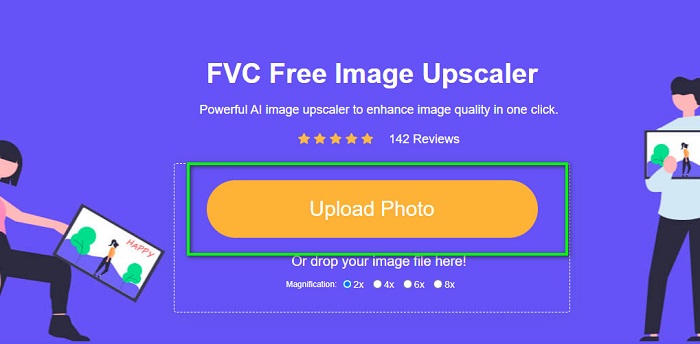
Trin 1. Søg efter FVC Free Image Upscaler i din browser, eller klik på dette link for at gå direkte til deres hovedside. Klik på softwarens hovedgrænseflade på knappen Upload Photo for at starte appen på din enhed.
Trin 2. Klik derefter igen på knappen Upload Photo for at importere det billede, du vil opskalere.
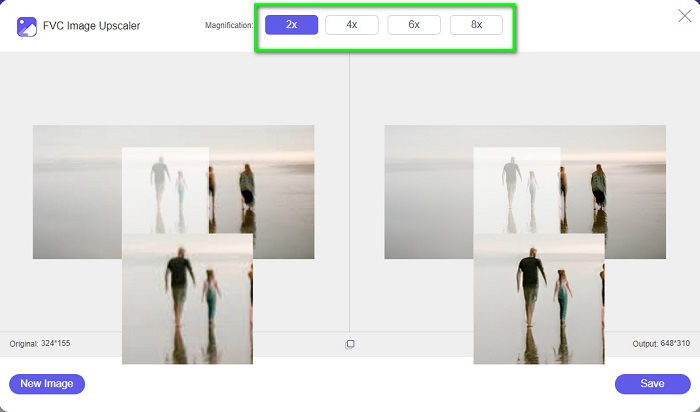
Trin 3. Når dit foto er uploadet, skal du vælge den forudindstillede forstørrelse, du ønsker til dit billede. Du kan vælge mellem 2x, 4x, 6x og 8x.
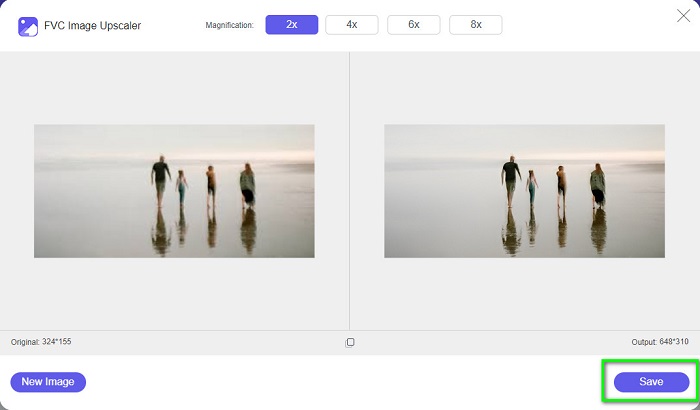
Trin 4. Til sidst skal du klikke på knappen Save for at gemme dit resultat på din enhed.
Relateret til:
Sådan bruger du GIMP til at ændre størrelsen på billeder: trin-for-trin-proces
Sådan ændrer du størrelsen på et foto til Facebook [hurtige og enkle trin]
Del 3. Ofte stillede spørgsmål om, hvordan man ændrer størrelse på billede i Illustrator
Hvorfor vil Adobe Illustrator ikke ændre størrelsen på billeder?
Du kan ikke ændre størrelsen på et billede i Illustrator, fordi afgrænsningsrammen sandsynligvis ikke er aktiveret. For at aktivere afgrænsningsrammen skal du gå til Vis > Vis afgrænsningsramme. Ved at aktivere det, kan du nu ændre størrelsen på dit billede i Illustrator.
Kan jeg ændre størrelsen på et billede i Illustrator uden at miste kvalitet?
Ja. Der er en måde, hvorpå du kan ændre størrelsen på dit billede med Adobe Illustrator. Men det meste af tiden, når du ændrer størrelsen på et billede ved hjælp af skalering, vil kvaliteten af dit billede blive påvirket.
Er Adobe Illustrator gratis?
Nej. Adobe Illustrator er ikke gratis. Før du bruger denne kraftfulde fotoredigeringsapp, skal du købe den for $20,99 om måneden.
Konklusion
Du har lært, hvordan man ændrer størrelsen på billeder i Illustrator, ved at følge de metoder, vi viste dig. Det kan kræve en del trin, men det er værd at bruge og afprøve. Problemet med Adobe Illustrator er, at det ikke er gratis og har en kompleks brugerflade. Så hvis du ønsker en mere praktisk og gratis billed-resizer, kan du bruge FVC Free Image Upscaler.
-
 Sådan ændrer du størrelse på billede - Adobe Ændr størrelse på billede [online og offline]
 Hvis du søger efter Adobe resize image, så har vi løsningen til dig. Se dette indlæg grundigt for at lære, hvordan du ændrer størrelse på billeder ved hjælp af Adobe på din pc.
-
 Bedste Photo Resizer-app online, offline, Android og iPhone
 Hvad er de bedste fotoresizer-apps? Klik på siden for at lære de fem mest effektive fotoresizer-apps, du kan bruge til at forbedre eller ændre størrelsen på din fil
-
 Top 7 Pixels Enhancer til alle webbrowsere, du skal bruge
 Hvis du vil vide, hvilke pixelforstærkere der er bedst at bruge, skal du hellere tjekke dette indlæg ud. Denne artikel viser de syv bedste billedpixelforstærkere til alle webbrowsere.
