


 Video Converter Ultimate
 Skærmoptager
 Video reparation
 Sikker download
Nemmeste måder at fjerne logo fra video ved hjælp af Windows Movie Maker
Hvordan fjerner man logoet fra videoer med Windows Movie Maker? Dette er det spørgsmål, som oftest bliver stillet af folk, der elsker at se deres yndlingsfilm, videoklip, slideshows og mere. Det er ikke særlig tilfredsstillende at se en video, mens man hele tiden kigger på et logo. Men du behøver ikke bekymre dig om det længere. Vi har effektive metoder til at fjerne logoet fra dine videoer ved hjælp af Windows Movie Maker. Derudover findes der et andet værktøj, du kan bruge til at fjerne logoet, ud over Windows Movie Maker. Hvis du vil vide mere om dette andet program og disse enkle metoder, så læs videre i denne artikel.

Del 1: Sådan fjerner du logo fra video ved hjælp af Windows Movie Maker
Hvis du er Windows‑bruger, bør du prøve Windows Movie Maker til at fjerne et logo fra dine videoer. Dette værktøj kan også bruge forskellige metoder til at fjerne elementer fra dine videoer, såsom logoer, vandmærker, tekst, stempler og meget mere. Derudover er Windows Movie Maker et videoredigeringsprogram, der hjælper brugere med at skabe og forbedre videoer. Desuden har det en enkel brugerflade, som gør processen mere ligetil, hvilket er perfekt for ikke‑professionelle brugere. Når du fjerner logoet, kan du erstatte det med andre elementer som billeder eller tekst. Ydermere har dette program mange redigeringsværktøjer, du kan benytte, såsom at klippe, sammenføje, rotere og beskære dine videoer. Du kan også tilføje overgange, tekst, effekter og meget mere. Hvis du vil kende denne enkle metode, skal du følge trinene herunder.
Trin 1: Første trin er at downloade Windows Movie Maker på din Windows‑computer. Vent på, at installationsprocessen er færdig, og åbn derefter programmet.
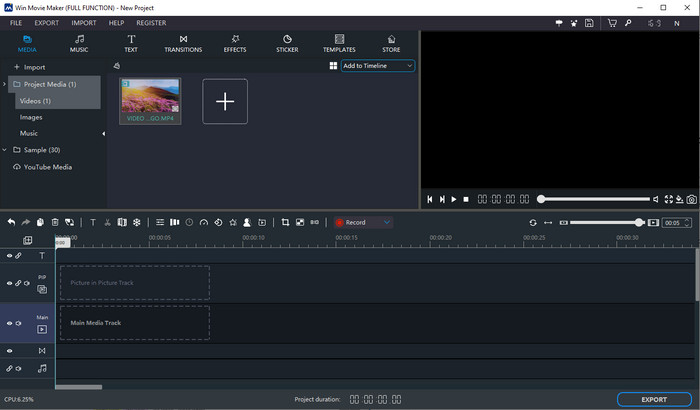
Trin 2: Klik på ikonet med Plus‑tegnet for at tilføje din video med et logo. Når din video er indlæst, skal du trække den ned på Main Media Track.
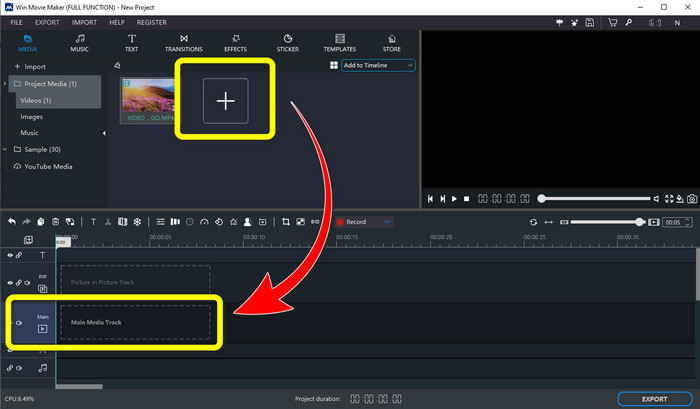
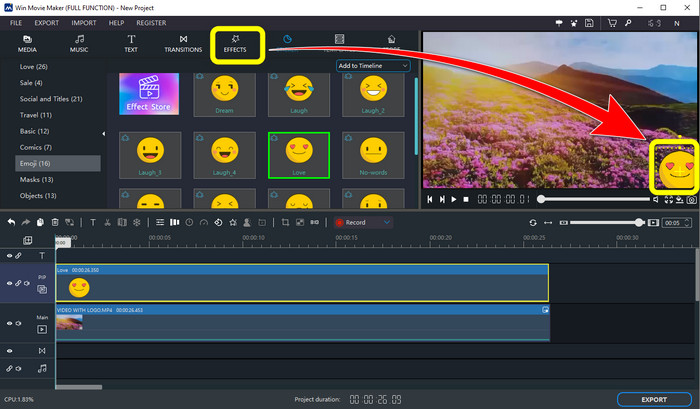
Trin 3: For at erstatte logoet skal du klikke på knappen Sticker. Vælg derefter den ønskede sticker eller andre elementer, og placer den over logoet for at dække det.
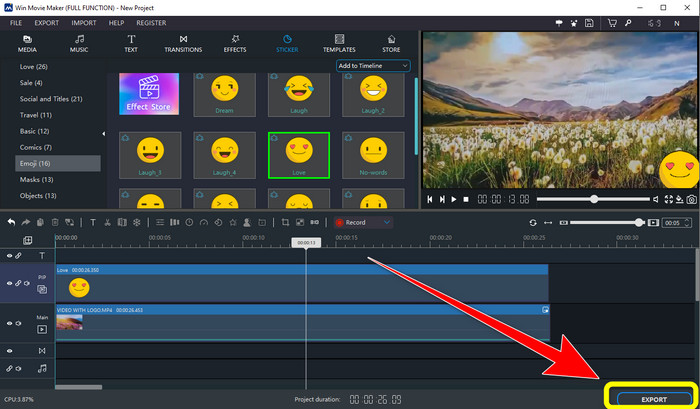
Trin 4: I det sidste trin, når du er færdig med at dække logoet i din video, skal du vælge knappen Export for at gemme dit endelige resultat.
Del 2: Bedste alternative måde at fjerne logo fra video
Video Converter Ultimate er et af de bedste alternativer til Windows Movie Maker til nemt at fjerne logoer fra dine videoer. Dette program gør det muligt at fjerne uønskede elementer som vandmærker, logoer, underskrifter, stempler og meget mere. Derudover kan du bruge beskæringsværktøjet til at fjerne logoer, der er placeret i kanten eller hjørnet af din video. Video Converter Ultimate tilbyder en enkel og intuitiv brugerflade, der egner sig til ikke‑professionelle brugere. Ud over at fjerne logoer fra dine videoer kan softwaren give dig forskellige redigeringsværktøjer, du kan glæde dig over. Den har en videokompressor, videohastighedskontroller, GIF‑fremstiller, collage‑maker, tilføjelse og fjernelse af vandmærker, videorotator og meget mere. Den understøtter også forskellige filformater som MP4, MKV, FLV, MOV, XVID, DIVX, TRP, MTS osv. Endelig er Video Converter Ultimate tilgængelig til både Windows og Mac, hvilket er praktisk for brugerne. Følg disse detaljerede vejledninger for at fjerne logoer fra dine videoer ved hjælp af Video Watermark Remover og videobeskæring.
Brug af funktionen til fjernelse af videovandmærke
Trin 1: Download først Video Converter Ultimate og installer det på din Windows‑ eller Mac‑computer.
Gratis download til Windows 7 eller nyere Sikker download
Gratis download til MacOS 10.7 eller nyere Sikker download
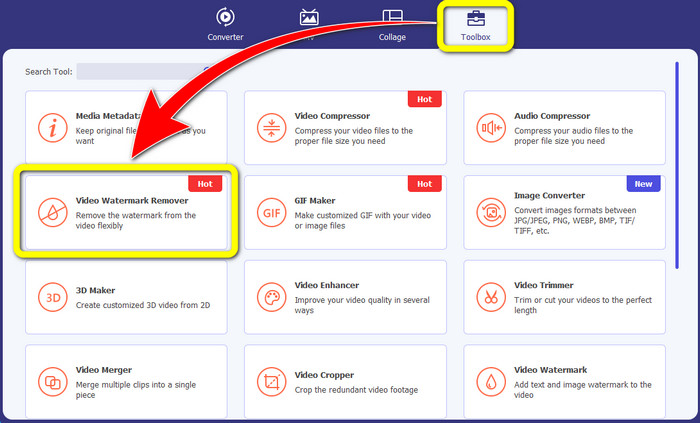
Trin 2: Efter du har startet programmet, skal du gå til panelet Toolbox, finde Video Watermark Remover og vælge det.
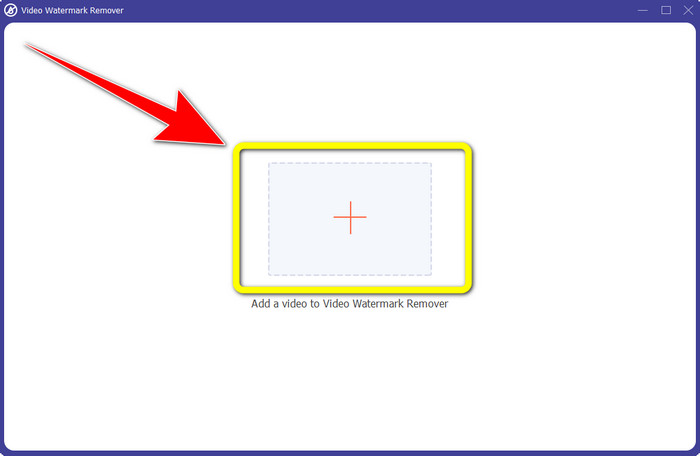
Trin 3: Derefter vises et nyt vindue. Klik på ikonet med plus‑tegnet for at tilføje den video, hvorfra du vil fjerne logoet.
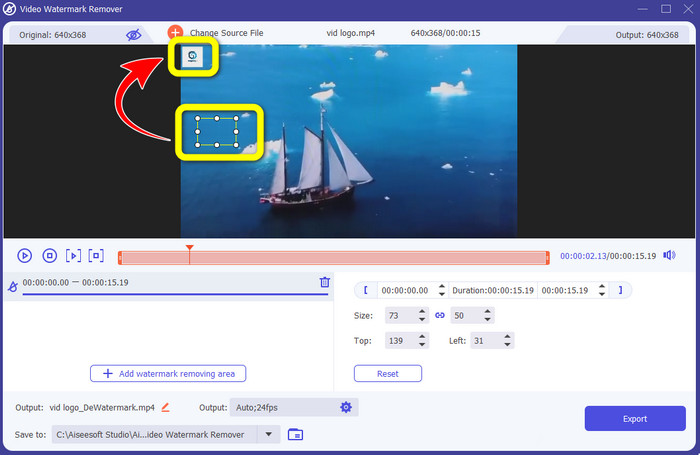
Trin 4: En mini box vises på skærmen, når du har tilføjet din fil. Træk boksen hen over logoet for at dække det.
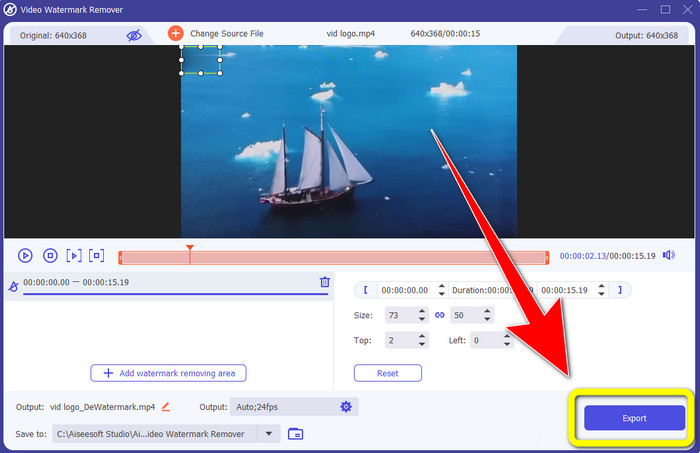
Trin 5: Når du er færdig med at fjerne logoet fra dine videoer, skal du vælge knappen Export for at eksportere og gemme din video uden logo.
Brug af videobeskæringsfunktionen
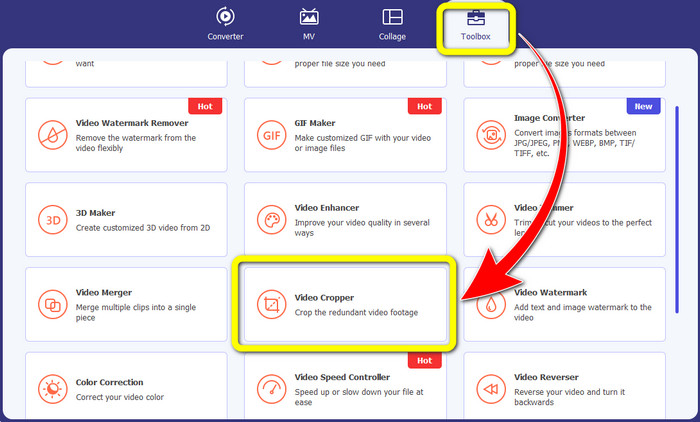
Trin 1: Det første du skal gøre, er at klikke på panelet Toolbox. Find derefter værktøjet Video Cropper og vælg det.
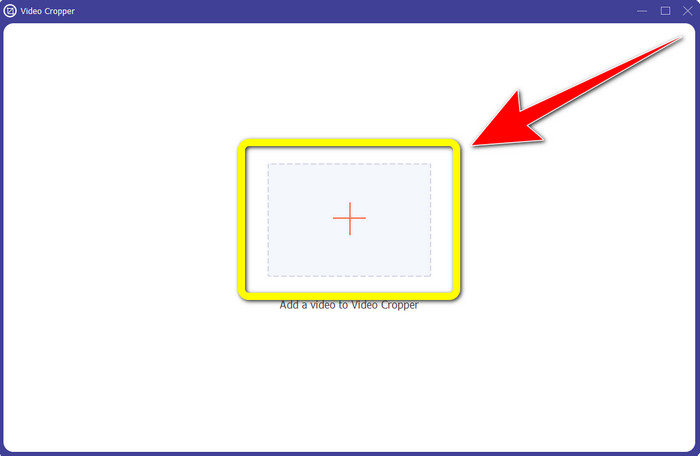
Trin 2: Klik derefter på knappen med Plus‑tegnet for at importere videoen med et logo.
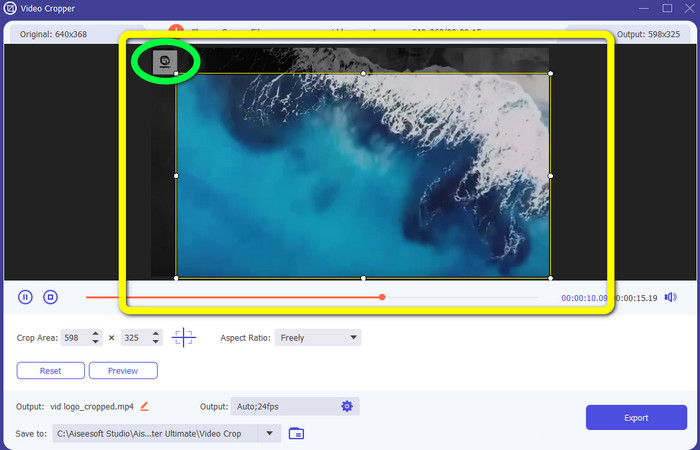
Trin 3: I denne funktion kan du beskære begge sider eller den øvre og nedre del af videoen for at fjerne logoet fra din video.
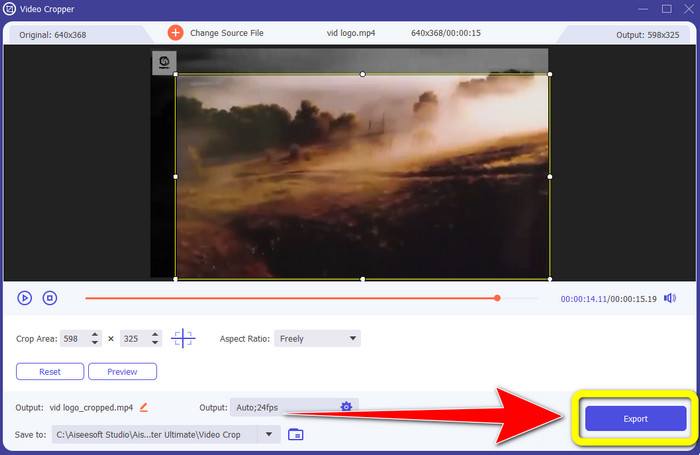
Trin 4: Til sidst skal du klikke på knappen Export og gemme din video på computeren.
Del 3: Ofte stillede spørgsmål om fjernelse af logo fra video ved hjælp af Windows Movie Maker
Hvor lang tid tager det at eksportere min video i Windows Movie Maker efter at have fjernet logoet?
Når du bruger Windows Movie Maker, kan du eksportere din video på blot et minut efter at have fjernet logoet.
Hvilken applikation er den bedste, når du fjerner logoer fra en video?
Hvis du leder efter det bedste og mest pålidelige program med en logofjerner, kan du bruge Video Converter Ultimate. Med dette program kan du nyde din video, efter at du har fjernet logoerne fra dine videoer.
Er der et nyttigt program, jeg kan bruge til at fjerne logoer fra videoer ved hjælp af min telefon?
Ja, selvfølgelig er der det! Du kan bruge appen PicLab. Den findes både til Android og iPhone. Her er en generel vejledning:
1. Download PicLab på din telefon, og åbn den.
2. Tilføj din fil, og vælg markør‑værktøjet.
3. Vælg den del, der skal fjernes, tryk på slet, og gem.
Er det muligt at fjerne logoet fra en video uden at miste kvalitet?
Ja, det er det! Det mest anbefalede program, du kan bruge, er Video Converter Ultimate.
Er der et onlineværktøj, jeg kan bruge til at fjerne et logo fra mine videoer?
Absolut ja! Du kan bruge mange onlineværktøjer til at fjerne et logo fra dine videoer. Du kan bruge Apowersoft Online Watermark Remover. Her er nogle enkle trin til at bruge dette værktøj:
1. Gå til websiden Apowersoft Online Watermark Remover, og klik på knappen remove watermark from video.
2. Tilføj din fil. Brug boksen til at dække logoet.
3. Klik på Erase, og download din video.
Konklusion
Denne artikel gav fremragende metoder til, hvordan man fjerner et logo fra en video med Windows Movie Maker på din computer. Derudover får du i denne artikel, ud over Windows Movie Maker, et af de bedste alternativer til at fjerne et logo fra dine videoer. Dette pålidelige program er Video Converter Ultimate. Denne software kan hjælpe dig med at fjerne logoet på to enkle måder. Den første er værktøjet Video Watermark Remover, og den anden er værktøjet Video Cropper.
-
 Sådan fjernes Bandicam-vandmærket ubesværet [3 effektive måder]
 Hvordan fjerner man Bandicam-vandmærket? Med værktøjerne tilføjer vi her, at du ved, hvordan du håndterer det effektivt!
-
 Sådan fjerner du iStock-vandmærket ved hjælp af de mest effektive måder
 Hvordan fjerner man iStock-vandmærket på videoer og billeder? Hvis du leder efter en vej ud for at slippe af med vandmærket, så læs dette!
-
 Fjern DaVinci Resolve Watermark på eksporterede videoer med komplet selvstudie
 For at fjerne Davinci Resolve-vandmærket skal du bruge et værktøj eller købe den officielle version af det, fortsæt med at læse dette for at vide mere.
