


 Video Converter Ultimate
 Skærmoptager
 Video reparation
 Sikker download
Ekstraordinære metoder til at konvertere MTS til M4V øjeblikkeligt
Vil du have en effektiv konverter til din enhed? Så kan du få et indblik ved at læse de informative oplysninger i denne artikel. Vi viser dig forskellige måder at konvertere MTS til M4V på med Mac og Windows. Du vil også få kendskab til et onlineværktøj, du kan prøve til at konvertere flere filer.

Del 1: Forskelle mellem MTS og M4V
For at se forskellene mellem disse to filformater, se detaljerne i tabellen nedenfor.
| MTS | M4V | |
| Filudvidelse | En Advanced Video Coding High Definition (AVCHD) videofils filtypenavn er MTS. Det har filtypenavnet .mts og inkluderer en HD MPEG-video optaget med specifikke videokameramærker og -modeller, herunder JVC, Sony, Canon og Sanyo. Det kan åbne på mange software og understøtte HD-videoer op til 1080i x 720p. | Apple Inc. skabte det digitale M4V-videobeholderformat. Strukturmæssigt er den rimelig sammenlignelig med den velkendte MP4, men M4V-filer kan komme med DRM. Hovedvideoformatet for videoer på iTunes Store i dag er M4V, som kan multiplekse flere lyd- og videodata sammen. |
| Udviklet af | Sony/Panasonic | Apple Inc. |
| Tilknyttede programmer | VLC Media Player Apple Final Cut Pro X Roxio Creator NXT Pro 7 | Klassisk medieafspiller KMPlayer VLC Media Player Zoom afspiller |
| MIME-type | video/mp2t | video/x-m4v |
Del 2: Fremragende metoder til at konvertere flere MTS til M4V ved hjælp af Mac
Hvis du vil konvertere MTS til M4V ved hjælp af Mac, kan du prøve FVC Video Converter Ultimate. Dette offlineværktøj kan konvertere filer med det samme, fordi det har en 30x hurtigere konverteringshastighed. Derudover tilbyder dette værktøj batchkonvertering, hvilket gør konvertering af flere filformater mulig på én gang. Næsten alle videoformater kan også uploades i denne applikation, fordi den understøtter adskillige filformater, herunder MKV, MOV, MP4, FLV, AVI, SWF og mere. Du kan også redigere din MTS-videofil. Du kan stole på dette værktøj, hvis du har flere MTS-filer og vil have dem til at kombinere, fordi det tilbyder et videofusionsværktøj. På denne måde kan du flette flere MTS-videoer til et enkelt stykke. Hvis du vil justere lydstyrken på din MTS-video, kan du også bruge lydstyrkeforstærkerværktøjet. Ved hjælp af denne offline applikation kan du nemt ændre lydstyrken på din video. Der er flere funktioner, du kan nyde ved at bruge Video Converter Ultimate.
Funktioner
◆ Det kan konvertere mere end 100 videofilformater.
◆ Tilbyder musikvideoproducent med mange gratis temaer.
◆ Oprettelse af en collage med gratis skabeloner og filter er tilgængelig.
◆ Den tilbyder redigeringsværktøjer som en videohastighedskontrol, kompressor og beskæringsværktøj.
◆ Det kan fjerne vandmærker fra en video.
Følg de grundlæggende trin nedenfor for at konvertere din MTS-videofil til M4V-format ved hjælp af FVC Video Converter Ultimate på din Mac.
Trin 1: Brug din Mac til at downloade FVC Video Converter Ultimate ved at klikke på knappen Download nedenfor. Start derefter programmet.
Gratis download til Windows 7 eller nyere Sikker download
Gratis download til MacOS 10.7 eller nyere Sikker download
Trin 2: Klik på Plus-ikonet midt i grænsefladen for at tilføje din MTS‑videofil. Du kan også trække filen direkte ind i feltet.
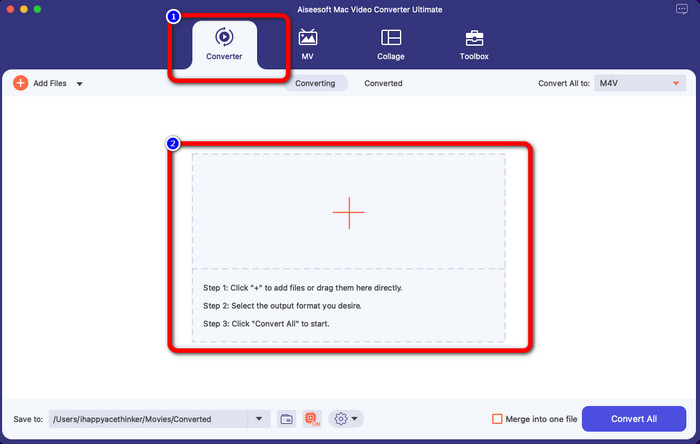
Trin 3: I det næste trin ser du knappen Convert All to øverst til højre i grænsefladen. Klik på den for at se formatmulighederne, og vælg derefter M4V‑filformatet. For at tilføje flere MTS‑filer skal du trykke på knappen Add Files øverst til venstre i grænsefladen.
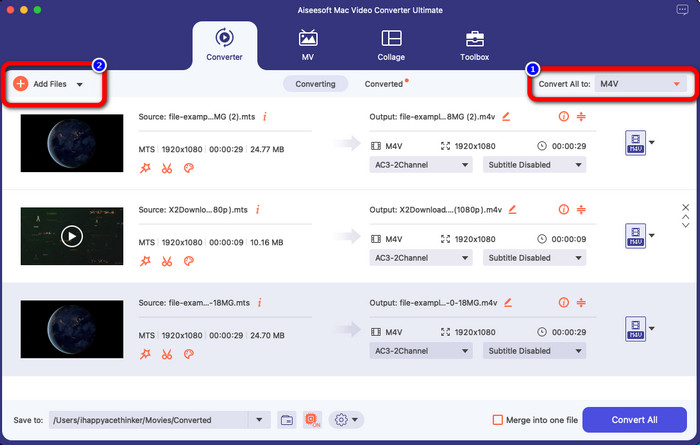
Trin 4: Når du har konverteret alle MTS‑filerne til M4V‑format, skal du klikke på knappen Convert All og gemme dit endelige output på den ønskede placering.
Del 3: Sådan konverteres flere MTS-filer til M4V på Windows gratis
I denne del vil du lære, hvordan du konverterer flere MTS‑filer til én M4V på Windows. For at konvertere MTS‑filer kan du bruge FVC Free TS Converter. Den kan konvertere dine videofiler 10 gange hurtigere end gennemsnitlig konverteringshastighed. Den tilbyder batchkonvertering, så du kan konvertere flere filer på én gang. På den måde slipper du for at kede dig med at konvertere filer én efter én. Derudover har den en intuitiv grænseflade med enkle arbejdsgange, hvilket gør den mere velegnet til brugere. Hvis du vil konvertere flere MTS‑filer til M4V‑format med FVC Free TS Converter på Windows, skal du følge de enkle trin nedenfor.
Funktioner
◆ Konverter videofilformater, såsom AVI, MOV, MPEG, MP4, DIVX, XVID osv.
◆ Giver en videoforstærker.
◆ I stand til skærmoptagelse.
◆ Kan afspille enhver Blu-ray-disk.
◆ Tilbyder batchkonvertering.
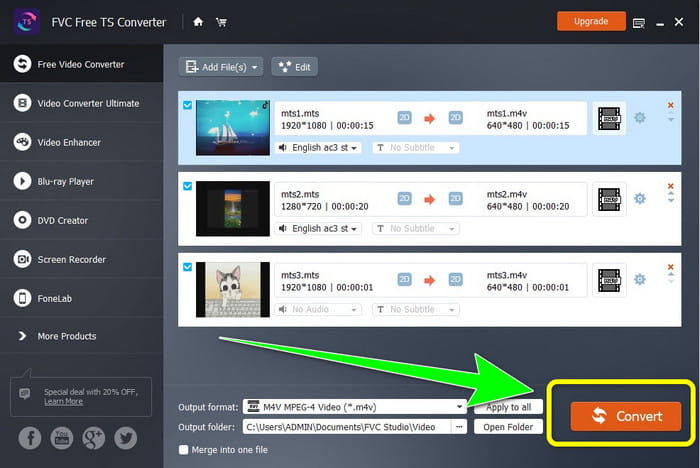
Trin 1: Download FVC Free TS Converter til din Windows‑computer ved at klikke på knappen Download nedenfor. Start programmet efter installationsprocessen.
Gratis downloadTil Windows 7 eller nyereSikker download
Gratis downloadTil macOS 10.7 eller nyereSikker download
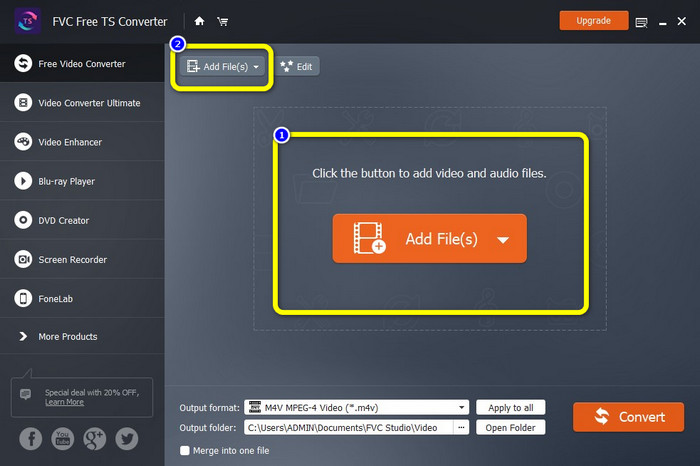
Trin 2: Når du har startet programmet, skal du trykke på knappen Add Files i midten for at uploade MTS‑filer. Du kan også klikke på den anden Add Files-knap øverst i grænsefladen for at tilføje flere MTS‑filer, du vil konvertere.
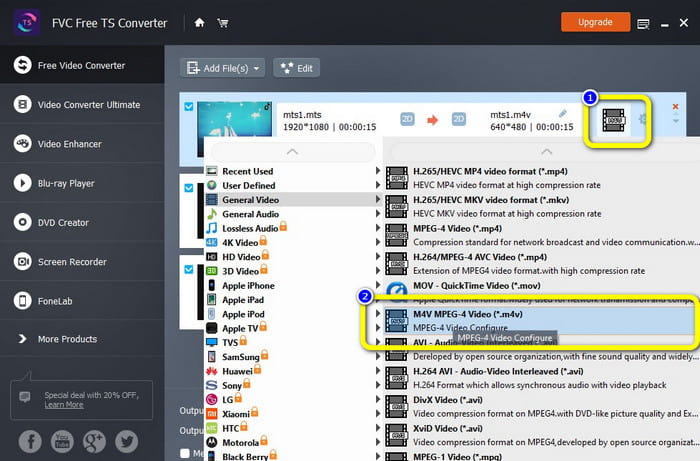
Trin 3: Klik på formatindstillingerne i højre side af grænsefladen. Vælg derefter M4V-filformatet som dit outputformat. Gør det samme for de resterende MTS‑filer.
Trin 4: Klik på knappen Convert for at konvertere flere MTS‑filer til M4V‑format.
Del 4: Bedste måder at konvertere MTS til M4V ved hjælp af onlineapplikation
Når du konverterer MTS til M4V med et onlineværktøj, er den bedste konverter, du kan bruge, FVC Free Video Converter Online. Med hjælp fra dette værktøj kan du nemt konvertere din MTS‑fil til M4V. Det kræver kun tre trin at konvertere filer. Desuden er dette onlineværktøj 100% gratis. Så uden videre, lad os konvertere din MTS til et M4V‑filformat. Følg trinnene, vi har lavet til dig!
Funktioner
◆ Konverter flere filer, som MP4, FLV, WMA, MOV, MTS, M4V osv.
◆ Tillader batchkonvertering.
◆ Tilgængelig på både Mac og Windows.
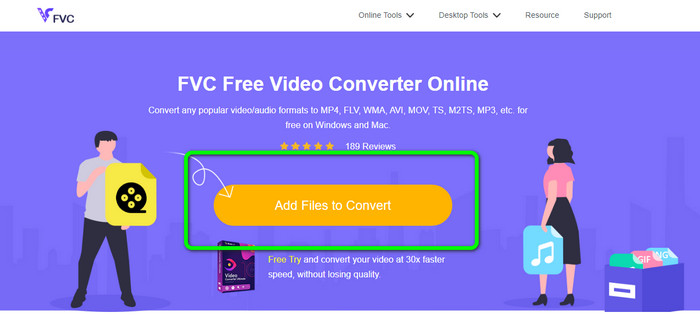
Trin 1: Besøg websiden for FVC Free Video Converter Online. Klik derefter på knappen Add Files to Convert for at uploade din MTS‑video.
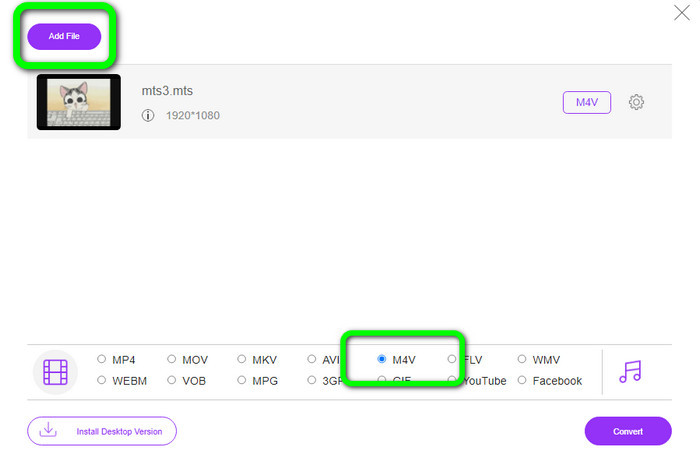
Trin 2: Vælg derefter M4V-formatet i formatmulighederne i den nederste del af grænsefladen. Du kan også klikke på knappen Add File for at konvertere flere filer.
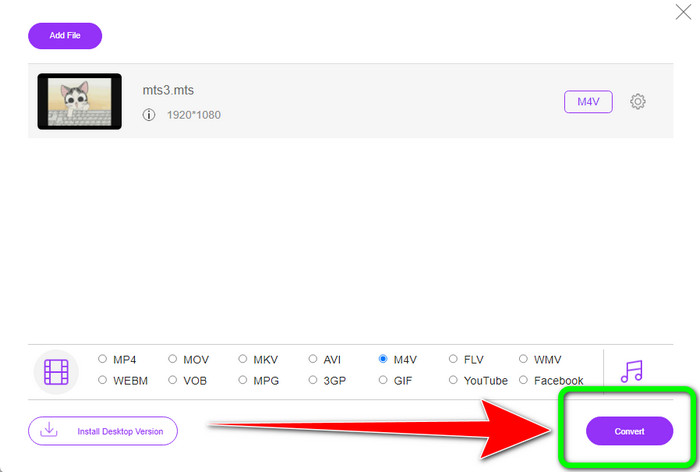
Trin 3: Når du har valgt dit ønskede format, kan du klikke på knappen Convert for at gemme din video i M4V‑filformat.
Del 5: Ofte stillede spørgsmål om konvertering af MTS til M4V
1. Er MTS et godt format?
Ja. 720p og 1080i HD video codecs understøttes af MTS, et high-definition MPEG og H.264 transport stream video format. Folk omtaler ofte MTS-filer som AVCHD, skabt i fællesskab af Sony og Panasonic og udgivet i et højkvalitetsformat i 2006.
2. Hvordan kan jeg konvertere MTS til MP4?
Du kan bruge de programmer, der er nævnt ovenfor. Disse konvertere er effektive og nyttige til at konvertere MTS til MP4 og andre filformater.
3. Hvorfor ville du bruge M4V?
M4V-filer kan have bløde undertekster og DRM-beskyttelse for at stoppe piratkopiering og gøre det sværere for forbrugere at distribuere filer mellem enheder.
Konklusion
De tre programmer ovenfor er de bedste konvertere, du kan bruge på dine enheder. Hvis du er Windows‑bruger, kan du bruge FVC Video Converter Ultimate. Hvis du bruger Mac, kan du prøve FVC Free TS Converter. Endelig kan du bruge FVC Free Video Converter Online, hvis du foretrækker et onlineprogram. Disse konvertere kan konvertere MTS til M4V uden problemer.
-
 MTS VS M2TS - Forskellen mellem MTS og M2TS
 Hvad er MTS eller M2TS fil? Hvad er forskellen mellem M2TS og MTS? Hvordan kan jeg se videokameraet optaget MTS- eller M2TS-fil? Find alle svarene i dette indlæg
-
 Top 5 M4V-afspillere til Windows / Mac / Android / iOS, du bør kende
 Når du ikke kan afspille dine M4V-videoer på QuickTime Player, bør du lære mere fra de 5 fremragende M4V-afspillere til Windows, Mac, Android og iOS fra denne artikel
-
 [Løst] Sådan konverteres MTS til MKV i original kvalitet
 Undrer du dig over, hvordan du kan konvertere MTS til MKV gratis? I denne artikel listede vi de bedste gratis MTS til MKV-konvertere
