


 Video Converter Ultimate
 Skærmoptager
 Video reparation
 Sikker download
Sådan konverteres billeder til SVG: Opdag de perfekte konvertere til dig
SVG-filen kan levere fremragende grafik i enhver skala. Den kan forbedre SEO og gøre hjemmesiden hurtigere. Den er også i stand til dynamiske animationer. Det er nogle af grundene til, at brugere anvender SVG-filformatet. Ønsker du i så fald også at konvertere dine billeder til SVG-filer? Så bør du læse denne artikel. Du vil opdage de mest effektive måder at konvertere dine billeder til SVG-filformat på. Derudover giver vi dig de bedste og mest pålidelige billedkonvertere, du kan bruge til at konvertere billeder. Læs artiklen grundigt, mens vi giver dig alle de oplysninger, du har brug for til at konvertere billedfiler.

Del 1. Enestående måder at konvertere billeder til SVG online
Sådan konverteres billeder til SVG på Convertio
Et andet onlineværktøj, du kan bruge til at konvertere billeder til SVG, er Convertio. Dette onlineværktøj kan transkode dine billeder til SVG-formater. Du kan konvertere dine billeder i blot tre trin. Derudover har Convertio en batchkonverteringsfunktion. På den måde kan du uploade og konvertere flere filer med ét klik. Desuden har det overskuelige layouts og valgmuligheder, hvilket gør det mere egnet til alle brugere, især begyndere. Ud over SVG-filformatet understøtter det også forskellige andre billedfilformater. Det omfatter JPG, PNG, BMP, TIFF, ICO og flere. Ydermere kan du få adgang til Convertio i forskellige browsere. Det omfatter Google, Mozilla, Edge, Explorer og flere. Convertio har dog ulemper, især når du bruger den gratis version. Den maksimale filstørrelse, du kan uploade, er op til 100 MB. Hvis du også planlægger at udføre en batchkonvertering, kan du kun konvertere to billedfiler samtidigt. For at få glæde af dets ubegrænsede funktioner skal du købe den ubegrænsede plan.
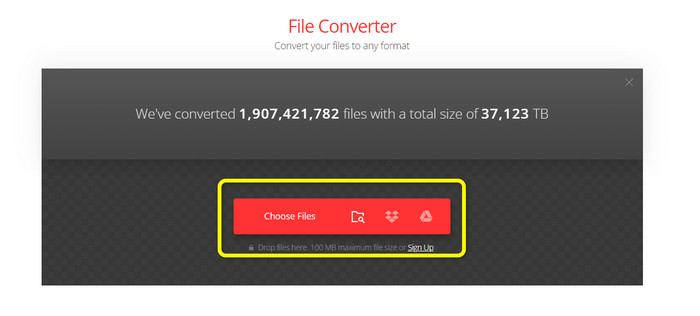
Trin 1. Åbn din browser, og gå til hovedsiden for Convertio. Når du er på hovedsiden, skal du klikke på knappen Choose Files. Efter at have klikket vil du se, at din computers filer vises på skærmen. Vælg det billede, du vil konvertere til en SVG-fil, og åbn det.
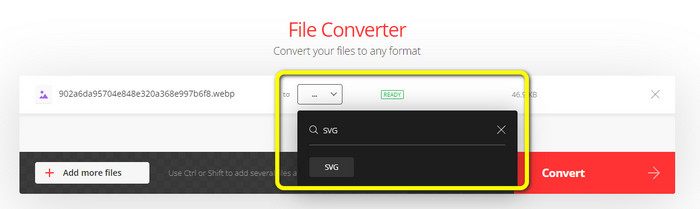
Trin 2. Efter at have uploadet filen, du vil konvertere, går du til formatindstillingerne. Find SVG-filformatet, og klik på det. Du kan søge efter SVG i søgefeltet for at finde det nemmere.
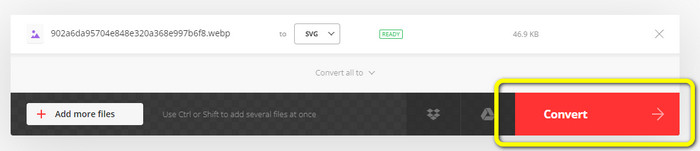
Trin 3. Når du er færdig med at vælge SVG-filformatet som dit outputformat, skal du klikke på knappen Convert. Konverteringsprocessen vil starte. Vent et øjeblik, indtil den er færdig.
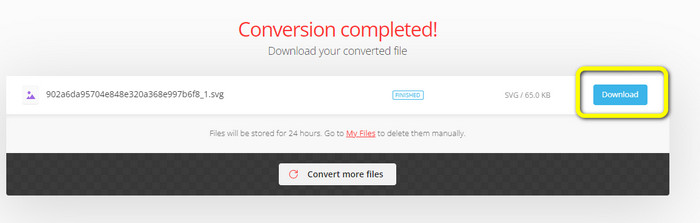
Trin 4. Når konverteringsprocessen er færdig, skal du klikke på knappen Download. På den måde kan du gemme dit konverterede billede på din computer. Klik på knappen Add more files for at konvertere flere billeder.
Bonus: Sådan konverteres SVG-billeder
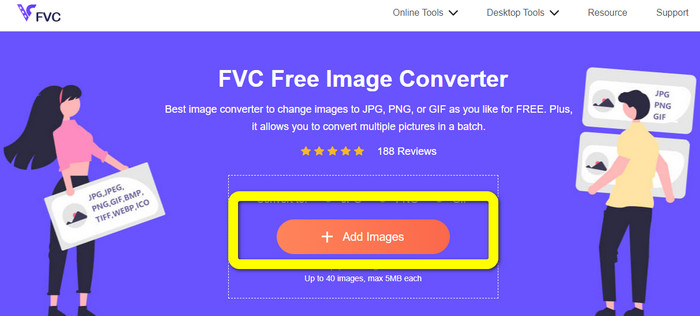
Hvis du har brug for en effektiv billedkonverter til at konvertere dine SVG-billeder til JPG og andre udbredte billedformater, er FVC Free Image Converter dit bedste valg. Det er nemt at konvertere billeder med dette værktøj på grund af dets intuitive grænseflade. Du kan konvertere billeder med blot få klik. Derudover understøtter det, ud over SVG, også konvertering af andre billedformater til PNG, JPG og GIF, herunder WebP, BMP, TIFF osv. FVC Free Image Converter tilbyder også en batchkonverteringsfunktion. På den måde kan du konvertere mange billeder på én gang. Desuden er billedkonverteren tilgængelig på alle platforme. Du kan konvertere billedfiler i Google, Explorer, Edge og flere.
Trin 1. Gå til websitet for FVC Free Image Converter. Klik derefter på formatet JPG, PNG eller GIF i formatindstillingerne.
Trin 2. Klik på knappen Add Images midt på skærmen for at uploade de SVG-billeder, du vil konvertere. Du kan tilføje flere billeder for at konvertere dem med ét klik.
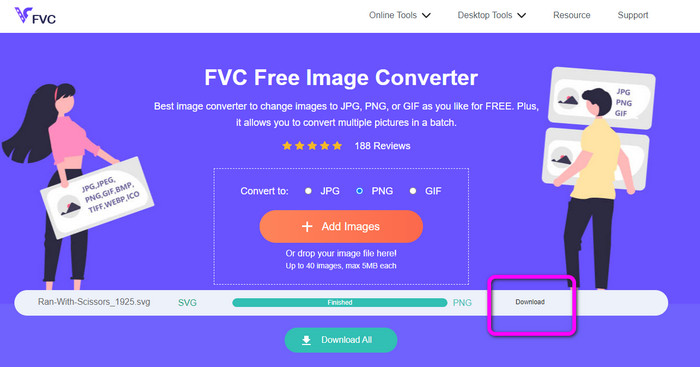
Trin 3. Dine SVG-billeder bliver automatisk konverteret i dette værktøj. Klik derefter på knappen Download for at gemme de konverterede billeder.
Del 2. Bedste metode til at konvertere billeder til SVG offline
At bruge Converseen er den bedste måde at ændre billeder til SVG på. Det indeholder enkle konverteringsinstruktioner. Derudover har denne offline billedkonverter en grundlæggende brugerflade med et enkelt sæt valgmuligheder. Det vil sige, at konverteren er egnet til alle brugere. Converseen har også en batchkonverteringsfunktion. På den måde kan du konvertere mange filer i én proces. Konverteren understøtter også en række forskellige filformater. Blandt andre omfatter den PNG, JPG, BMP, WEBP, TIFF og SVG. Der kræves desuden intet abonnement for at downloade denne offline-konverter. Converseen er også tilgængelig for både Windows- og Mac-brugere. Efter konverteringsprocessen sætter programmet ikke vandmærker på dine konverterede fotos. På den måde kan du se dine fotos uden irriterende, unødvendige elementer. Følg de enkle instruktioner nedenfor for nemt at konvertere billeder til SVG.
Trin 1. Hent installationsfilen til Converseen fra dets website. Når du har installeret offline-konverteren, skal du starte den på din computer.
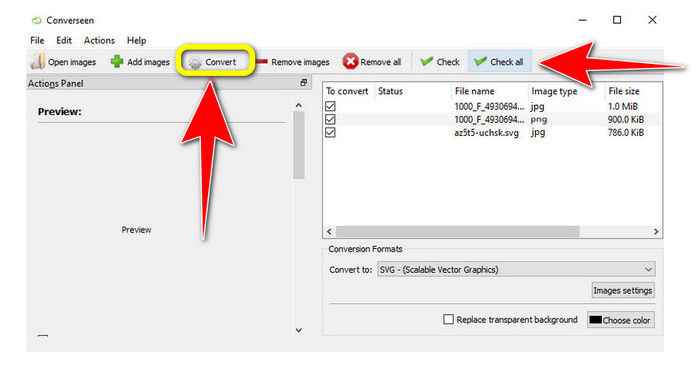
Trin 2. Værktøjet er nemt at bruge. Du kan se funktionsknapperne øverst foran. Vælg dine fotos ved at klikke på knappen Add images på hovedskærmen.
Trin 3. Gå derefter til indstillingen Convert to. Vælg derefter filformatet SVG i formatindstillingerne.
Trin 4. Du kan bekræfte, at du vil konvertere de indlæste fotos ved at afkrydse felterne. Vælg blot Check eller Check All i topmenuen. For at starte processen skal du klikke på knappen Convert til sidst.
Del 3. Sådan konverteres billeder til SVG på iPhone og Android
File Converter er den bedste app til at konvertere billeder til SVG, du kan bruge på din iPhone og Android. Du kan også bruge applikationen gratis. Den er tilgængelig i Google Play Store og App Store. Installationsprocessen er dog for langsom. Og processen er udfordrende, især for begyndere. Sørg også for, at du har en internetforbindelse.
Trin 1. Installer appen File Converter på din mobile enhed. Start derefter applikationen.
Trin 2. Gå til indstillingen Image Converter. Vælg derefter SVG-filen som dit outputformat.
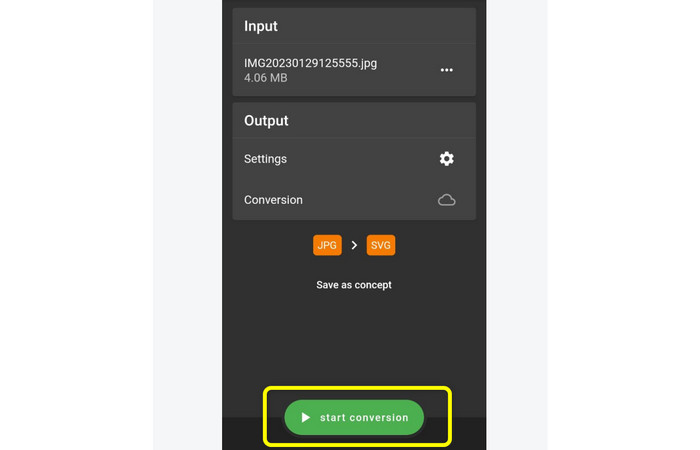
Trin 3. Derefter vises en anden grænseflade. Klik på indstillingen File for at indsætte det billede, du vil konvertere.
Trin 4. Til sidst skal du trykke på knappen Start Conversion for at starte konverteringsprocessen. Derefter kan du gemme dit konverterede billede på din telefon. Klik her for at lære, hvordan du konverterer billeder til PNG.
Del 4. Ofte stillede spørgsmål om konvertering af billeder til SVG
1. Hvilket komprimeringsskema bruger SVG?
En tabsfri fil er en SVG. SVG-filer inkluderer derfor tabsfri filkomprimering. Som et resultat kan du zoome ind og ud af disse filer uden at miste kvaliteten. Efter komprimeringen mister du ingen information.
2. Hvad er SVG-filer bedst til?
Vektorbilleder, som SVG'er, mister aldrig opløsning, uanset hvor store eller små du gør dem, i modsætning til rasterfiler, som JPG'er, der er sammensat af pixels. De er fremragende til digitale designs som infografik, ikoner og logoer.
3. Hvordan gemmer jeg JPG som SVG?
Du kan bruge mange billedkonvertere til at gemme dit JPG-format som SVG. En almindelig måde at omkode billedet på er at indtaste JPG-filen, vælge SVG som outputformat og fortsætte til konverteringsprocessen. På denne måde kan du gemme din JPG-billedfil i SVG-format.
Konklusion
Denne vejledning har vist dig de bedste metoder til at konvertere dine billeder til SVG online, offline og på mobile enheder. Du kan også bruge FVC Free Image Converter til at ændre SVG til andre billeder. Dette onlineværktøj er let at bruge og tilbyder batchkonvertering uden at kræve et abonnementsabonnement.
-
 Metoder til, hvordan man konverterer billeder til JPG online og offline
 Vil du af en eller anden grund konvertere filen til JPG-format? Så er denne artikel noget for dig. Vi vil lære dig den bedste metode til at konvertere dit billede til JPG
-
 Mest ligetil metoder til at konvertere SVG til PNG
 Ved, hvordan du ændrer din billedfil fra SVG til PNG ved hjælp af nyttige billedkonvertere. Læs denne guidepost for at lære alt, hvad du behøver at vide om konvertering.
-
 Ubesværede metoder til, hvordan man konverterer SVG til JPG-format
 Finder du den bedste måde at konvertere SVG til JPG? Dette indlæg vil give nogle surefire tutorials, du kan prøve. Du vil også opdage SVG til JPG-konverteren for dig.
