


 Video Converter Ultimate
 Skærmoptager
 Video reparation
 Sikker download
Krympende lyd: Sådan konverteres WAV til OGG-format til mindre filstørrelser
Store lydfiler kan bruge meget hukommelse på din computer eller mobile enhed, når du arbejder med dem. Ved at konvertere disse filer fra WAV til OGG-format reduceres deres størrelse markant, så de er lettere at håndtere og overføre. I dette indlæg ser vi på fordelene ved at konvertere WAV-filer til OGG-format og viser dig trin for trin, hvordan du gør det. Vi gennemgår også nogle af de bedste programmer til opgaven, så du får den bedst mulige lyd. Så uanset om du er musiker, podcaster eller bare gerne vil organisere dine lydoptagelser, er denne artikel til dig.

Del 1. Sammenligning af OGG vs. WAV
Her er et sammenligningsdiagram, der skitserer forskellene mellem at konvertere WAV til OGG. Du kan tjekke dem ud til din reference.
| WAV | OGG | |
| Filstørrelse | Stor | Lille |
| Kompression | Ukomprimeret | Komprimeret |
| Lydkvalitet | Høj kvalitet | Høj kvalitet |
| Kompatibilitet | Bredt kompatibel | Mindre kompatibel |
| Platform støtte | Understøttet på alle platforme | Begrænset support på nogle platforme |
| Redigering | Let at redigere | Lidt sværere at redigere |
Del 2. Bedste måde at konvertere WAV til OGG eller OGG til WAV
1. FVC Video Converter Ultimate
FVC Video Converter Ultimate er et effektivt videokonverteringsprogram, der kan hjælpe dig med hurtigt og nemt at konvertere dine WAV-lydfiler til det komprimerede OGG-format. Med dets intuitive og brugervenlige grænseflade kan du nemt vælge dine WAV-filer, vælge OGG-formatet og starte konverteringsprocessen med blot nogle få klik.
Derudover inkluderer FVC Video Converter Ultimate avancerede videoredigeringsfunktioner, der giver dig mulighed for at trimme, beskære, tilføje vandmærker og anvende forskellige filtre til dine lydfiler før konvertering. Denne funktion kan være nyttig, hvis du skal foretage mindre justeringer eller forbedre kvaliteten af dine lydfiler, før du konverterer dem til OGG-format. Derfor, hvis du ønsker at batchkonvertere OGG til WAV eller omvendt, skal du følge nedenstående trin:
Trin 1. Installer programmet og importér OGG- eller WAV-filer
FVC Video Converter kan downloades og installeres fra den officielle hjemmeside. Start programmet, og vælg knappen med Plus-tegnet for at importere den lydfil, der skal konverteres.
Free DownloadTil Windows 7 eller nyereSikker download
Gratis downloadTil macOS 10.7 eller nyereSikker download
Trin 2. Vælg OGG som outputformat
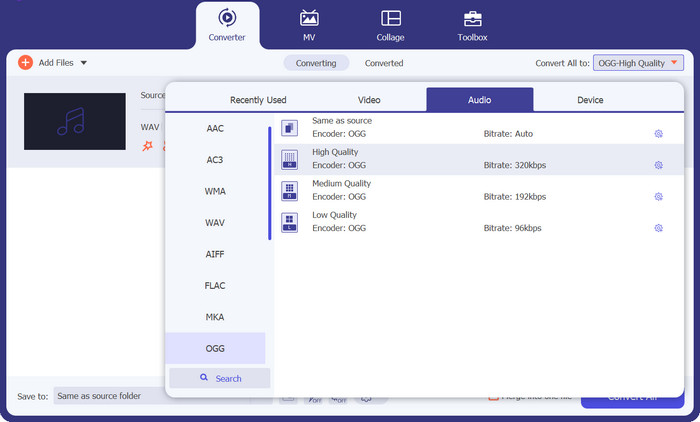
Ved at klikke på rullemenuen Profile og vælge OGG fra listen over tilgængelige formater kan du vælge OGG som outputformat. Du kan også ændre outputindstillingerne ved at vælge knappen Settings, hvis det er nødvendigt. Det giver dig mulighed for at ændre parametre som bithastighed, samplingsfrekvens og kanaler.
Trin 3. Angiv outputplacering
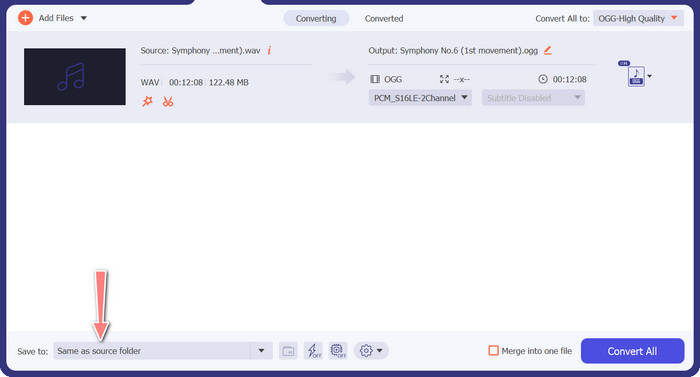
Ved at vælge knappen Browse ved siden af feltet Output Folder kan du vælge den outputmappe, hvor du ønsker at gemme den konverterede fil.
Trin 4. Konvertering fra WAV til OGG
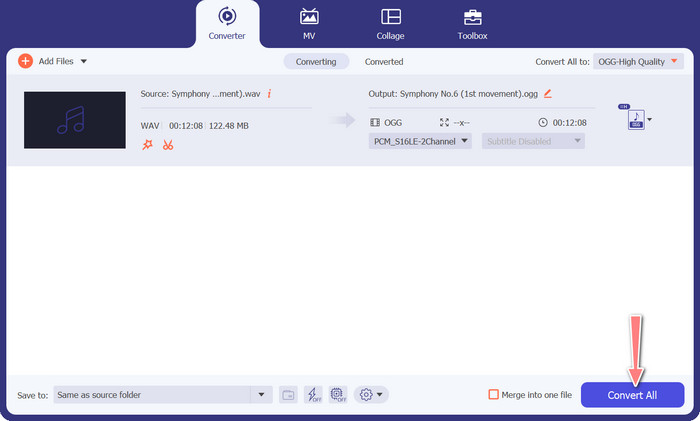
Når du er tilfreds med dine valg, skal du klikke på knappen Convert All for at starte konverteringen. FVC Free Video Converter begynder at konvertere din WAV-fil til OGG-format. Statuslinjen viser, hvor langt konverteringsprocessen er nået, samt den anslåede resterende tid.
2. Gratis Audio Converter Online
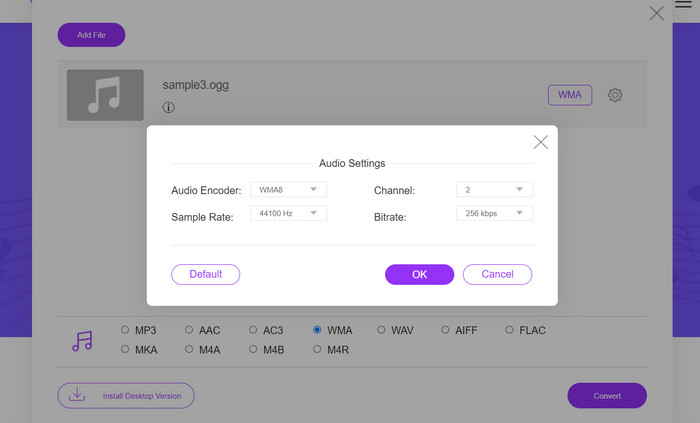
Den Free Audio Converter Online er et effektivt værktøj til at konvertere WAV til OGG online. Brugere kan hurtigt tilføje WAV- eller OGG-filer og konvertere dem til OGG-format via den enkle grænseflade. Konverteren giver også brugerne mulighed for at ændre outputindstillingerne, såsom bithastighed og samplingsfrekvens, for at opnå den ønskede kvalitet på OGG-filerne. Konverteringsprocessen er hurtig og ligetil, og brugerne kan downloade deres konverterede filer direkte fra hjemmesiden.
Trin 1. Gå til websiden Free Video Converter Online i din foretrukne webbrowser.
Trin 2. Upload den OGG-fil, du vil konvertere til WAV, ved at klikke på knappen Add Files to Convert.
Trin 3. Vælg OGG som outputformat i Audio-formatmenuens liste over understøttede formater. Du kan også angive bithastighed og outputkvalitet for OGG-filen.
Trin 4. Klik på knappen Convert for at starte konverteringsprocessen. Sådan konverterer du OGG til WAV online.
Del 2. Konverter OGG til WAV eller WAV til OGG med Audacity
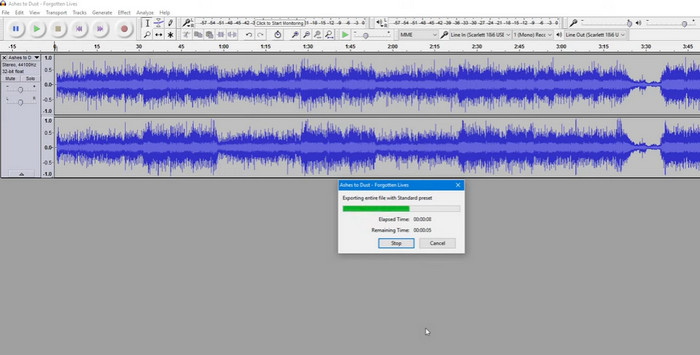
Dette værktøj er en open source-lydredigeringssoftware, der kan konvertere MP3-filer til OGG-filer. Audacity tilbyder en række redigeringsværktøjer og effekter ud over konvertering, hvilket giver brugerne mulighed for at finjustere og forbedre deres lydfiler, hvilket gør det til et alsidigt værktøj til lydredigering og konverteringsoperationer.
Desuden er Audacity tilgængelig til Windows, macOS og Linux, hvilket gør det bredt tilgængeligt. Audacity er et godt alternativ for alle, der ønsker at konvertere WAV-filer til OGG-format på grund af dets sofistikerede muligheder og brugervenlighed. Undersøg vejledningen nedenfor for at lære, hvordan dette program fungerer.
Trin 1. Download og installer Audacity på din pc. Åbn Audacity, og derefter den OGG- eller WAV-fil, du vil redigere. Det gør du ved at vælge File > Open og derefter finde og vælge WAV-filen på din computer.
Trin 2. Når WAV-filen er åbnet i Audacity, skal du klikke på File og derefter Export. I dialogboksen Export Audio vælger du OGG Vorbis Files som filtype.
Trin 3. Du kan justere kvaliteten af din OGG-fil ved at trække i Quality-skyderen. Højere kvalitetsindstillinger øger filstørrelsen, mens lavere kvalitetsindstillinger mindsker filstørrelsen, men kan forringe lydkvaliteten.
Fordele
- Det har evnen til at batchkonvertere WAV til OGG.
- Konverter OGG til WAV på Windows, macOS og Linux.
Ulemper
- Programmet har ikke et dedikeret støttefællesskab.
Del 3. Konverter OGG til WAV eller WAV til OGG med VLC
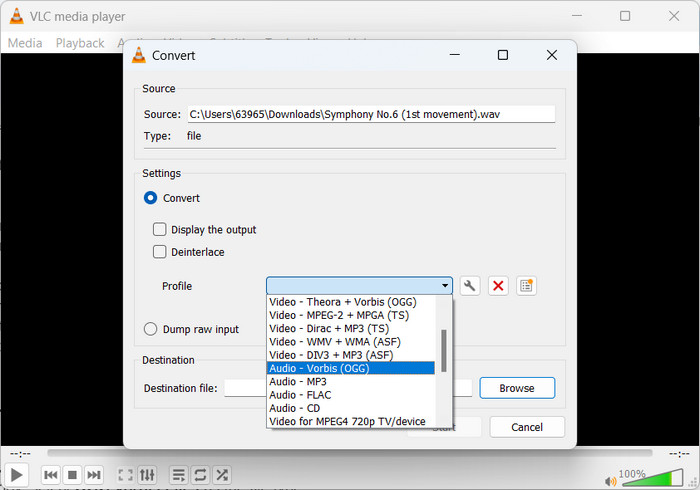
VLC medieafspiller er et kraftfuldt multimedieværktøj, der er meget brugt til at afspille forskellige typer mediefiler. Mange brugere er måske ikke klar over, at dette program også fungerer godt som konverter OGG til WAV til Mac-værktøj. Med dets indbyggede konverterværktøj kan VLC medieafspiller hurtigt og nemt konvertere WAV-filer til OGG-format, så brugerne kan nyde deres yndlingsmusik i en række forskellige formater. Til alle dine lydkonverteringsbehov tilbyder VLC medieafspiller en ligetil og brugervenlig løsning, uanset om du ønsker at konvertere en enkelt fil eller en batch af filer. Følg disse trin for at lære, hvordan du konverterer en MP3-fil til en OGG-fil:
Trin 1. For at afspille en video skal du køre VLC og vælge fra afspillerens menulinje. Valgmuligheden Convert / Save vises i en rullemenu; vælg den.
Trin 2. Klik på knappen Add, og vælg den WAV-fil, du vil konvertere, i området File Selection. Når du er klar til at konvertere eller gemme filen, er det tid til at klikke på knappen Convert / Save.
Trin 3. Klik på rullemenuen Profile, og vælg Audio - Vorbis (OGG) som din foretrukne profil.
Trin 4. Klik på knappen Browse til højre for sektionen Destination-fil for at angive en ny placering og et nyt filnavn til den konverterede fil. Konverteringen kan startes ved at klikke på knappen Start nederst i vinduet.
Fordele
- Brugervenlig grænseflade.
- Det understøtter mange video- og lydformater.
Ulemper
- Muligt tab af lydkvalitet.
Yderligere læsning:
Konvertér MP3 til OGG og få overlegen lydkvalitet
Sådan konverterer du gratis MP4 til WAV på computer eller online [2023]
Del 4. Ofte stillede spørgsmål om konvertering af OGG til WAV
Kan jeg konvertere flere WAV-filer til OGG-format på én gang?
Ja, mange lydkonverteringssoftware, inklusive FVC Video Converter Ultimate, understøtter batchkonvertering, som giver dig mulighed for at batchkonvertere WAV til OGG-format samtidigt.
Er det muligt at konvertere OGG-filer tilbage til WAV-format?
Ja, det er muligt at konvertere OGG-filer tilbage til WAV-format ved hjælp af lydkonverteringssoftware. Husk dog, at lydkvaliteten kan blive påvirket, hvis den originale WAV-fil blev komprimeret til OGG-format.
Kan jeg konvertere mine WAV-filer til andre lydformater end OGG?
Ja, de fleste lydkonverteringssoftware understøtter en lang række lydformater, inklusive MP3, AAC, FLAC og mere.
Konklusion
At konvertere dine filer fra WAV til OGG-format kan give flere fordele, såsom at reducere filstørrelsen og samtidig bevare høj lydkvalitet. Samtidig kan du med de rette lydkonverteringsværktøjer og lidt viden nemt konvertere dine lydfiler til det format, der passer bedst til dine behov.
-
 Fremragende OGG-afspillere til Windows og Mac, du bør ikke gå glip af
 Når du vil afspille din yndlingslyd i OGG-format, især når der er mindre lagerplads. Du kan lære mere om de 5 bedste OGG-spillere fra denne artikel.
-
 Find ud af hvordan du konverterer MP3 til et WAV -format
 Vil du vide, hvordan du konverterer MP3 til WAV? Bestem hvilket af værktøjerne, der producerer den bedste kvalitetskonvertering, du kan få.
-
 2 bedste måder at redigere OGG-metadata på, du bør prøve gratis
 Har du brug for at redigere OGG-metadata? Nå, du kan nemt håndtere redigering af tags ved at bruge den korrekte software. Hvis du ikke har én, er det et must at læse denne artikel.
